

Taxes
Set up the taxes you charge, so quotes, jobs and invoices add the right tax for you.
Who can do this: Admins, dispatchers and accountants.
Also called: sales tax, GST, HST, VAT.
-
Open Company settings and scroll to Tax settings. Your tax rates are listed below the buttons.
On a computer: Left menu → Settings → Company settings On a phone: More → Settings → Company settings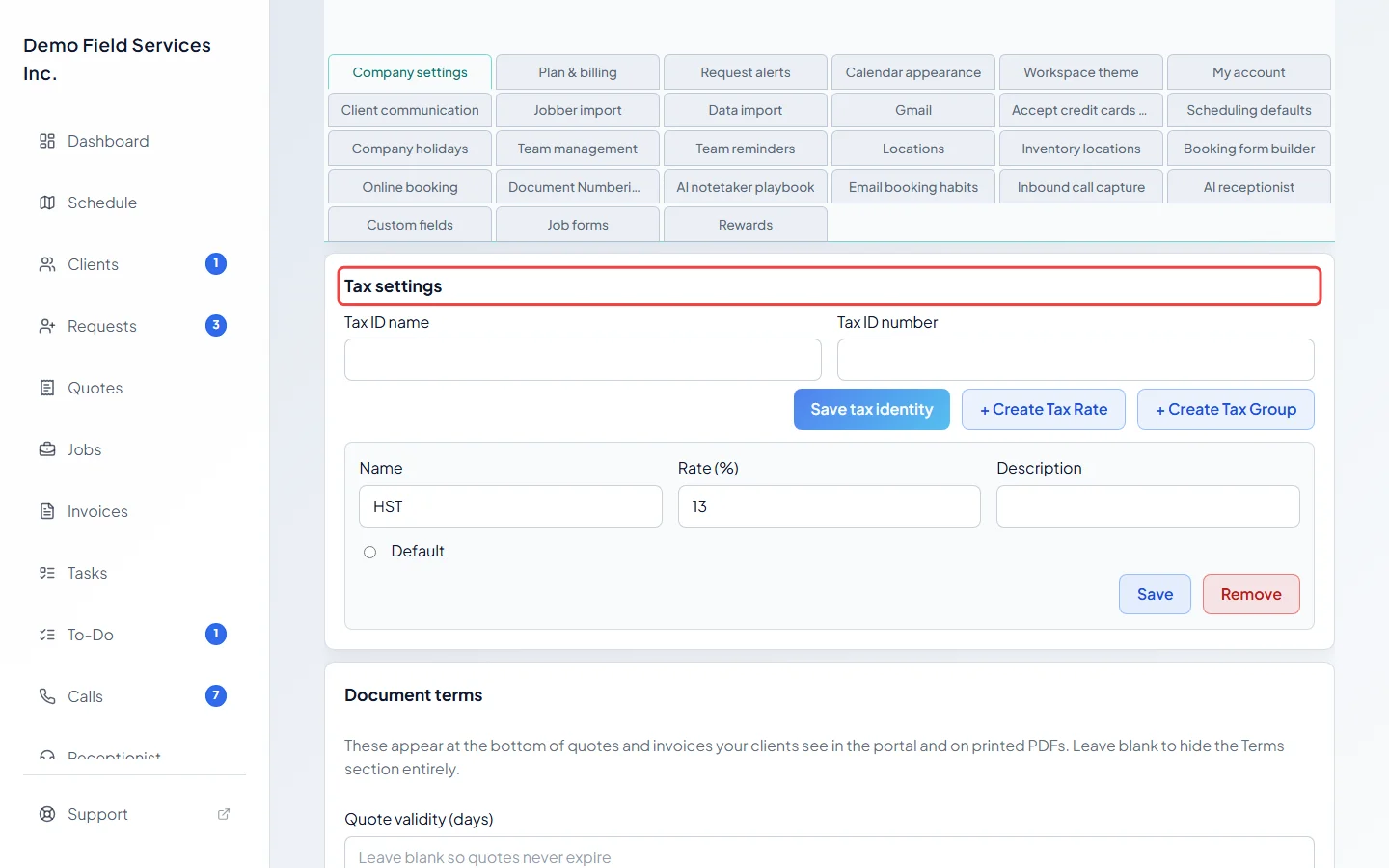
-
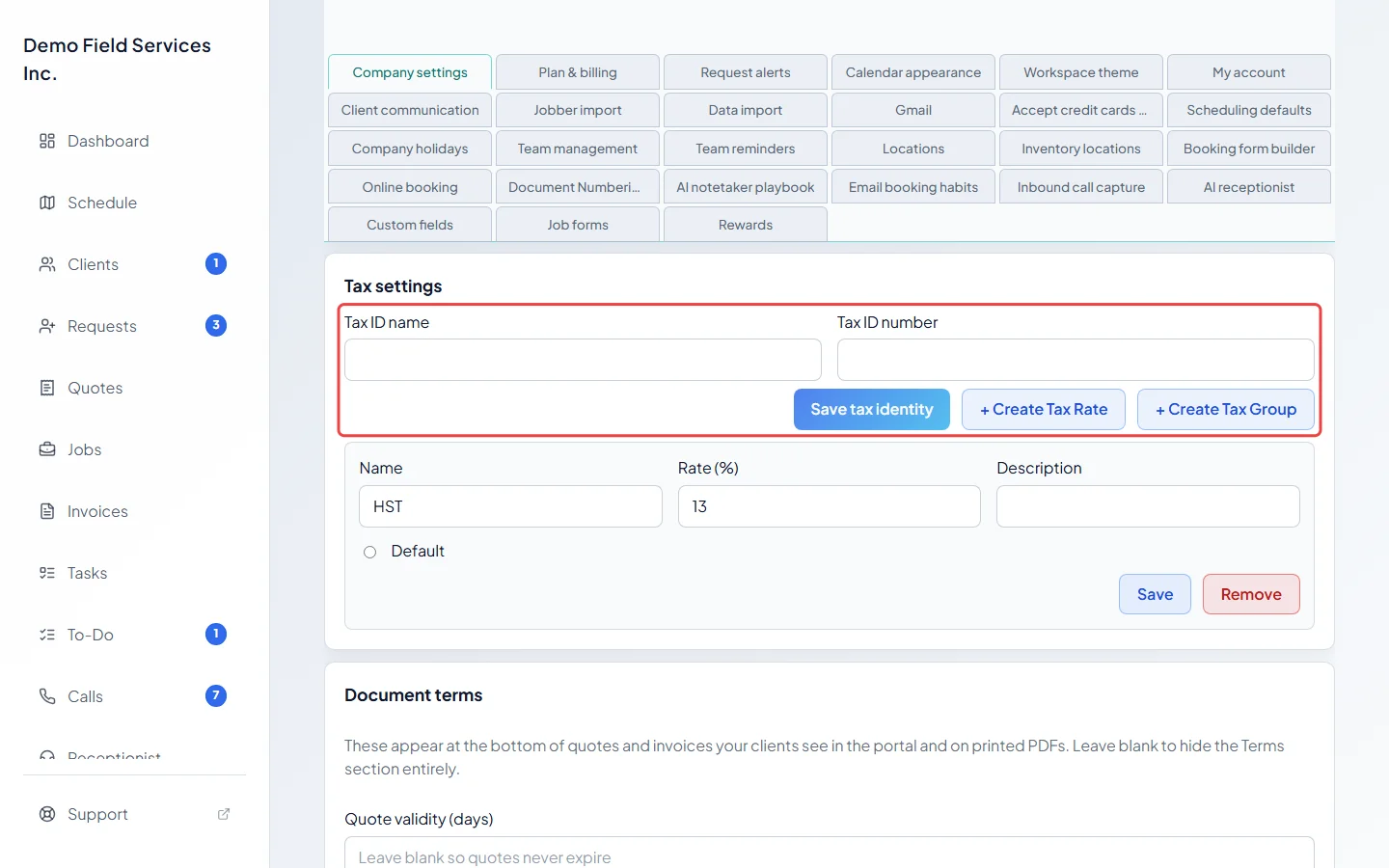
To print your tax registration on quotes and invoices, fill in Tax ID name (for example “GST/HST number”) and Tax ID number, then click Save tax identity. It prints on the PDFs only when both boxes are filled in.
-
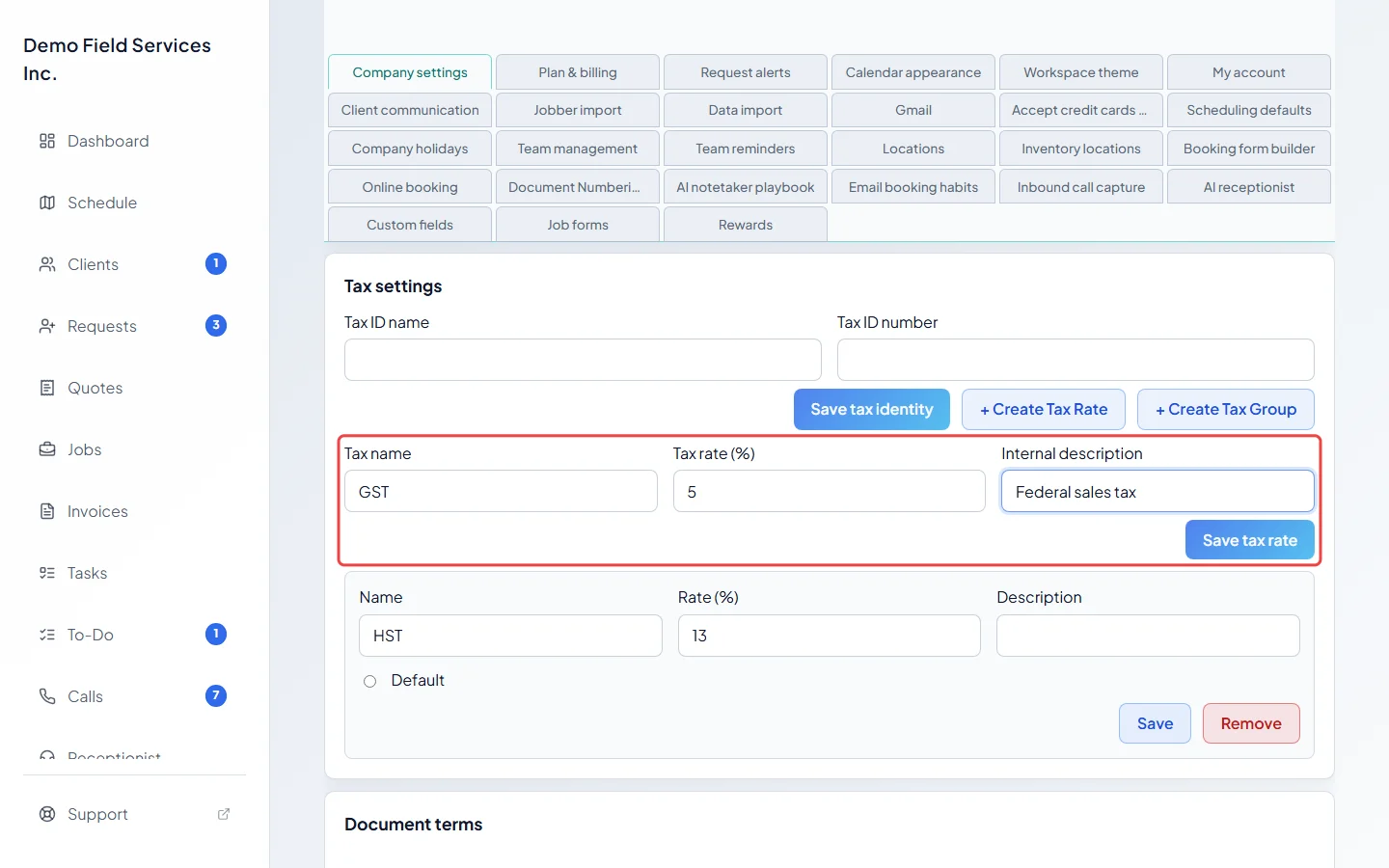
To add a tax, click + Create Tax Rate. Type a Tax name, the Tax rate (%) and, if you like, an Internal description that only your team sees. Click Save tax rate.
-
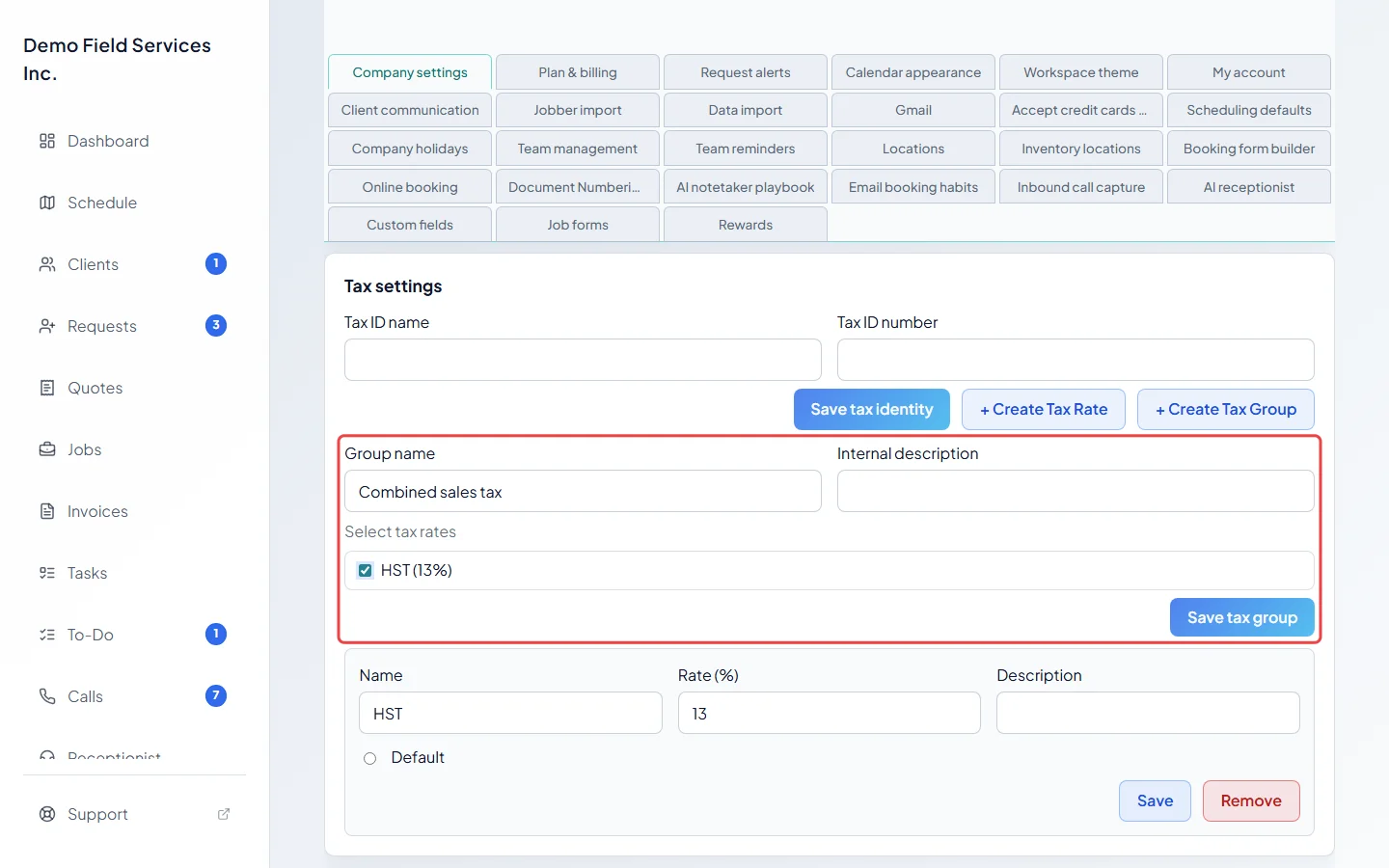
If you charge two taxes together, click + Create Tax Group. Type a Group name, tick the rates it combines under Select tax rates, and click Save tax group. The group’s rate is the rates added together, so you can’t type it yourself.
-
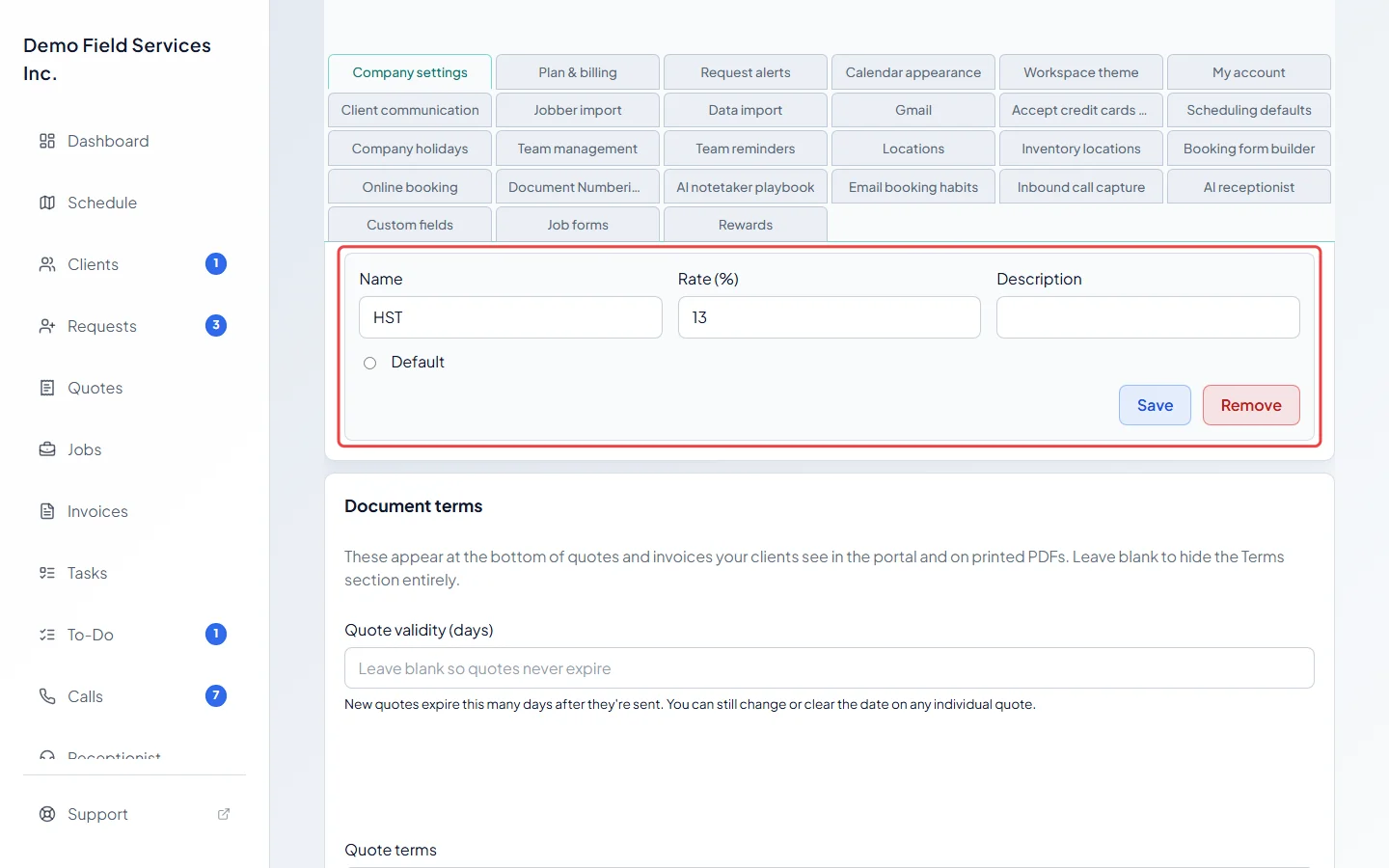
Each tax has its own row. Change its Name, Rate (%) or Description and click Save. For a group, change which rates are ticked under Select component rates. Pick Default on the tax new quotes, jobs and invoices should use; that saves straight away. To delete a tax you no longer charge, click Remove, then Remove tax rate to confirm.
Good to know
Section titled “Good to know”- You can choose a different tax on any one quote or invoice. See Line items, taxes and totals.
- If no tax is picked as Default (for example after you remove the default one), new work uses the first tax in the list. Pick a default so you know which one that is.
- Removing a rate that’s part of a tax group also takes it out of that group, so check the group’s rate afterwards.
- A product or service marked Exempt from tax is never taxed, whatever the rate.
Related articles
Section titled “Related articles”Checked against Astragal on October 18, 2026