

Sending an invoice to a client
Send the client their invoice, or a receipt once they have paid, by email or text.
Who can do this: Admins, dispatchers, accountants, and team members whose invoices permission is View, edit, and create or View, edit, create, and delete.
Also called: emailing a bill, sending a receipt.
-
Open the invoice. Until it has been sent, a yellow banner at the top says “This invoice has not been sent to the customer yet.”
On a computer: Left menu → Invoices On a phone: More → Invoices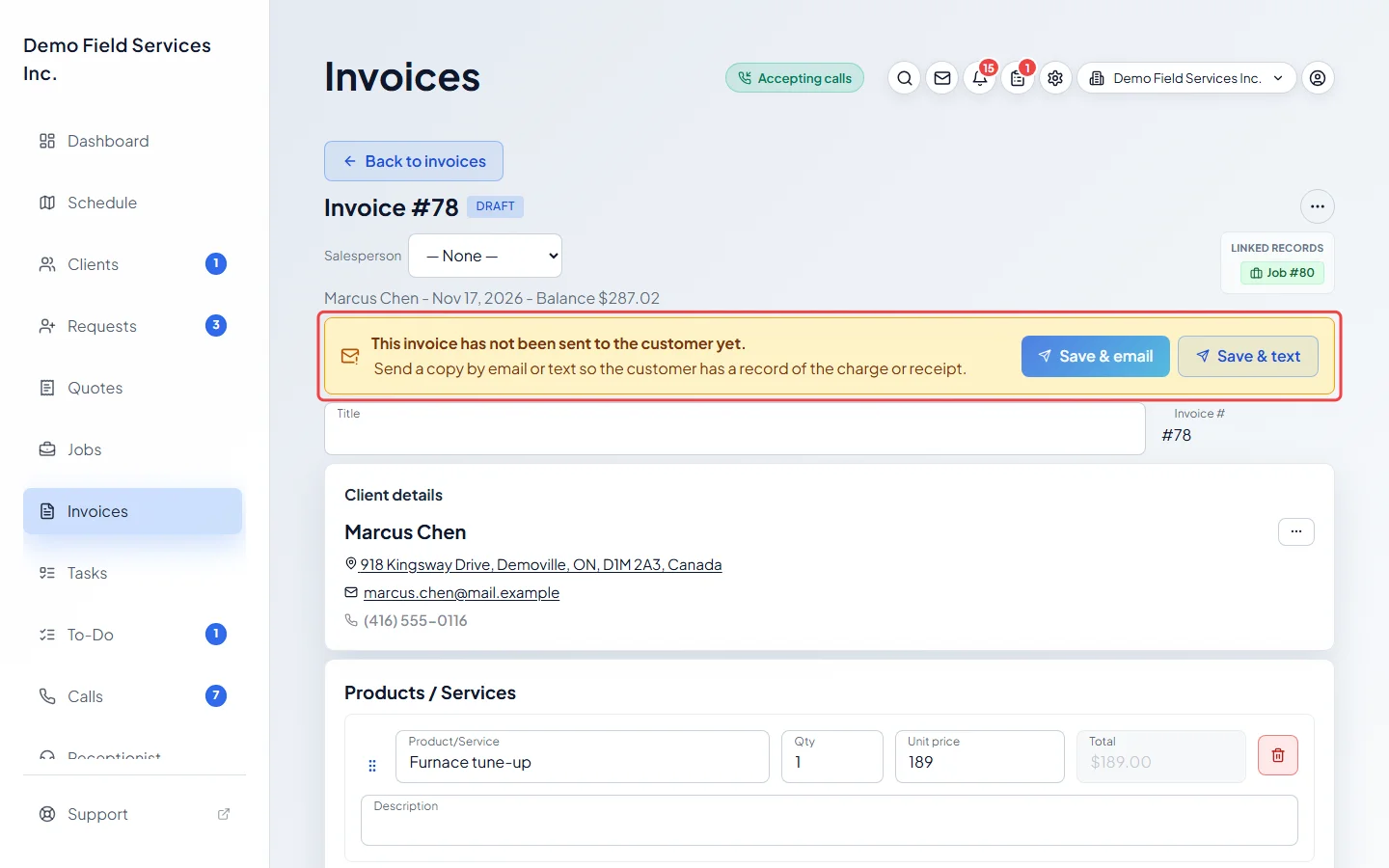
-
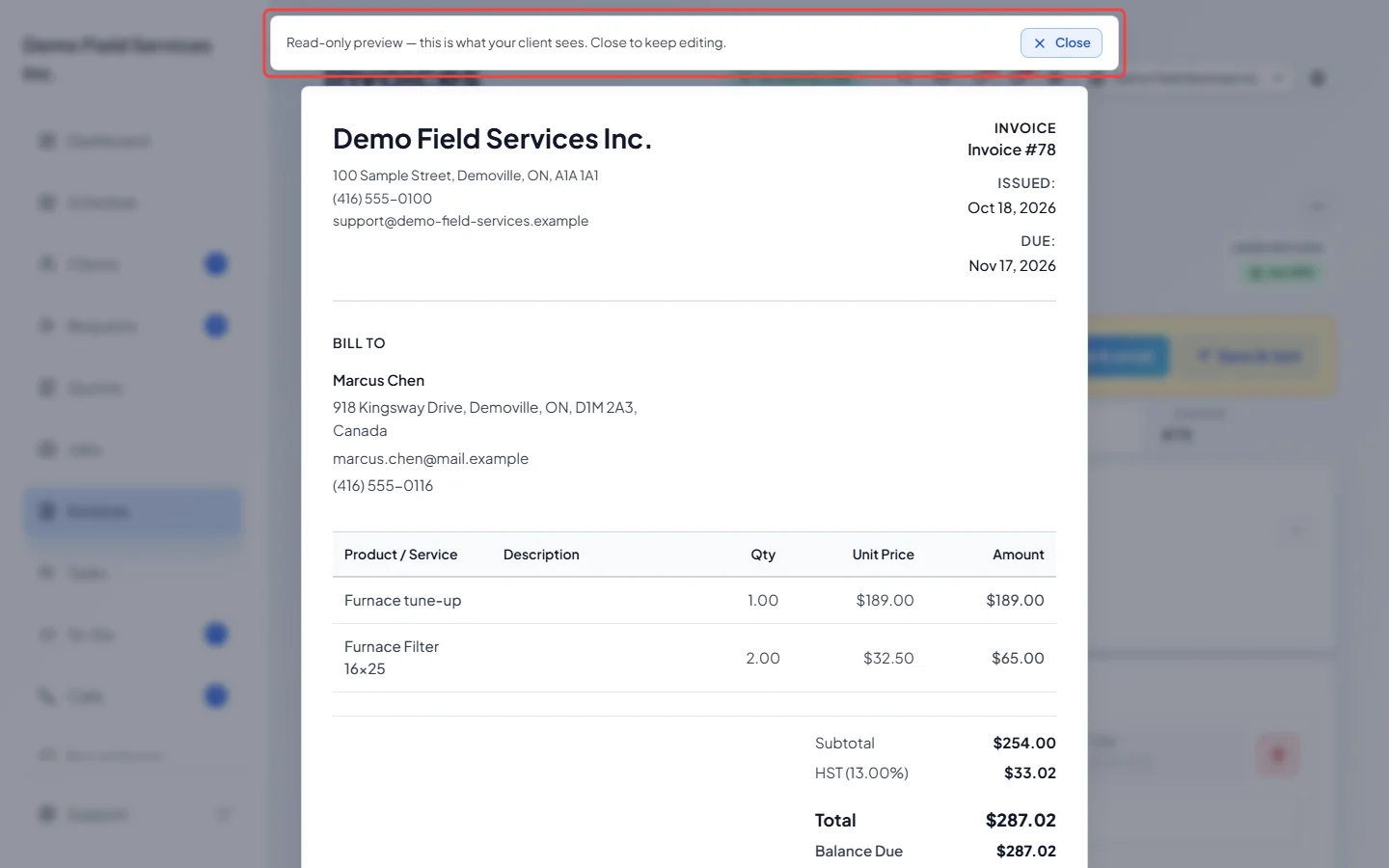
To see the invoice the way the client will, click the ••• button at the top right and choose Preview as Client. It shows the last saved version. Click Close to go back.
-
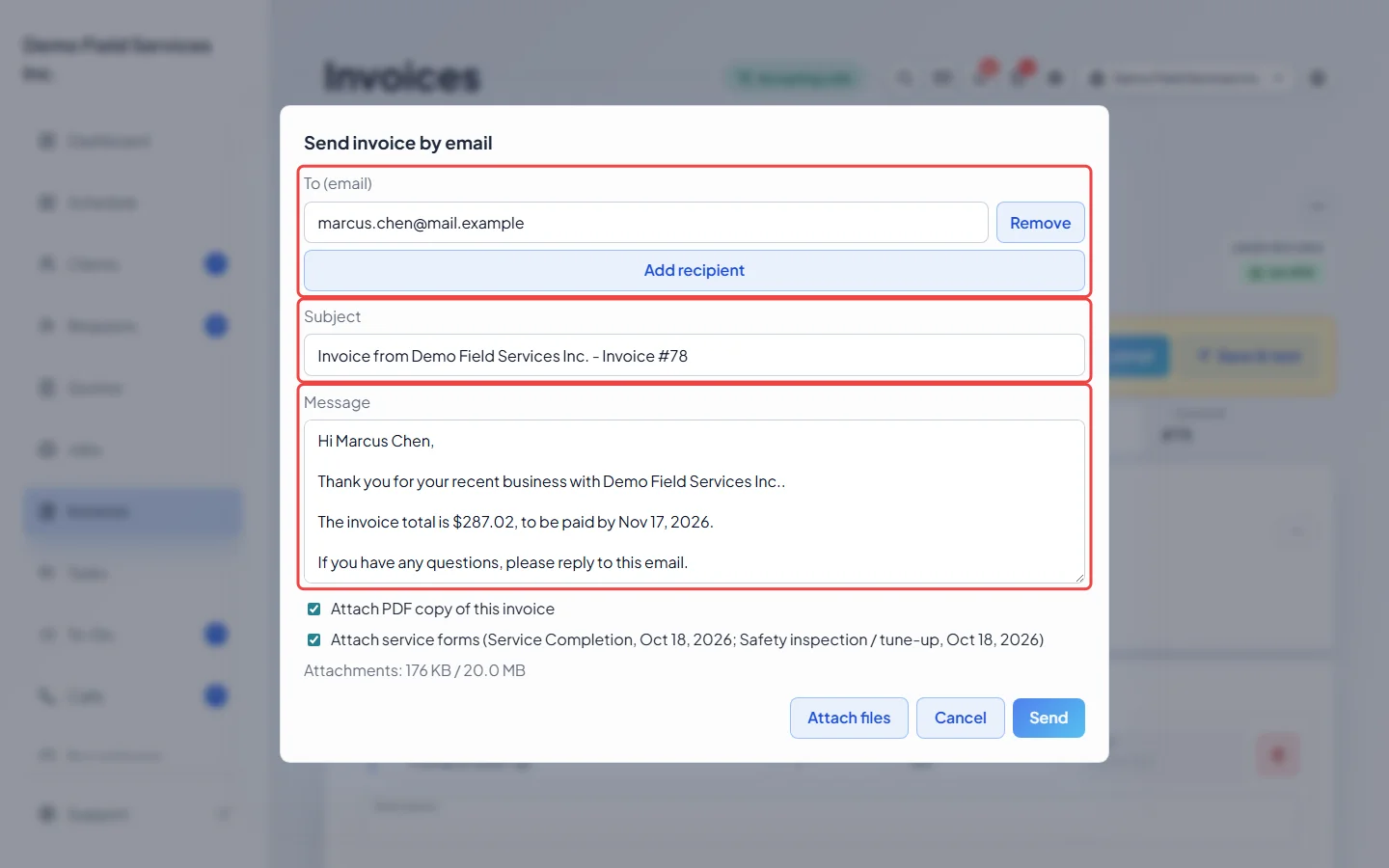
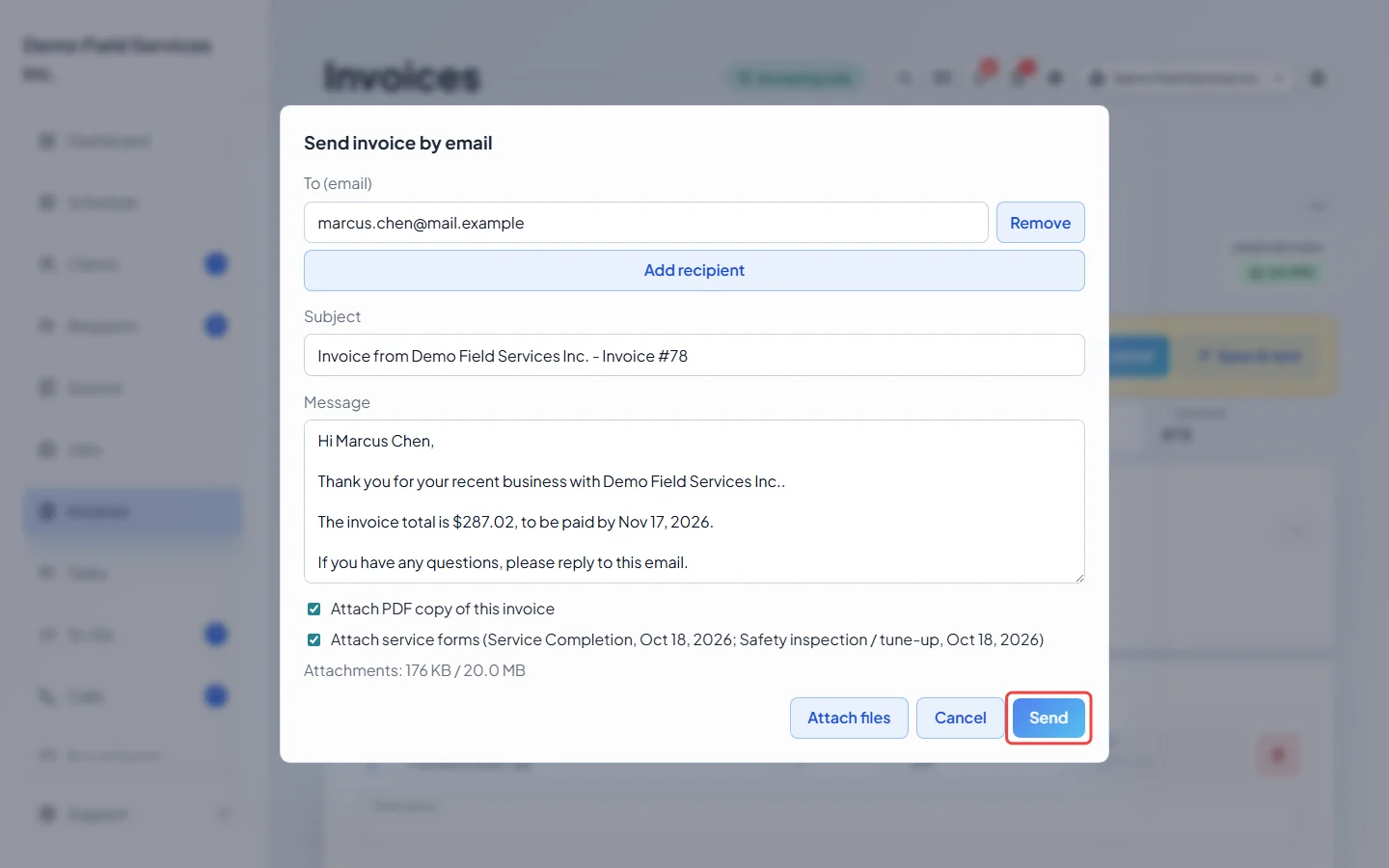
Click Save & email. Any changes you made are saved first, then the email window opens with the message filled in. The recipients are the client’s billing email addresses, or the invoice’s contact person if it has one; when it’s the contact person, a grey line under them says why. Click Remove to take someone off, a name under Available recipients to add them, or Add recipient to type an address. Change the Subject and Message if you like.
-
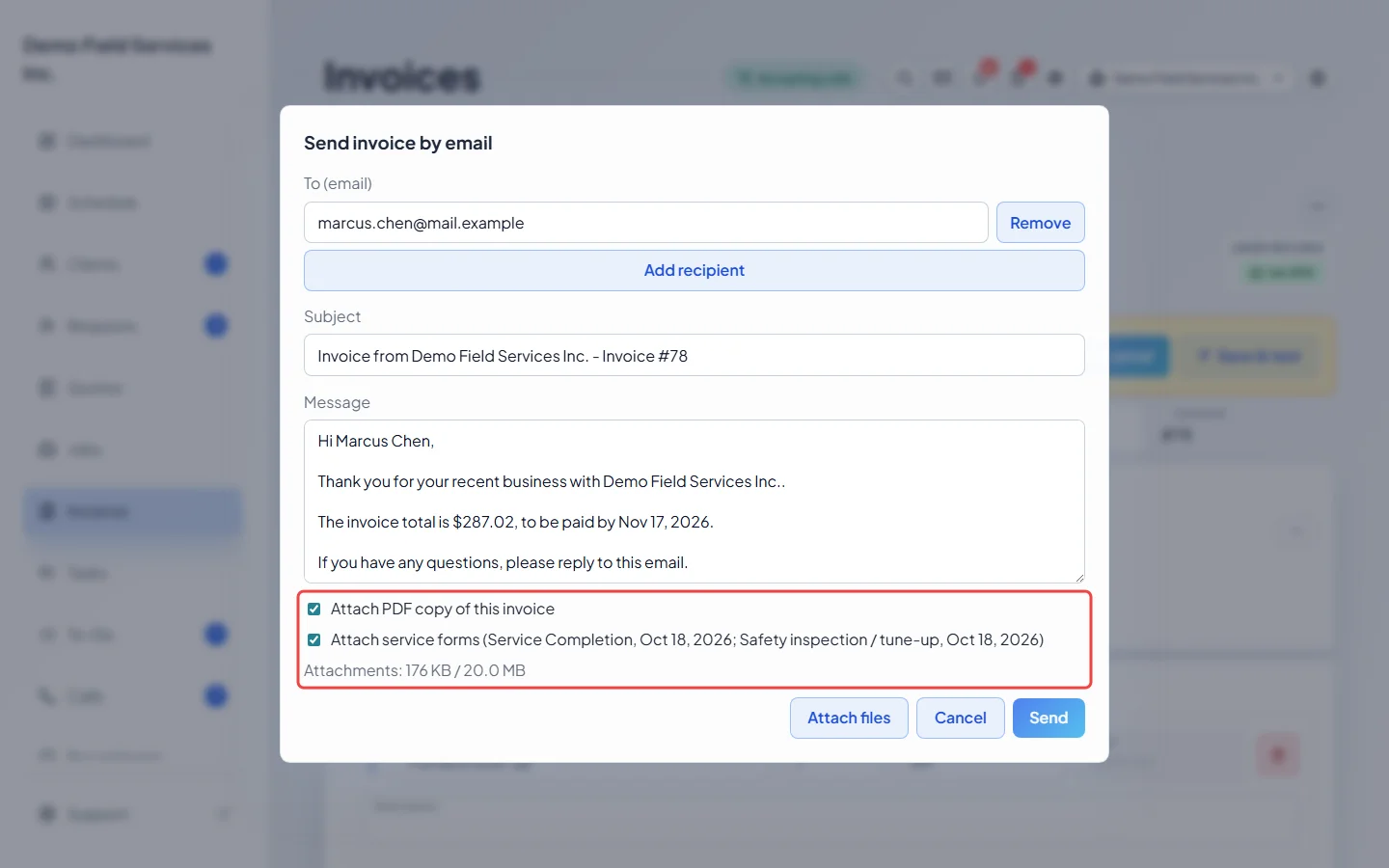
Choose what goes with the email. Attach PDF copy of this invoice is on by default. If the job has finished service forms, a box to attach them shows too. Click Attach files to add photos or PDFs, up to 20 MB in all.
-
Click Send. The invoice now counts as sent: the banner goes away and a draft’s status changes to Awaiting Payment (or Late Payment if its due date has passed).
Sending by text
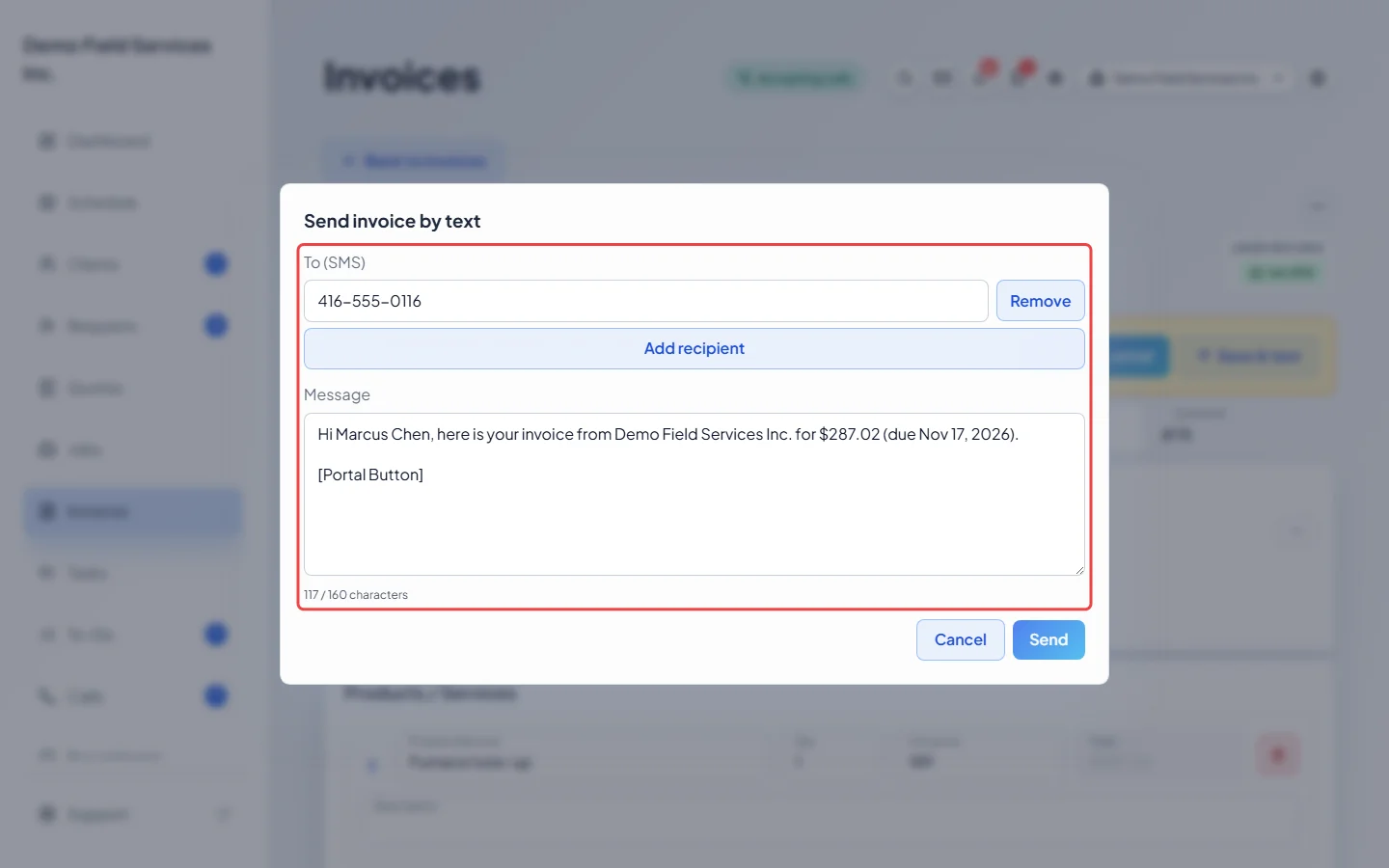
Section titled “Sending by text”Click Save & text instead. The text window works the same way, with phone numbers instead of email addresses and no attachments. A counter under the message shows how long the text is. “[Portal Button]” in the message is a placeholder: when the text is sent, it becomes the link where the client can view and pay the invoice. Leave it in.
Which message goes out
Section titled “Which message goes out”Astragal picks the wording from what has been paid, using your message templates:
- Nothing paid yet: the invoice, asking for payment.
- Part paid: a receipt for the latest payment, with what is still owed.
- Paid in full: a paid receipt.
- A quote’s deposit bill that has been paid: a deposit receipt that says how much of the quote is still to come.
- A warranty record: the no-charge warranty wording.
The message includes a link where the client can view the invoice and pay it online. To change the wording, see Message templates.
Good to know
Section titled “Good to know”- If this same version was already emailed or texted, the window warns you with the date, so a second copy is a choice and not an accident.
- Save & email and Save & text are also at the bottom of the invoice, and all three are in the ••• menu.
- Mark as sent in the ••• menu clears the not-sent warning without sending anything, for a client who already has a copy from somewhere else. Mark as not sent brings the warning back, for example if the email address was wrong. An invoice with no payments on it goes back to being a draft.
- A voided invoice can’t be sent until you restore it.
- If everything the client paid was refunded and nothing is owed, there is nothing to send. If a refund is still being confirmed, wait for it before sending a receipt.
Related articles
Section titled “Related articles”Next step: Recording payments
Checked against Astragal on October 17, 2026