

Creating an invoice
Make an invoice from scratch when there is no job to bill from, such as a call-out fee or a one-off sale.
Who can do this: Admins, dispatchers, accountants, and team members whose invoices permission is View, edit, and create or View, edit, create, and delete.
Also called: bill.
-
Open the invoices list and click New invoice. A window opens with two ways to start.
On a computer: Left menu → Invoices On a phone: More → Invoices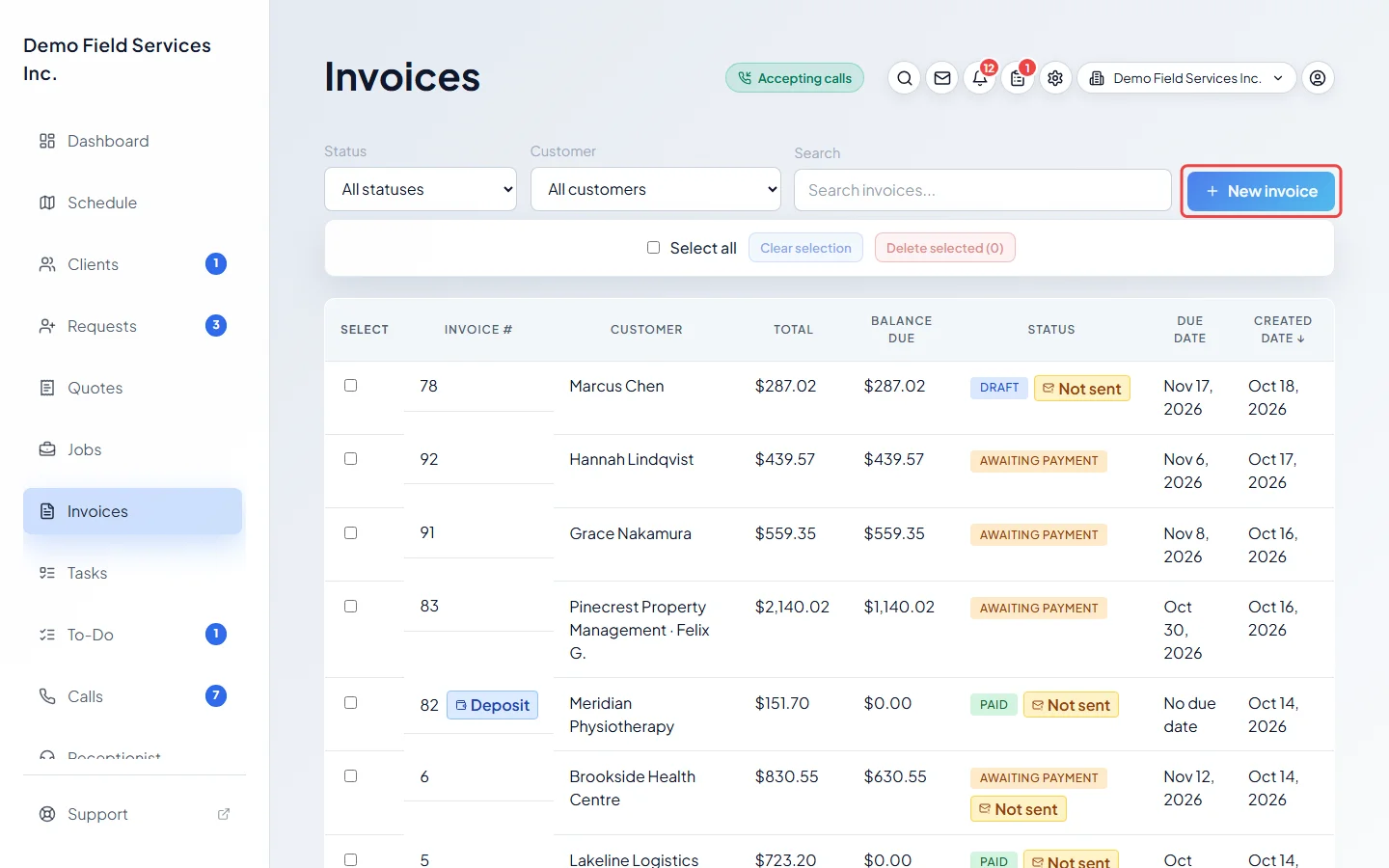
-
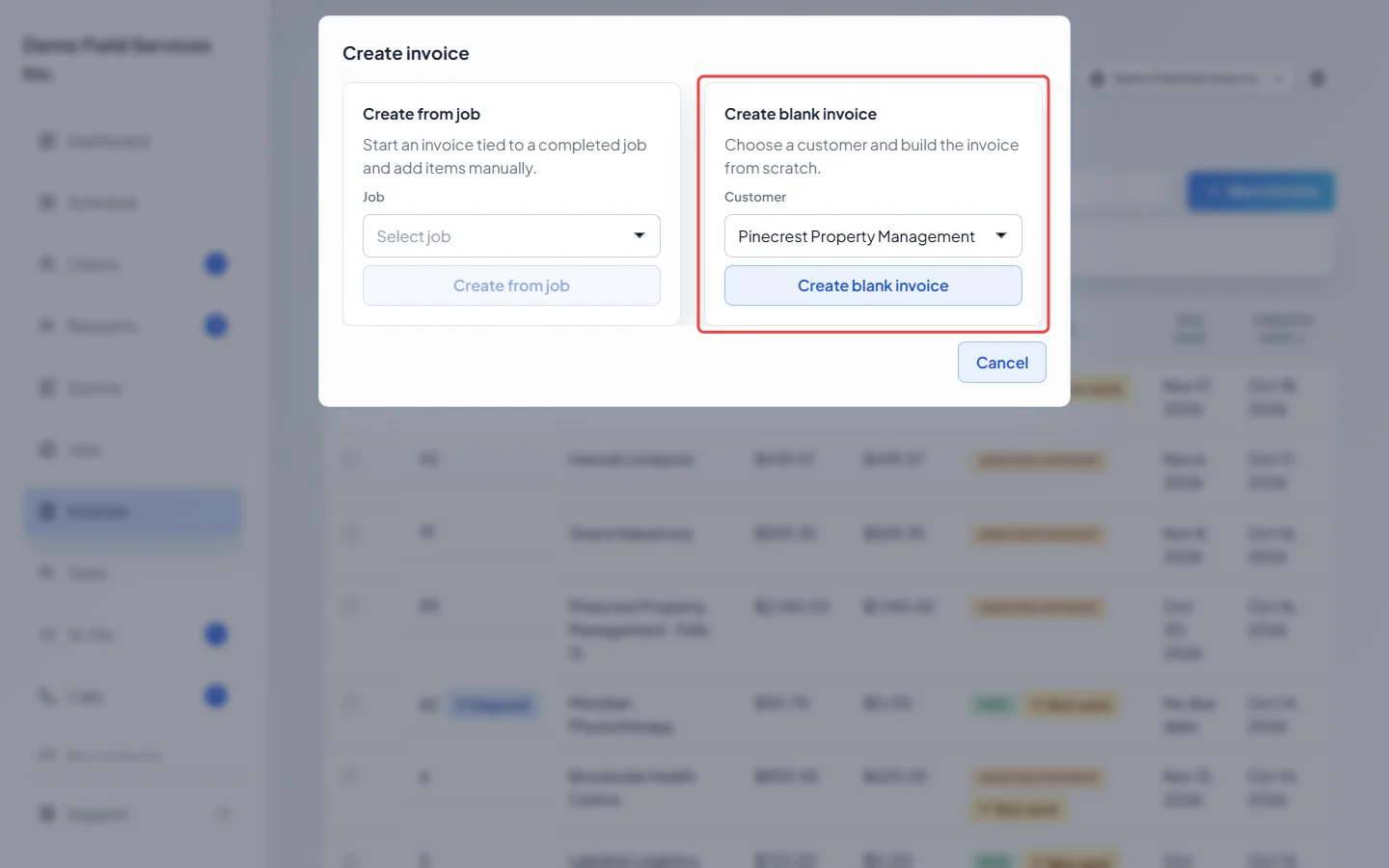
Under Create blank invoice, click the Customer box, search for the client and pick them. Then click Create blank invoice. (To bill a finished job instead, use Create from job. See Invoice from a completed job.)
-
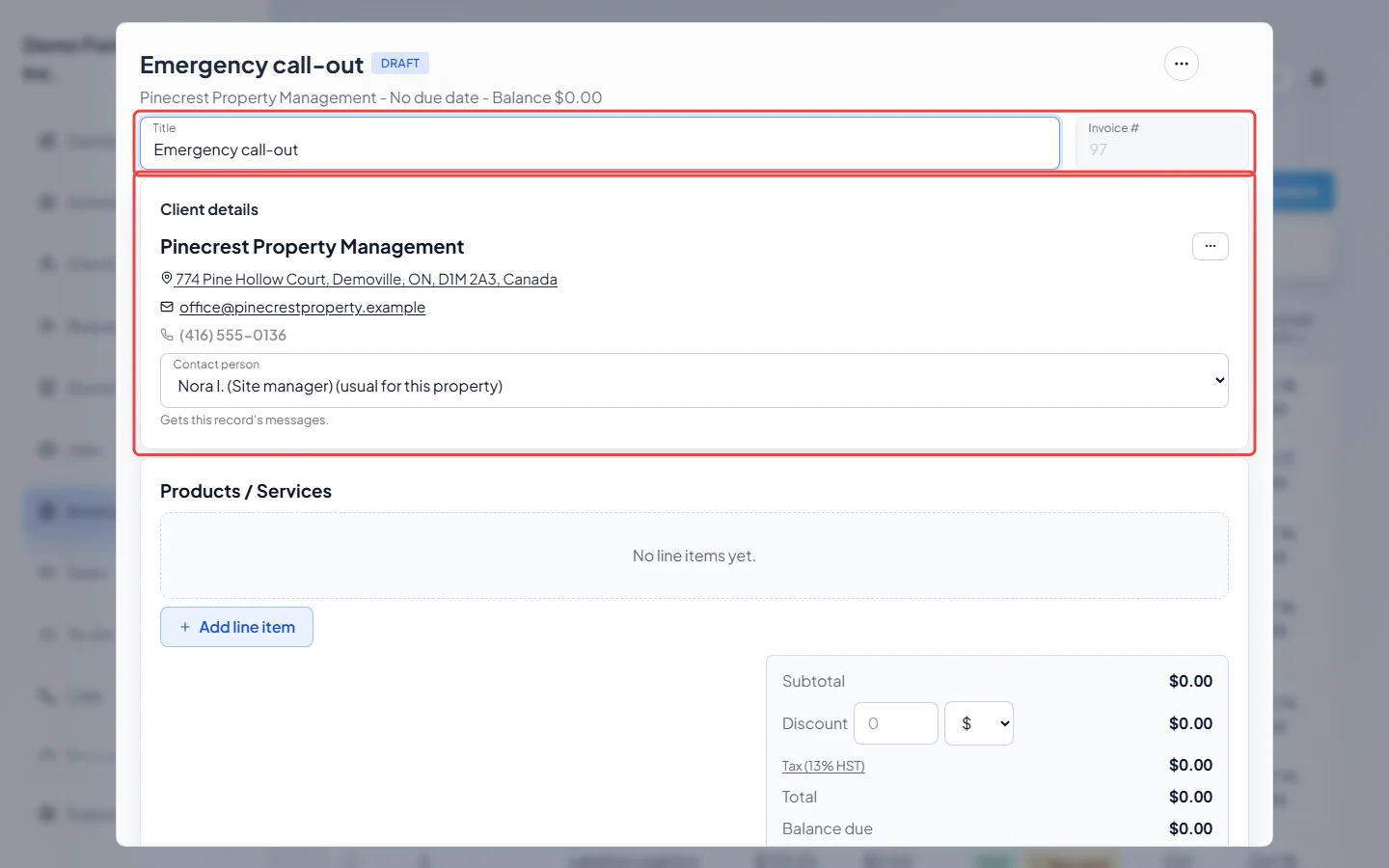
The new invoice opens. Type a Title if you want one; otherwise the invoice is called by its number. Invoice # shows the number it will get. Under Client details, check the property. To bill a different one of the client’s properties, click the ••• button beside their name and choose Change property.
-
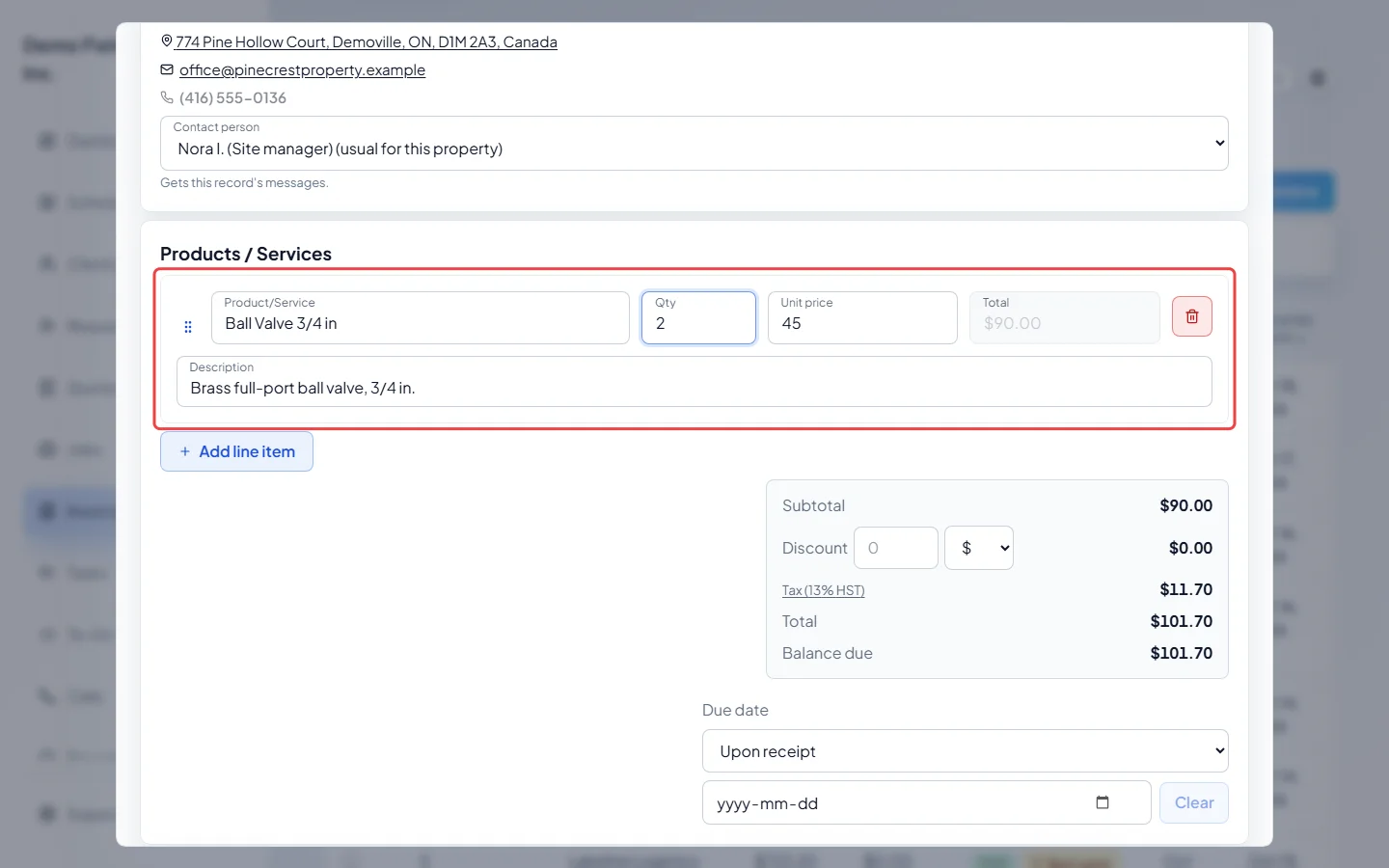
Under Products / Services, click Add line item. Start typing in Product/Service and pick an item from your list: its price, description and tax setting fill in. Type a new name and choose Create new item to add it to your list as you go. Set Qty and Unit price, and add a Description if you like. Add one line for each thing you are charging for.
-
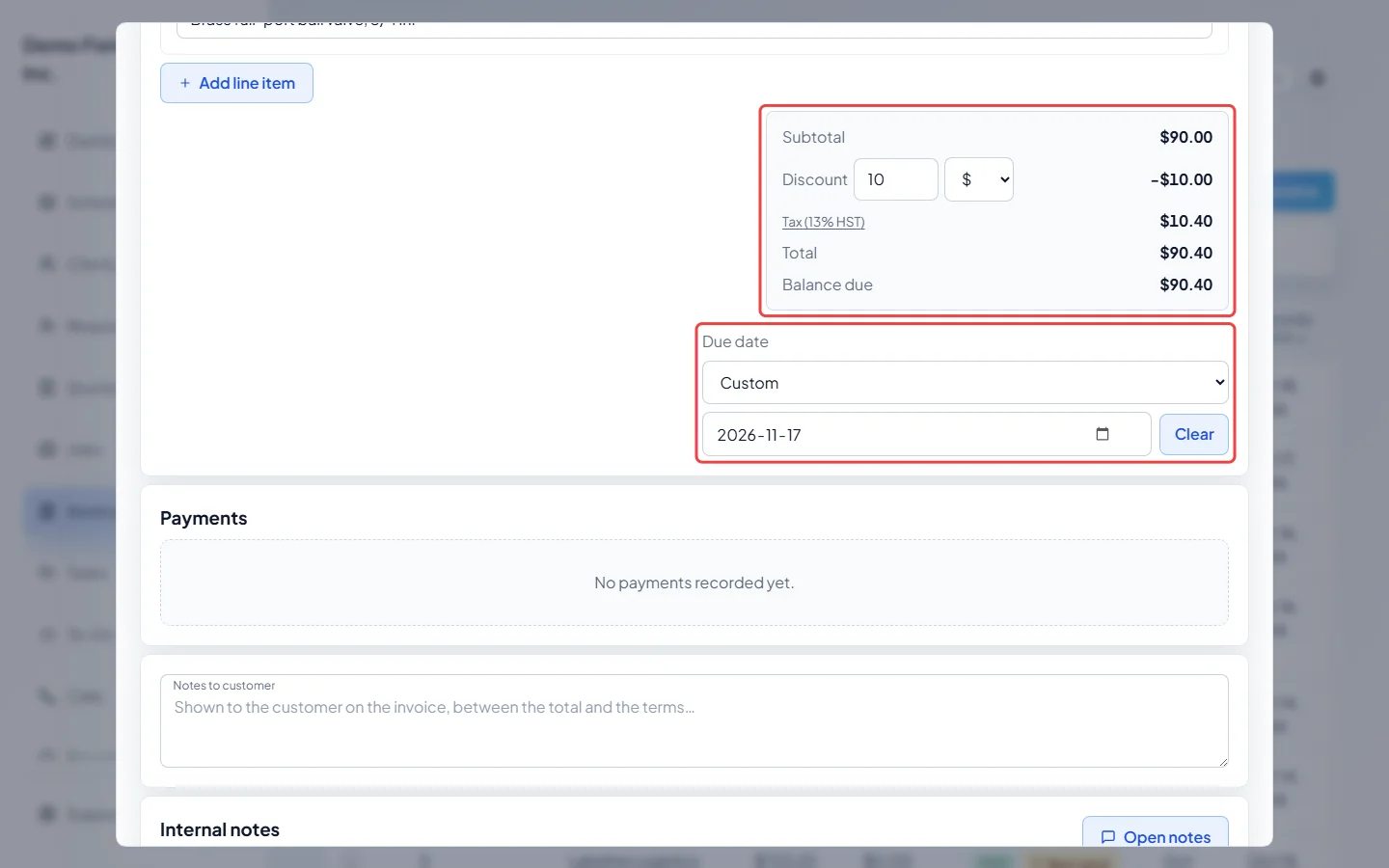
Check the totals. Type a Discount and pick $ or % beside it if you are giving one. Click the tax line to choose a different tax rate. Under Due date, type the date payment is due.
-
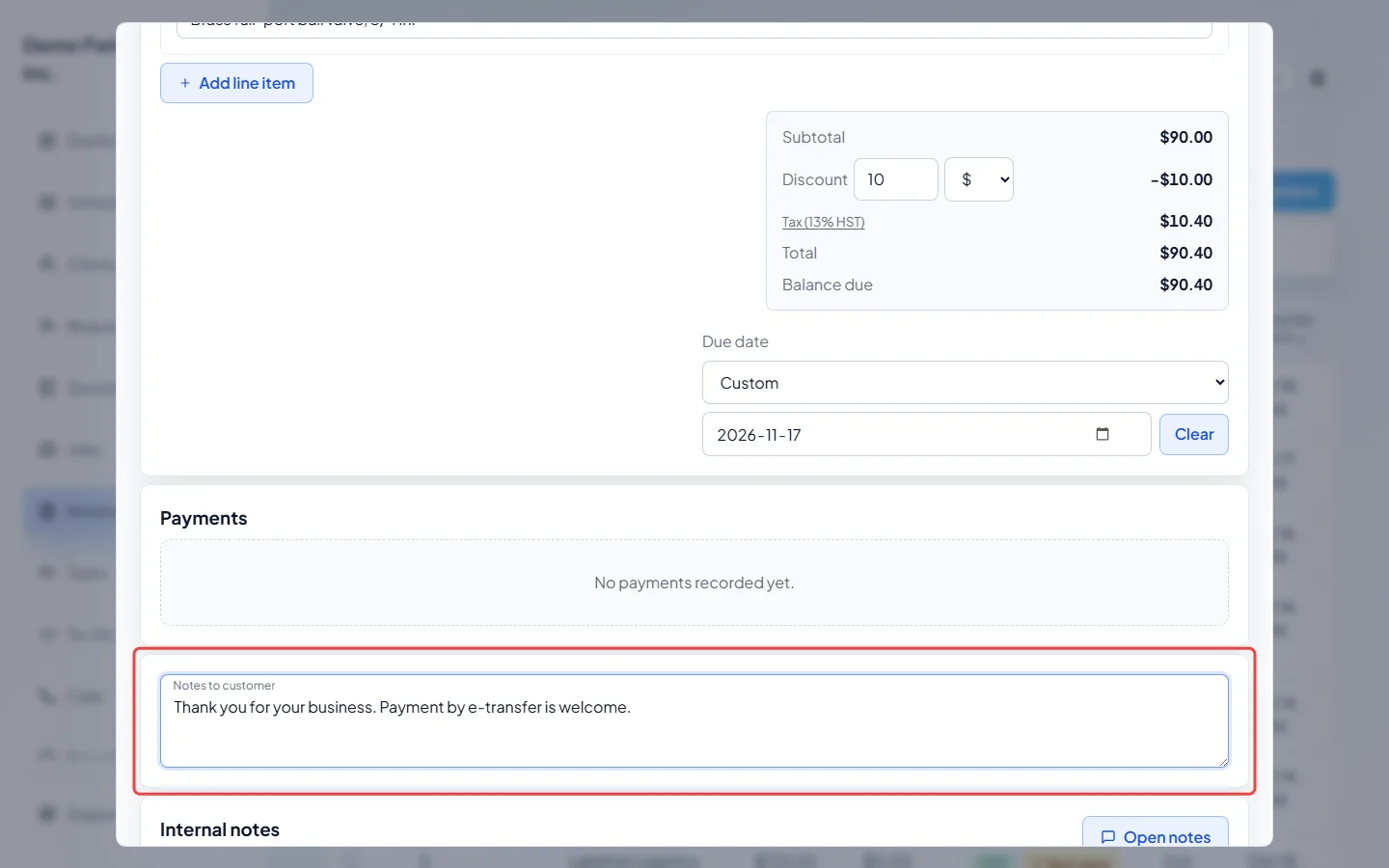
Add anything else the invoice needs. Notes to customer prints on the invoice, between the total and your terms. Internal notes are for your team only. If your company uses invoice custom fields, they show under Custom fields.
-
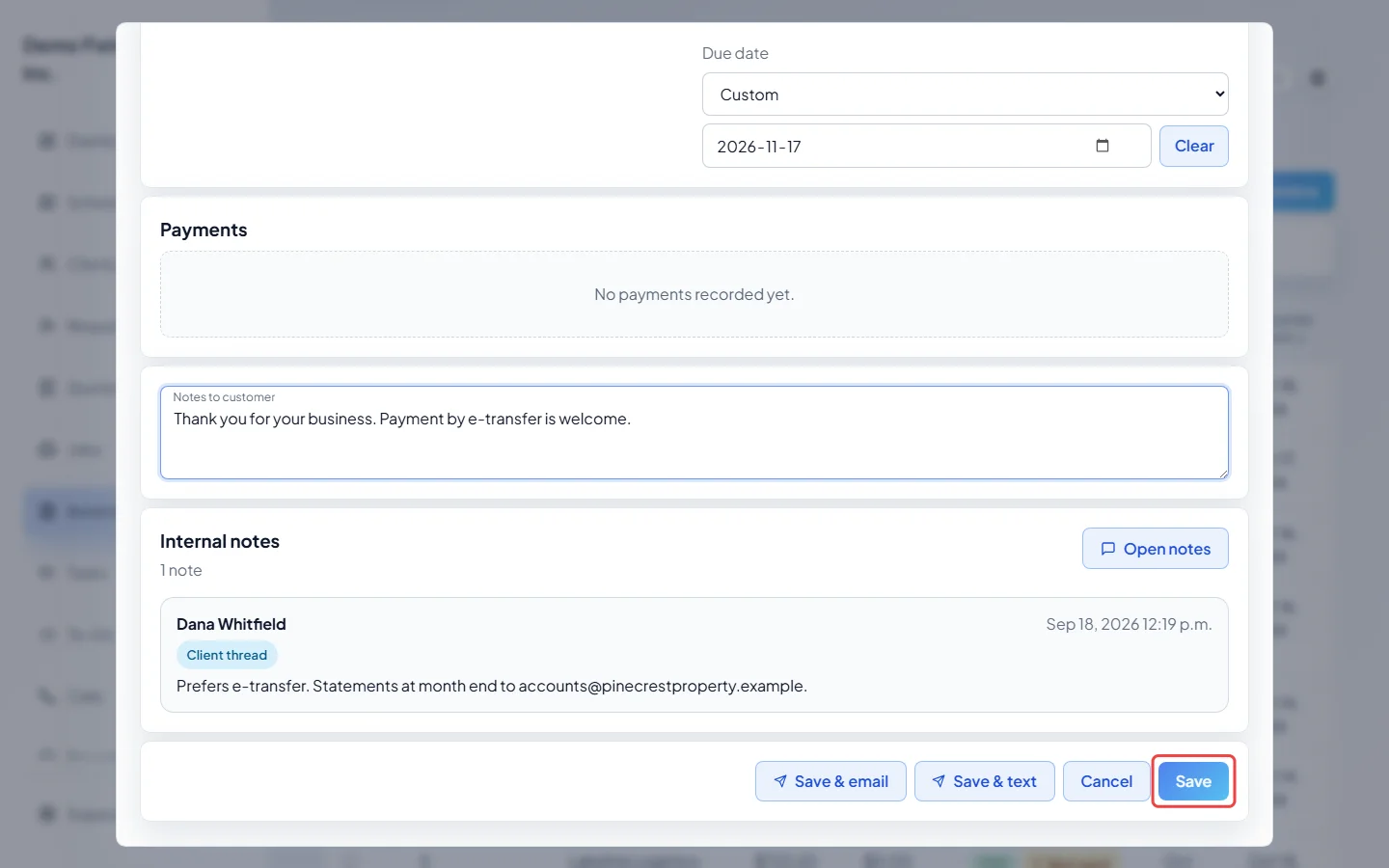
Click Save. The invoice is saved as a draft, the window closes, and the client doesn’t see it yet. To save and send it in one go, click Save & email or Save & text instead.
Good to know
Section titled “Good to know”- You can also start from a client’s page: open the Invoices tab and click New invoice. The invoice opens for that client straight away.
- An invoice needs at least one line, and every line needs a Product/Service. If something is missing when you click Save, Astragal scrolls to it and highlights it.
- Drag a line by its handle to change the order. The bin button removes a line.
- The Due date list (Upon receipt, 15 days, 30 days, 60 days) counts from the day the invoice was made, so it only works after the first save. Before that, type the date. Clear removes the due date. An invoice with no due date never shows as late.
- Once saved, open the invoice again from the list to see the rest: you can change the invoice number by clicking it (until a payment is recorded), and a Salesperson box appears under the title, for the salesperson reports.
- To change the client’s contact details without leaving the invoice, click the ••• button beside their name and choose Edit client details. Contact person picks who on the account gets this invoice’s messages. See People on an account.
- Cancel asks before throwing away a new invoice.
Related articles
Section titled “Related articles”Next step: Sending an invoice to a client
Checked against Astragal on October 17, 2026