

Custom fields
Add the extra details your business tracks, like a lockbox code or a purchase order number, to every client, quote, job or invoice.
Who can do this: Admins, dispatchers and accountants.
Also called: extra fields, additional fields.
-
Open the custom fields page. It has one card for each kind of record: clients, properties, quotes, jobs and invoices. Each card lists its fields in the order they appear on the record, with the field’s type underneath.
On a computer: Left menu → Settings → Custom fields On a phone: More → Settings → Custom fields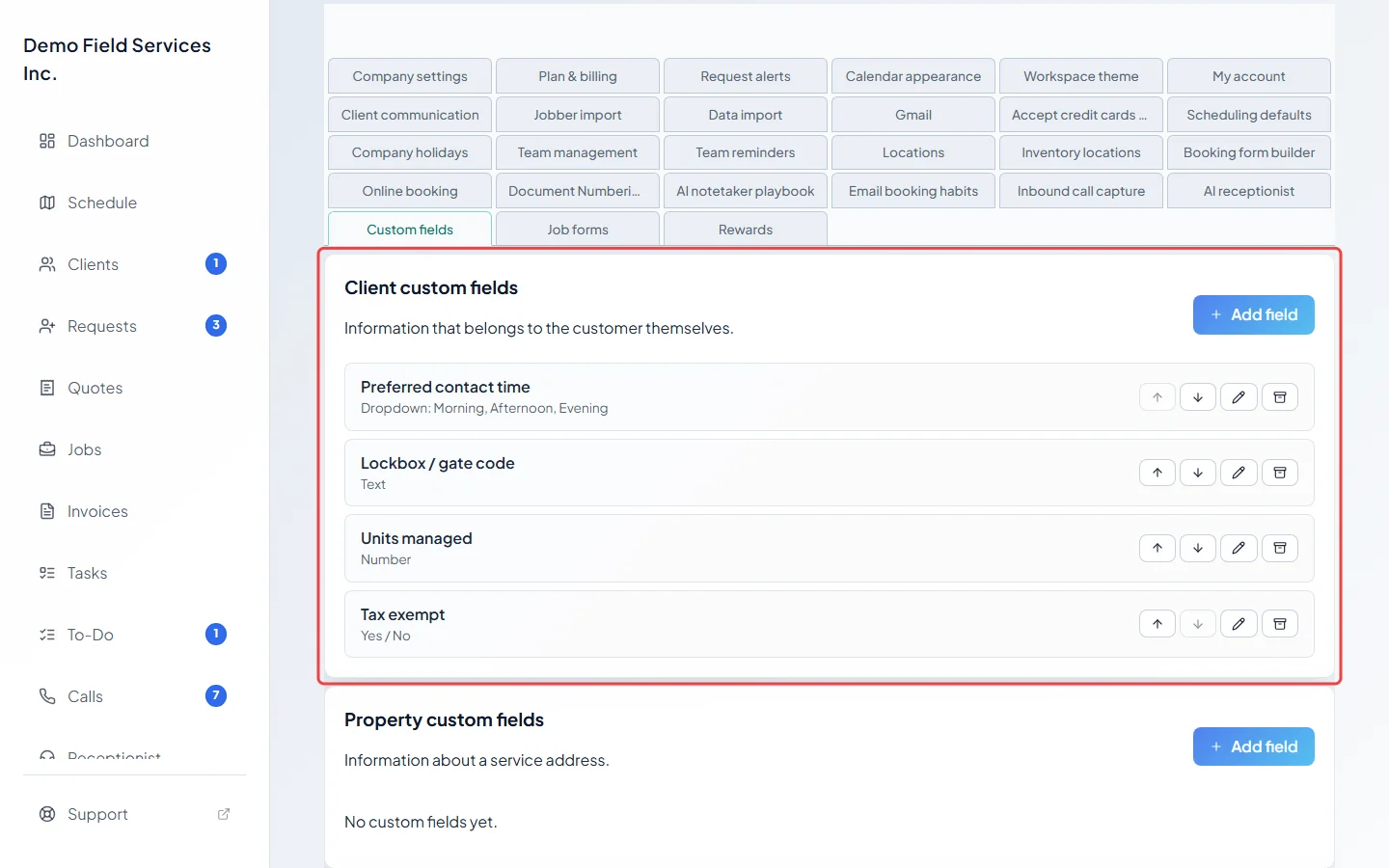
-
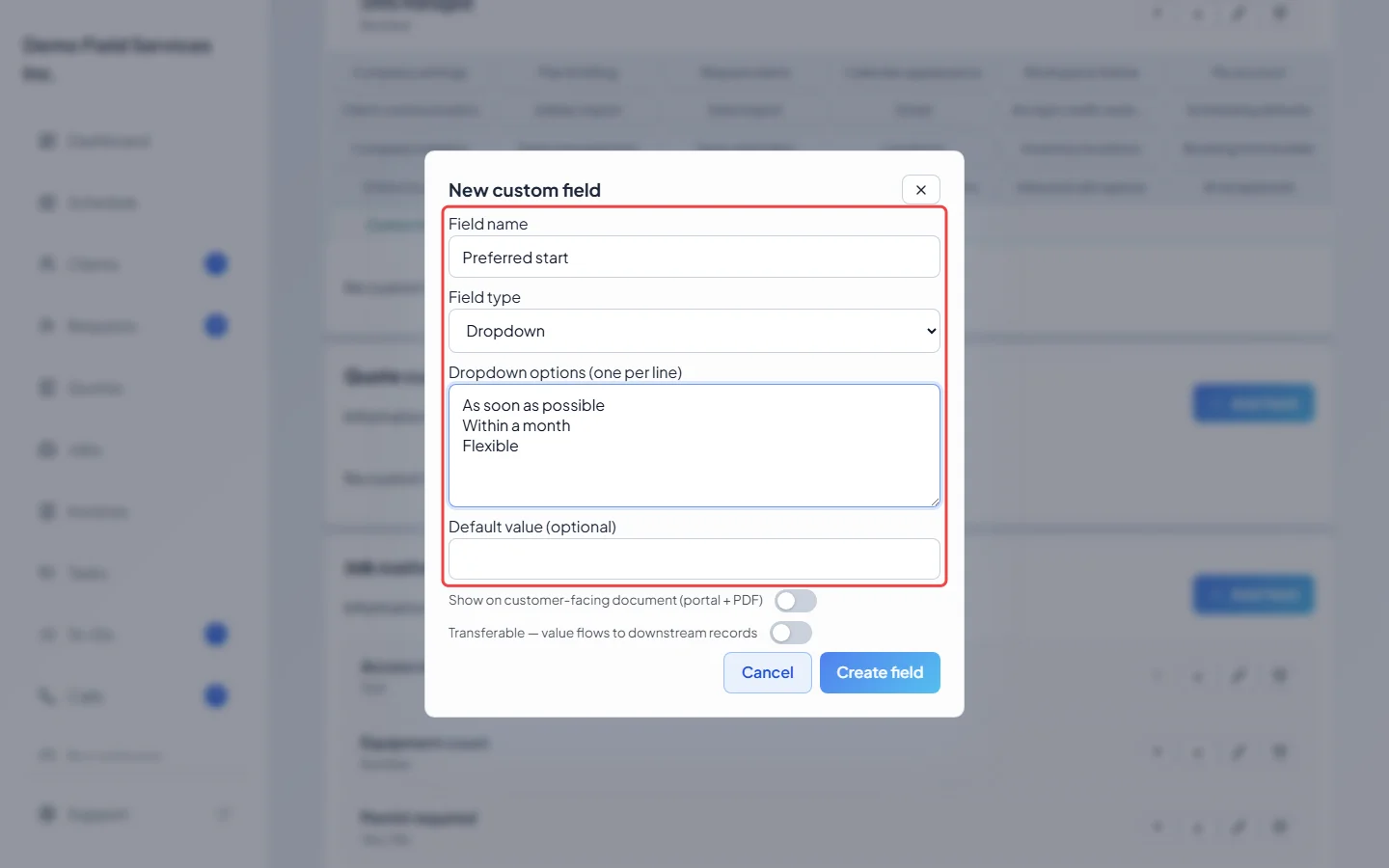
On the card for the record you want, click Add field. Type a Field name and pick a Field type: Text, Number, Yes / No, Dropdown or Area (length × width). For a dropdown, type the choices in Dropdown options (one per line). You can also give a field a Default value (optional); for a Yes / No field, turn on Default value: on.
-
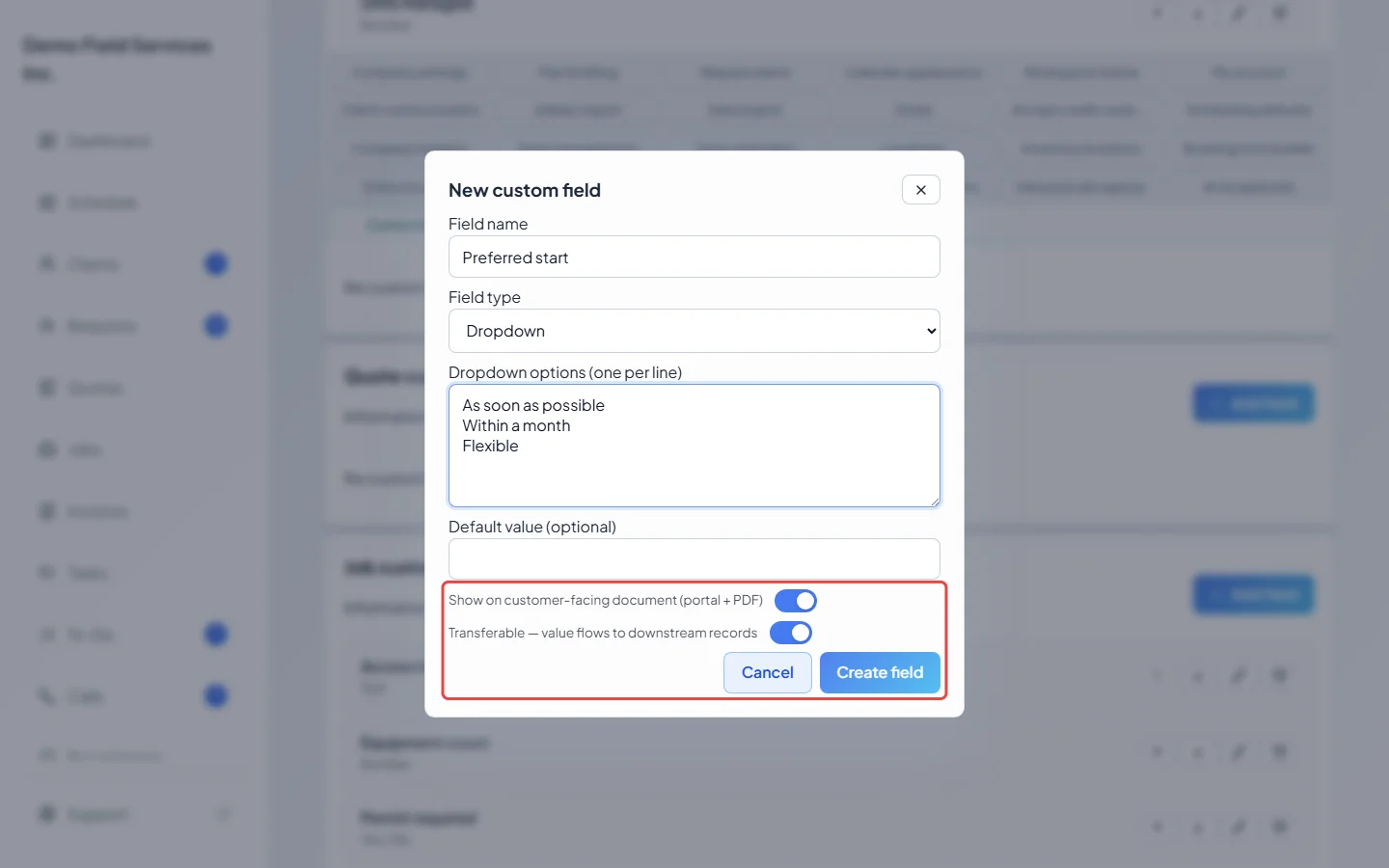
Turn on Show on customer-facing document (portal + PDF) if the client should see this field on their quote or invoice. Turn on Transferable — value flows to downstream records to copy the value onto the records made later from this one. Then click Create field.
-
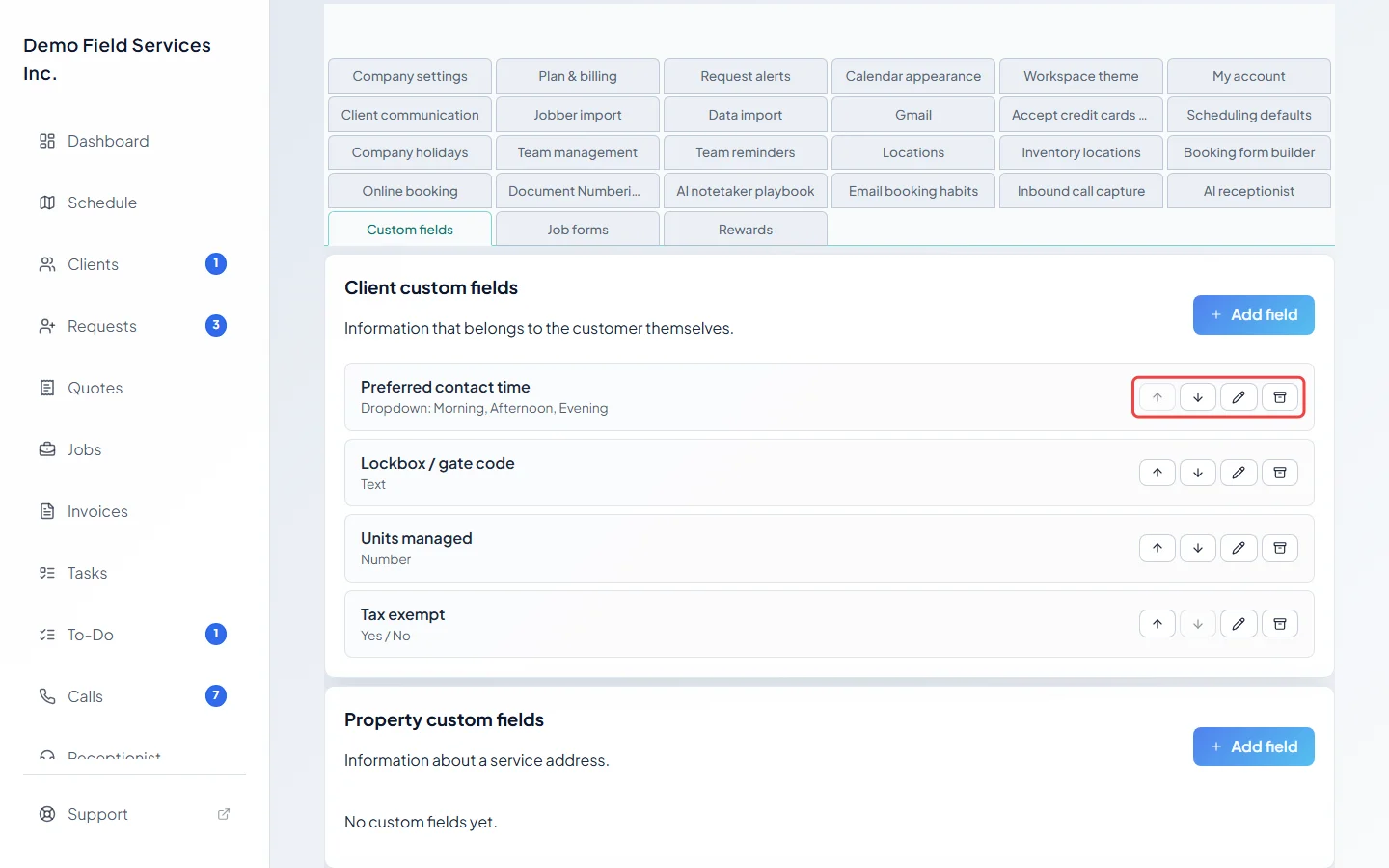
To change a field, use the buttons on its row: the arrows move it up or down, the pencil opens it to rename it or change its options, default or customer-facing switch (click Save changes), and the box icon archives it.
Where the fields show up
Section titled “Where the fields show up”- Client fields appear in a Client custom fields card on the client’s page and when you add or edit a client. See Internal notes and custom fields.
- Quote fields appear on the quote, job fields in the job window, and invoice fields on the invoice, each under Custom fields.
- Property fields can be set up here, but there is no box to fill them in on a property yet.
Transferable fields
Section titled “Transferable fields”A transferable value is copied once, when the next record is made: client and property fields onto quotes, jobs and invoices; quote fields onto the job and its invoices; job fields onto invoices. Invoice fields can’t transfer. Changing the value later on the client doesn’t change records already made. The copied value is saved on the new record but isn’t shown on its screen. If the field is customer-facing, it prints on the quote or invoice and shows in the client portal.
Good to know
Section titled “Good to know”- A field’s type, and whether it is transferable, can’t be changed after it is created. Make a new field instead.
- On this page, customer-facing fields have a dot beside their name and transferable ones a Transferable label.
- Customer-facing fields show on the quote and invoice PDFs and in the client portal. A client or property field only reaches a quote or invoice if it is also transferable.
- Archiving hides a field from every form and keeps its values. A customer-facing field that already has a value still prints on that quote or invoice and shows in the portal; turn off customer-facing before you archive it.
- If a card has archived fields, click Show archived under its list to see them, then the restore button to bring one back, or the bin to delete it. Deleting removes its values from every record and can’t be undone.
Related articles
Section titled “Related articles”Checked against Astragal on October 18, 2026