

Visit reminders
Send clients a reminder before each visit so they’re home and ready when your team arrives.
Who can do this: Admins, dispatchers and accountants. Only admins can save changes to the reminder’s wording; others can change the schedules only if they leave the wording unchanged.
Also called: appointment reminders, day-before reminders.
-
Open the client communication settings and find Visit reminder under Jobs & Visits. The lines under it list each reminder, for example “Send a reminder 1 day before the appointment by email at 07:00”.
On a computer: Left menu → Settings → Client communication On a phone: More → Settings → Client communication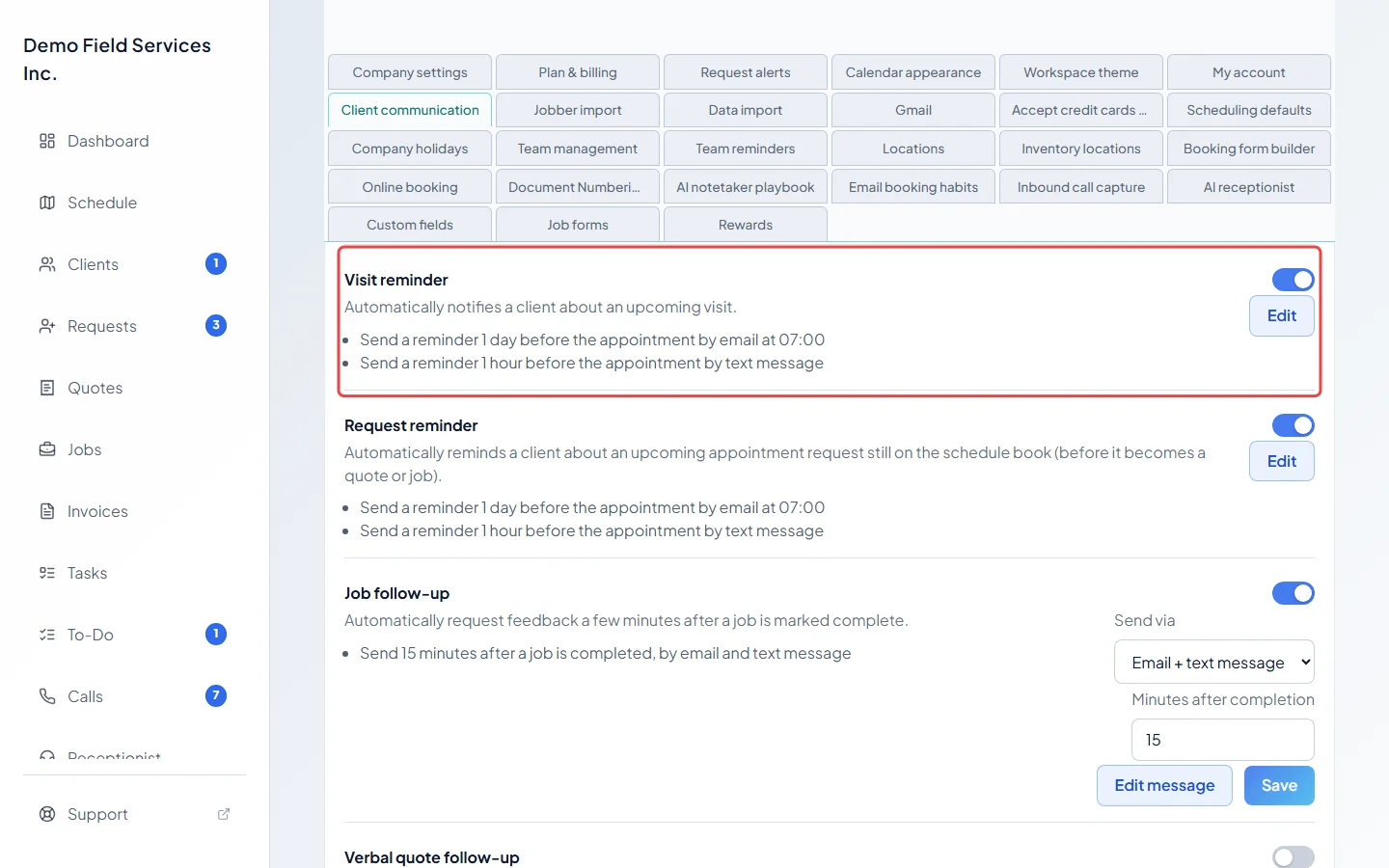
-
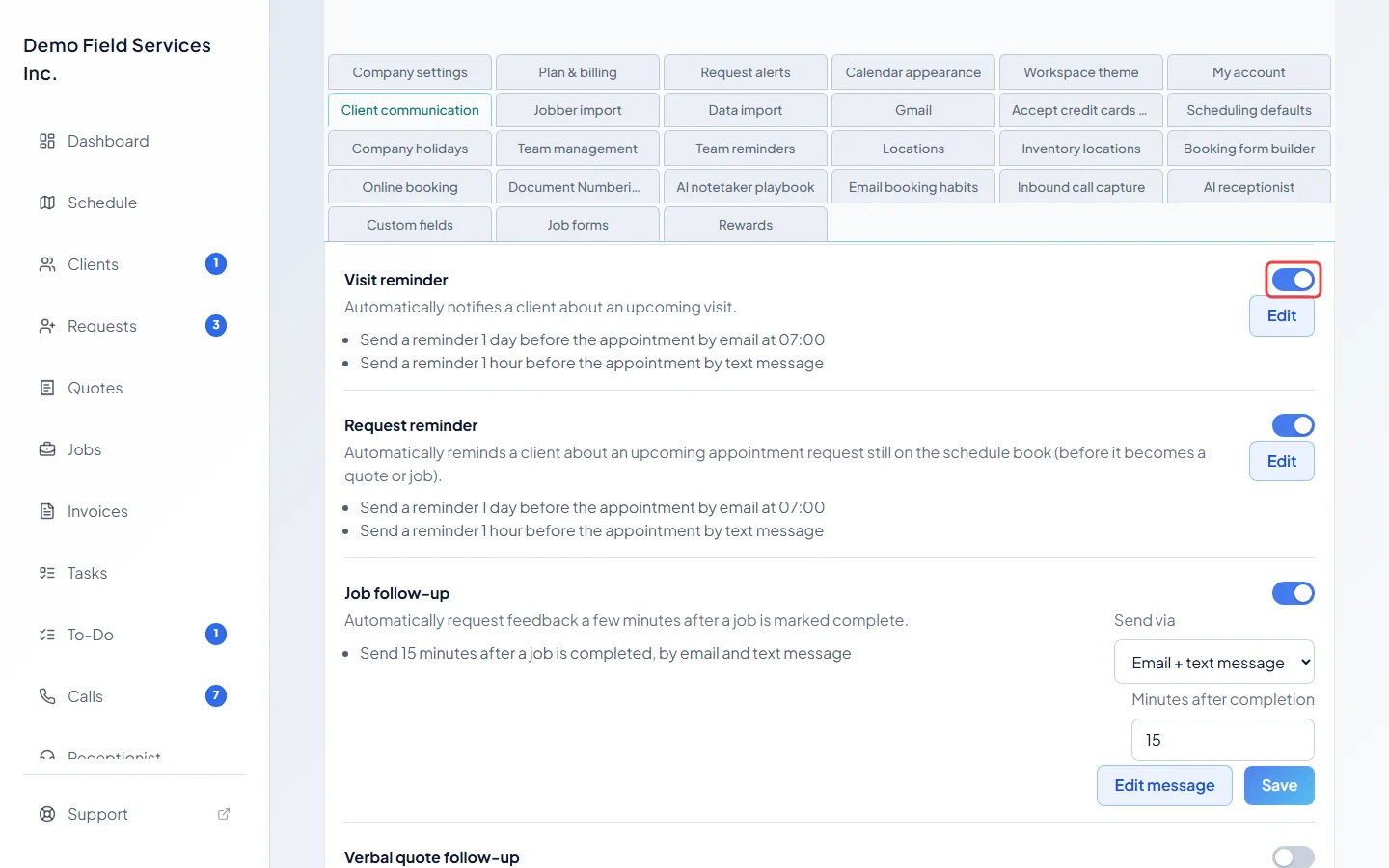
Use the switch on the right to turn visit reminders on or off for every client. It saves as soon as you flip it.
-
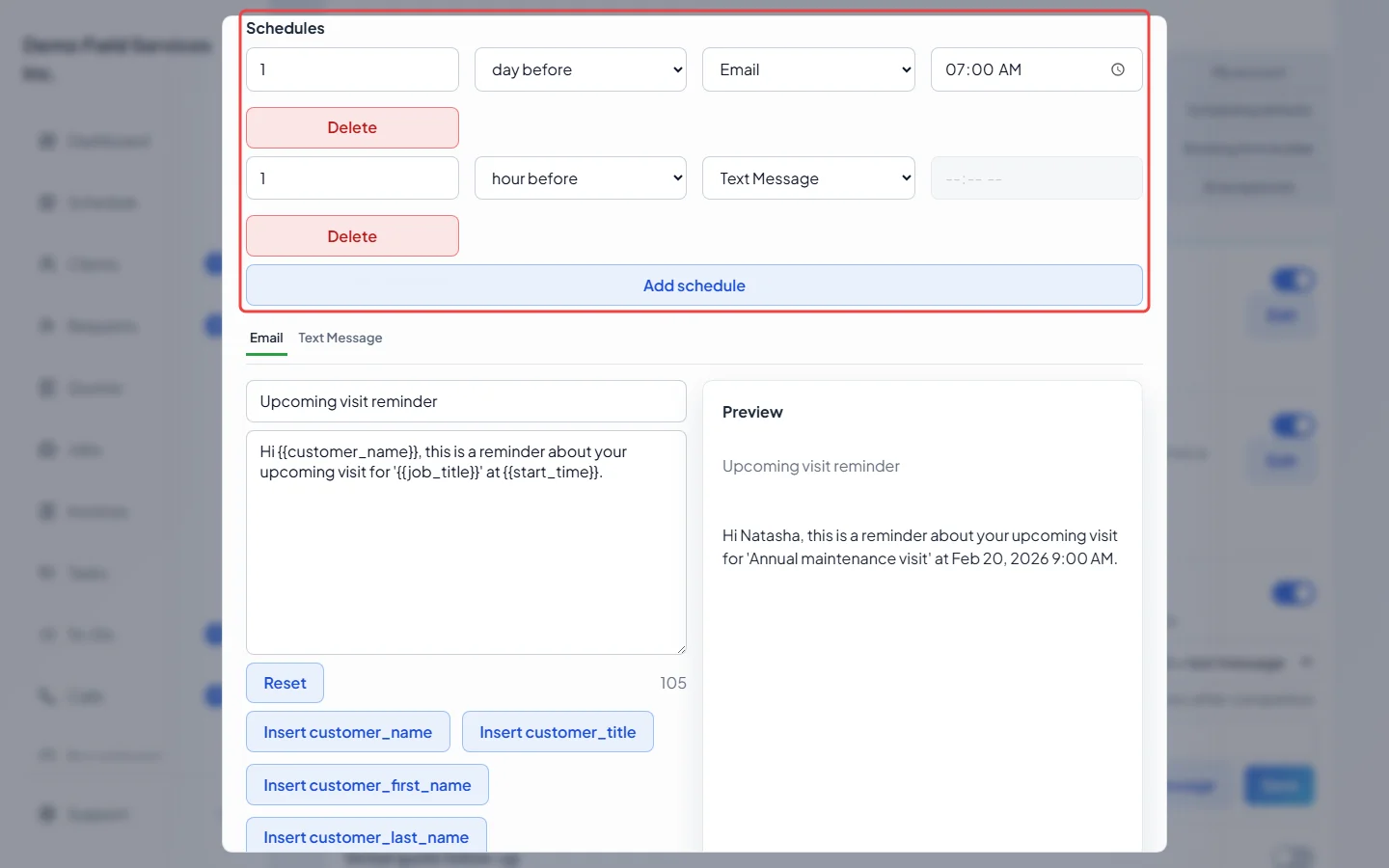
Click Edit. Under Schedules, each row is one reminder: how many, then minute before, hour before or day before, then Email or Text Message. For a day before reminder, also pick the time of day it goes out. Click Add schedule for another reminder, or Delete to remove one; at least one always stays.
-
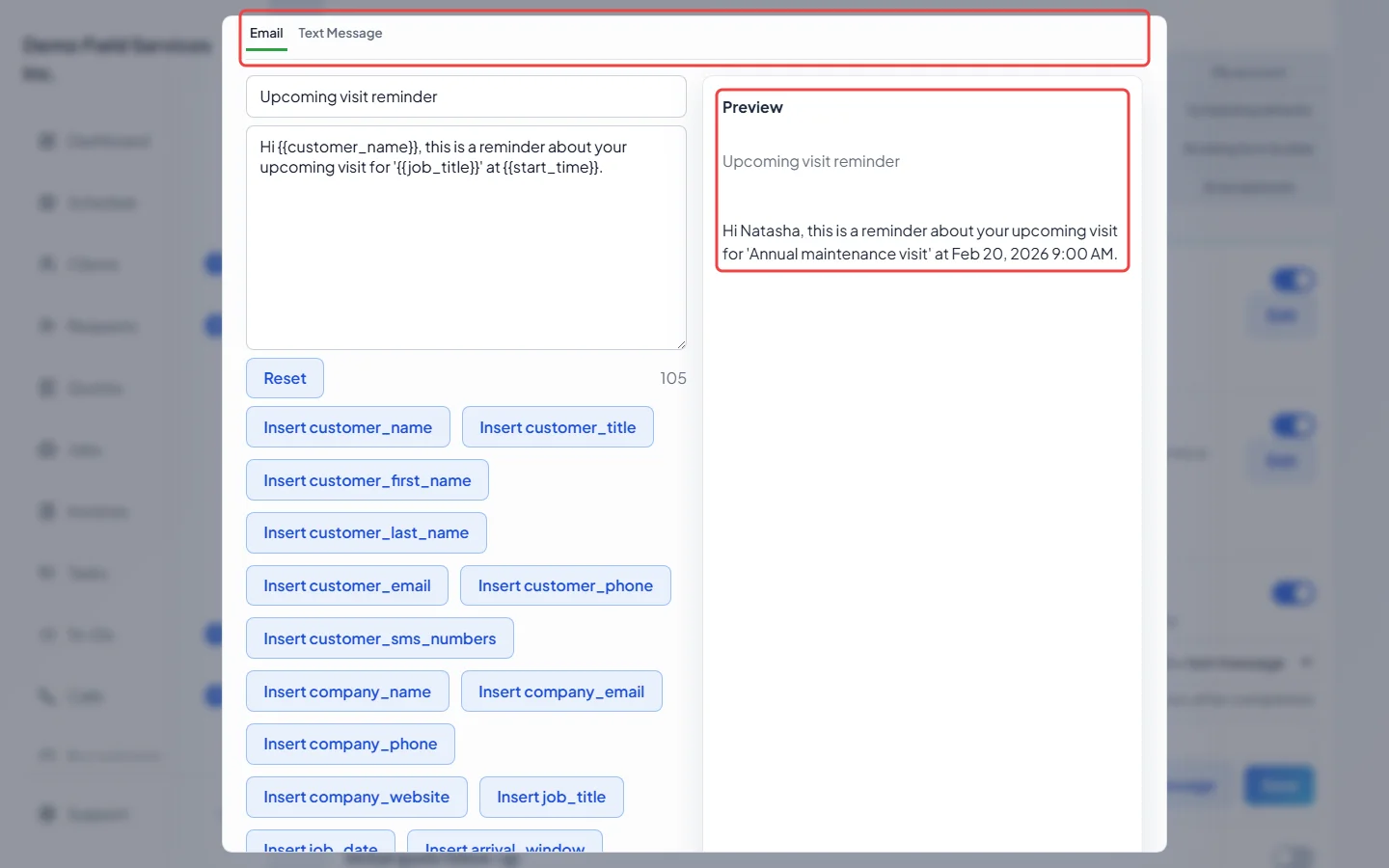
Lower down, change the wording. Switch between Email and Text Message, edit the subject and message, and use the Insert buttons (such as “Insert customer_name”) to add the client’s name, the visit date, the arrival window, the address or your company’s details. Preview shows it with sample details. Click Save to keep the schedules and the wording together.
Which visits get a reminder
Section titled “Which visits get a reminder”- Only jobs that are scheduled or in progress get reminders, for the job’s next visit that hasn’t started. Cancelled and finished visits never get one.
- Reminders go out within about 15 minutes of the set time, so a reminder less than 15 minutes before a visit may not send.
- If the property has an on-site contact, they get the reminder. The client gets it too only if their “Also send appointment texts to this client when a property has a tenant” switch is on, or if the on-site contact can’t receive it.
- A reminder set for a fixed time (such as 7:00 the day before) is skipped if the visit was booked after that time had already passed. The booking confirmation covers it.
- A reminder is skipped if the visit is booked too close to it. A visit booked 30 minutes ahead won’t get the “1 hour before” text.
- Each reminder goes out once for each visit time. If you move the visit, the new time gets its own reminders.
Good to know
Section titled “Good to know”- A new company starts with two reminders: an email at 7:00 the day before, and a text 1 hour before.
- To stop reminders for one client only, open the client, click Communication settings, and turn off “Upcoming assessment or visit reminders”. See Editing a client.
- Request reminder, just below, works the same way for requests booked on the schedule that haven’t become a quote or job yet. Once a request becomes a job, the visit reminder takes over. Online bookings waiting for your approval get none until you confirm them.
- The text when your technician gets there is a separate message, Arrival notification. See Live tracking.
Related articles
Section titled “Related articles”Checked against Astragal on October 18, 2026