

Working hours
Keep a note of each person’s usual working days and times on their team profile.
Who can do this: Admins and dispatchers.
Also called: availability, shifts.
-
Open Team management, click the ⋯ button next to the person, and click Edit.
On a computer: Left menu → Settings → Team management On a phone: More → Settings → Team management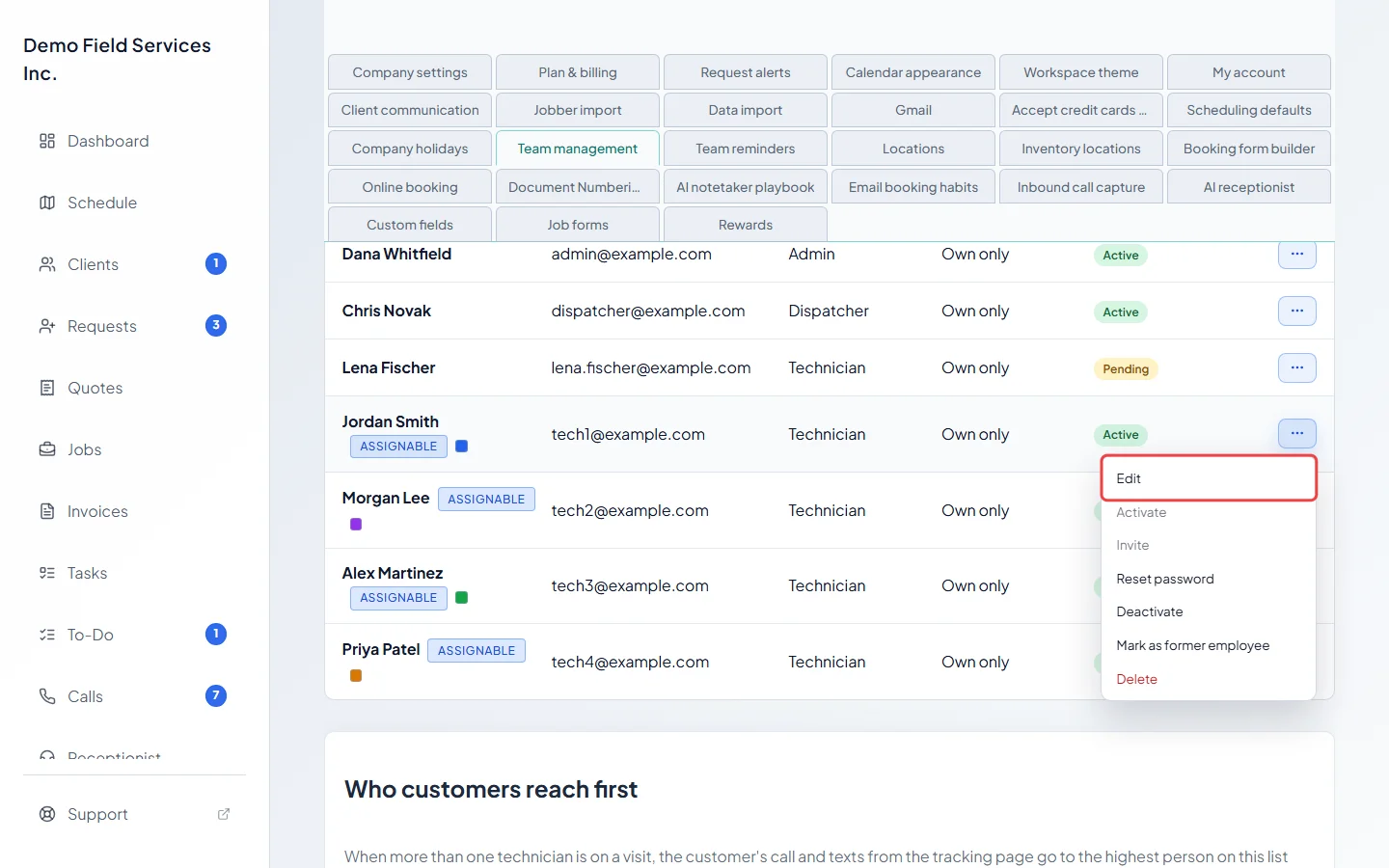
-
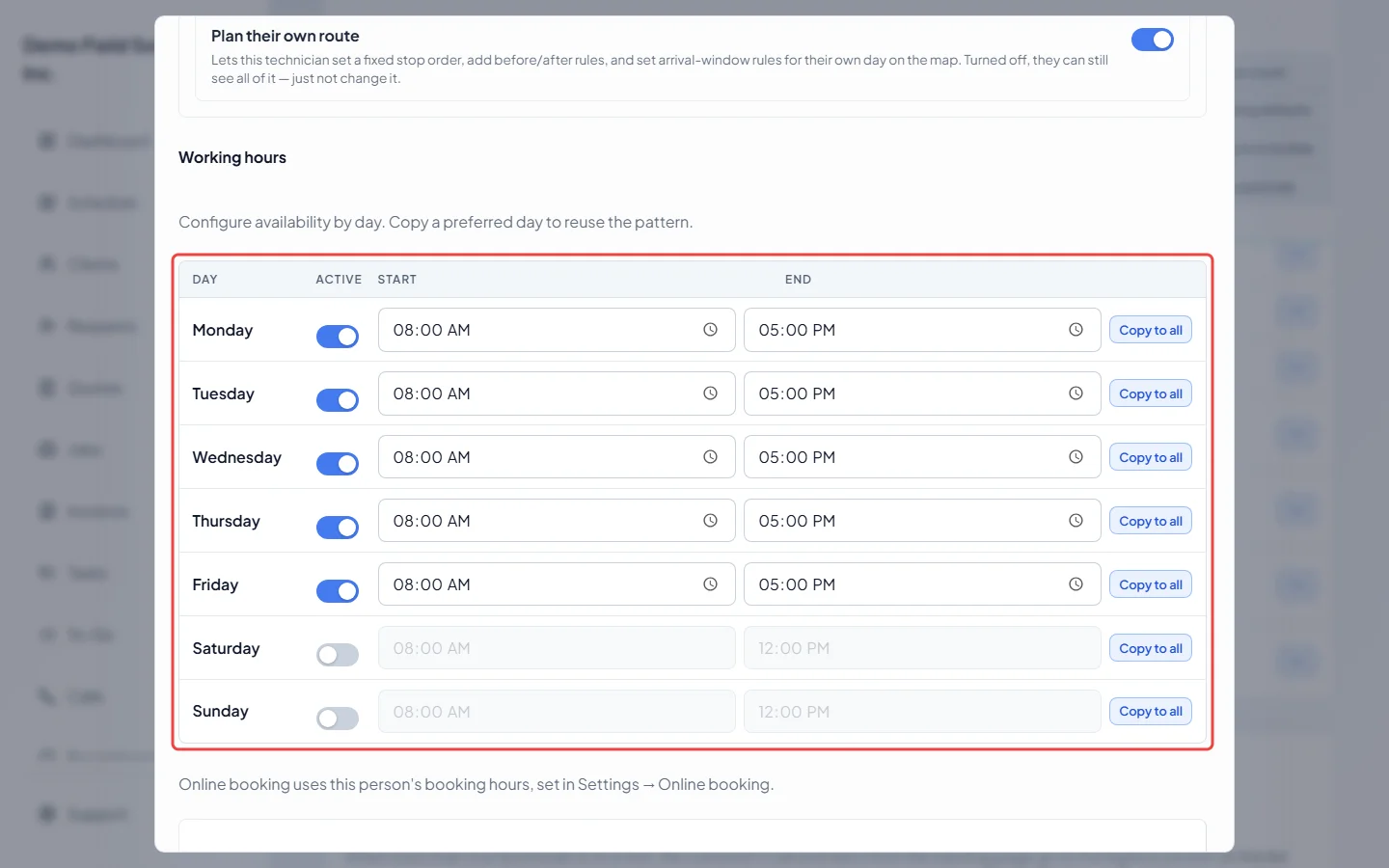
Scroll down to Working hours. Turn Active on for each day they work and set the Start and End times. New team members start with Monday to Friday, 8:00 a.m. to 5:00 p.m.
-
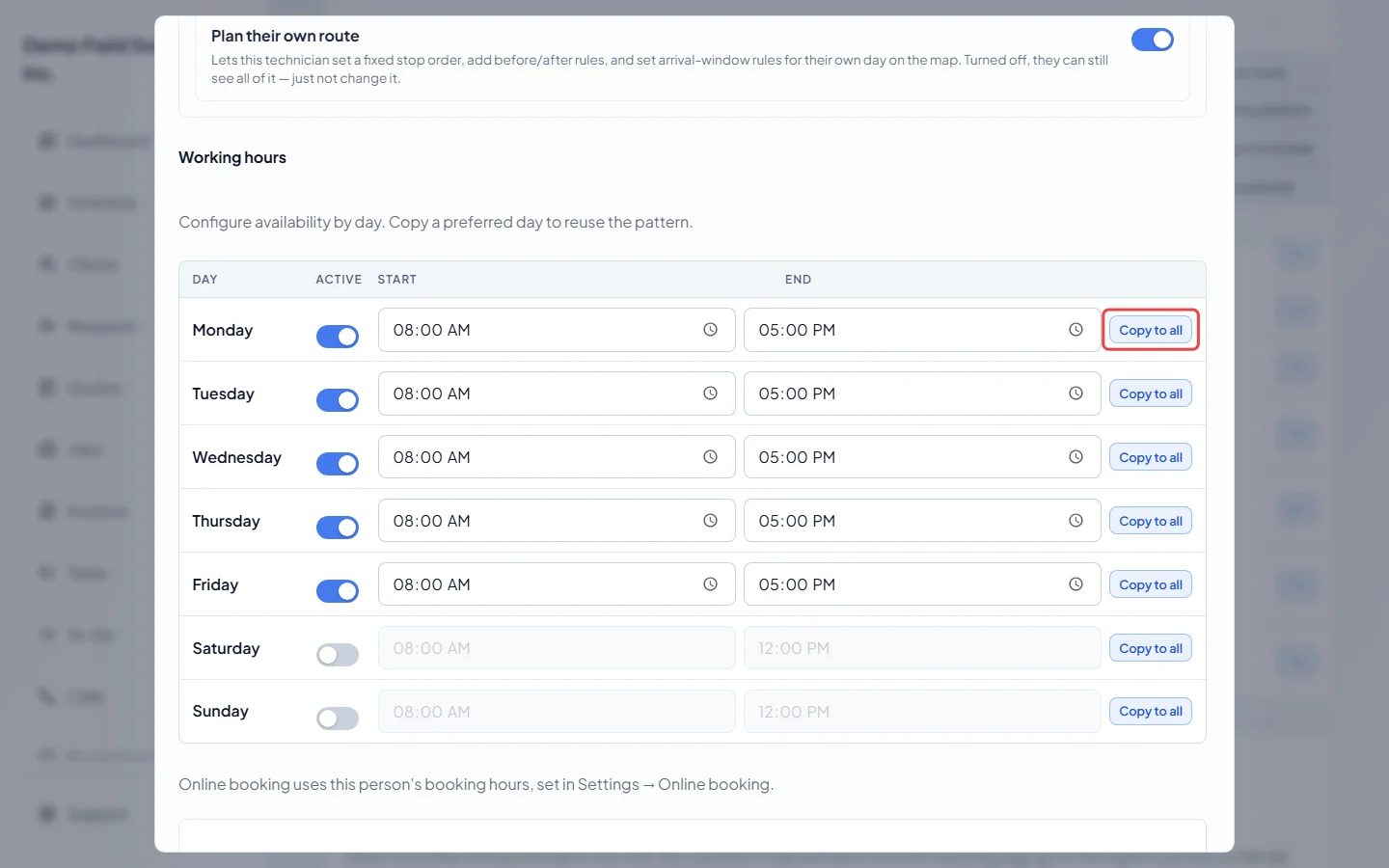
To give every day the same pattern, set one day and click Copy to all on that row. It copies whether the day is on and its times to every other day.
-
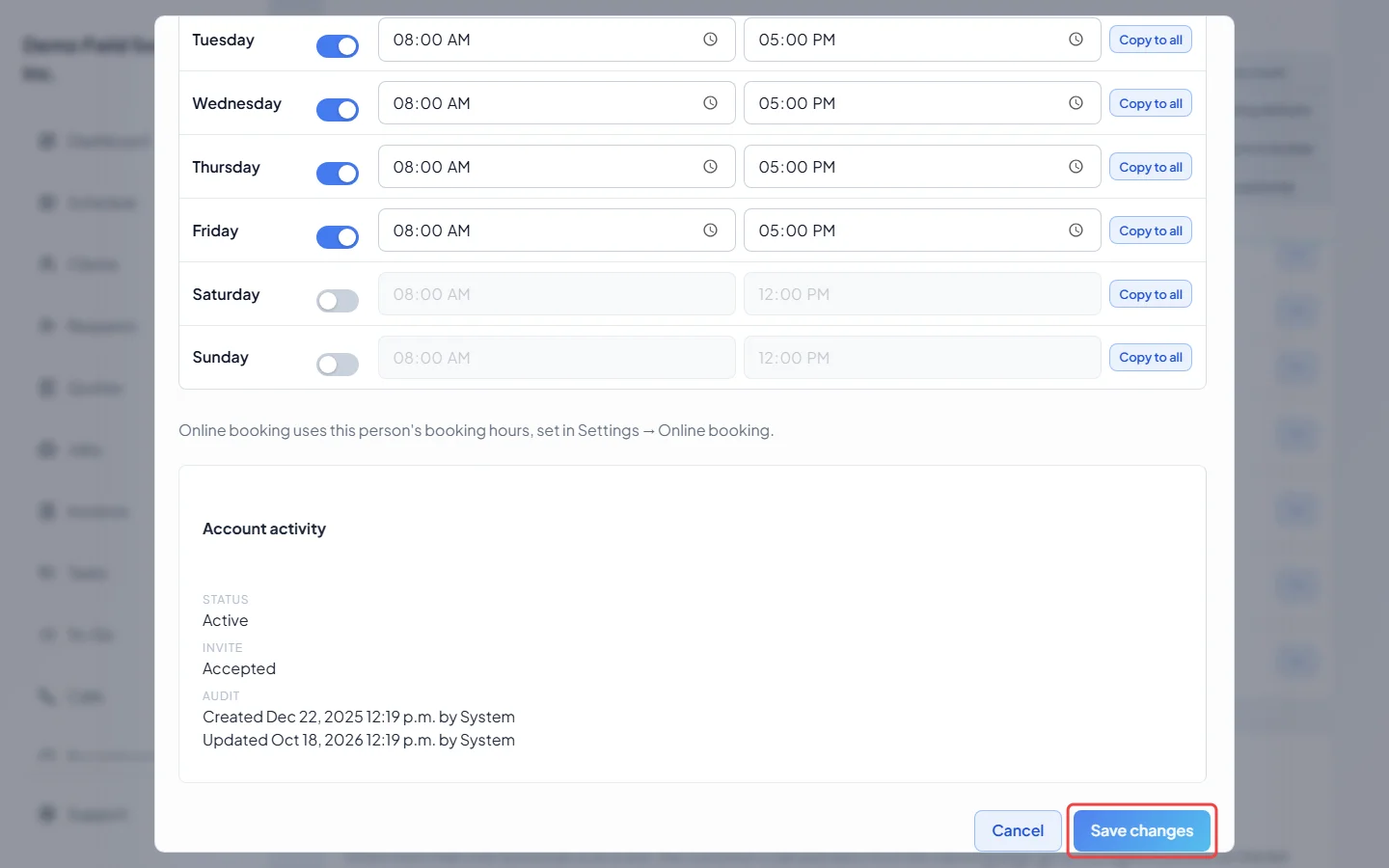
Click Save changes. If a day’s end time isn’t after its start time, the save stops and names that day. The save also stops if their phone or address is missing.
How working hours are used
Section titled “How working hours are used”Working hours are a record on the team profile; the schedule doesn’t block or warn about work booked outside them. Their main use is online booking: when you set a technician’s booking hours to Their own hours, Copy their working hours fills them in from this table. What customers can actually book is set in the booking hours, not here. See Who can be booked and when.
Good to know
Section titled “Good to know”- Someone who also works for another company keeps their own working hours; changes made here aren’t saved for them.
- Days the whole company is closed belong in Company holidays.
Related articles
Section titled “Related articles”Checked against Astragal on October 17, 2026