

Roles and permissions
Decide what each person on your team can see and change, from the schedule to prices and reports.
Who can do this: Admins and dispatchers. Only an admin can make someone an admin or change an admin’s account, and nobody but an admin can change their own access.
Also called: user permissions, access levels, staff accounts.
The four roles
Section titled “The four roles”| Role | What it’s for |
|---|---|
| Admin | Full account administration and operations access. |
| Dispatcher | Coordinates schedules, assignments, and day-to-day operations. |
| Technician | Completes field work with assigned access. |
| Accountant | Handles billing and financial workflows. |
An admin sees everything, including billing and every setting. Ticking Make administrator makes someone an admin; the permission choices below disappear because admins aren’t limited by them.
Picking a role doesn’t change the permissions below, except Admin. Choose a preset yourself in step 4.
Changing someone’s access
Section titled “Changing someone’s access”-
Open Team management. The list shows each person’s Role, Schedule scope (All schedules or Own only) and status: Pending until they accept their invite, then Active or Inactive. People who can be put on jobs have an Assignable tag. A red ⚠ Phone blocking alerts under the status means that person’s phone has the app’s notifications turned off, so they won’t see reminders.
On a computer: Left menu → Settings → Team management On a phone: More → Settings → Team management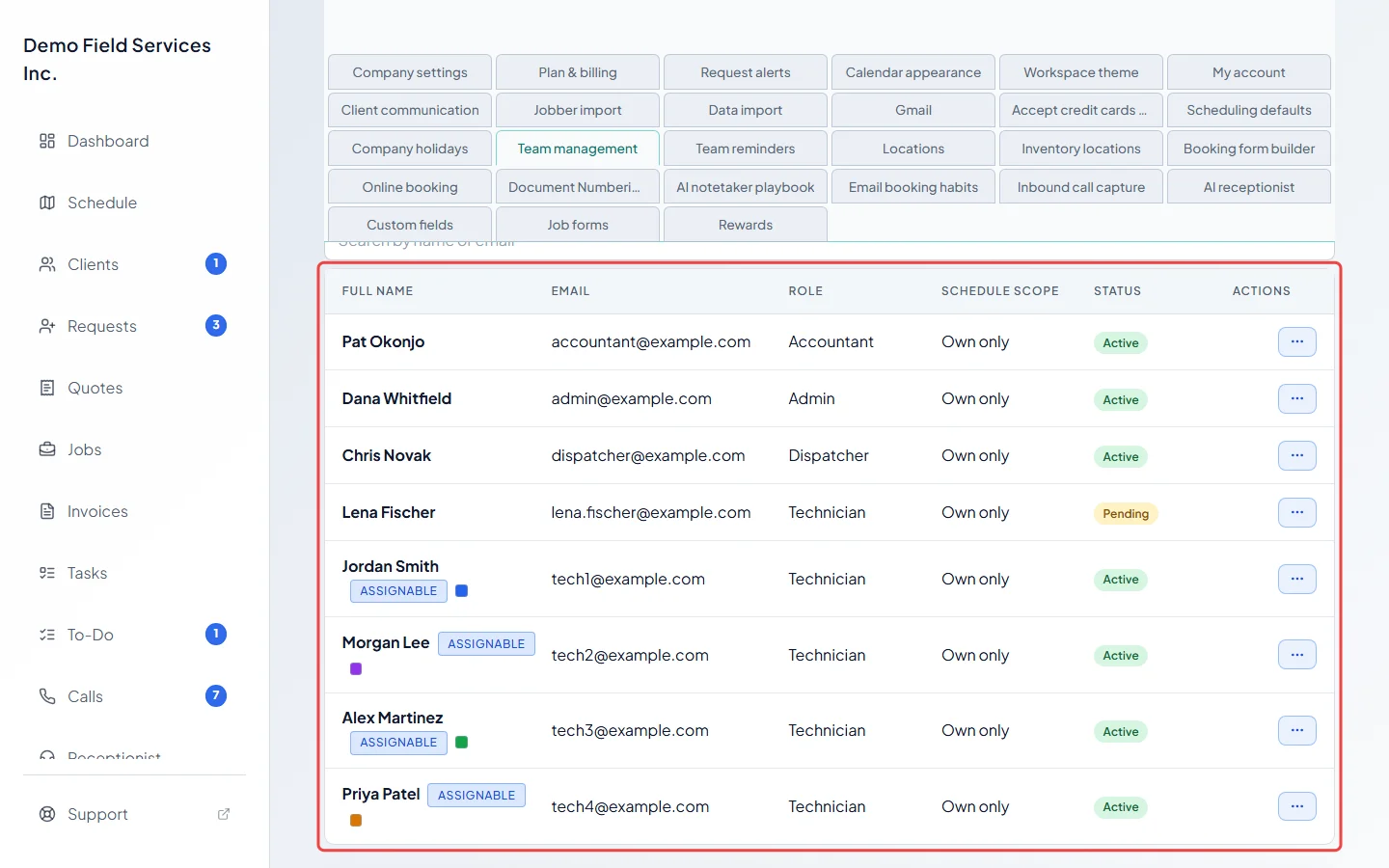
-
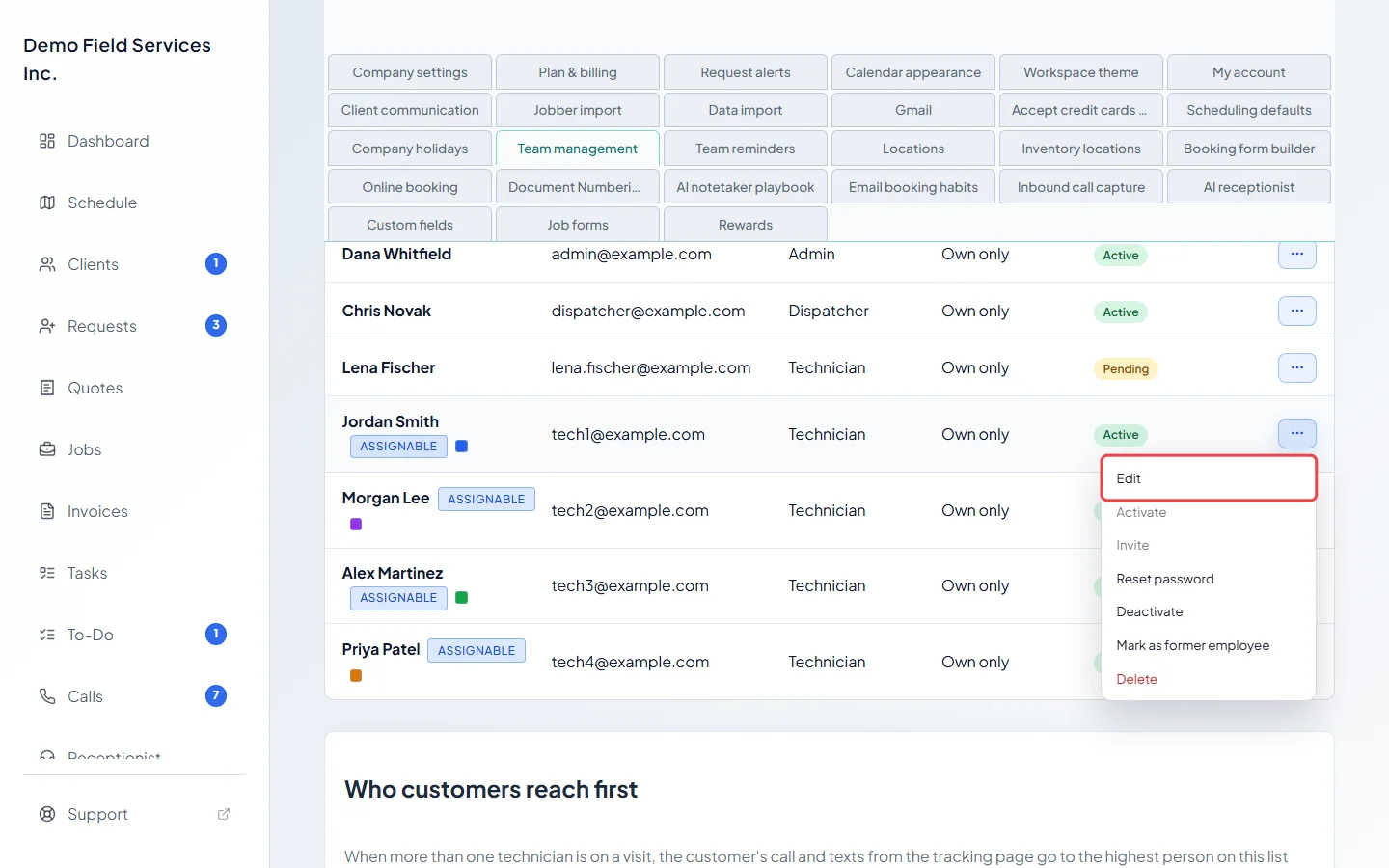
Click the ⋯ button next to the person and click Edit. To add someone new, click Add team member instead (see Inviting your team). The same menu has Activate (switch someone on without an invite email), Invite, Reset password, and Cancel email change while a new sign-in email is waiting to be confirmed.
-
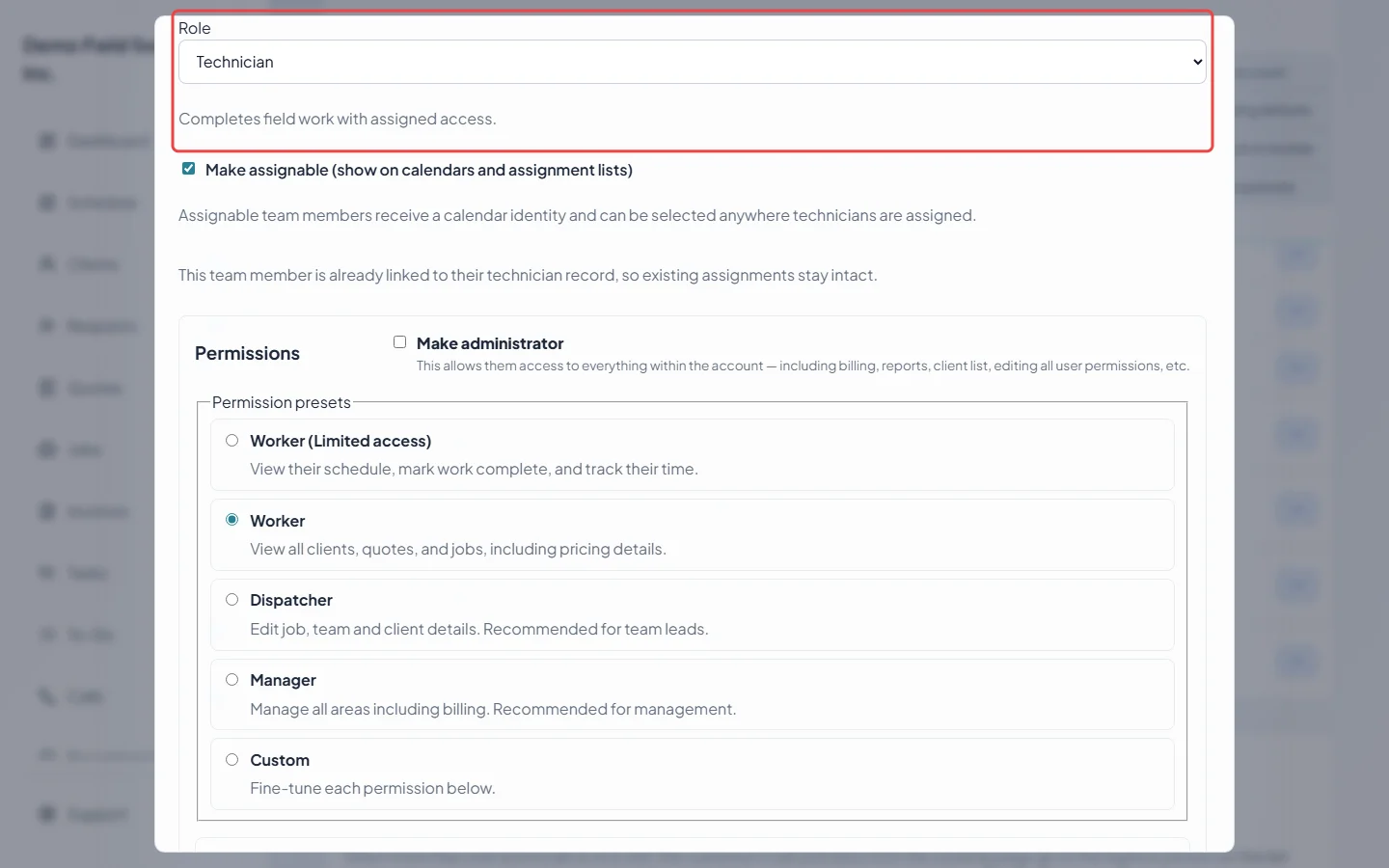
Under Roles & access, pick the Role. Moving someone between technician and an office role (dispatcher or accountant) resets their Reports switch to that role’s default. Leave Make assignable (show on calendars and assignment lists) ticked for anyone who goes out on jobs.
-
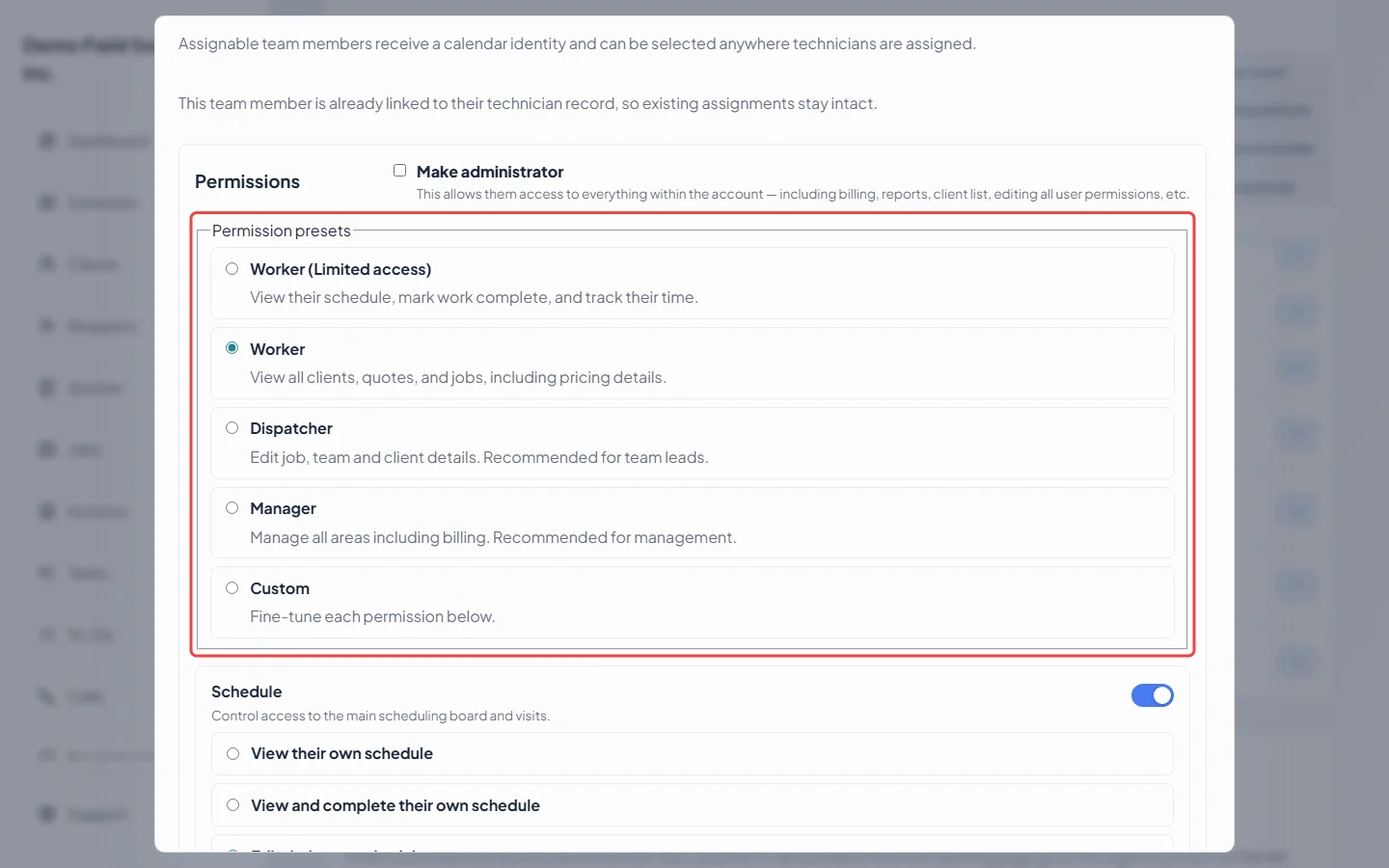
Under Permission presets, pick a starting point:
- Worker (Limited access): view their schedule, mark work complete, and track their time. Clients, requests, quotes and invoices are hidden from their menu.
- Worker: edit their own schedule and their own time; view every client, request and quote; view, edit and create jobs.
- Dispatcher: edit everyone’s schedule, time and expenses; view, edit, create and delete jobs; view and edit all notes; view clients, requests and quotes; view, edit and create invoices; Show pricing on.
- Manager: create, edit and delete everything, including quotes and invoices.
- Custom: set each permission yourself.
-
Fine-tune any section below the presets. Changing anything switches the preset to Custom.
- Schedule, Time tracking & timesheets, Notes and Expenses each have a switch to turn the area off and a level to pick.
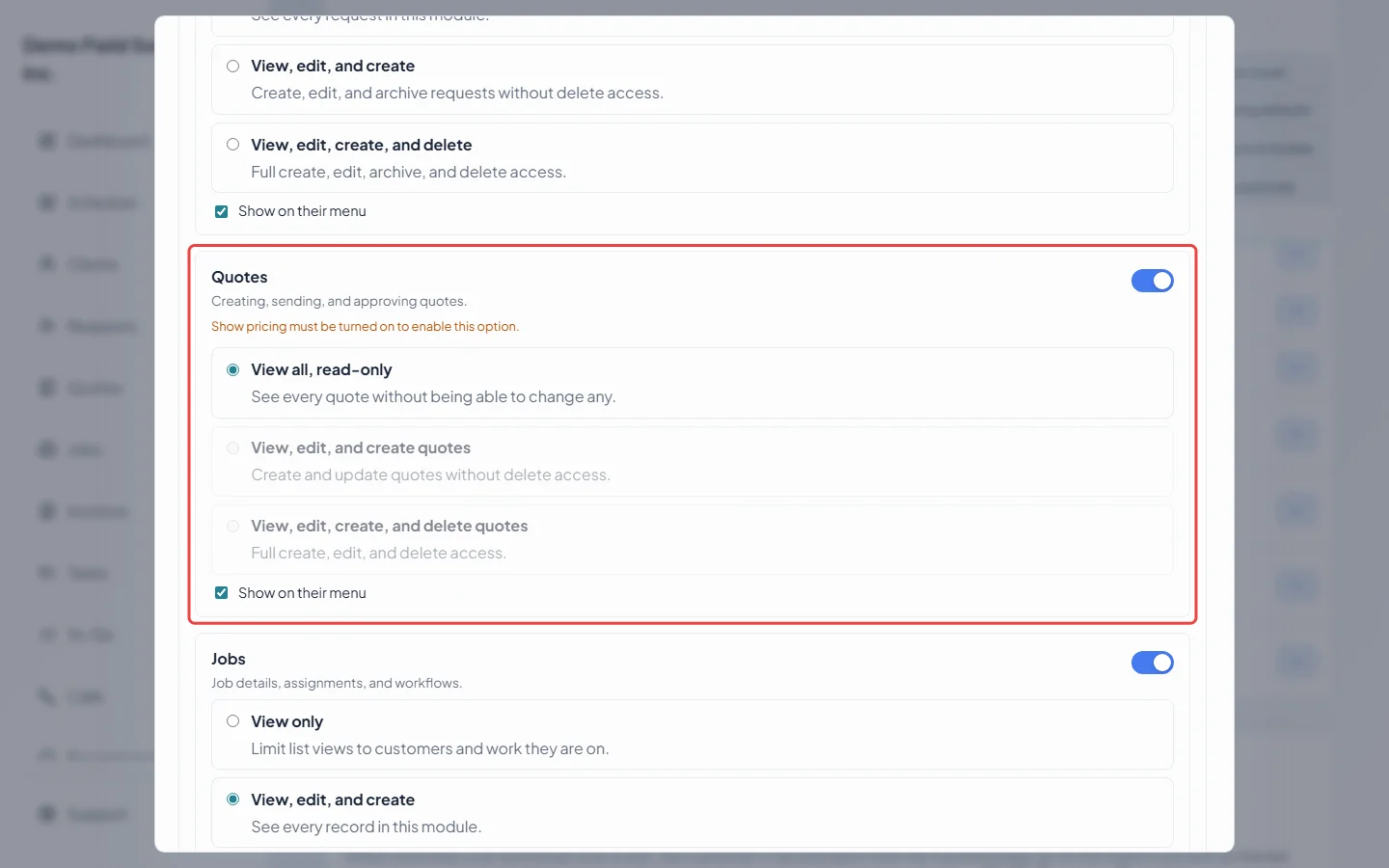
- Clients & properties has a level and Show on their menu. Requests, Quotes, Jobs and Invoices also have a switch to turn the area off. Turn Show on their menu off to hide that page from a technician’s menu.
- Files and media, Show pricing, Client communications, Reports and Plan their own route are simple on/off switches.
-
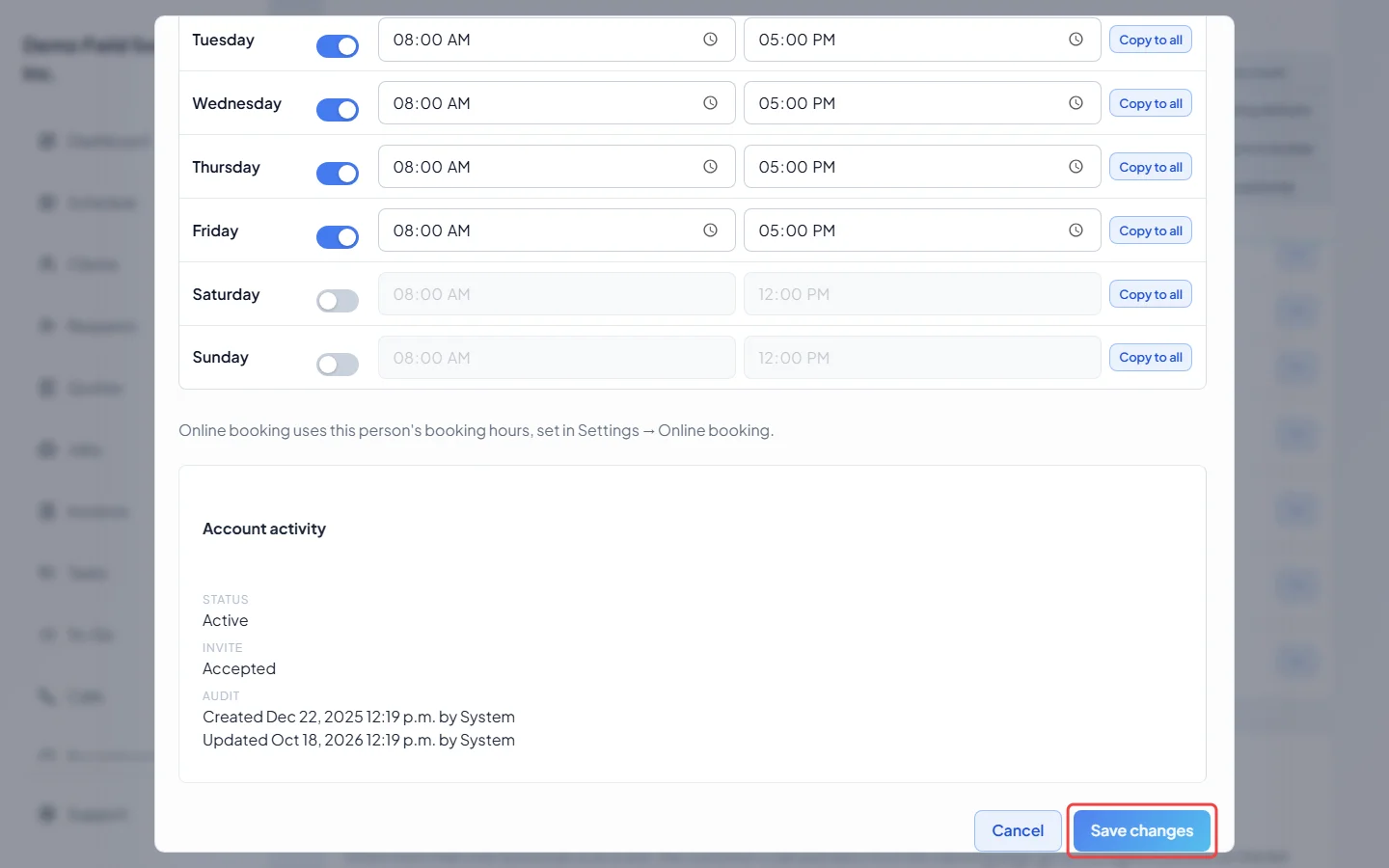
Click Save changes.
How the permissions depend on each other
Section titled “How the permissions depend on each other”- Show pricing must be on before someone can have more than view-only access to Quotes or Invoices. On its own it doesn’t hide or show prices. Turning it off drops those levels back to view only, and a note says so.
- Jobs above view only needs Schedule set to Edit their own schedule or higher.
- View all, read-only on Quotes and Invoices means the person sees every quote or invoice but can’t change any.
- Reports shows the company-wide reports, including revenue and what customers owe. Dispatchers and accountants have it on unless you turn it off; technicians have it off unless you turn it on. Admins always see reports.
- Plan their own route lets a technician set a fixed stop order and before/after and arrival-window rules for their own day on the map. Dispatchers always have it; accountants don’t plan routes.
- A technician’s schedule scope follows their Schedule level: Edit everyone’s schedule or higher shows All schedules, anything lower is Own only.
Good to know
Section titled “Good to know”- Someone who also works for another company: you can change their role in your company, but their permissions, schedule access, working hours and technician link stay as they are. A yellow note in the window says so.
- When you open the list, a message may say some permissions were “normalized from legacy data”. Open those people and click Save changes to confirm their access.
- To stop someone signing in, see Removing a team member.
Related articles
Section titled “Related articles”Checked against Astragal on October 17, 2026