

Saved cards
When a client saves a card while booking online, it shows on their page so you know you can charge it on an invoice.
Who can do this: Anyone who can open the client’s page can see a saved card. Removing one needs View and edit full client and property info or higher.
Also called: card on file, stored card.
-
Open the client. Near the top of the page, a line starting Card on file: shows the card type, last four digits and expiry, for example “Visa •••• 4242 · exp 08/29”. ”(+1 more)” counts every other card on file. If the top card can’t be charged, the reason shows instead of the expiry.
On a computer: Left menu → Clients On a phone: Bottom bar → Clients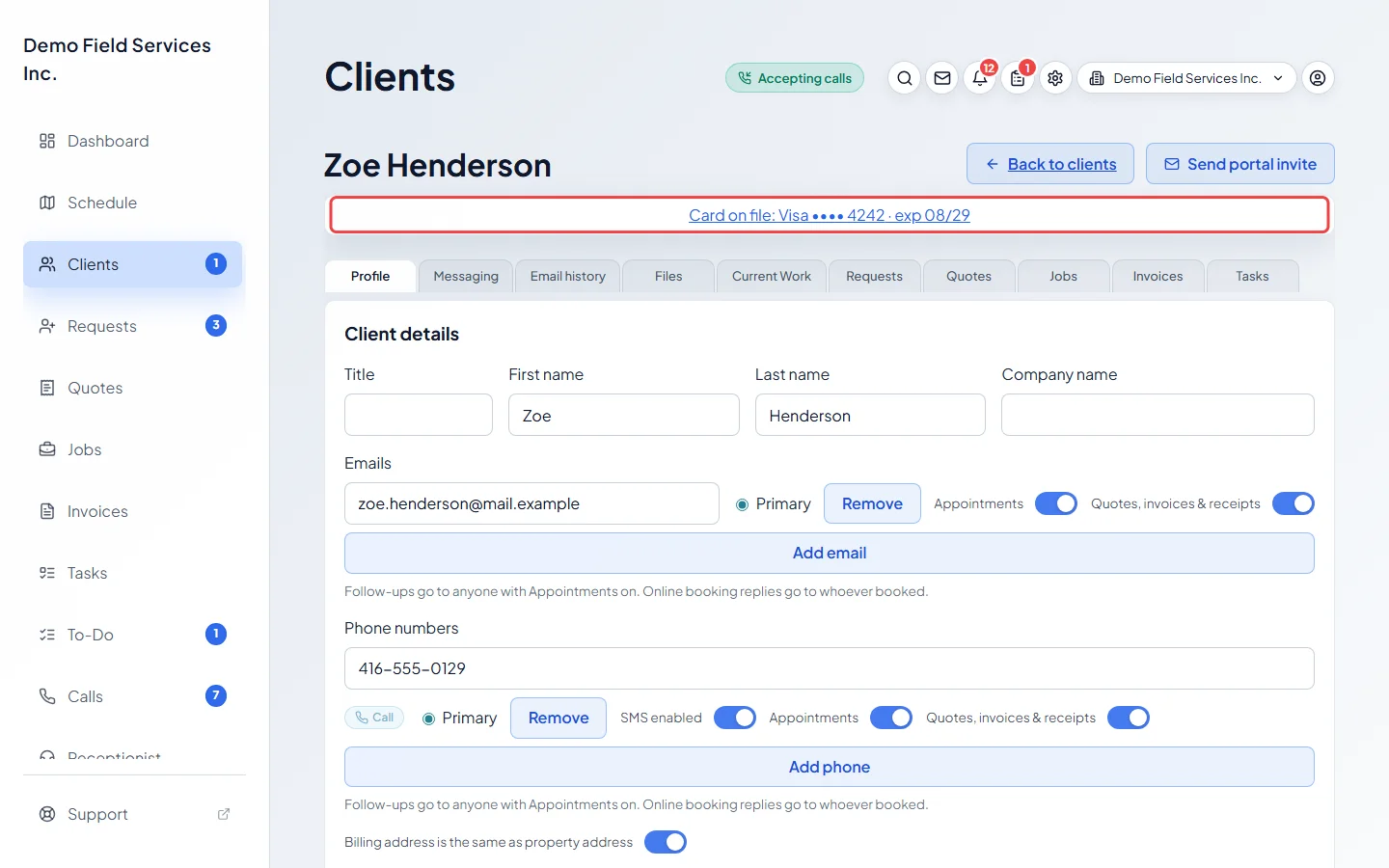
-
Click the line to see each card: who saved it and when, that it came through online booking, and the date and exact wording the client agreed to. Cards that can’t be charged are listed under Not chargeable, which shows how many and folds open when you click it. A card can’t be charged when it has expired, when card payments are paused, or when it was saved on a previous card-processor account.
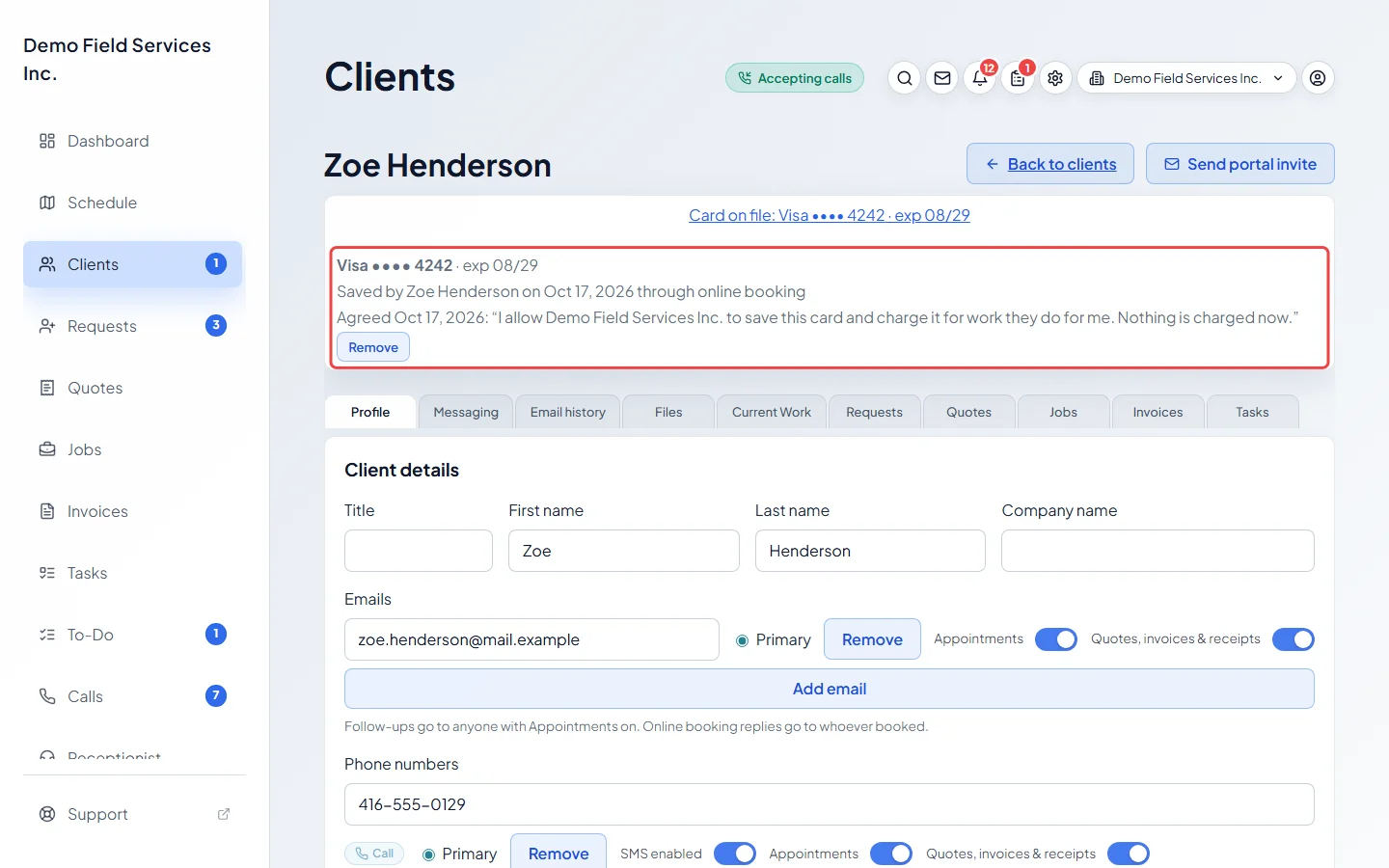
-
To stop using a card, click Remove under it and confirm with Remove card. You won’t be able to charge it again.
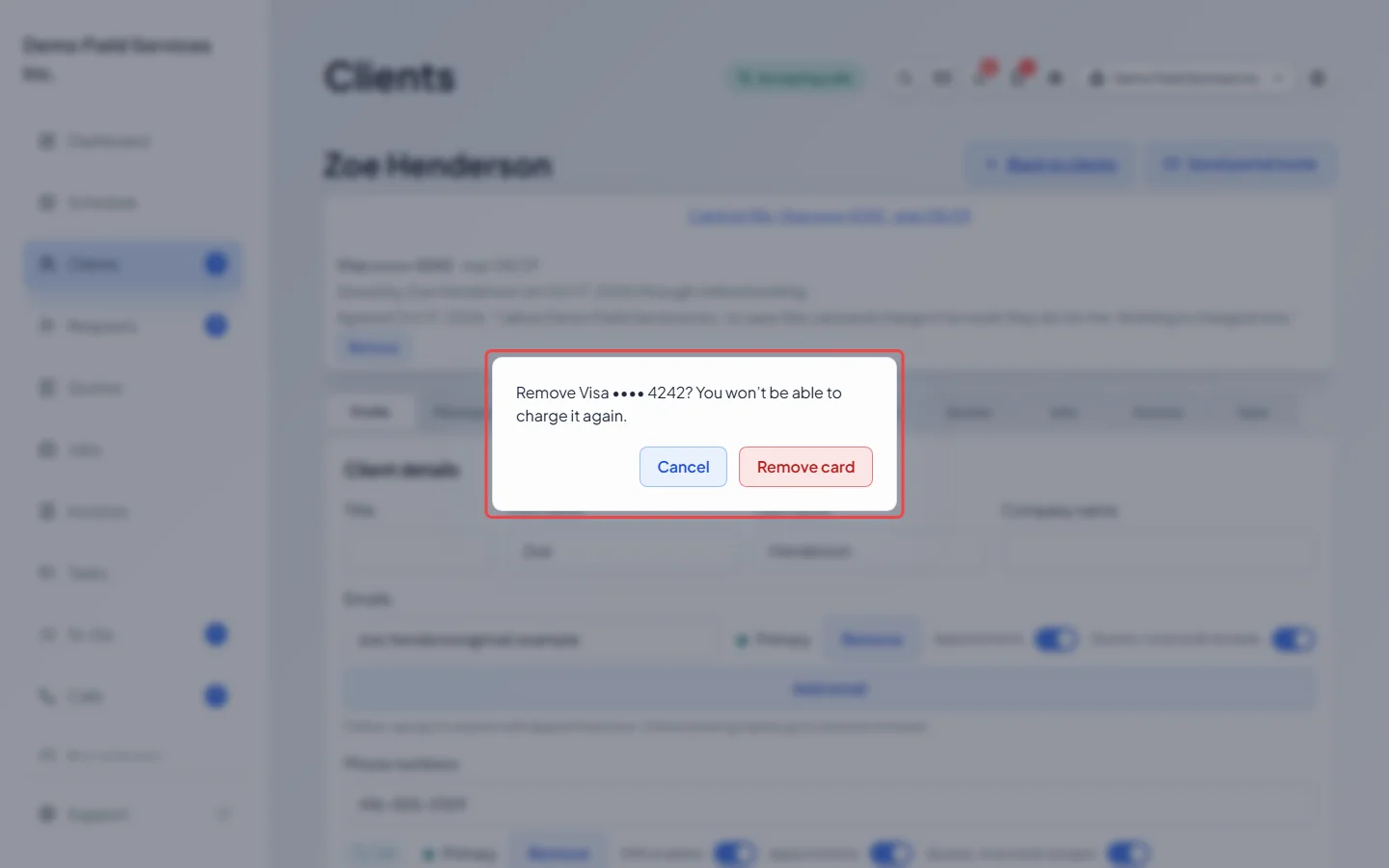
Good to know
Section titled “Good to know”- Nothing is charged from the client’s page. You charge a saved card from a sent invoice. See Taking a card payment.
- The line only appears for clients who have saved a card. To ask for a card when clients book, see Asking for a card.
- A card saved by someone on the client’s account says “(household member)” after their name.
Related articles
Section titled “Related articles”Checked against Astragal on October 17, 2026