

Theme and colours
Switch Astragal between light and dark mode to suit where you work.
Who can do this: Everyone. Only your own screen changes. Your choice is saved on this device, not your teammates’.
Also called: dark mode, appearance.
-
Open Settings and click Workspace theme.
On a computer: Left menu → Settings → Workspace theme On a phone: More → Settings → Workspace theme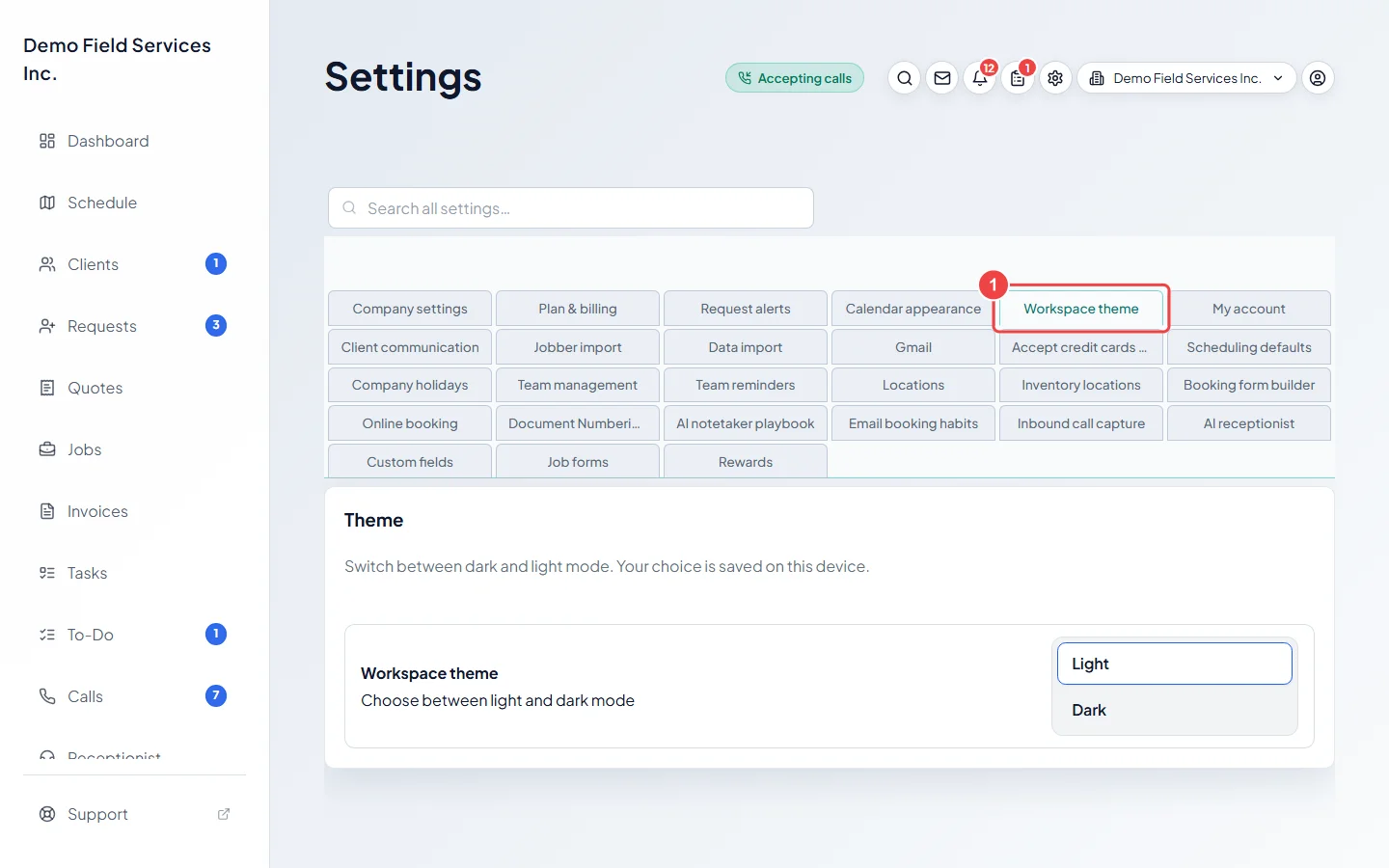
-
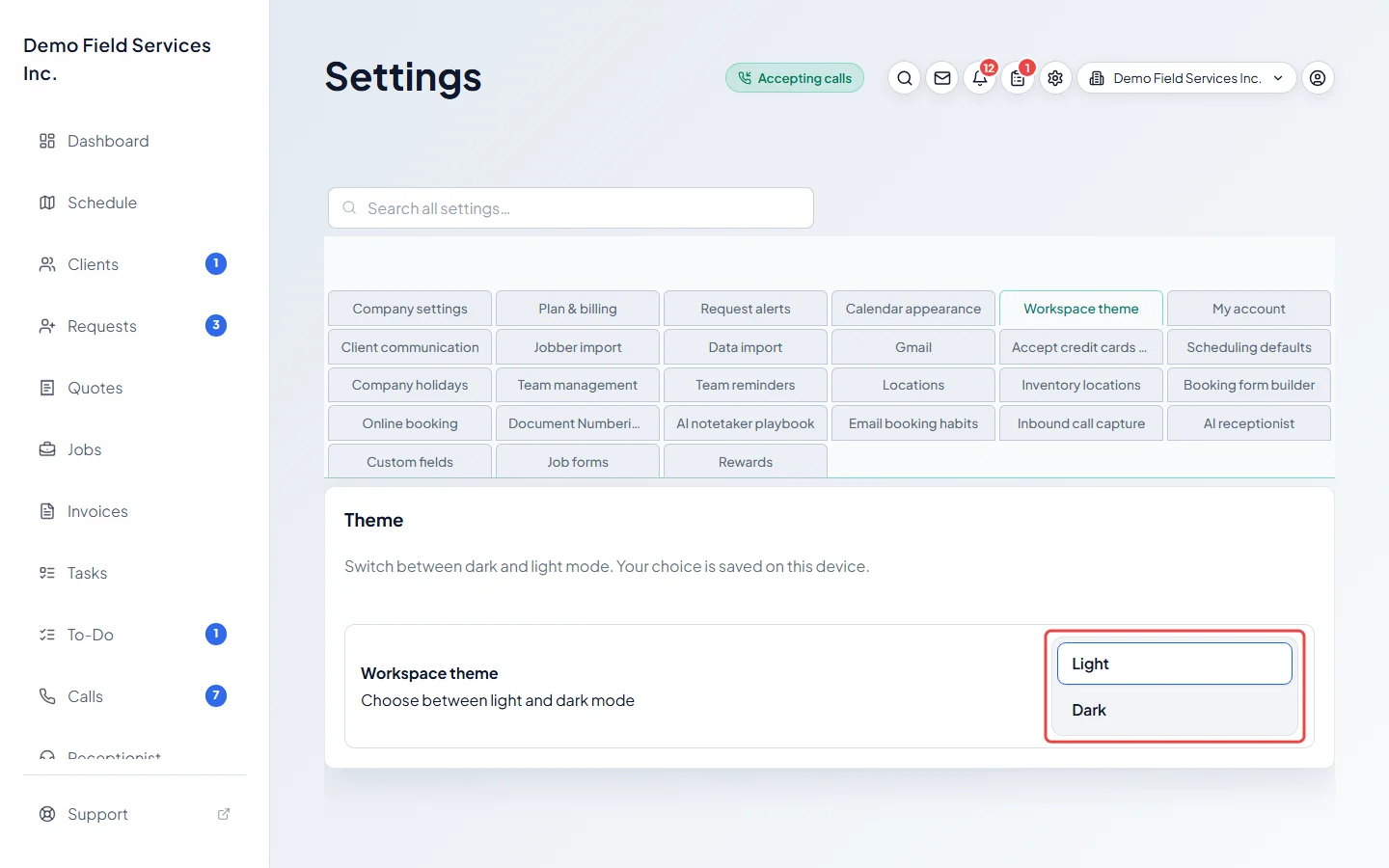
Under Theme, click Light or Dark next to Workspace theme. The whole app changes straight away.
-
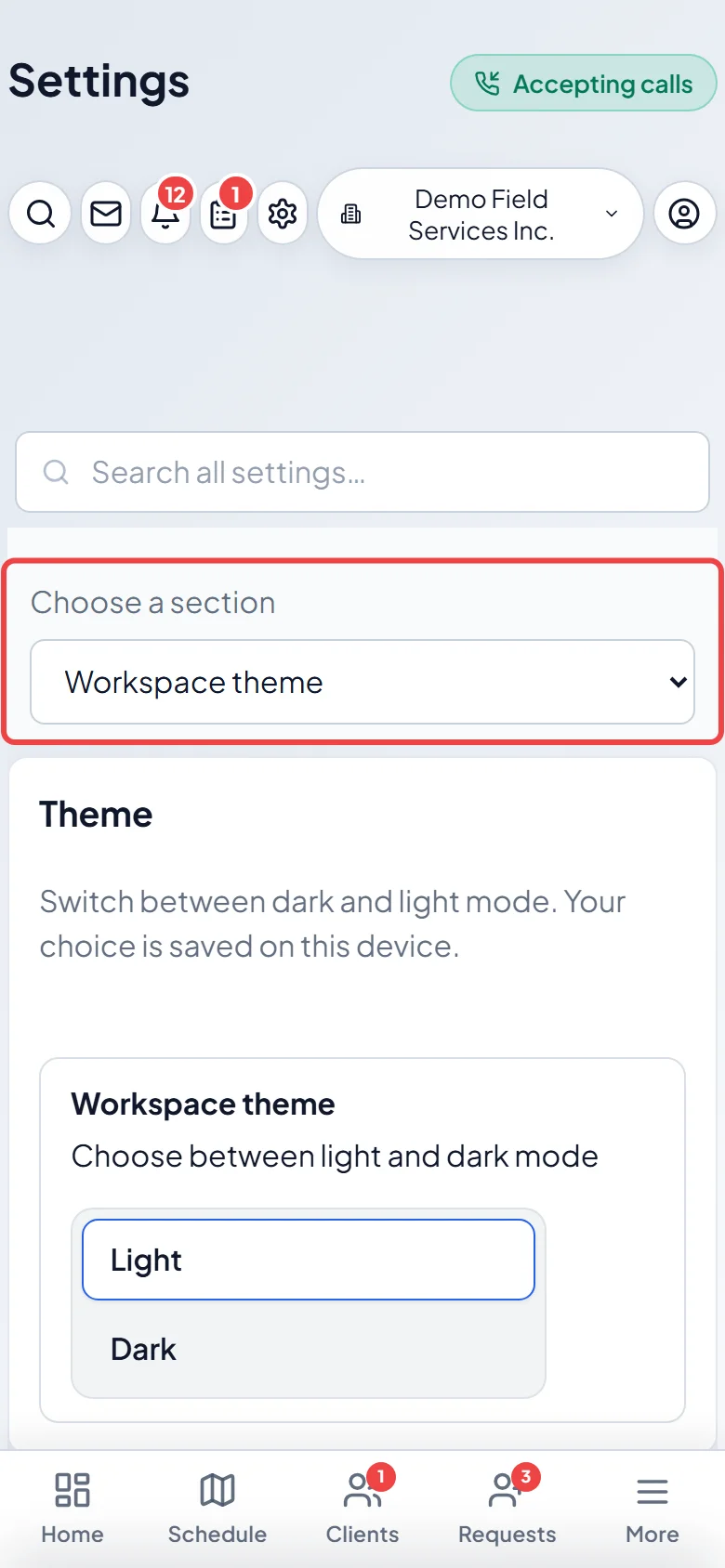
On a phone, the Settings sections are in the Choose a section list at the top of the page. Pick Workspace theme there.
Good to know
Section titled “Good to know”- Technicians don’t have Settings in their menu. They click the gear icon at the top of the screen, which opens Preferences, and choose Light or Dark under Appearance. See Your preferences.
- If you have also picked a theme under Appearance in Preferences, that choice comes back the next time you open Astragal.
- The theme only changes how Astragal looks to you. Your clients never see it.
- The colours of jobs, tasks and requests on the schedule are a company-wide setting. See Schedule colours.
Related articles
Section titled “Related articles”Checked against Astragal on October 18, 2026