

On my way messages
Send the client an “on my way” text with a link to watch you arrive, and open directions to the address.
Who can do this: Admins, dispatchers and accountants, and technicians whose Jobs access is View, edit, and create or higher. The visit needs a property address.
Also called: en route text, heading-over text.
-
Open the visit from your schedule, tap Actions, then Navigate. On a computer, Navigate is a button at the bottom of the visit or job. A request with a property address and someone assigned has the same Navigate button.
On a computer: Left menu → Schedule On a phone: Bottom bar → Schedule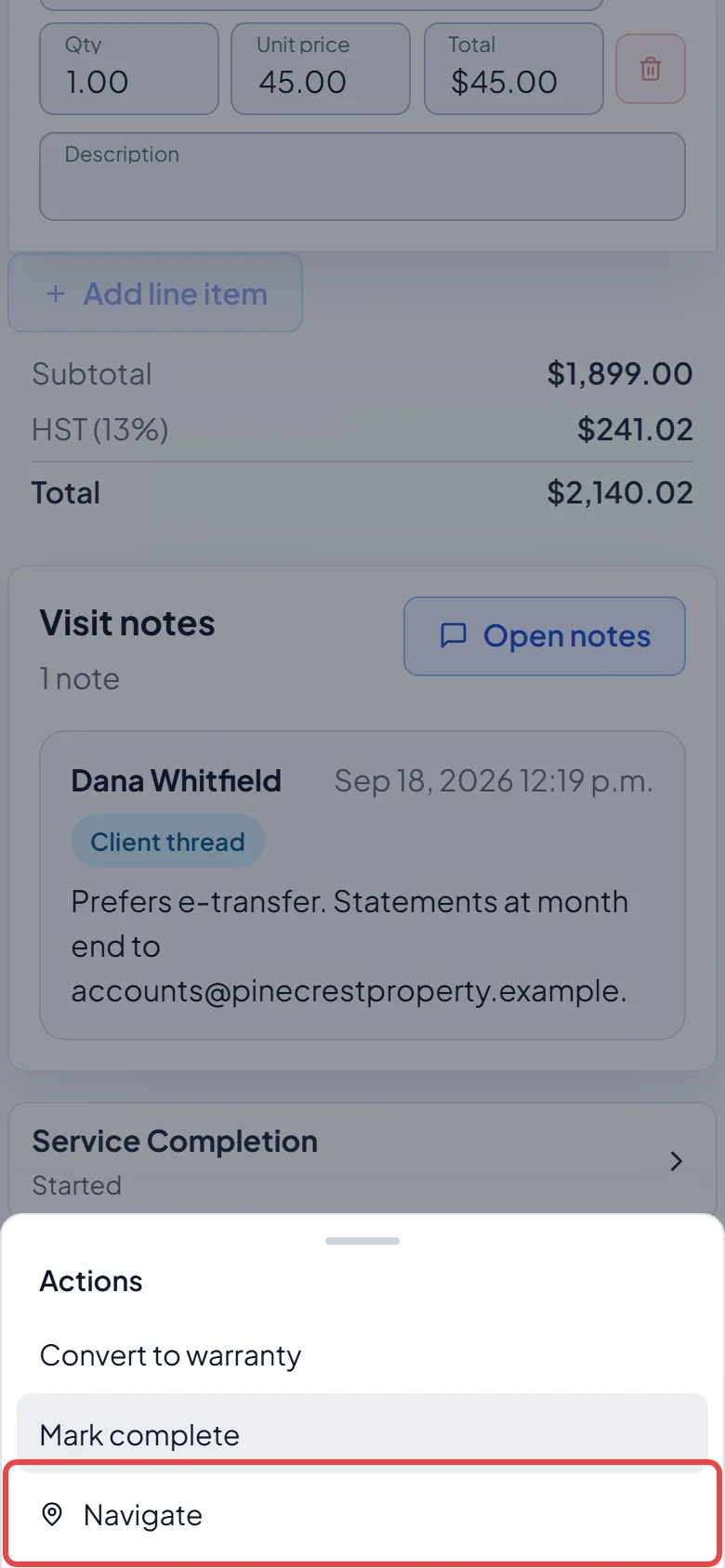
-
The On my way window lists who gets the text under To (SMS). It starts with the client’s phone numbers, leaving out any marked as unable to get texts, or with the job’s contact person if one is set. If the job has an on-site contact, the text goes to them instead, and to the client as well only if the client asked to be copied. Tap Remove to take a number off, Add recipient to add one, or a number under Removed numbers to put it back. Tick Save recipient changes to customer to keep new numbers on the client.
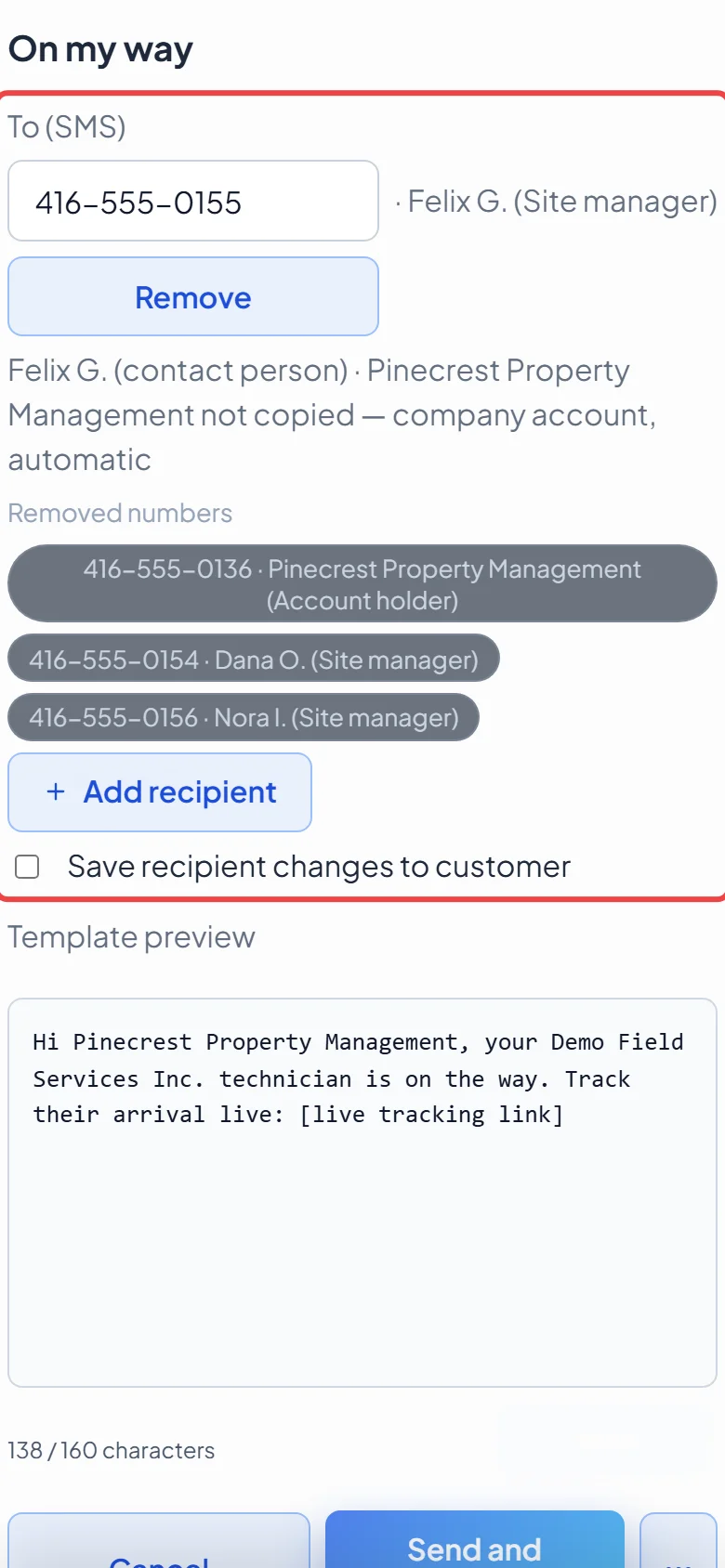
-
Check the Template preview. Where it shows [live tracking link], the real link is filled in when the text goes out. A counter shows how long the text is.
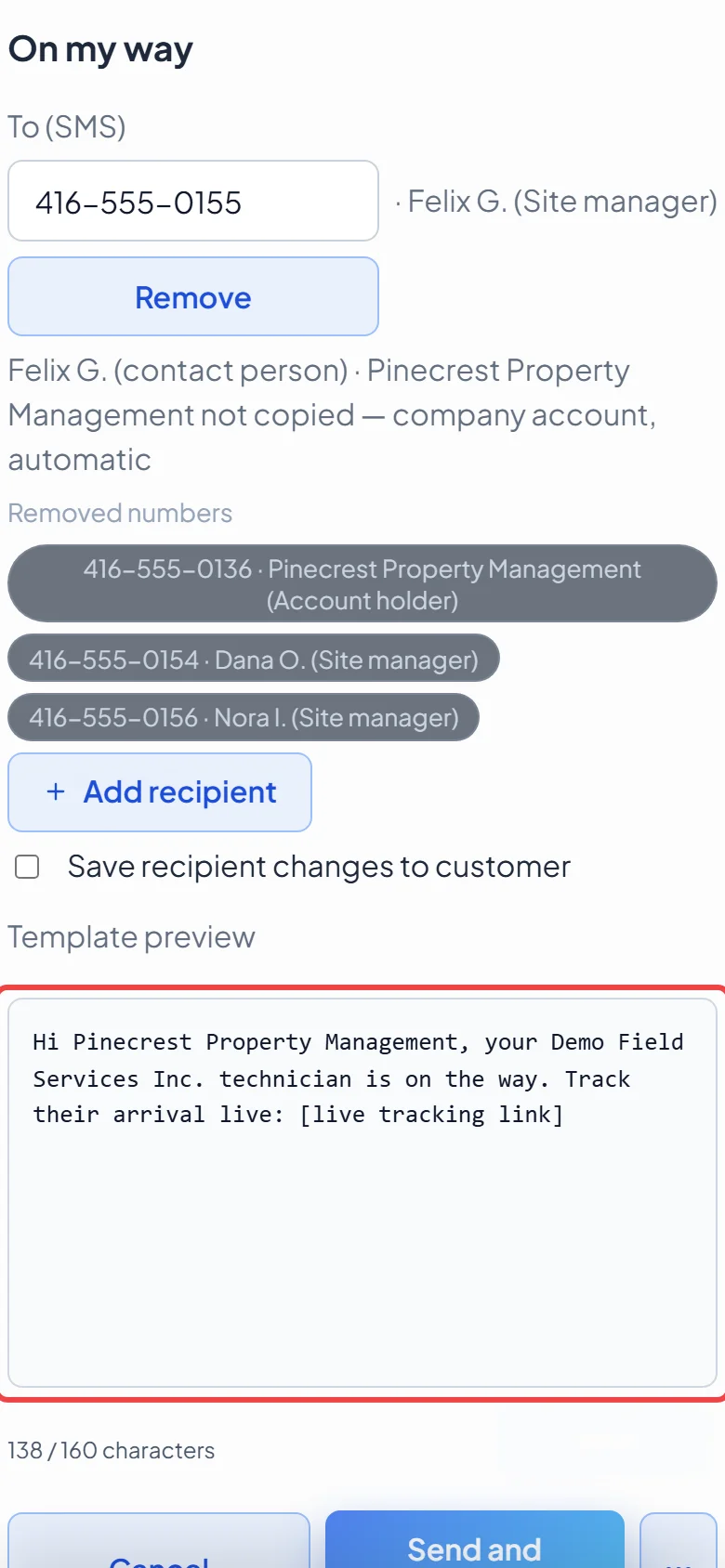
-
Tap Send and navigate. The text goes out, your trip starts so the client’s tracking page shows you on the map, and your maps app opens with directions. Any other client who was watching you drive goes back to the waiting view.
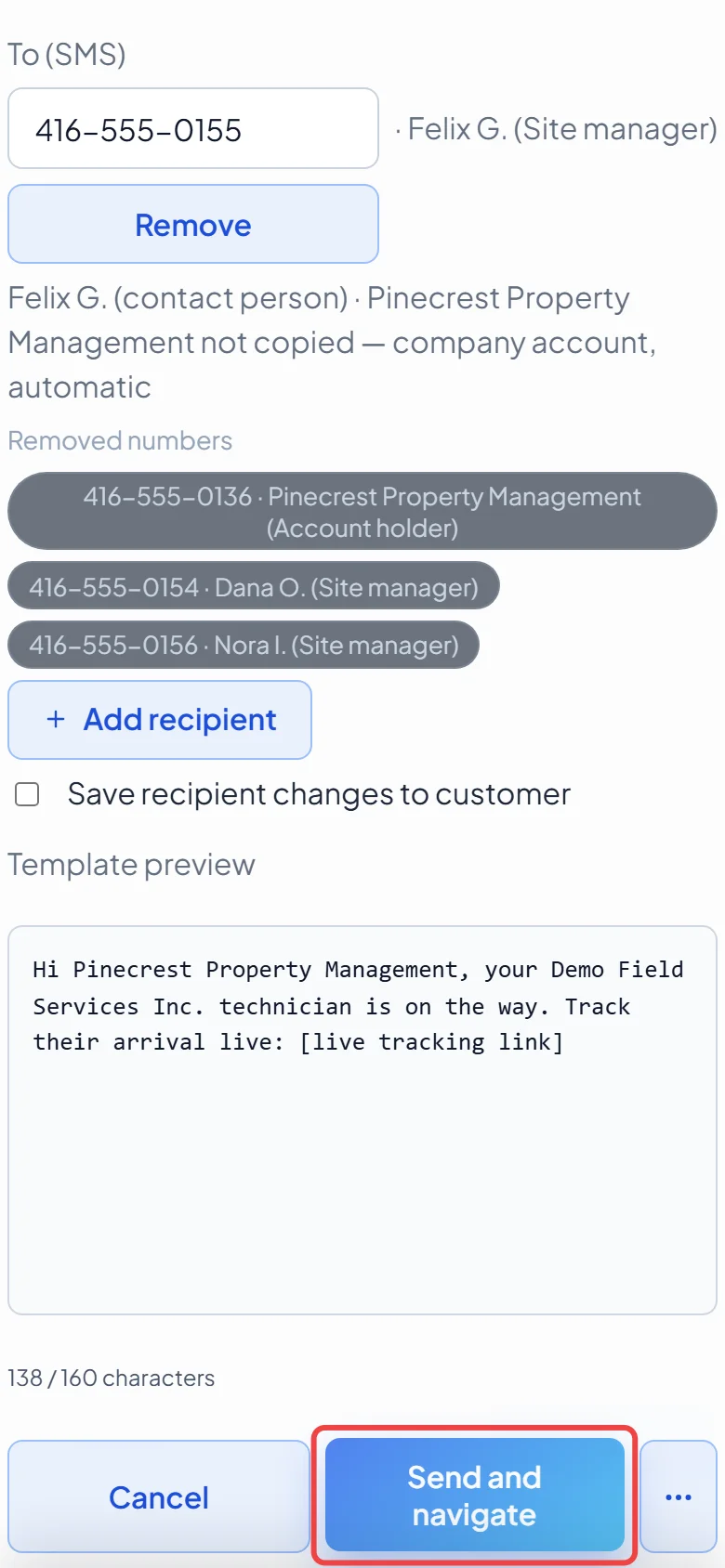
Other choices
Section titled “Other choices”Next to Send and navigate (under the ⋯ button on a phone) you’ll also find:
- Navigate without sending: just opens directions.
- Copy tracking link (Share tracking link in the iPhone app): copies the client’s tracking link without texting them. After copying, the link shows in the window so you can open it and preview the client’s view. Copying doesn’t start your trip; the page shows you live once you start it.
Warnings before sending
Section titled “Warnings before sending”- If the visit isn’t today, the window warns you and asks you to confirm with Send anyway. Double-check you opened the right client. (Requests don’t get this warning.)
- If an on my way text went out for this visit in the last few hours, the window shows when, and asks before texting again (Send again).
- Numbers marked as unable to get texts are left off. If one you added can’t get texts, the others still get it and Astragal tells you which was skipped. If none can, Astragal says so and opens directions anyway.
Good to know
Section titled “Good to know”- The wording comes from the “Job On My Way” text template. See Message templates.
- Your location is shared while you drive so the client can follow along. See Sharing your location.
Related articles
Section titled “Related articles”Checked against Astragal on October 18, 2026