

Refunding a payment
Record money you gave back to a client, or send a card refund, straight from the payment on the invoice.
Who can do this: Admins and accountants. A support person signed in to your account can’t refund.
Also called: giving money back, reimbursing.
-
Open the invoice. Under Payments, click Refund next to the payment.
On a computer: Left menu → Invoices On a phone: More → Invoices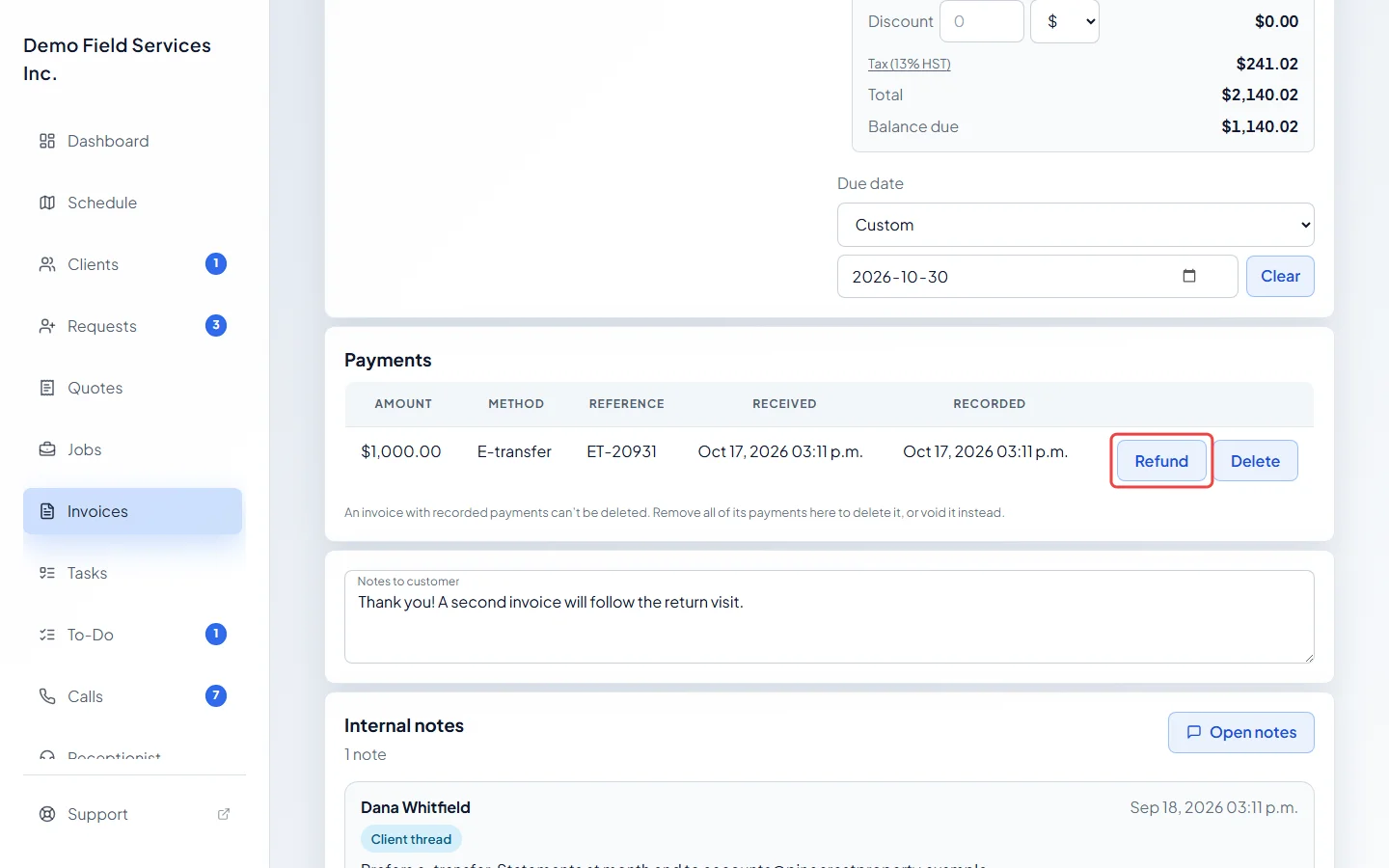
-
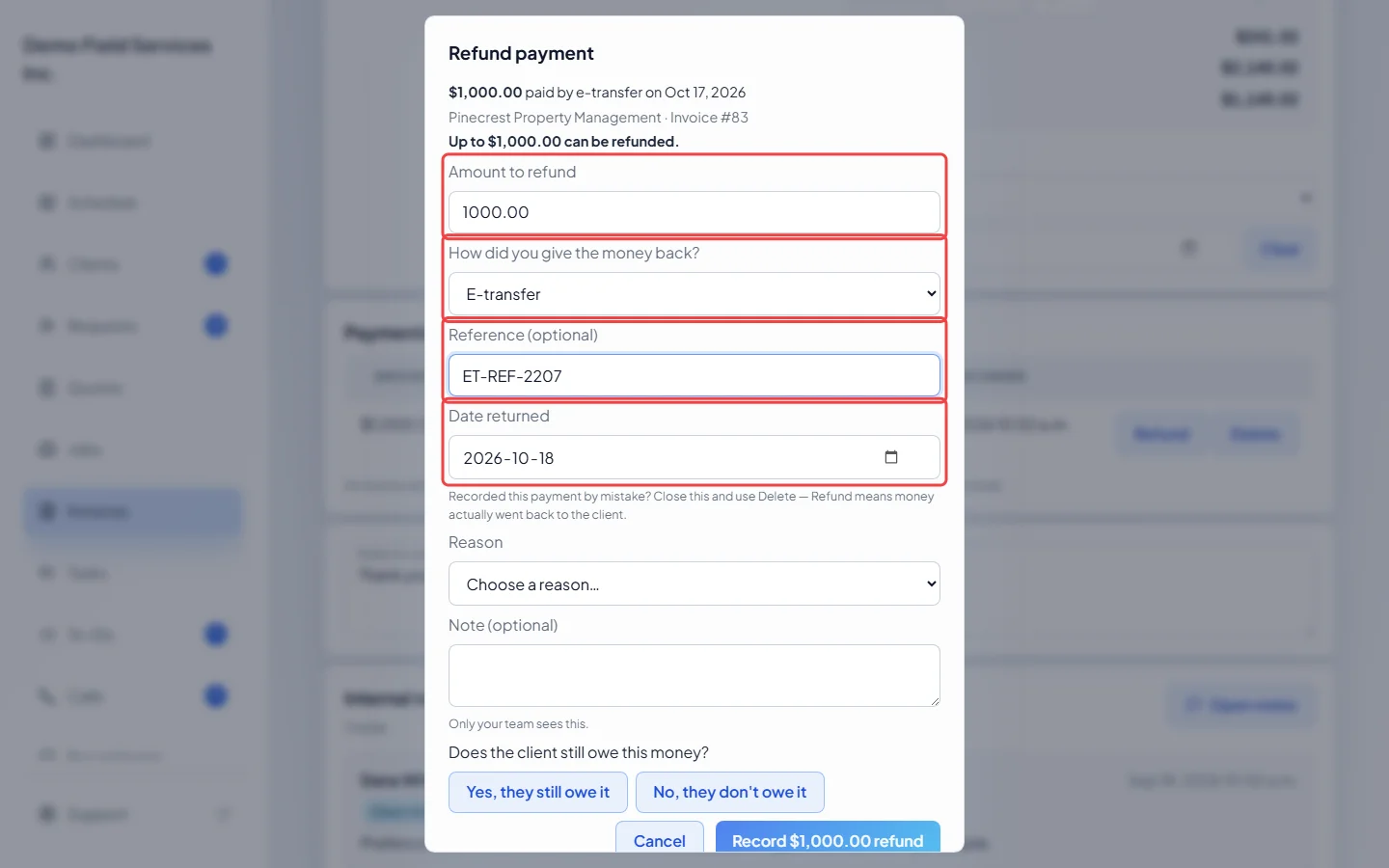
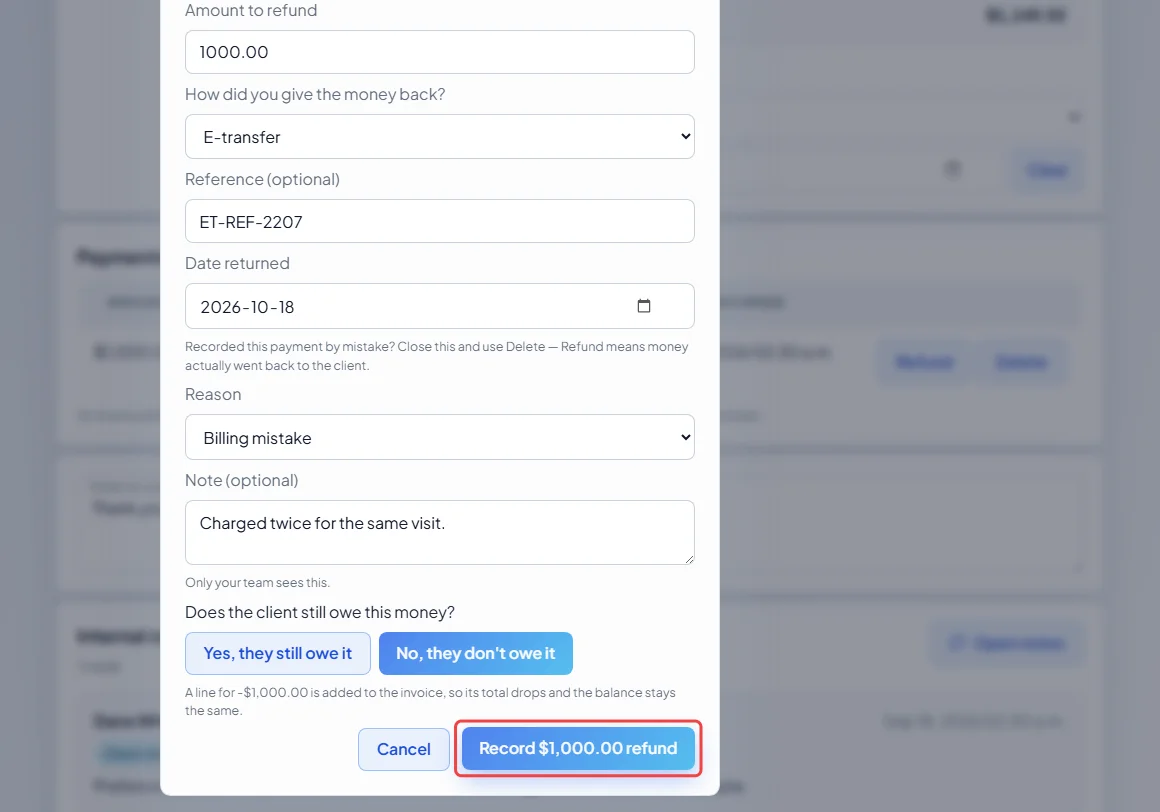
The Refund payment window shows the payment and how much of it can still be refunded. Amount to refund starts at all of it; lower it for a part refund. For a payment you recorded by hand, choose how the money went back in How did you give the money back?, add a Reference (optional) and set the Date returned.
-
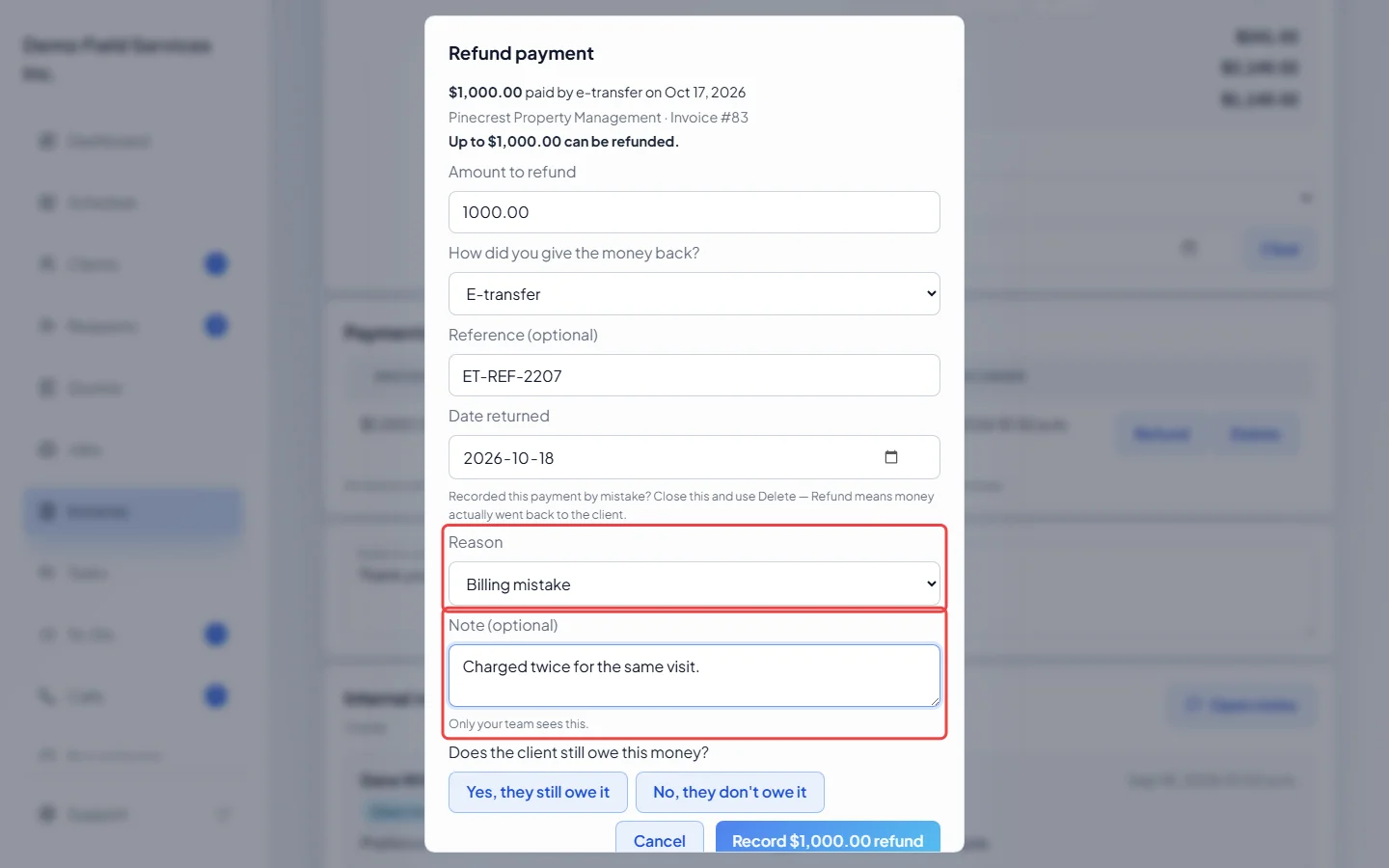
Pick a Reason and add a short note if it helps; only your team sees it. A note is required when the reason is Other.
-
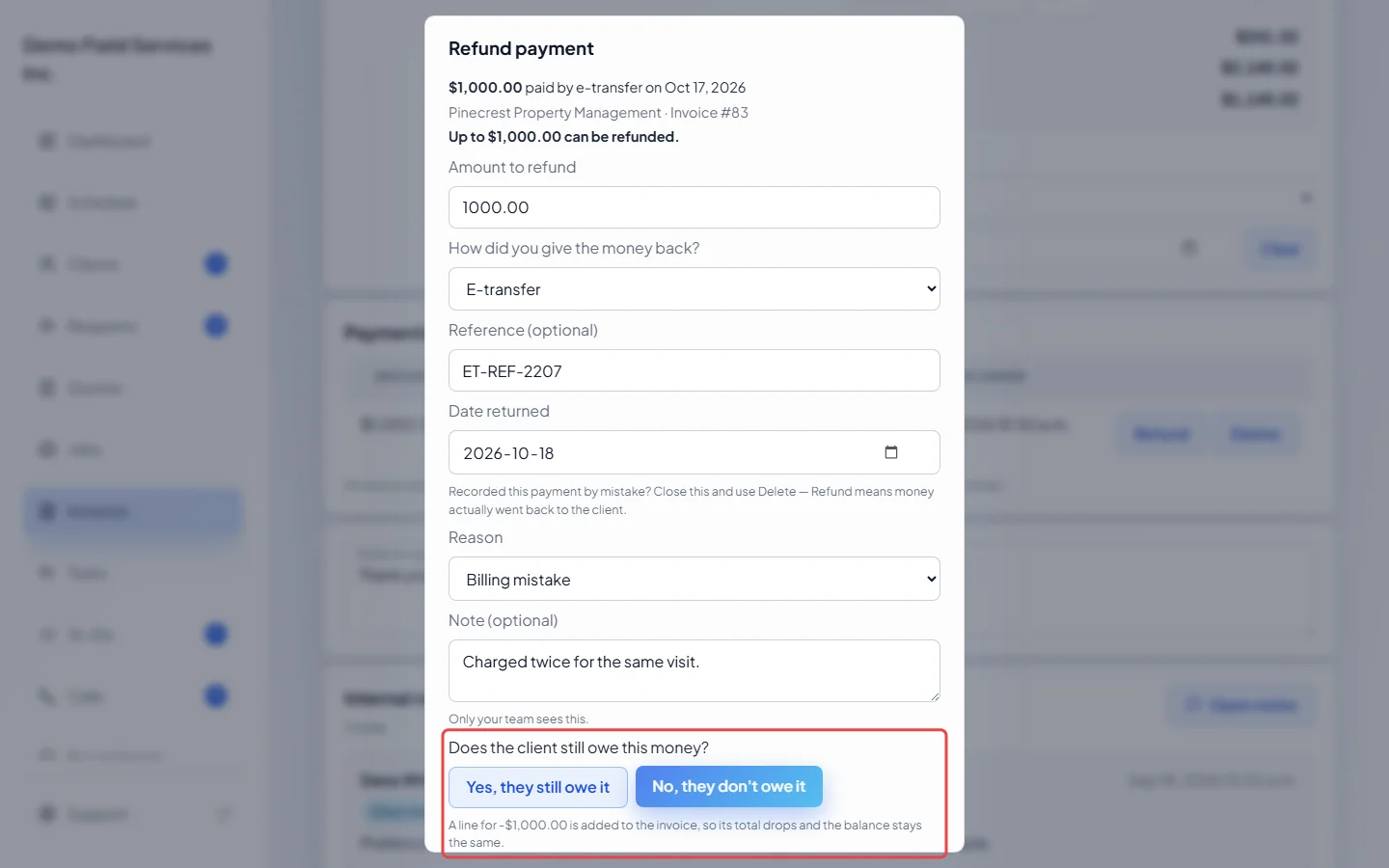
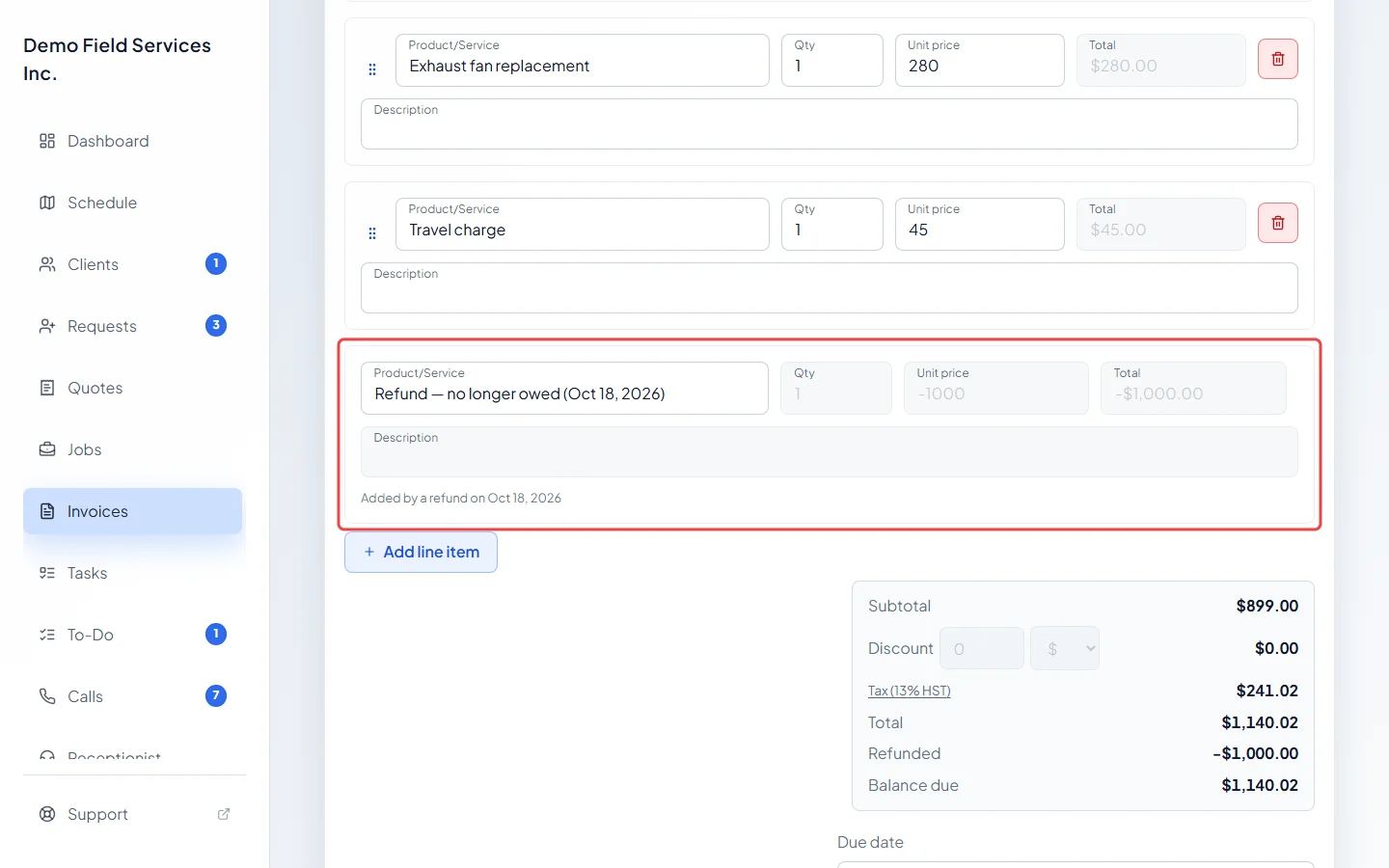
Answer Does the client still owe this money? Choose Yes, they still owe it if the money is still due, for example a payment that bounced; you can set a New due date (optional), and automatic reminders may go out for it. Choose No, they don’t owe it if the money is no longer owed: a refund line is added to the invoice so its total drops and the balance stays the same.
-
Click the button at the bottom. It reads “Record … refund” for a payment you recorded by hand, or “Refund … to card” for a card payment.
-
If you chose No, they don’t owe it, the invoice gets a Refund — no longer owed line for the refunded amount, marked with the date of the refund. It can’t be edited or removed. The refund is also listed under the payment, with the date, the amount, how it went back, the reason and who did it, and the payment shows Refunded or Part refunded.
Card refunds
Section titled “Card refunds”For a payment taken by card through Astragal, the money goes back to the client’s card through your card processor. It usually shows on their statement in 5 to 10 business days, and the processor keeps its original fee. If you already refunded it in your processor’s own website, turn on the “Already refunded… just record it” switch instead, so it isn’t refunded twice.
Before a Converge card payment has settled, only the whole charge can be refunded. With Stripe, a refund is blocked if your Stripe balance is too low to cover it; wait for more payments or give the money back another way.
If Astragal couldn’t confirm a card refund, the refund line asks you. Check your processor’s website, then click It went through or It didn’t go through. A refund made in the processor’s website shows up on its own and asks Does the client still owe this?
Deposits
Section titled “Deposits”Refunding part of a quote’s deposit leaves it showing as not fully paid. Refunding all of a deposit that hasn’t been used on an invoice yet asks: Keep asking for the deposit reopens it so the client can pay again, and Cancel the deposit voids the deposit bill. If the deposit was already taken off a job’s invoice, you’re told which invoice, and Yes, they still owe it puts that amount back on it.
Good to know
Section titled “Good to know”- Refund means money actually went back to the client. If you recorded a payment by mistake, close the window and click Delete next to the payment instead. See Recording payments.
- If the payment had a recent refund, the window lists it and asks you to tick a box saying you checked, so the same money isn’t refunded twice.
- No, they don’t owe it isn’t available on an invoice with a discount, or when the refund is bigger than the invoice total. Choose Yes, they still owe it and change the invoice yourself.
- A voided invoice’s payments can still be refunded.
- A fully refunded invoice shows Refunded in the invoices list.
Related articles
Section titled “Related articles”Checked against Astragal on October 17, 2026