

The job details page
The job page holds everything about one job and is where you change it, invoice it or close it.
Who can do this: Anyone who can see jobs can open the page. Technicians can open only the jobs they’re on, unless their Schedule permission is Edit everyone’s schedule or higher. Changing it needs the Jobs permission View, edit, and create or higher (admins, dispatchers and accountants always can). Archiving and deleting need View, edit, create, and delete.
Also called: work order.
-
Open the jobs list and click a job. At the top you see the job number, whether it is a One-off job or Recurring job, and buttons for the quote, request or invoice it is linked to. Click the job number to change it, and use the photos button to see pictures for the technician (admins, dispatchers and accountants can add them). It reads Photos with a count, Add photos or No photos. Back to jobs takes you back to the list.
On a computer: Left menu → Jobs On a phone: More → Jobs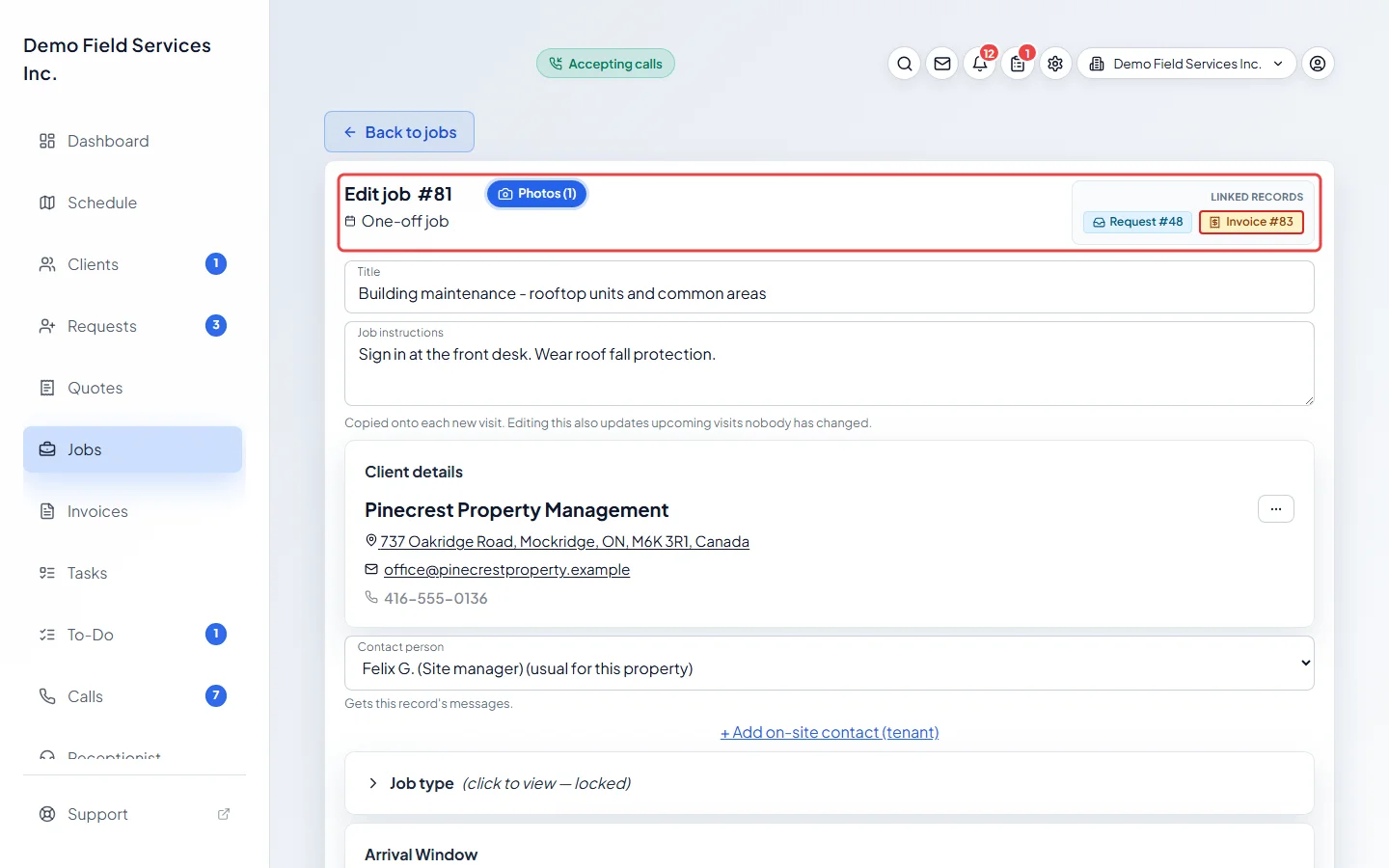
-
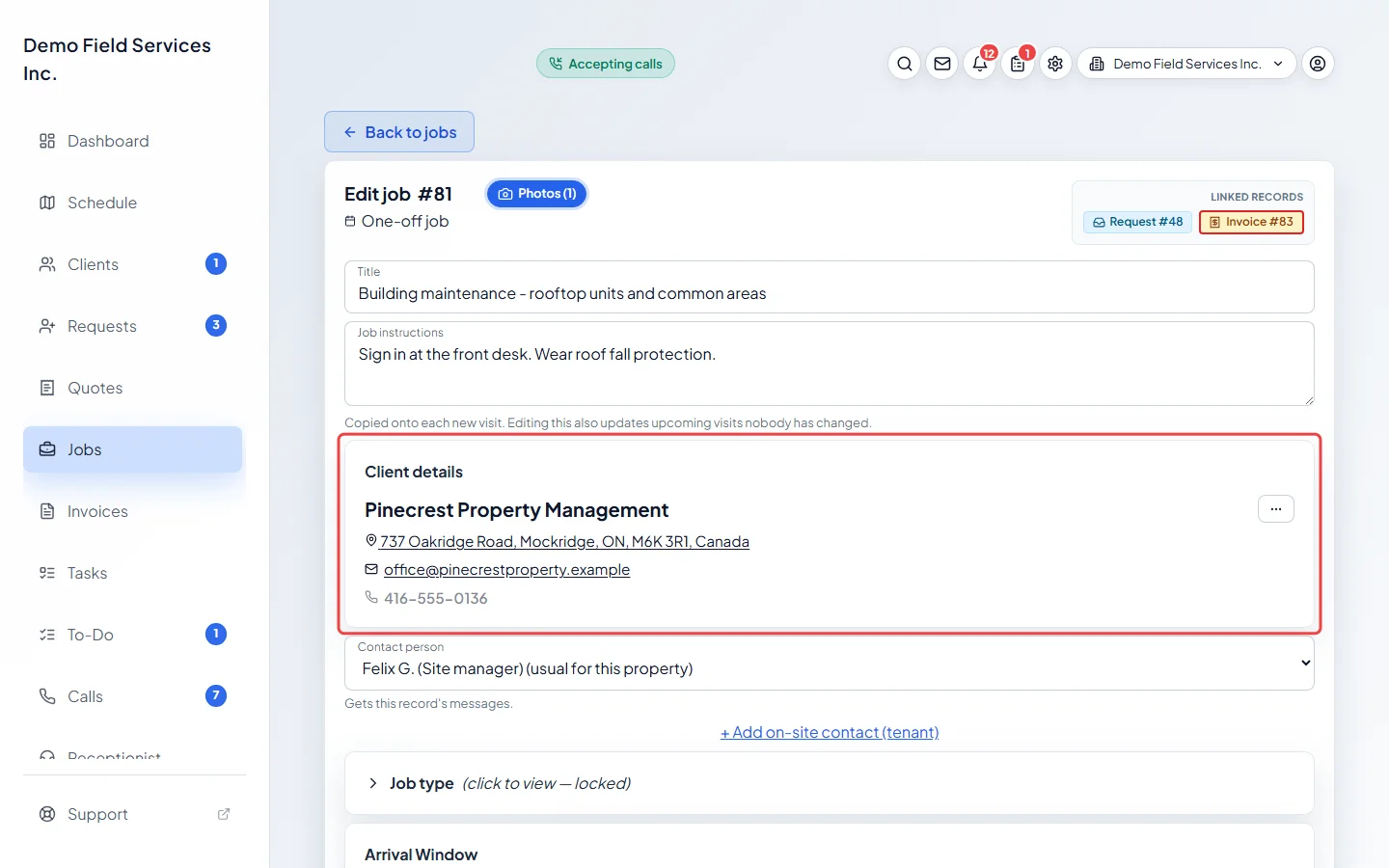
At the top you can edit the Title and Job instructions. Under Client details you see the client, the property address (click it for directions), their email and phone. Use the ⋯ button for Edit client details or Change property.
-
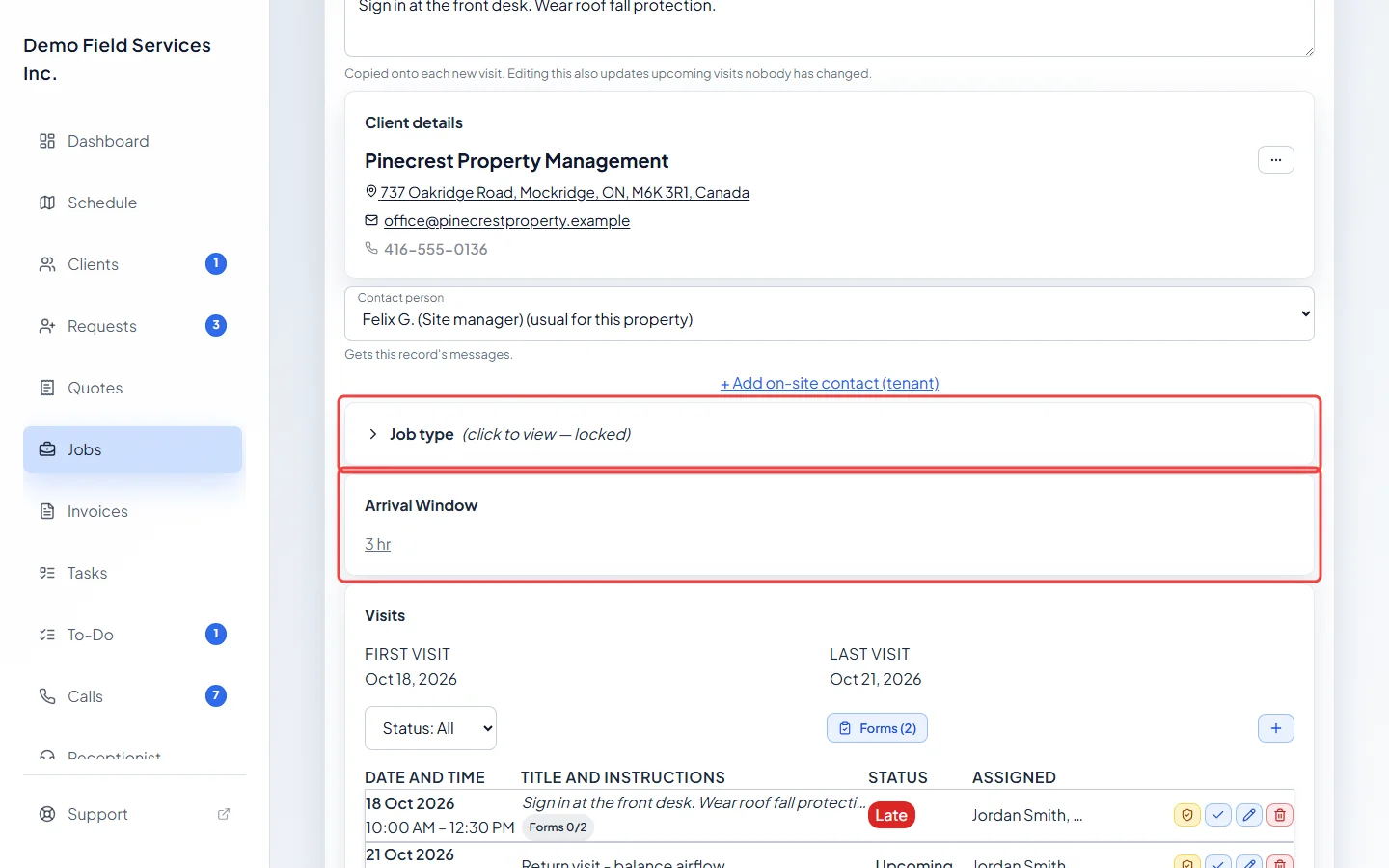
Job type shows how the job was set up. It is locked after creation, so click it only to look. Arrival Window shows the window the client is promised; click it to change it.
-
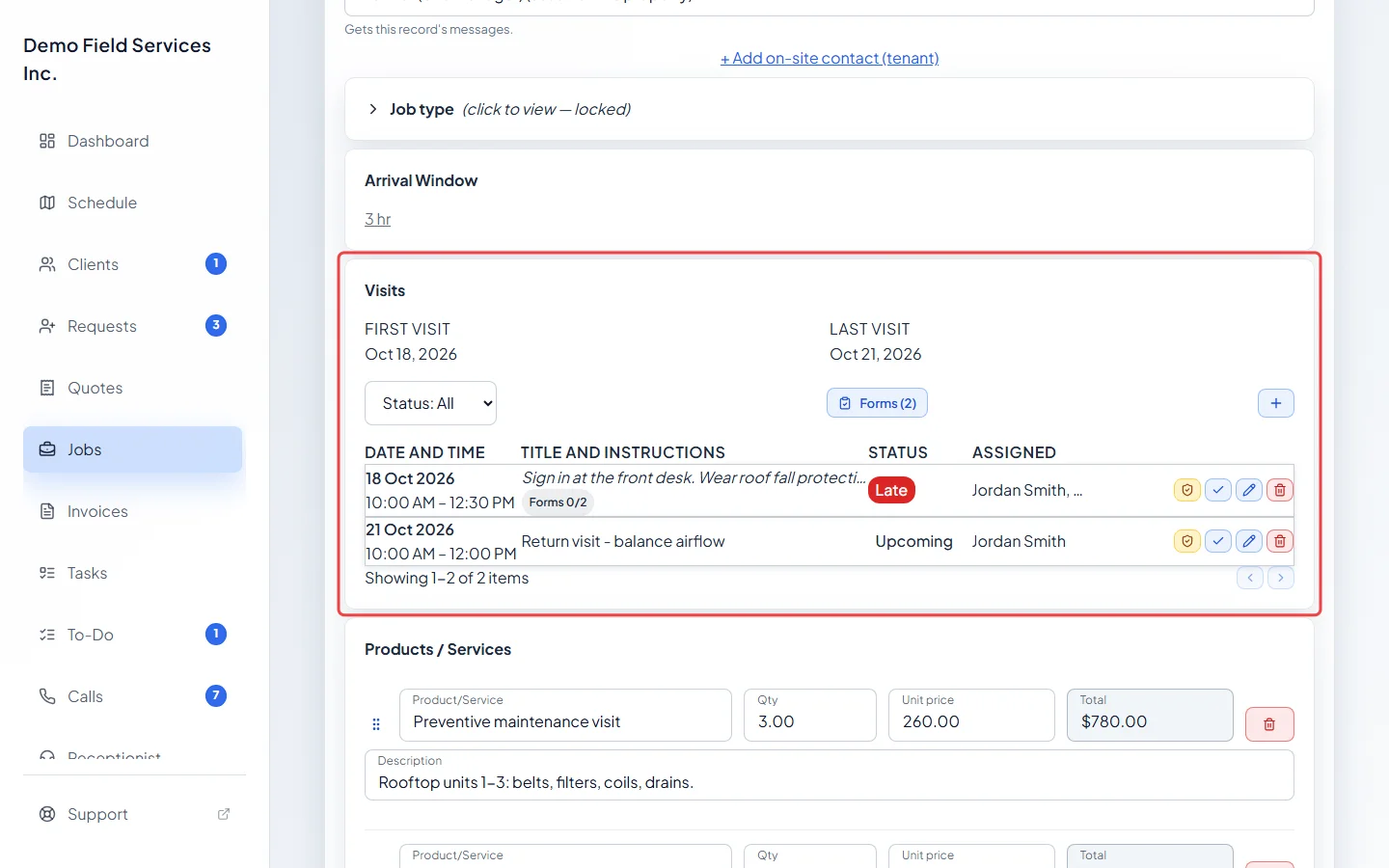
Visits lists each trip to the client with its date, status and team. Click + to add a visit, the tick to mark one complete (Reopen undoes it), the shield to make it a warranty visit on an earlier job, the pencil to edit, or the bin to delete. Use the Status: All box to show only scheduled, completed or cancelled visits, and Forms to choose the job’s forms. See Visits and completing them.
-
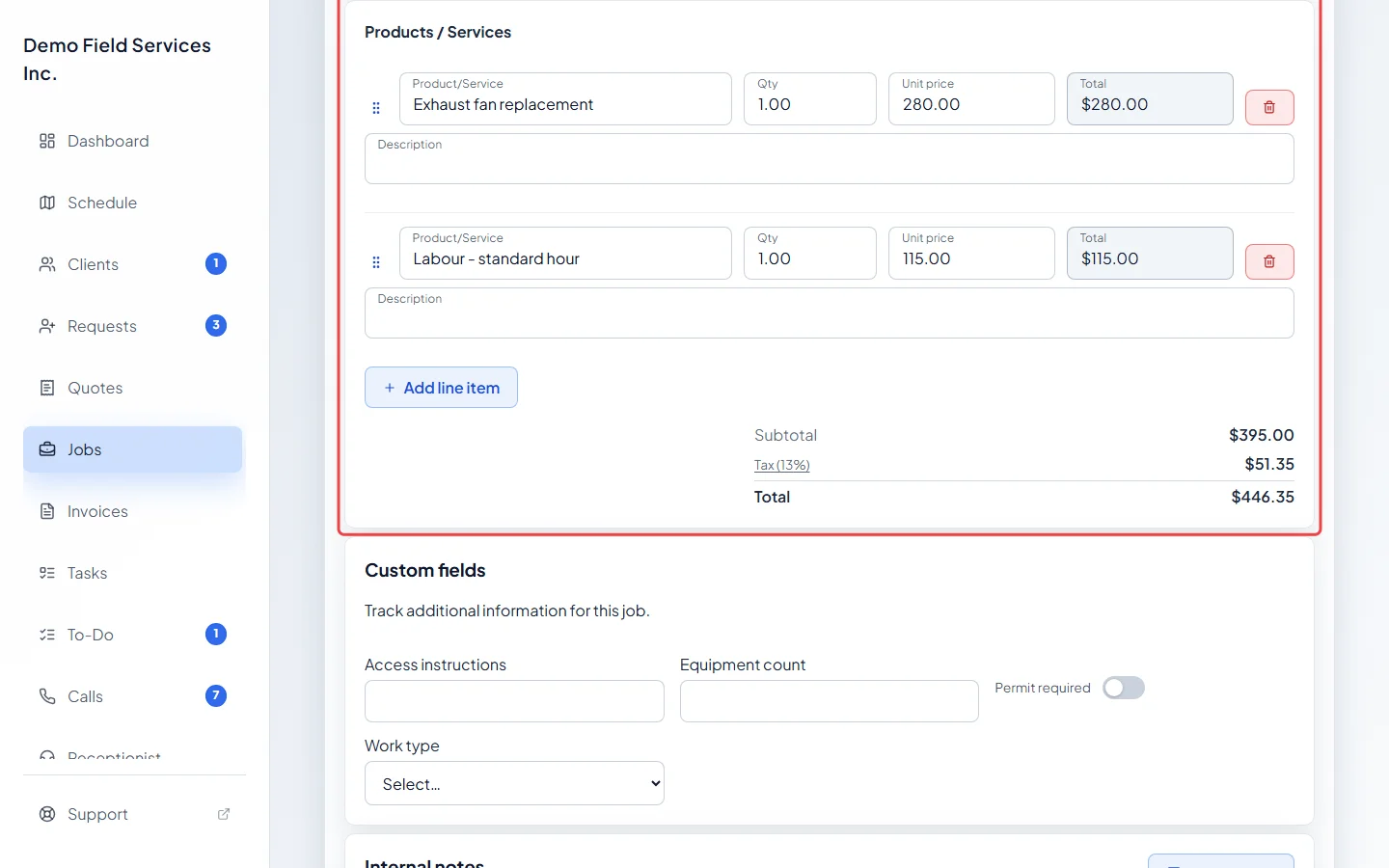
Products / Services holds the job’s line items, tax and total. On a one-off job these belong to the job, so change them here. If the job came from a quote with a deposit, the deposit paid and Balance due show under the total.
-
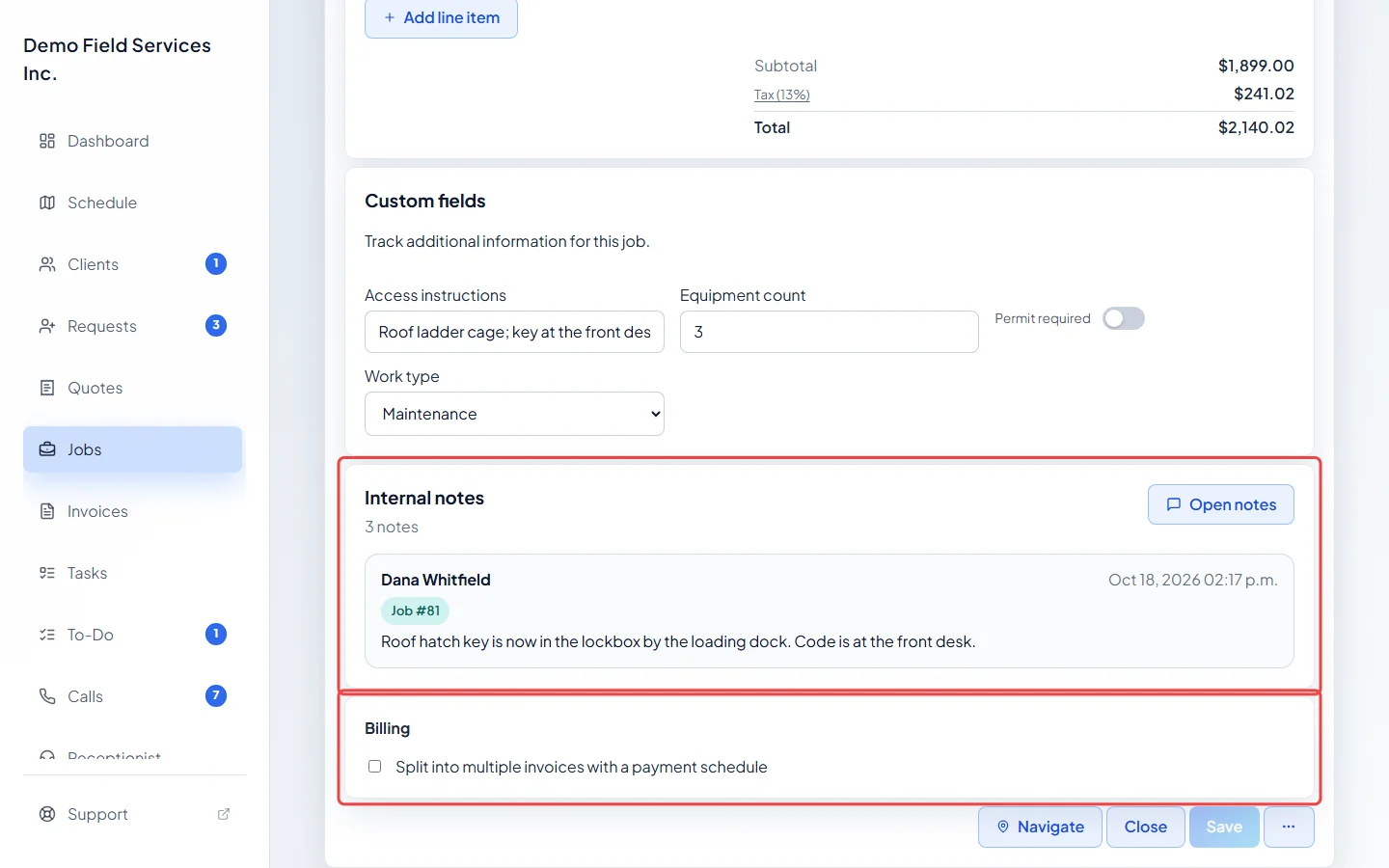
Further down are Internal notes and Billing, with Custom fields above them if your company has set up custom fields for jobs. Click Open notes to read or add notes and files. See Notes and files on a job.
-
At the bottom, click Save after making changes (it only lights up when something changed). Cancel throws away changes; with nothing changed it reads Close. Navigate opens directions and the On my way text. The ⋯ button holds the job’s other actions.
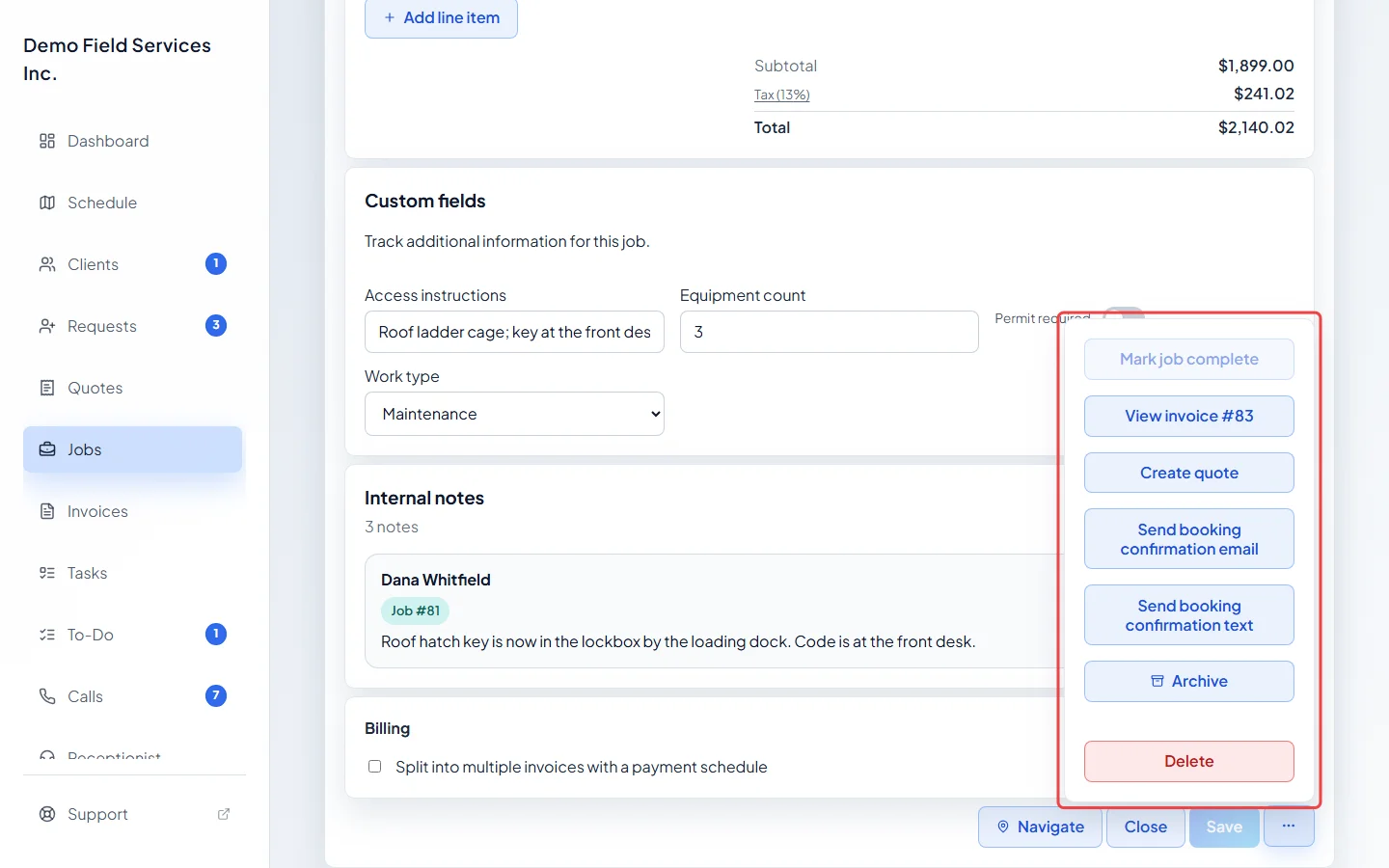
The more actions menu
Section titled “The more actions menu”- Mark job complete: closes a job whose visits are done but which was left open. Not shown on recurring jobs billed per visit.
- Generate invoice: once the job is complete and saved, makes the invoice from the job’s line items (needs invoicing access). Not shown when every visit is a warranty visit. Once it exists, the menu shows View invoice instead, plus Generate missing installment when a payment schedule has invoices still to make. See Invoice from a completed job.
- Create quote: writes a quote from this job. See Writing a quote from a job.
- Send booking confirmation email and Send booking confirmation text: open the message so you can check it before sending.
- Archive: hides the job from your lists and calendar but keeps it, and its invoices keep their link. An archived job is read-only; click Restore on its page to change it again.
- Restore from archive: shown instead of Archive on an archived job.
- Delete: see Deleting a job or visit.
When the last visit is done
Section titled “When the last visit is done”On one-off and fixed-price jobs that have no invoice yet, marking the last visit complete closes the job and asks what’s next:
- Close job & invoice now closes the job and opens its new invoice. Not shown when every visit is a warranty visit.
- Or choose what happened under Closing without an invoice — what happened?: Work completed, Quote given — no work done, Nothing we could do or Client declined the work, then click Close job. Work completed sends the usual follow-up. For Quote given — no work done, pick I told them a price (with an optional price and note), or Write up a quote and click Write the quote. A price you told them can get its own follow-up if that automation is turned on.
- Leave job open keeps the job open so you can add more visits.
Reopening a regular visit on a closed job opens the job again.
Good to know
Section titled “Good to know”- Cards at the top of the page show a deposit paid on the quote (Deposit from quote), supplier orders for the job, and who requested it.
- Changing a job’s instructions also updates upcoming visits nobody has changed.
Related articles
Section titled “Related articles”Next step: Invoice from a completed job
Checked against Astragal on October 18, 2026