

Approving timesheets
Approve your team’s hours once you’ve checked them, so they are locked and ready to pay.
Who can do this: Admins, dispatchers and accountants.
Also called: signing off hours, payroll approval.
-
Open Timesheets. The Approve timesheets card shows a calendar for the pay period you are looking at. Each day is coloured by its status: Awaiting approval, Approved, Paid or Blocked by open shift, and shows the initials of everyone who worked that day. If the pay period starts in the previous month, those days may not show on the calendar but are still included.
On a computer: Left menu → Timesheets On a phone: More → Timesheets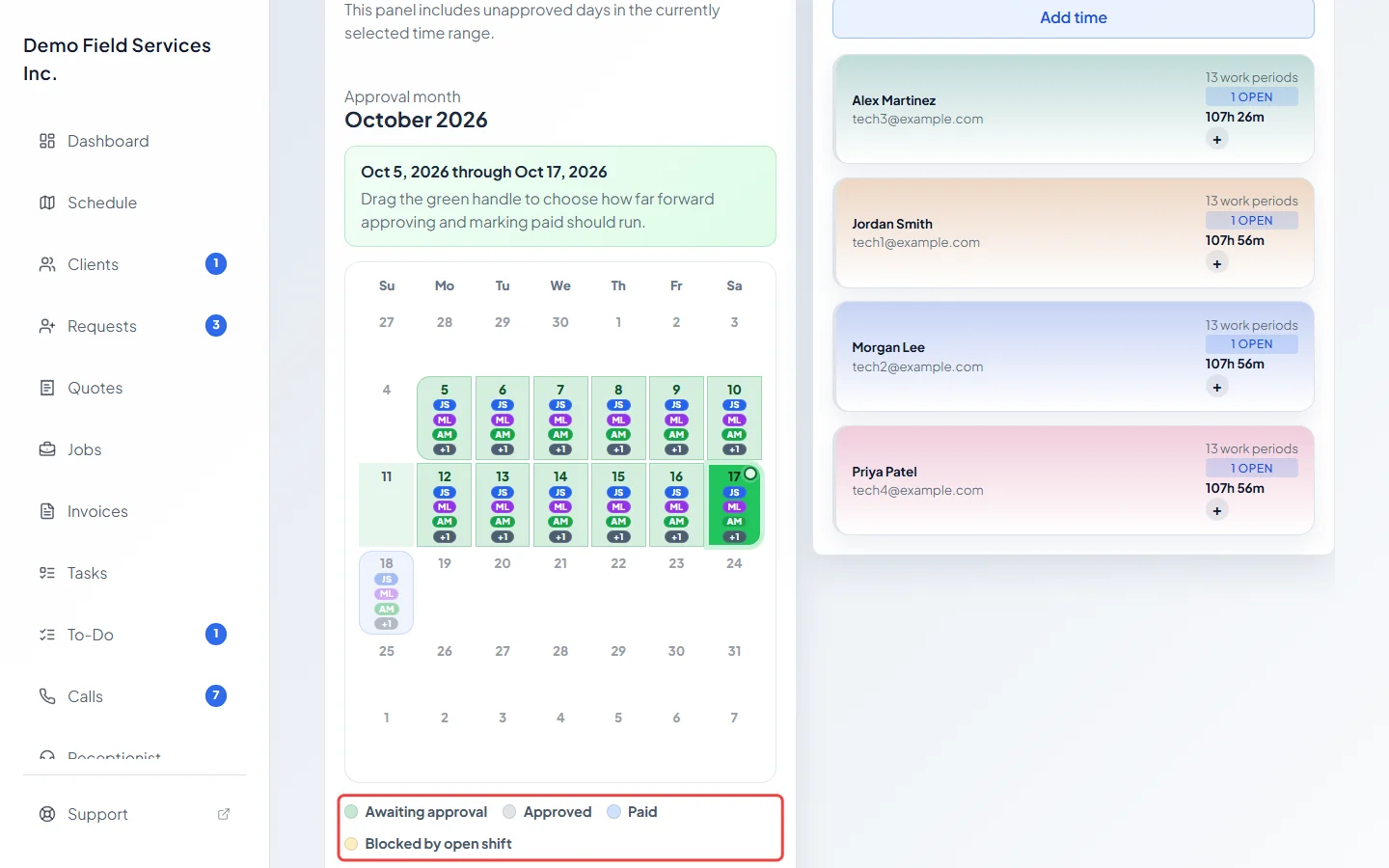
-
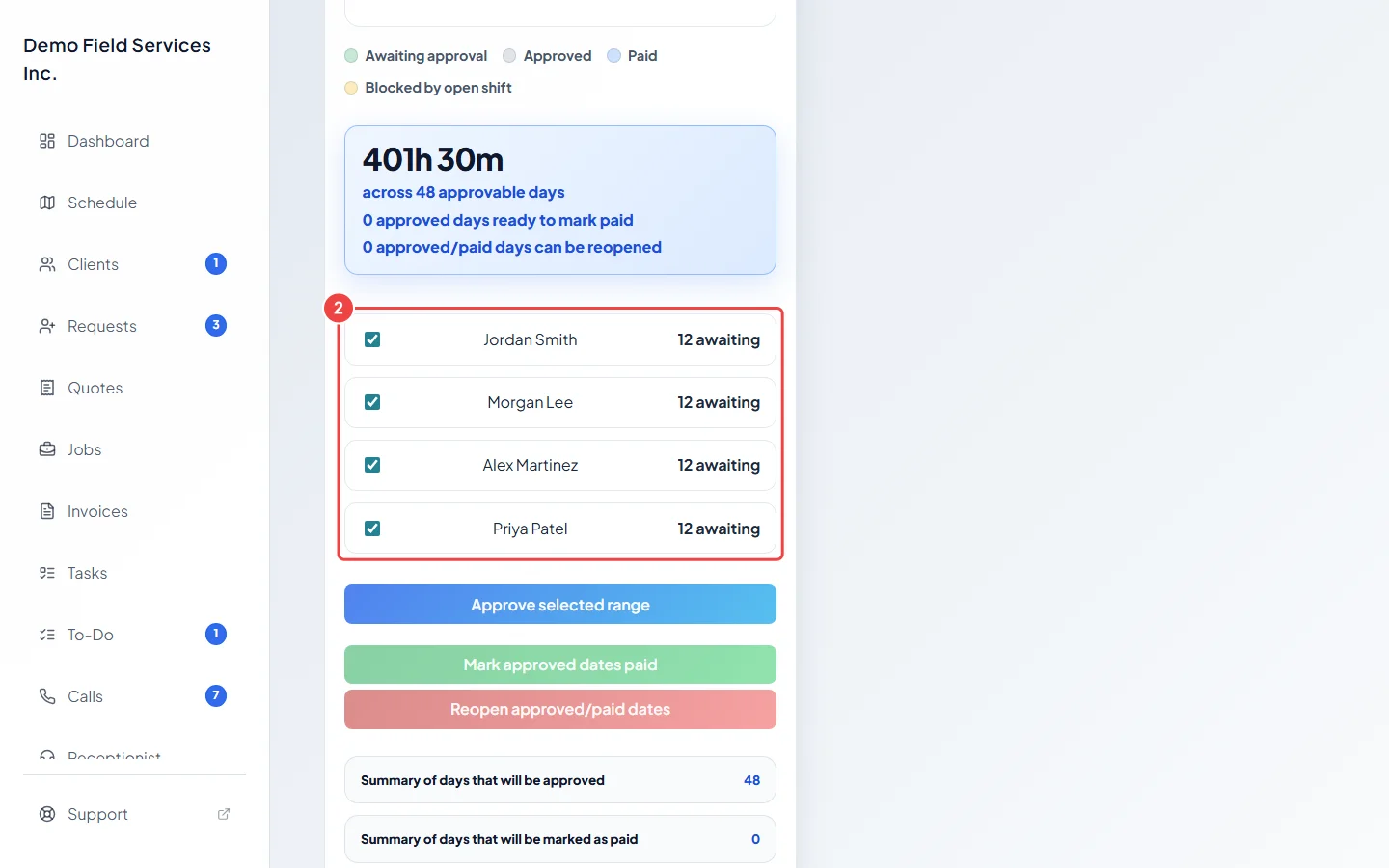
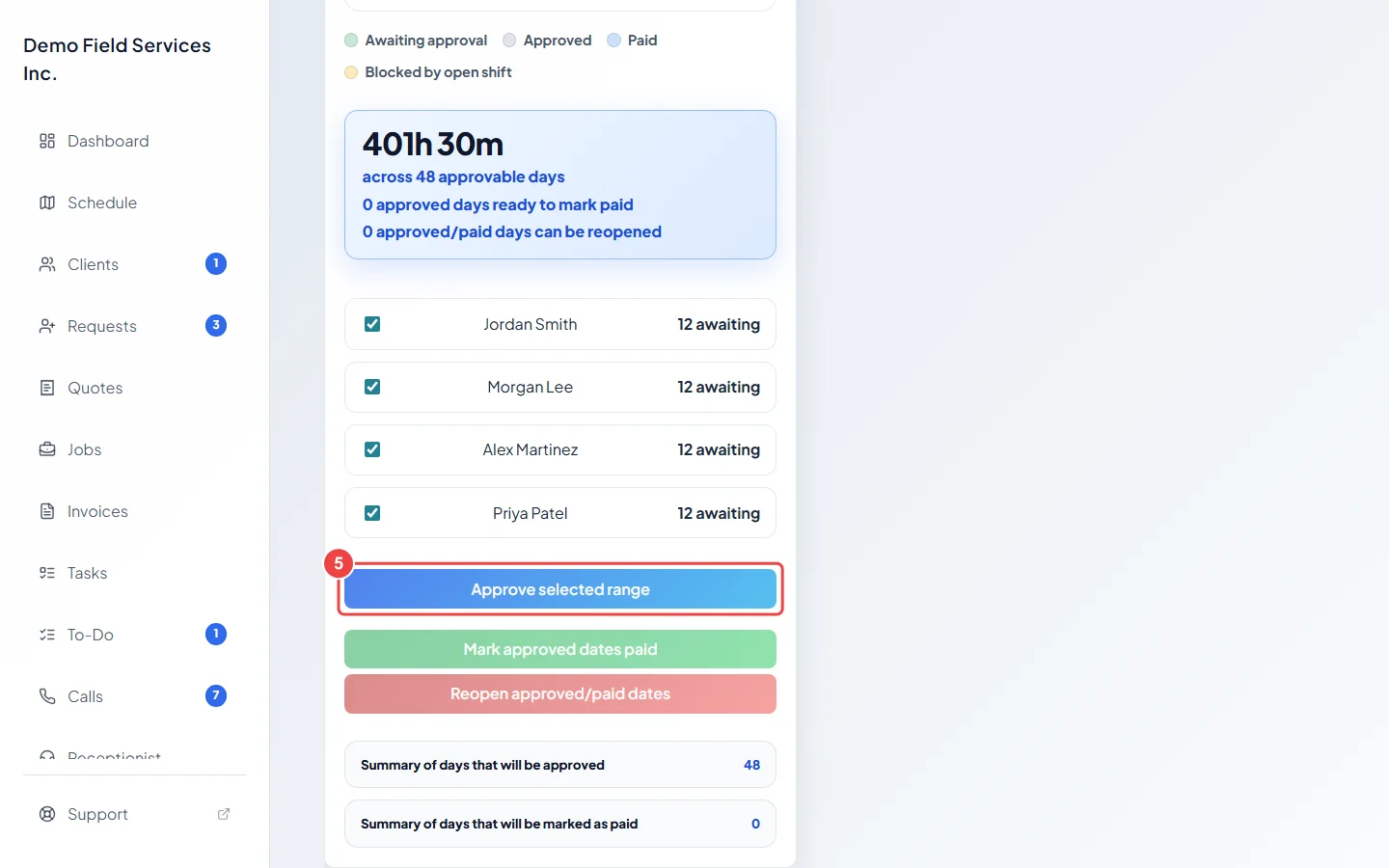
Under the calendar, tick the people whose hours you want to approve. Everyone with time is ticked to start with. Each name shows how many of their days are awaiting approval, approved or locked.
-
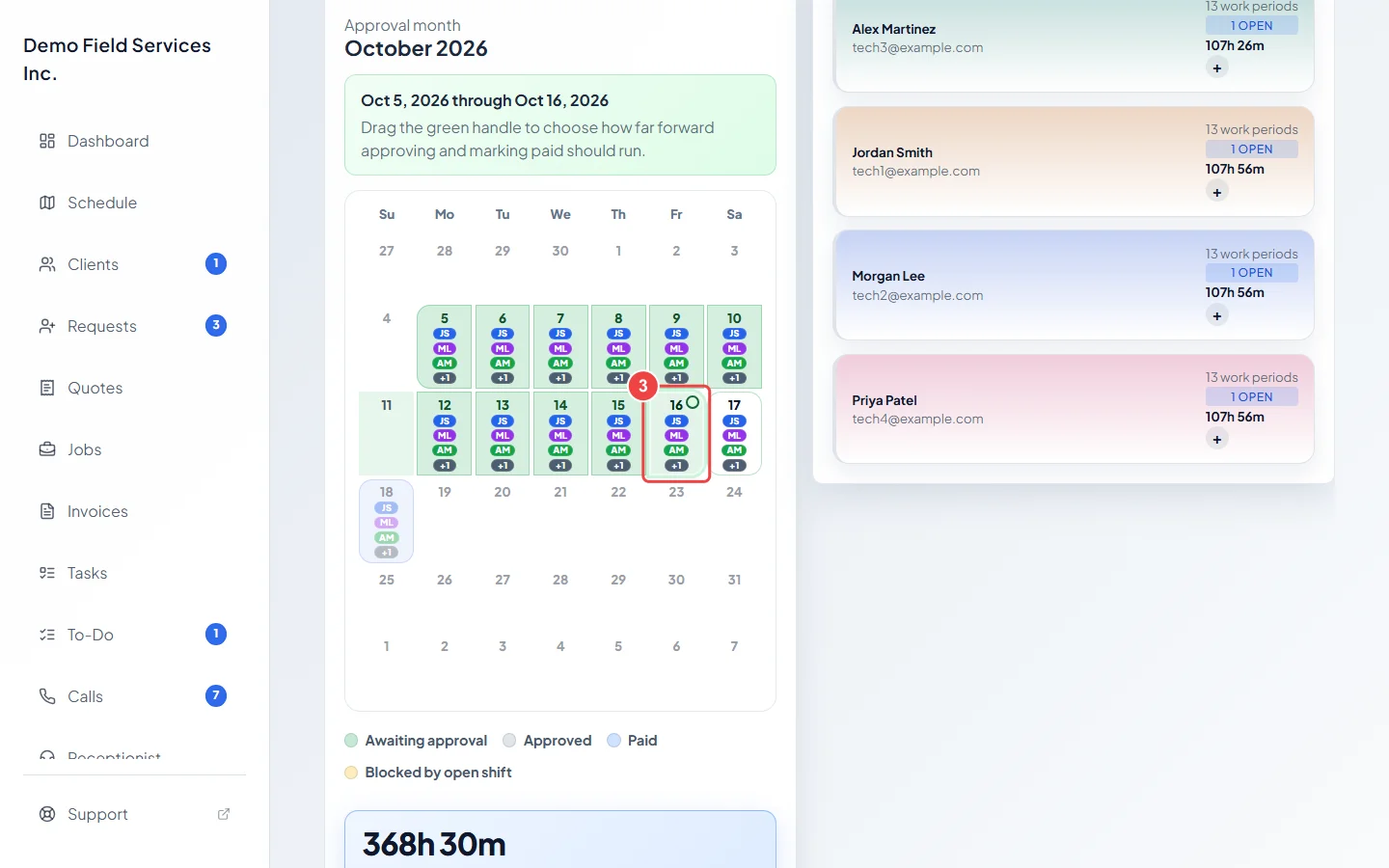
Click the last day you want to approve, or drag the green handle to it. The Approval range line updates, and the total underneath shows how many hours across how many days will be approved.
-
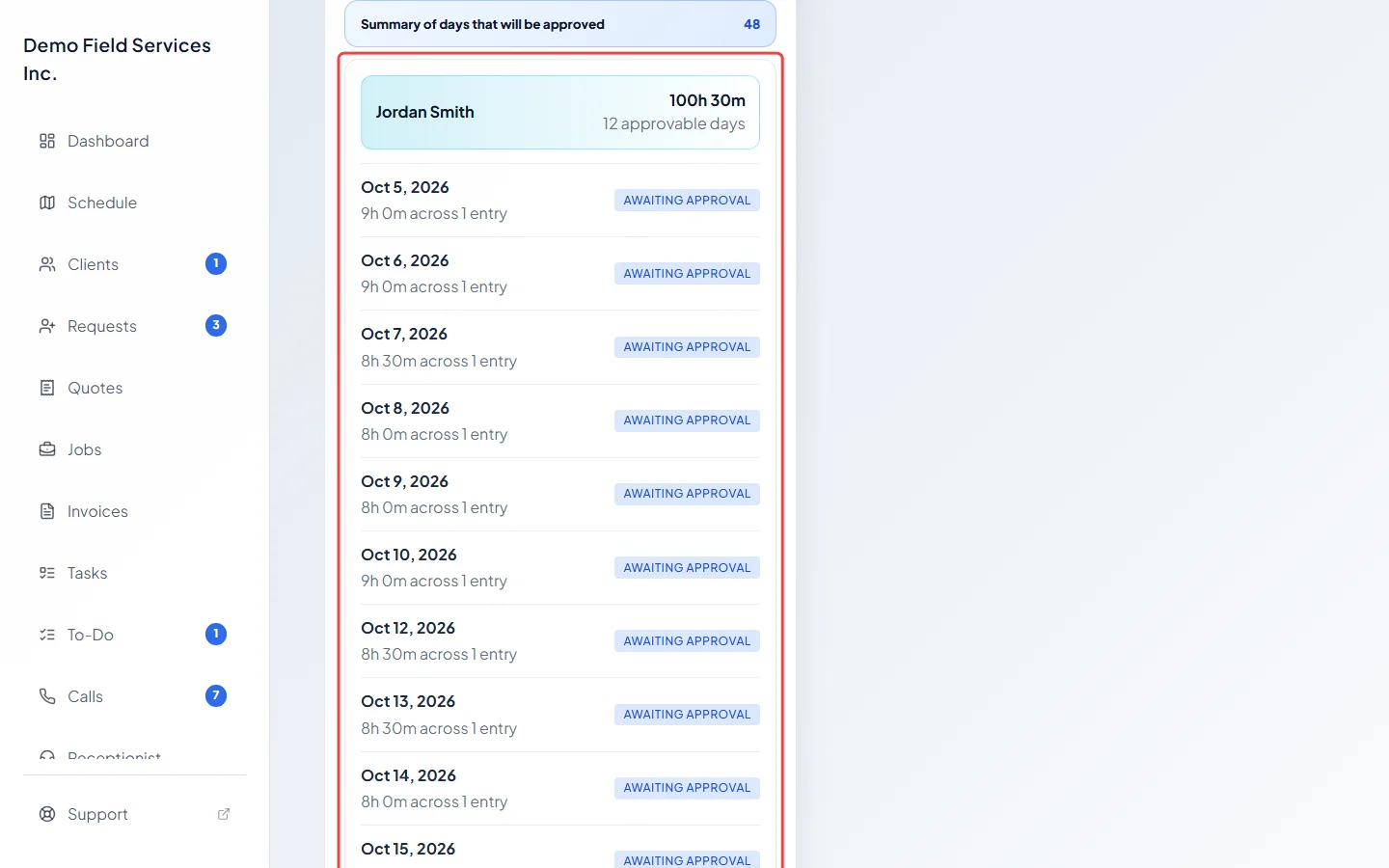
Click Summary of days that will be approved to check each person’s days and hours before you approve.
-
Click Approve selected range. You see how many days were approved for how many employees, and those days turn to Approved.
Good to know
Section titled “Good to know”- A day where someone is still clocked in shows Blocked by open shift. If anyone you ticked is still clocked in on a day up to the handle, Astragal won’t approve anything. Clock them out first, or untick them. See Adding or editing time.
- If earlier pay periods still have days that weren’t approved, a warning shows above the buttons. When you approve, Astragal asks again; click Approve current selection anyway to approve just this pay period, or Cancel and go back with Prev.
- Approved days are locked: nobody can edit or delete their work periods until the days are reopened. Time added to an approved day afterwards counts as approved straight away.
- The calendar follows the pay period chosen at the top of the page. See Reviewing pay periods.
Related articles
Section titled “Related articles”Next step: Marking hours paid
Checked against Astragal on October 17, 2026