

Settings overview
Settings is where you set up how Astragal works for your whole company, one section at a time.
Who can do this: Admins see and use every section. Dispatchers and accountants see the same list, but only admins can import, connect Gmail or card payments, or change the plan; accountants can’t change Team reminders or Locations. Technicians have no Settings page; the gear icon at the top opens Preferences, where they change Workspace theme and My account.
Also called: preferences, configuration, setup.
-
Open Settings. Each section has a tab along the top; click one to open it. The first time, Company settings opens; after that Settings reopens on the last section you used.
On a computer: Left menu → Settings On a phone: More → Settings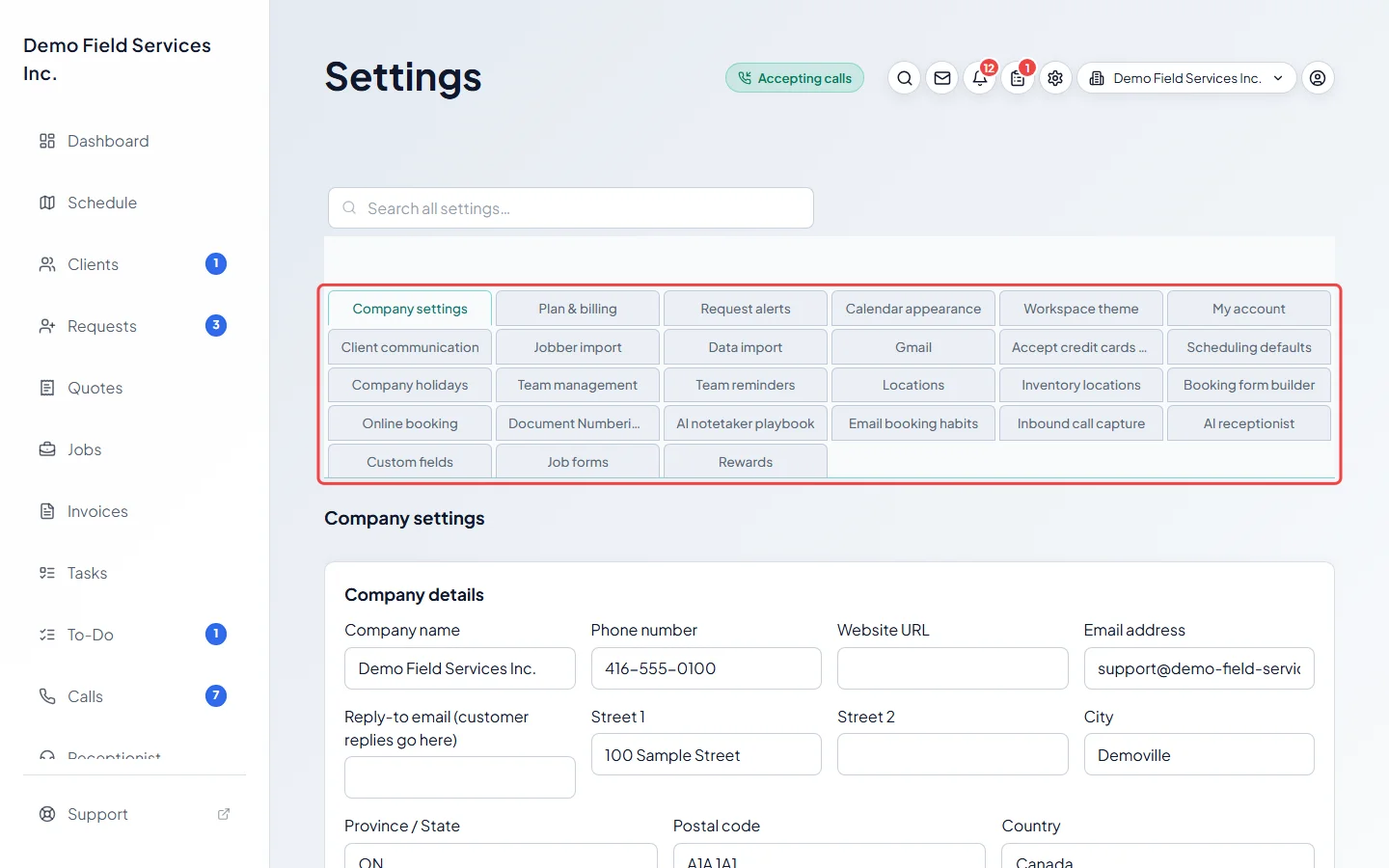
-
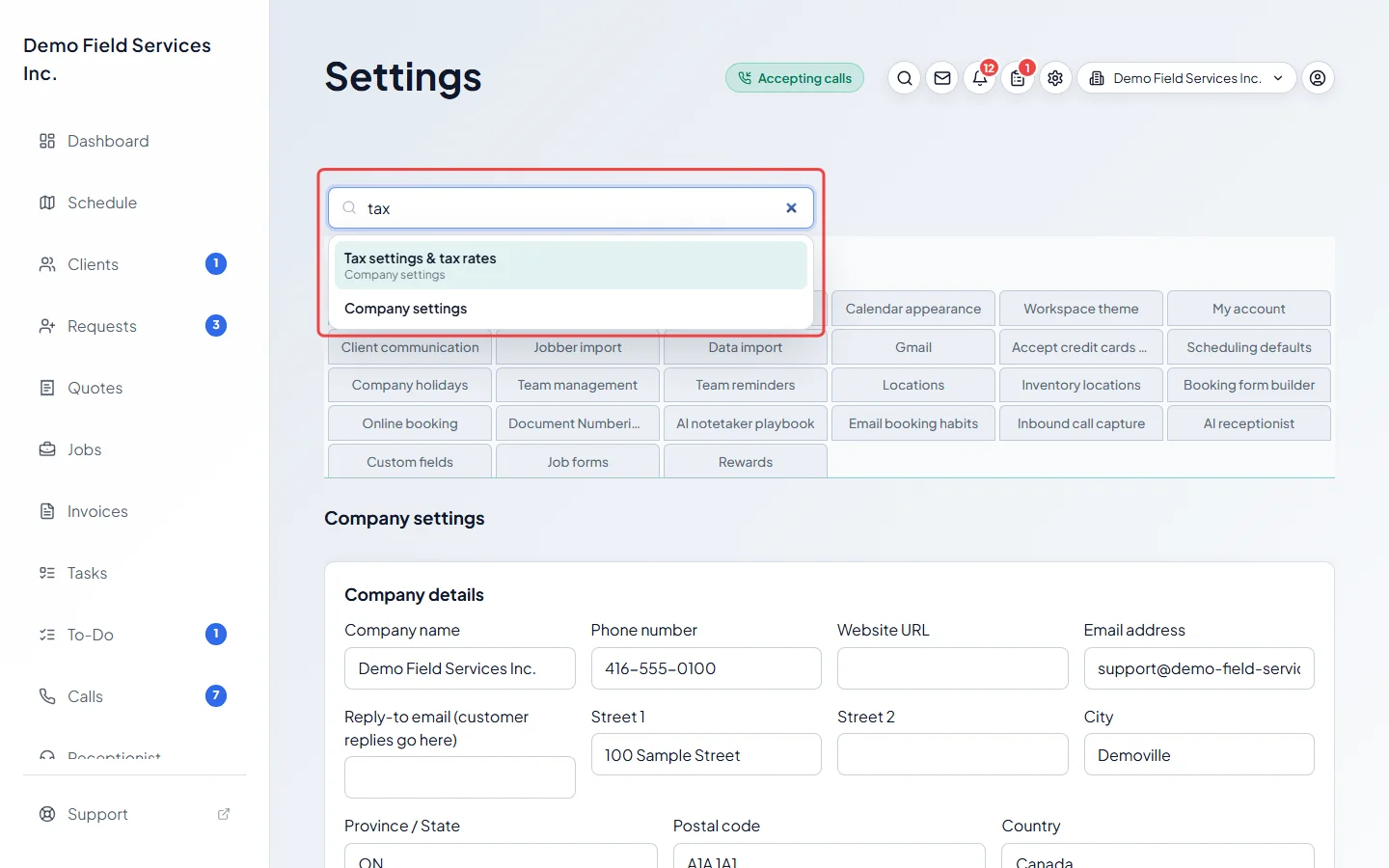
Don’t know which section a setting is in? Type at least two letters in the search box above the tabs, such as “tax”, “logo” or “dark mode”. The list shows each matching setting and the section it’s in. Only sections you can open are searched.
-
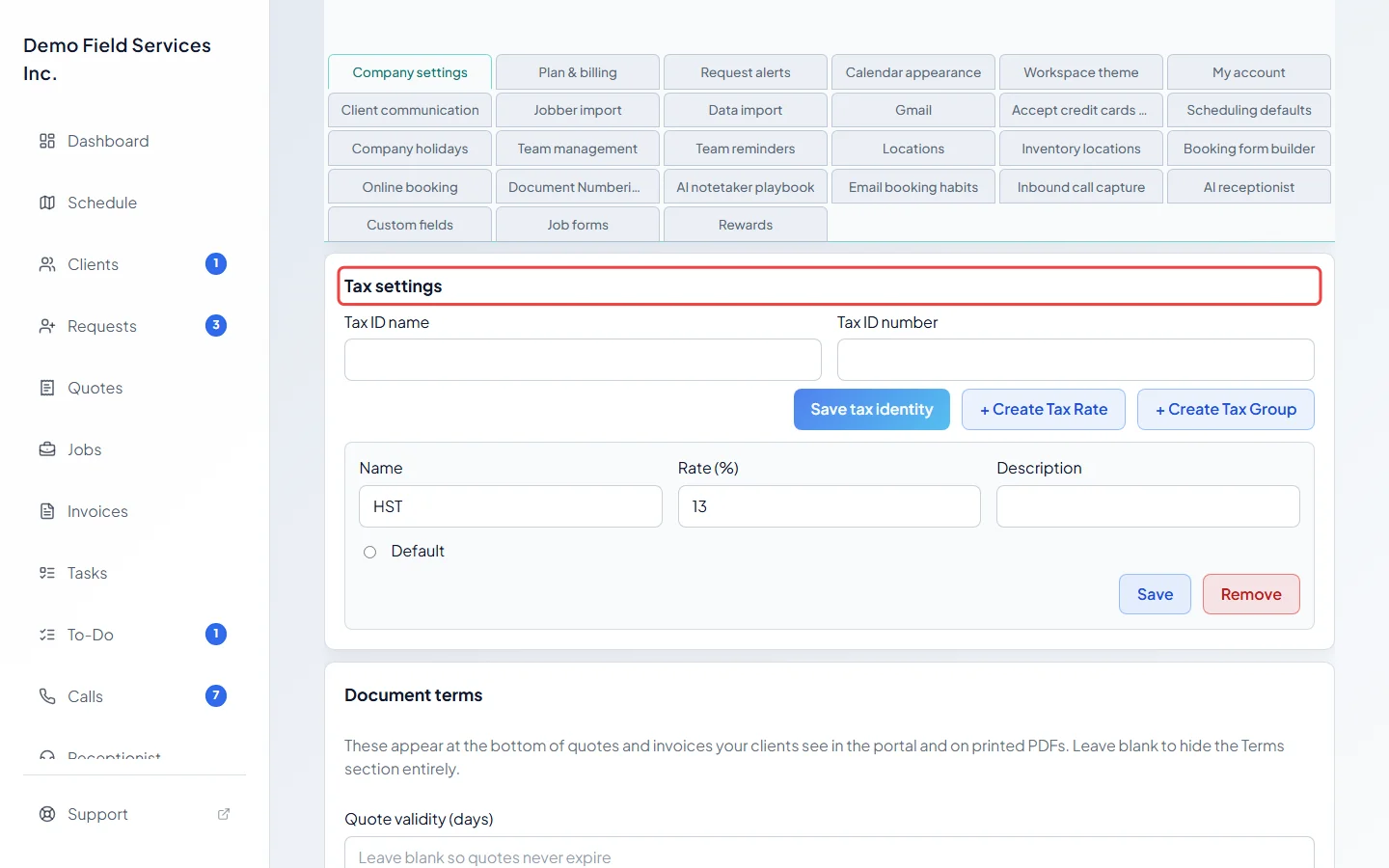
Click a result, or use the arrow keys and press Enter. Astragal opens that section and, for a single setting, scrolls to it and flashes it so you can spot it. Press Esc to clear the search.
-
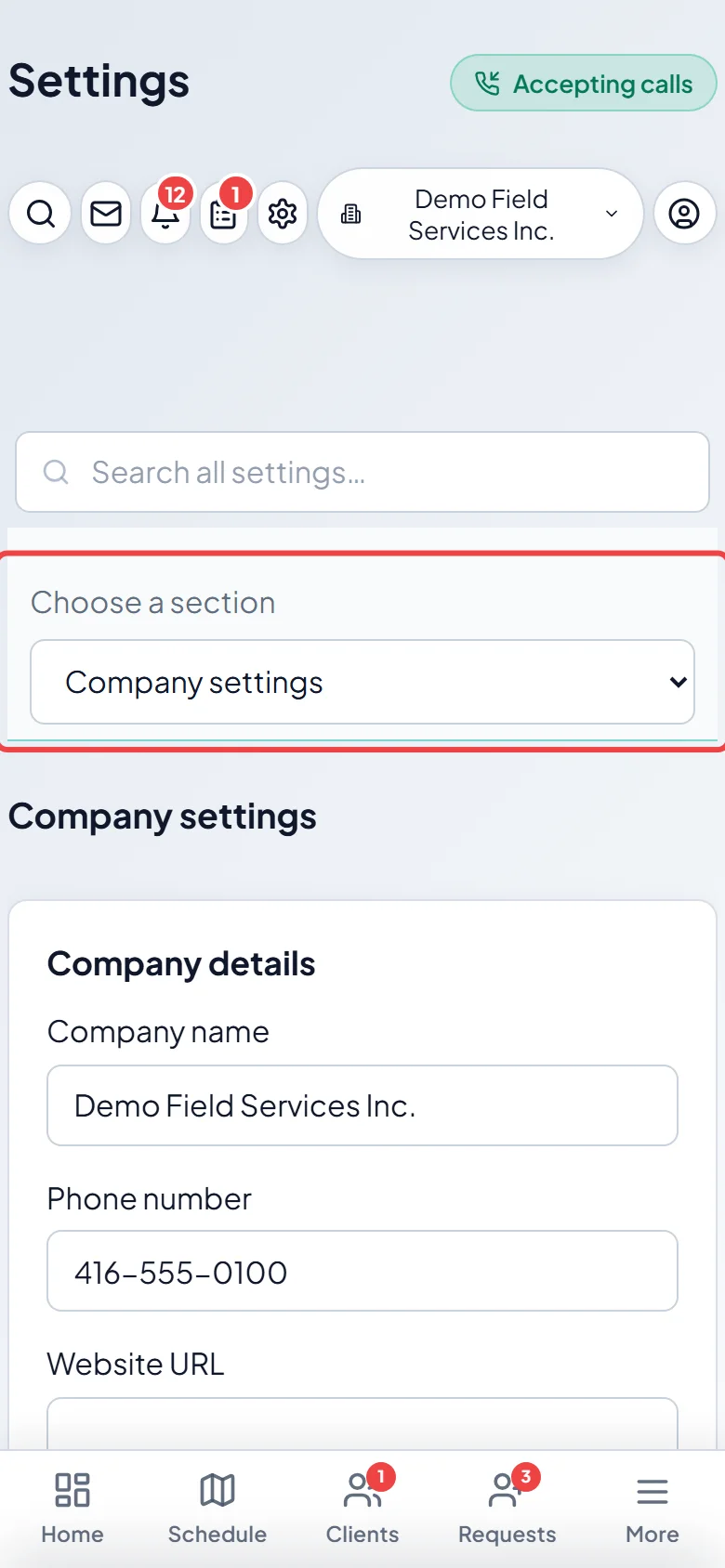
On a phone, the tabs are replaced by a Choose a section list. Tap it and pick the section you want.
The sections
Section titled “The sections”| Section | What it’s for | Read more |
|---|---|---|
| Company settings | Name, contact details, logo, social links, region, font, terms, taxes and opening hours | Company info and branding, Taxes, Business hours |
| Plan & billing | Your plan, what it includes and what you’ve used | Your plan and price |
| Request alerts | Who on your team hears about new requests | Request alerts |
| Calendar appearance | Colours on the schedule | Schedule colours |
| Workspace theme | Light or dark, for you only | Theme and colours |
| My account | App details and deleting your own account | My account |
| Client communication | Automatic messages to clients | Automatic client messages, Visit reminders, Booking and job follow-ups |
| Jobber import | Bring your data over from Jobber | Importing from Jobber |
| Data import | Bring data in from spreadsheet files | Importing a spreadsheet |
| Gmail | See each client’s email history | Connecting Gmail |
| Accept credit cards from customers | Let clients pay deposits and invoices by card | Accepting card payments |
| Scheduling defaults | Default visit length and arrival window | Scheduling defaults |
| Company holidays | Days you’re closed | Holidays |
| Team management | Invite people and set what they can do | Roles and permissions |
| Team reminders | Nudges when field work is left unfinished | Team reminders |
| Locations | Warehouses, storage and suppliers for location reminders | Saved locations |
| Inventory locations | Where your stock is kept | Stock tracking and locations |
| Booking form builder | The questions on your request form | The request form |
| Online booking | Let customers book themselves in | Setting up online booking |
| Document Numbering | The next quote, job, invoice and request numbers | Document numbering |
| AI notetaker playbook | Rules the AI follows on your calls (only when your plan includes it) | Teaching the AI with rules |
| Email booking habits | What Astragal learned from your past bookings | Email booking habits |
| Inbound call capture | Who rings and what callers hear | Who rings and what callers hear |
| AI receptionist | How the AI answers callers | Setting up the AI receptionist |
| Custom fields | Extra boxes on clients, properties, quotes, jobs and invoices | Custom fields |
| Job forms | Checklists your team fills in at visits (hidden for people without Jobs and Schedule access) | Job forms |
| Rewards | Points and rewards for your team (admins only) | Setting up rewards |
Your message wording isn’t in Settings: admins find it under Templates in the left menu. See Message templates.
Good to know
Section titled “Good to know”- Each section, and often each part of a section, has its own save button. Saving one part doesn’t save the others.
- In some sections, switching to another tab with unsaved changes asks first: click Keep editing to go back, or Discard changes to leave without saving.
- Settings apply to your whole company, except Workspace theme and My account, which are just for you.
Related articles
Section titled “Related articles”Checked against Astragal on October 18, 2026