

Adding photos
Attach pictures to a job or visit, such as the part to replace or where the access panel is, so the technician sees them before they arrive.
Who can do this: Admins, dispatchers and accountants add, caption and remove photos. Everyone who can open the job or visit, including technicians, can look at them. Technicians can look but can’t add or remove photos, whatever their permissions.
Also called: pictures, attachments.
Looking at photos on your phone
Section titled “Looking at photos on your phone”-
Open the visit from your schedule.
On a computer: Left menu → Schedule On a phone: Bottom bar → Schedule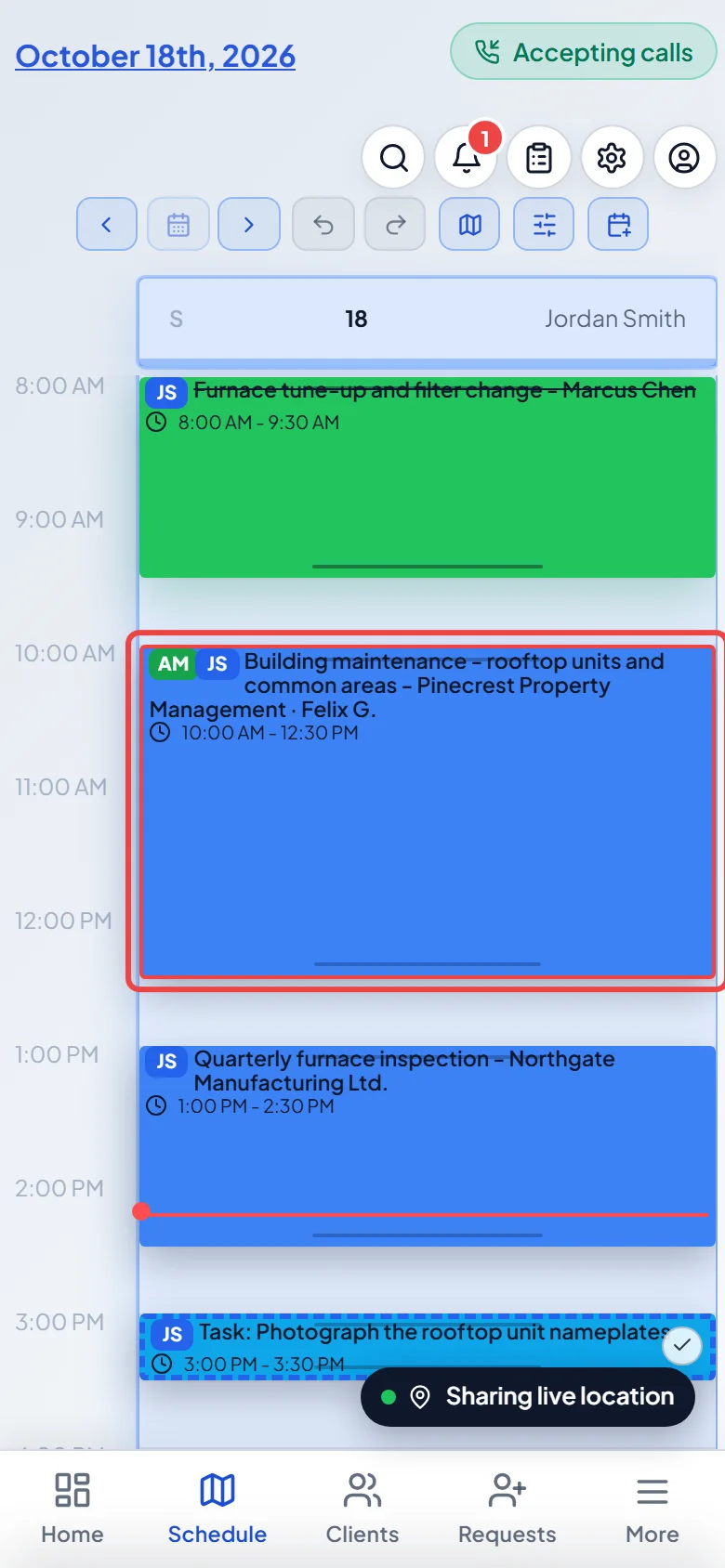
-
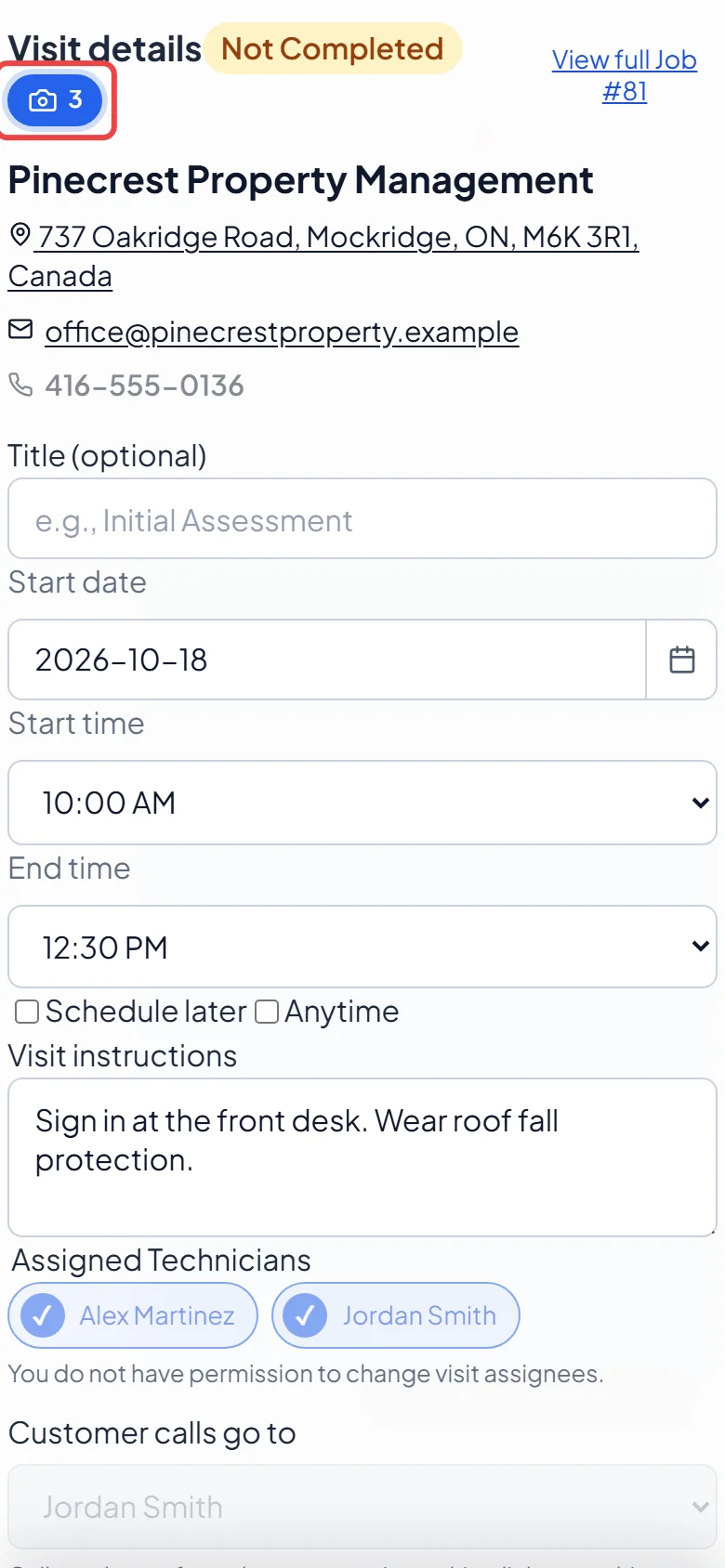
Tap Photos at the top of the visit. The button shows how many photos there are. It reads No photos when there aren’t any.
-
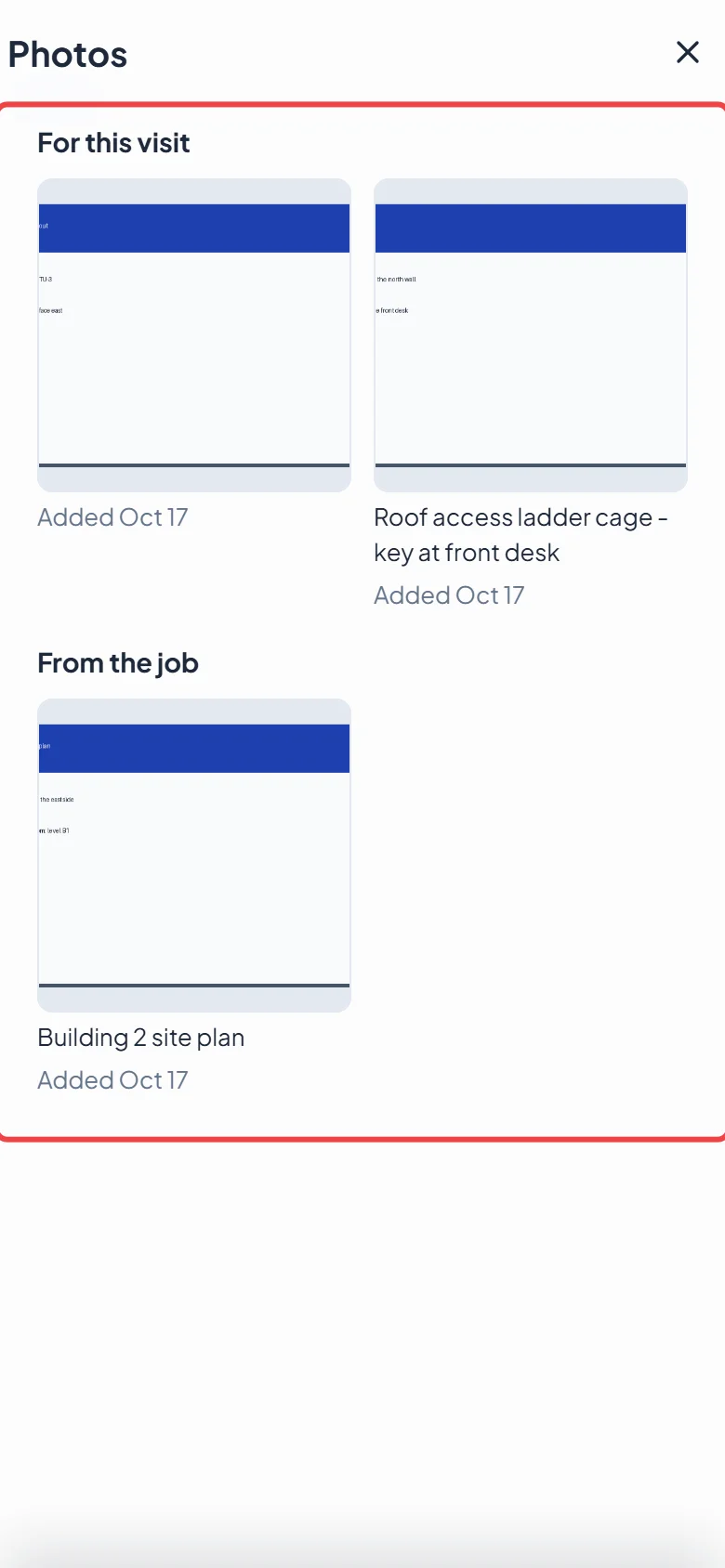
The Photos window shows the pictures added For this visit, then the ones added to the whole job under From the job. Each one shows its note and when it was added.
-
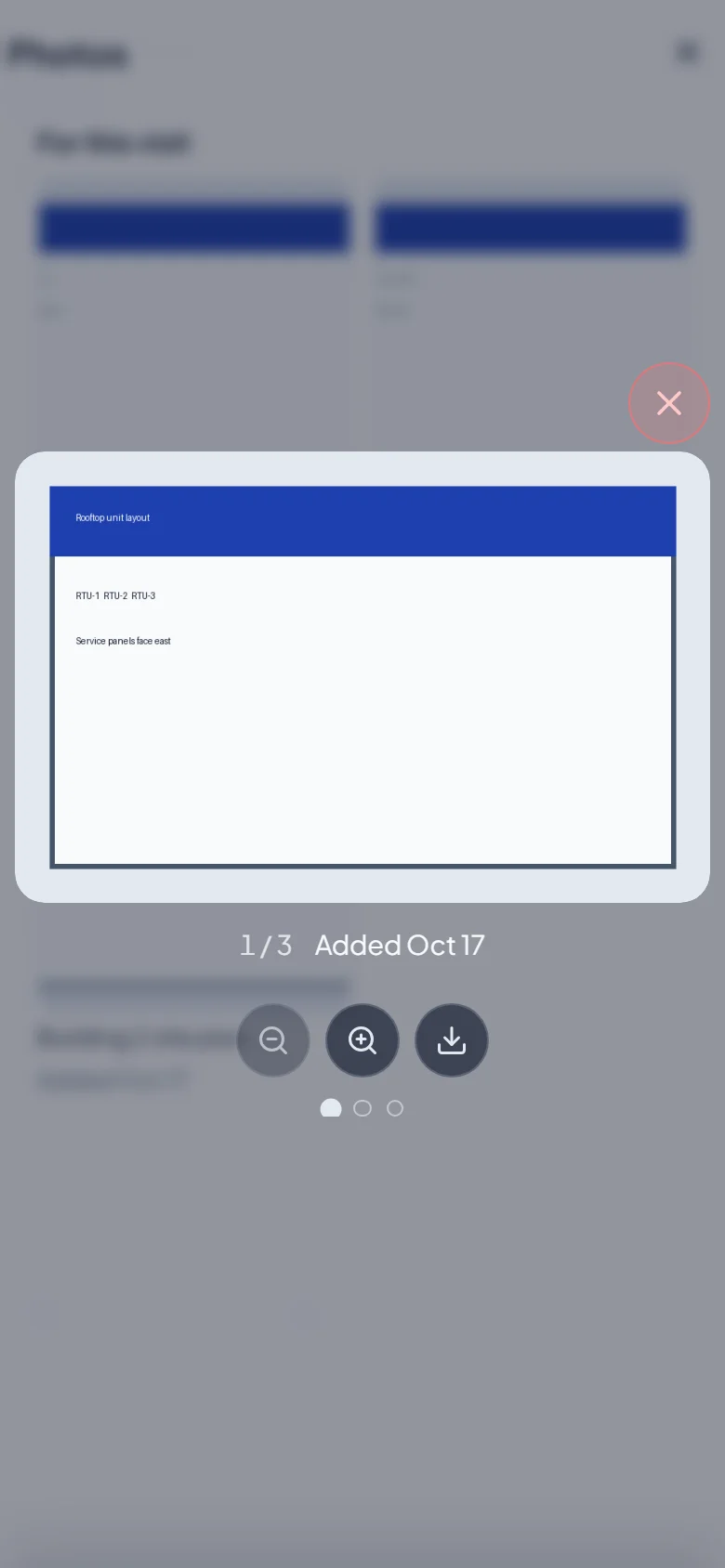
Tap a photo to see it full size. Swipe left or right to move between photos (on a computer, use the arrows). Use the zoom buttons to look closer, and the download button to keep a copy.
Adding photos (office)
Section titled “Adding photos (office)”- On a new job: under Photos for the technician, click Add photos, drag pictures onto the form, or paste a copied picture. In the phone app, use Take photo or Choose photos. They upload straight away and attach when you click Create job. On a recurring job they go on the job, so every visit shows them under From the job.
- On an existing job or visit: click Add photos (or Photos) at the top of the job page or the visit window. Photos are saved right away. Photos added to the job show on every visit under From the job. You can also remove a photo from its full-size view with the bin button.
- Type in Add a note (optional) under a photo to caption it (it saves when you click away or press Enter, up to 200 characters). Click the X in its corner to remove it. A job photo can only be captioned or removed from the job itself. On a visit it says Remove from the job instead.
- Each job or visit holds up to 20 photos (JPG, PNG, WebP or HEIC) of up to 15 MB each. A counter appears once you reach 15.
- A new visit gets its photos after it is saved: save it, then open it to add photos.
Good to know
Section titled “Good to know”- Photos technicians take on site go in the visit’s job forms or in notes, and show in the client’s files.
- Photos need a connection. If they haven’t loaded yet and there’s no signal, the window says Photos need a connection, and the add buttons are greyed out until you’re back online.
- When a recurring job’s schedule changes, future visits that have their own photos are kept.
- Photos added to a request carry over to the job it becomes.
- These photos are for your team only. They don’t appear in the client’s files, notes or client hub.
Related articles
Section titled “Related articles”Checked against Astragal on October 18, 2026