

Checking a new address on the map
When someone calls for a booking, pin their address on the map to see which arrival times fit around the work already booked that day.
Who can do this: Admins and dispatchers. The book buttons show only for people allowed to create jobs, requests or tasks.
Also called: lookup pin, caller pin.
-
Open the map and pick the day (and a team member, or All technicians). Under Find a caller, type the address into Type an address to drop a pin and pick it from the suggestions, or choose a client under Existing client to pin every address they have. Click the empty box to pick from Recent addresses.
On a computer: Left menu → Schedule → Map On a phone: Bottom bar → Schedule → Map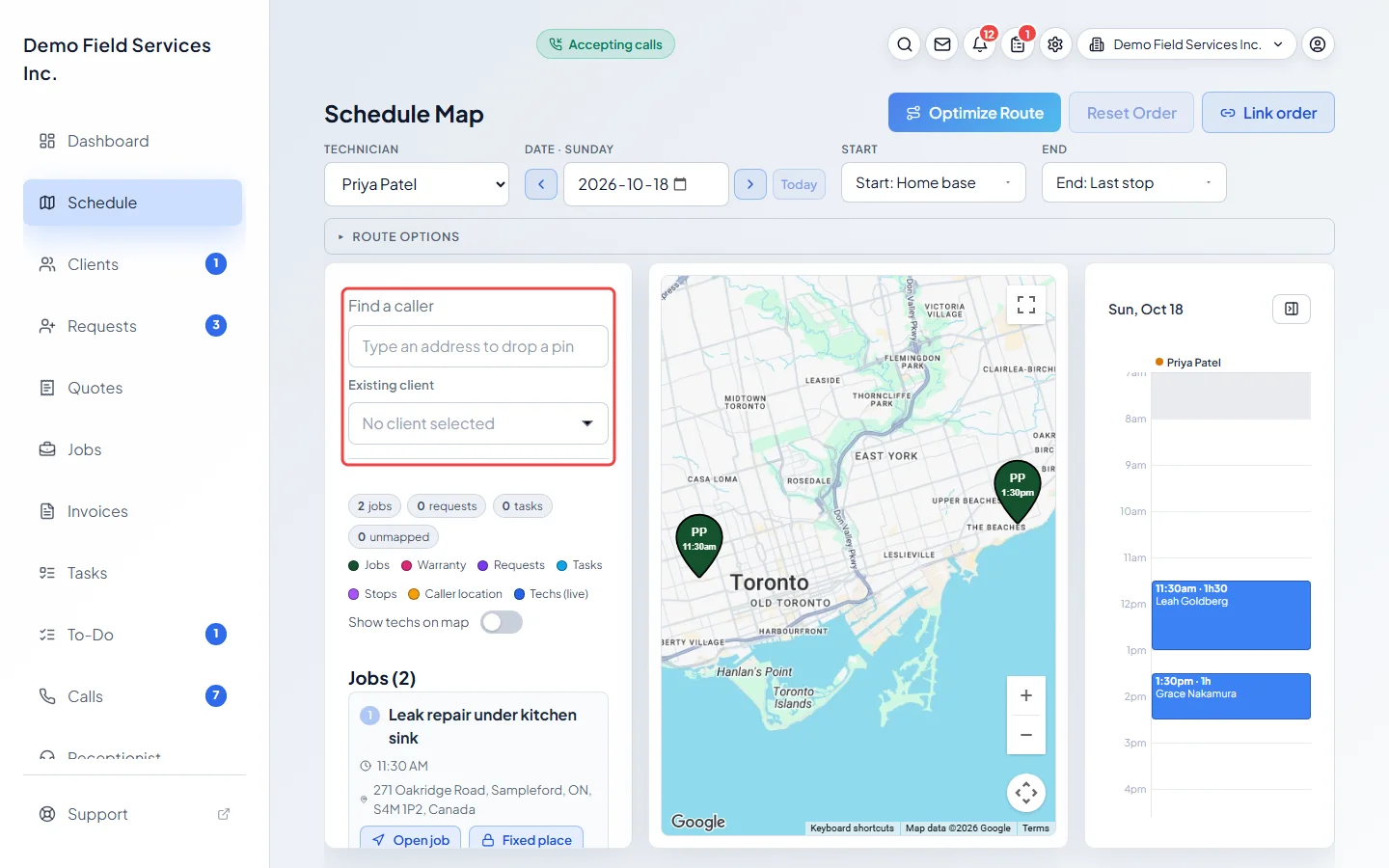
-
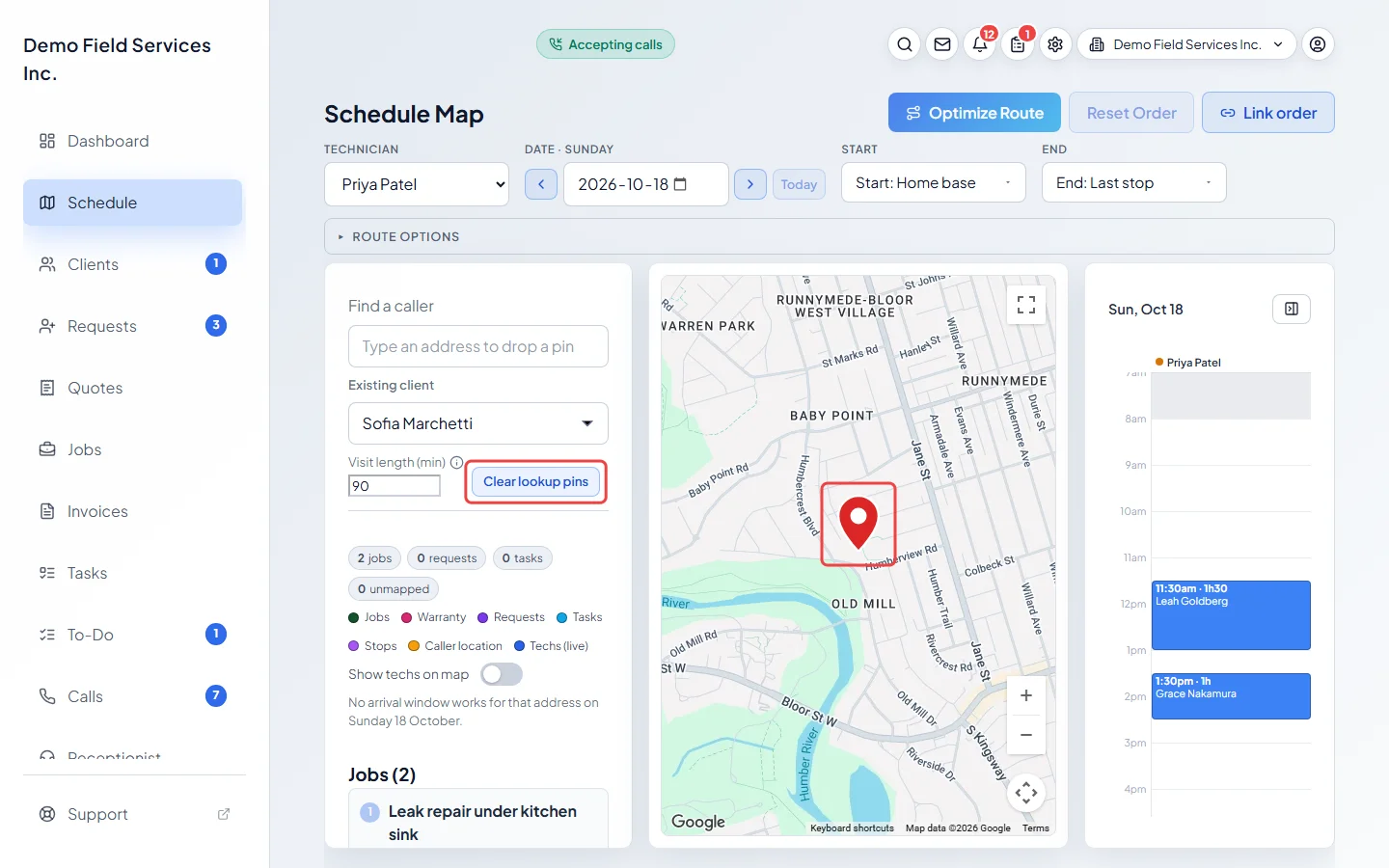
A pin drops on the map and the map moves to it. The newest or last clicked pin is red, others are amber. Set Visit length (min) to how long the work will take; it starts at your usual job length.
-
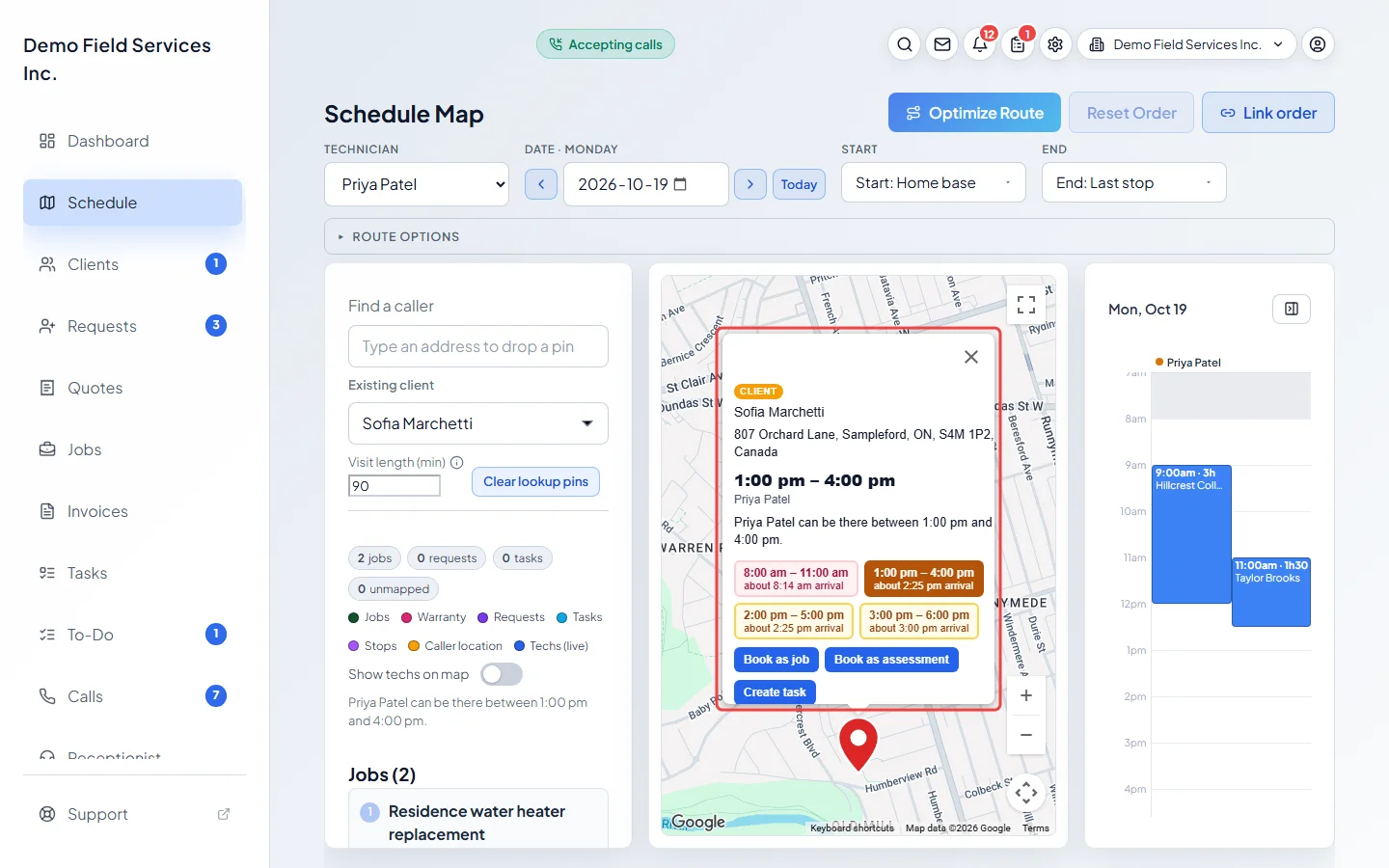
Click the pin. Its bubble shows the best arrival window in large type, with a sentence such as “Priya Patel can be there between …”, and a button for each window that works that day, with the arrival time. Green is a good fit, orange is fine, red squeezes another client or adds a lot of driving. With All technicians showing, each button also names the team member.
-
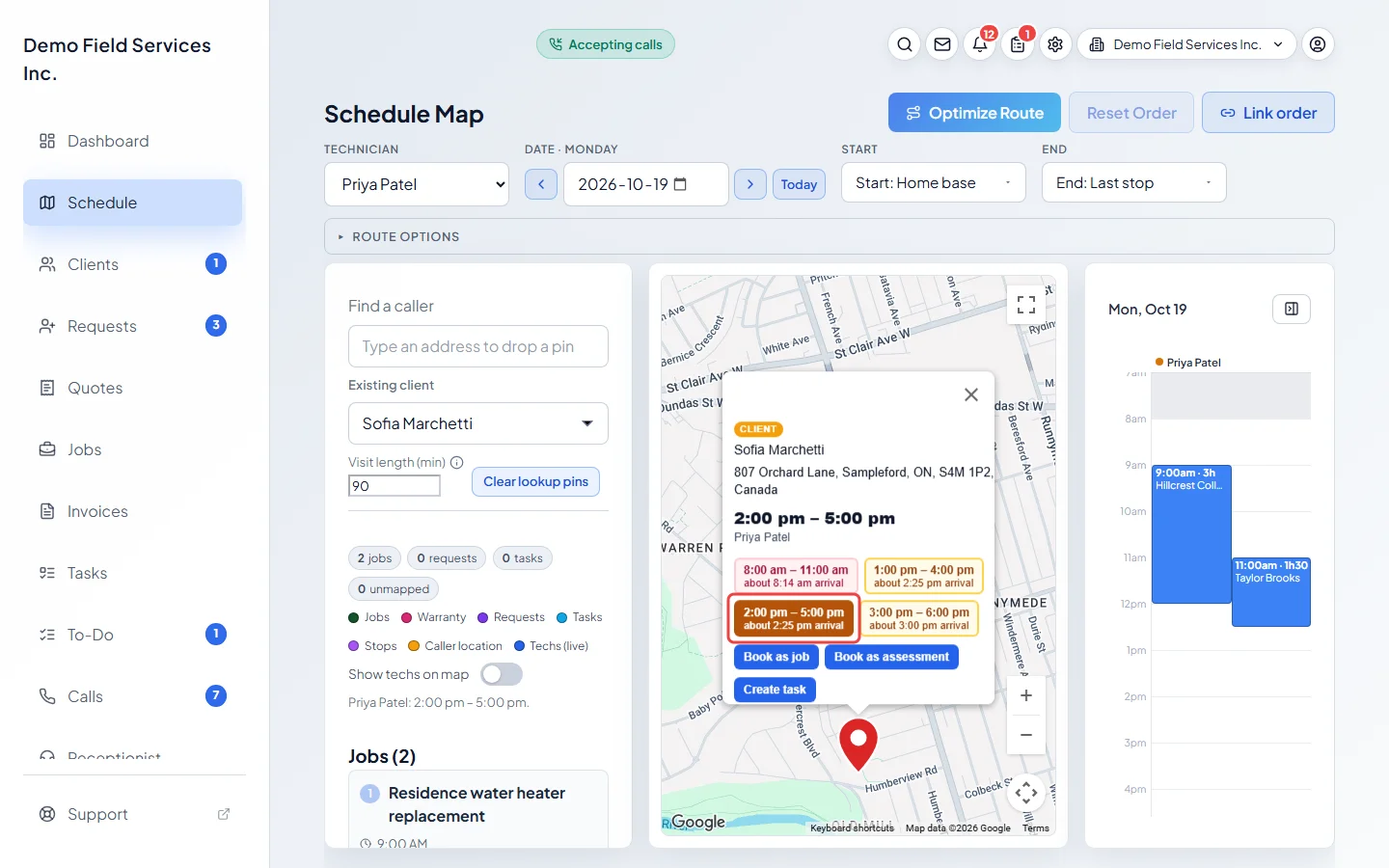
Click a window to pick it. Every other lookup pin is worked out again as if this one were booked, so two callers are never offered the same gap. Nothing is saved yet.
-
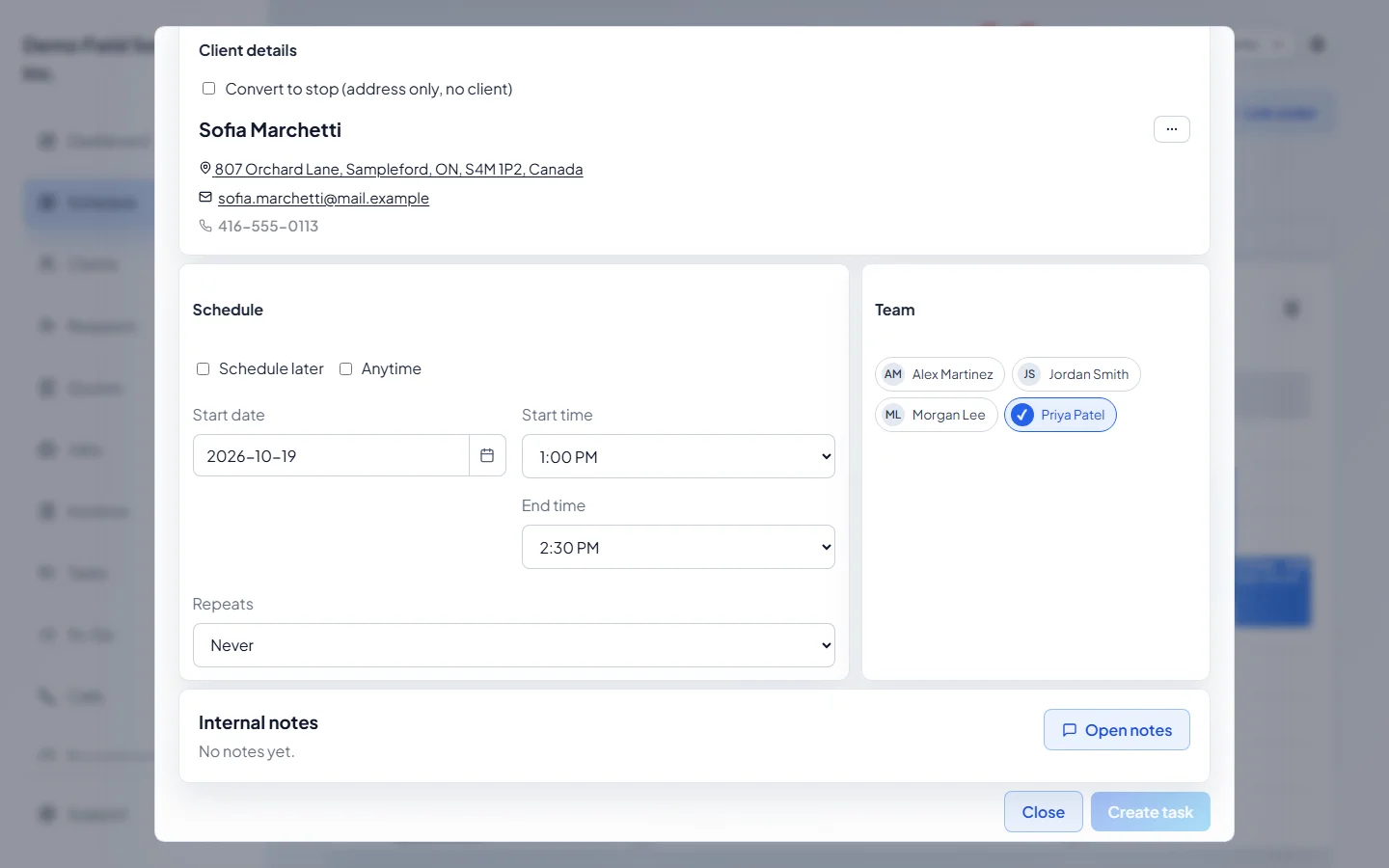
Book it with Book as job, Book as assessment or Create task. The form opens with the client, address, team member and picked time filled in; a typed address that isn’t a client becomes a stop. Once you save, the pin leaves the map.
Good to know
Section titled “Good to know”- Clear lookup pins removes every lookup pin at once. Times are worked out for the newest 8 pins.
- To see where a pin would fall in the drawn route, switch on Include lookup pins under Route options and click Optimize Route. A route with lookup pins isn’t shared with the rest of the team.
- When a known client is calling in, their addresses are pinned for you, with the note “Showing pins for incoming caller”.
- During a call, book from the call window instead; the bubble says so.
- If no window works, the bubble says why, for example that nobody is working that day.
Related articles
Section titled “Related articles”Checked against Astragal on October 18, 2026