

Booking pages
Give different customers different booking pages, each with its own link, heading and services.
Who can do this: Admins and dispatchers.
Also called: booking link, landing page.
Your first page is your Main page: the same link and website code you’ve always had. You can have up to 20 pages, counting your main page, for example one called “Estimates” that only offers your estimate visits.
-
Open Online booking in Settings and find Booking pages. Each page has its own card with an On switch, Wait for my approval before booking, which services it offers, its link (Copy and Preview), its Website code, and Edit page.
On a computer: Left menu → Settings → Online booking On a phone: More → Settings → Online booking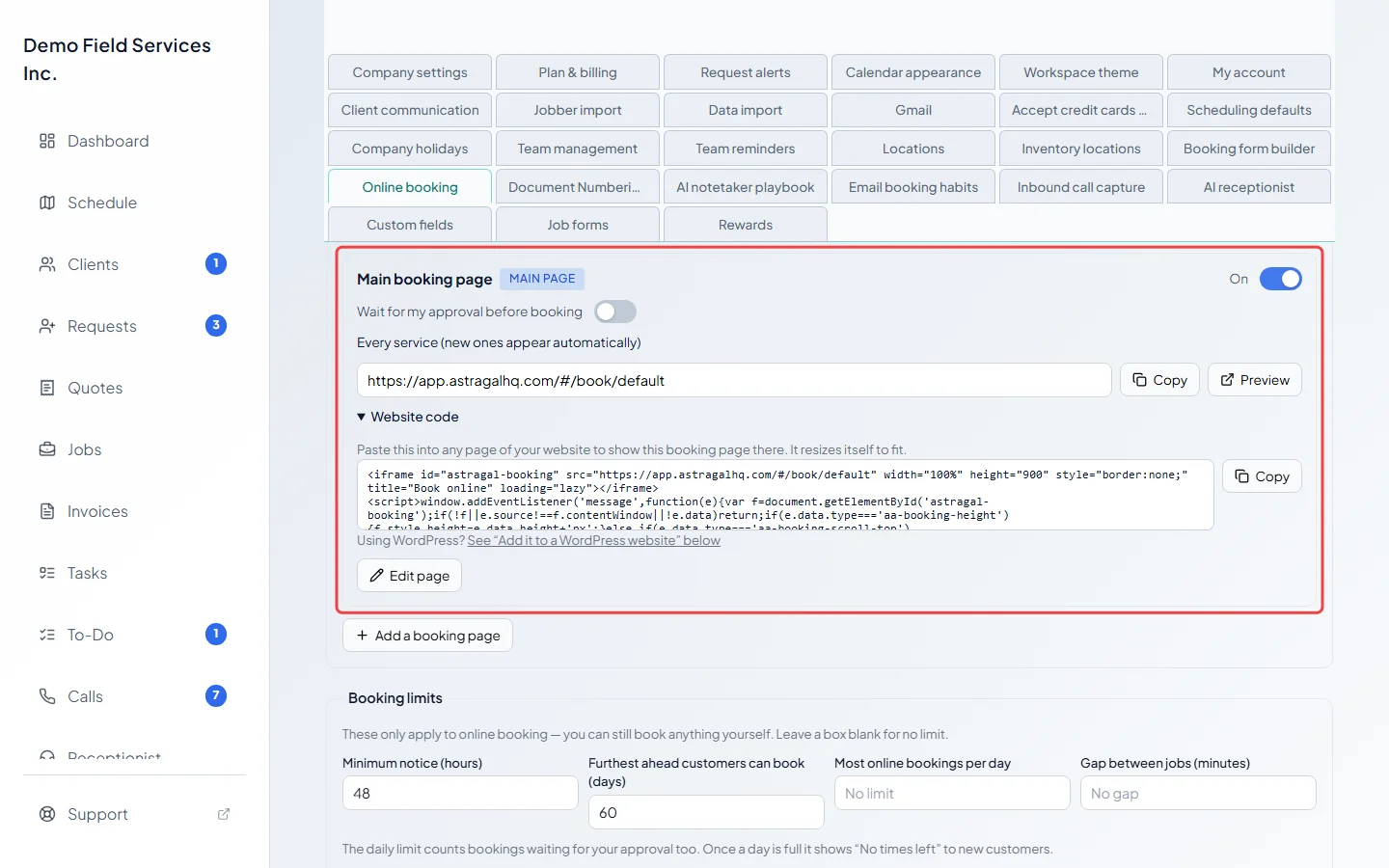
-
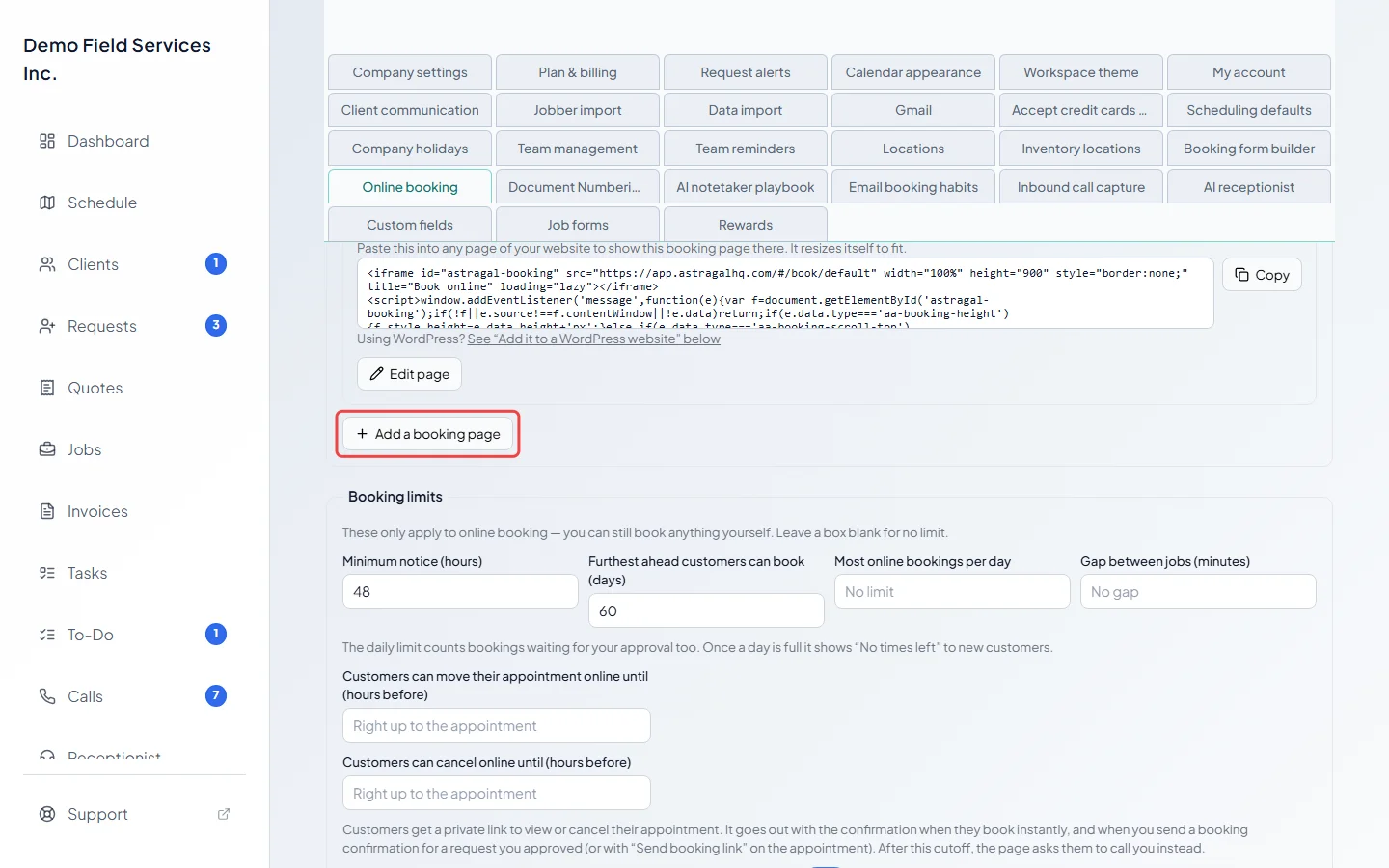
Click Add a booking page.
-
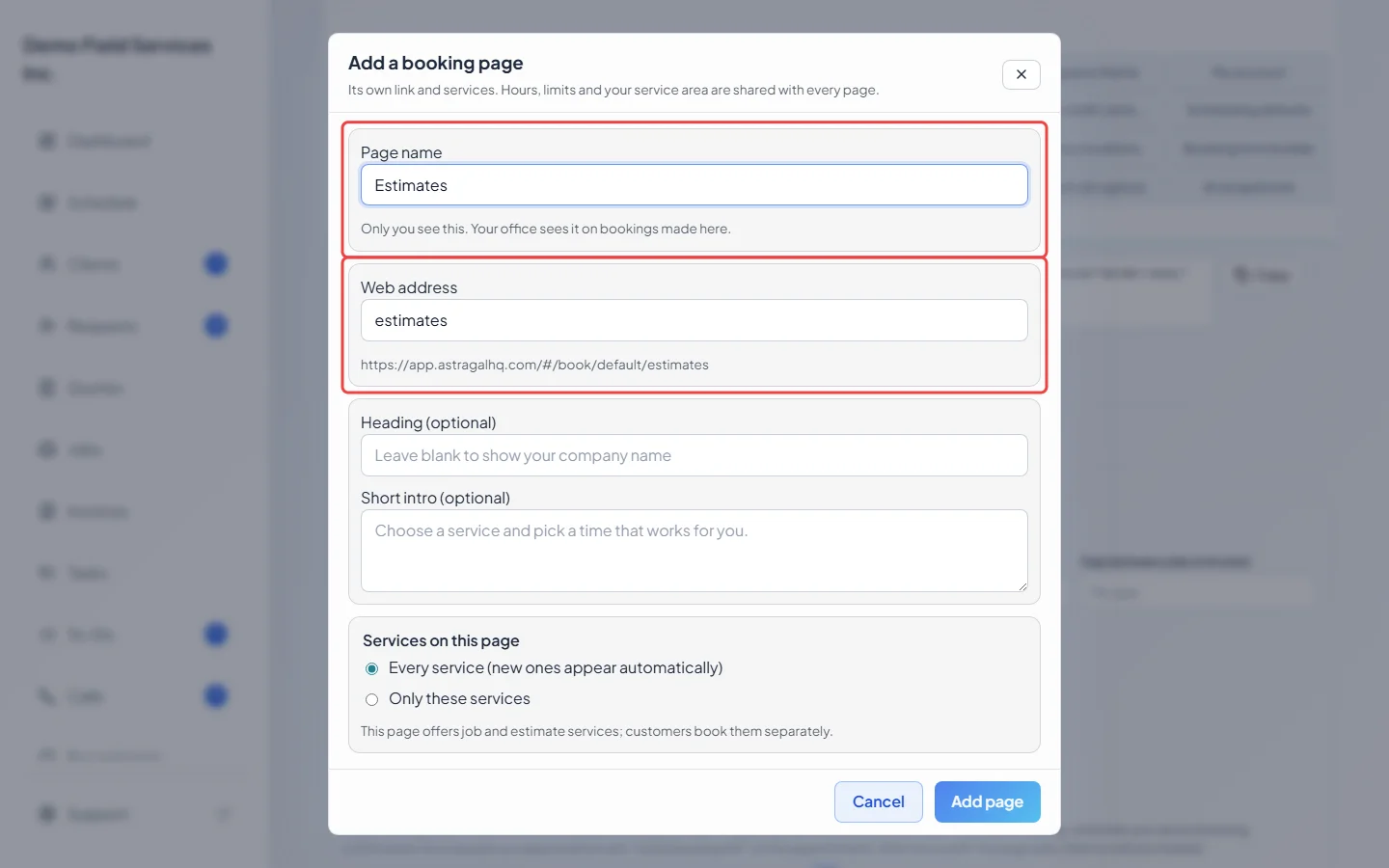
Type a Page name. Only you and your office see it. The Web address fills in from the name; you can change it (letters, numbers and dashes). The full link shows under the box.
-
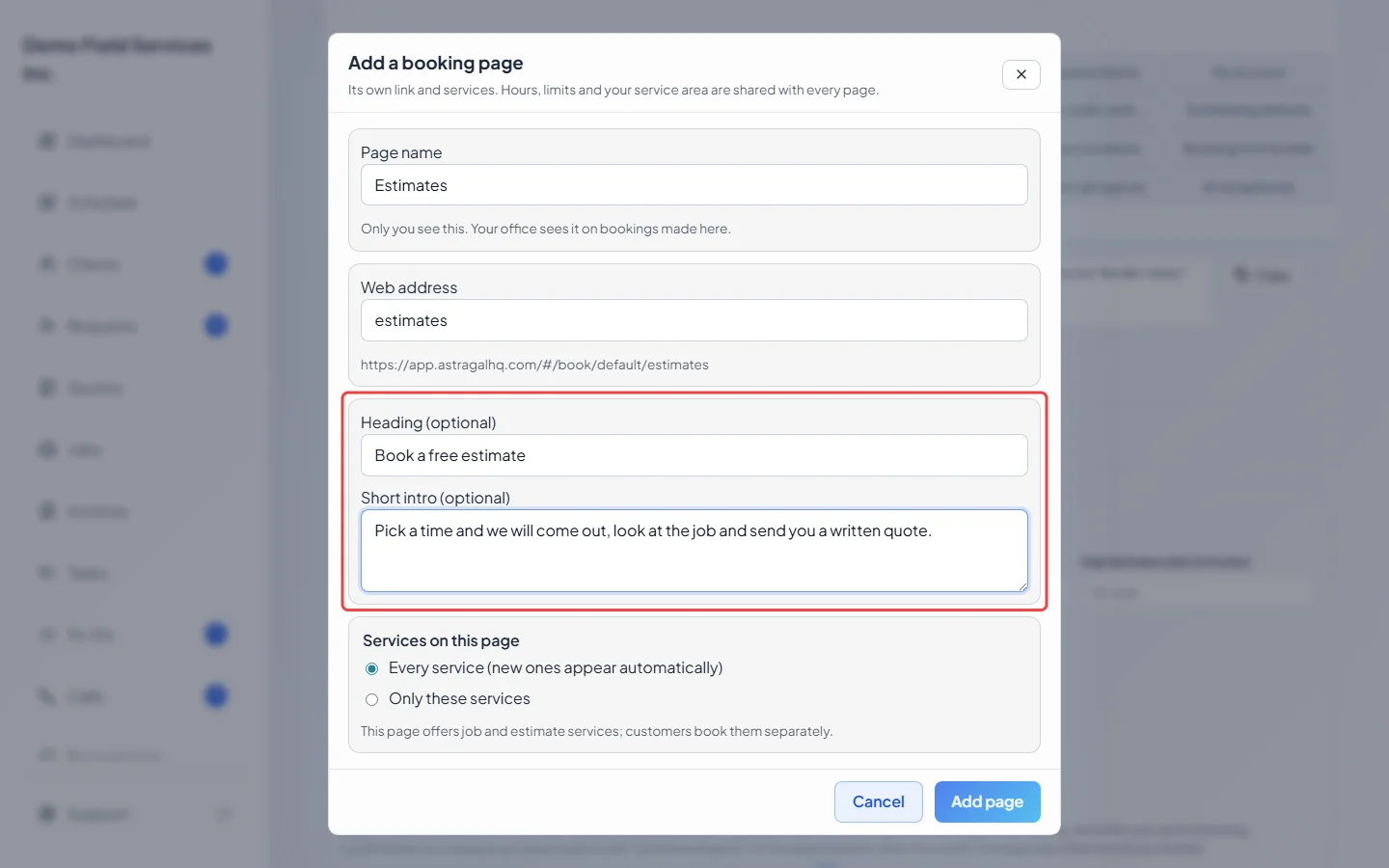
Add a Heading (optional) and a Short intro (optional) if you like. Left blank, the page shows your company name and the standard intro, “Choose a service and pick a time that works for you.”
-
Under Services on this page, choose Every service (new ones appear automatically) or Only these services and tick them. If the page offers both job and estimate services, the window reminds you customers book them separately.
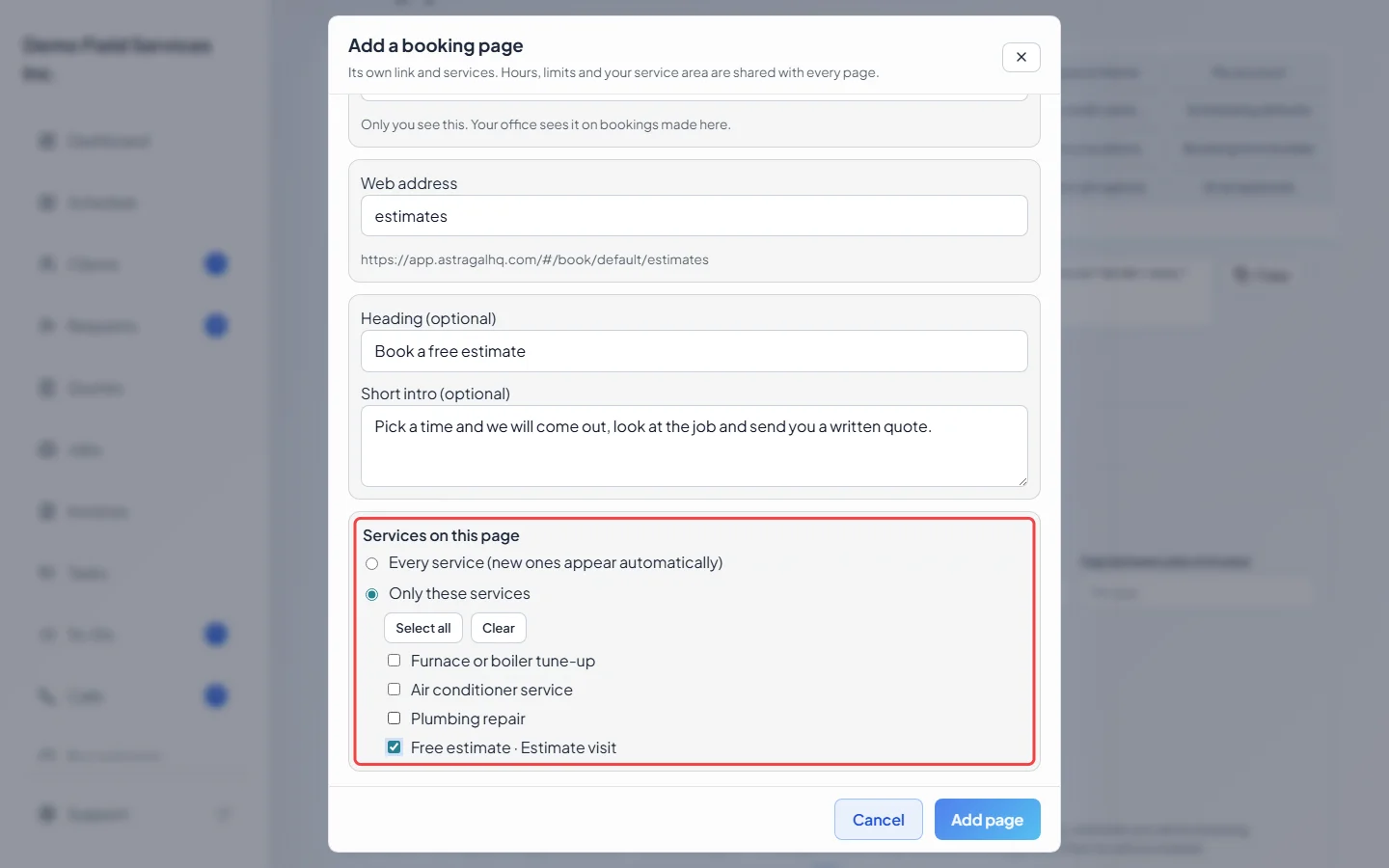
-
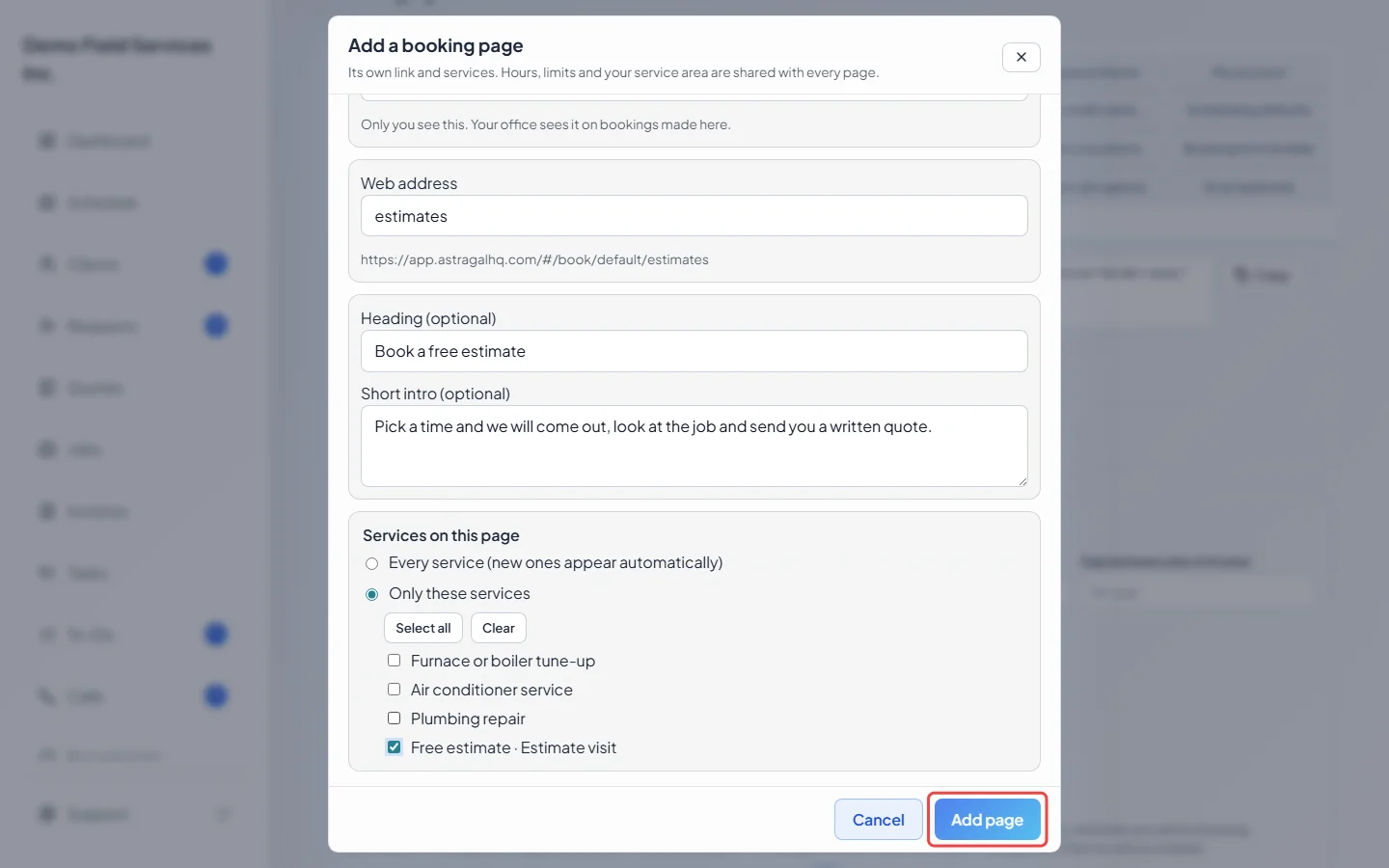
Click Add page. New pages start switched on and booking straight onto your schedule. Turn on Wait for my approval before booking on its card if you want to confirm each booking first.
Links and website code
Section titled “Links and website code”- The main page keeps your company link. Another page’s link is your company link followed by its web address, for example ”…/book/your-company/estimates”.
- Website code on each card is the code to paste into any page of your website to show that booking page there. It resizes itself to fit. On pages other than your main one, click Website code to open it. On WordPress, use the plug-in instead, see Google and your website.
Turning pages on and off
Section titled “Turning pages on and off”- A page takes bookings only while its own On switch and Enable online booking are both on. Turning off your main page asks you first, because your booking link, your Google listing’s Book button and your website code stop taking bookings.
- Preview only works while the page can take bookings: turn on the page (and Enable online booking) to preview it; you can turn the page off again right after.
- A page set to Only these services with none picked (or only services you’ve turned off) says “No services — customers will see nothing to book” in red.
Changing or removing a page
Section titled “Changing or removing a page”- Click Edit page to change it. Changing a page’s web address breaks its old link and any website code using it; the window warns you first. Update the link on your Google listing or WordPress site too.
- Remove deletes a page after you confirm. Its link then shows “This booking page isn’t available.” with a link to your other booking options. Bookings already made through it don’t change. The main page can’t be removed; turn it off instead.
Good to know
Section titled “Good to know”- Everything else on the Online booking screen is shared by every page: hours, limits, service area, blackout dates, the out-of-scope filter, the extra questions, the cancel and move cutoffs and each person’s booking hours.
- The page name shows only on bookings made through a page other than your main one: in your office alert, on the requests board for a booking waiting for you, and in the job’s activity for one that went straight onto the schedule. Customers’ messages never mention it.
Related articles
Section titled “Related articles”Checked against Astragal on October 18, 2026