

What the AI can do for callers
Decide how much your AI receptionist can do for a caller on its own, and what it should leave for your office.
Who can do this: Admins, dispatchers and accountants.
Add-on: AI receptionistAlso called: AI permissions.
-
Open the AI receptionist settings and find What the AI can do for callers. Talk to callers about their own account lets it discuss a recognised client’s account. With that on, Text or email invoices when a caller asks lets it send invoices. Give ballpark prices from your products & services lets it quote rough prices. All three start off. When something is off, the AI offers a call back from the office instead.
On a computer: Left menu → Settings → AI receptionist On a phone: More → Settings → AI receptionist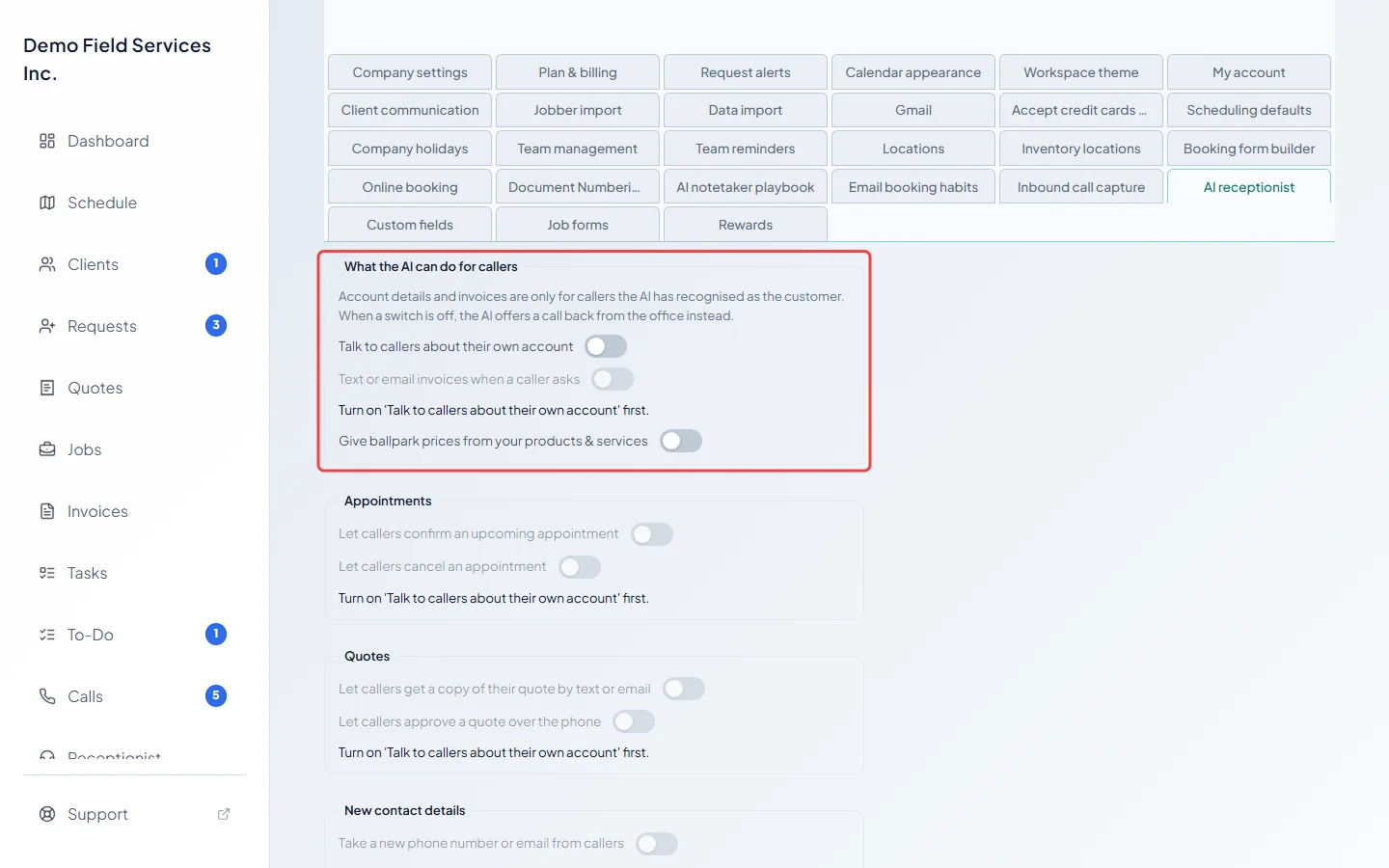
-
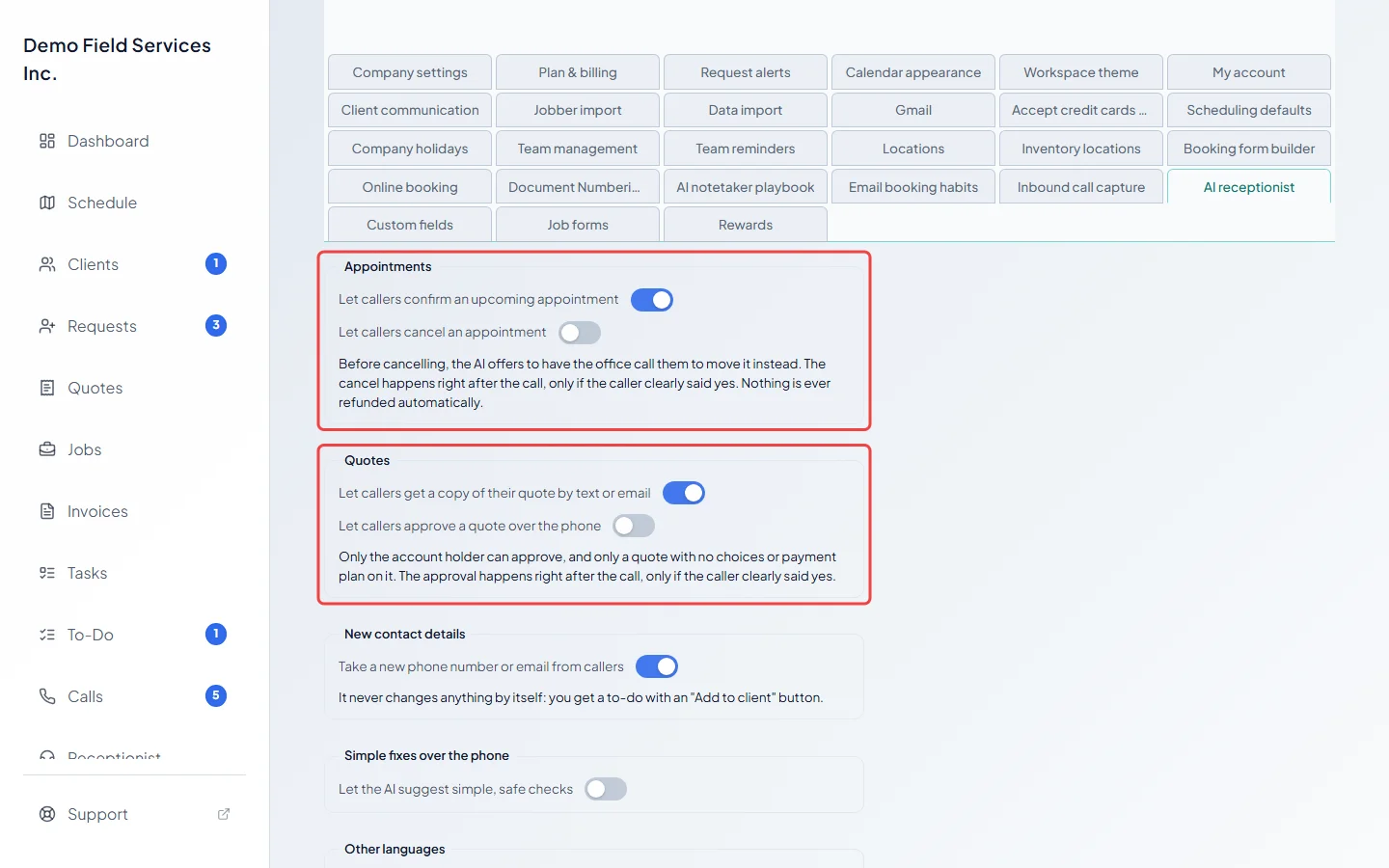
Under Appointments and Quotes, choose whether callers can confirm an upcoming appointment, cancel one, get a copy of their quote by text or email, and approve a quote over the phone. These need Talk to callers about their own account. Once that’s on, Let callers confirm an upcoming appointment and Let callers get a copy of their quote by text or email start on; Let callers cancel an appointment and Let callers approve a quote over the phone start off. Before cancelling, the AI offers to have the office call to move the visit instead. Cancelling and approving happen right after the call, and only if the caller clearly said yes. Only the account holder can approve, and only a quote with no choices or payment plan on it. Nothing is ever refunded automatically.
-
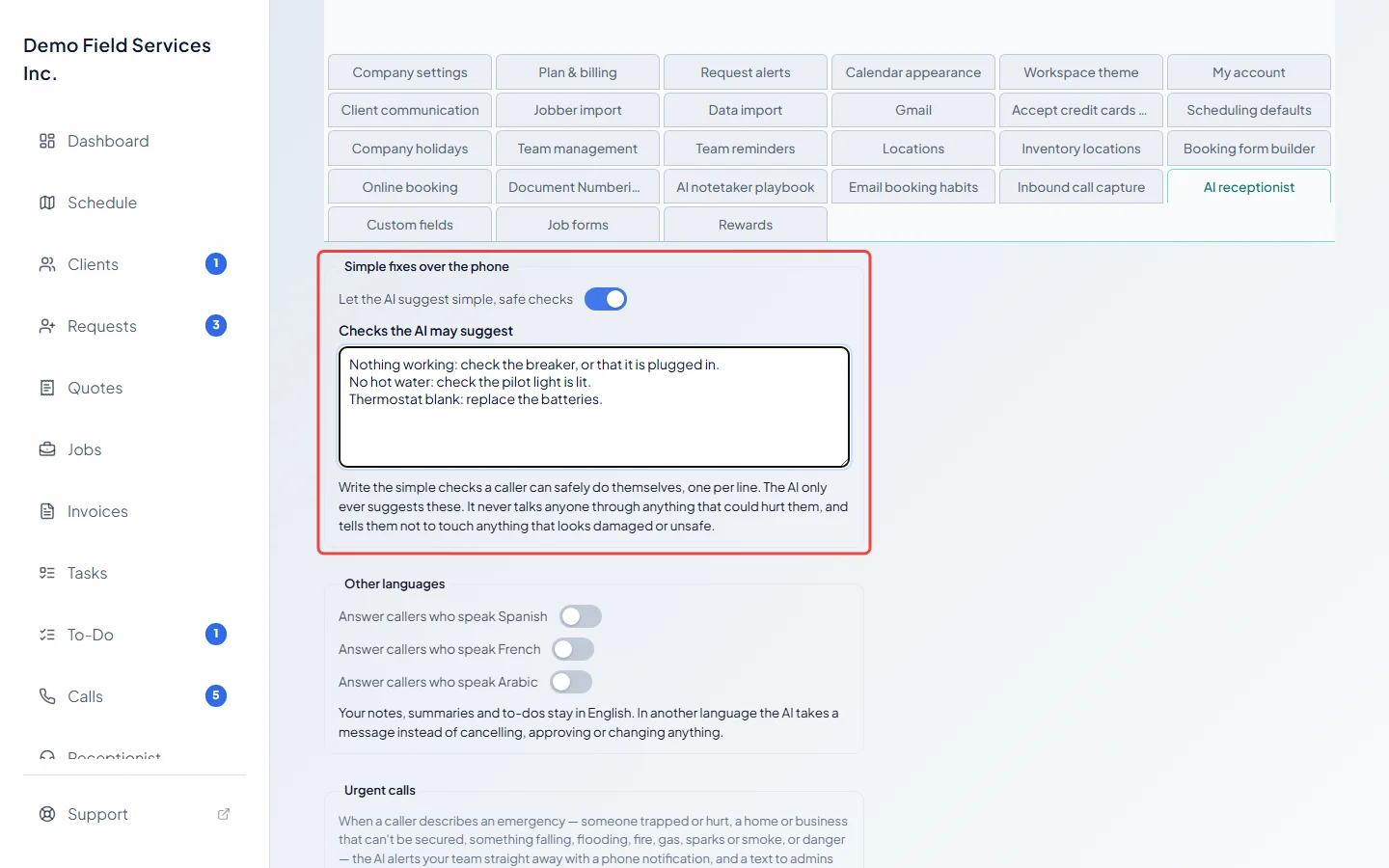
Under New contact details, Take a new phone number or email from callers also needs Talk to callers about their own account, and starts on once that is. It never changes anything by itself: you get a to-do with an “Add to client” button. Under Simple fixes over the phone, turn on Let the AI suggest simple, safe checks and list the checks in Checks the AI may suggest, one per line. The AI only ever suggests those, and tells callers not to touch anything that looks damaged or unsafe.
-
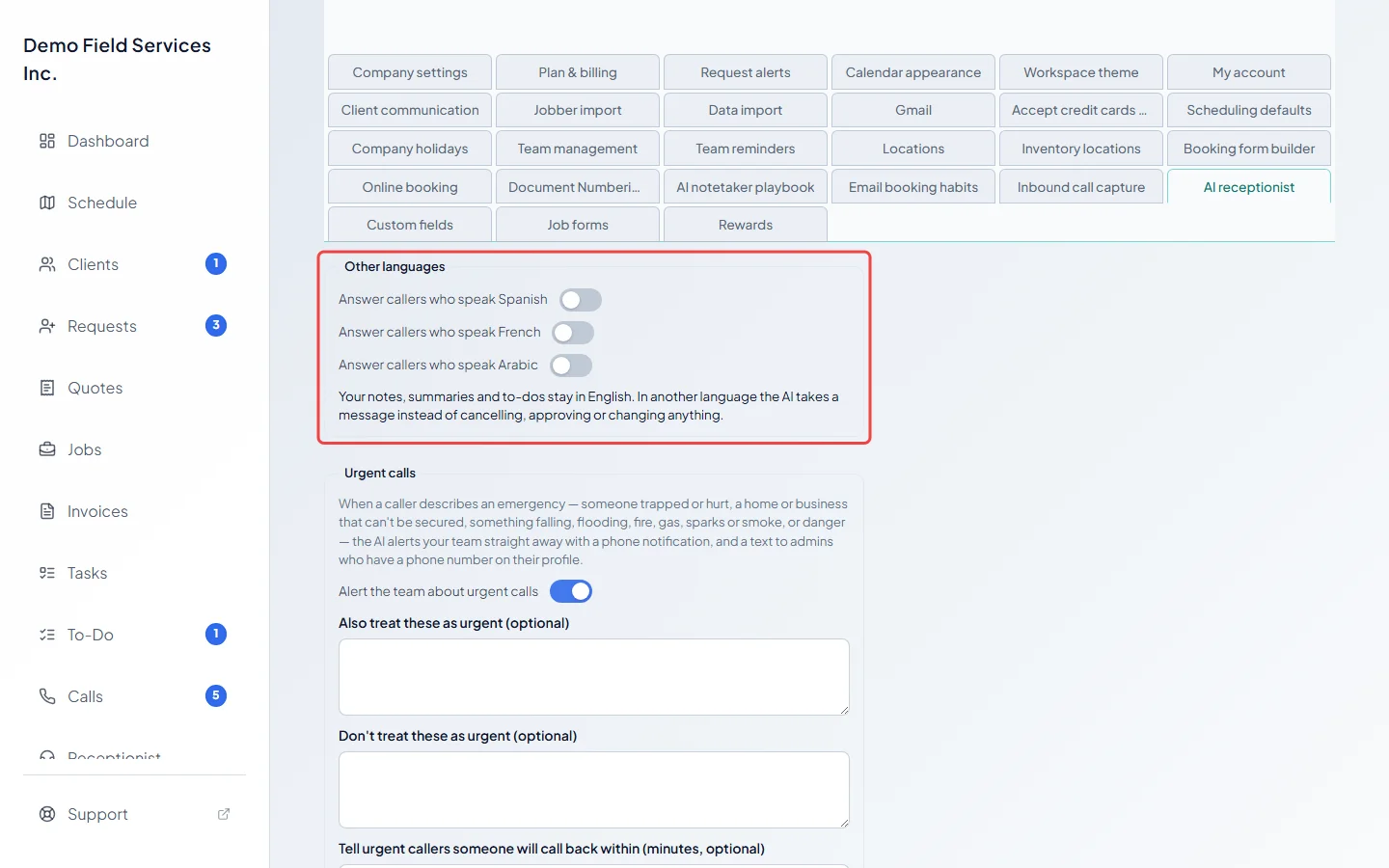
Under Other languages, turn on Spanish, French or Arabic so the AI answers callers who speak them. English is always on. Your notes, summaries and to-dos stay in English, and in another language the AI takes a message instead of cancelling, approving or changing anything.
-
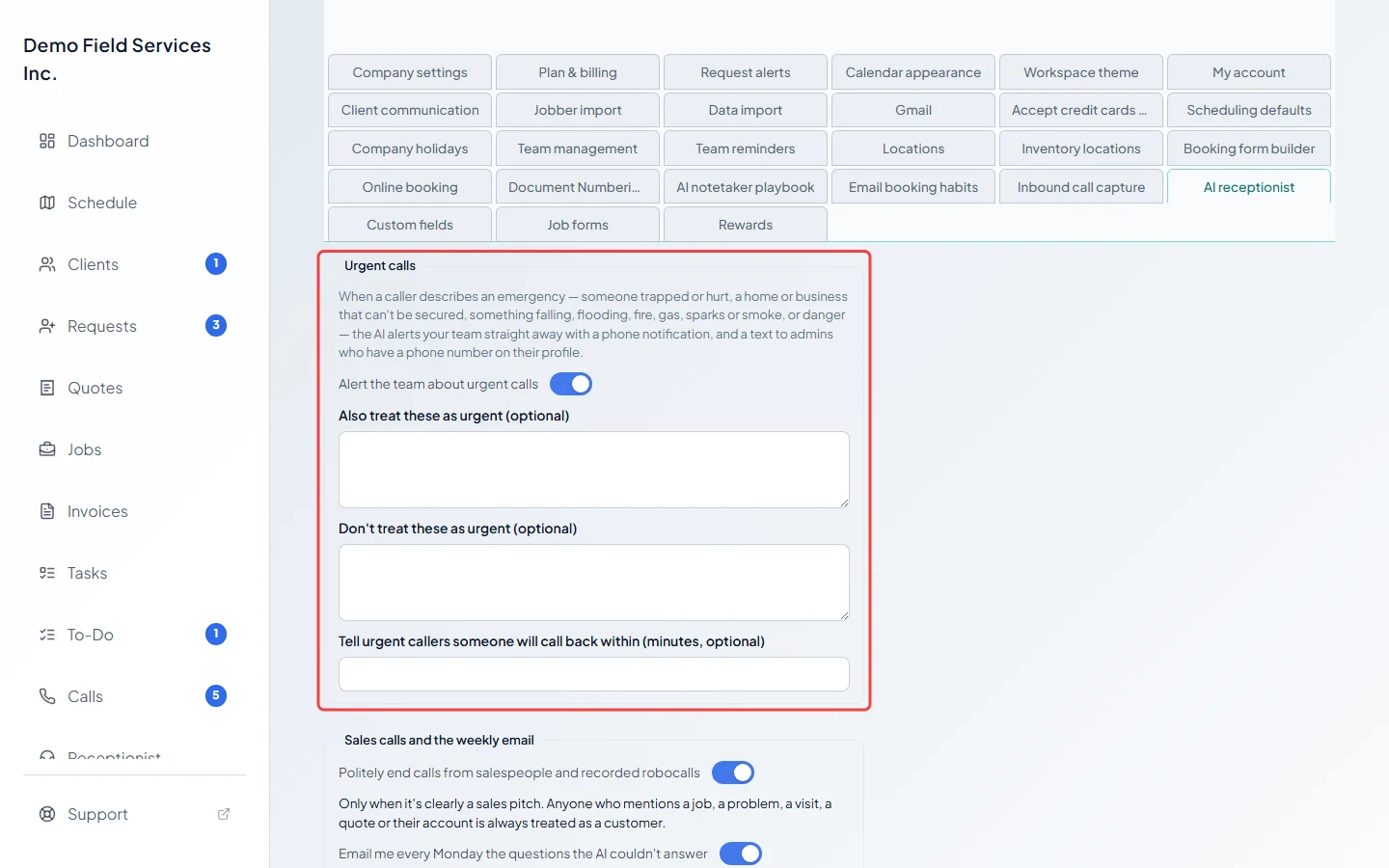
Under Urgent calls, leave Alert the team about urgent calls on to get a phone notification straight away (and a text to admins with a phone number on their profile) when a caller describes an emergency, such as someone hurt, flooding, fire, gas, sparks or smoke. Add your own examples under Also treat these as urgent (optional) and Don’t treat these as urgent (optional), and optionally a number from 1 to 1440 under “Tell urgent callers someone will call back within (minutes, optional)”. These boxes only show while Alert the team about urgent calls is on.
-
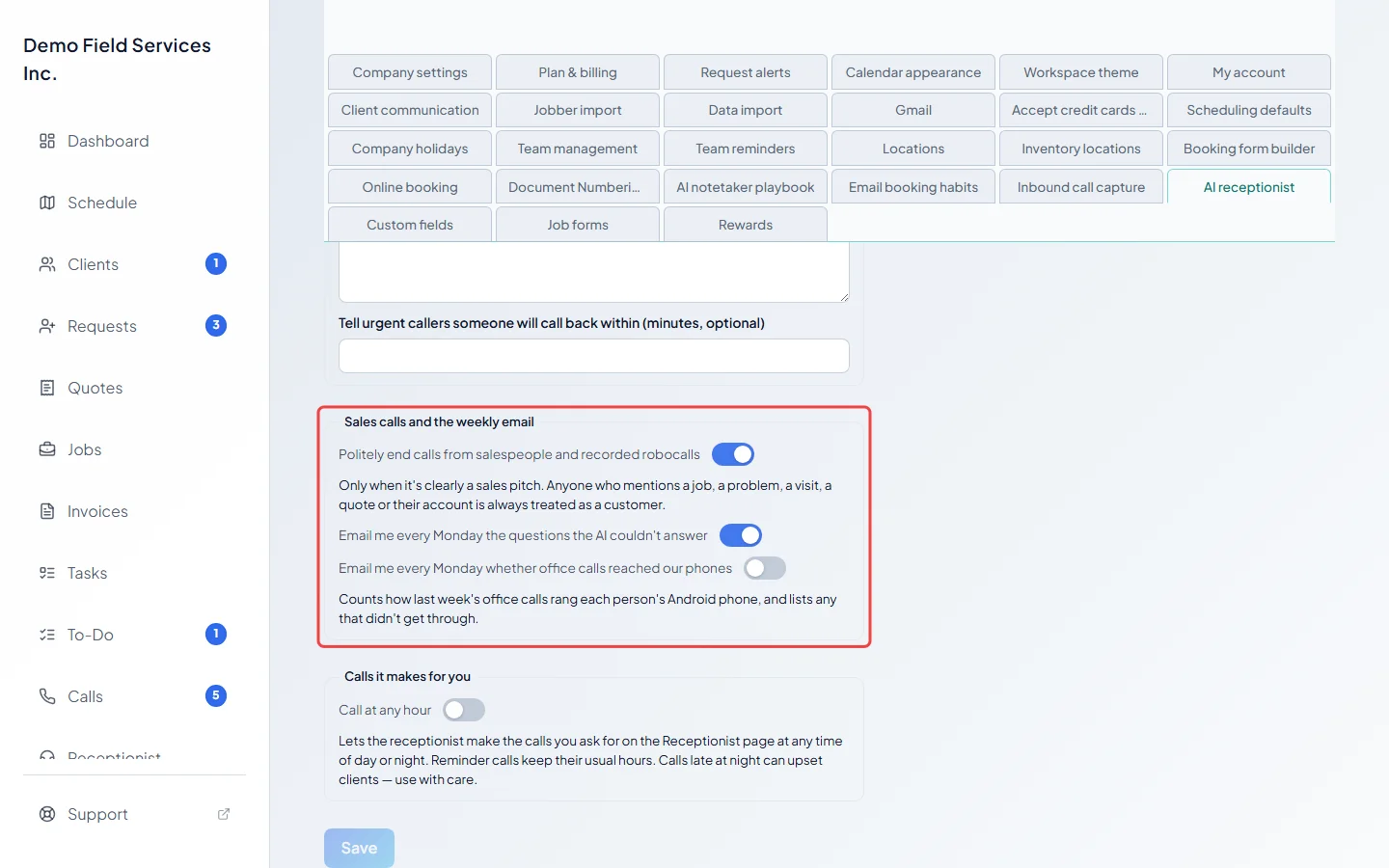
Under Sales calls and the weekly email, choose whether the AI should Politely end calls from salespeople and recorded robocalls. There are two separate Monday emails: Email me every Monday the questions the AI couldn’t answer (starts on) and Email me every Monday whether office calls reached our phones (starts off), which counts how last week’s office calls rang each person’s Android phone.
-
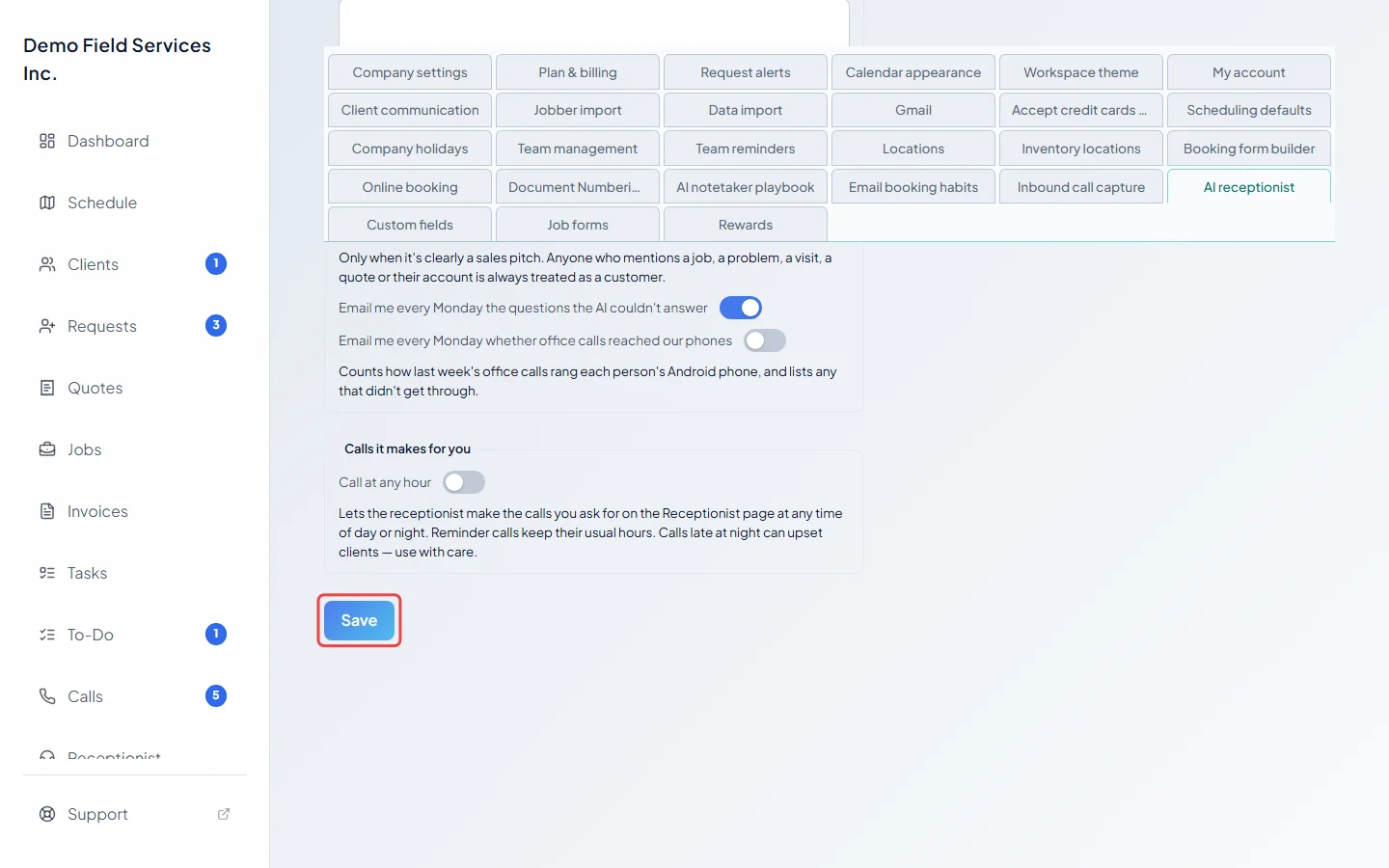
Click Save. It becomes clickable once you’ve changed something.
Good to know
Section titled “Good to know”- Account details, appointments, quotes and invoices are only ever discussed with a caller the AI has recognised as the client.
- The AI only ends a call as a sales call when it’s clearly a pitch. Anyone who mentions a job, a problem, a visit, a quote or their account is treated as a customer. Screened calls are on the Calls page under Screened. See Missed calls and voicemails.
- Ballpark prices come from your products and services list. See Services and prices.
- When the caller spoke another language, the call on the Calls page says so.
Related articles
Section titled “Related articles”Checked against Astragal on October 17, 2026