

Installing on Android
Install the Astragal app on an Android phone or tablet so work calls, alerts and location sharing work with the screen off.
Who can do this: Anyone your company has added to its team.
Also called: the Android app, the Play Store app.
Get the app
Section titled “Get the app”- Open Google Play on your phone.
- Search for Astragal and open the Astragal app.
- Tap Install, then Open when it finishes. Astragal also appears on your home screen.
The app needs Android 7.0 or newer. You need an Astragal account first: ask whoever runs Astragal at your company to invite you. See Joining your team’s account.
-
Open Astragal and sign in with the email your company invited. You land on Home, with the bar along the bottom. See Signing in on your phone.
On a computer: Not on a computer On a phone: Astragal app → Sign in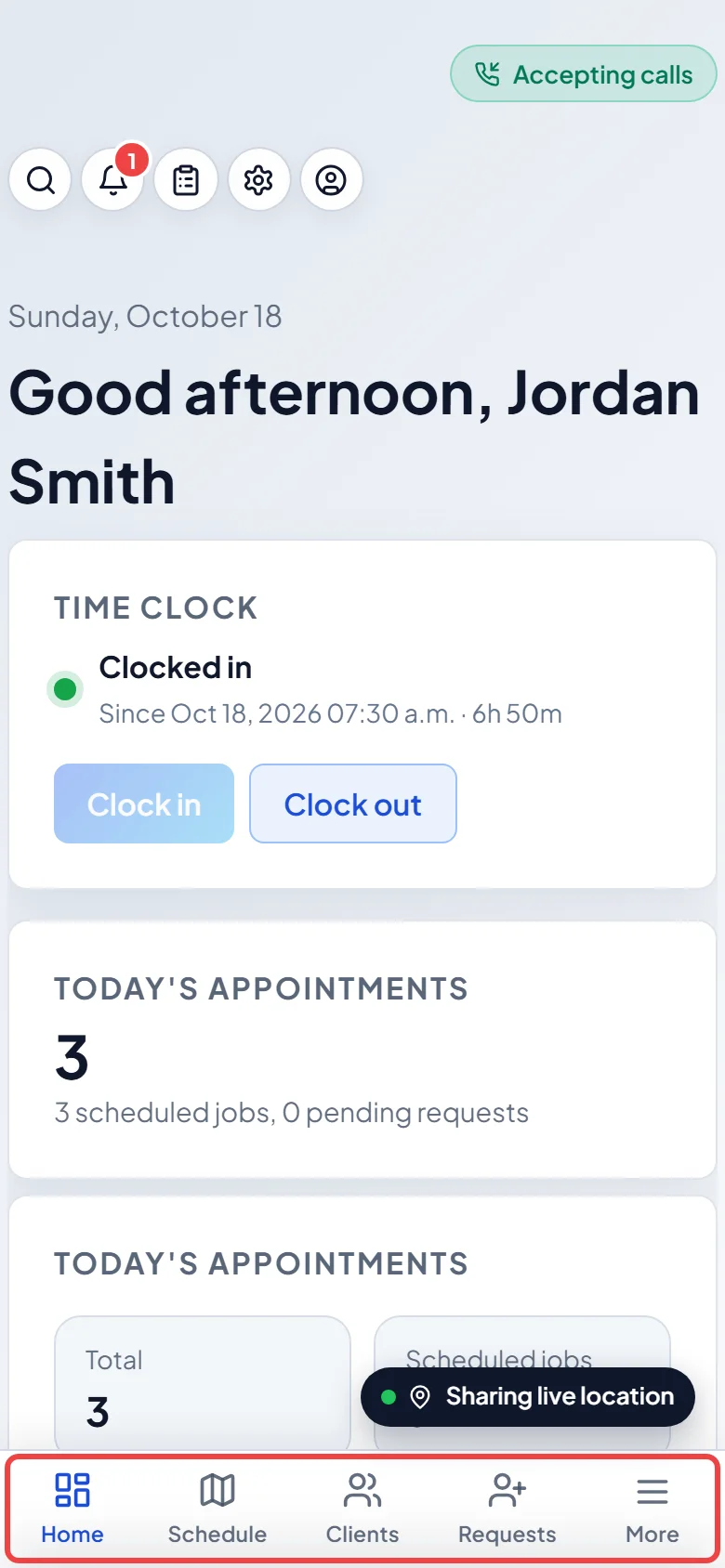
-
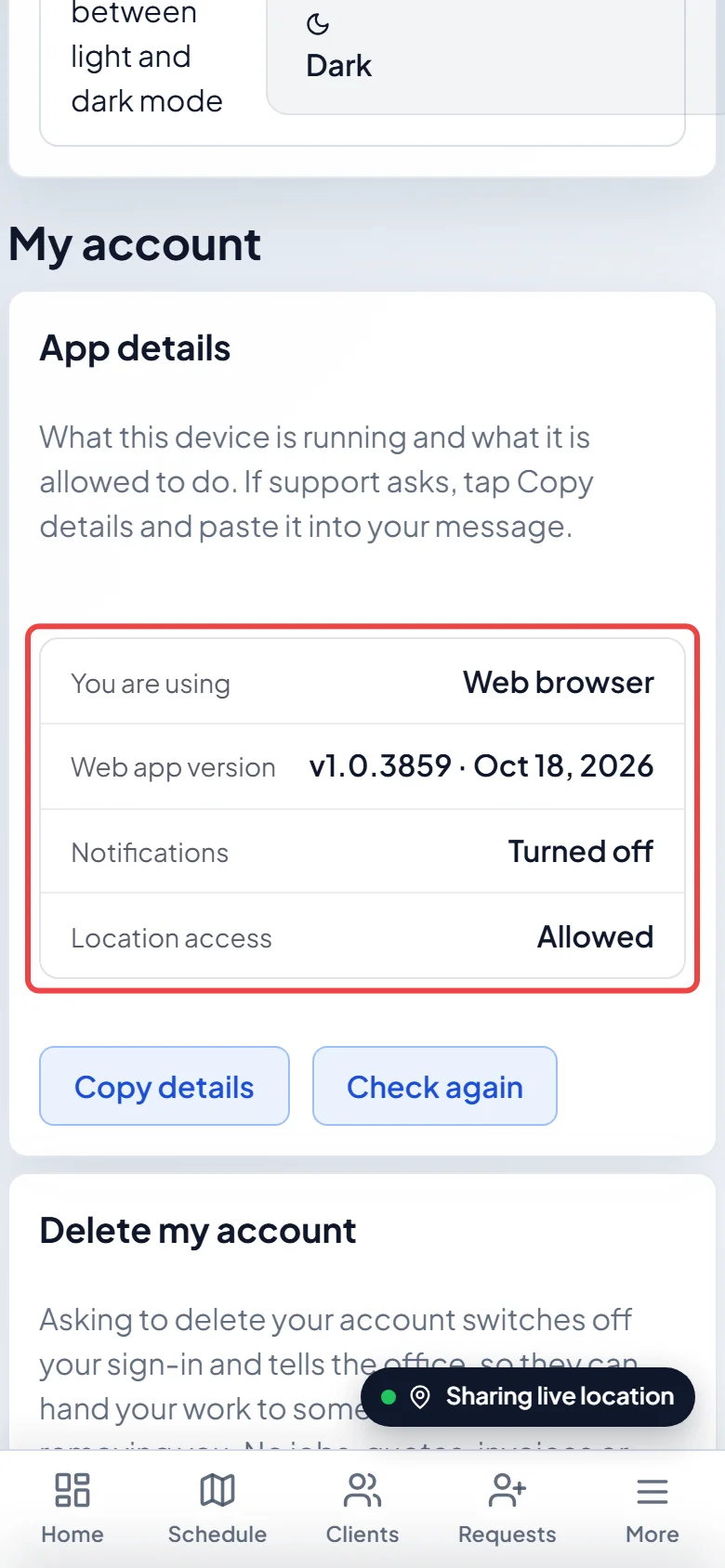
Allow what Android asks. Notifications are for alerts and calls, the microphone is for calls, and location is for clocking in and sharing your location. If Astragal asks to Let the app run in the background so office calls always ring, tap Allow. To check everything is set up, open App details in Settings → My account. In the app, You are using says Android app. To check alerts are allowed, open your phone’s Settings → Apps → Astragal → Notifications. The picture shows the same card opened in a phone’s web browser, which says Web browser instead.
Good to know
Section titled “Good to know”- The app shows the same Astragal as the website, always up to date. Only the app itself comes from Google Play. See Updating the app.
- You can change permissions later in your phone’s Settings → Apps → Astragal. See Notifications and permissions.
- With no signal, the app opens your saved visits so you can keep filling in job forms. See Working with no signal.
Related articles
Section titled “Related articles”Checked against Astragal on October 18, 2026