

Scheduling a task
Add a task to the schedule for anything your team needs to do that isn’t a visit: picking up parts, a follow-up call, a stop at the supplier.
Who can do this: Admins, dispatchers and accountants, and technicians set to Edit their own schedule or higher. A technician who can only edit their own schedule assigns new tasks to themselves.
Also called: an errand, a stop, a calendar task.
-
Open the tasks list and click New task. You can also use Create → Tasks in the left menu, which opens the new task form over the schedule.
On a computer: Left menu → Tasks On a phone: More → Tasks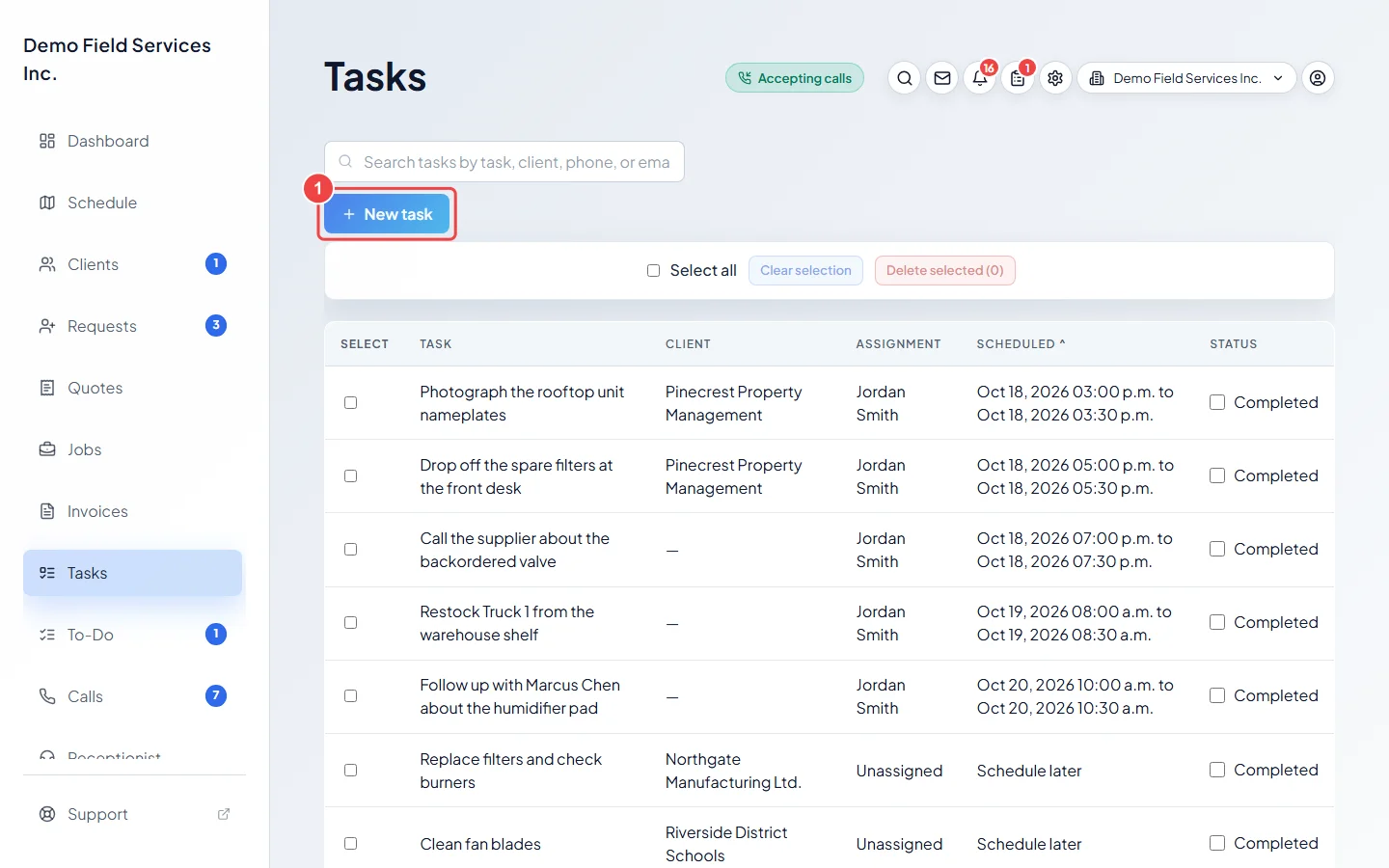
-
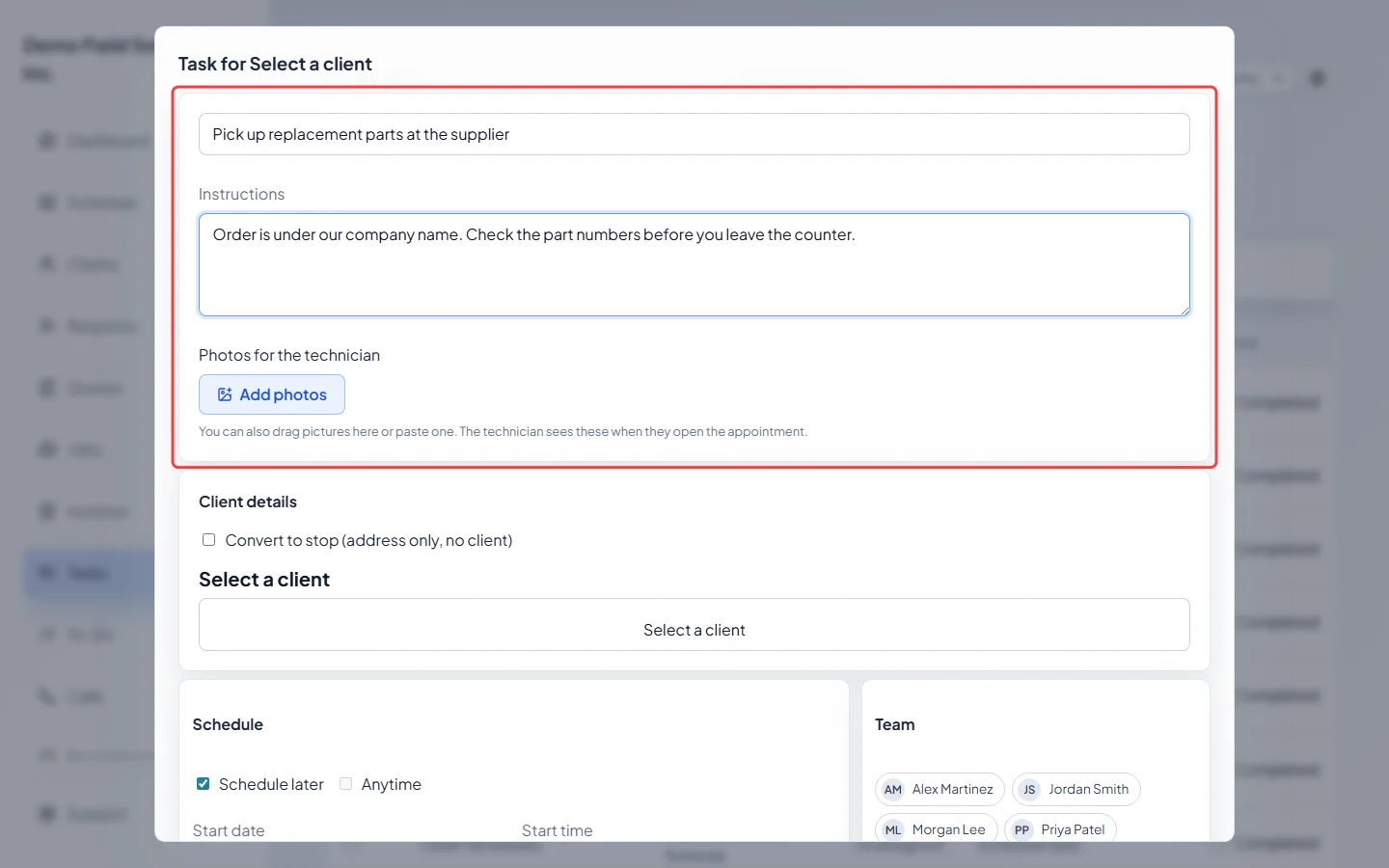
Type a Title and any Instructions the person will need. Office staff can also attach photos here: click Add photos under Photos for the technician (or drag or paste a picture in).
-
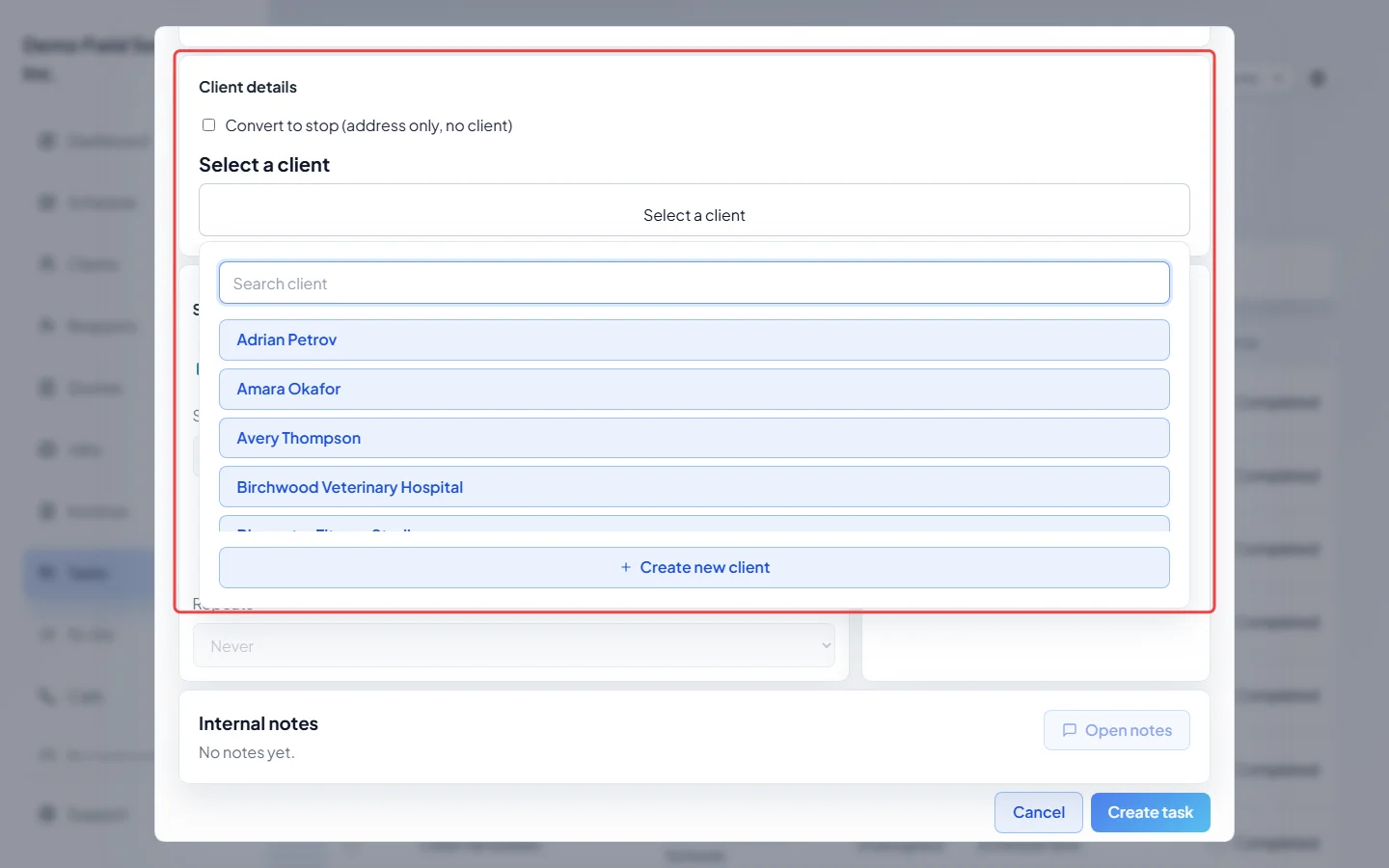
Under Client details, click Select a client and pick the client the task is for, or click Create new client. Leave it empty for a task that isn’t about a client. For a place that isn’t a client, such as a supplier’s counter, tick Convert to stop (address only, no client) and type the Stop address instead.
-
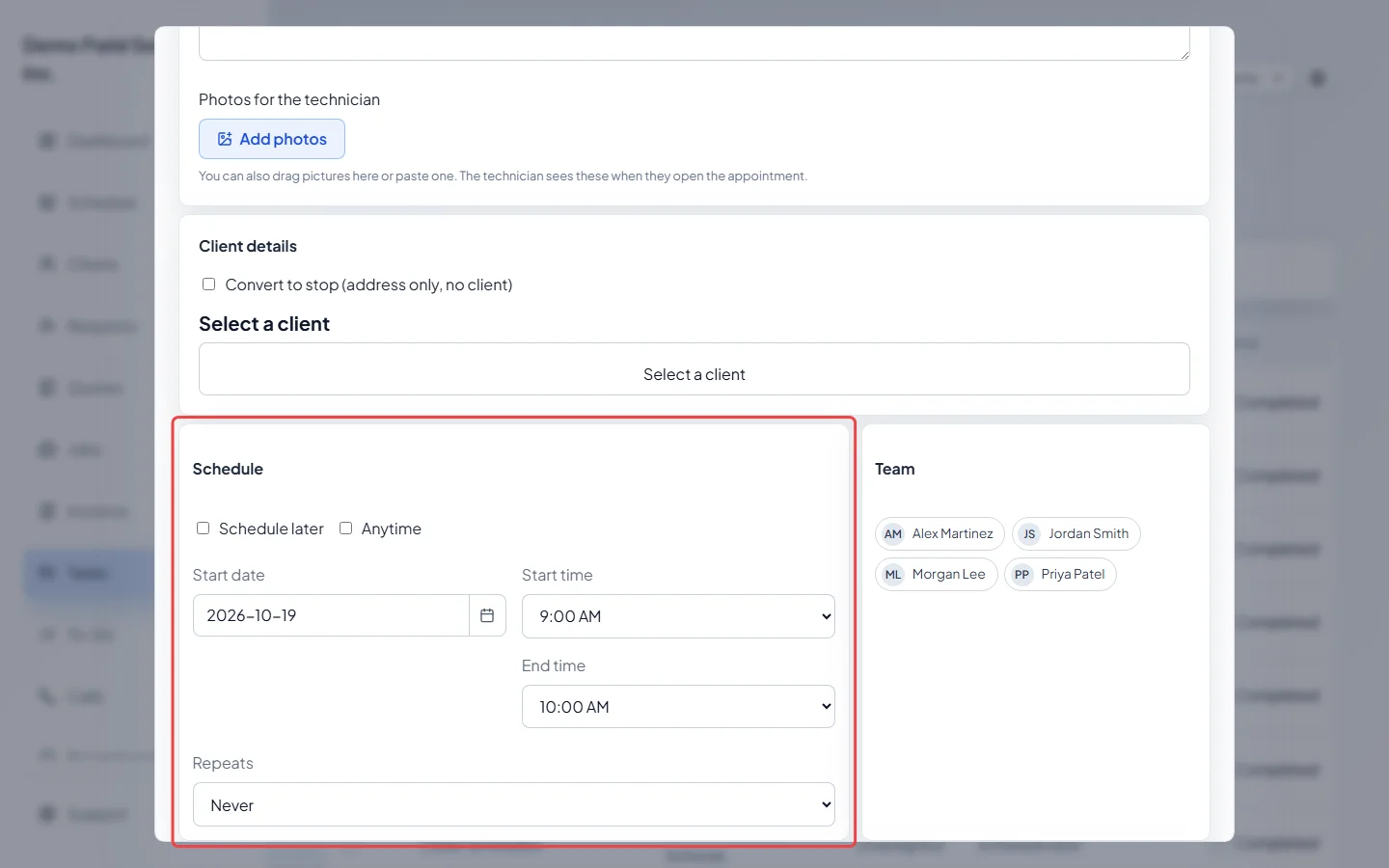
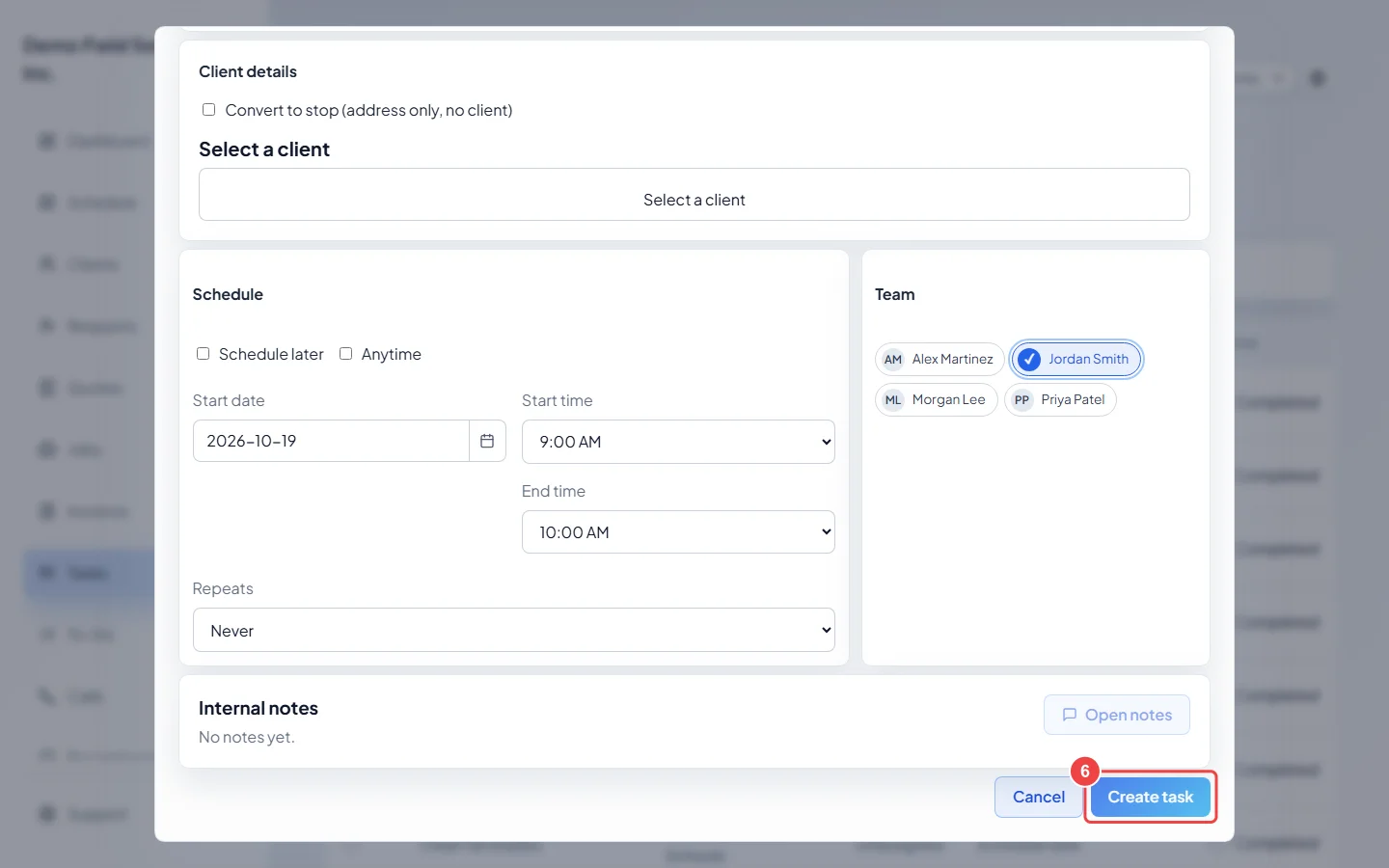
Under Schedule, untick Schedule later, then set the Start date, Start time and End time. Tick Anytime when the time of day doesn’t matter. To make it repeat, pick Daily, Weekly, Monthly or Custom schedule… under Repeats.
-
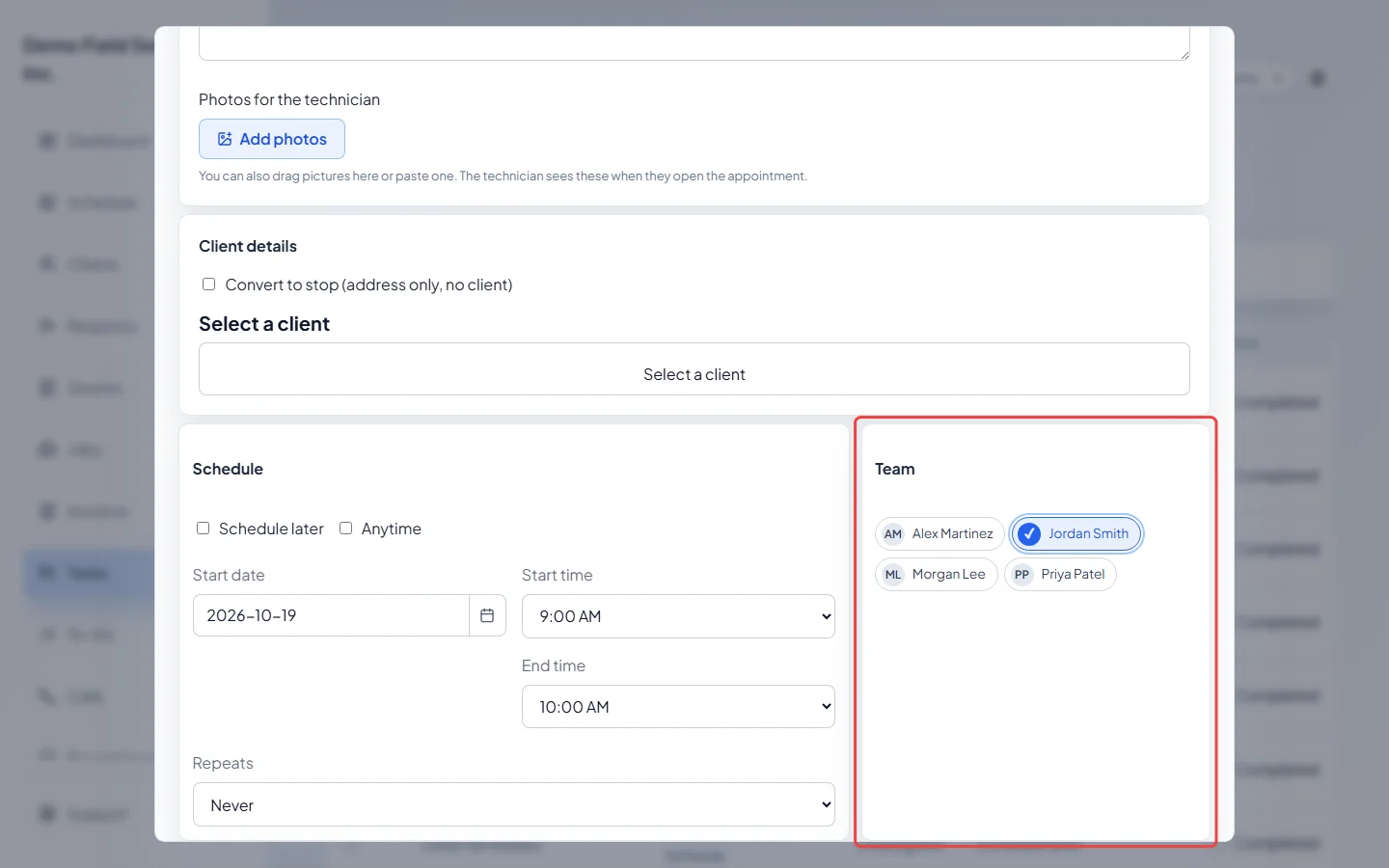
Under Team, tick the people who should do it. They see it on their schedule and in their tasks list.
-
Add Internal notes if you like (notes need a client or a stop address; a task with neither can’t hold notes), then click Create task. You see “Task created.” and it shows on the schedule at the time you chose. A task left on Schedule later waits in the tasks list until someone gives it a time.
Good to know
Section titled “Good to know”- A task needs a start date and both times unless Anytime or Schedule later is ticked. A repeating task always needs a date and times.
- Custom schedule… opens a small Repeat window where you pick Daily, Weekly, Monthly or Yearly and how many days, weeks, months or years apart.
- When you change or delete one task in a repeating series, Astragal asks whether it’s Apply only this task or Apply all future tasks (or Delete only this task / Delete all future tasks).
- To change, finish or delete a task later, open it from the tasks list. See The tasks list.
- A task you only need to remember yourself, with no time slot, fits better on your to-do list.
Related articles
Section titled “Related articles”Checked against Astragal on October 17, 2026