

Client files
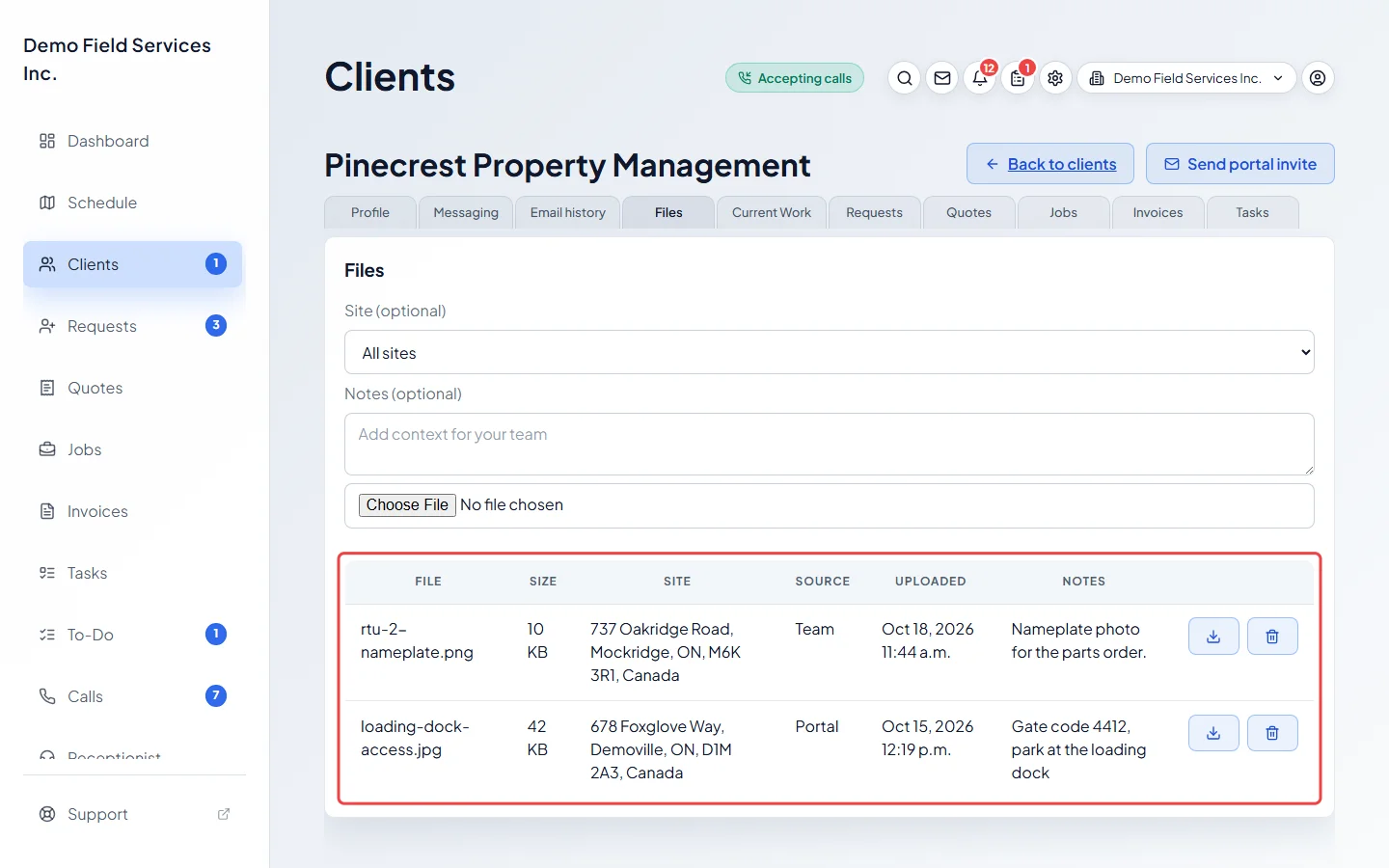
The Files tab holds every document and photo for a client, from your team and from the client’s portal.
Who can do this: Team members set to View full client and property info or higher, with the Files and media switch on in their permissions, can see and download files. Uploading and deleting needs admin, or View, edit, and delete full client and property info with Files and media on.
Also called: documents, attachments.
-
Open the client and click the Files tab.
On a computer: Left menu → Clients On a phone: Bottom bar → ClientsThe list shows each file’s name, size, property, Source (Team or Portal), when it was added, and its notes. It includes files attached to the client’s notes, jobs, quotes, invoices and requests, and photos from service forms (but not signatures).
-
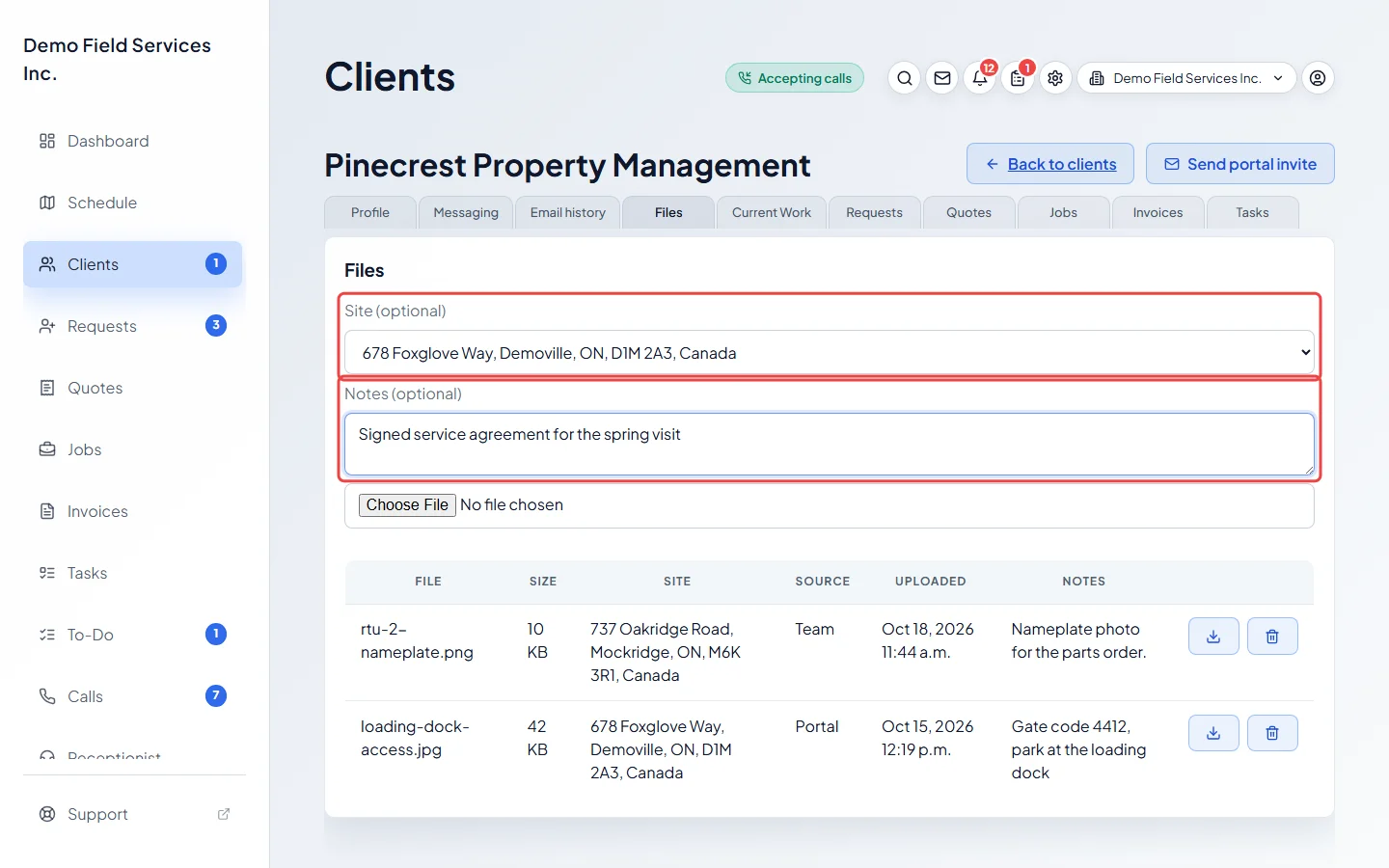
To tie the file to one property, pick it under Site (optional). Leave All sites for files about the whole client. Add a note for your team in Notes (optional).
-
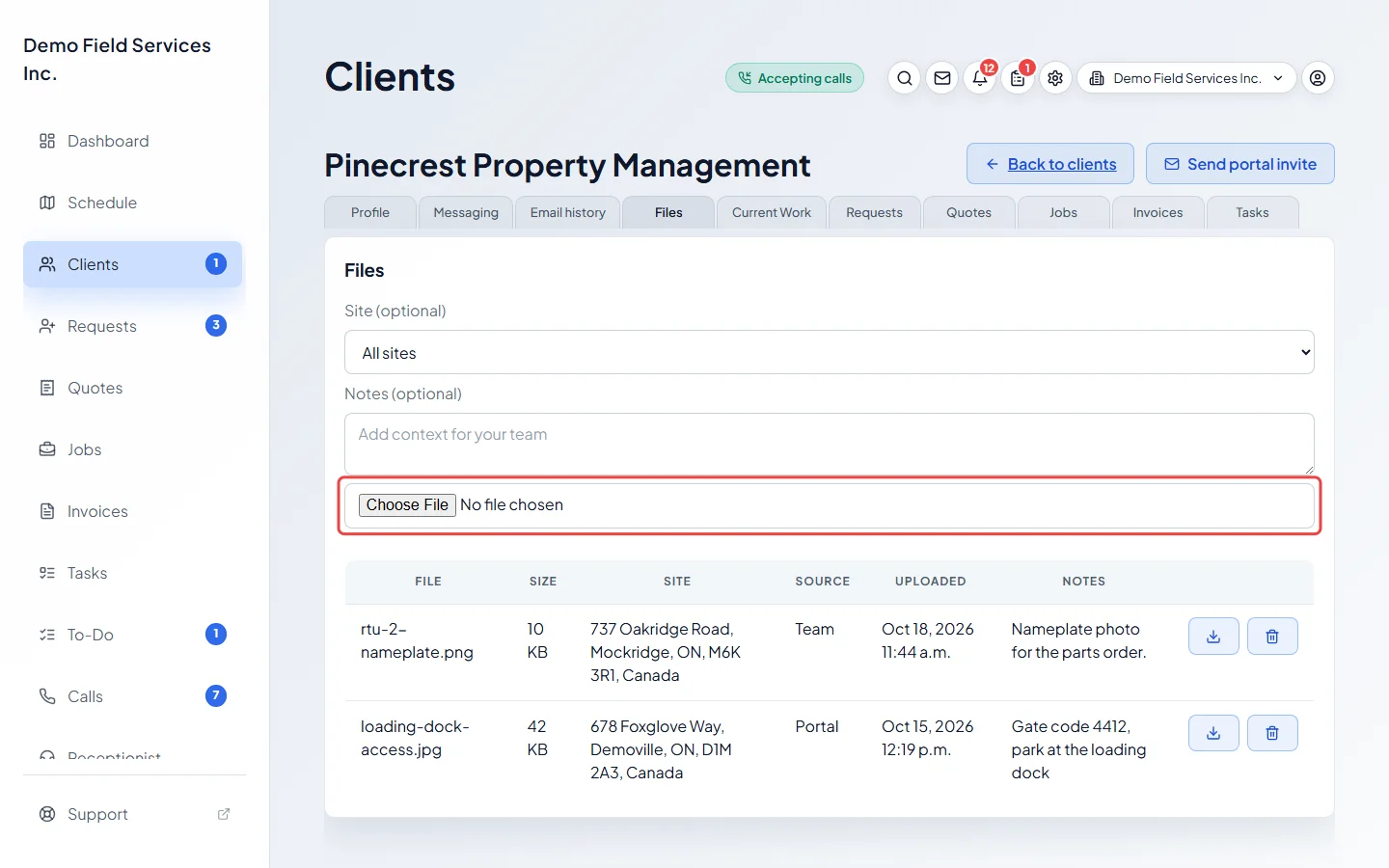
Click the file box and choose a file. It uploads straight away with a progress bar and then appears in the list.
-
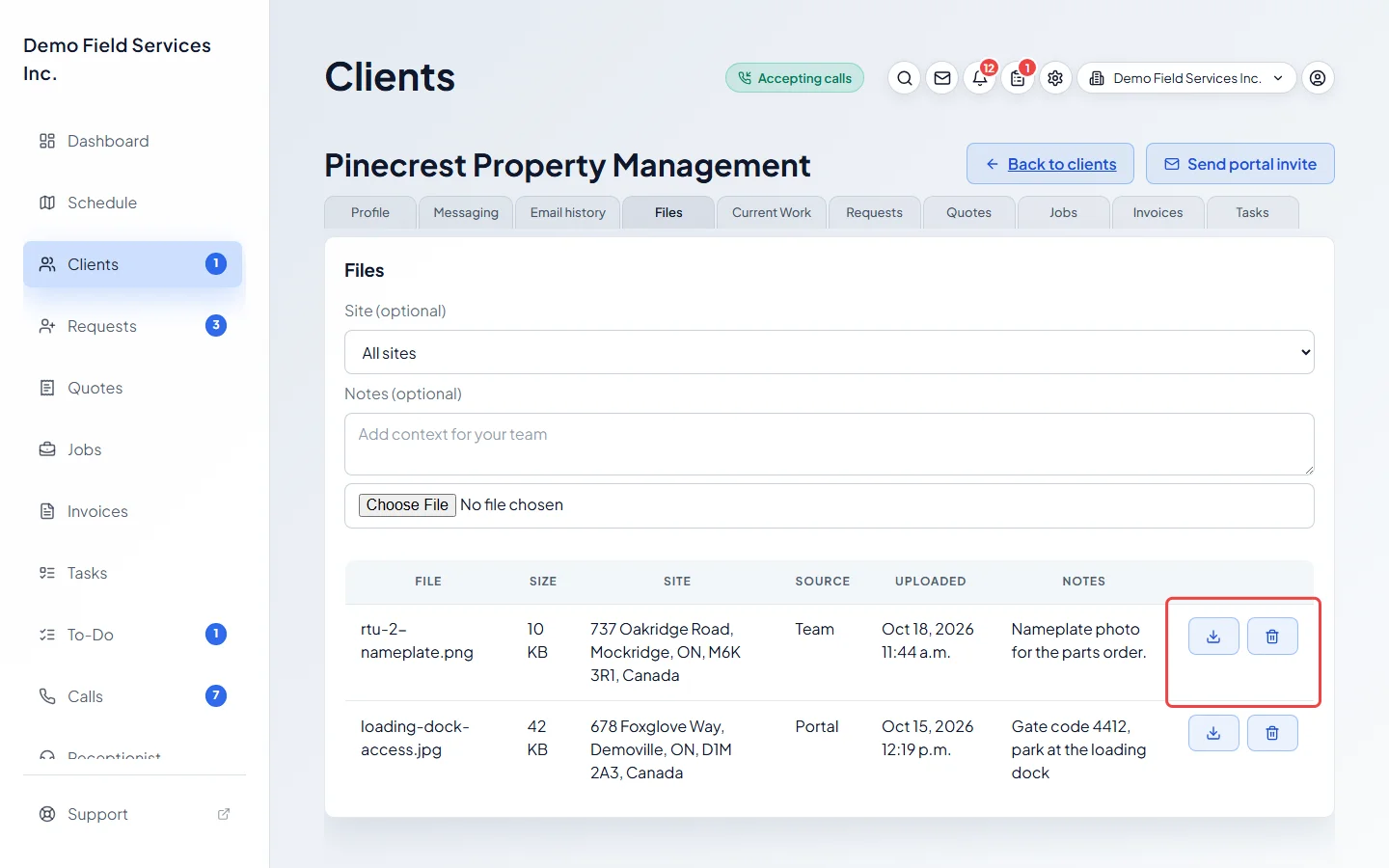
Use the download button on a row to open the file, or the bin to delete it. Click Delete file to confirm. Deleting can’t be undone, and removes the file from the note, job or other record it was attached to as well. A file that’s part of a completed service form can’t be deleted here; edit the form to remove it.
Good to know
Section titled “Good to know”- Files a client uploads from their portal show Portal as the source. See How clients see jobs and files.
- Photos and files attached to internal notes also show on the note. See Internal notes and custom fields.
- Removing a property in Edit client details moves its files to the property you keep. Removing it from the client’s Properties card deletes your team’s files tied to it, except files attached to a note; files from the portal stay. See Removing a property.
Related articles
Section titled “Related articles”Checked against Astragal on October 17, 2026