

Date ranges and comparisons
Set the period a report covers, and see how it compares with an earlier one.
Who can do this: Anyone who can open Reports (see The reports page).
-
Open a report, then type or pick the first and last day in Start and End. The report updates when you leave the box. A date that isn’t a real date is put back to what it was.
On a computer: Left menu → Reports On a phone: More → Reports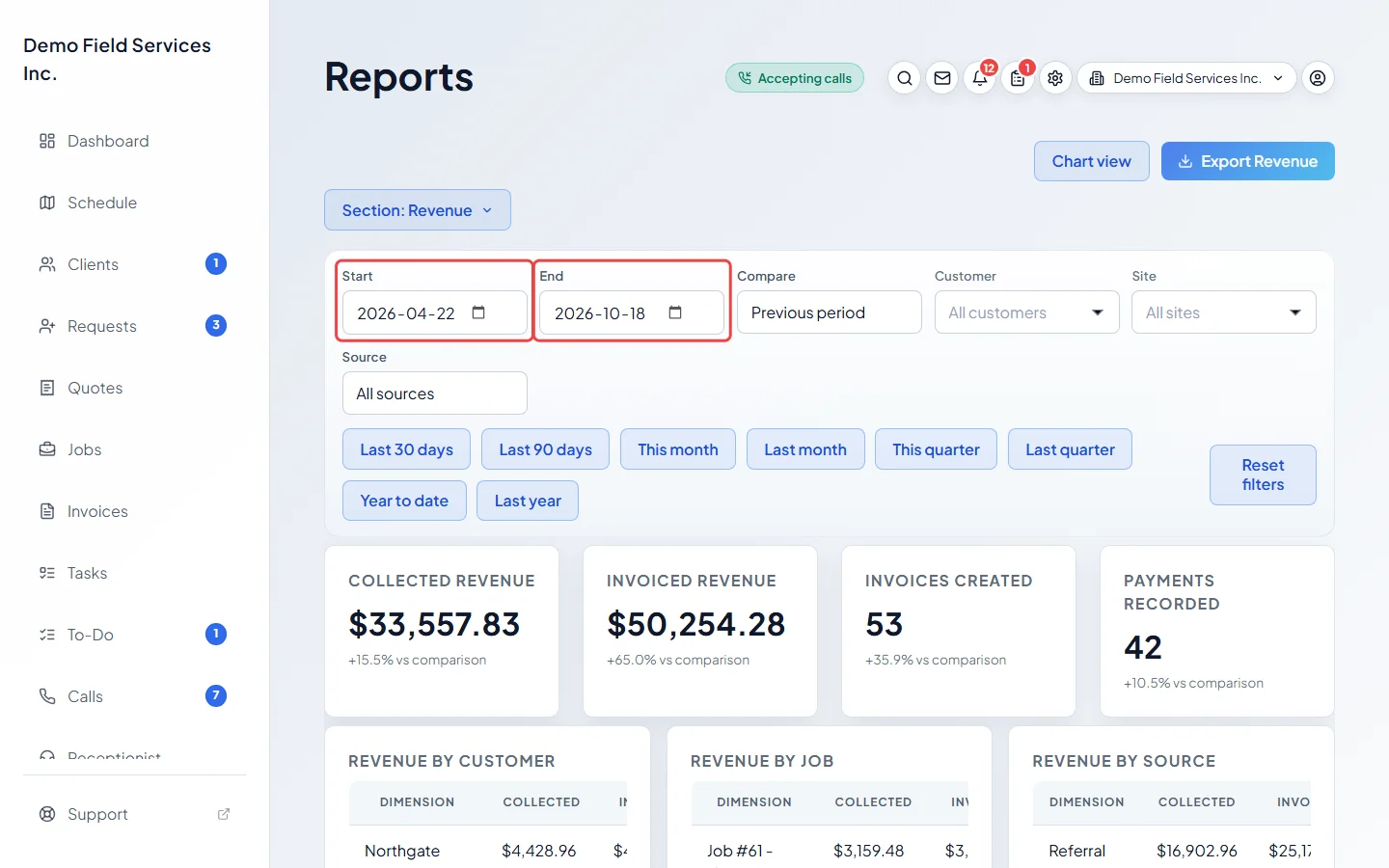
-
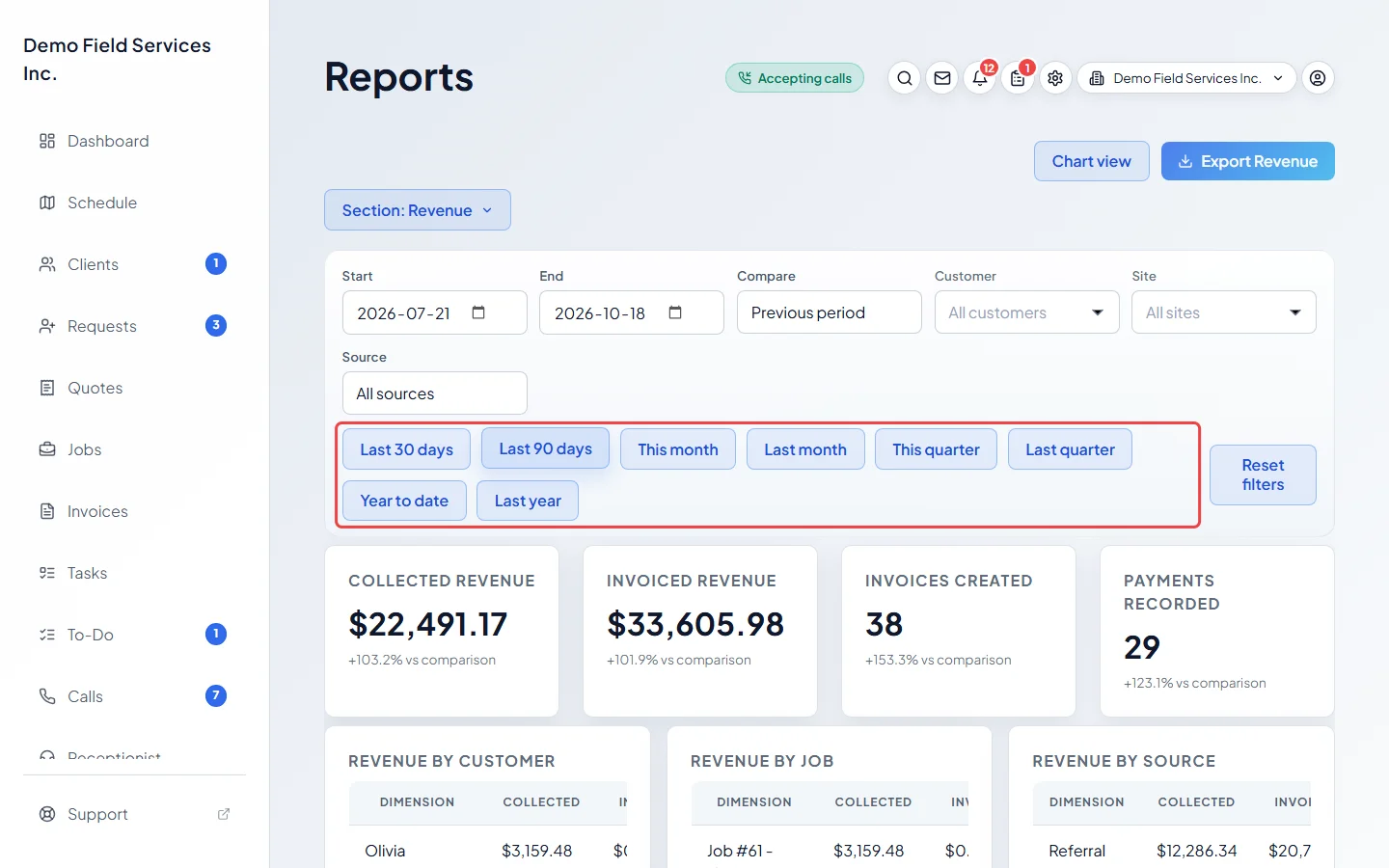
Or click a quick date button: Last 30 days, Last 90 days, This month, Last month, This quarter, Last quarter, Year to date or Last year. The Timesheets report also has This week and Last week (weeks run Monday to Sunday).
-
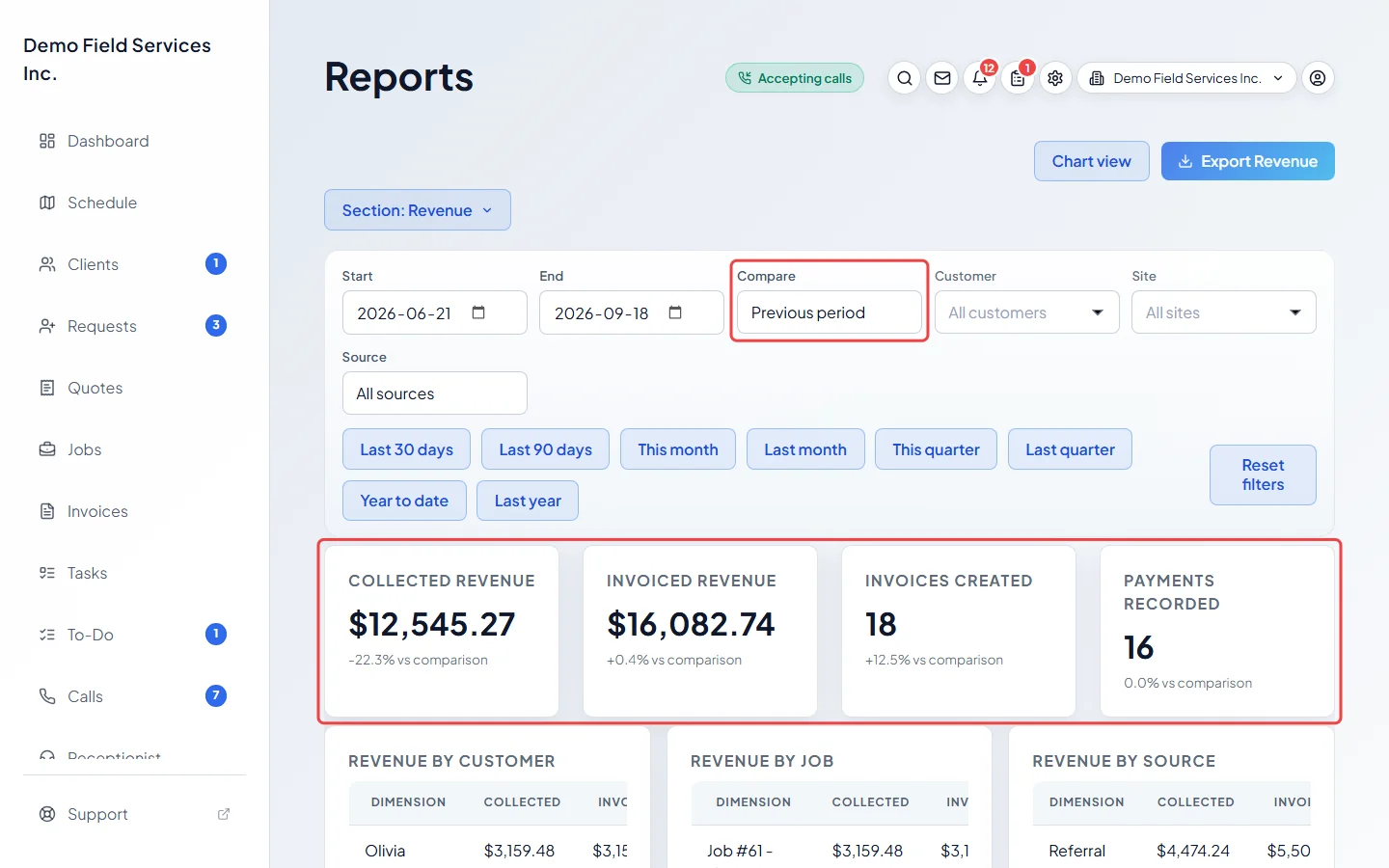
In Compare, pick Previous period (the same number of days just before your range), Previous year (the same dates a year earlier) or None. Each figure that can be compared then shows its change, such as “+8.5% vs comparison”. If the earlier period had nothing, the figure says “Current filtered result” instead.
Good to know
Section titled “Good to know”- With no dates chosen, a report covers the last 30 days up to today. If you put the end before the start, the two are swapped.
- The change only appears on Overview, Revenue, Products & services, Quote to cash, Requests & leads, Quotes ops and Jobs ops. Some figures on them, such as “Outstanding AR” or “Backlog”, are always “as of now” and never compared. The other reports either don’t have Compare or don’t show a change.
- Accounts receivable is a snapshot: it lists invoices made on or before the End date that still have money owing today. Picking a past end date doesn’t show the balances as they were back then.
- Some reports ignore dates entirely and look at your whole history: Customers who haven’t been back, Contact list and Property list.
- On the revenue charts, a range of up to 92 days is shown day by day; anything longer is shown month by month. Revenue trend on Overview shows at most the last 12 months; Revenue shows them all.
- Most reports place a record on the day it was saved in UTC (Greenwich time). A payment or invoice saved late in the evening in North America can count on the next day. Sales tax, Bad debt, Mileage and Customers who haven’t been back use your company’s time zone instead.
- Reset filters clears the dates and every other filter, sets Compare back to Previous period, and switches back to the chart.
Related articles
Section titled “Related articles”Checked against Astragal on October 17, 2026