

The daily supplier-orders email
These settings decide which supplier-order emails go to your office, and which pickup messages go to your suppliers on their own.
Who can do this: Admins, dispatchers and accountants, on a plan that includes supplier orders.
Also called: supplier reminders, office alerts.
-
Open the client communication settings and scroll down to Suppliers.
On a computer: Left menu → Settings → Client communication On a phone: More → Settings → Client communication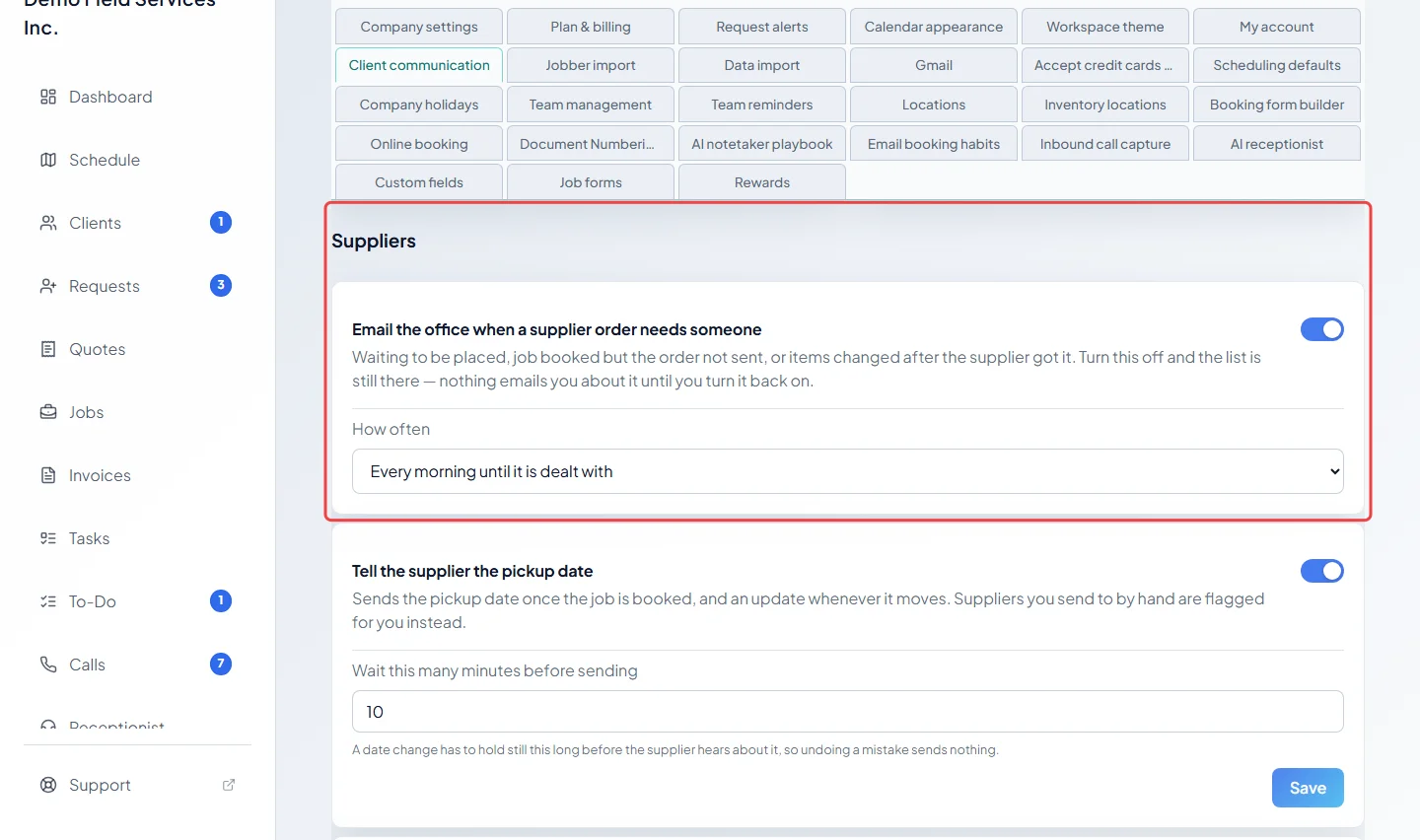
-
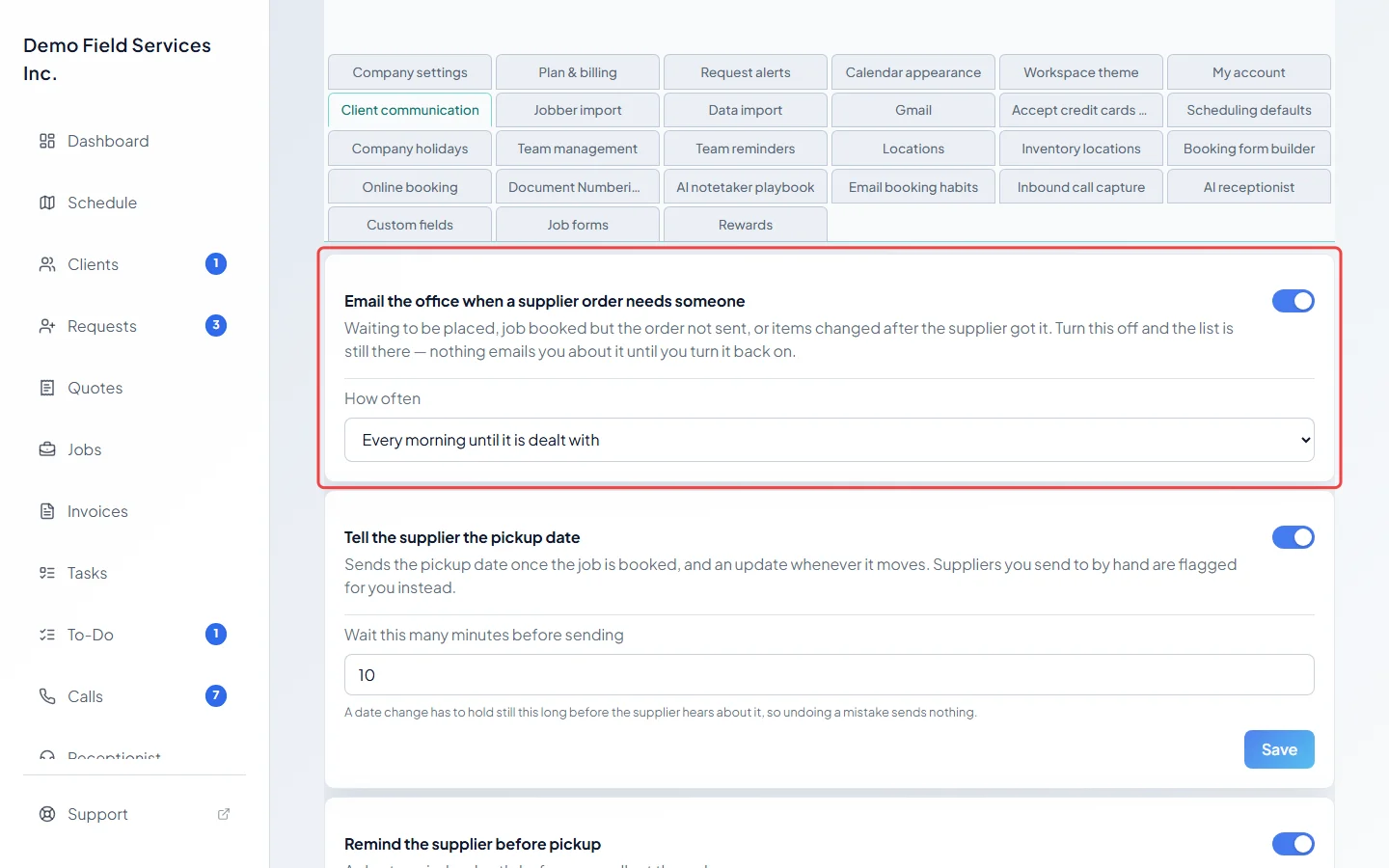
Turn Email the office when a supplier order needs someone on or off. When it’s on, the office gets one email each morning listing the orders that need someone: waiting to be placed, job booked but the order not sent, items changed after the supplier got them, a pickup date or reminder still to send, a message that didn’t go through, a supplier with no contact details, or a cancelled job. The same switch also sends a quick alert during the day (7am to 8pm) when a booked job’s order hasn’t gone out, or its items change after it was sent. Each entry says what to do and links to the order. Under How often, pick Every morning until it is dealt with or Once only. Turned off, the list in Supplier Orders is still there; nothing emails you.
-
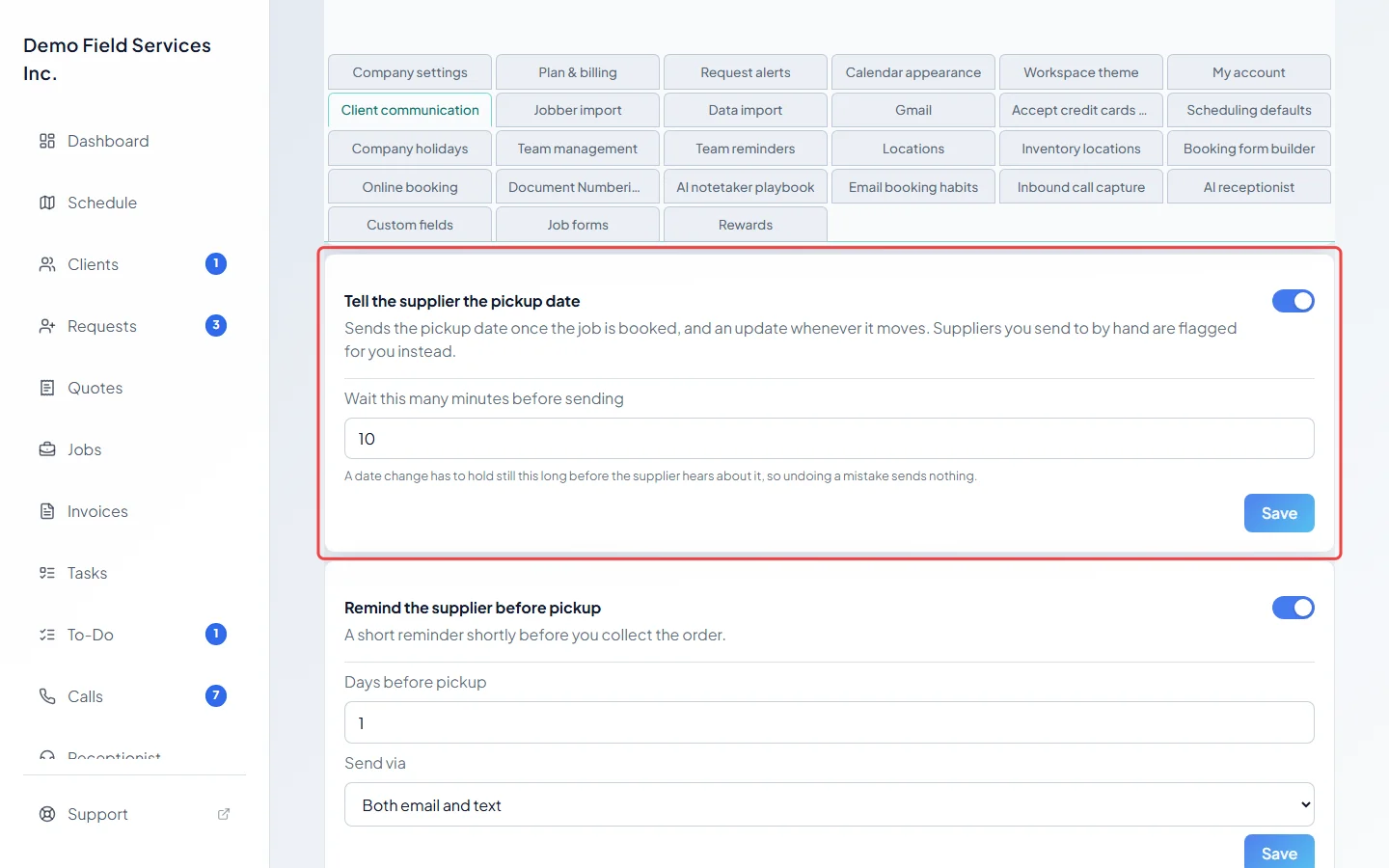
Tell the supplier the pickup date sends the pickup date once the job is booked, and an update whenever it moves. In Wait this many minutes before sending, set how long a date change has to stay put before the supplier hears about it, so undoing a mistake sends nothing. Click Save.
-
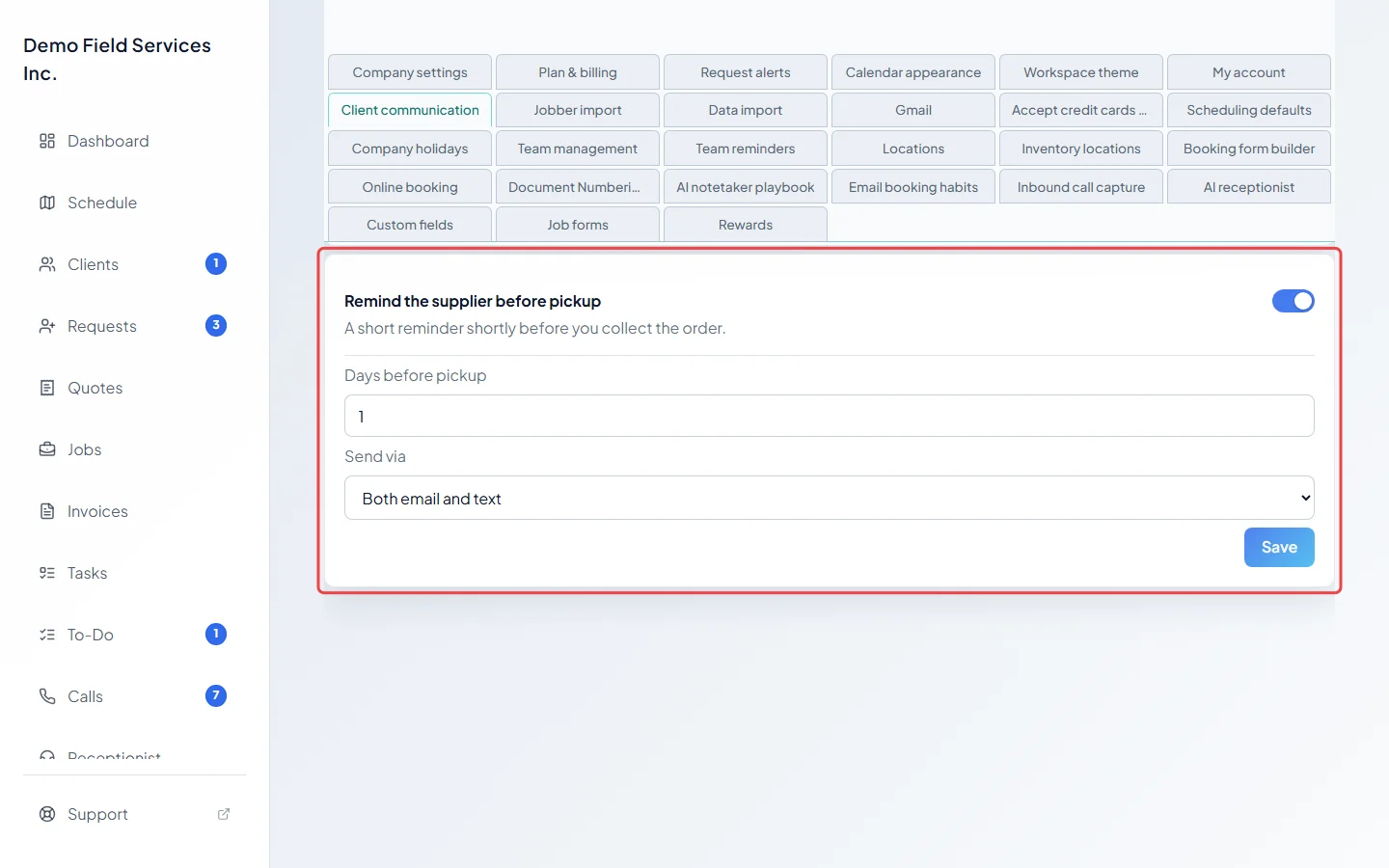
Remind the supplier before pickup sends a short reminder ahead of the pickup. Set Days before pickup and choose Send via: both email and text, email only or text only. Click Save.
Good to know
Section titled “Good to know”- The office email goes to the people set up to get request alerts by email (see Request alerts). If nobody is, it goes to your company email.
- Orders on hold are left out of the email, because nothing can be done until the client approves the quote again. If you were sent an alert about the same order in the last 20 hours, it’s left out too.
- Pickup dates and reminders only go out on their own to suppliers set to get orders by email or text. For the others, the order is flagged so you can send it yourself. See Vendors.
- Reminders are only sent between 7am and 8pm your time.
- The wording of all these messages can be changed under message templates.
Related articles
Section titled “Related articles”Checked against Astragal on October 17, 2026