

Inviting your team
Give each person who works for you their own sign-in, so you can schedule them and they can see their work.
Who can do this: Admins and dispatchers. Only admins can add another admin.
Also called: adding staff, adding a technician, adding crew.
Step 5 of 6 in setting up Astragal for your company.
-
Open Team management and click Add team member. The page shows how adding somebody changes what your company pays each month.
On a computer: Left menu → Settings → Team management On a phone: More → Settings → Team management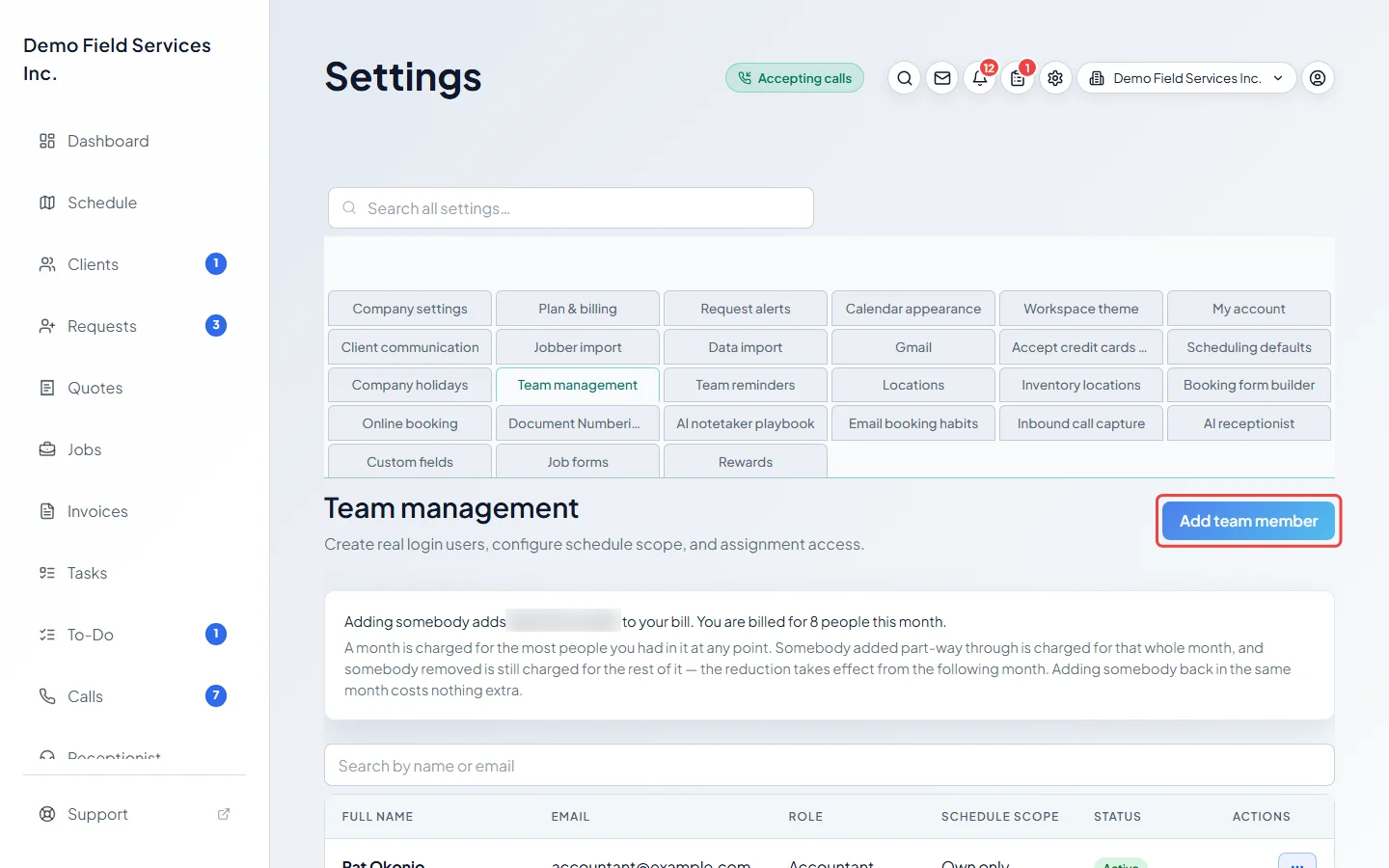
-
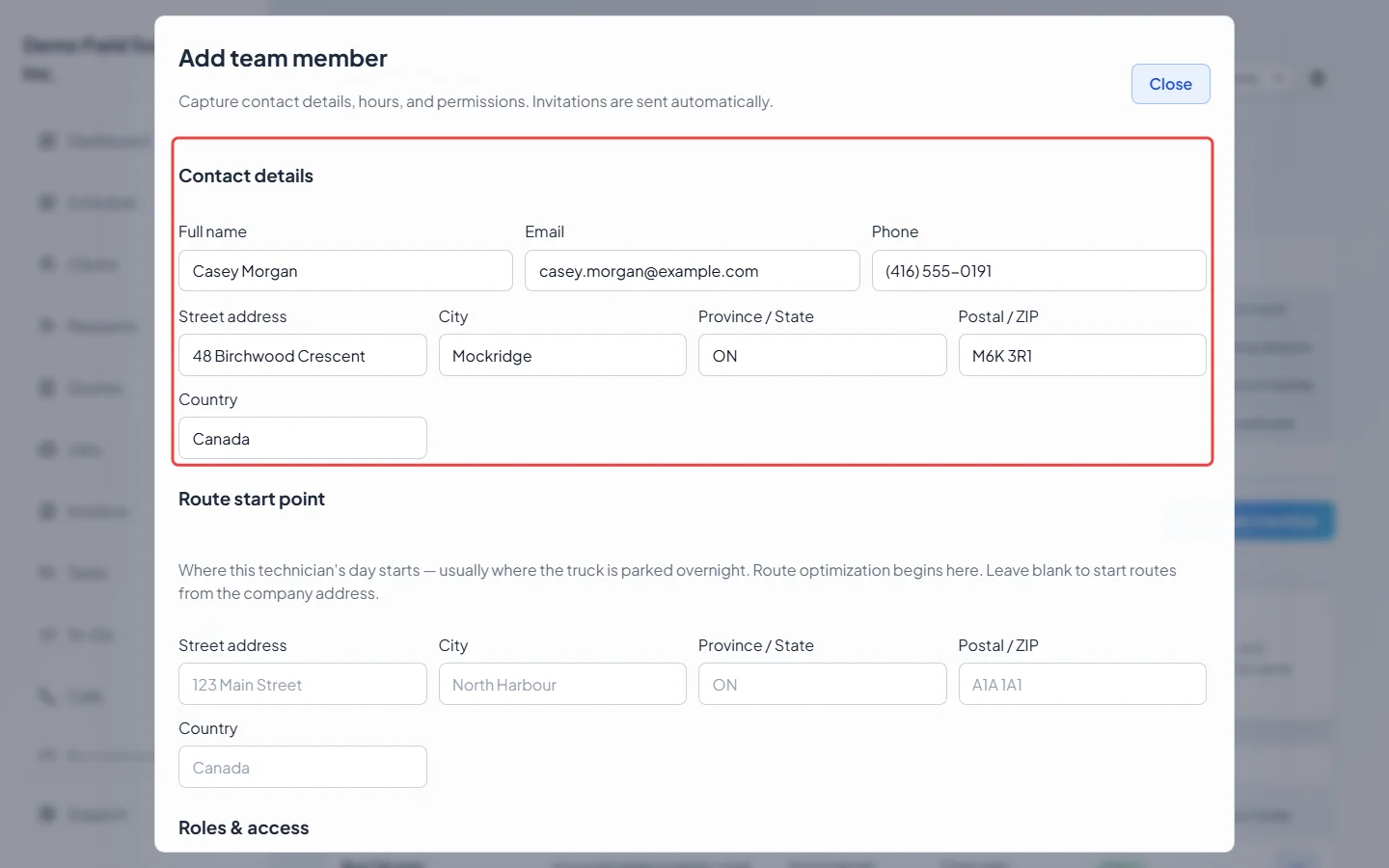
Under Contact details, type their Full name, Email and Phone. The invite goes to that email, and it’s the address they’ll sign in with. Fill in their home address too. Every address box is required.
-
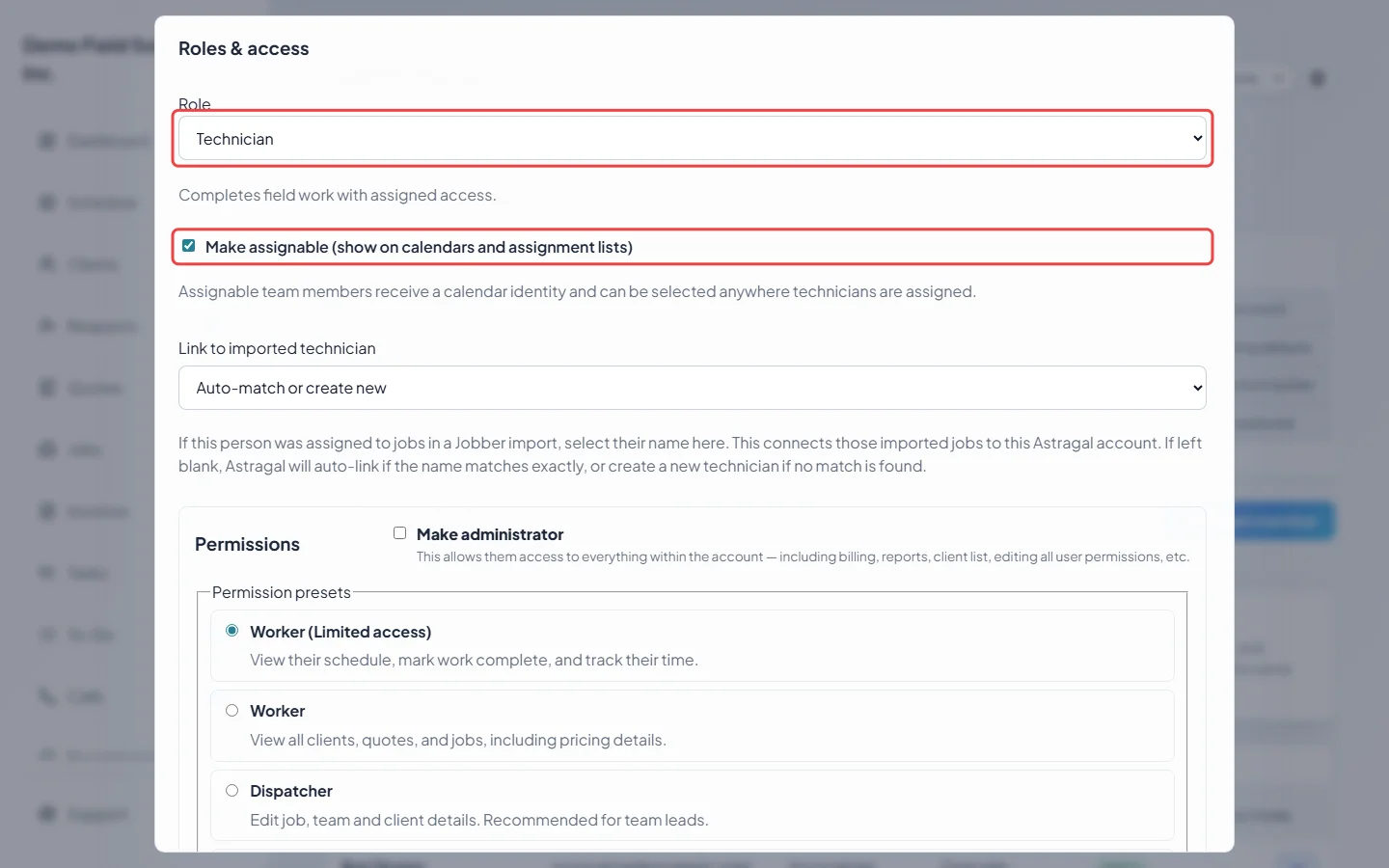
Under Roles & access, pick their Role: Admin, Dispatcher, Technician or Accountant. Leave Make assignable (show on calendars and assignment lists) ticked for anyone you’ll send out on visits. For anyone who isn’t an admin, pick a preset under Permission presets (such as Worker (Limited access)), or set exactly what they can see and change.
-
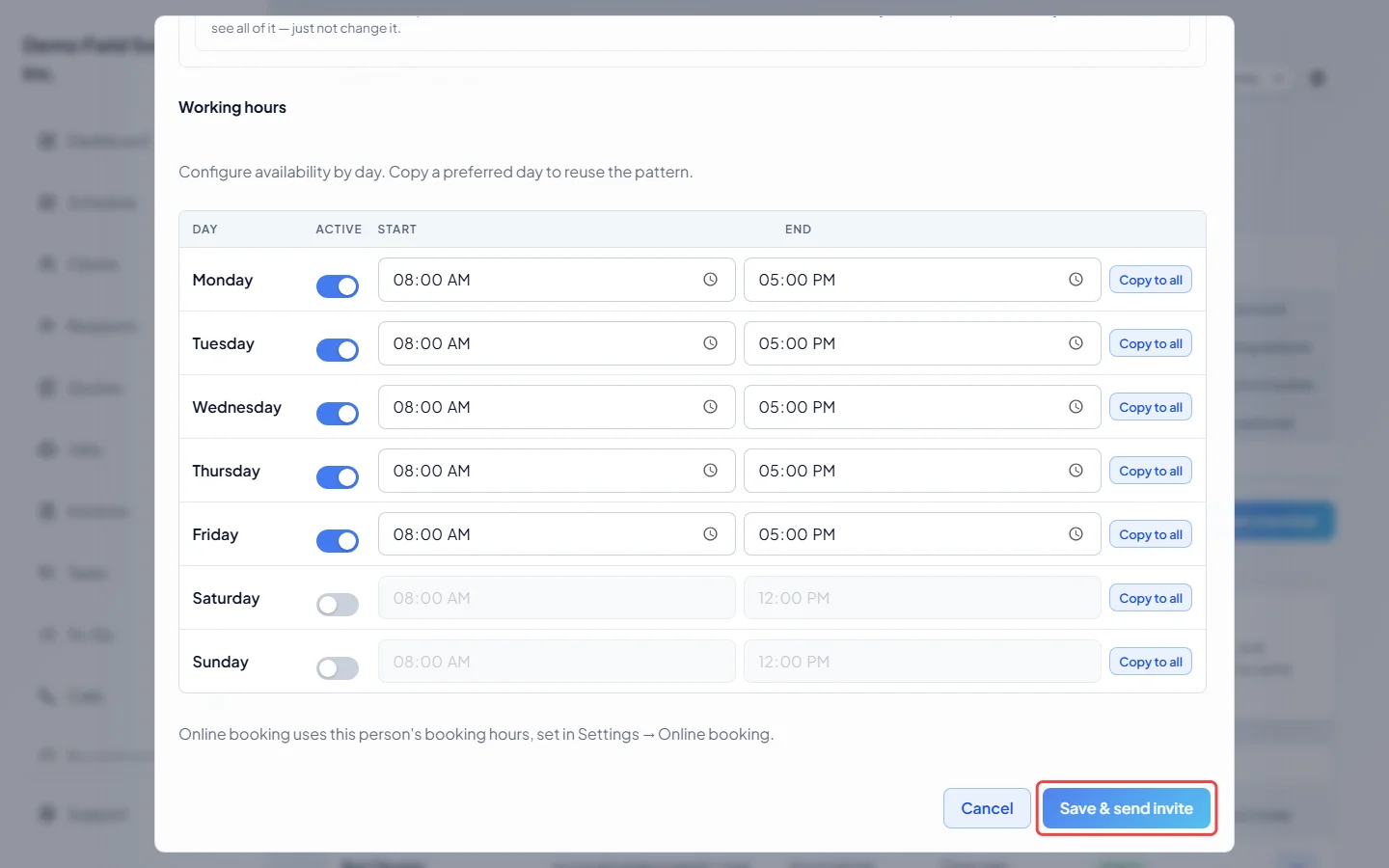
Set the days and hours they work under Working hours. Online booking uses its own booking hours, set in Settings under Online booking. Then click Save & send invite.
-
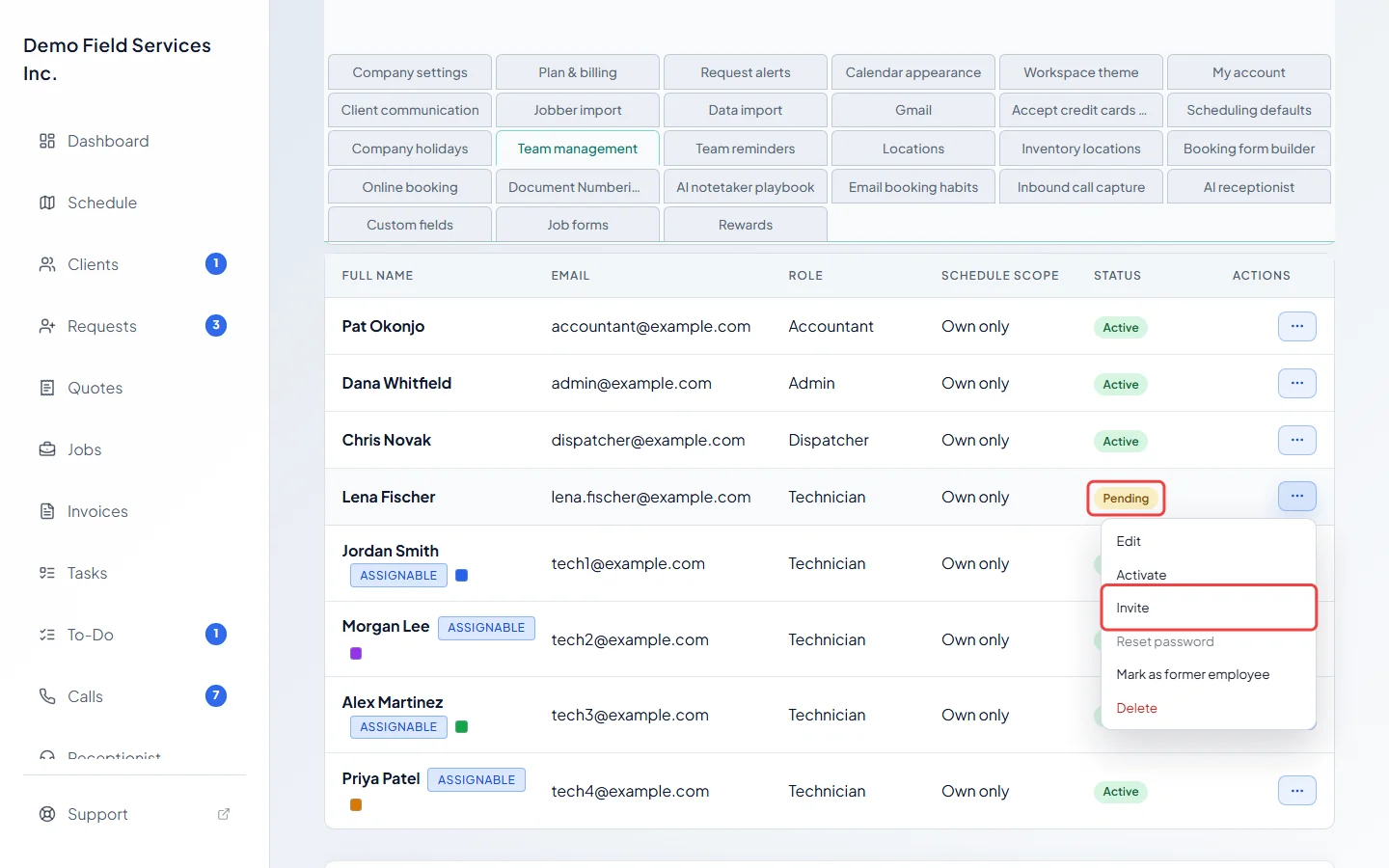
They show as Pending until they accept. If they lose the email, click the three dots on their row and choose Invite to send it again. To set someone up without an email, choose Activate from the same menu. You can send them Reset password later.
What your teammate gets
Section titled “What your teammate gets”They get an email with a link to choose their password. After that they sign in on the website or the Astragal phone app with their email and new password. The link stops working after 7 days; if it has, send the invite again from step 5.
If their email already has an Astragal account with another company, they get an invitation to join yours instead. They only appear in your list once they accept. The invitation lasts 14 days. To send it again, add them again. See Joining your team’s account.
Good to know
Section titled “Good to know”- When someone leaves, choose Deactivate (or Mark as former employee if they never accepted) rather than Delete, so their past work stays. See Removing a team member.
- On the Starter plan, adding a person beyond the plan’s limit asks you first, because it moves you to Standard. See The Starter plan.
Related articles
Section titled “Related articles”Next step: Before you go live
Checked against Astragal on October 18, 2026