

Reviewing what the call booked
Turn what was said on a call into a job, a request or a note, without typing it all up afterwards.
Who can do this: Anyone who answers or places a call through Astragal.
Add-on: Phone lineAlso called: saving a call, call booking.
In the call window
Section titled “In the call window”The call window only opens on a live call, which the demo company can’t make, so this part is described from the app itself.
- Check the caller. If the caller’s details match clients you already have, Existing customers to check lists them, tagged Shared details or Name only. Click Link only if it’s the same person. Linking adds the caller’s number to that client and fills the booking from their record. Otherwise leave it and a new client is made when you save.
- Check the booking details. Fix anything the AI got wrong. Turn on Bill under company name (not the caller’s personal name) when they called for a business, and Likely warranty / callback on previous work when it’s a return visit about earlier work. Pick a Lead source; if you don’t, the client is saved with “inbound phone call”.
- Save it.
- On a booking call the button says Save as job booking, or Save as quote request when they want a price. A job is made with the start time and Arrival window you set (or left to schedule later if there’s no start time), assigned to the technicians you ticked, with the call summary in its notes and your Notes for the technician on the visit. A quote request becomes a request. Astragal opens the new job or request for you. A new client needs at least a name or a company.
- On any other call the button says Save call notes to thread. It saves the summary and transcript as an internal note on the client’s record. It needs the caller to be linked to a client.
- Or close it. Close without saving asks first if anything was captured. The call itself always stays on the Calls page, with its recording and transcript.
If the caller is the tenant at one of your clients’ properties, the booking goes under that client, at that property, and the caller is saved as its on-site contact.
After the call
Section titled “After the call”-
The job or request you saved opens straight away. To find a saved request later, open the requests board.
On a computer: Left menu → Requests On a phone: Bottom bar → Requests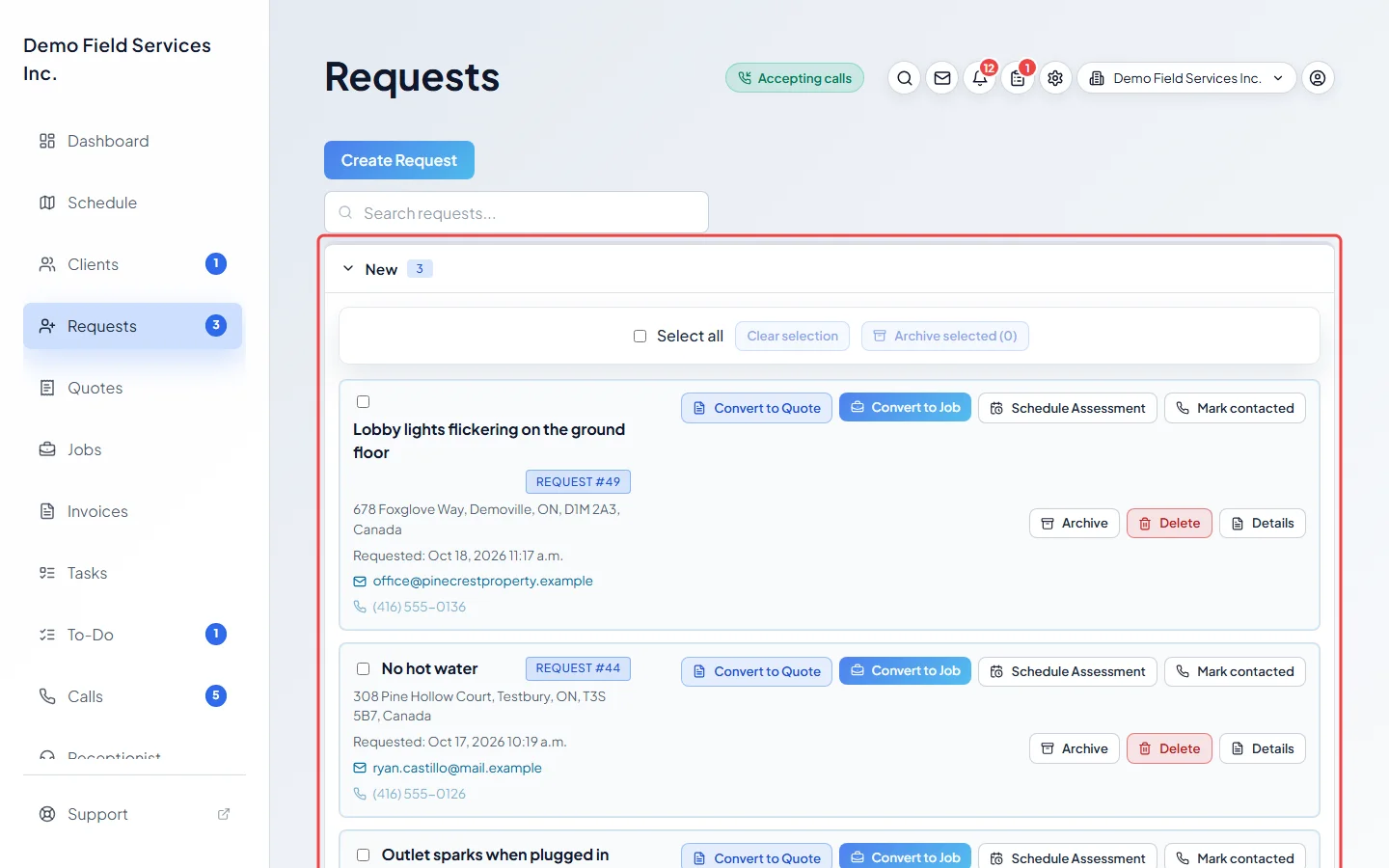
-
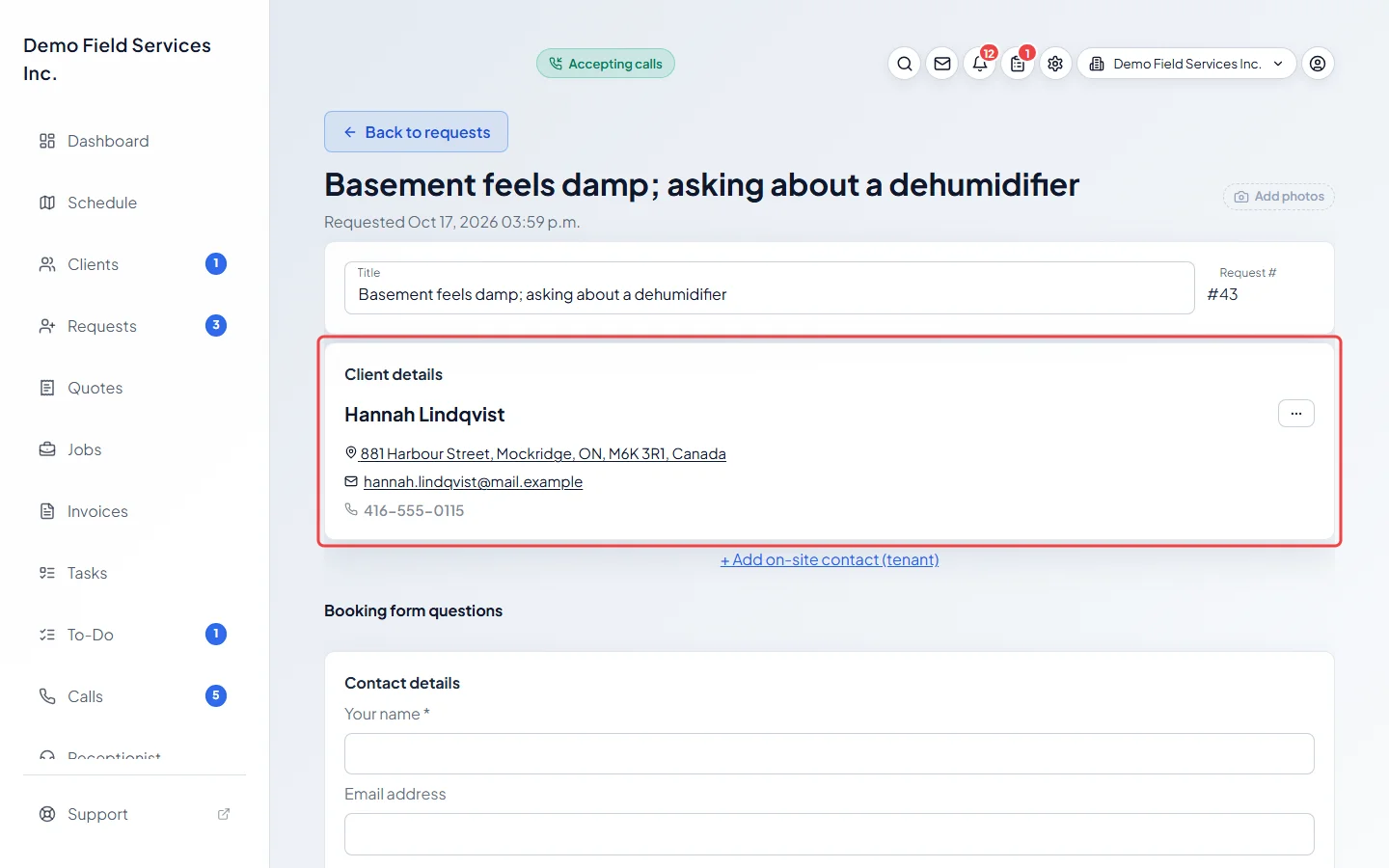
Open the request to check the client and the details, and carry on, for example by sending a quote. A request saved from a call has the call’s summary in its notes; the full transcript stays with the call.
-
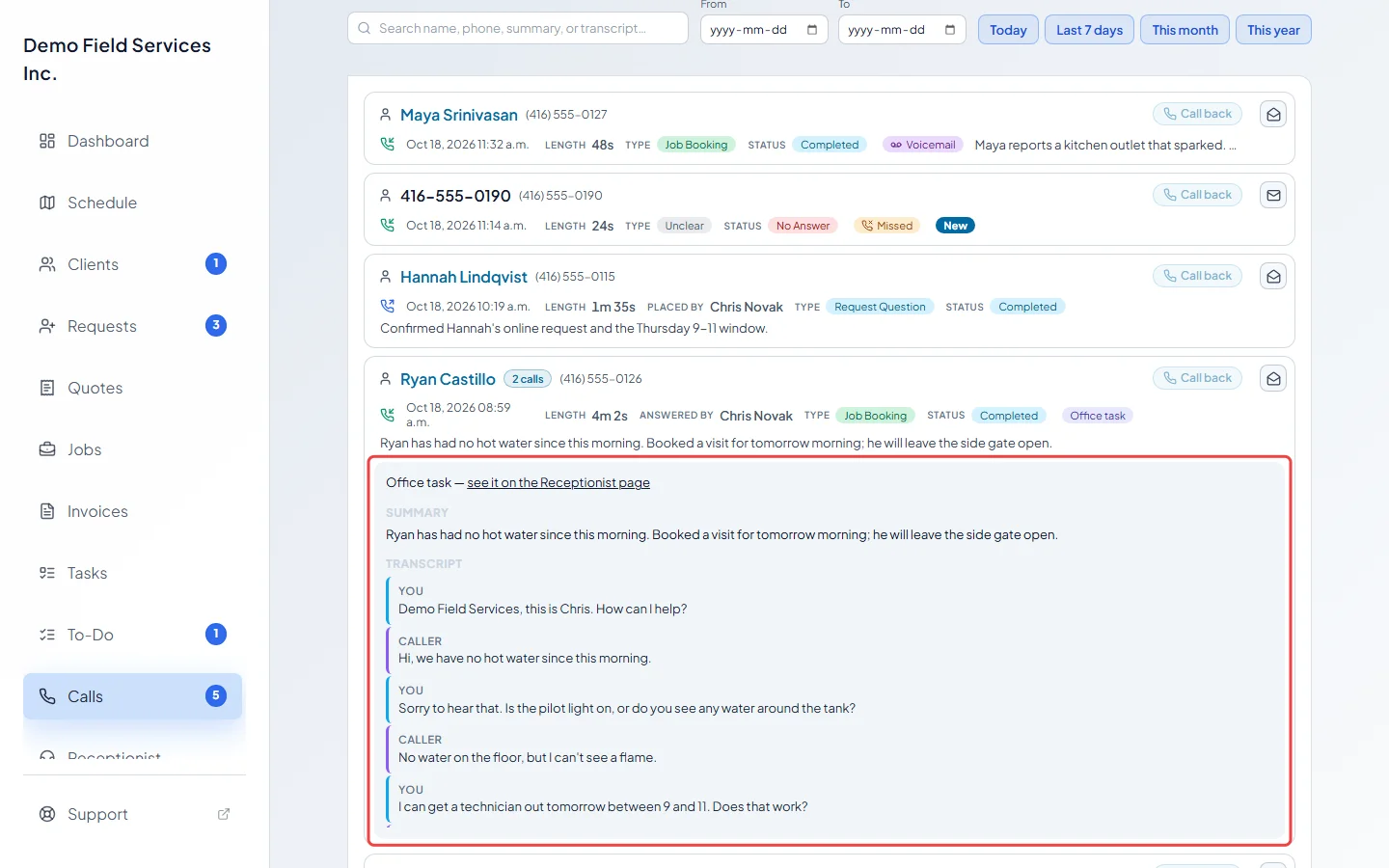
To read or hear the call again, open it on the Calls page.
-
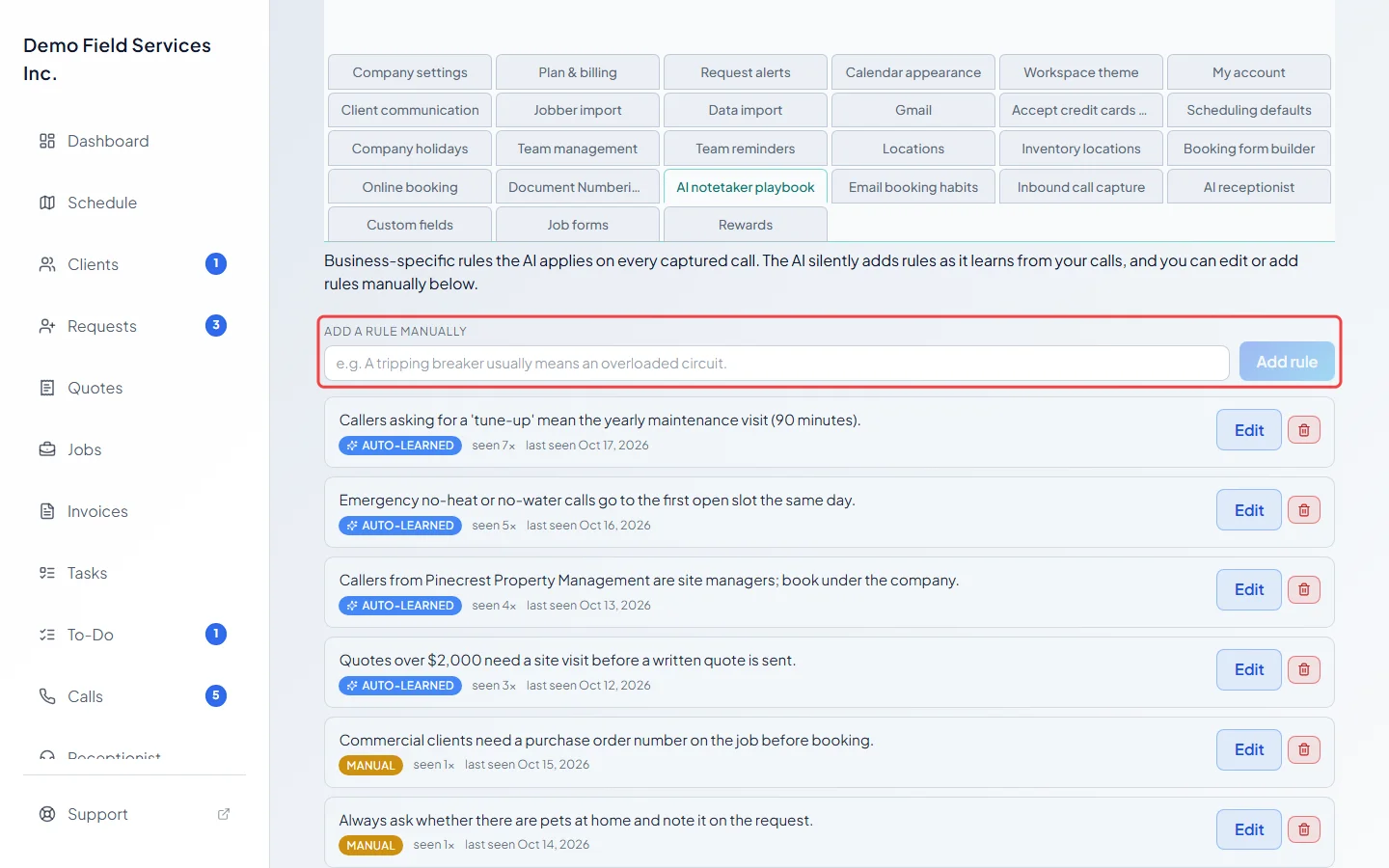
If the AI keeps getting the same thing wrong for your business, add a rule to its playbook so it fills the booking in better next time.
Good to know
Section titled “Good to know”- If another form was open with unsaved changes when you saved the call, Astragal doesn’t jump away from it. A message says the job or request was created, with an Open button.
- Unchecked to-dos in the AI to-do list are not added to your To-Do list. See Your to-do list.
- Calls your AI receptionist answers on its own don’t go through this window. They leave you a to-do to call the caller back instead. See What the AI receptionist does.
Related articles
Section titled “Related articles”Next step: Turning a request into a quote or job
Checked against Astragal on October 17, 2026