

How clients request appointments
Let existing clients ask for new work from their portal, with their details already filled in.
Who can do this: Your clients, in their portal.
Also called: booking, service request.
-
The client clicks Appointments. They see your request form, starting with Service address.
On a computer: Portal menu → Appointments On a phone: Portal bottom bar → Book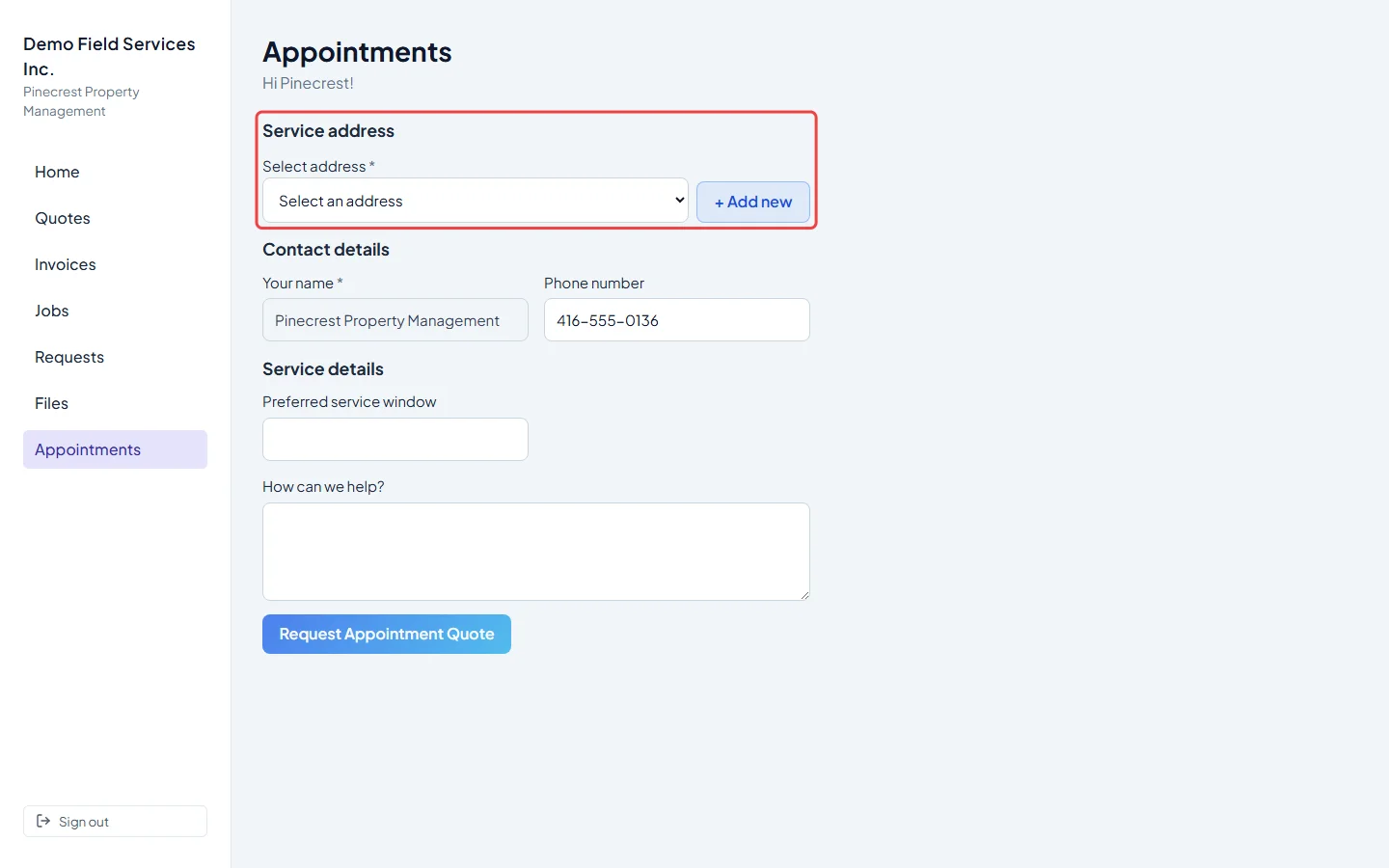
-
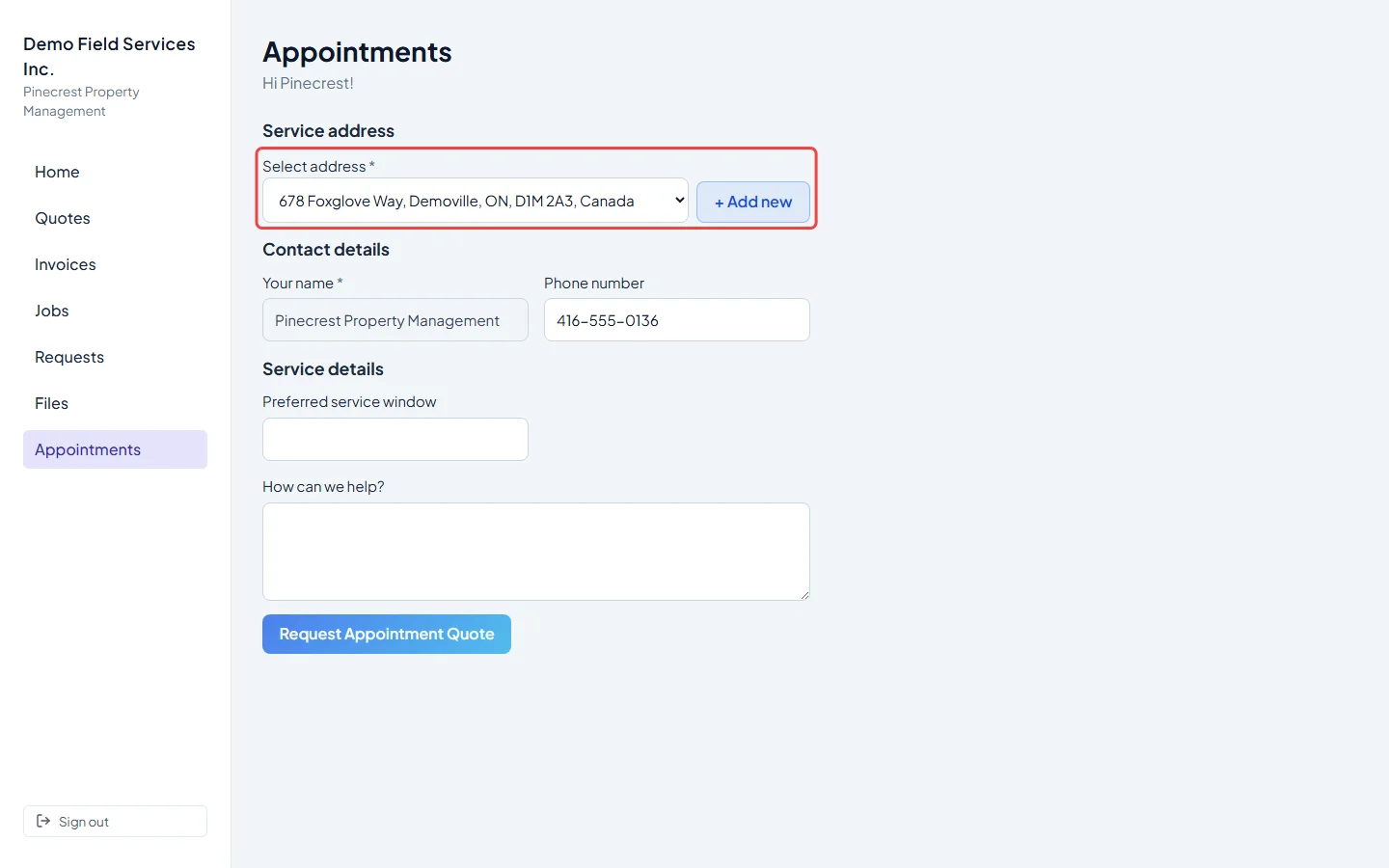
Under Select address they pick one of their properties. For a new address they click + Add new and type the street (with address suggestions), Unit / Suite, City, Province / State, Postal code and Country. Use existing address goes back to the list. A new address is saved on their client record when they send the request.
-
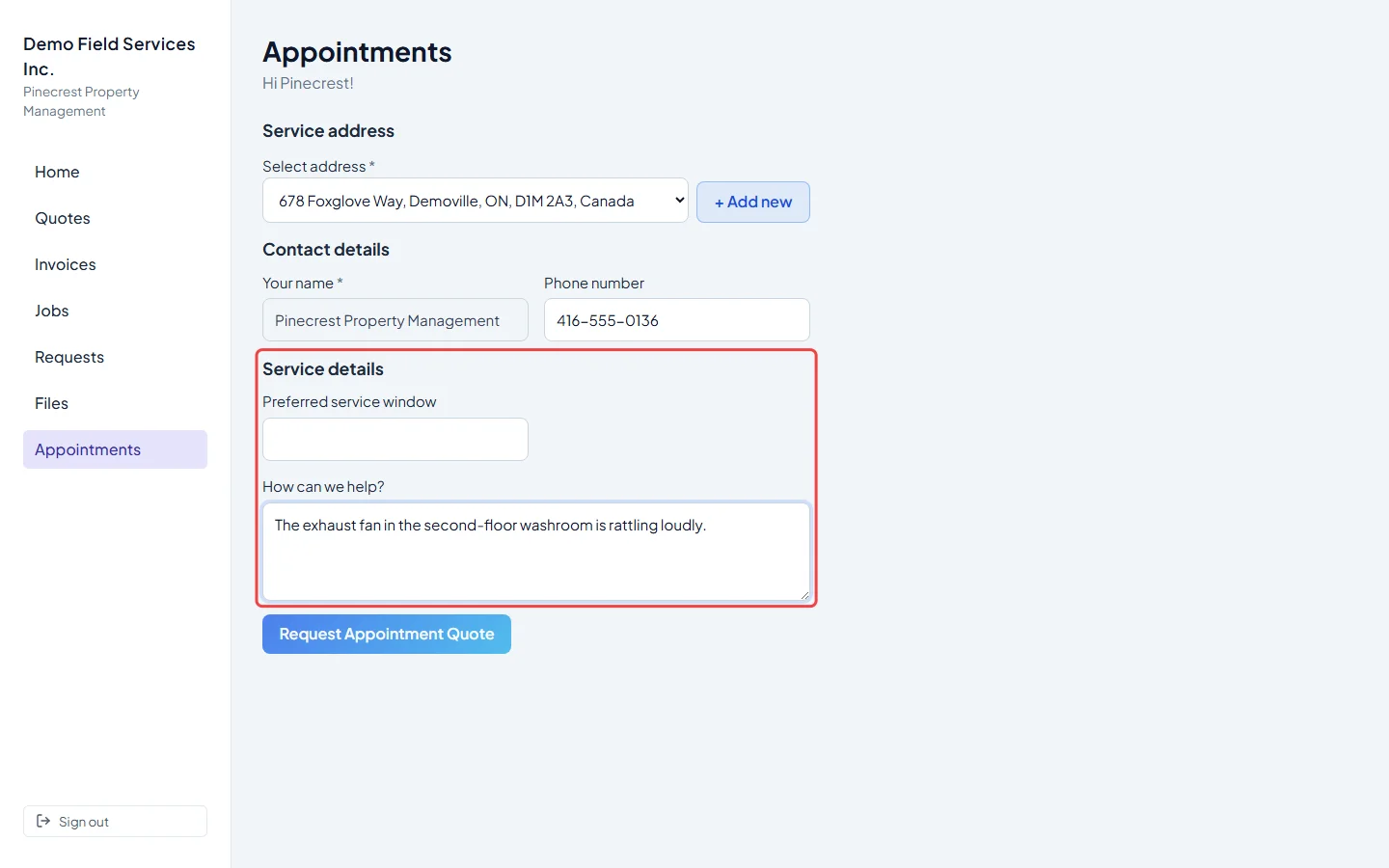
They answer the questions on your request form. Their name is filled in from their record and can’t be changed here; any email and phone questions are filled in too. Uploads and “how did you hear about us” questions are left out in the portal. Date questions don’t allow past days or your holidays. Availability dates must be after today, and a question limited to business days allows only days you’re open. Two availability dates must be different.
-
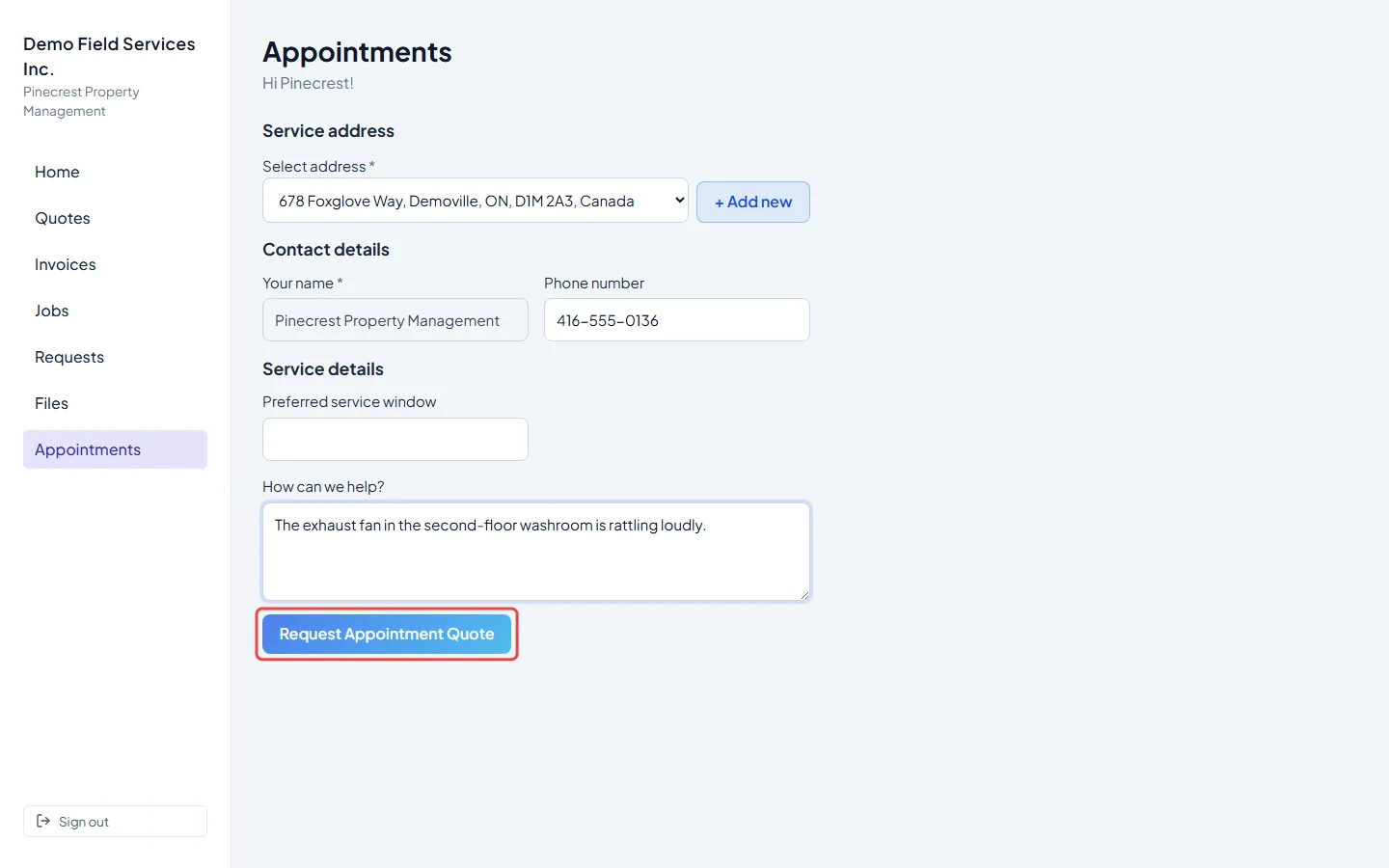
They click Request Appointment Quote. They see “Your appointment request has been sent. Our team will follow up shortly.” and can click Submit another request. A new request lands on your requests board, and you get your usual request alert. The client gets an email confirming you received it.
-
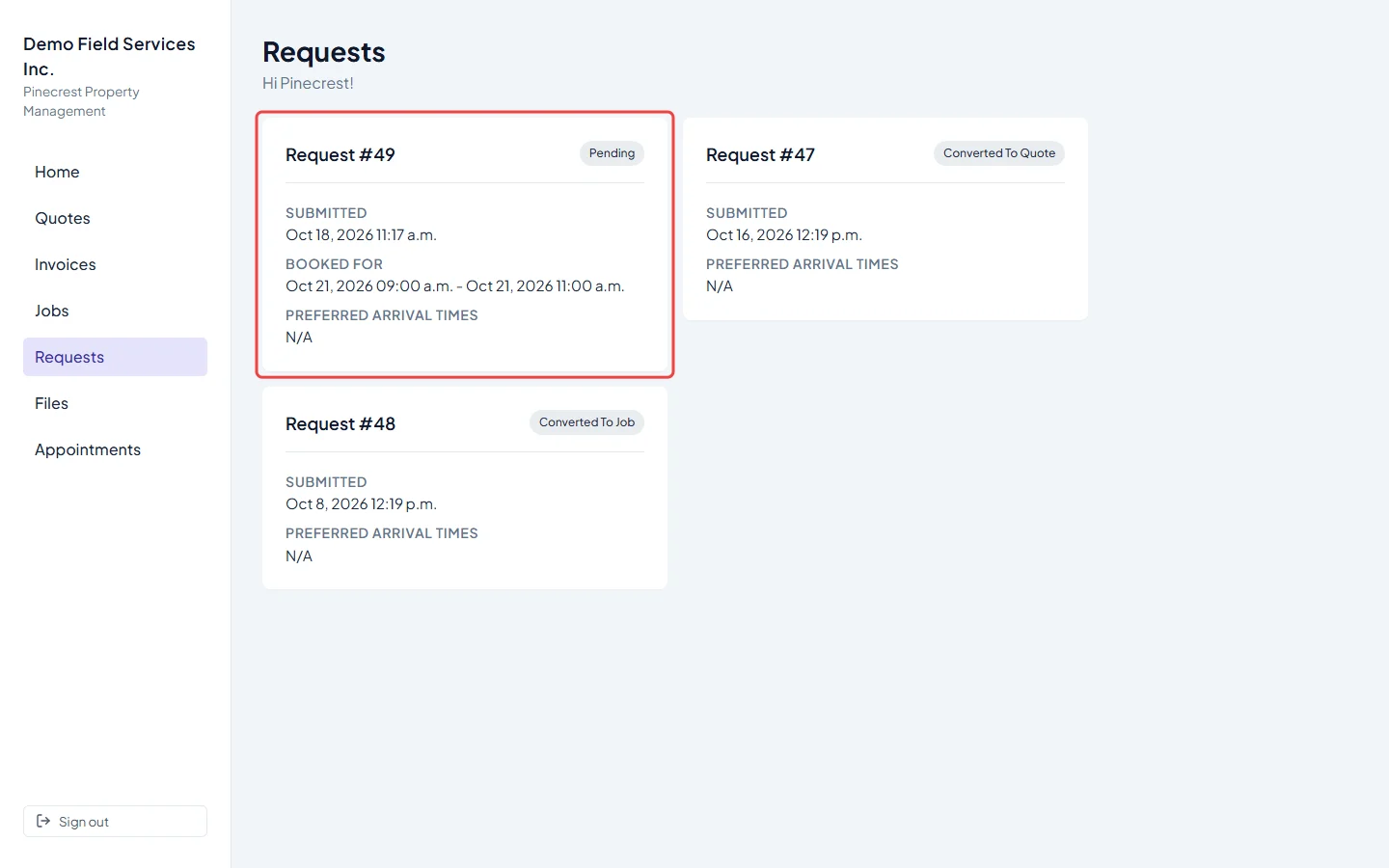
To follow up, the client clicks Requests. Each card shows the request number, its status, when it was Submitted, the time it’s Booked for once you’ve scheduled it, their Selected availability and Preferred arrival times. Every request on their account is listed, not just ones they made in the portal, with a status such as Pending.
-
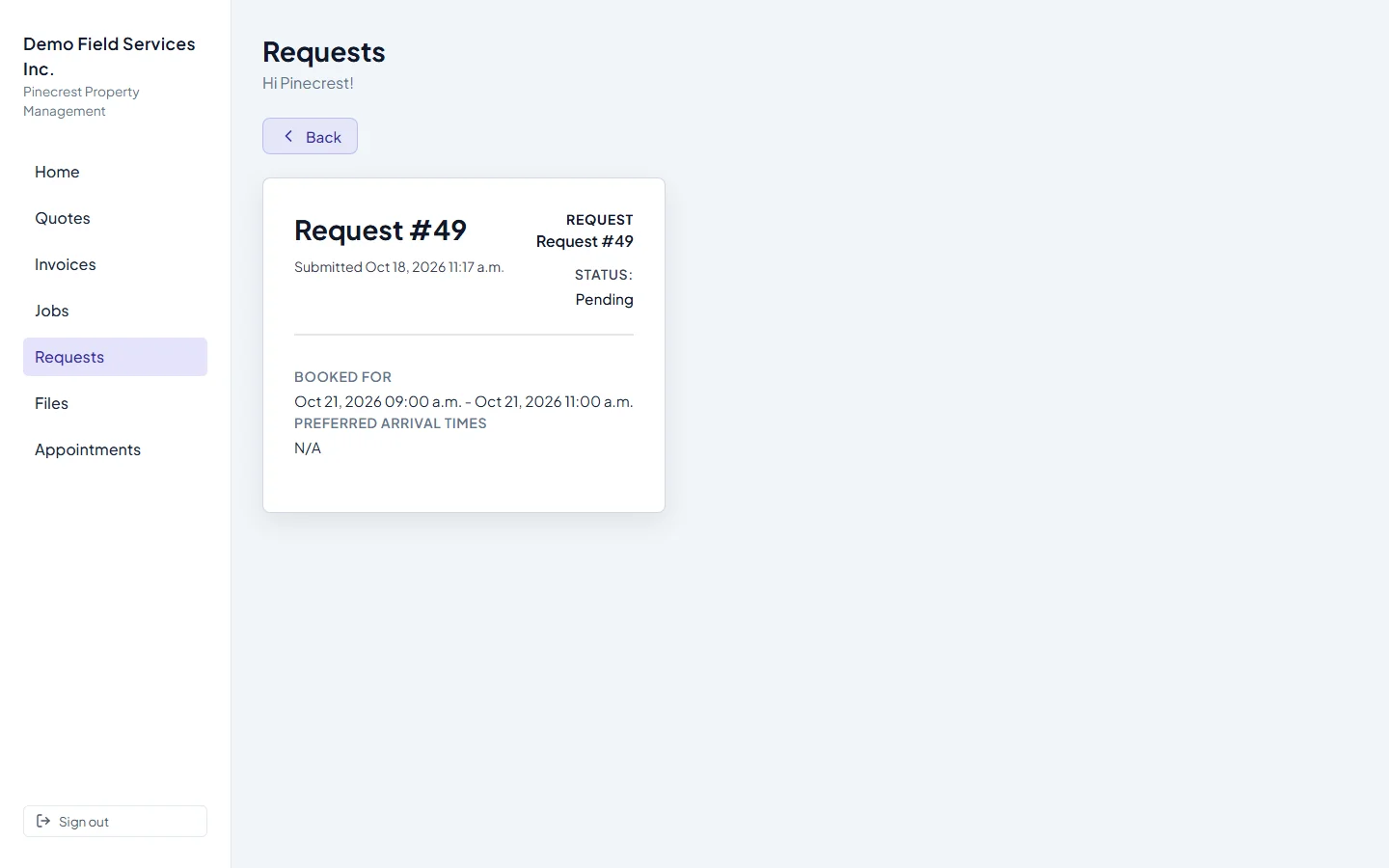
Clicking a request opens it on its own page with the same details.
Good to know
Section titled “Good to know”- The questions come from your own request form, so changing the form changes what portal clients are asked too. See The request form.
- If the client types a different email or phone, check their client record; the new details may not be saved to it.
- Requests made in the portal come from a known client, so they’re attached to that client and property straight away. Anyone can use your public booking page instead; see What customers see.
Related articles
Section titled “Related articles”Next step: Turning a request into a quote or job
Checked against Astragal on October 17, 2026