

Creating a request
Create a request when a client calls, texts or stops you in person, so the work isn’t forgotten before it becomes a quote or a job.
Who can do this: Admins, dispatchers and accountants, and technicians whose Requests permission is View, edit, and create or View, edit, create, and delete.
Also called: new lead, new enquiry.
-
On the requests board, click Create Request. You can also use Create → Request in the left menu, or New request on the Requests tab of a client’s page (the client is then filled in for you).
On a computer: Left menu → Requests On a phone: Bottom bar → Requests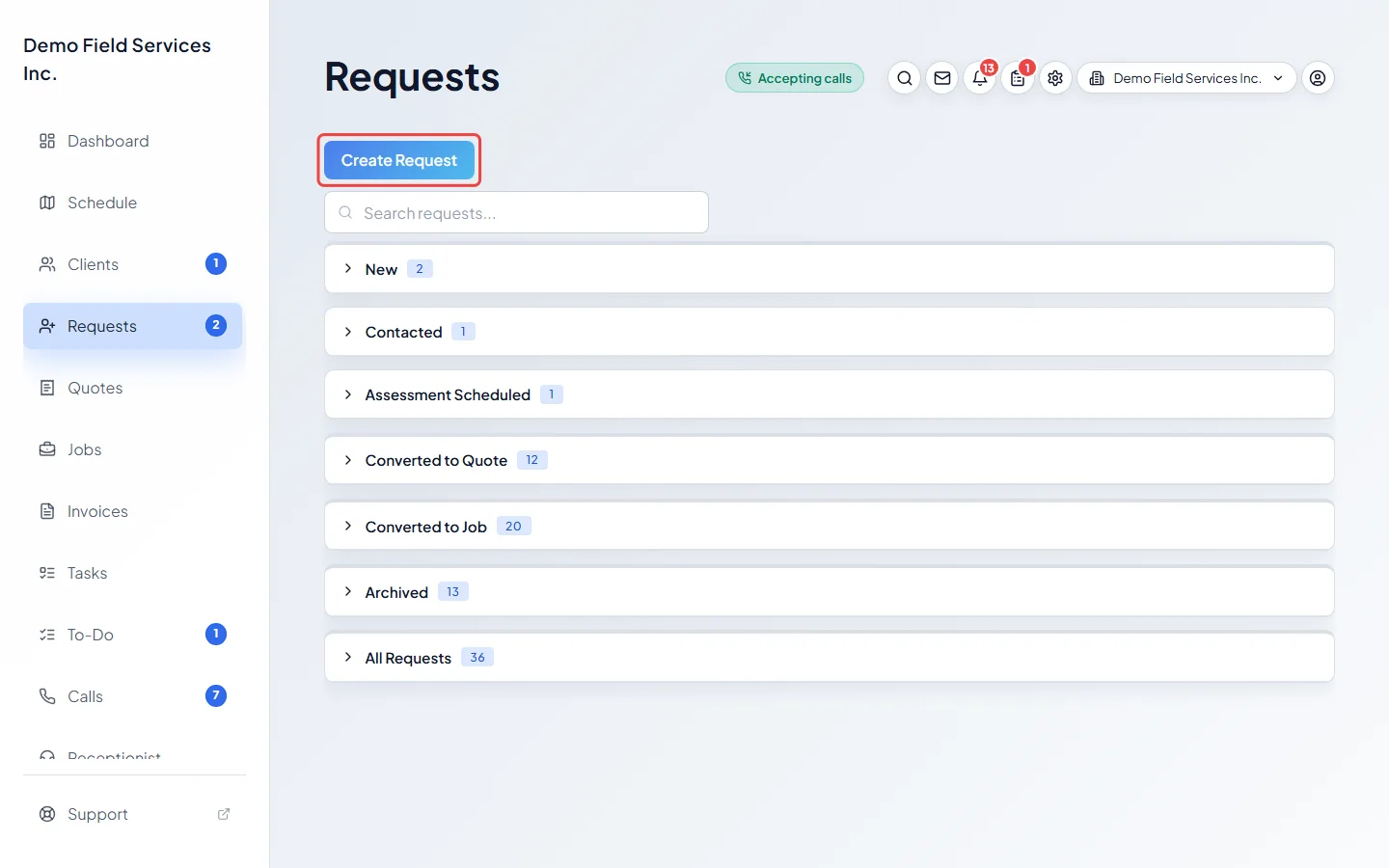
-
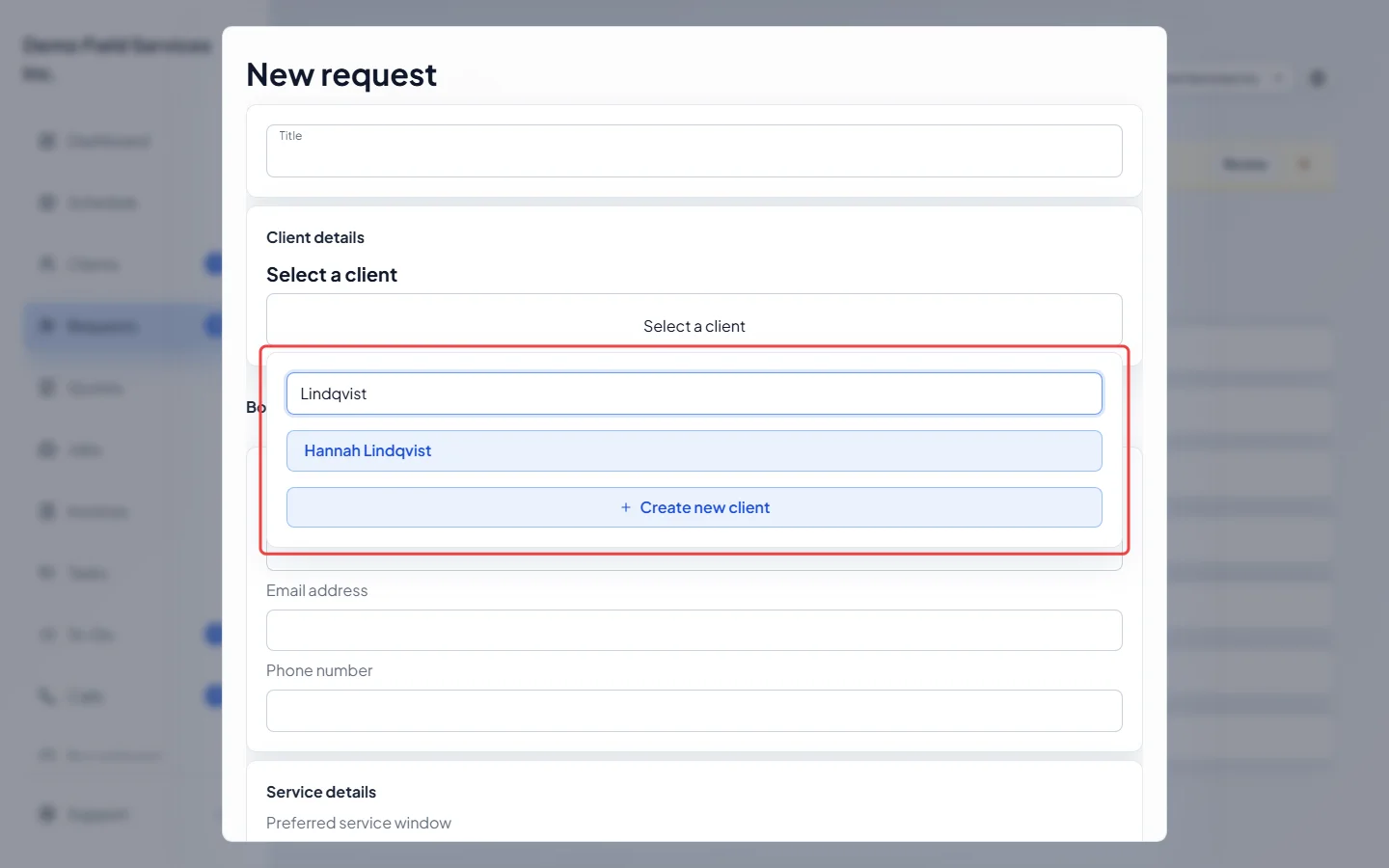
Under Client details, click Select a client, type part of their name in Search client, and pick them. If they’re new and you’re allowed to edit clients, click Create new client to add them without leaving the form.
-
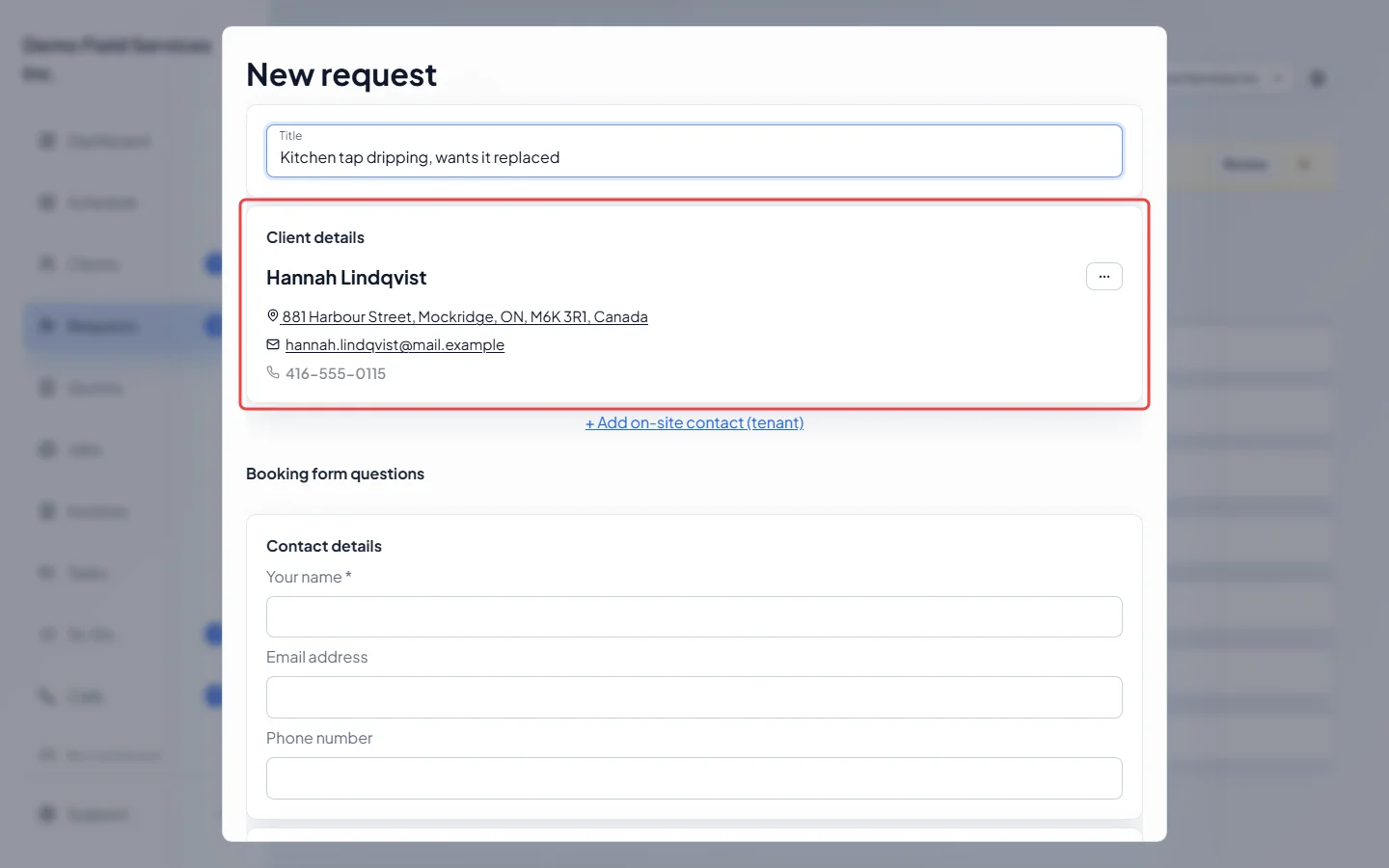
Check the property and contact details that fill in. To use another of the client’s properties, click the … button next to their name, choose Change property and pick one. Create new site at the bottom of that list adds a new address. Click Done when finished. Give the request a Title, then answer anything under Booking form questions. Questions marked with a star must be answered.
-
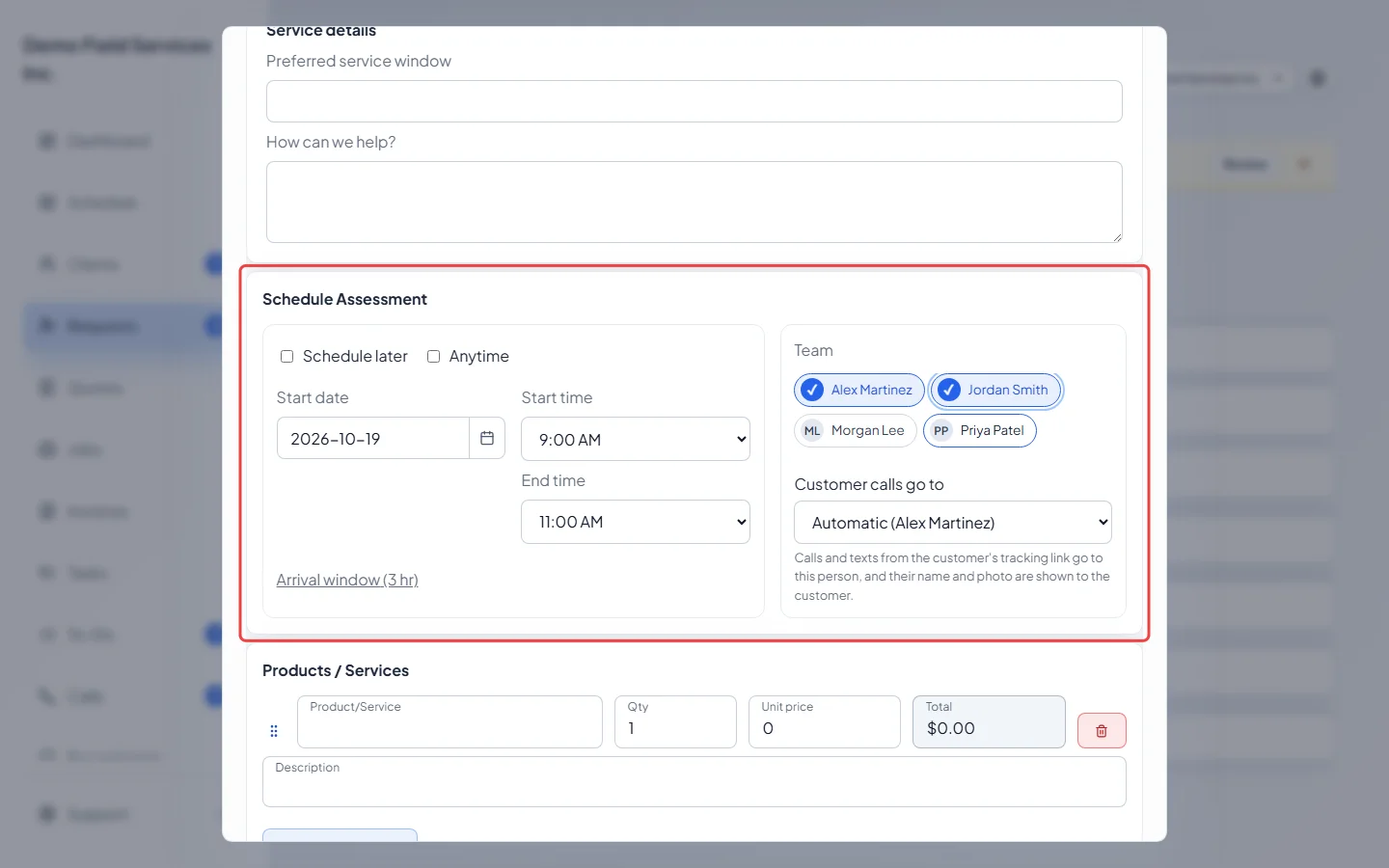
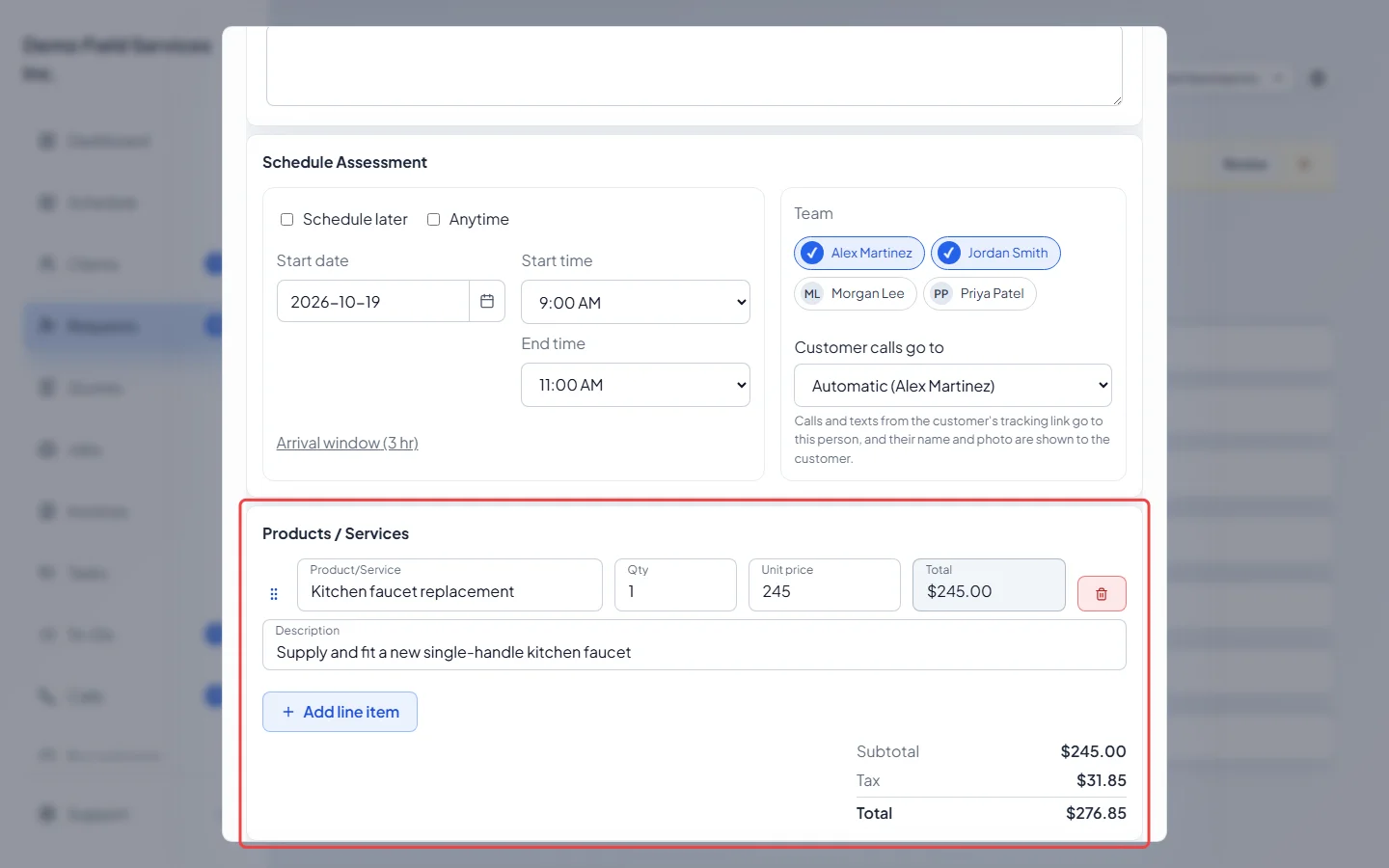
Under Schedule Assessment, pick when someone should go: a Start date, Start time and End time. Tick Anytime if any time that day works, or Schedule later if no time is agreed yet. Click Arrival window to choose how wide a window the client is promised. Tick the people under Team who should go. With two or more people, Customer calls go to picks who the client reaches (changing it needs Edit and delete everyone’s schedule).
-
Under Products / Services, click Add line item for each thing the client wants. Pick or type the item, then set Qty and Unit price. The subtotal, tax and total update as you go. These lines carry over when the request becomes a quote or job.
-
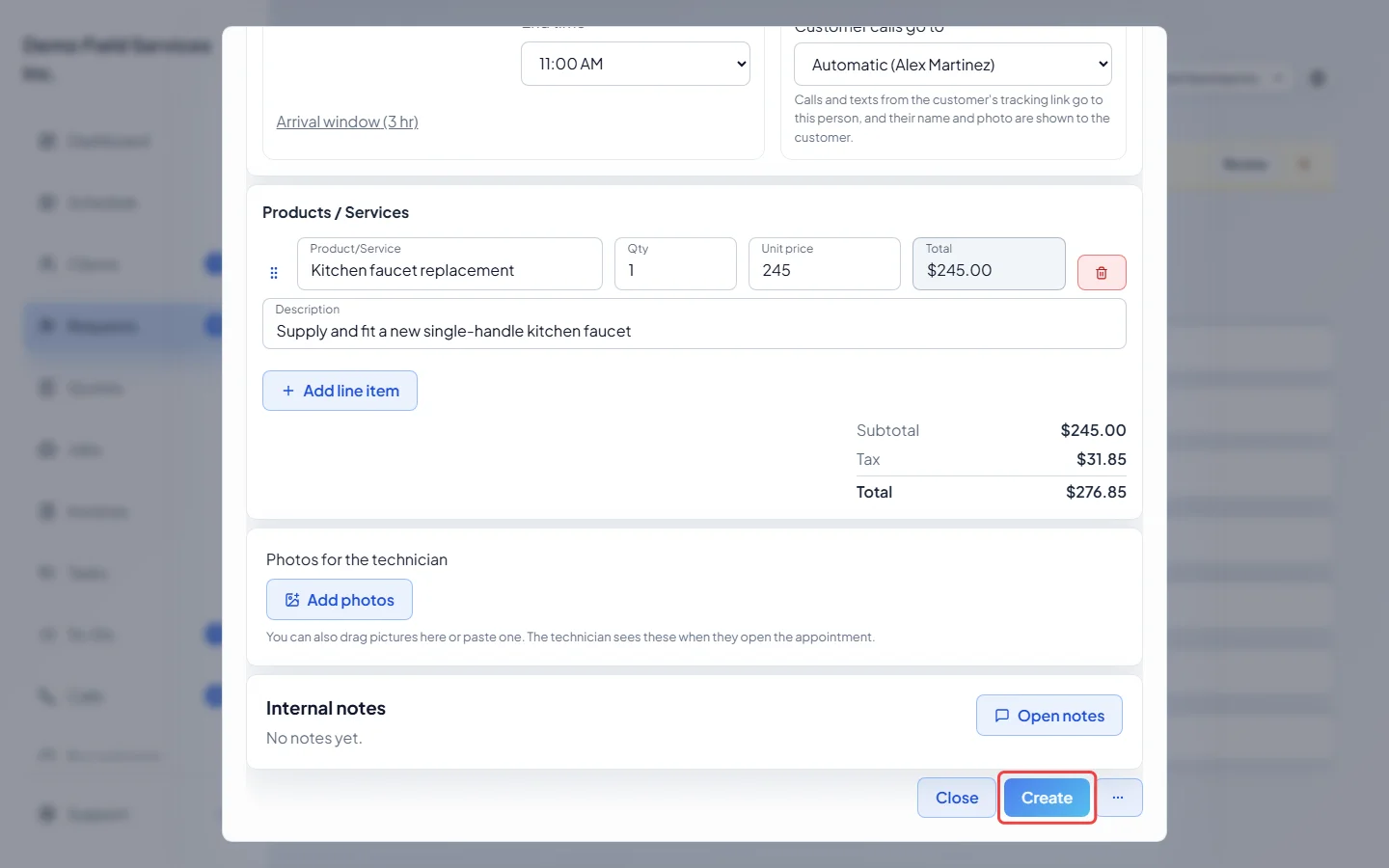
Click Create. To also send the client a booking confirmation, click the … (More actions) button beside it instead and choose Save & email booking confirmation or Save & text booking confirmation. Astragal saves the request, then shows you the message to check and edit before you click Send.
Good to know
Section titled “Good to know”- You must pick a client and a property, answer any starred questions, and give a date and times, Anytime or Schedule later. Astragal tells you what’s missing when you click Create.
- A request with a date and time shows on the schedule at that time.
- Admins, dispatchers and accountants can attach Photos for the technician before saving. Internal notes lets you add notes your team can see; the client never does. See Notes and files.
- If the client’s account has more than one person, pick who this request is for under Contact person. See People on an account.
- If someone else lives at the property, such as a tenant, fill in On-site contact (tenant) (you see it if you can view full client details). See On-site contacts.
- A request you type in yourself goes to All Requests on the board, not New. New is for requests clients send in, like the online request form. See The request form.
- Cancel (it reads Close until you’ve typed something) asks before throwing away what you typed.
Related articles
Section titled “Related articles”Next step: Turning a request into a quote or job
Checked against Astragal on October 18, 2026