

Scheduled breaks
Cover your calls by the clock, so you never have to remember to press a button before lunch or a team meeting.
Who can do this: Admins, dispatchers and accountants. Others can see the breaks but not change them.
Add-on: AI receptionistAlso called: lunch break cover.
A scheduled break does the same as pressing Cover my calls for a bit yourself, at times you choose. Each break switches on and off by itself.
-
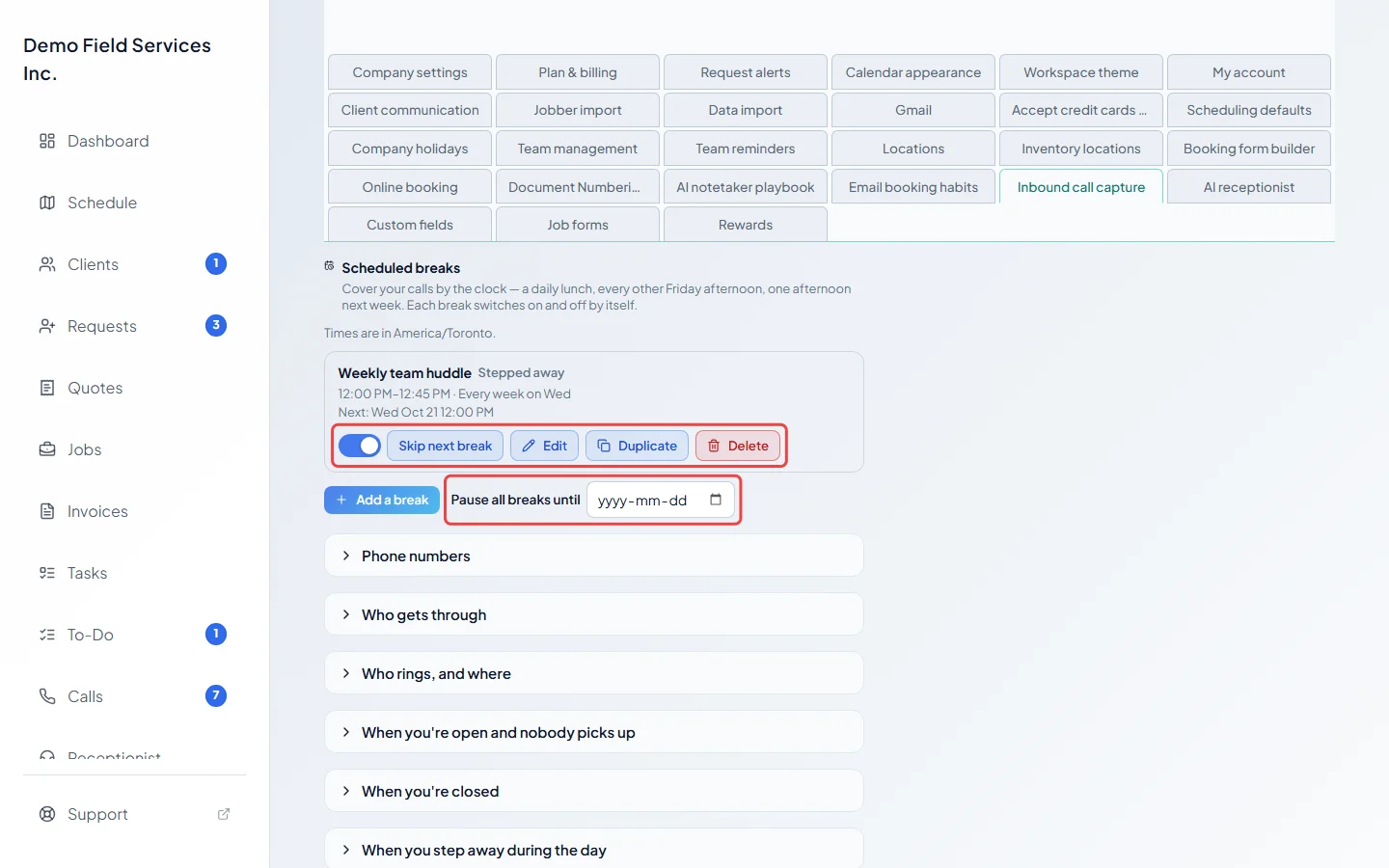
Open Inbound call capture and find Scheduled breaks. Each break shows its time, how often it repeats and when it runs next. Times are in your company’s time zone, shown above the list.
On a computer: Left menu → Settings → Inbound call capture On a phone: More → Settings → Inbound call capture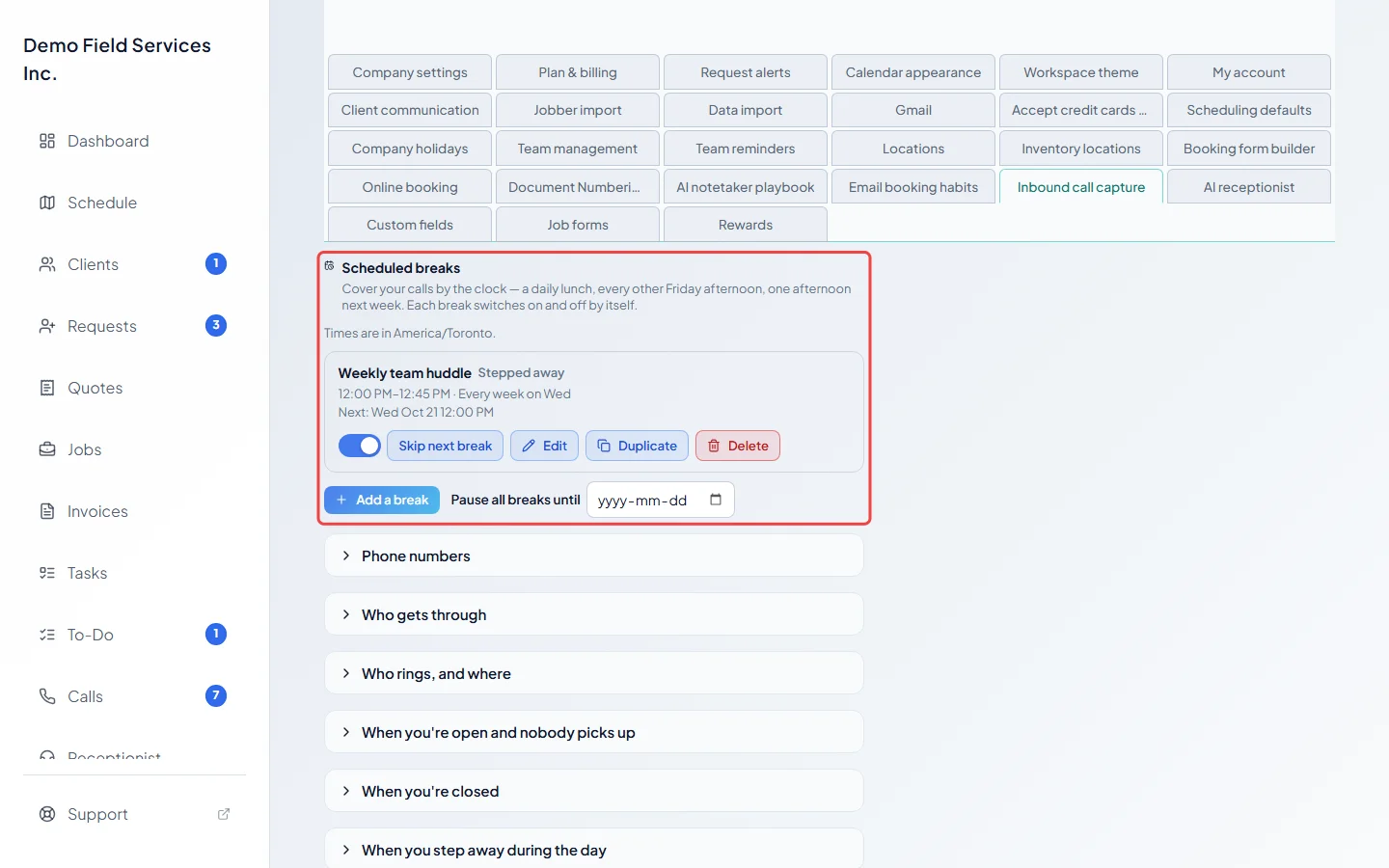
-
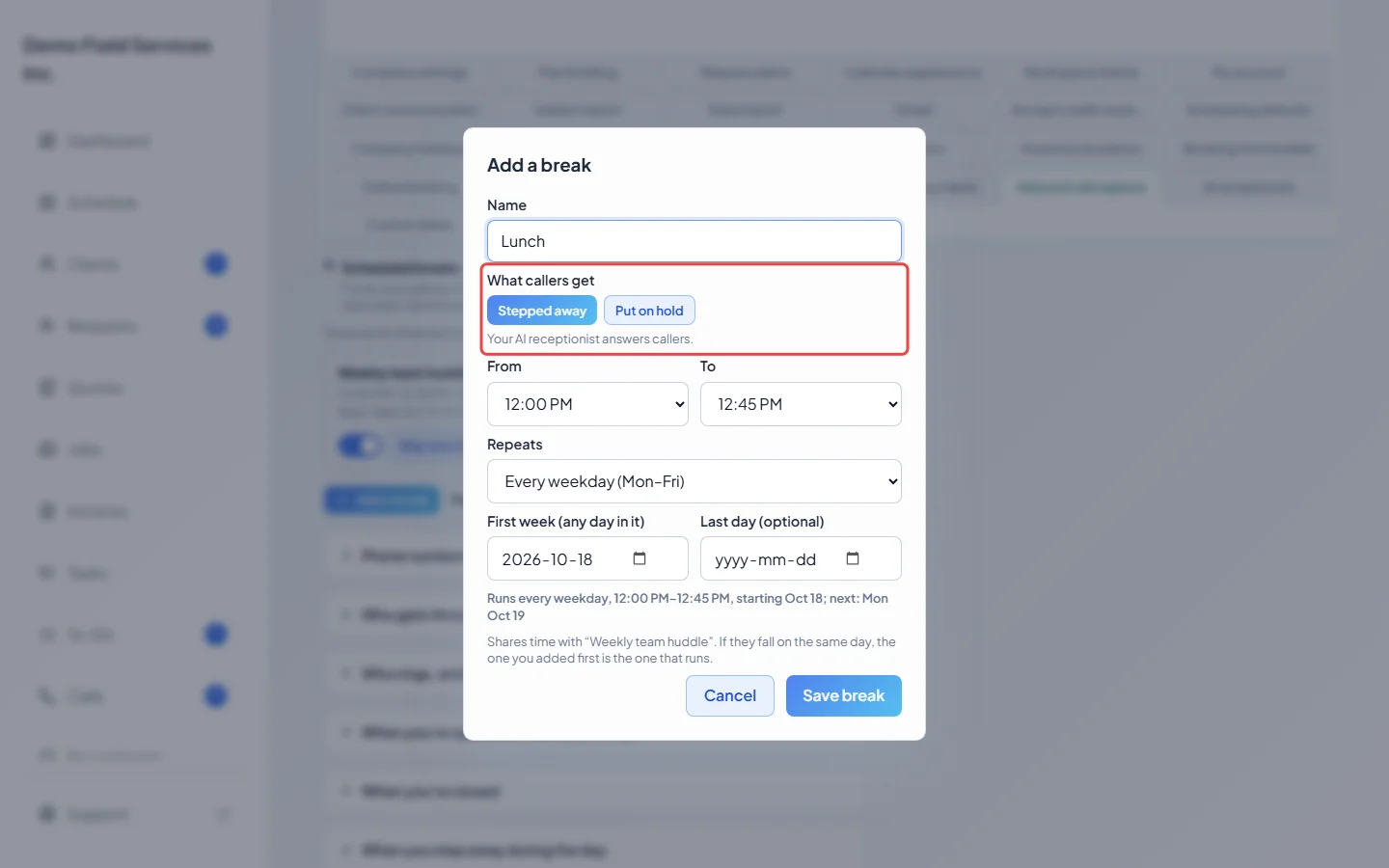
Click Add a break. Give it a Name, then choose What callers get: Stepped away (your AI receptionist answers) or Put on hold (callers wait in line until you’re free, and can’t reach anyone during the hold).
-
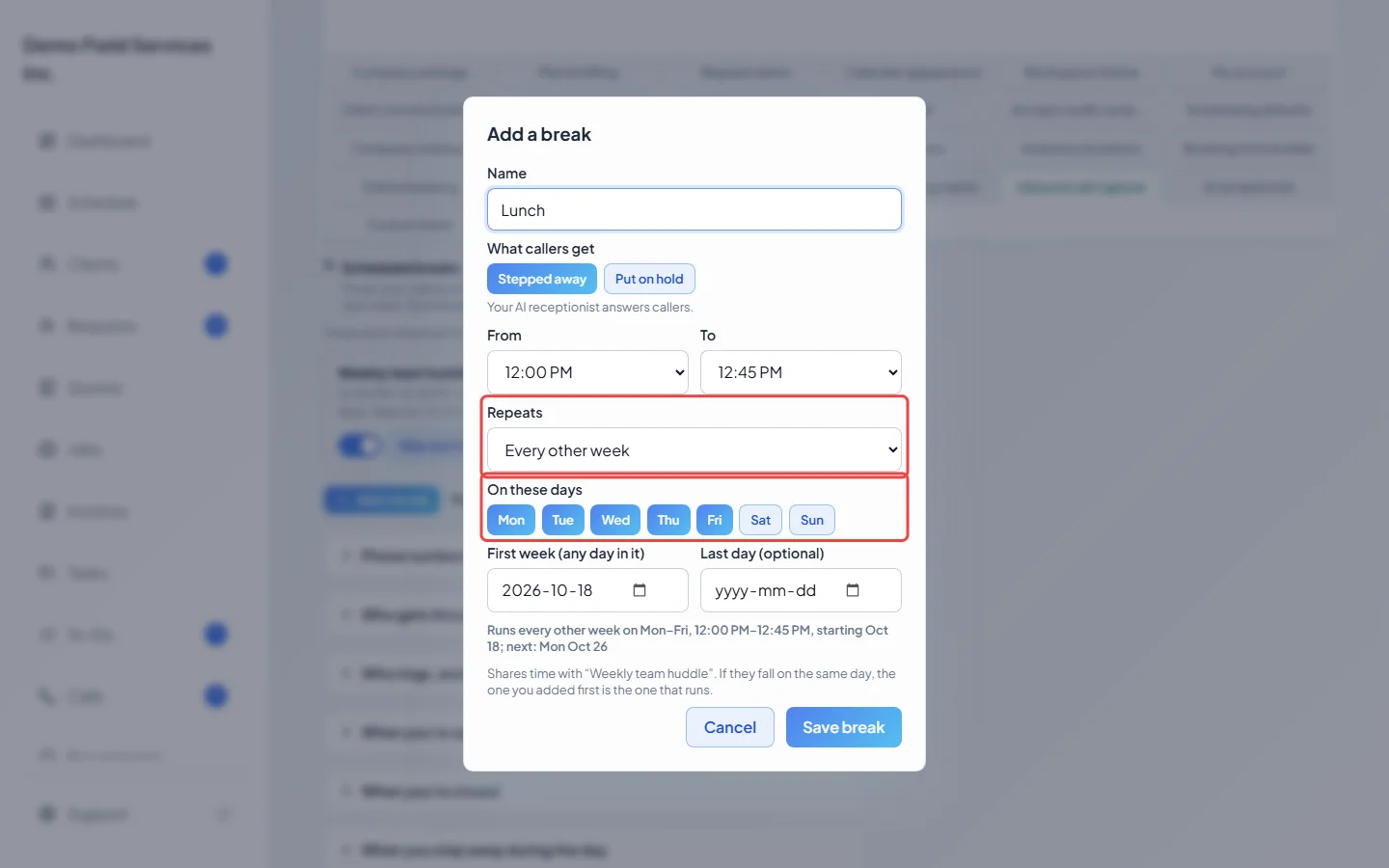
Pick the times under From and To, then how it Repeats: Every weekday (Mon–Fri), Every day, Weekly on chosen days, Every other week, Every other day, Custom… (for example every 3 days or every 4 weeks) or Just once. Tick the days when asked.
-
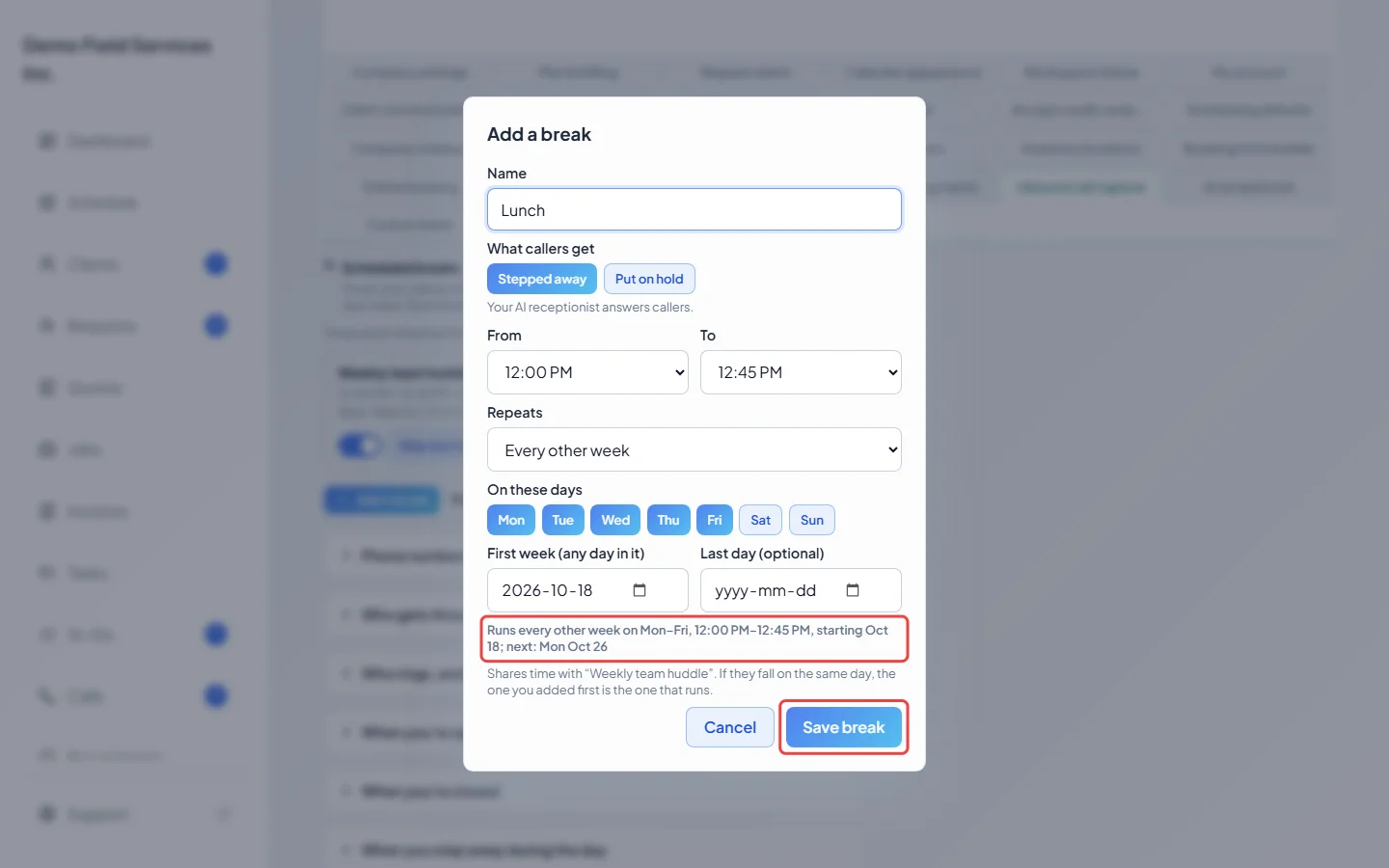
Pick the first day (the box says Date for Just once, First week (any day in it) for weekly repeats, and First day otherwise), and a Last day (optional) if the break should stop by itself. Read the line under the form: it says in plain words when the break will run and the next day it falls on. Click Save break.
-
Manage breaks from the list. The switch turns a break off until you turn it on again. Skip next break skips it once (Resume undoes that). Edit, Duplicate and Delete do what they say. Pause all breaks until stops every break up to and including the date you pick, handy for a holiday week. The date saves as soon as you leave the box; Resume now clears it.
Ending a break early
Section titled “Ending a break early”While a break is running, the cover control says, for example, “Scheduled: Lunch — AI is answering your calls”. Click End this break and calls go straight back to normal. It ends the break for today only; it runs again the next time it’s due. If callers were waiting on hold, you’re rung with the one who has waited longest.
Why didn’t my break run?
Section titled “Why didn’t my break run?”The list marks most of these on the break itself:
- Outside your open hours. A break only does something while you’re open. When you’re closed, callers already get your after-hours setup. The break is tagged Outside your open hours – won’t run, or Runs until closing time when it overlaps closing.
- Call answering is off. When Answer and capture incoming calls is off, each break says “AI receptionist is off – breaks won’t run”.
- It was skipped or paused. Look for a Skipped tag, or the “paused until” note under the list.
- It’s switched off, or its last day has passed (it then says “Ended” and offers Extend).
- Two breaks overlap. When two breaks share time on the same day, the one you added first is the one that runs. Astragal warns you about this when you save.
- A hold break without the phone line add-on. Callers aren’t held and calls ring as usual. The break says it needs the phone line package.
- Your company time zone isn’t set. No break runs until it is. The list shows a button that opens the setting.
- The caller is on your always-allow list. Those numbers still ring you.
- You pressed cover yourself. The button wins while it’s on. If it runs out while a break is still going, the break takes over.
Good to know
Section titled “Good to know”- The section only appears with the AI receptionist add-on.
- You can save up to 10 breaks.
- A break starts and ends on the same day. It can’t run past midnight.
- Breaks are saved one at a time. They don’t need the Save voice settings button.
- With no breaks yet, Add a lunch break (weekdays, 12:00–12:45 PM) adds one with one click.
- A call that a break handled shows the break’s name on the Calls page, even if you rename or delete the break later.
Related articles
Section titled “Related articles”Checked against Astragal on October 17, 2026