

Company info and branding
Tell Astragal who your business is, so your quotes, invoices, booking page and messages carry the right name, contact details and look.
Who can do this: Admins, dispatchers and accountants.
Also called: company profile, business details, logo.
-
Open Company settings. The first part, Company details, holds your Company name, Phone number, Website URL, Email address and your address. Put the inbox you want client replies to land in under Reply-to email (customer replies go here). Click Save company details when you’re done.
On a computer: Left menu → Settings → Company settings On a phone: More → Settings → Company settings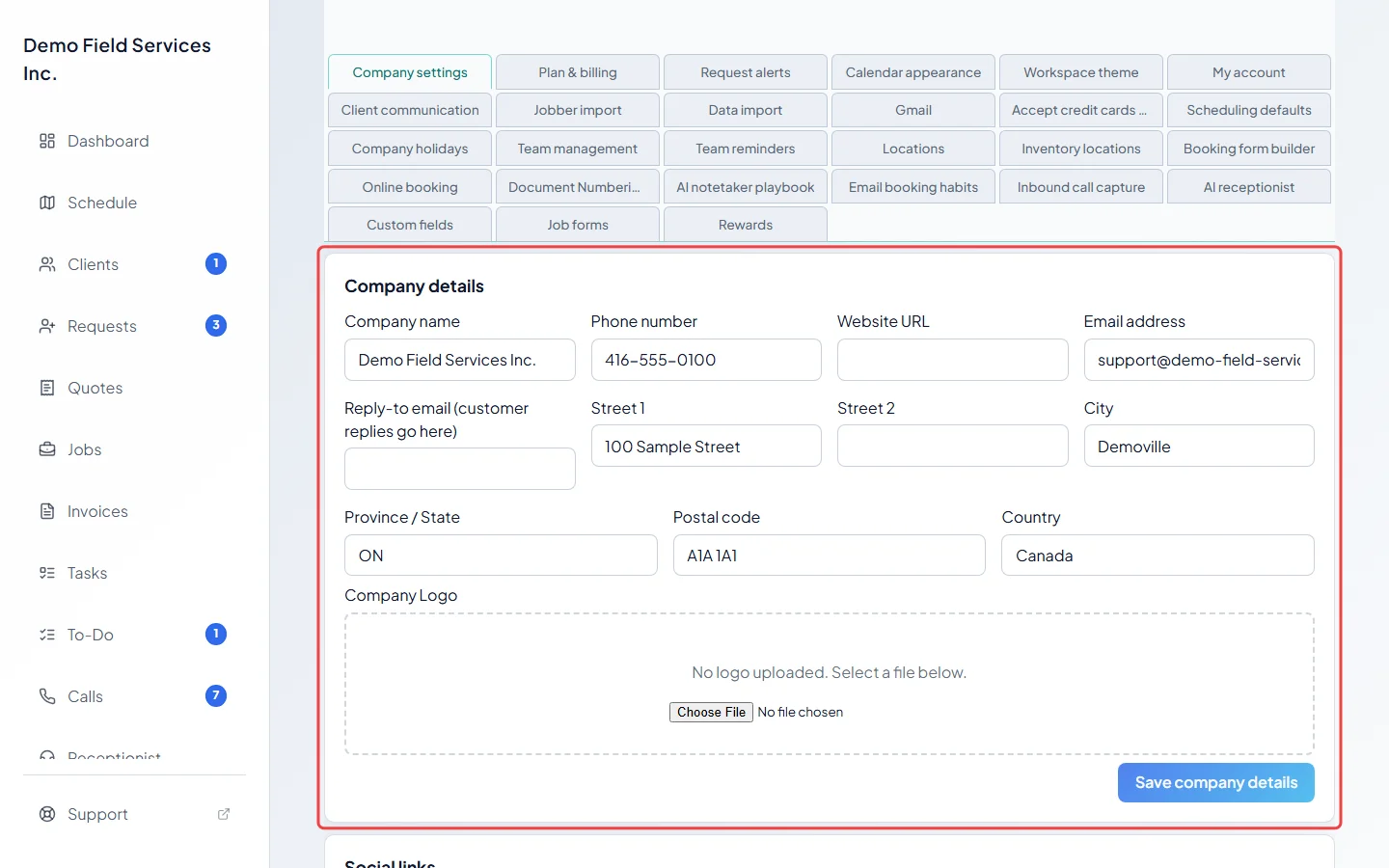
-
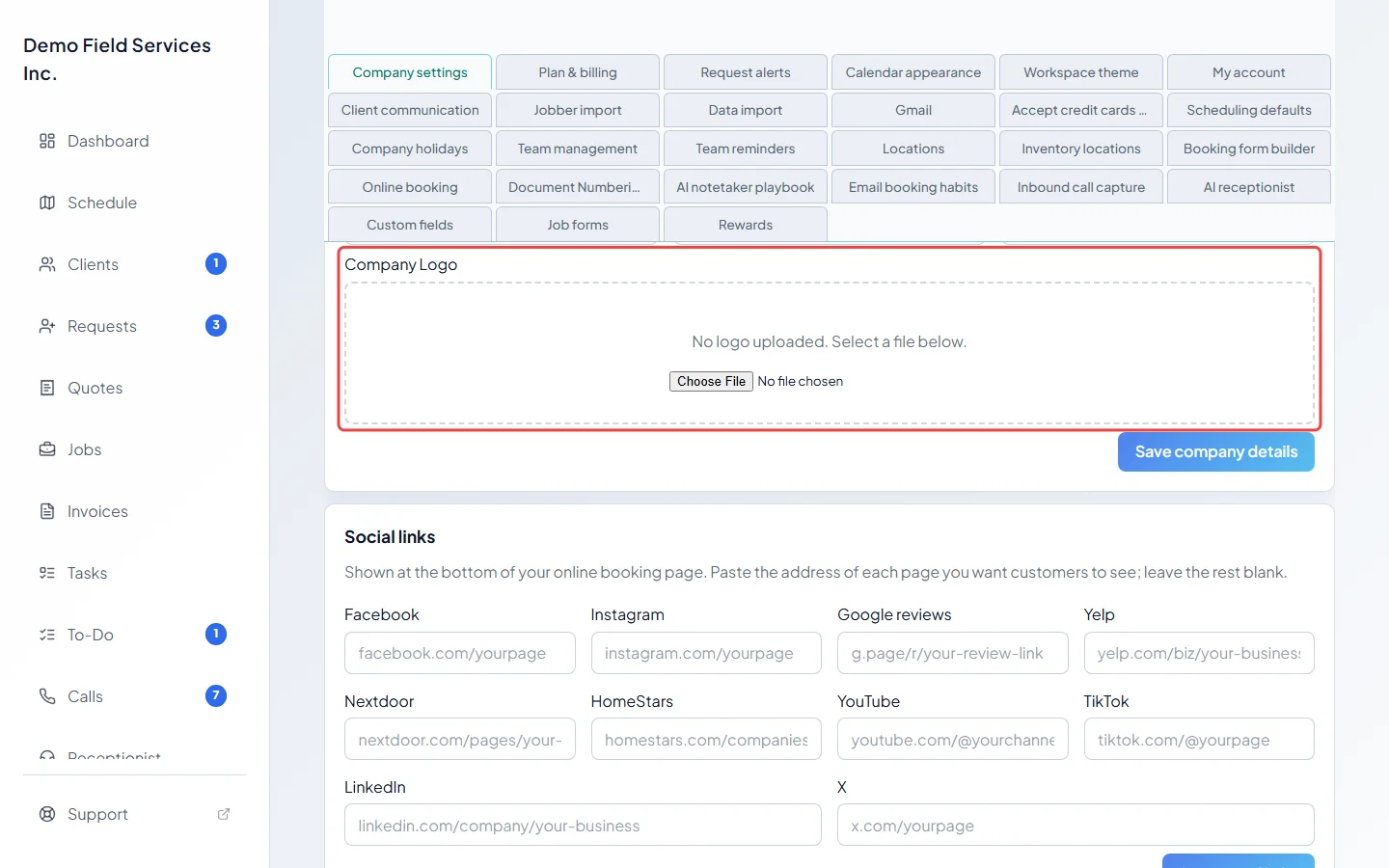
Under Company Logo, choose an image file (up to 5 MB). It uploads as soon as you pick it. To change it later, click Replace. Your logo shows on your quotes and invoices, online and as PDFs, in the emails your clients get, and on your online booking page.
-
Under Social links, paste the address of each page you want customers to see, such as Google reviews or Facebook, and leave the rest blank. Click Save social links. They show at the bottom of your online booking page. You don’t need to type
https://; Astragal adds it.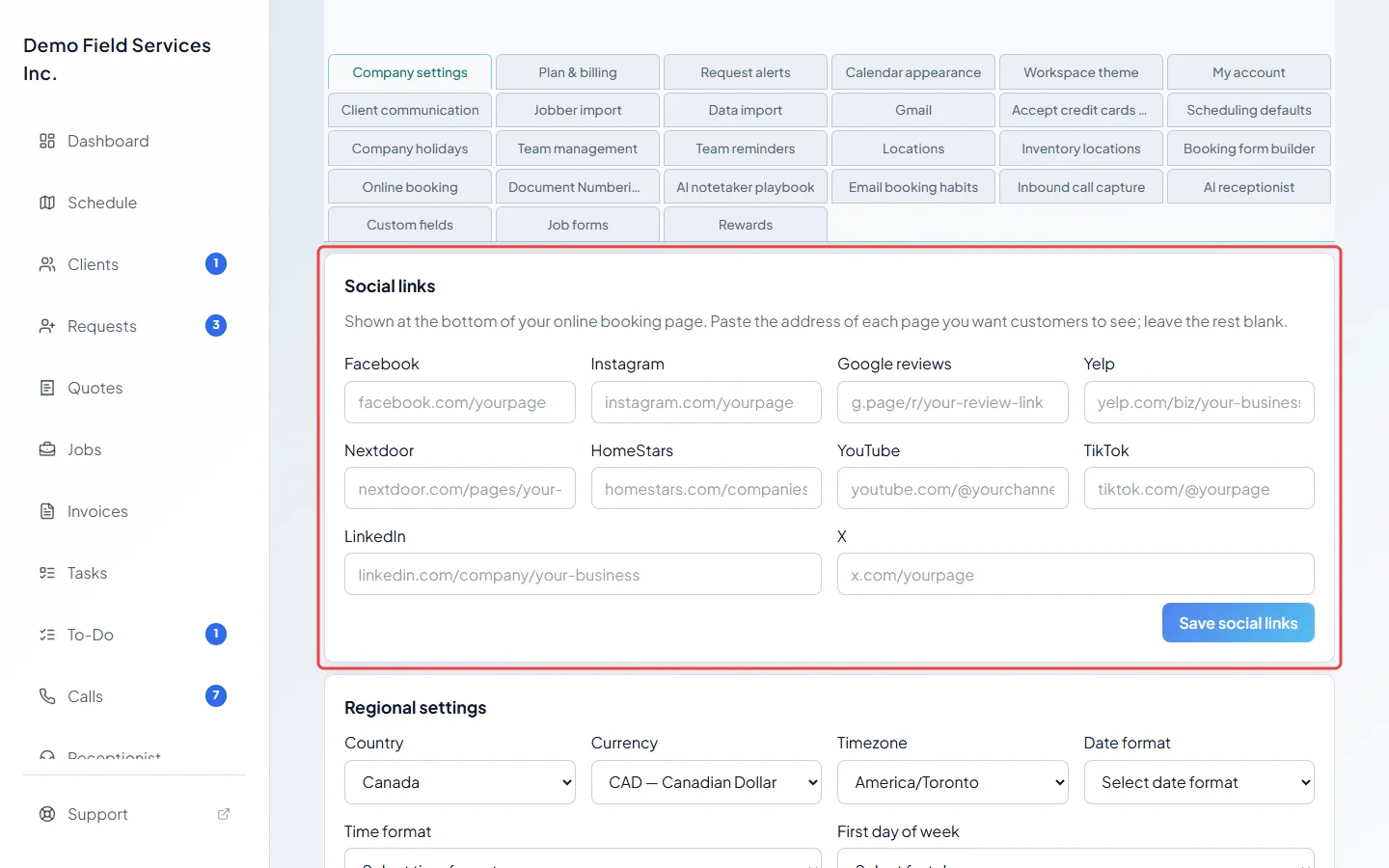
-
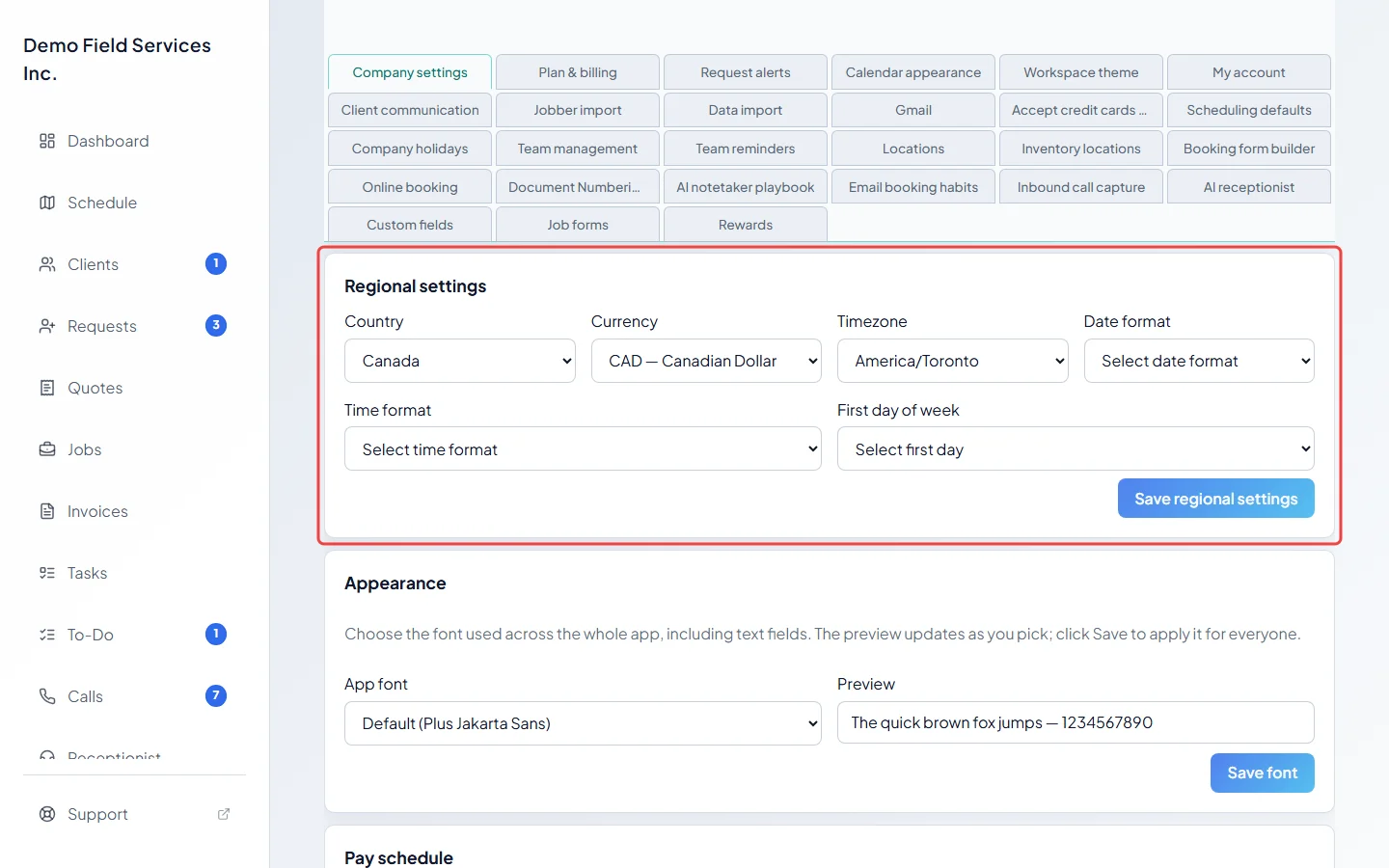
Under Regional settings, choose your Country, Currency, Timezone, Date format, Time format and First day of week, then click Save regional settings. These apply to everyone in your company. The timezone decides when your day starts and ends for bookings, calls and reminders.
-
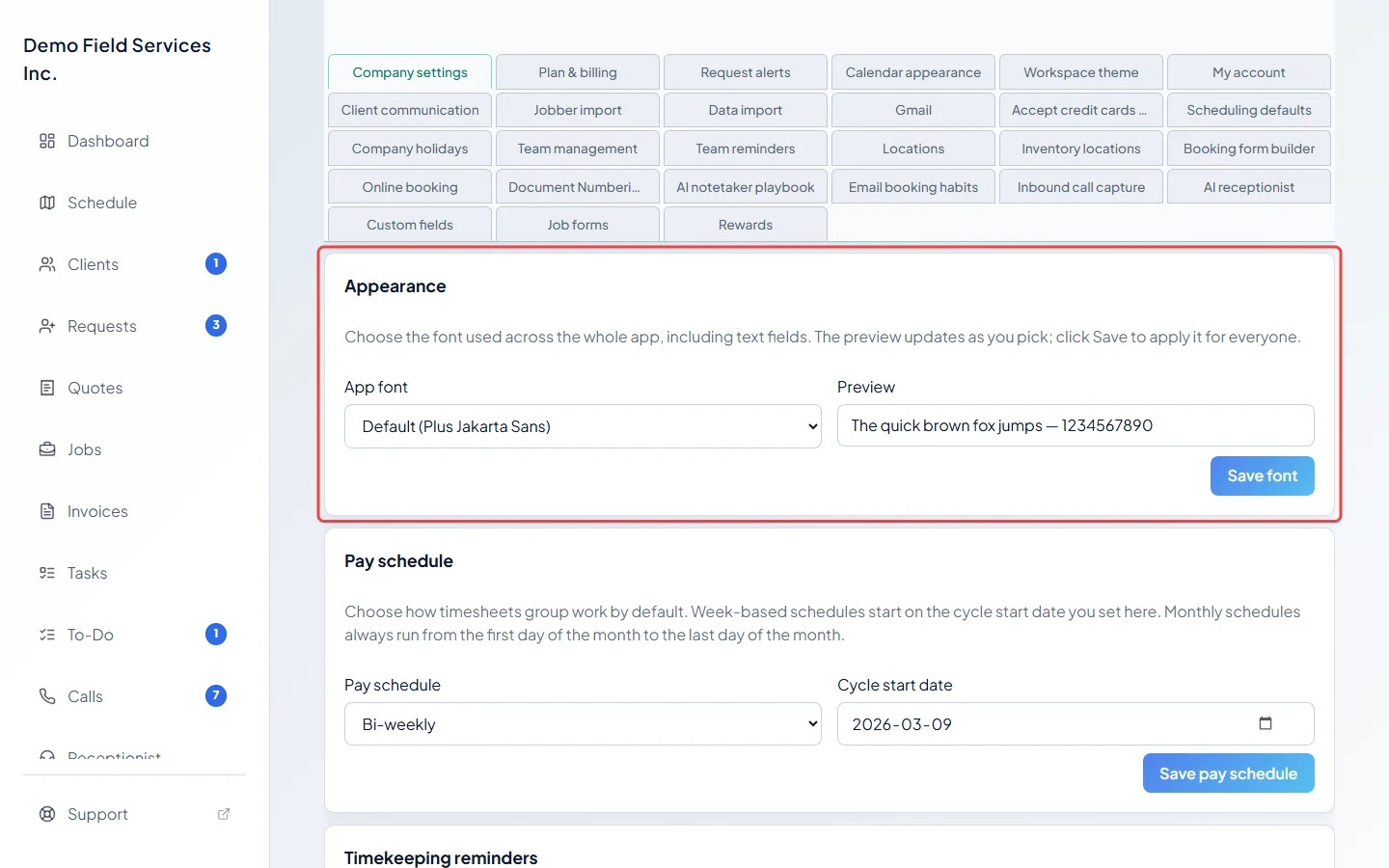
Under Appearance, pick an App font. The app switches to it straight away so you can see it. Click Save font to keep it for everyone.
-
Under Document terms, set Quote validity (days) so new quotes expire that many days after you send them (leave it blank so they never expire).
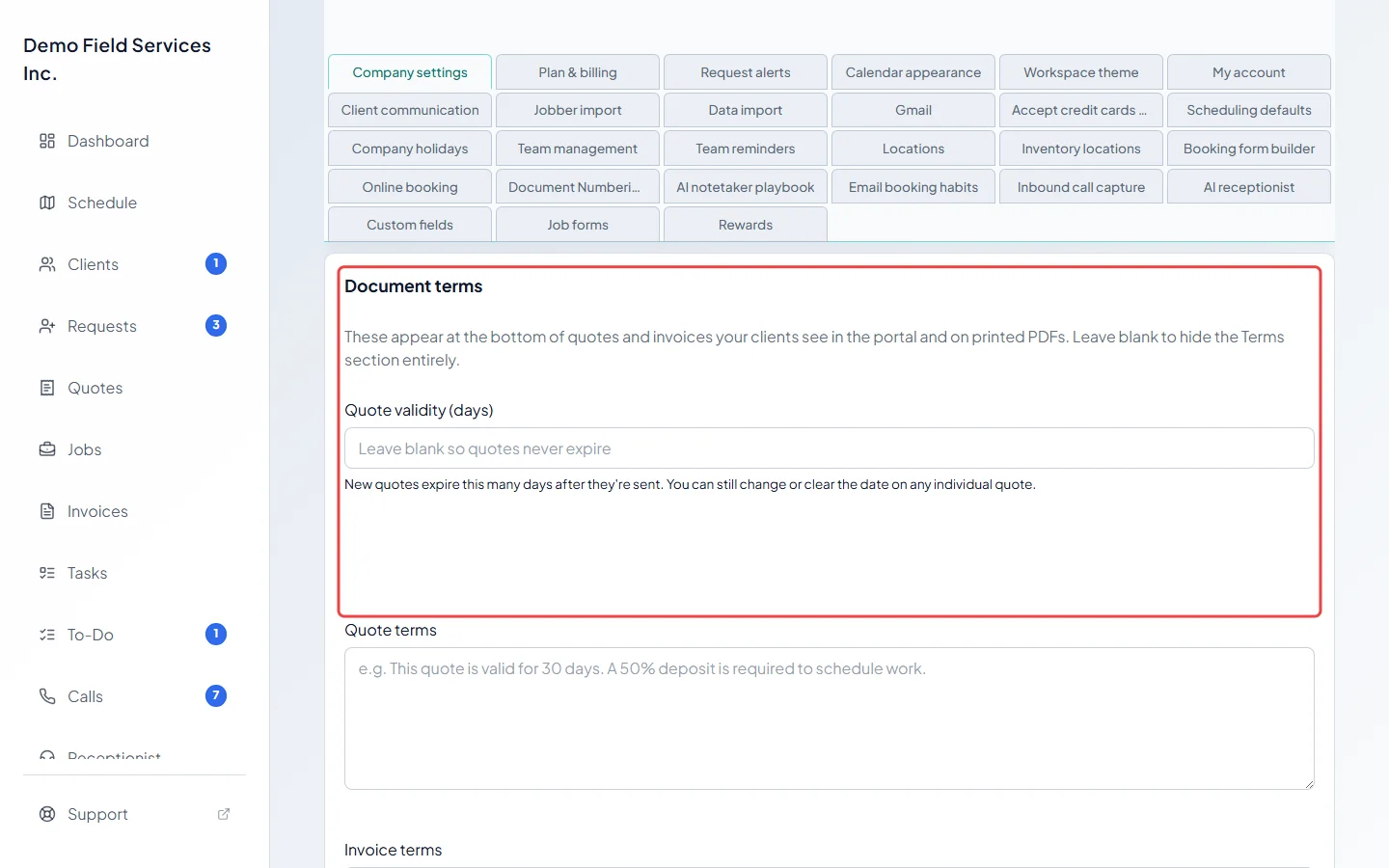
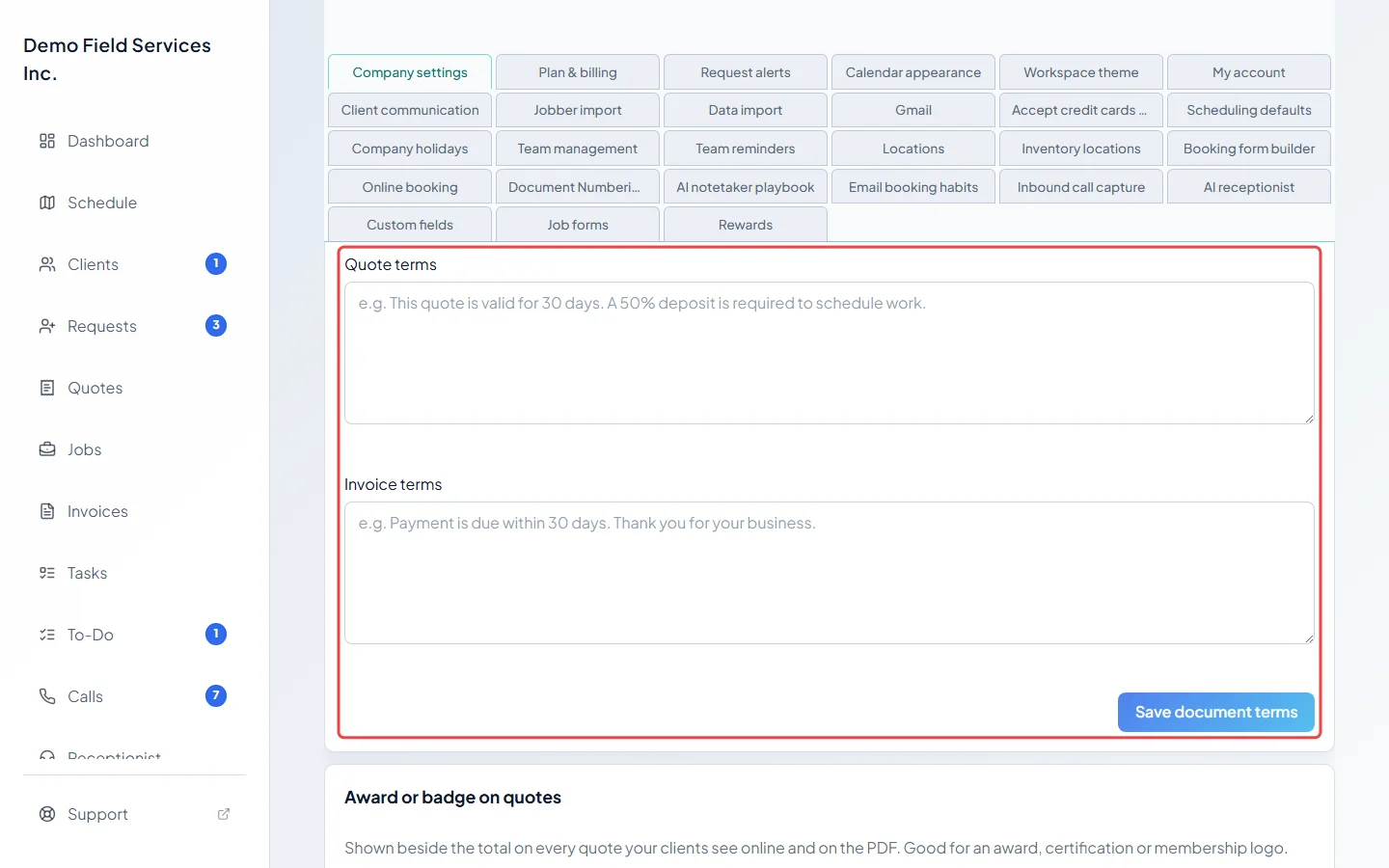
Further down, type your Quote terms and Invoice terms; they print at the bottom of quotes and invoices, online and on PDFs. Leave a box blank to hide the terms. Click Save document terms.
-
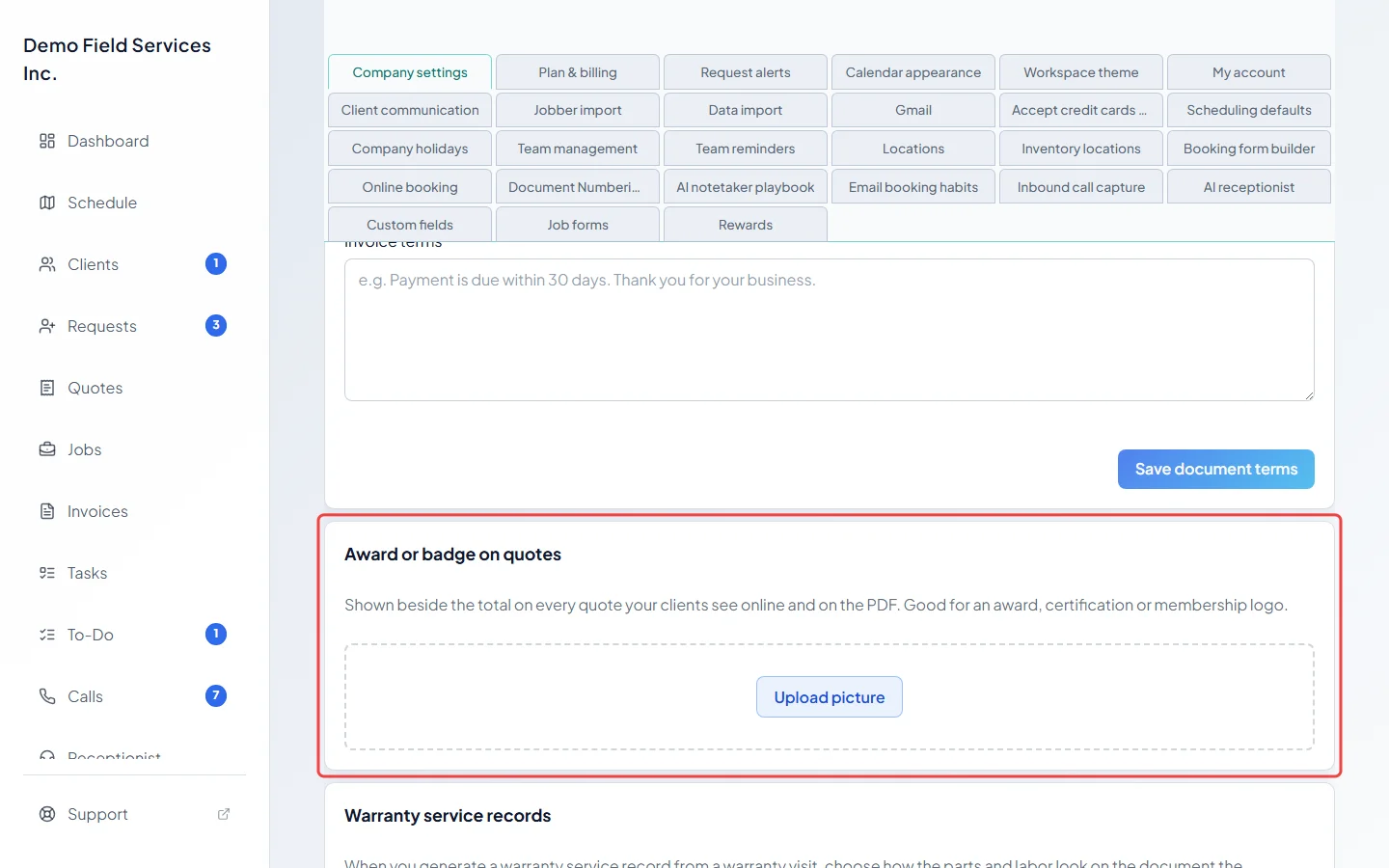
Under Award or badge on quotes, click Upload picture to add an award, certification or membership logo (up to 5 MB). It shows beside the total on every quote, online and on the PDF, including quotes you sent before. Use Replace picture or Remove picture to change it. Invoices aren’t affected.
-
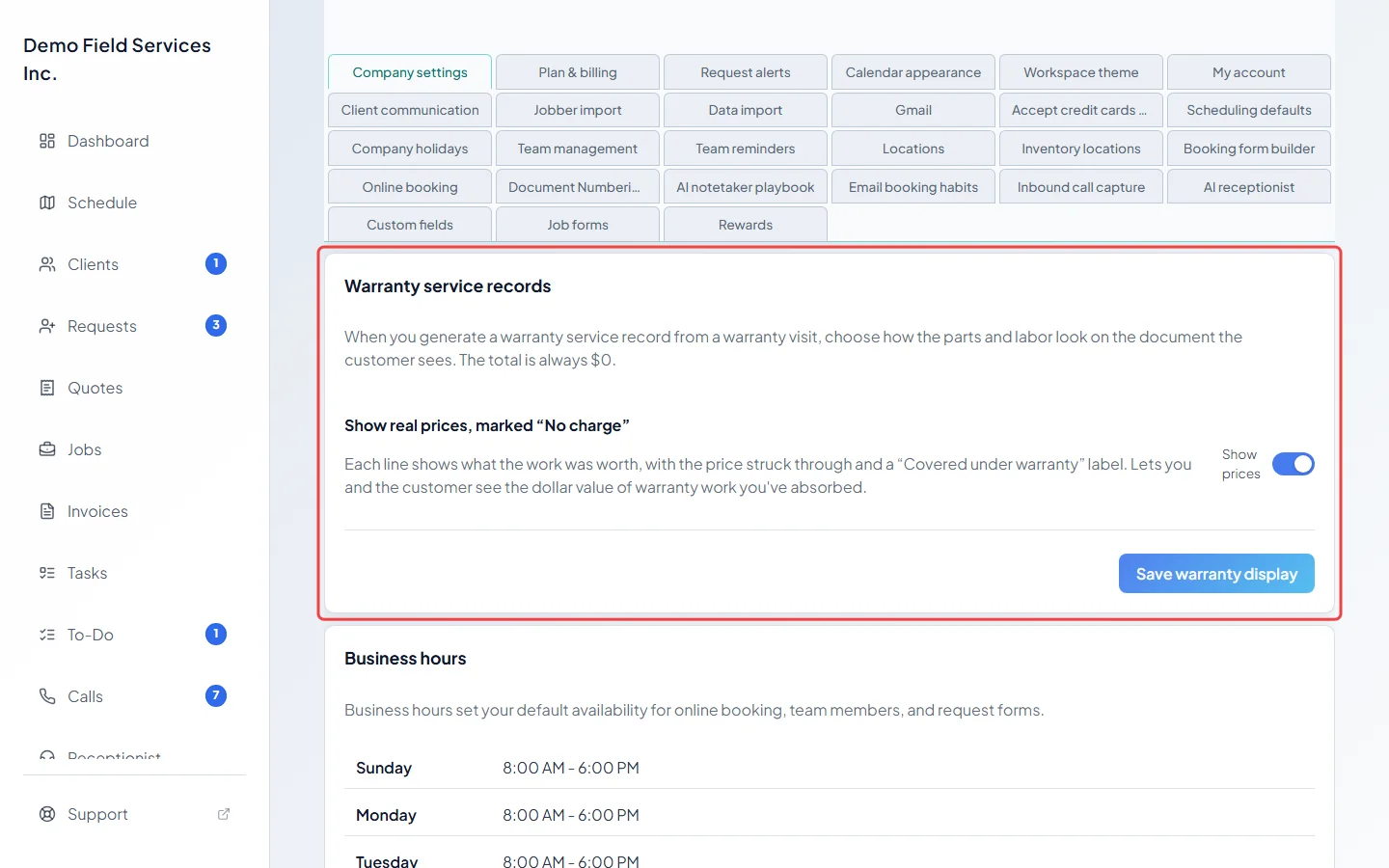
Under Warranty service records, turn Show prices on to list what warranty work was worth, struck through and marked as covered, or off to hide the prices. The record’s total is always zero. Click Save warranty display.
Good to know
Section titled “Good to know”- Each part has its own save button and saves only that part.
- Company settings also holds Pay schedule and Timekeeping reminders for timesheets. See Reviewing pay periods and Clocking in and out.
- If you’re on the Starter plan, the currency can’t be changed here; email support@astragalhq.com.
- Your tax number and tax rates are in the same section. See Taxes. So are your opening hours. See Business hours.
Related articles
Section titled “Related articles”Checked against Astragal on October 18, 2026