

Visits and completing them
A visit is one trip to the client. Mark it complete when the work is done so the office knows and can invoice.
Who can do this: Admins, dispatchers and accountants, and technicians whose Jobs permission is View, edit, and create or View, edit, create, and delete.
Also called: appointment, service call.
Doing a visit on your phone
Section titled “Doing a visit on your phone”-
Open your schedule and tap the visit.
On a computer: Left menu → Schedule On a phone: Bottom bar → Schedule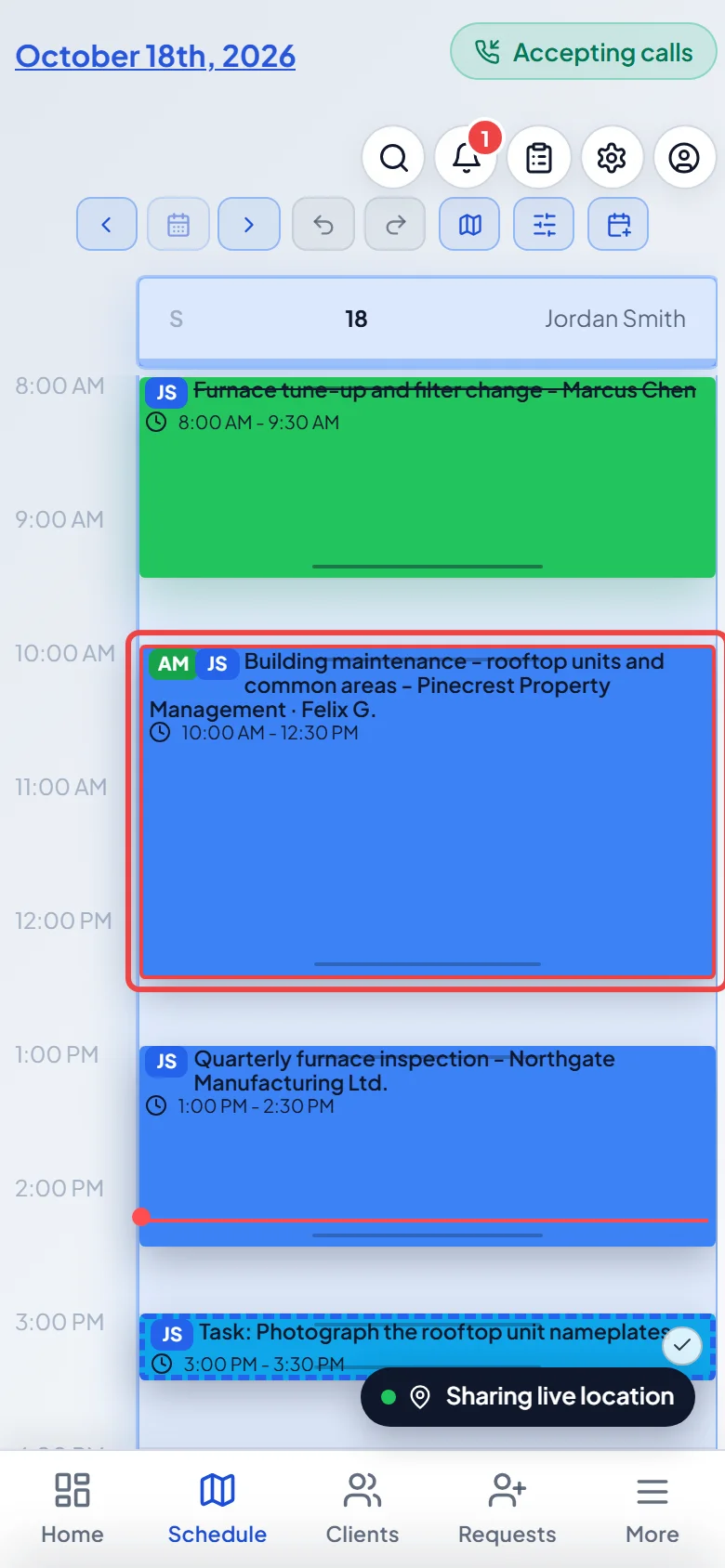
-
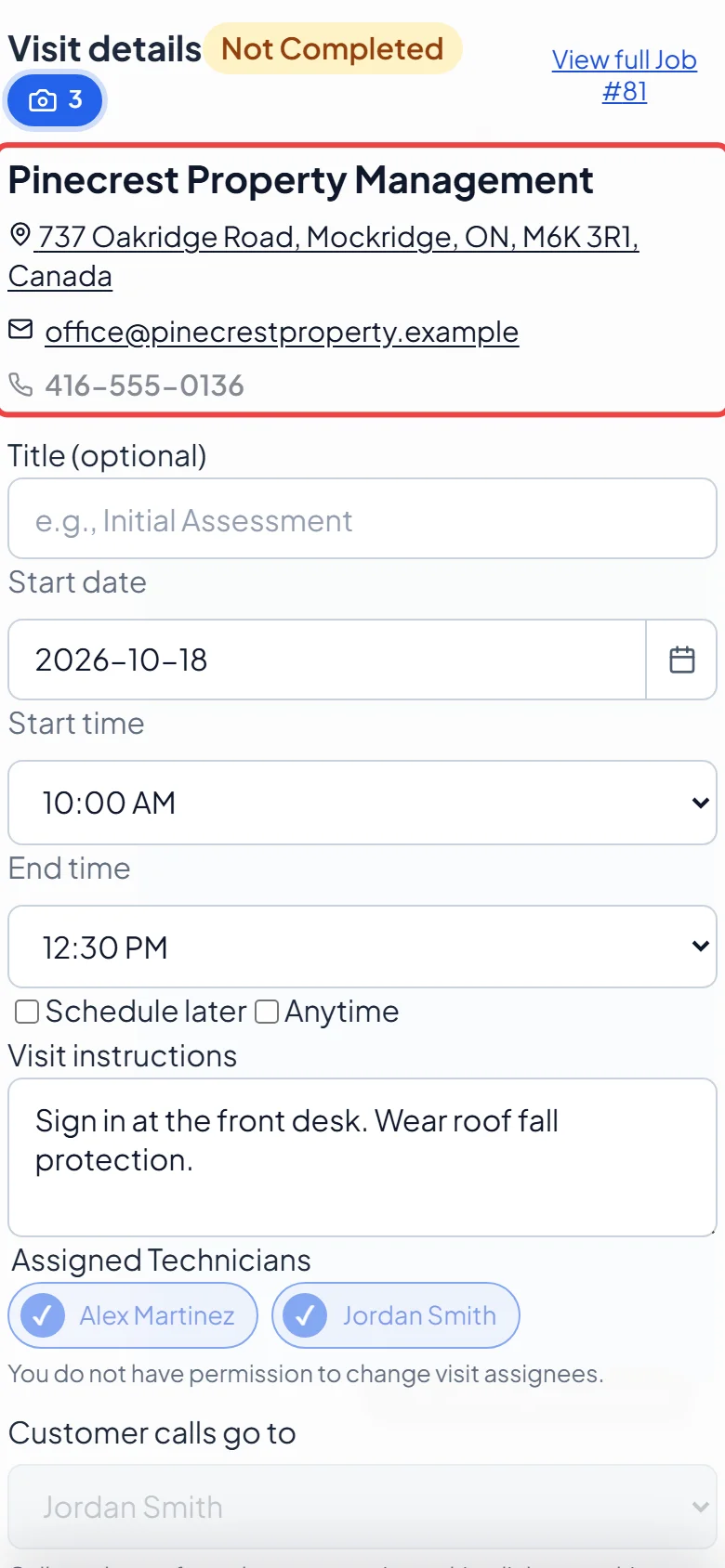
The Visit details window shows the client, the property address (tap it for directions), their email and phone, and any on-site contact. Badges at the top show Not Completed or Completed, and Booked online when the client booked it themselves. Tap Photos to see pictures the office added. Other badges can show Flexible ± hours or Wants an earlier time for online bookings. View full Job opens the job.
-
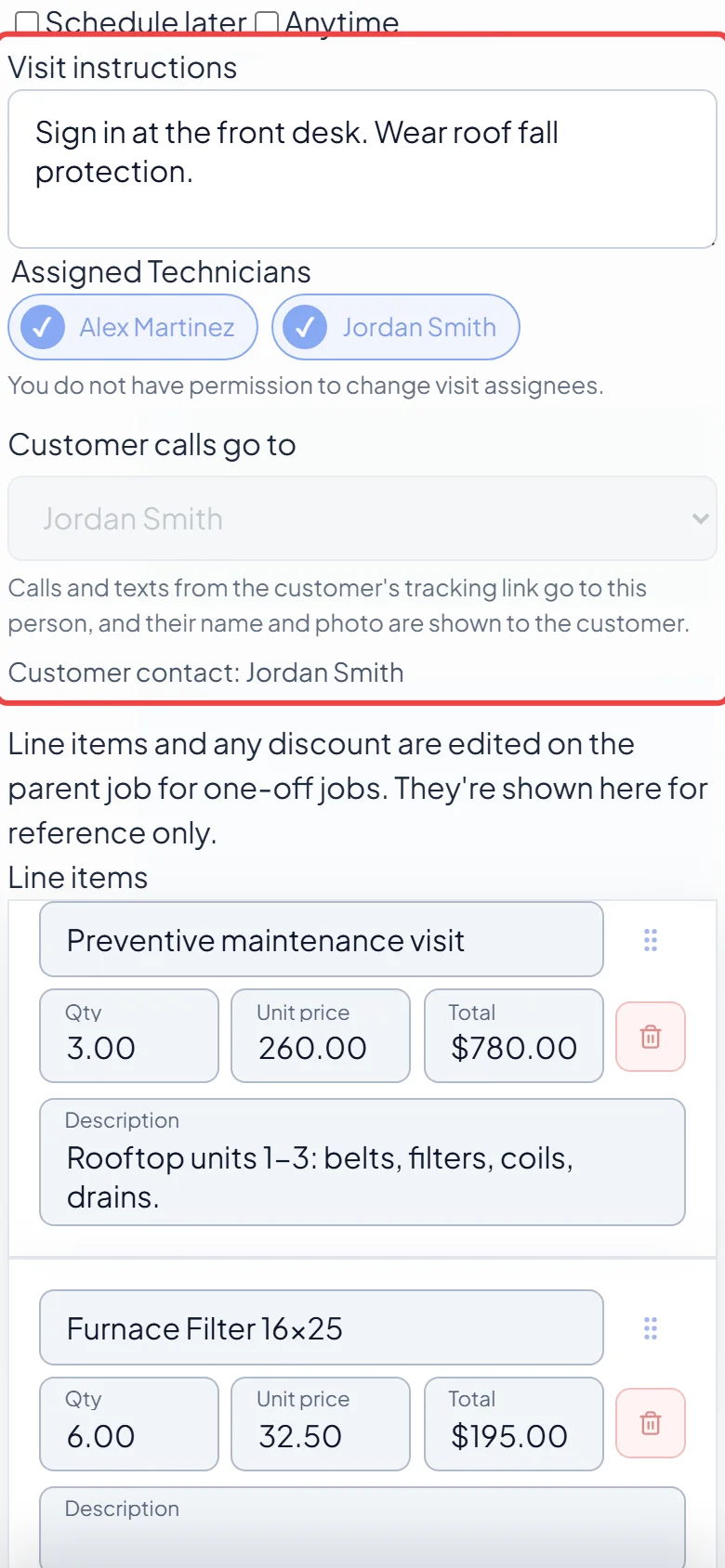
Read the Visit instructions and check who is under Assigned Technicians. When two or more people share the visit, Customer contact shows who the client reaches from their tracking page.
-
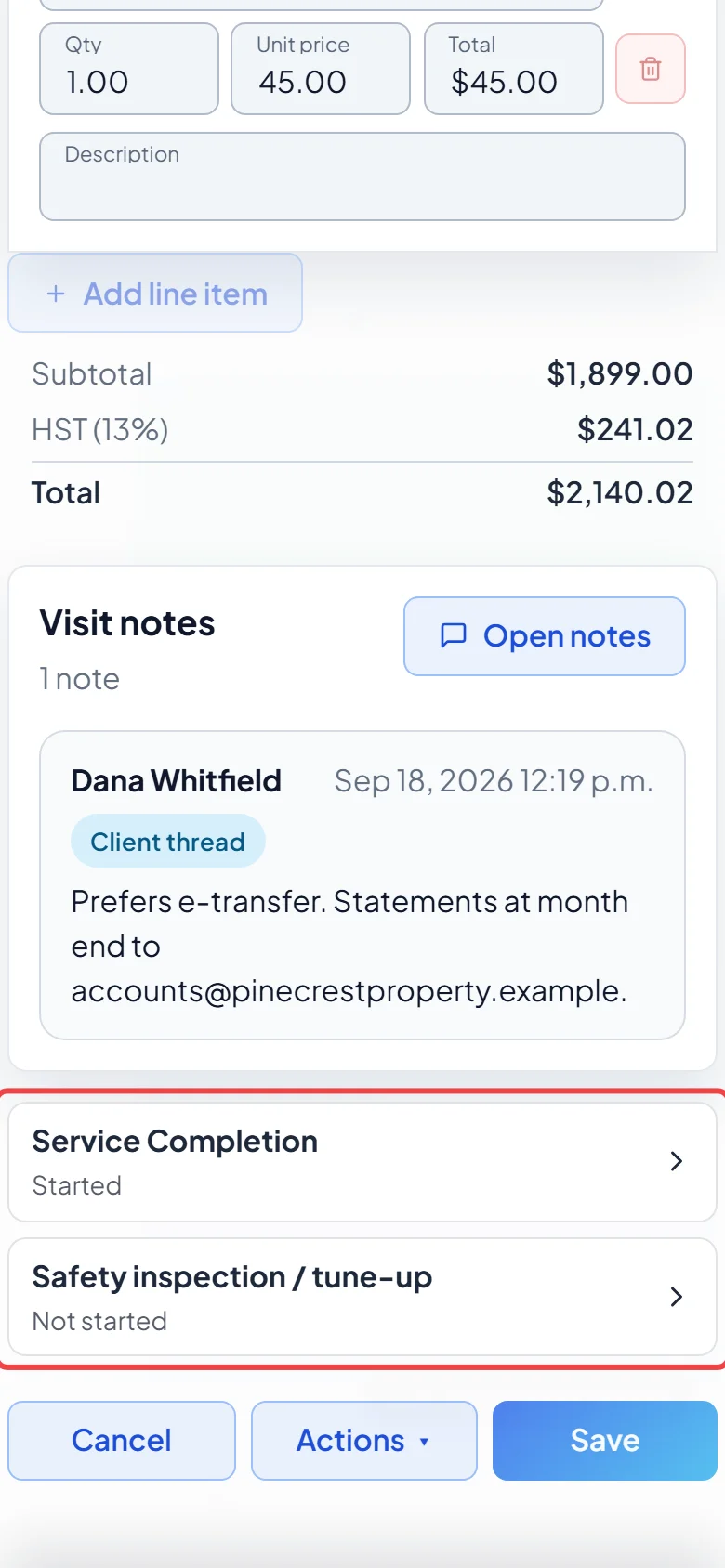
Fill in the forms listed above the buttons. Each one shows Not started, Started or Done. Tap one to open it. See Job forms.
-
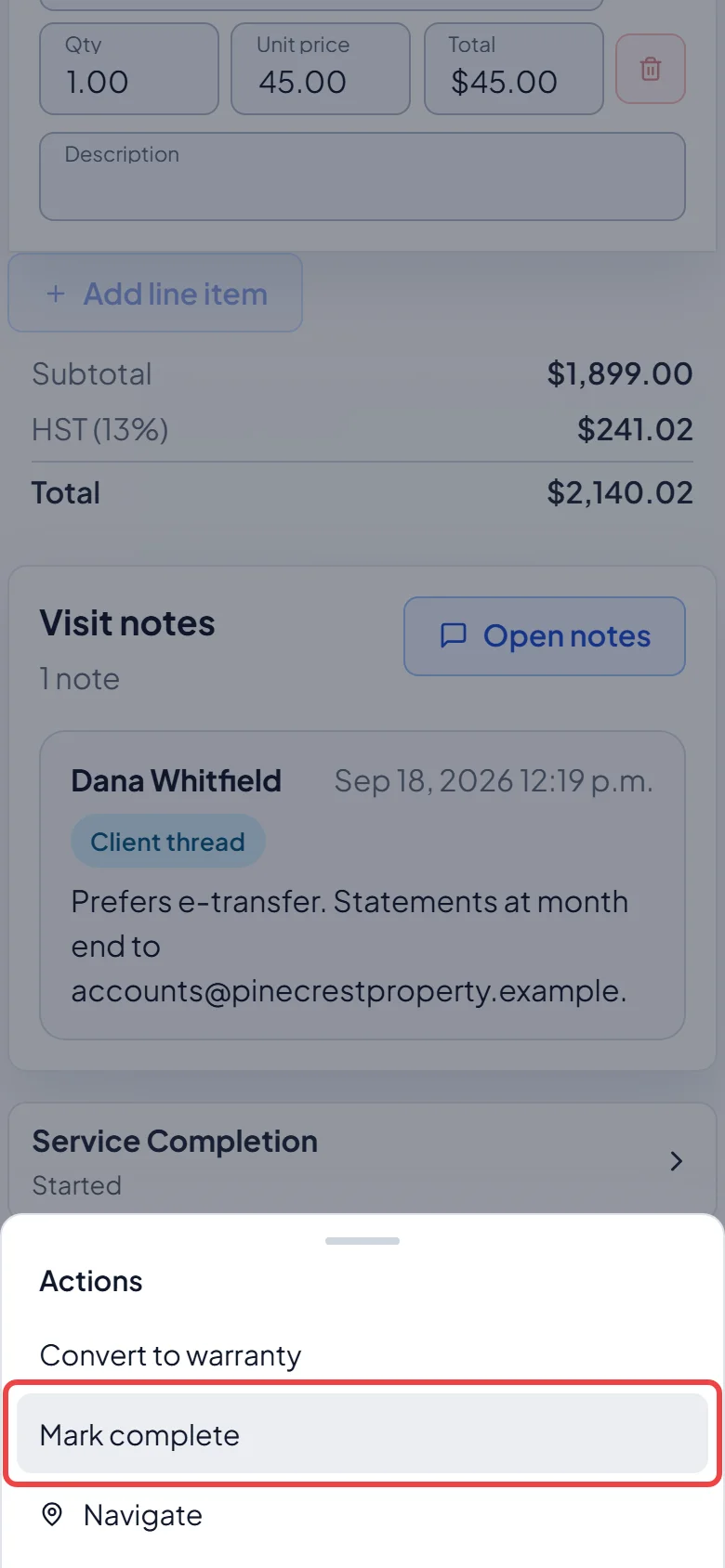
When the work is done, tap Actions and then Mark complete. If a form is missing required answers, Astragal asks Complete anyway or Open form. Navigate in the same menu opens directions and the On my way text.
What happens after you mark it complete
Section titled “What happens after you mark it complete”- The last regular visit on a one-off job (or on a recurring job invoiced when the job closes): the job closes and Astragal asks what’s next — Close job & invoice now (if you can create invoices), Close job with what happened, or Leave job open. See The job details page.
- A recurring job billed after each visit: Astragal asks Would you like to create an invoice for this visit now? Tap Invoice now or Not now.
- A warranty visit: Astragal offers Generate warranty service record (the visit must list its parts and labour first). See Warranty visits.
- Changed your mind? Tap Mark not complete. If the job had already closed, it opens again (a warranty visit never reopens its job). Reopening a warranty visit deletes its warranty service record and puts its parts back in stock.
- With no signal, a visit whose forms are still on your phone shows Needs signal — your form is saved on this phone instead of Mark complete. Once you’re back online, tap Mark complete again. See Offline behaviour.
- If your company turns on Customer must sign to complete a visit, a visit whose forms ask for the client’s signature can’t be completed until they sign. Astragal opens the form at the signature. If the client isn’t there, tap Customer not present and give a reason.
- You can change the visit’s date, times and instructions here and tap Save. Visit notes appears when the job has more than one visit. On an online booking, Send booking link re-sends the client their link to view or cancel. Convert to warranty is in the Actions menu.
Visits on the job page
Section titled “Visits on the job page”The office manages visits from the Visits list on the job page (Scheduled visits on a recurring job). The list shows First visit and Last visit (and Repeats on recurring jobs), then one row per visit with its date, title, instructions, status and team.
- Status: All filters the list to Scheduled, Completed or Cancelled visits. A visit shows Upcoming, Late, Completed or Cancelled, plus Confirmed by customer when the client confirmed it.
- + adds a visit. On a job with no visits yet, click Add the first visit. The New Visit window has Title (optional), Scheduled or Completed, Start date, Start time, End time, Schedule later, Anytime, Visit instructions and Assigned Technicians. Click Create Visit.
- The tick marks a visit complete and Reopen undoes it.
- The pencil opens Edit Visit. Click Save & close when done. Moving the date offers to tell the client. See Rescheduling a visit.
- The shield turns a visit into a warranty visit. See Warranty visits.
- The bin deletes a visit. See Deleting a job or visit.
- Forms chooses which forms go on the job’s visits. See Job forms.
- On a recurring job billed per visit, the invoice button makes or opens that visit’s invoice.
Who owns the line items
Section titled “Who owns the line items”- One-off job: the job owns the line items. A visit shows the job’s line items and discount for reference only. Change them under Products / Services on the job page.
- Recurring job: each visit owns its own line items and discount, except on a fixed-price job, where they’re set on the job. See Recurring jobs.
- Warranty visit: always owns its own line items, on any job. They show as Parts and labor (no charge).
Related articles
Section titled “Related articles”Next step: Invoice from a completed job
Checked against Astragal on October 18, 2026