

Location reminders
Get the right reminder to the right person at the right place, like “pick up the filters” the moment a technician pulls into the warehouse.
Who can do this: Admins and dispatchers set up reminders for anyone. Technicians see their own reminders under My reminders and tick them off.
Also called: arrival alerts, geofence reminders.
-
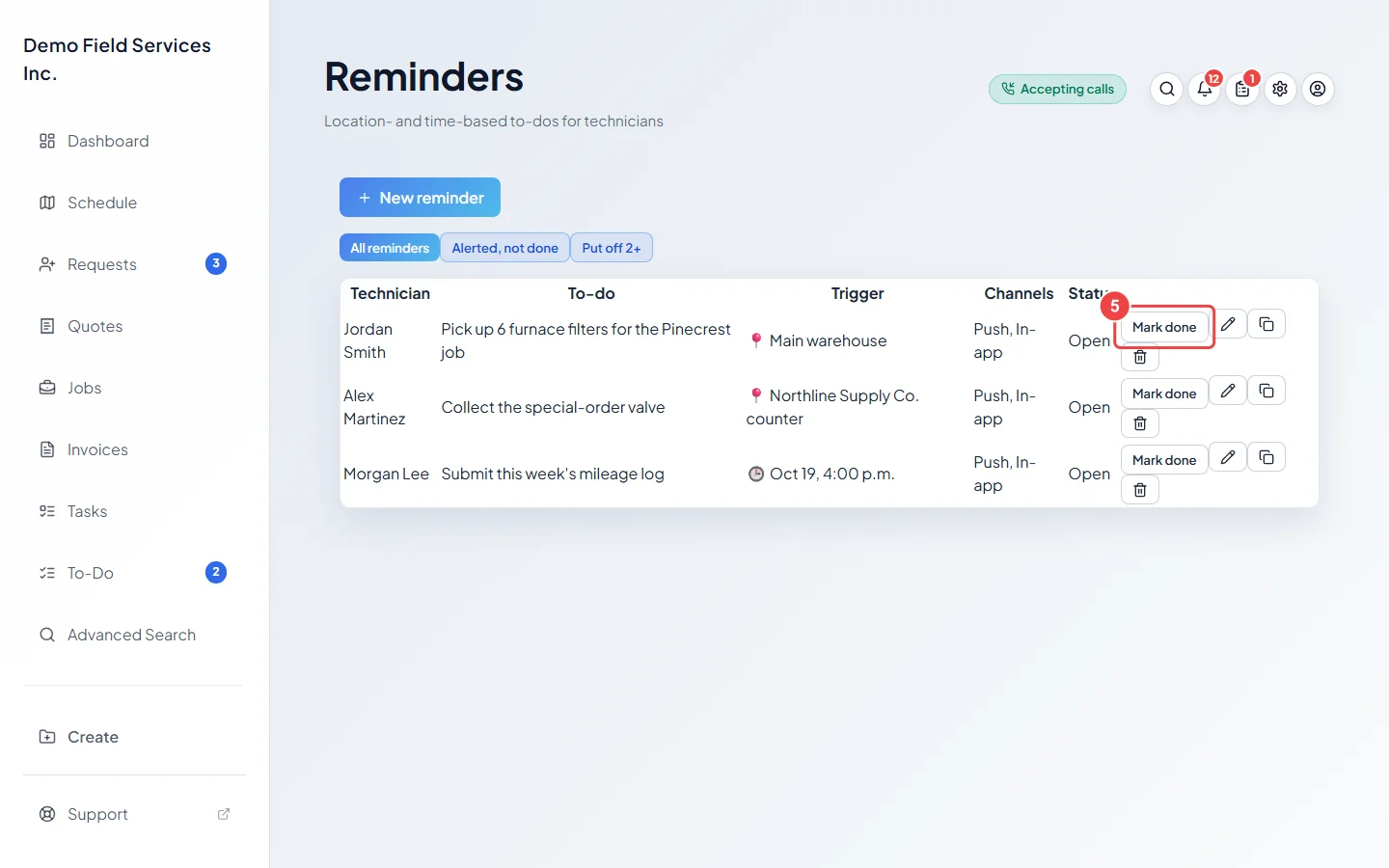
Open Reminders. The list shows each reminder’s Technician, To-do, Trigger, Channels and Status. Click New reminder.
On a computer: Left menu → Reminders On a phone: More → Reminders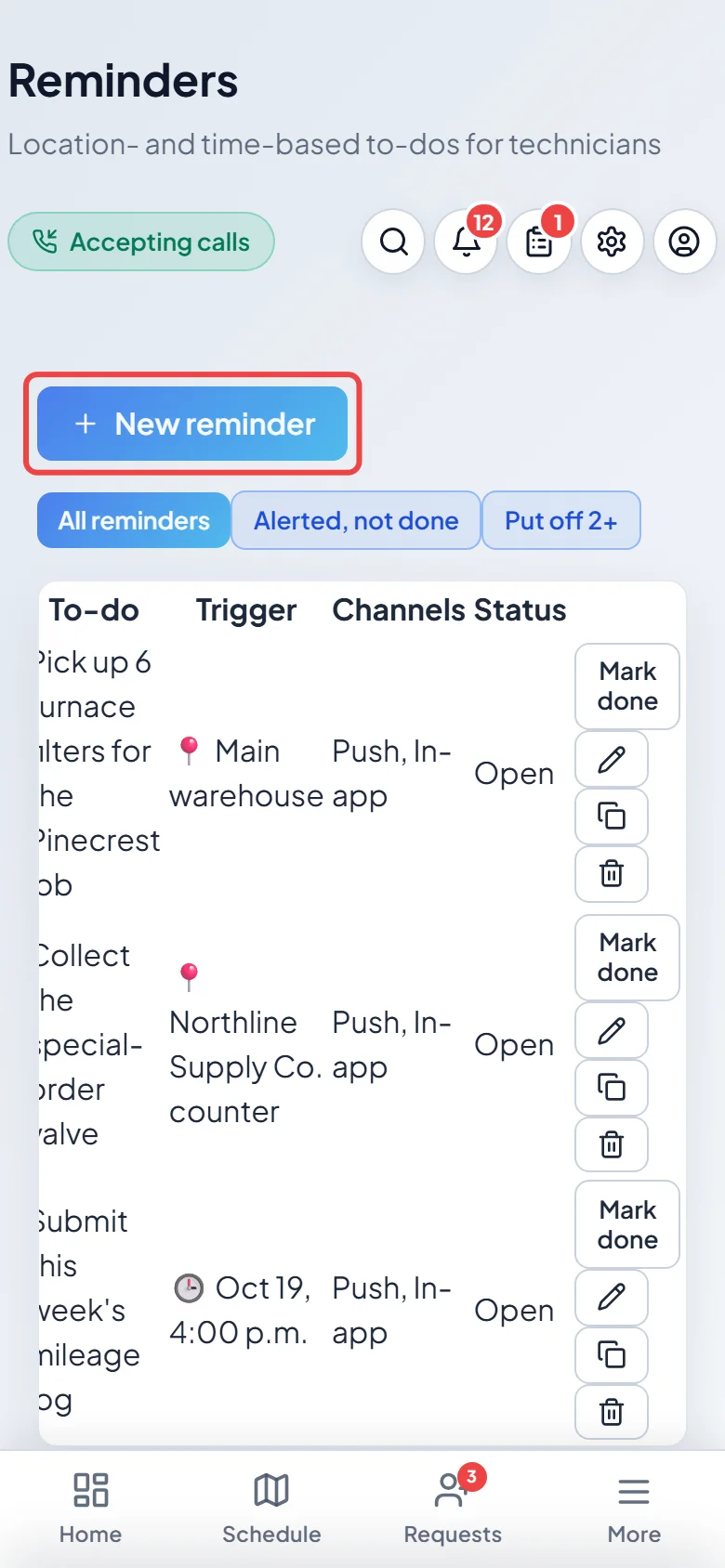
-
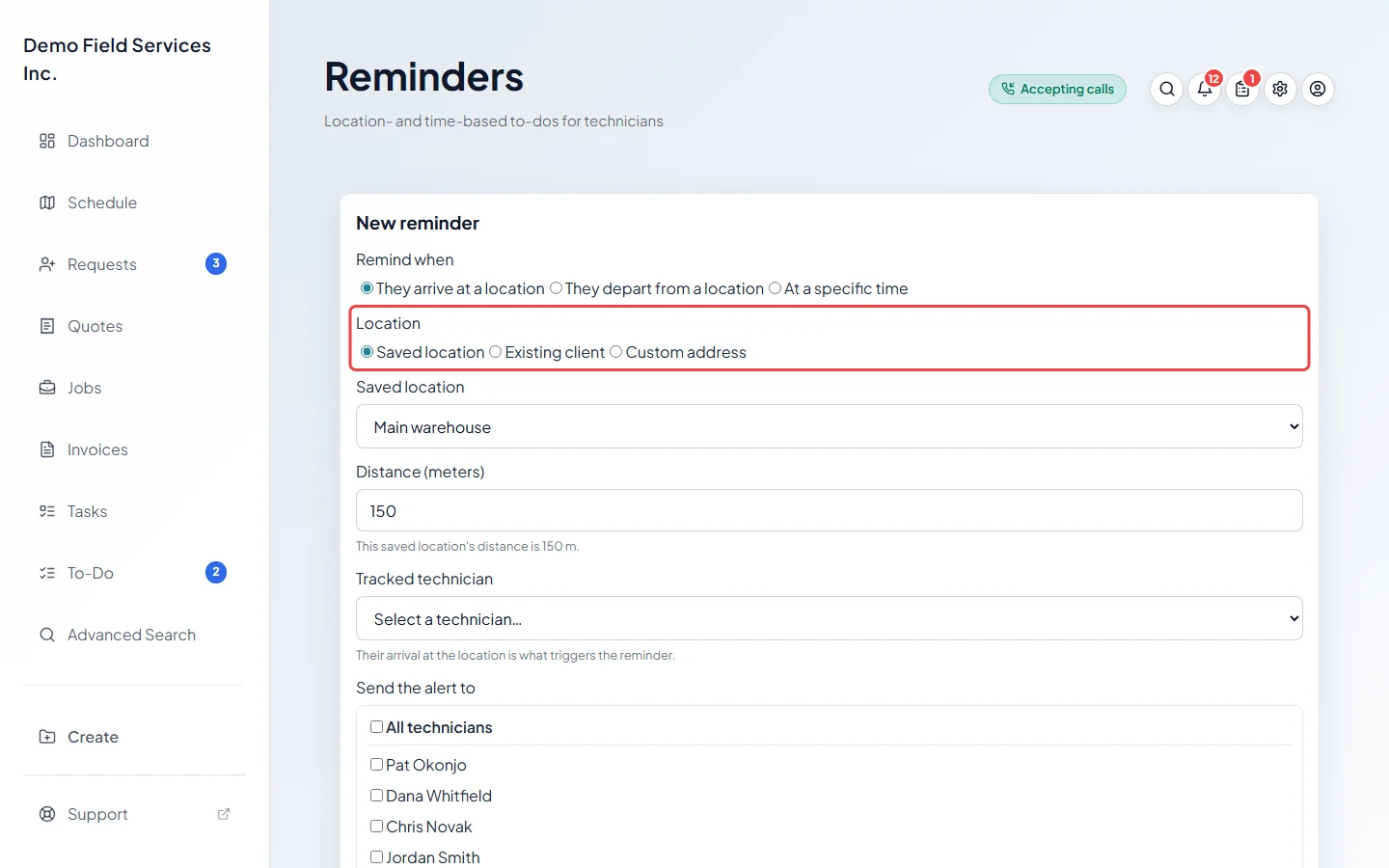
Under Remind when, choose They arrive at a location or They depart from a location. Under Location, pick a Saved location (such as your warehouse), an Existing client, or a Custom address. Distance (meters) is how close they have to get; it starts at the saved location’s own distance or your company default. For a client with several addresses, pick which one under Address. A Custom address can have a Label (optional), such as “Bob’s storage unit”.
-
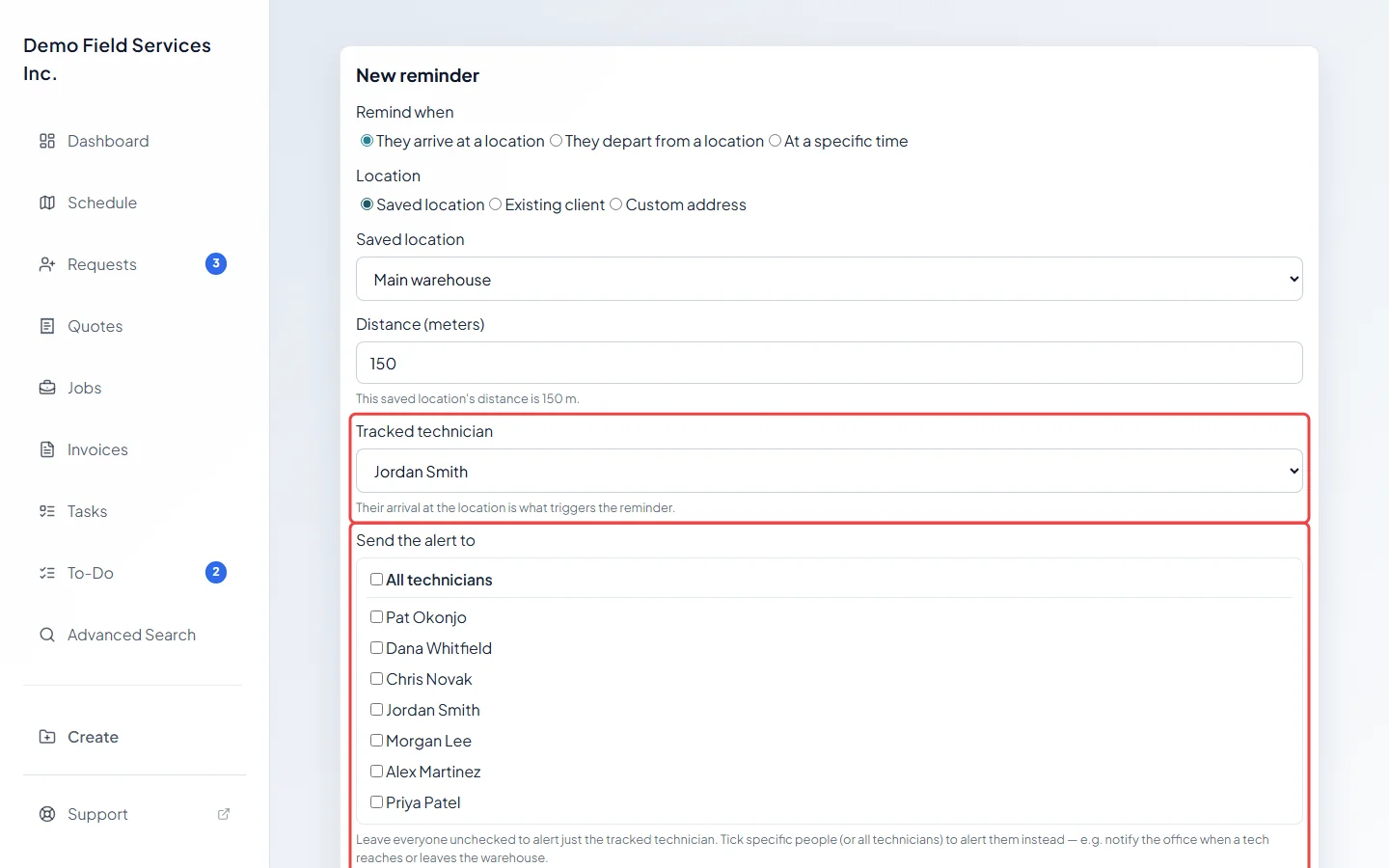
Pick the Tracked technician: their arrival or departure is what sets off the reminder. Under Send the alert to, leave everyone unticked to alert just that technician. If you tick people (or All technicians), only they get the alert, so tick the technician too if they should still get it. This is how you tell the office when a technician reaches the warehouse.
-
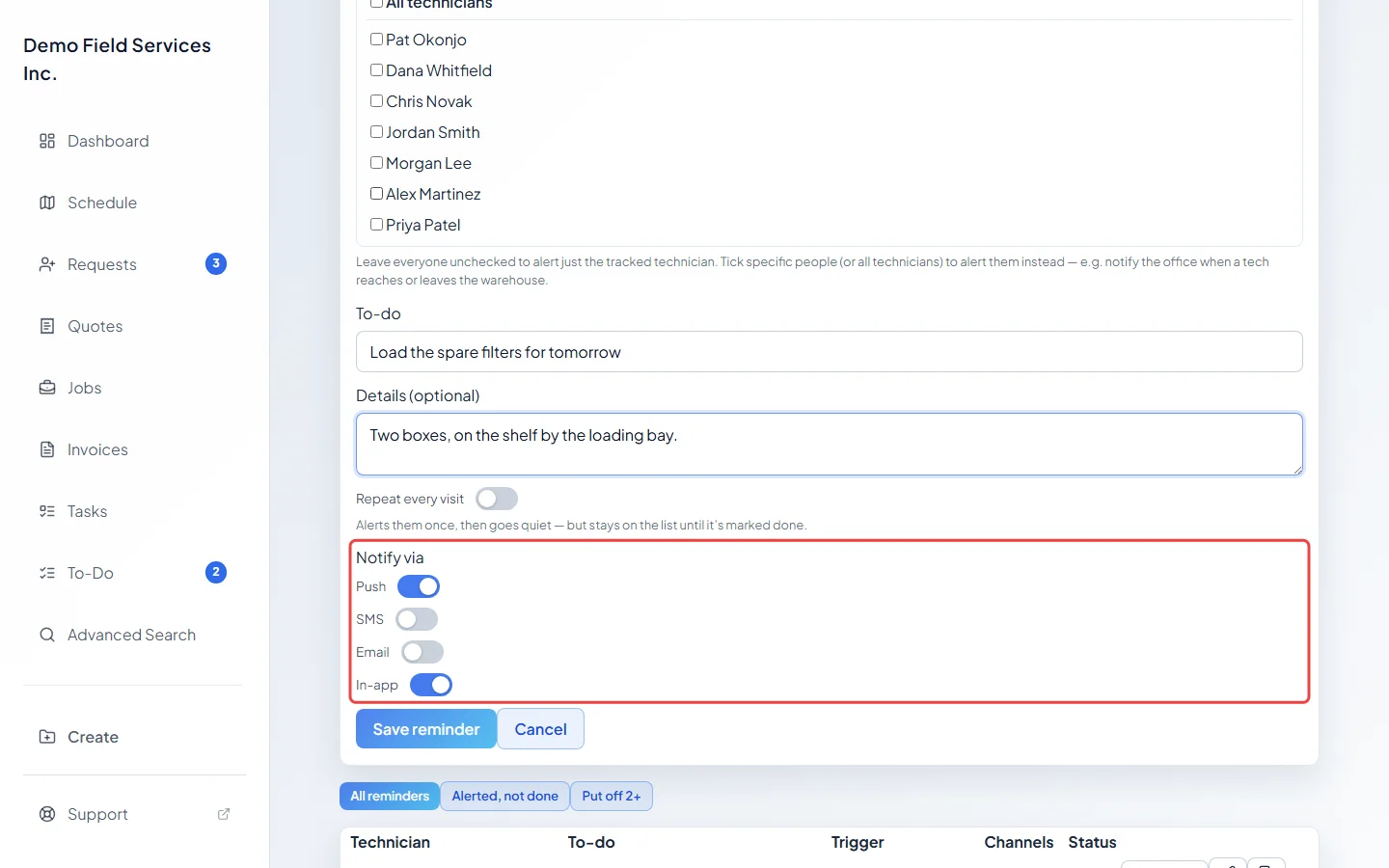
Type the To-do and any Details (optional). Turn on Repeat every visit to alert them every time, not just once. Under Notify via, choose Push, SMS, Email and In-app.
-
Click Save reminder. It appears in the list as Open, and shows On site now while the technician is there. Once it has gone off, the status shows when they were alerted and, for each person, whether the alert reached them.
A reminder at a set time
Section titled “A reminder at a set time”-
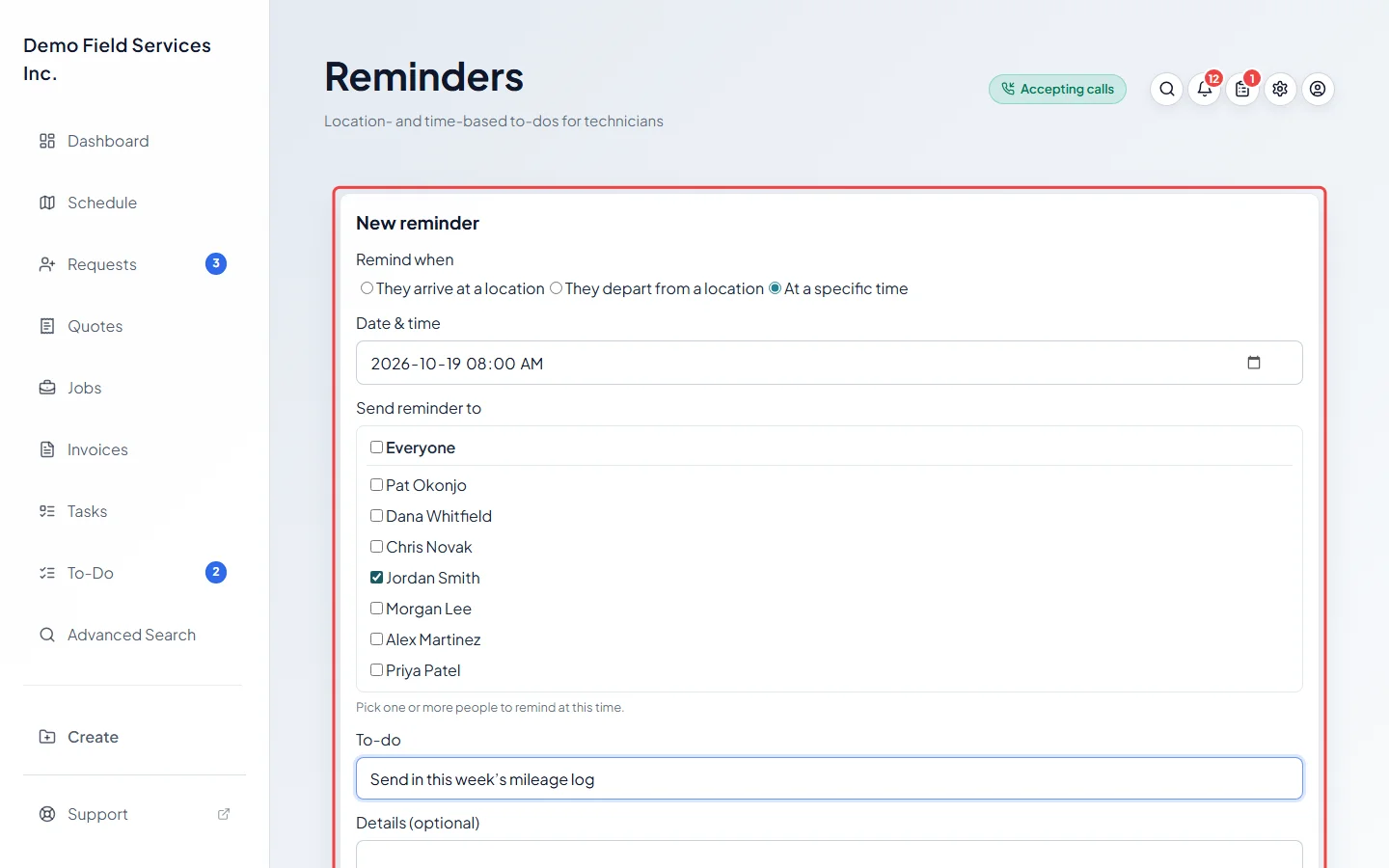
Click New reminder and choose At a specific time. Set the Date & time, tick the people under Send reminder to (or Everyone), type the To-do and click Save reminder.
What the technician sees
Section titled “What the technician sees”- When the reminder goes off they get it by the ways you chose. Their Reminders page shows My reminders with a Done button on each one.
- If a reminder went off and is still not done, it takes over their screen the next time they open the app: Mark complete, Put off (1 hour, 3 hours, Tomorrow morning, Next time I open the app, and Next time I’m here for repeating place reminders) or Open details. A repeating reminder takes over the screen at most once a day on each device.
- After it has taken over the screen three times (or 72 hours have passed), it moves to a strip near the top instead. Review opens the list; the X hides the strip for now. Nothing is dropped: it stays on the list until it’s done.
- Anything they ticked off by mistake today shows under Ticked off today with Reopen.
Good to know
Section titled “Good to know”- If a reminder has already gone off and you add someone to it, that person is alerted as soon as you save. Nobody else is alerted again.
- Use Alerted, not done and Put off 2+ above the list to see what’s being ignored. All reminders shows everything again.
- Use the buttons on each row to Mark done, Reopen, edit, duplicate or delete a reminder.
- If someone’s phone is blocking alerts, a warning shows next to their name before you save, and their row says so afterwards. See Notifications and permissions.
- Arrival and departure need the technician’s location. See Sharing your location.
Related articles
Section titled “Related articles”Checked against Astragal on October 17, 2026