

The clients list
The clients list is where you find anyone you work for and start a request, quote, job, invoice or task for them.
Who can do this: Admins and anyone whose Clients permission lets them see clients. Team members set to View client name and address only see names and property counts but no phone numbers or emails; technicians at that level only see the clients on jobs they’re assigned to.
Also called: customers, accounts.
-
Open the clients list.
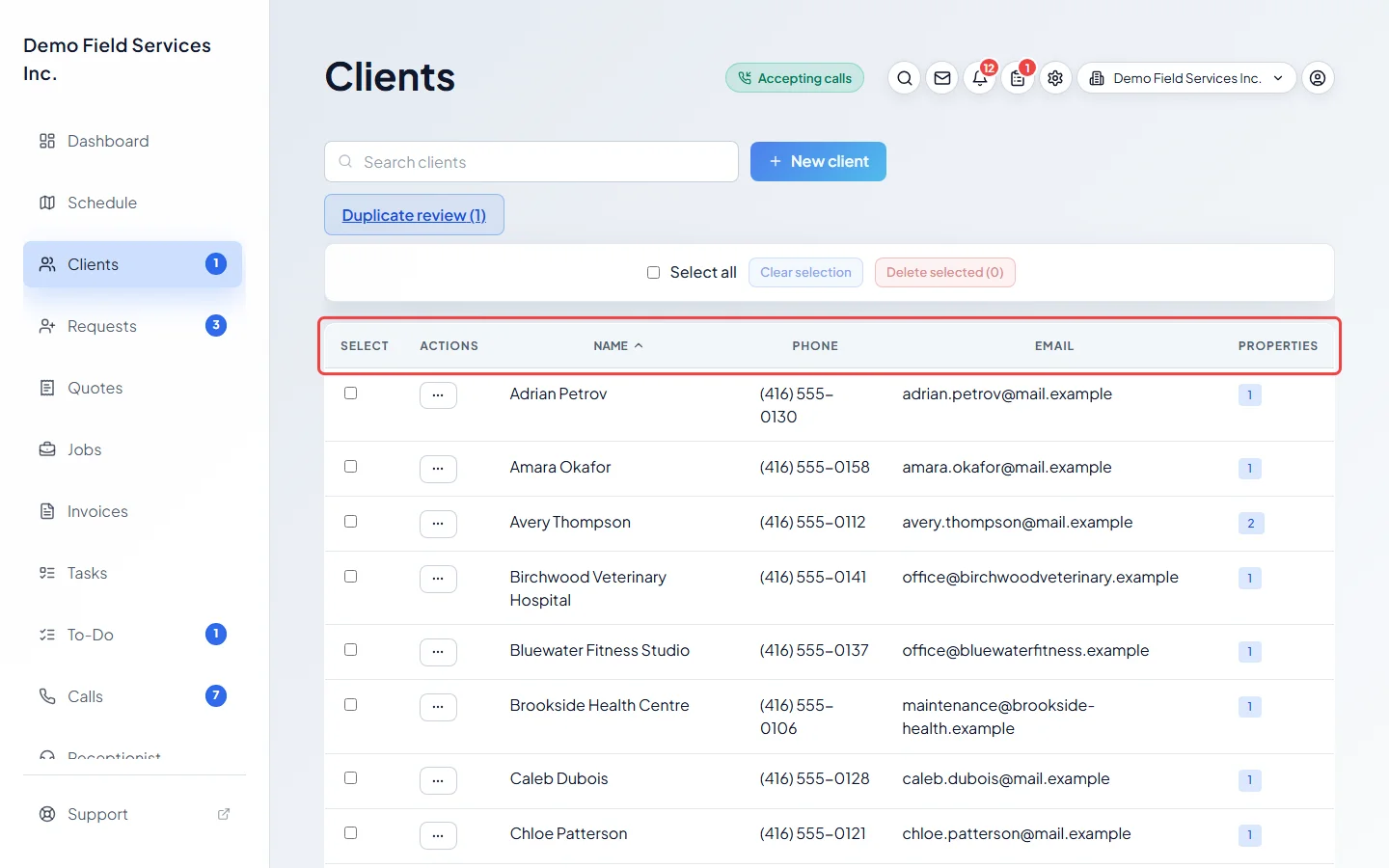
On a computer: Left menu → Clients On a phone: Bottom bar → ClientsEach row shows the client’s name, their primary phone and email, and how many properties they have. A ”(+2)” after a phone or email means the client has more on file.
-
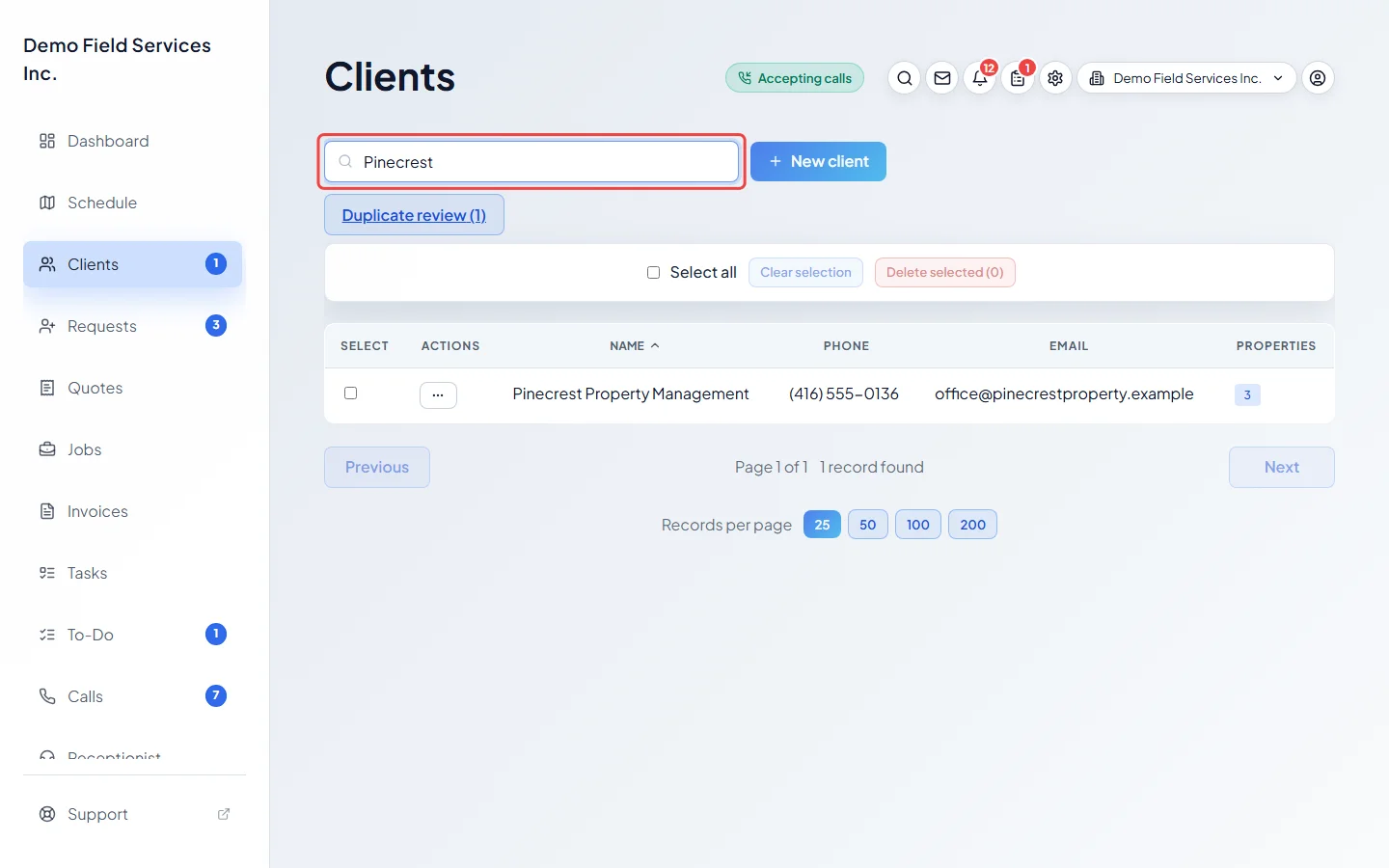
Type in Search clients to narrow the list. The search looks at names, company names, phone numbers, emails and addresses. For people who can see full client details, it also finds on-site contacts and people on an account. When the match is a person on a client’s account rather than the client, the row says “Household:” and that person’s name.
-
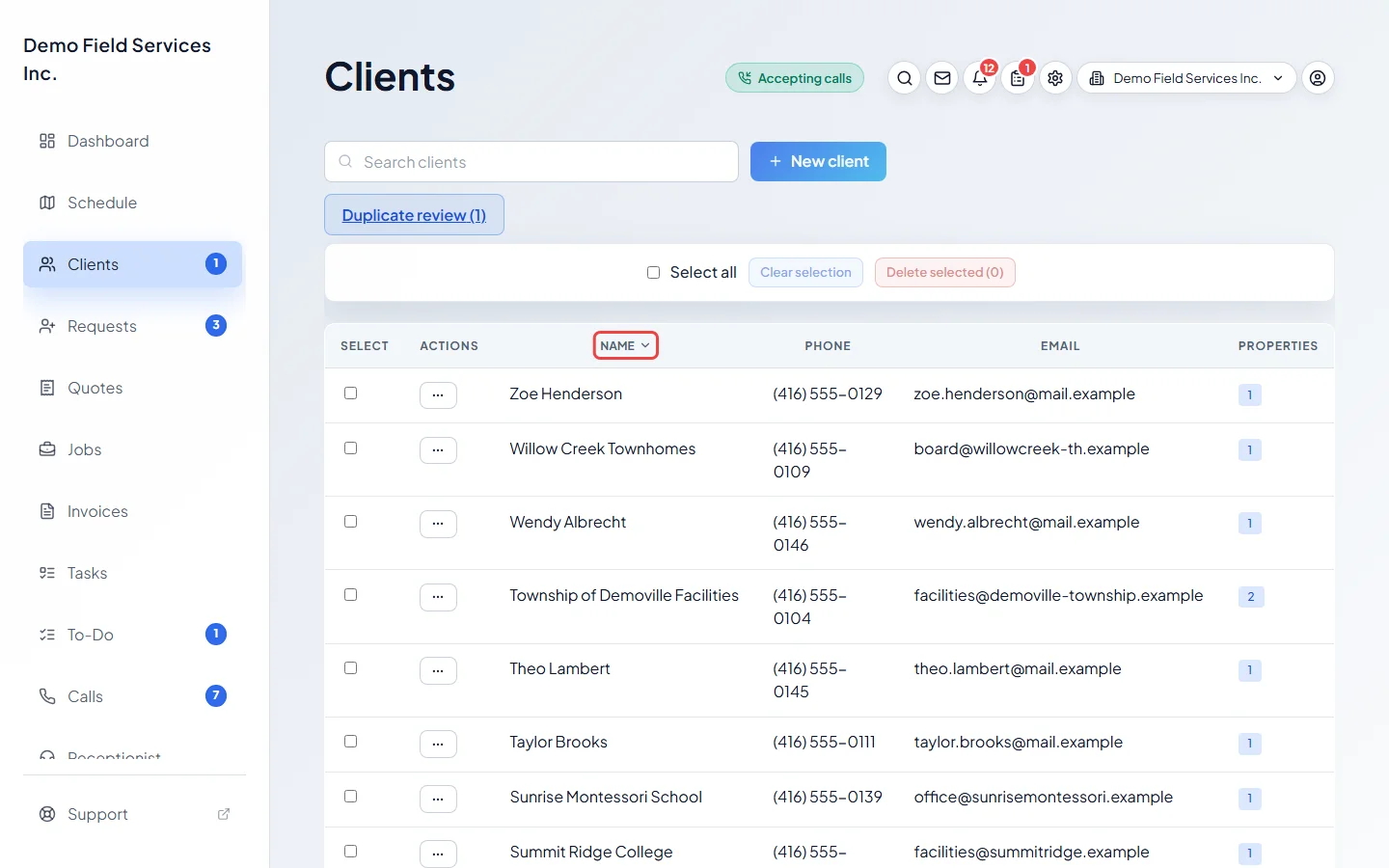
Click the NAME column heading to sort from A to Z, and click it again for Z to A.
-
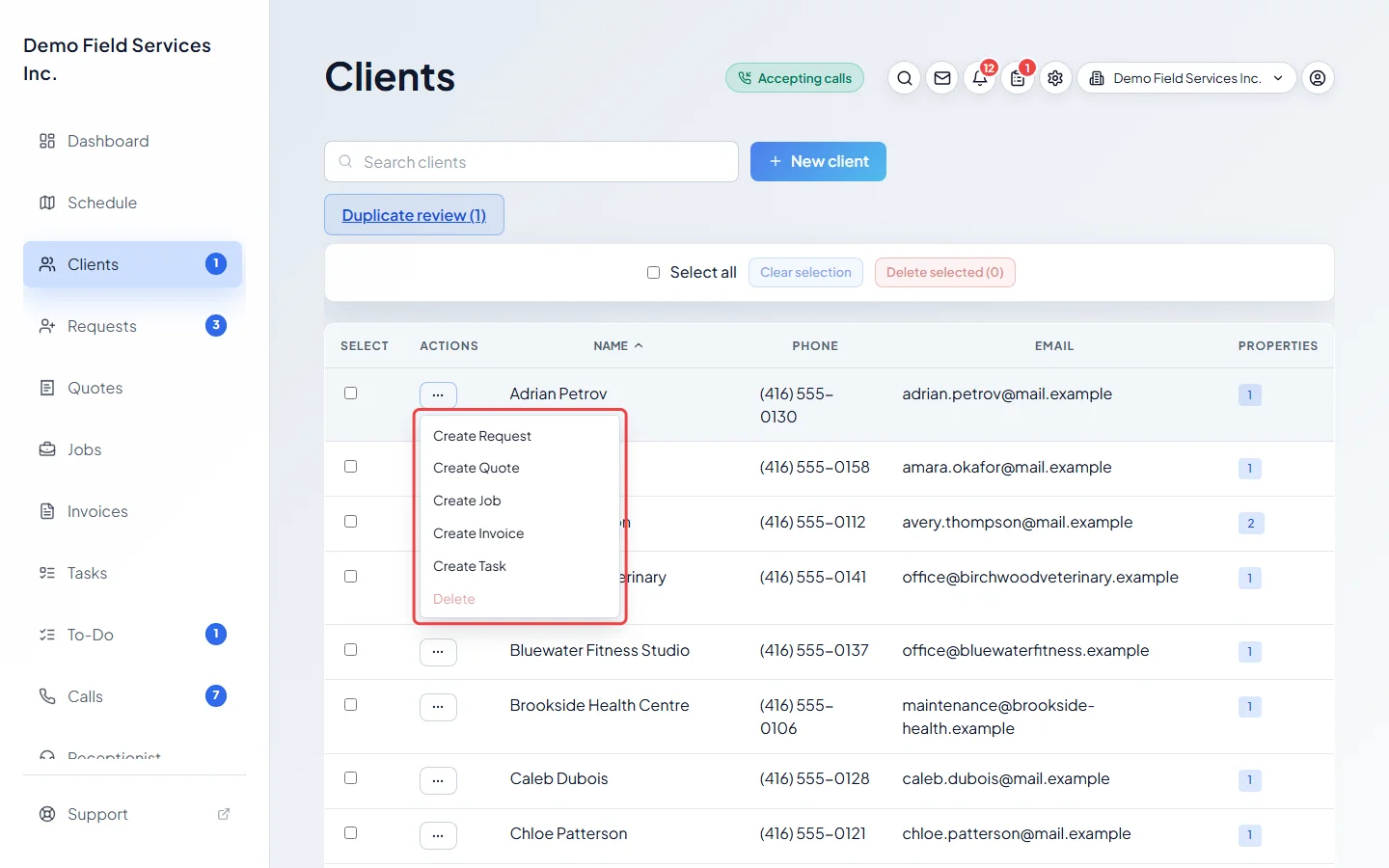
Click the ⋯ button on a row to start work for that client without opening them. Pick Create Request, Create Quote, Create Job, Create Invoice or Create Task. The client is already filled in on the form that opens.
-
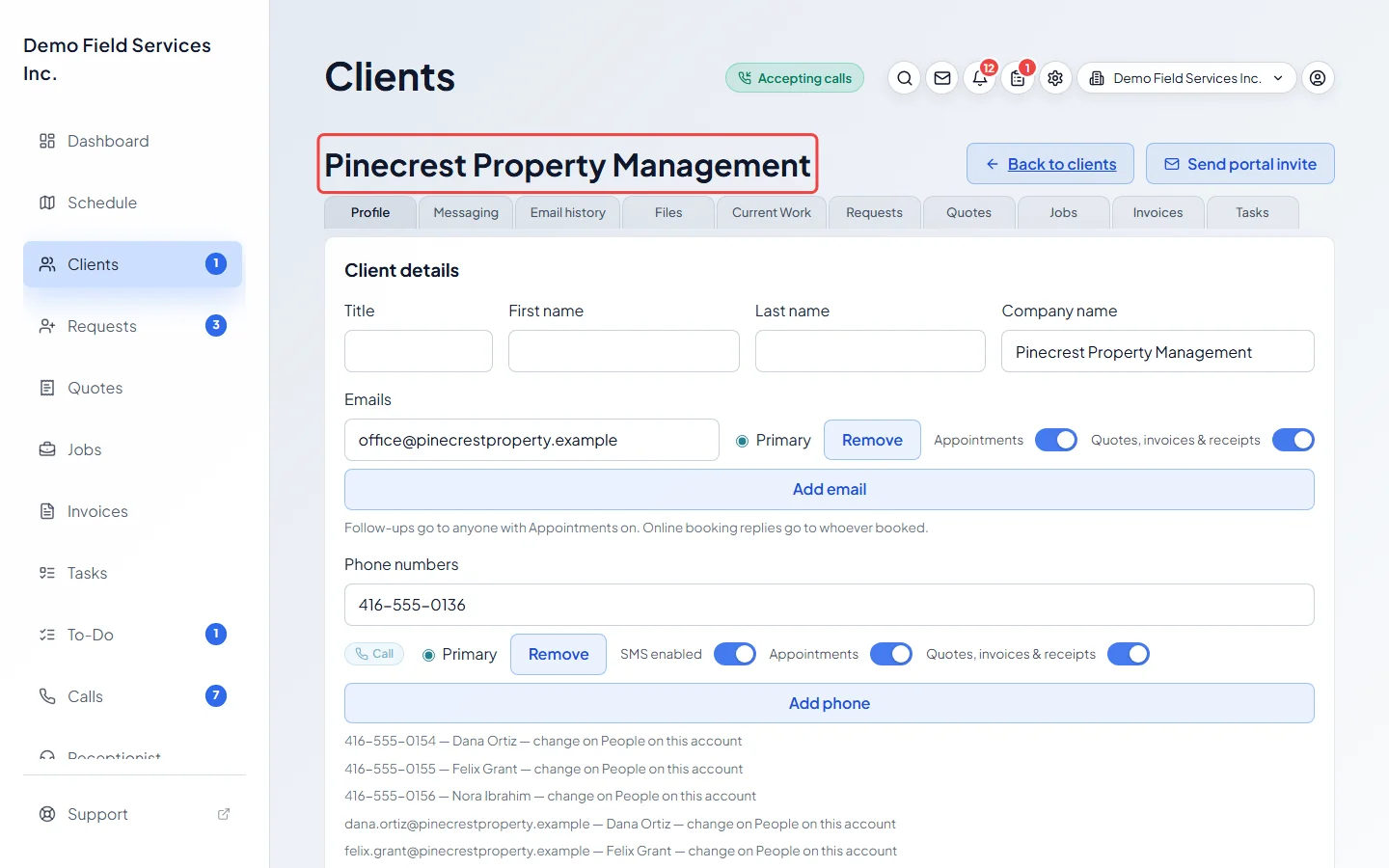
Click any row to open the client’s details page.
-
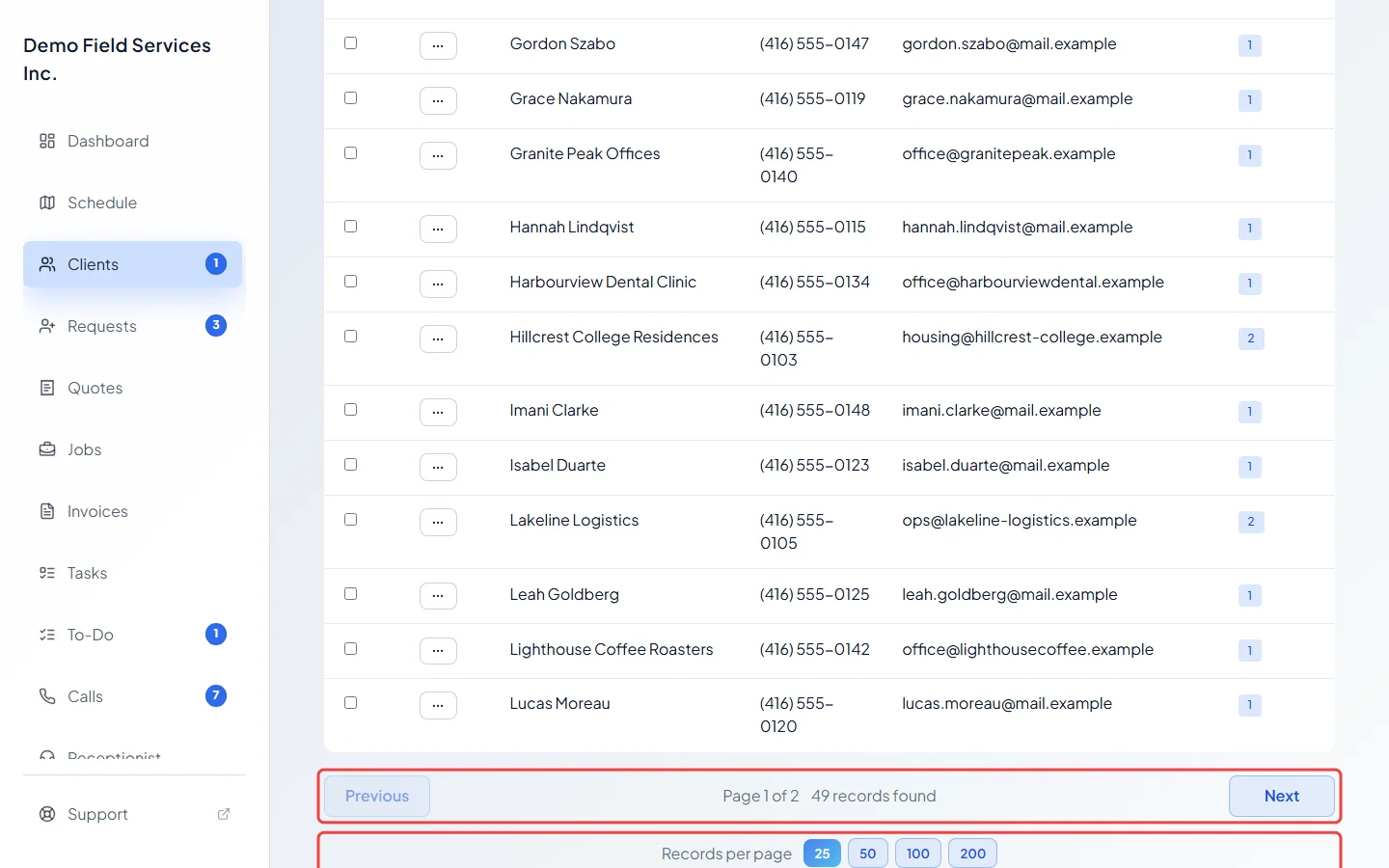
Use Previous and Next at the bottom to move between pages, and Records per page to show 25, 50, 100 or 200 clients at once. Astragal remembers your choice on this device.
Deleting clients
Section titled “Deleting clients”Admins and team members set to View, edit, and delete full client and property info can delete clients.
- To delete one client, open the ⋯ menu on their row and click Delete, then Delete client to confirm. On a phone, use the bin button on the client’s card.
- To delete several, tick them (or tick Select all for the whole page) and click Delete selected, which shows how many are ticked (for example “Delete selected (3)”), then Delete clients. Clear selection unticks everything. Clients that can’t be deleted are skipped, and Astragal tells you, for example “3 clients deleted, but 1 failed”.
A client can’t be deleted while they have jobs, quotes, requests, invoices or payments. Their Delete option is greyed out and says so. Deleting can’t be undone.
Good to know
Section titled “Good to know”- New client at the top opens the new client form. See Adding a client.
- Duplicate review at the top shows how many possible duplicate pairs are waiting, for example “Duplicate review (3)”. The same number shows as a badge on Clients in the menu. Only people who can delete clients see the button and the badge. See Merging duplicate clients.
- On a phone, each client shows as a card with the same details, a Select tick box, the ⋯ button and a bin button.
- Archived clients, such as a record that was merged into another client, don’t appear in the list.
Related articles
Section titled “Related articles”Checked against Astragal on October 17, 2026