

Extra questions per service
Ask customers a few questions about a service when they pick it, so you know what you’re walking into before you arrive.
Who can do this: Admins and dispatchers.
Also called: intake questions, service questions.
-
Open Online booking in Settings. Under Services customers can book, click Add questions beside the service. Once the service has questions, the button shows “Questions” and how many there are.
On a computer: Left menu → Settings → Online booking On a phone: More → Settings → Online booking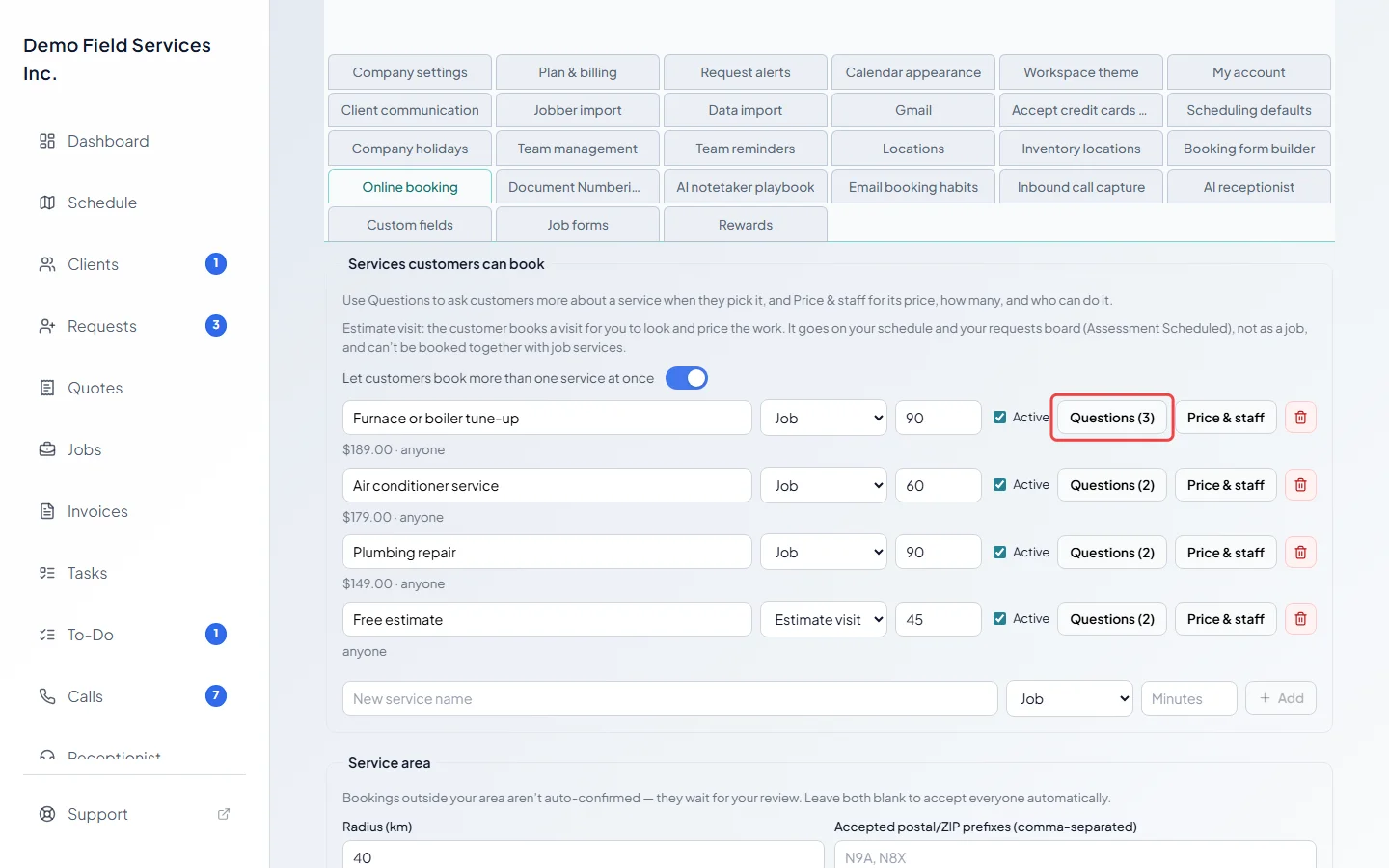
-
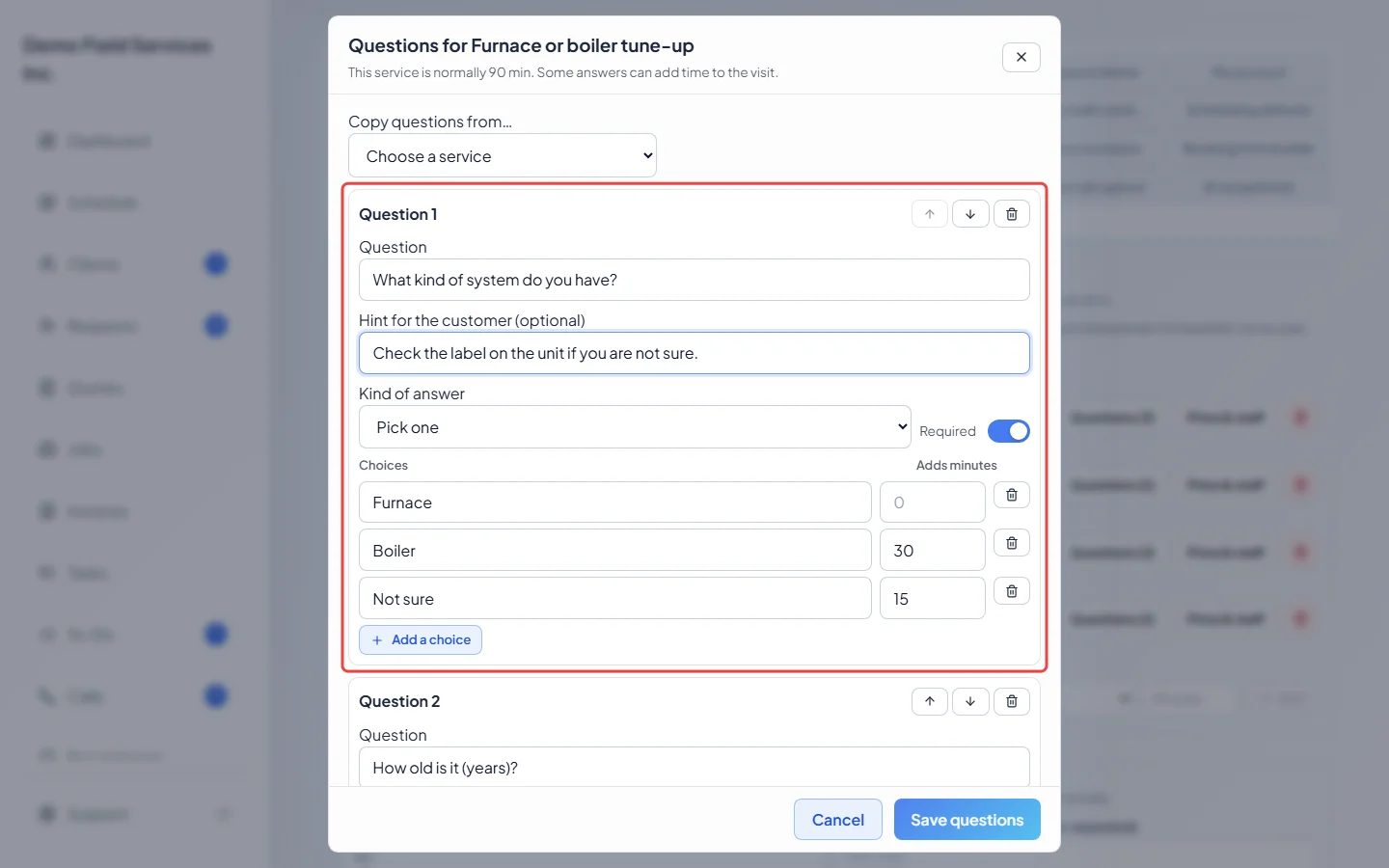
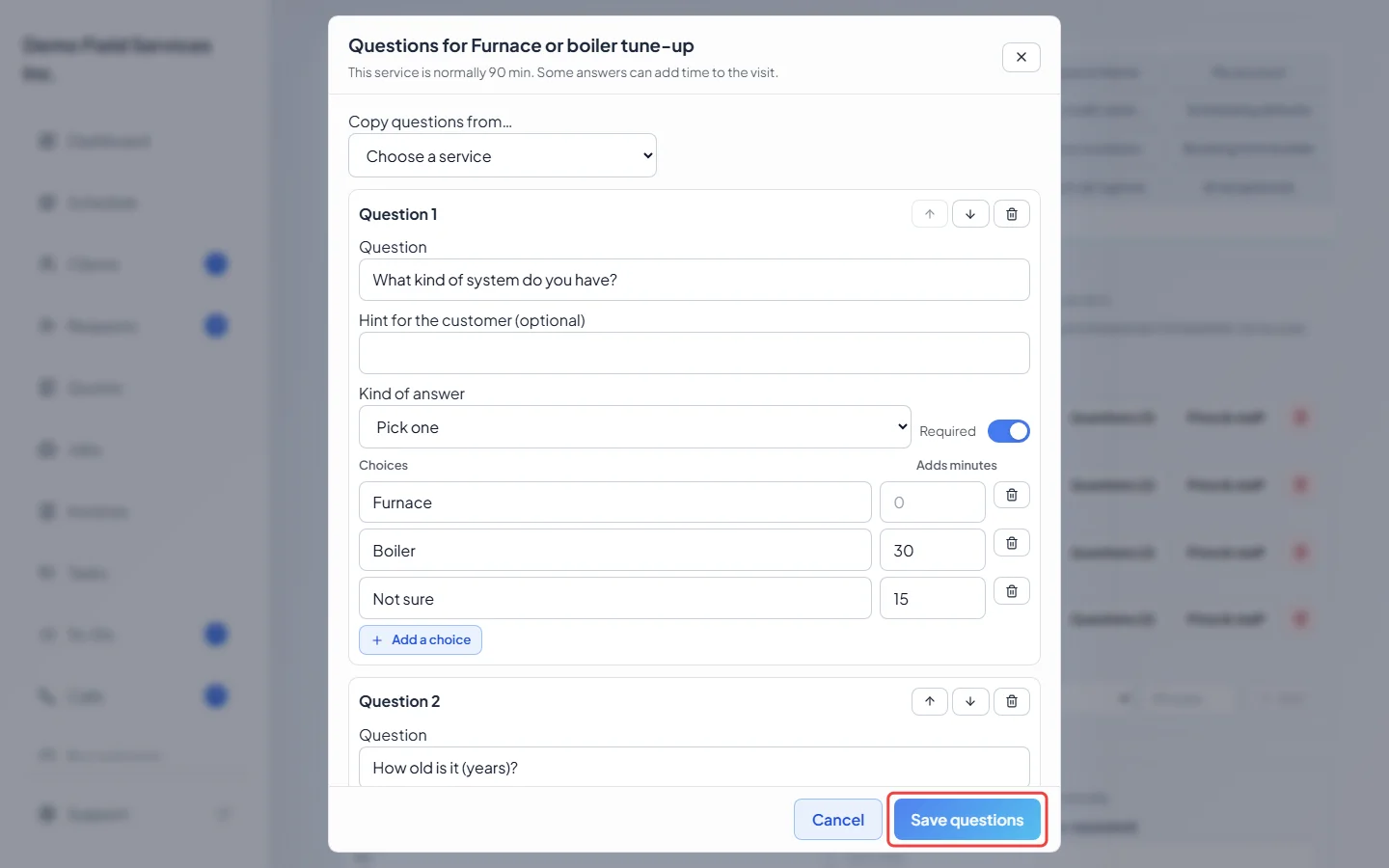
The window lists the service’s questions. Click Add a question for a new one and type it under Question. Add a Hint for the customer (optional) if a short line under the question would help, and switch on Required if they can’t book without answering.
-
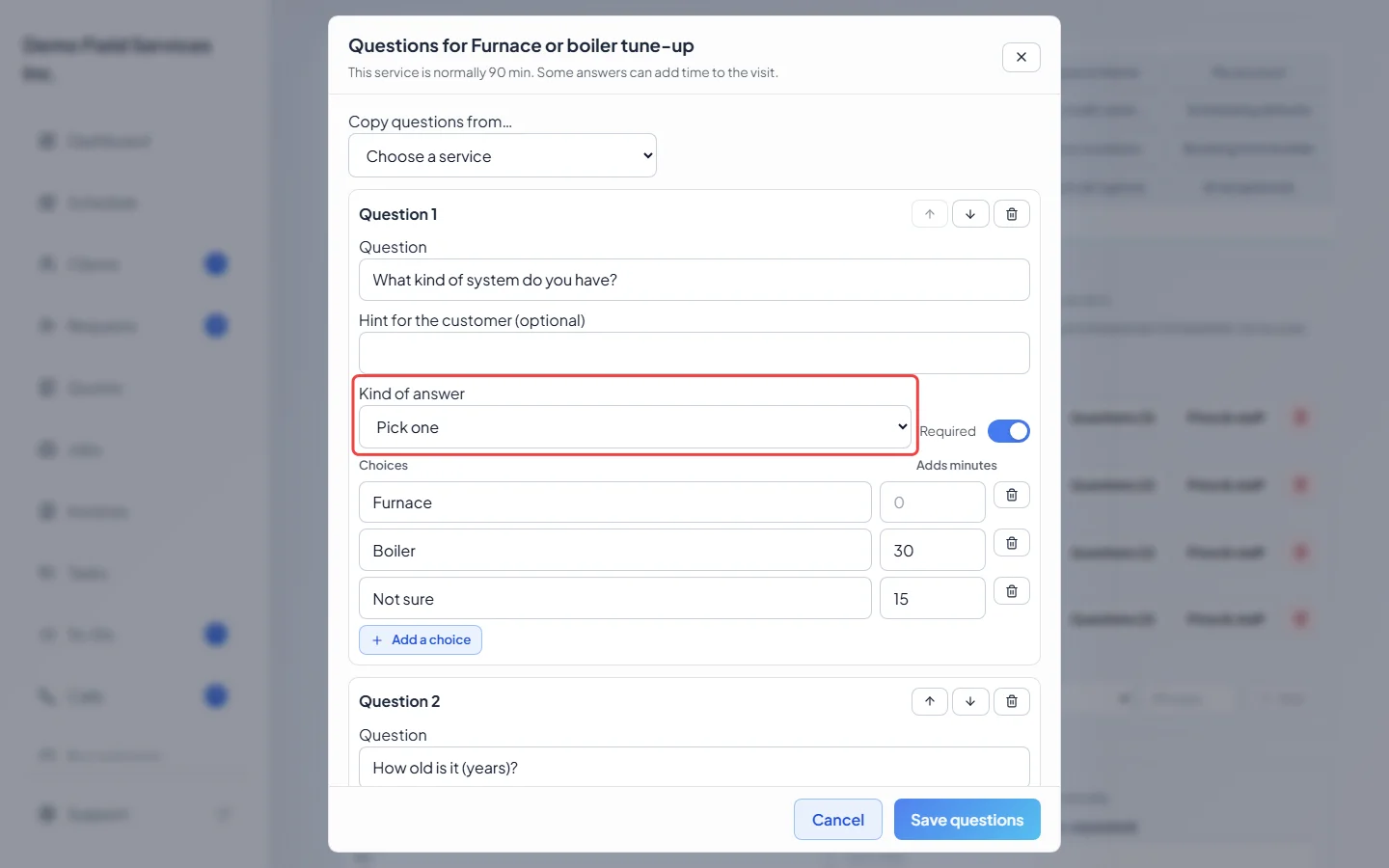
Choose the Kind of answer:
- Pick one: the customer chooses one answer from your list.
- Pick any that apply: they can tick several.
- Yes / No: two fixed answers.
- Typed answer: they write a short answer (up to 500 characters).
- Number: they type a number. Set Smallest allowed (optional) and Largest allowed (optional) if you like.
- Length × width: they type two measurements, and the page works out the area. Set the Unit customers measure in (feet to start with).
-
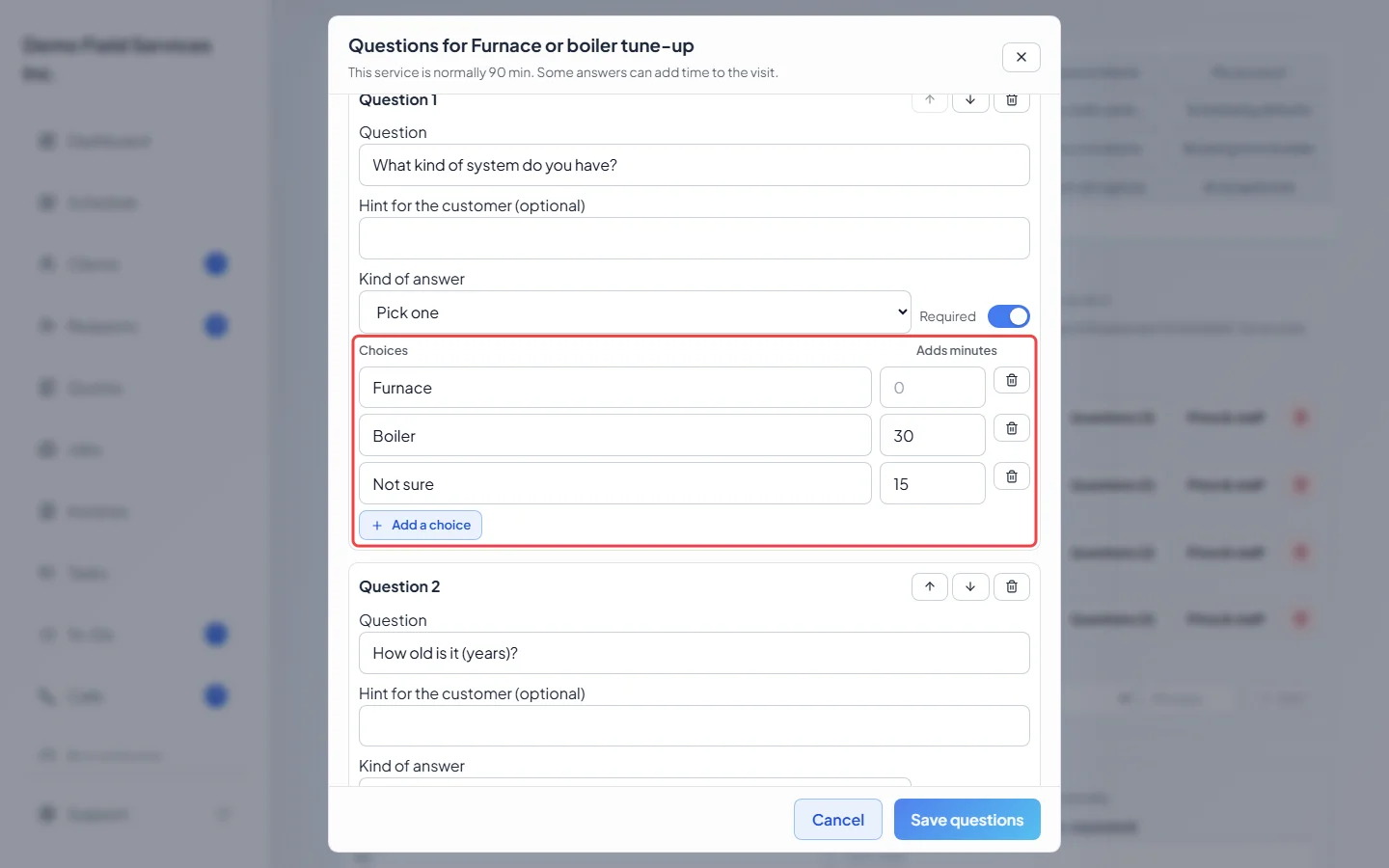
For Pick one, Pick any that apply and Yes / No, each answer can add time: type the minutes under Adds minutes (in steps of 15, up to 480). For the two pick kinds, type each choice on its own row (at least two, up to 20) and click Add a choice for more. The times offered and the appointment’s length both allow for it, and minutes from every choice the customer picks are added together.
-
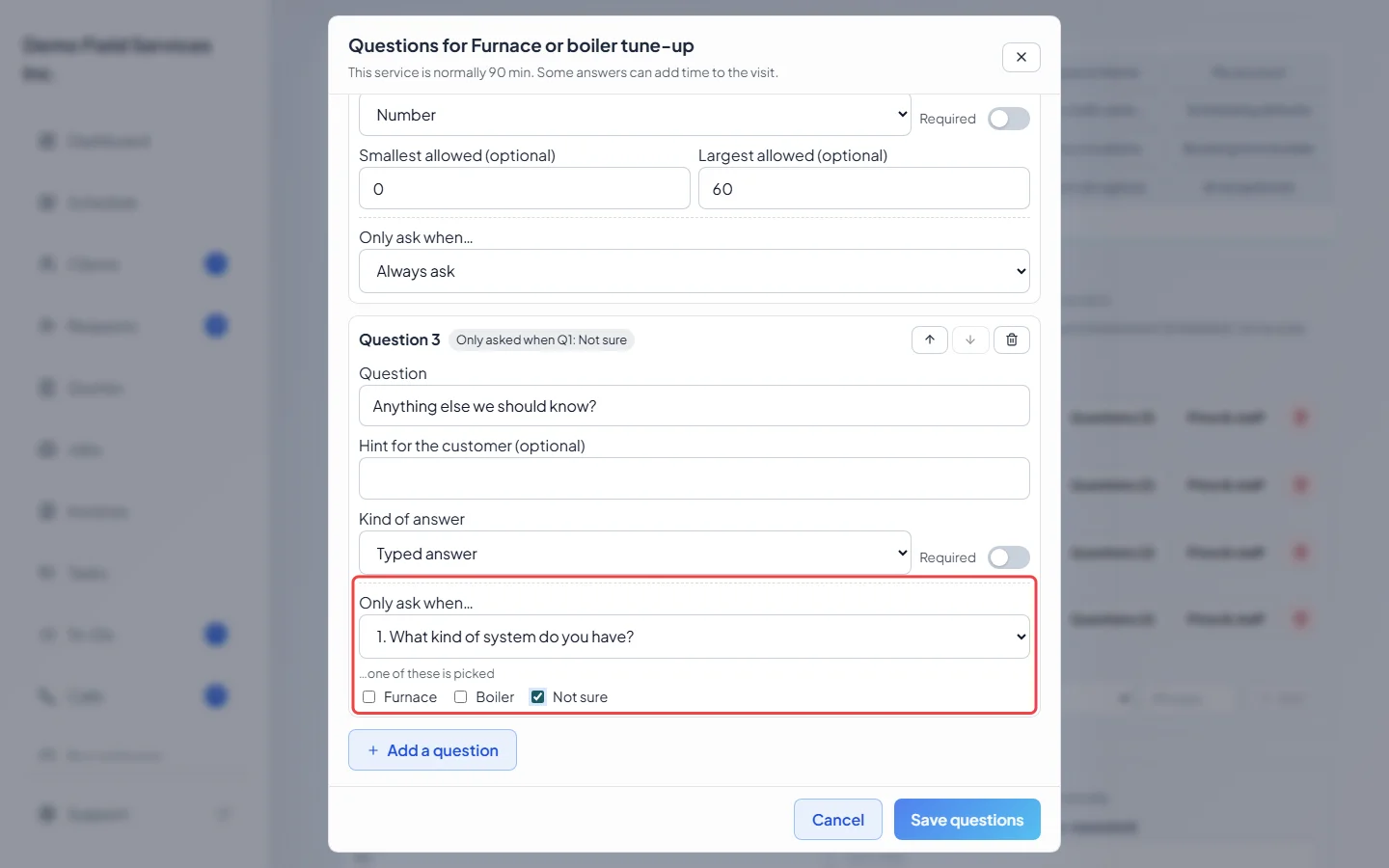
To ask a follow-up only for some answers, set Only ask when… on the later question to an earlier Pick one, Pick any that apply or Yes / No question, then tick which answers open it. For example, a “Please tell us more” typed question that’s only asked when someone picks “Other”.
-
Click Save questions. Nothing is saved until you do. If something needs fixing, the window points at it with a red note.
What the customer sees
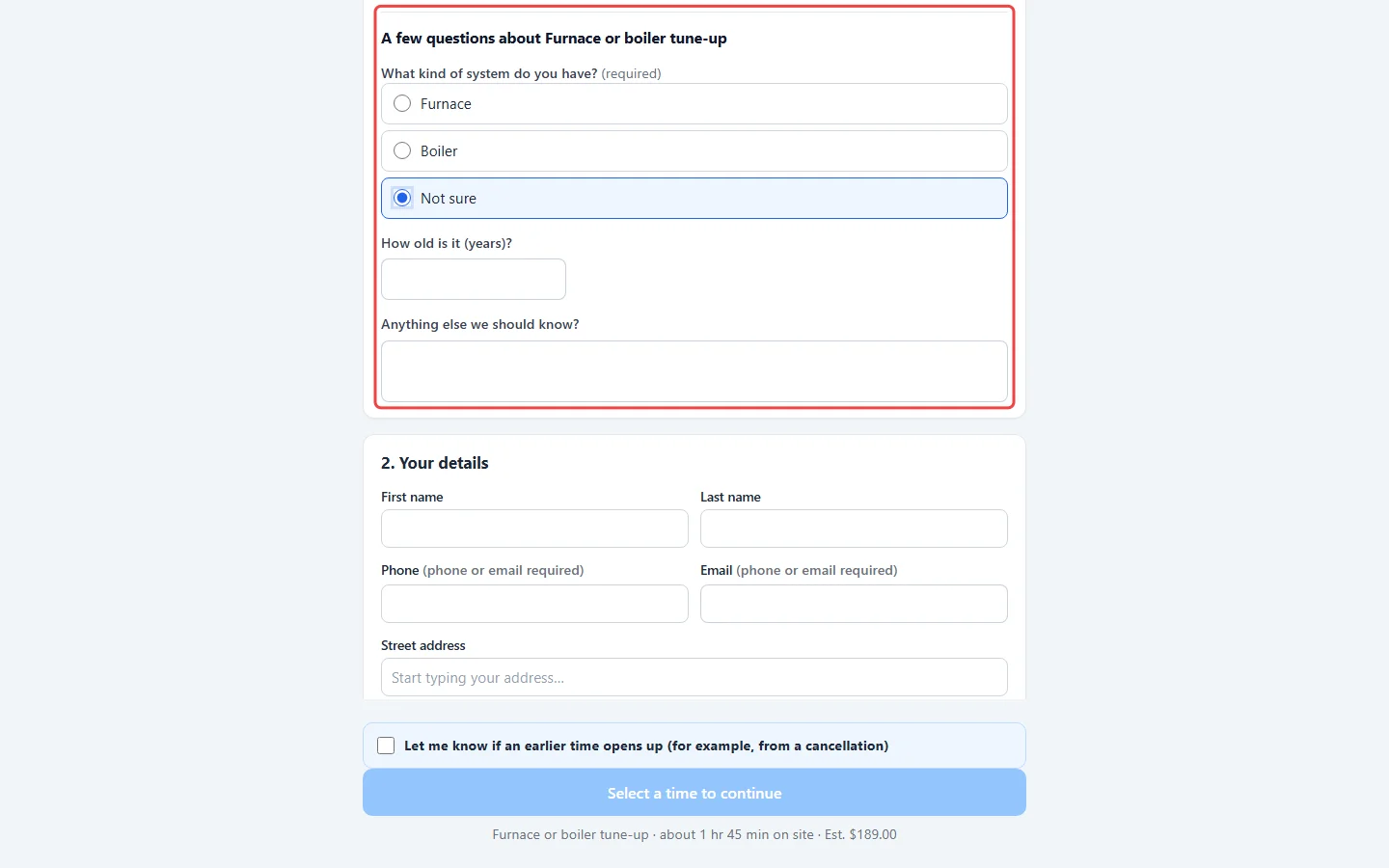
Section titled “What the customer sees”When they pick the service, a block called “A few questions about” the service appears right under the services. Follow-up questions appear as they answer. The line under the Book button shows the full length of the visit, including any minutes their answers add. If their answers need a longer visit than any time you have open, the page asks them to call you.
Where the answers go
Section titled “Where the answers go”- Booked straight onto the schedule: the answers are written under the customer’s description in the job instructions, so the technician sees them on the visit, and the appointment is the longer length. For an estimate visit they stay on the request.
- Waiting for you: the answers and the added minutes show on the request, and in your office alert. When you turn the request into a job, the instructions and the longer length are already filled in.
- The customer’s copy: their booking confirmation and “We received your request” email list their answers.
Answers are kept exactly as the customer gave them. Changing your questions later never changes a booking that was already made.
Good to know
Section titled “Good to know”- Use the arrows to move a question up or down and the bin to delete it. A question can’t be moved above the question it depends on. Removing a question (or a choice) that another question depends on asks first, and the other question is then always asked.
- Copy questions from… (shown when another service has questions) replaces this service’s questions with a one-time copy, after asking first. The two services aren’t linked afterwards.
- A service can have up to 20 questions. Short forms get more bookings; most companies ask 3 to 5.
- These questions belong to one service. To ask every customer how they heard about you, use Ask how they heard about us, see Setting up online booking.
Related articles
Section titled “Related articles”Checked against Astragal on October 18, 2026