

Signing in and your first 10 minutes
Sign in to your company’s Astragal account and find your way around in the first few minutes.
Who can do this: Everyone with an Astragal account. If you don’t have one yet, ask your admin to invite you, or sign up to start your own company.
Also called: logging in, signing on.
-
Open Astragal in your web browser, or open the Astragal app on your phone. The Sign in page opens.
On a computer: Astragal web address → Sign in On a phone: Astragal app → Sign in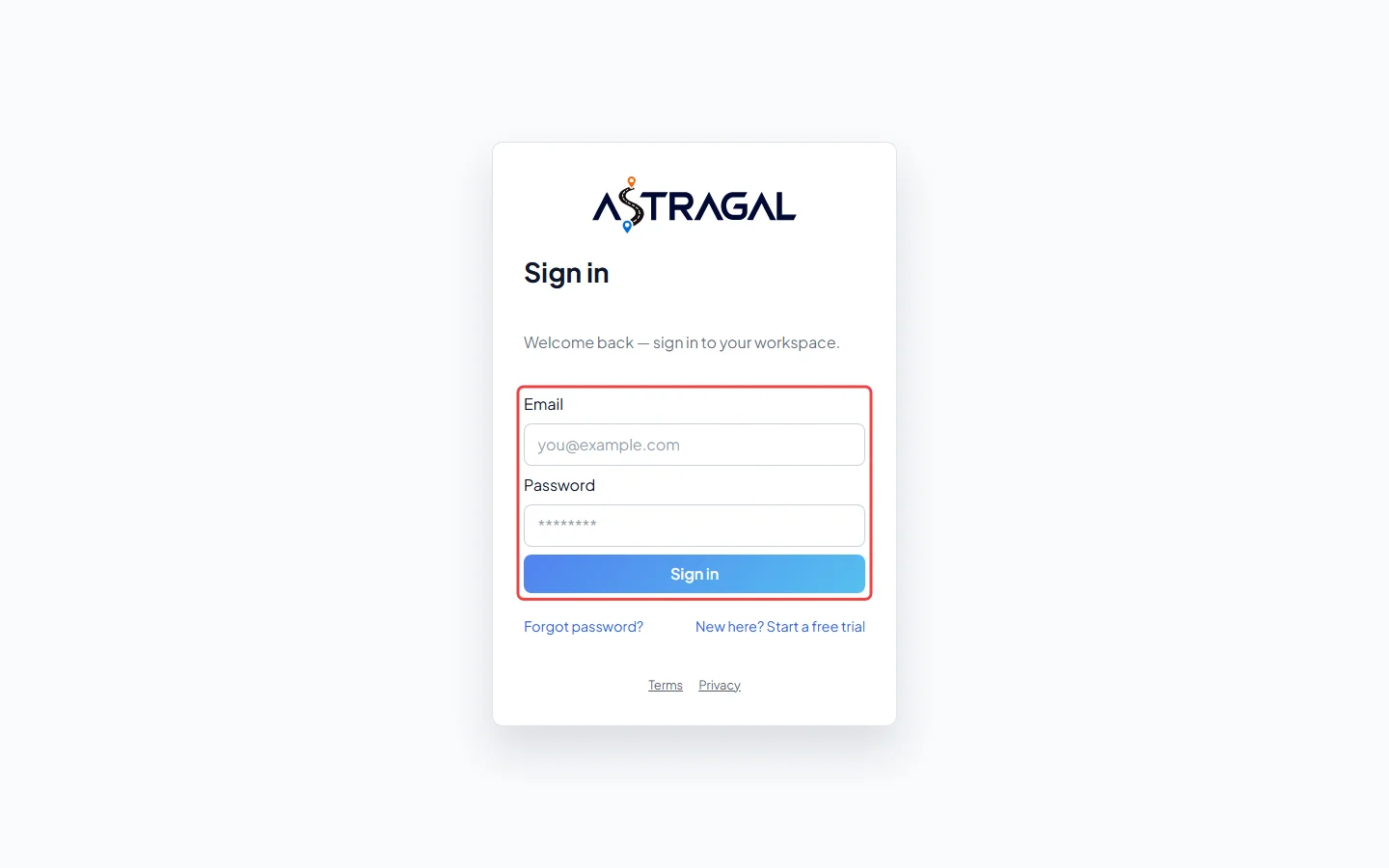
-
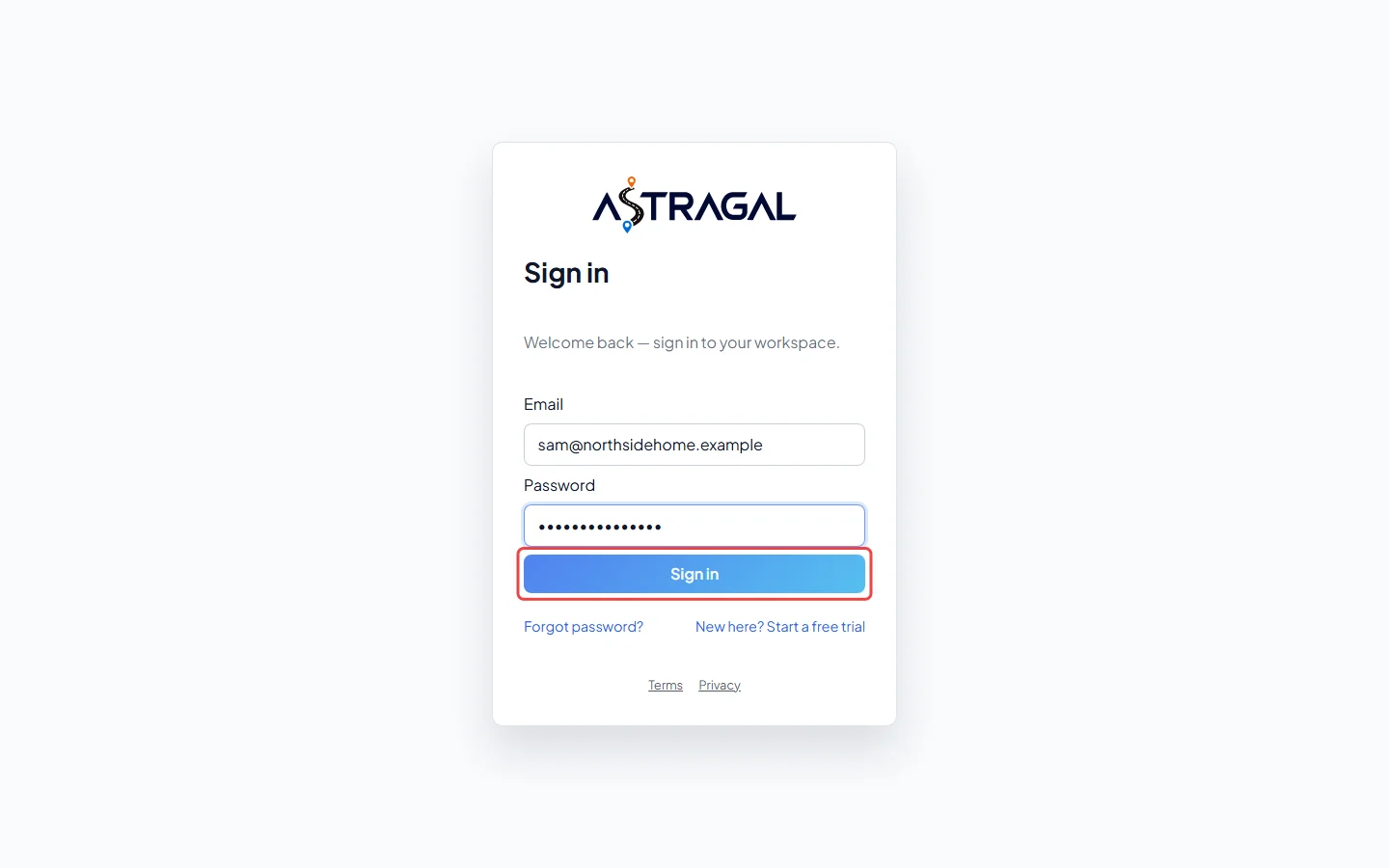
Type the Email and Password you signed up or accepted your invite with, then click Sign in. You land on the page you were trying to open, or on the dashboard.
-
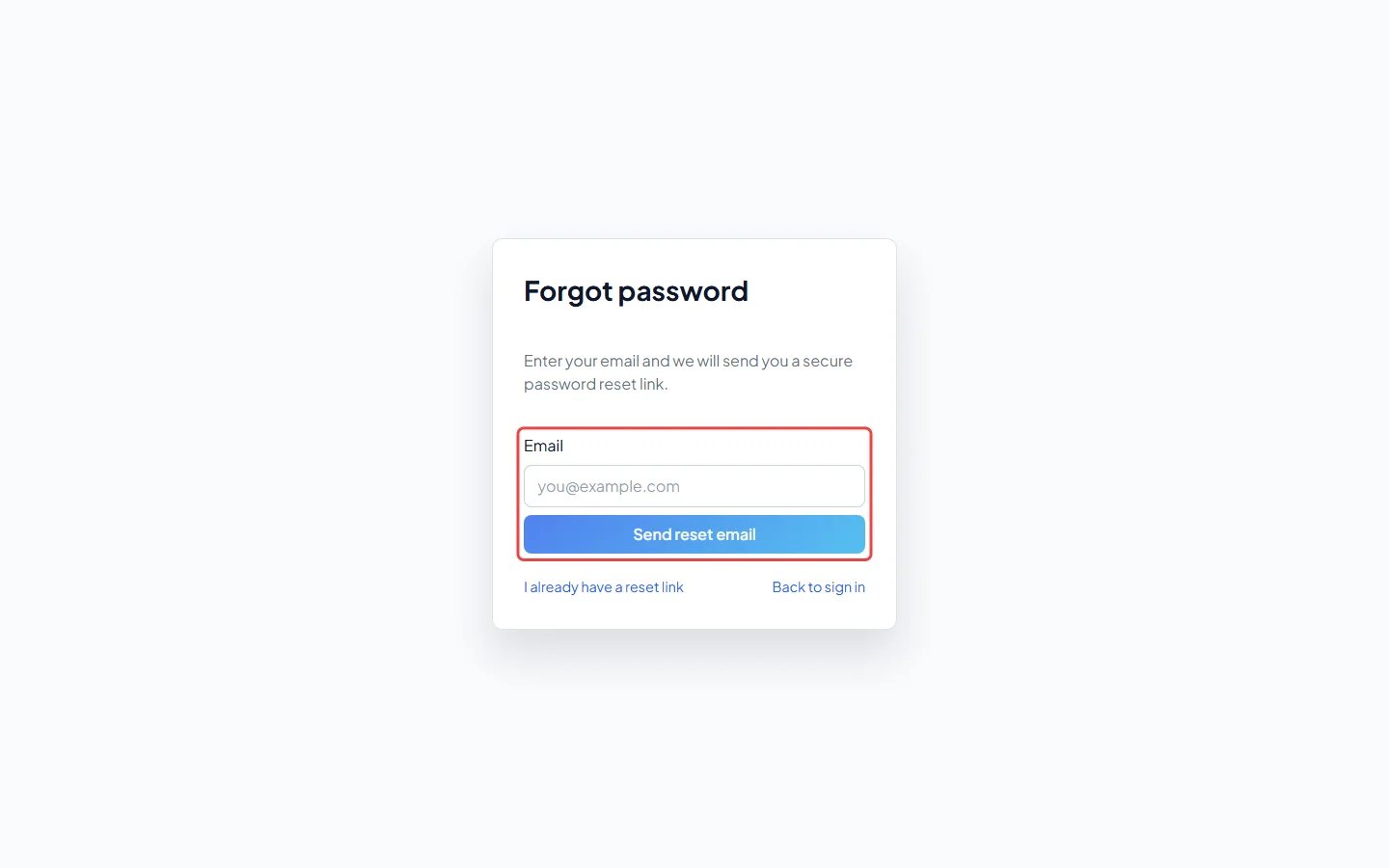
Forgotten your password? Click Forgot password? under the form, type your Email and click Send reset email. If that email has an account, a reset link is sent to it. Already have a link? Click I already have a reset link. Click Back to sign in to return.
Your first 10 minutes
Section titled “Your first 10 minutes”Once you’re in, take a few minutes to look around. You can’t break anything by opening pages.
- Read the dashboard. It shows today’s visits, your time clock and anything waiting on you. See The dashboard.
- Open each item in the menu once. On a computer the menu is down the left. On a phone, the bar at the bottom has Home, Schedule, Clients and Requests (only the ones you’re allowed to see), and More opens everything else. What you see depends on your role, so a technician sees fewer items than an admin. See A button or menu item isn’t on my screen.
- Try the search. The magnifying glass at the top finds any client, quote, job or invoice. See Finding anything.
- Pick your path. Owners and office staff: follow the six steps starting at Set up your company. Technicians: start with Your first day on the phone.
Good to know
Section titled “Good to know”- To change your password while you’re signed in, click the person icon at the top right, choose Change password, and type your current password and the new one twice. You’re then signed out and sign in again with the new password. Sign out is in the same menu.
- If you belong to more than one company, you pick which one you’re working in at the top of the screen. See Switching between companies.
- Still can’t get in? See Login problems.
Related articles
Section titled “Related articles”Checked against Astragal on October 18, 2026