

The dashboard
Use the dashboard to see today’s work and anything waiting on you, the moment you sign in.
Who can do this: Everyone. Technicians see a shorter version with their own visits and tasks (or everyone’s, if they can see the whole schedule).
Also called: home page, home screen.
-
Open the dashboard. It’s the first page after you sign in, and it greets you by name with today’s date.
On a computer: Left menu → Dashboard On a phone: Bottom bar → Home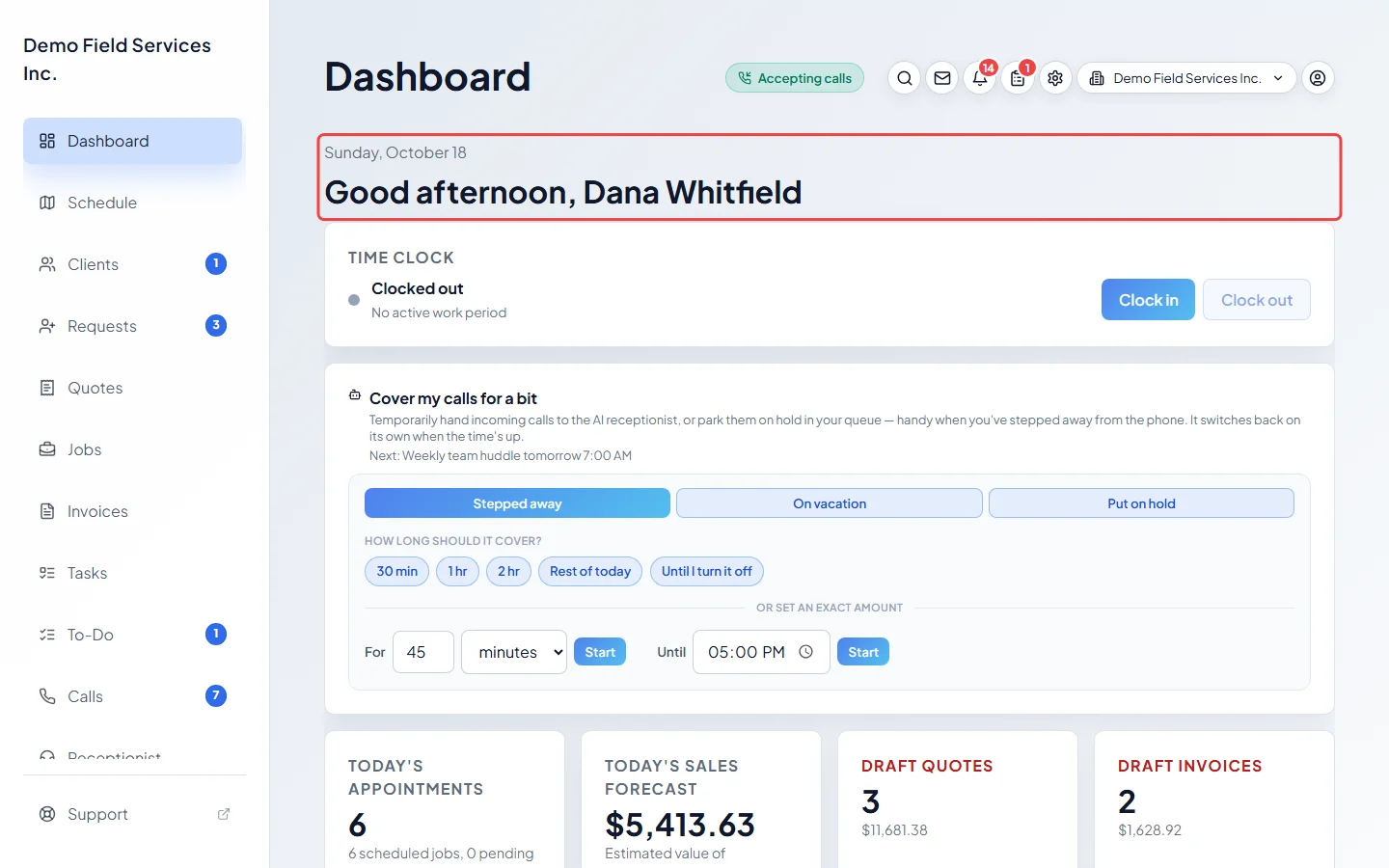
-
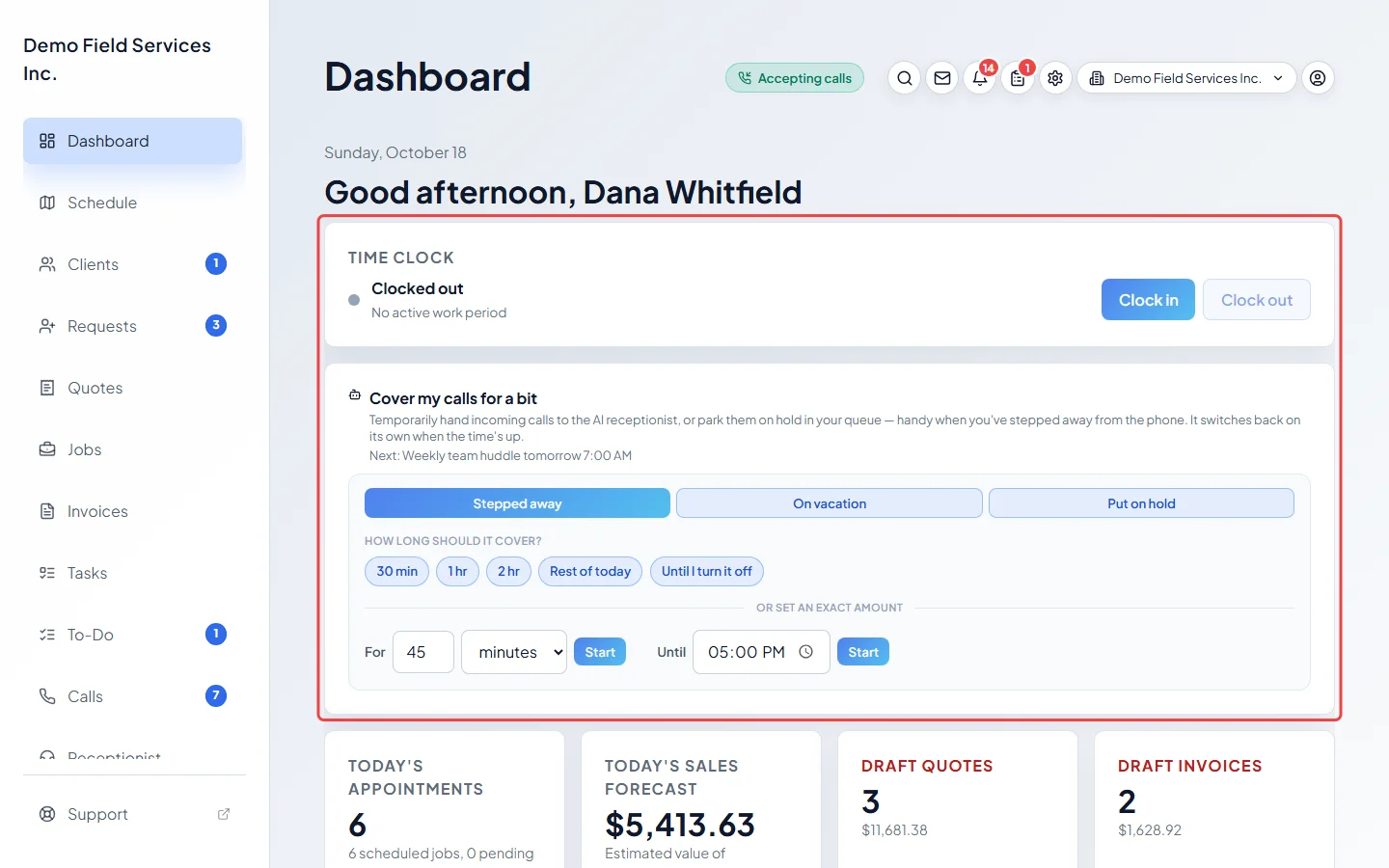
At the top, the Time clock card (if you track your time) shows whether you’re clocked in, with Clock in and Clock out buttons. Admins, dispatchers and accountants also see Cover my calls for a bit, which hands incoming calls to the AI receptionist for a set time. Choose Stepped away or On vacation so the AI greets callers to suit. With the phone line you can choose Put on hold instead, which holds callers in your queue until you’re back.
-
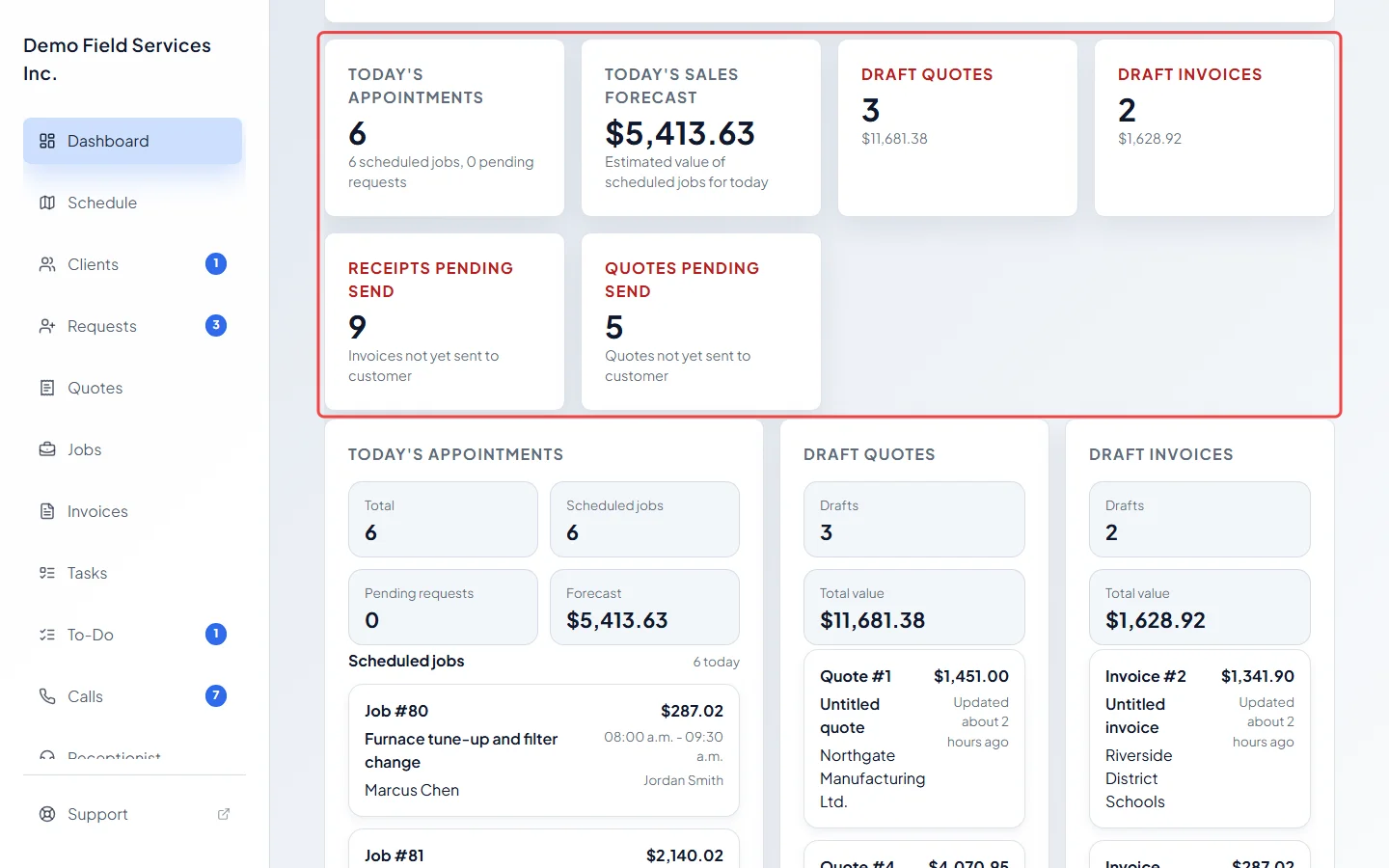
The row of cards below gives today’s numbers: Today’s appointments, Today’s sales forecast, Draft quotes, Draft invoices, Receipts pending send and Quotes pending send. Click Draft quotes, Draft invoices, Receipts pending send or Quotes pending send to jump to its list further down. These cards turn red when something is waiting.
-
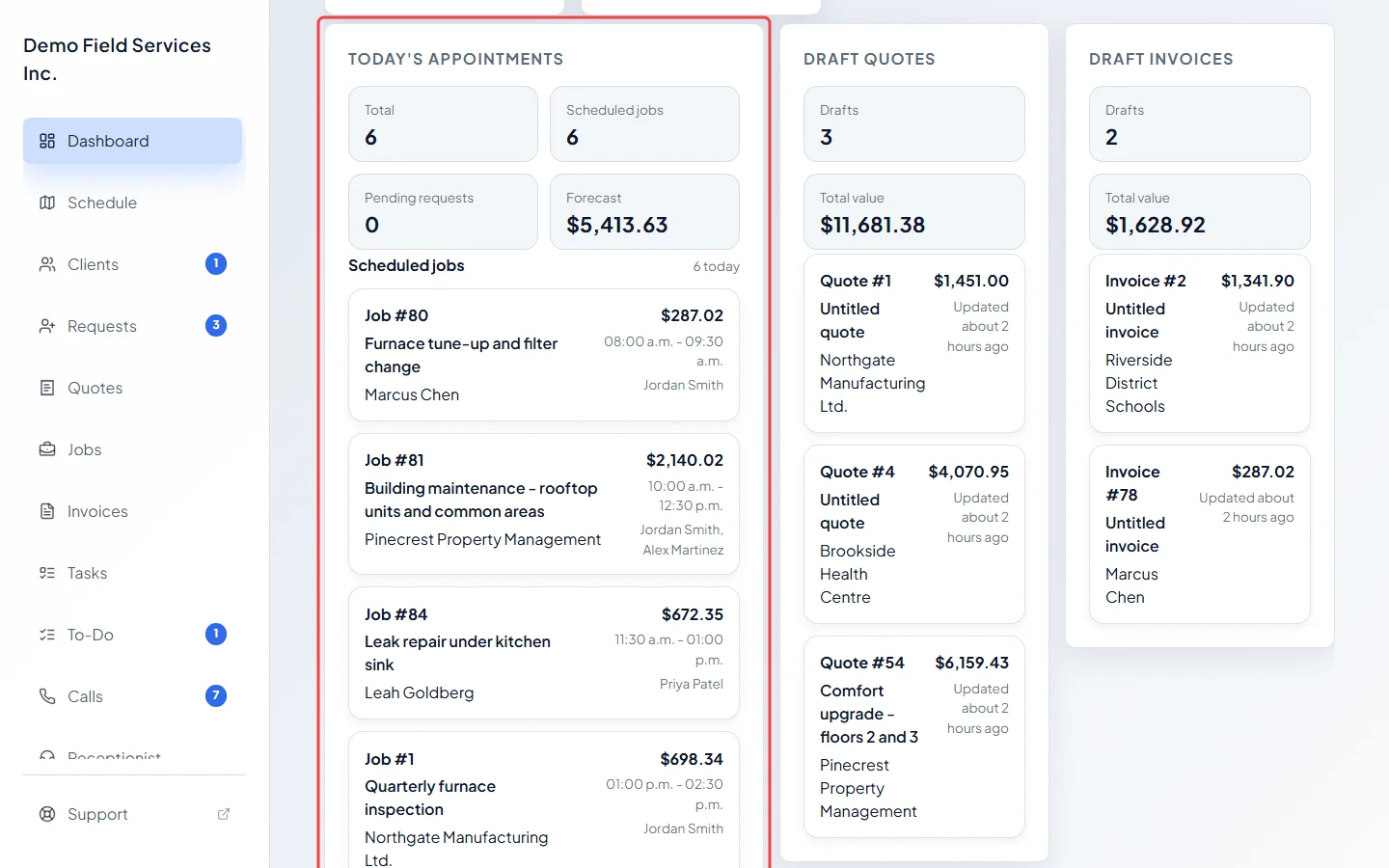
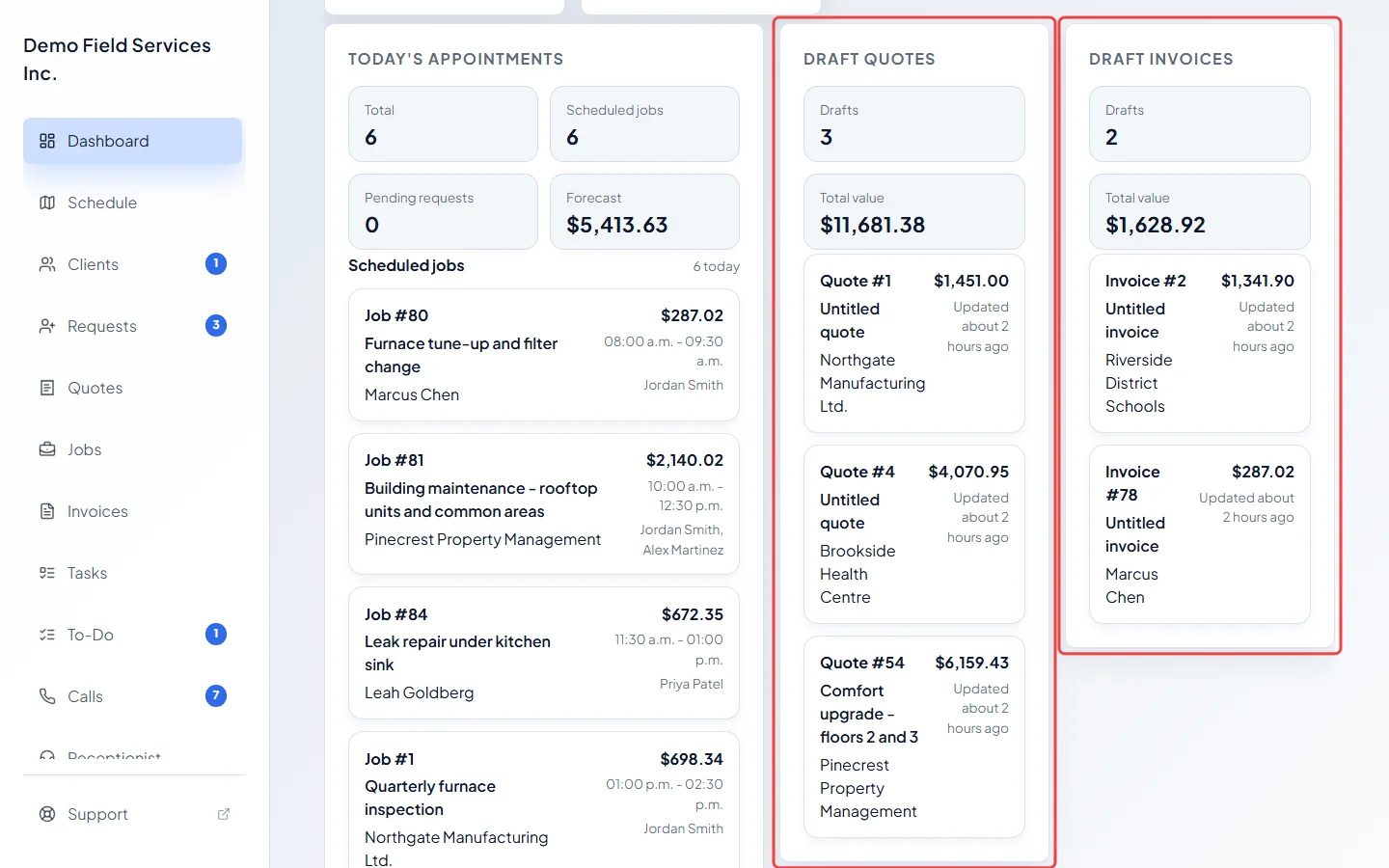
Today’s appointments shows today’s totals, then the first five jobs booked for today under Scheduled jobs, and the first five requests with an appointment today under Pending appointment requests. Click a row to open it.
-
Next to it, Draft quotes, Draft invoices, Receipts pending send (invoices never sent to the client) and Quotes pending send each show a count, a total value and the five that have waited longest. Click one to finish and send it.
-
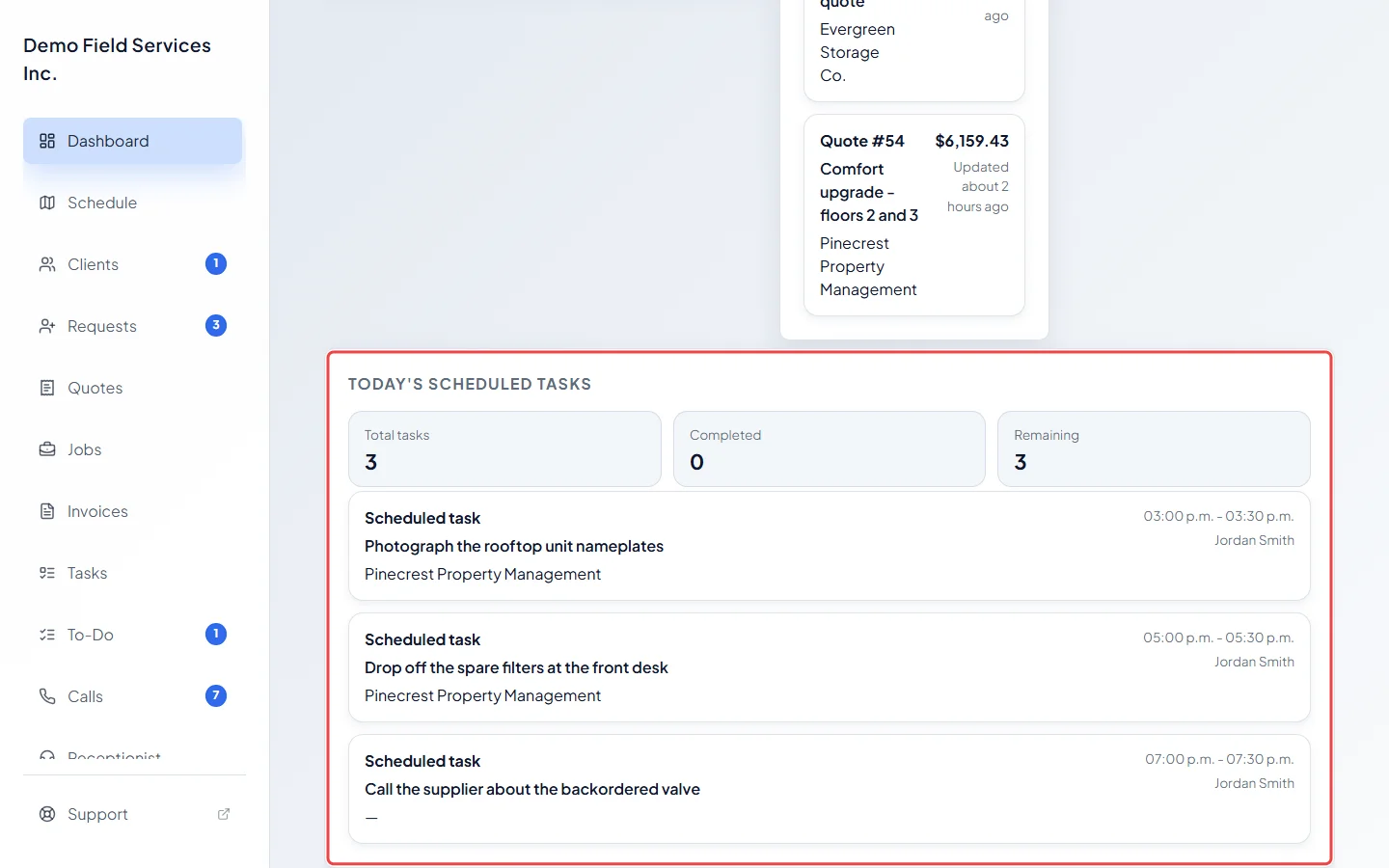
At the bottom, Today’s scheduled tasks shows the day’s tasks, how many are done and how many remain.
Good to know
Section titled “Good to know”- While your company is still being set up, admins see Finish setting up your workspace at the very top. See Set up your company.
- The Today’s sales forecast card and the draft and not-yet-sent lists are only for admins, dispatchers and accountants.
- Technicians on a computer only see the dashboard right after signing in. On a phone it’s always Home in the bottom bar. See Your first day on the phone.
Related articles
Section titled “Related articles”Checked against Astragal on October 18, 2026