

Before you go live
Work through this list before your real clients start hearing from Astragal, so everything they see is right first time.
Who can do this: Admins.
Also called: launch checklist, going live.
Step 6 of 6 in setting up Astragal for your company.
-
Replace the practice and starter details. Delete the practice invoice, job and quote, then the practice client, or rename them so nobody mistakes them for real work. If you sent the invoice, void it; if a client can’t be deleted because of its billing history, archive it instead. A new company also comes with ready-made message wording, a Service Completion job form and a starter list of lead sources. Check they all suit your business. Your company name, address, logo, hours and tax are in Company settings.
On a computer: Left menu → Settings → Company settings On a phone: More → Settings → Company settings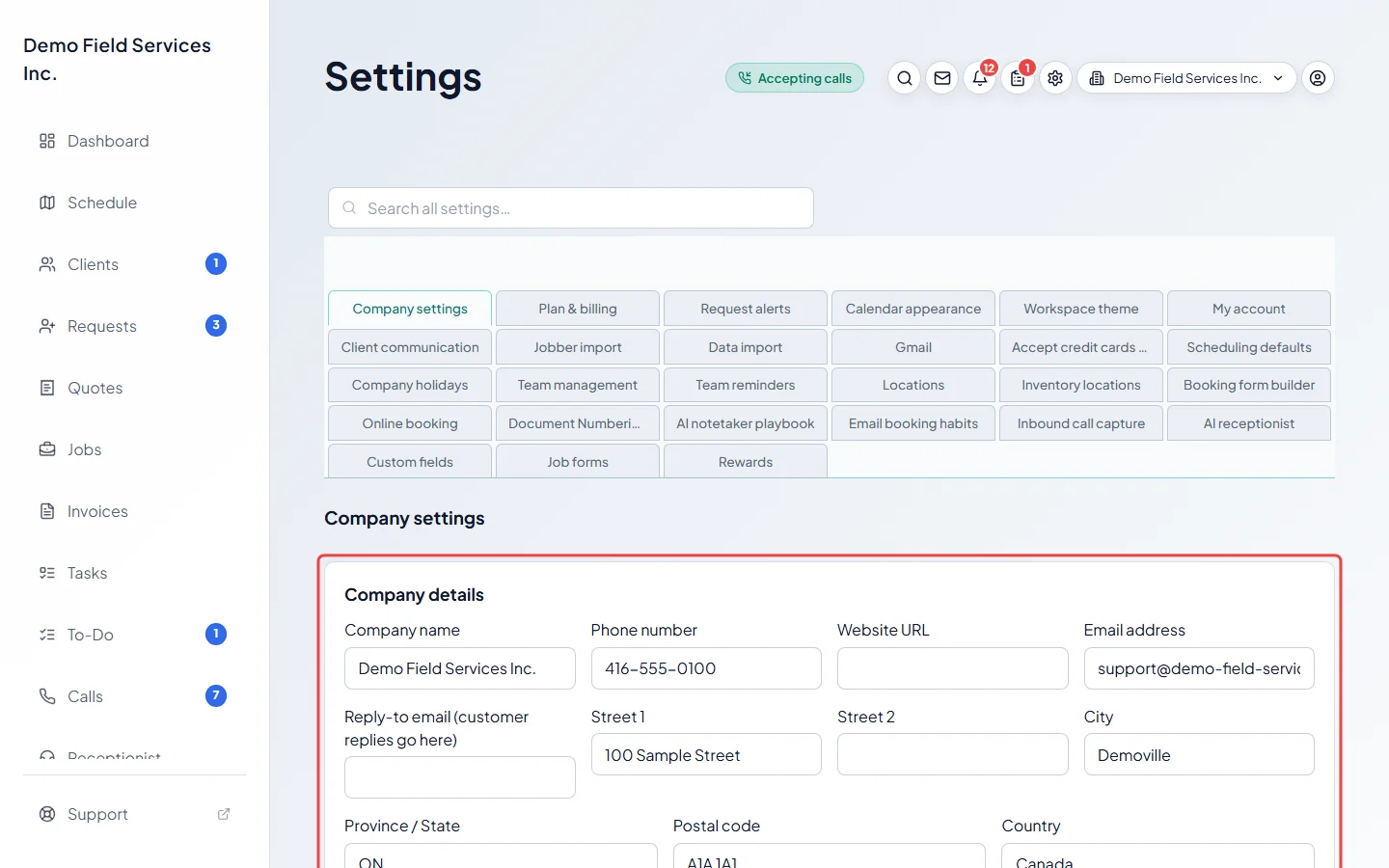
See Company info and branding and Job forms.
-
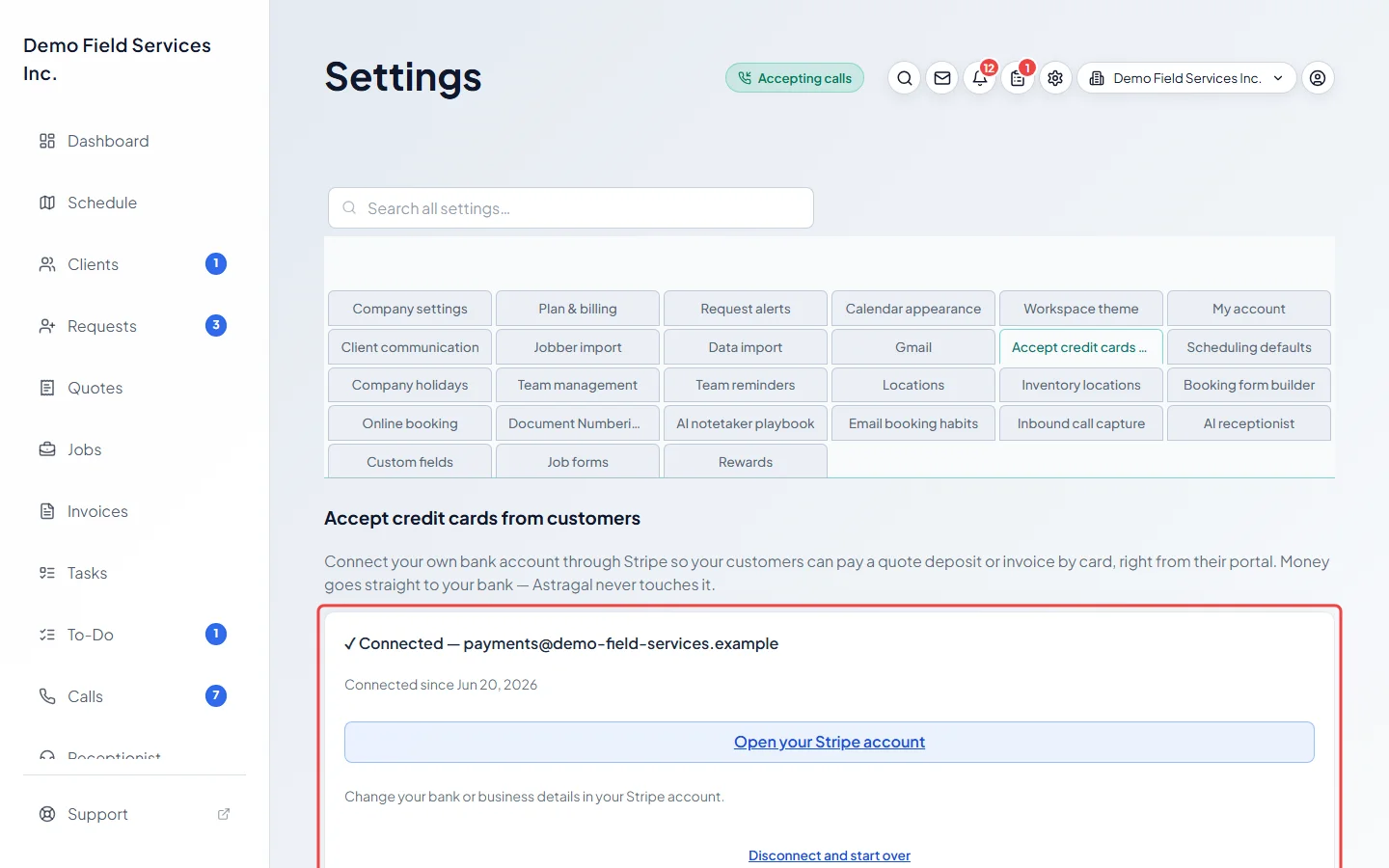
Connect card payments. Under Accept credit cards from customers, click Connect your bank account and follow Stripe’s steps, so clients can pay deposits and invoices by card from their portal. The money goes straight to your bank. Card payments need a paid plan. Once it’s done the section says ✓ Connected, with Open your Stripe account for changing your bank or business details.
-
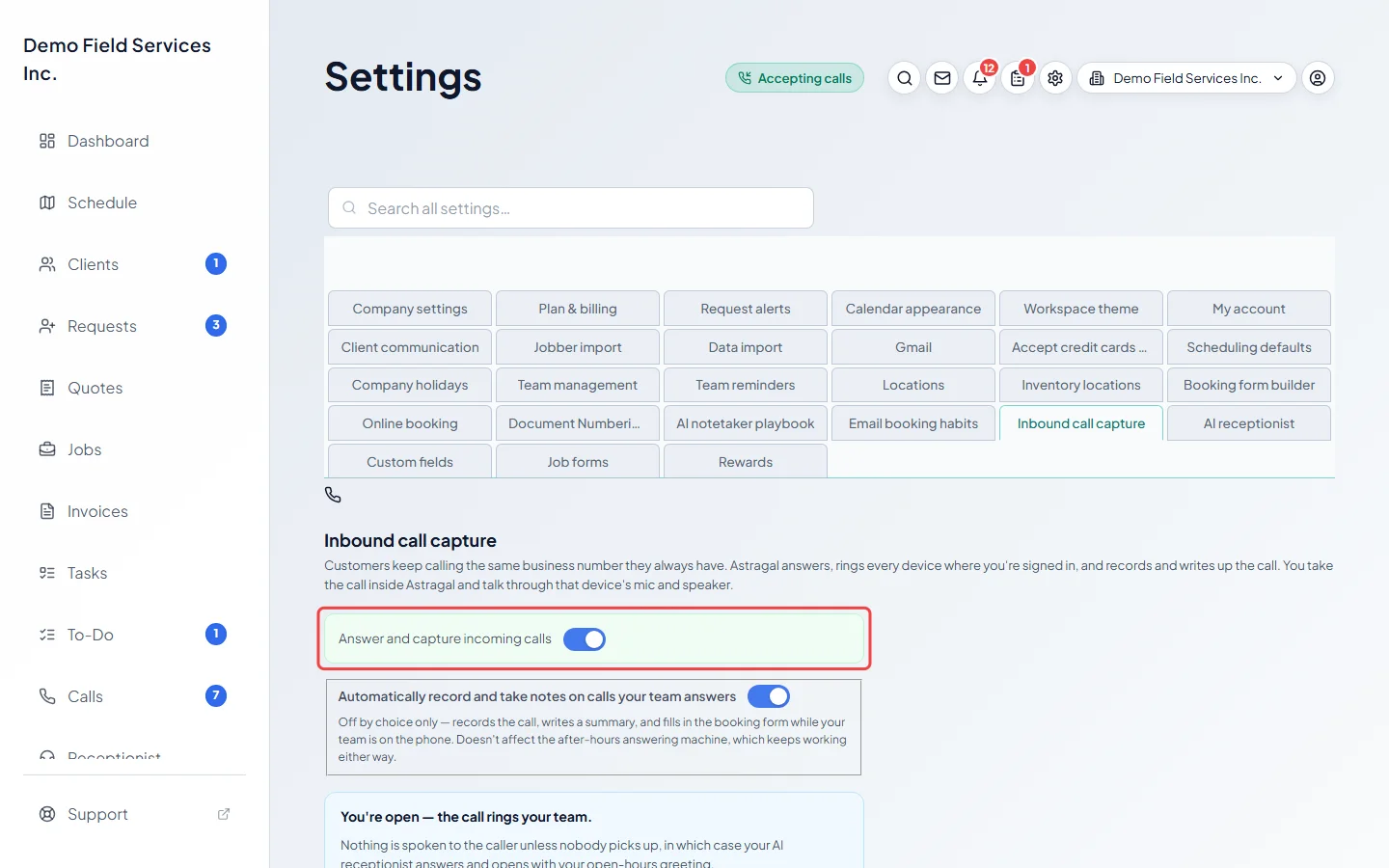
Set up your phone line and receptionist. If you added a phone line, open Inbound call capture and choose who rings and what callers hear when you’re open, closed or away. If you added the AI receptionist, tell it about your business in AI receptionist.
See Who rings and what callers hear, Setting up the AI receptionist and Phone add-ons.
-
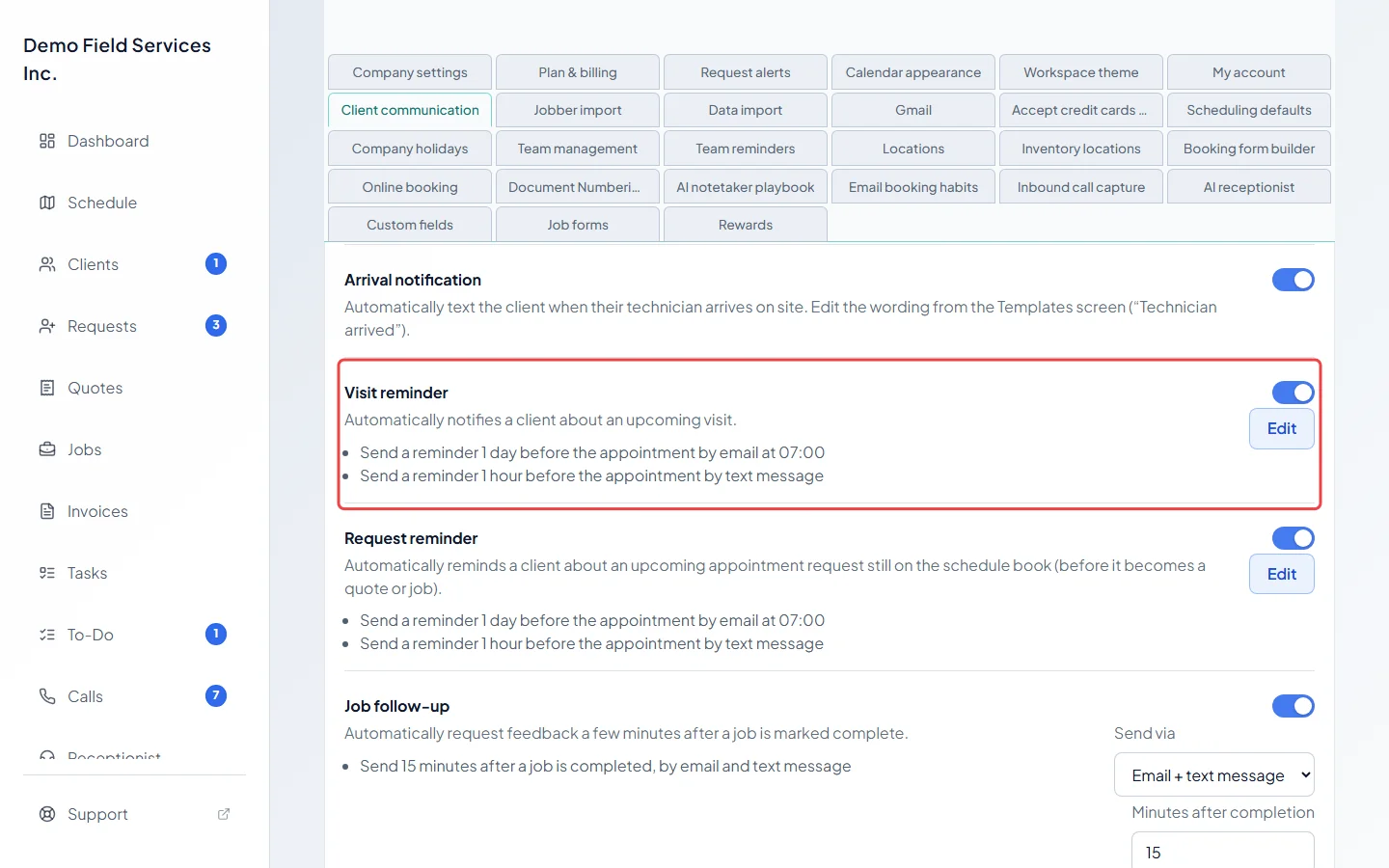
Check messages before they reach clients. Open Client communication to see which reminders and follow-ups go out automatically, and when. Read the wording of each one and switch off any you don’t want yet.
-
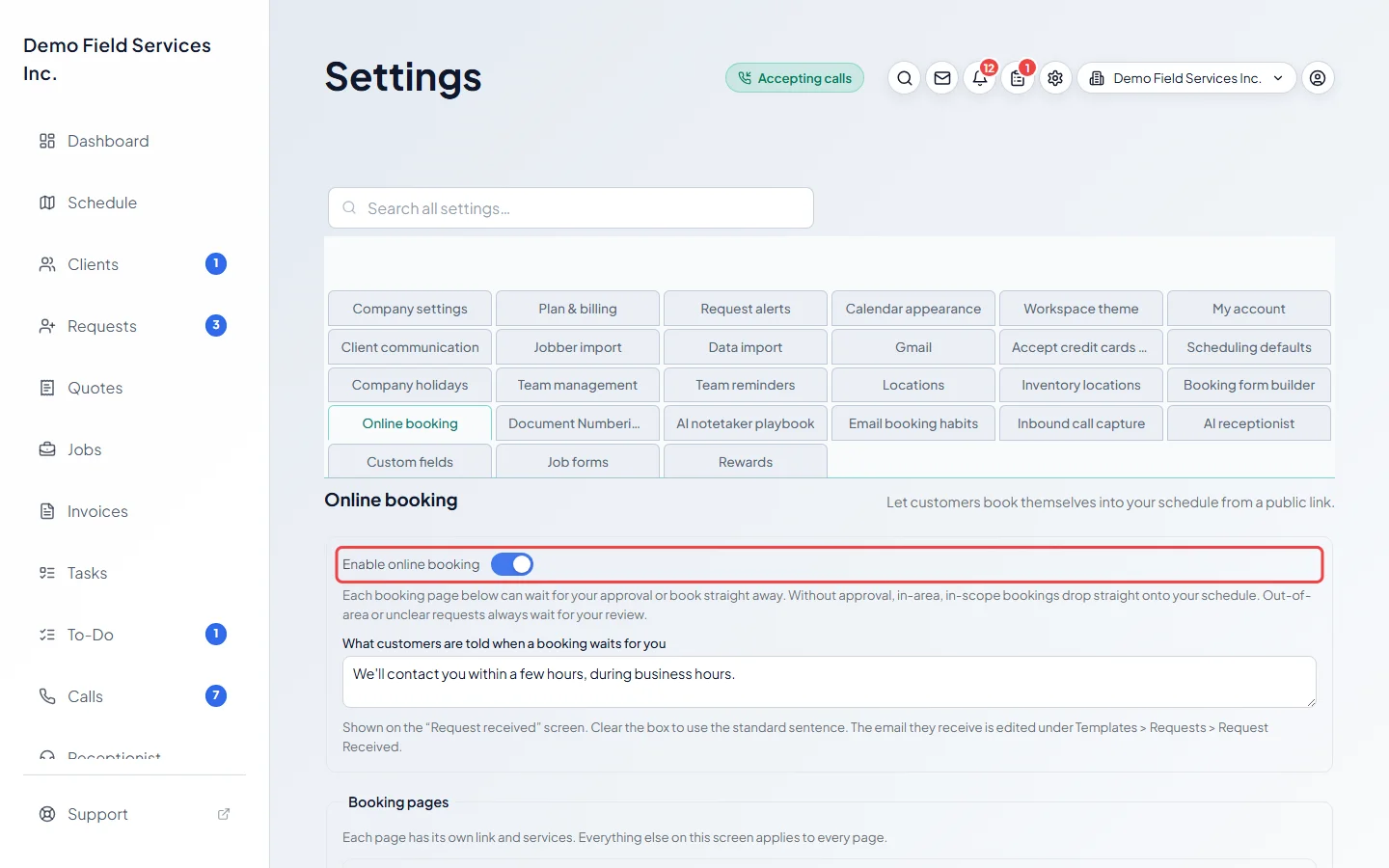
Publish your booking page. In Online booking, choose the services clients can book and decide whether each booking page should Wait for my approval before booking. Without it, bookings drop straight onto your schedule. Then turn on Enable online booking and click Copy next to a booking page to share its link on your website or social pages.
-
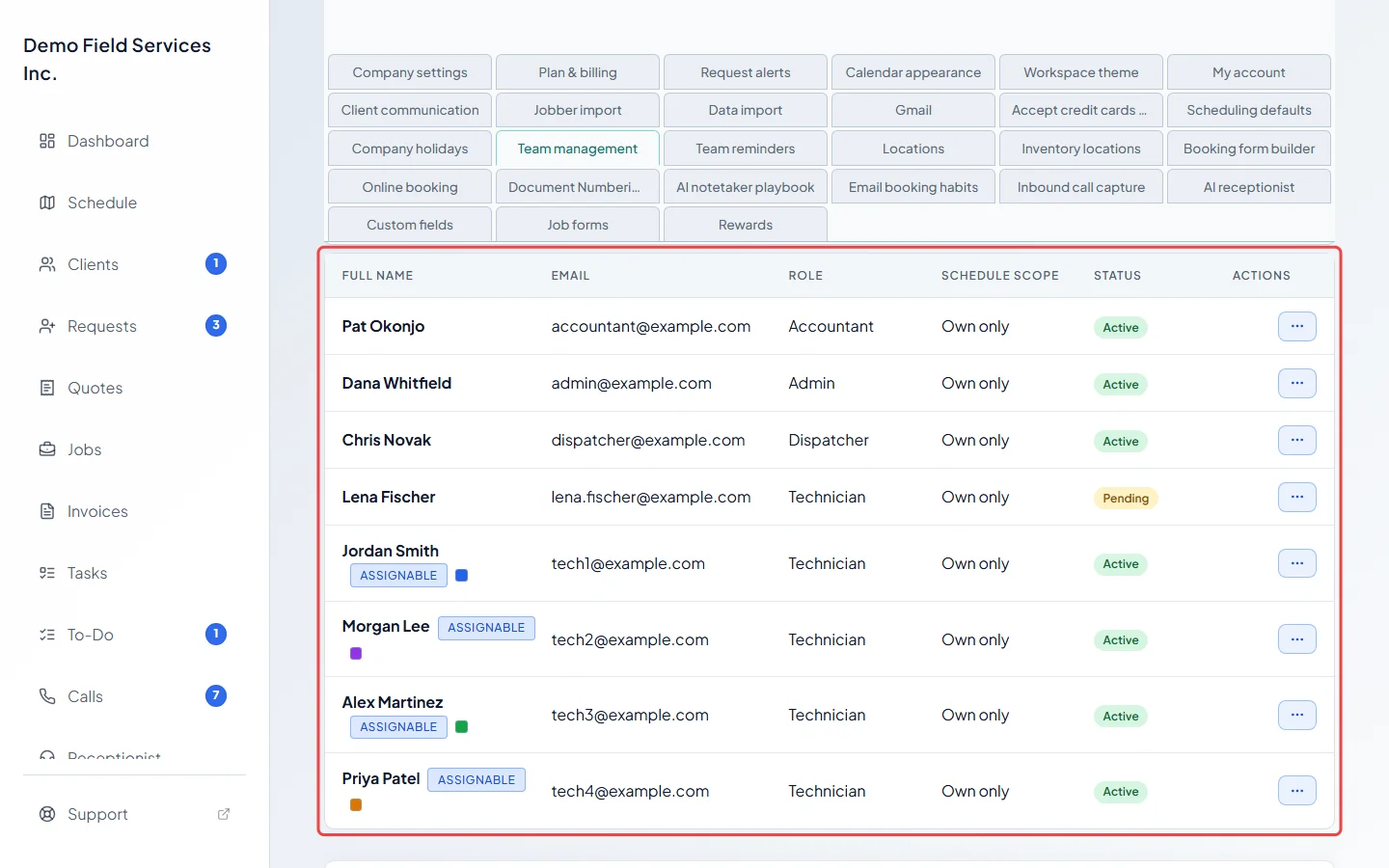
Invite your staff. Make sure everyone who does visits, answers the phone or sends invoices has their own sign-in in Team management, with the right role.
See Inviting your team.
Good to know
Section titled “Good to know”- Nothing goes to clients until you’ve clicked the link in the email Astragal sent when you signed up. If the banner at the top still says Verify your email to enable sending, click Resend link.
- During the free trial there’s a monthly limit on how many emails and texts go to clients. Adding a payment method lifts it. See The free trial.
- The dashboard’s Finish setting up your workspace card lists the setup screens you haven’t finished yet, including skipped ones. Click one to finish it. See Set up your company.
Related articles
Section titled “Related articles”Checked against Astragal on October 18, 2026