

The invoices list
The invoices list shows every invoice your company has made, with what each one comes to and what is still owed.
Who can do this: Admins, dispatchers and accountants. Technicians see it when their invoices permission is turned on; View all, read-only lets them look but not change anything.
Also called: bills, statements.
-
Open the invoices list. The newest invoices are at the top.
On a computer: Left menu → Invoices On a phone: More → Invoices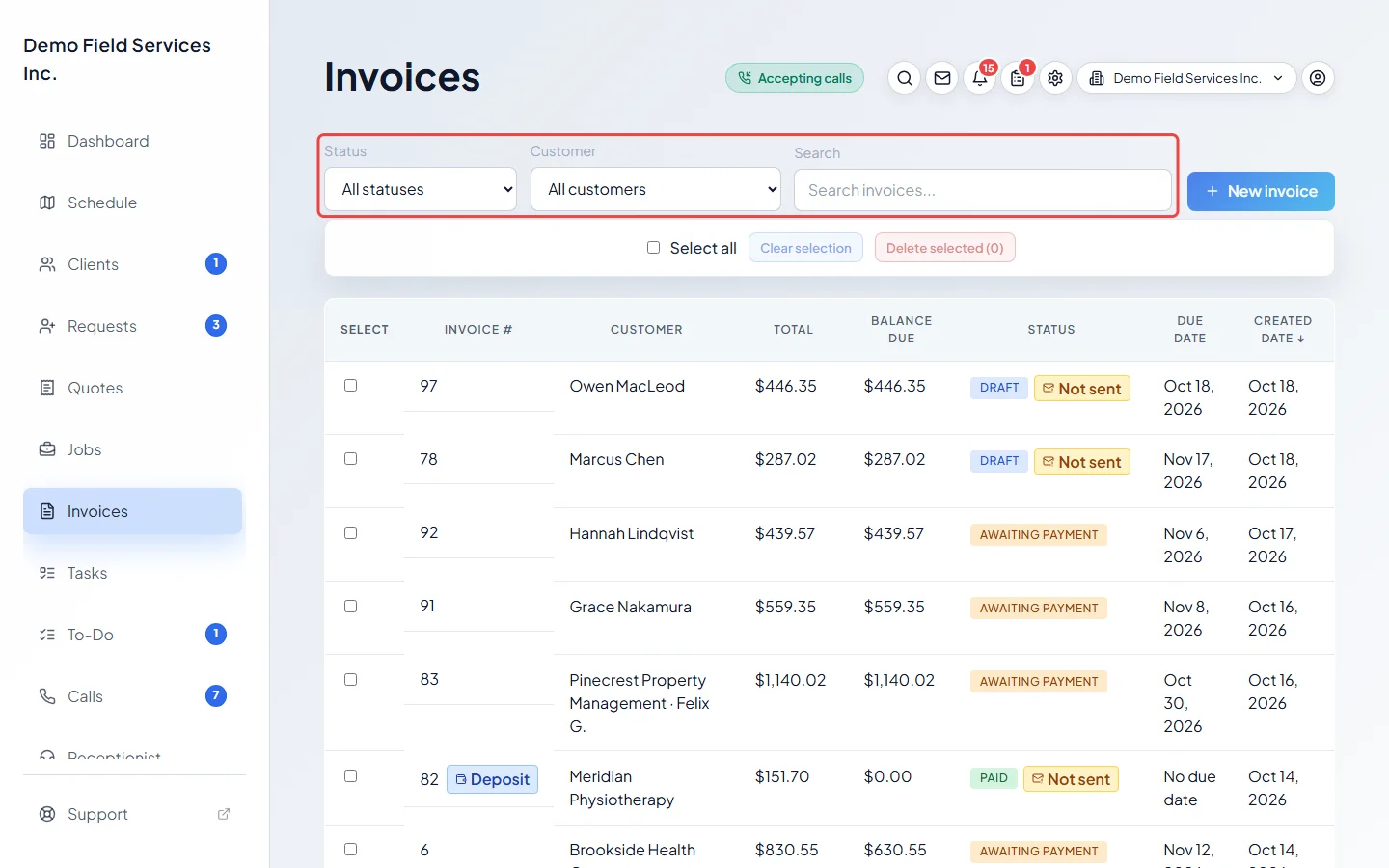
-
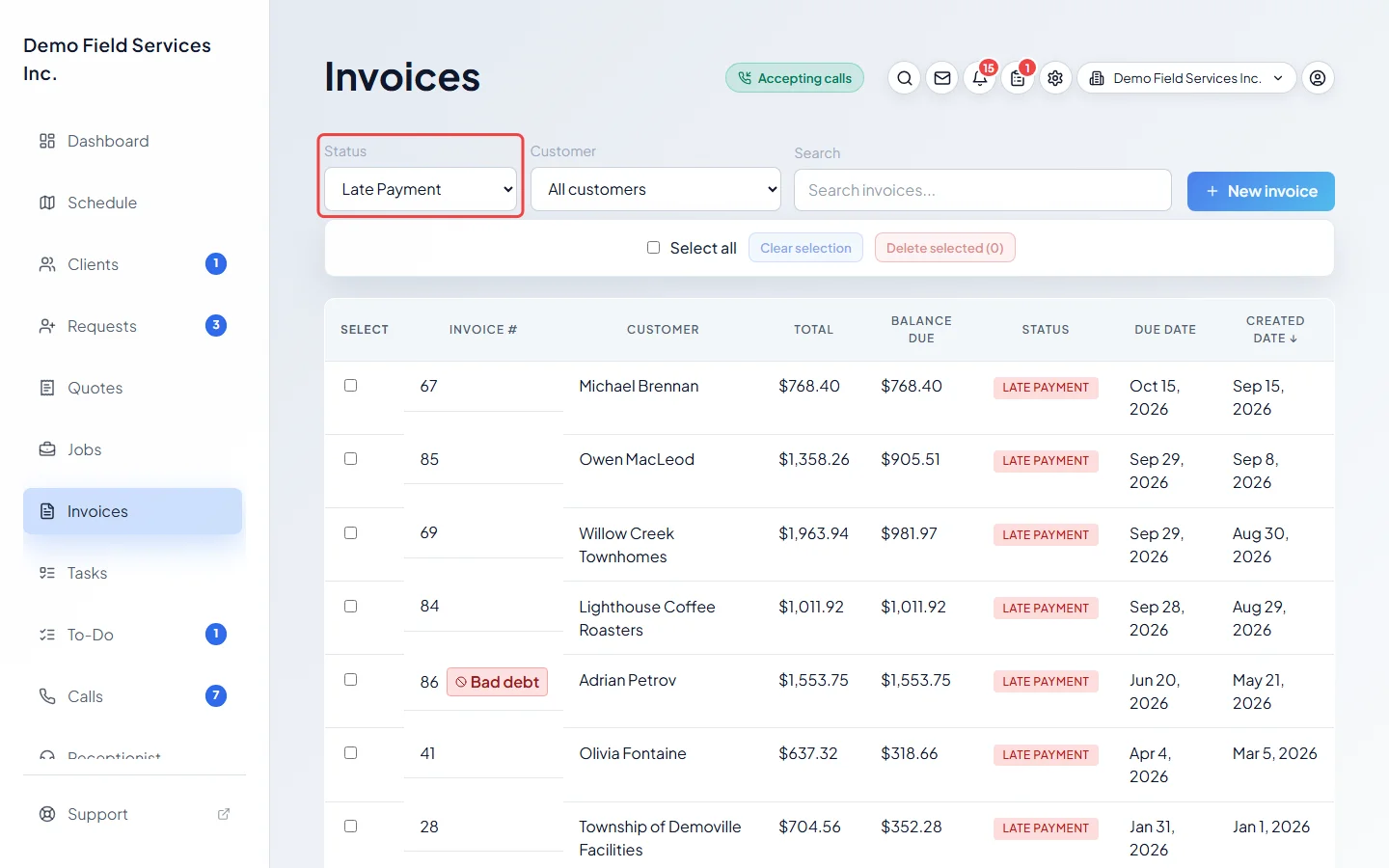
Narrow the list with the boxes at the top. Status shows one kind of invoice, such as Late Payment or Receipt not sent. Customer shows one client’s invoices. Search finds an invoice by its number or by the client’s name.
-
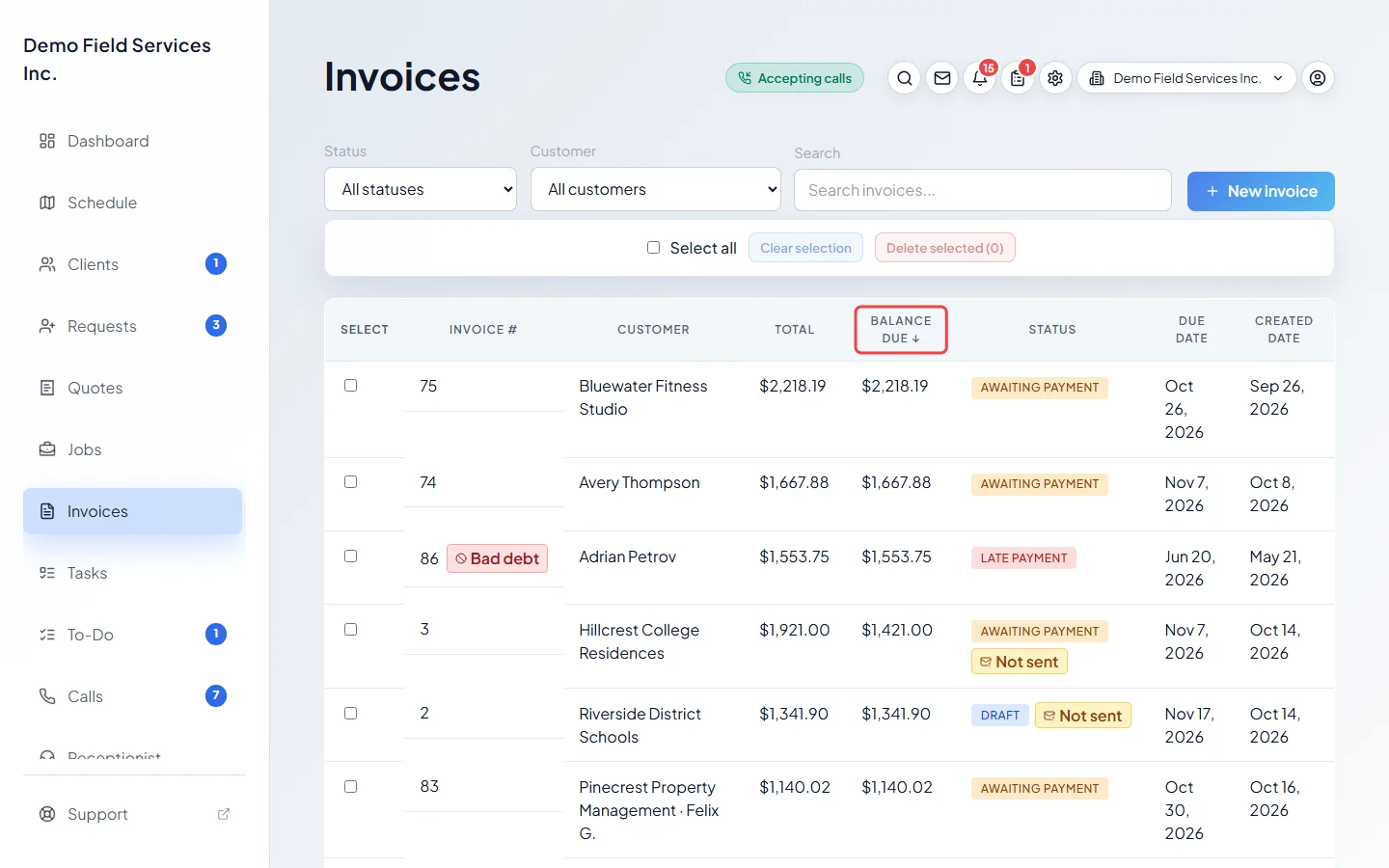
Click a column heading, such as Balance Due or Due Date, to sort by it, lowest first. Click it again to put the highest first. An arrow shows which column is sorted.
-
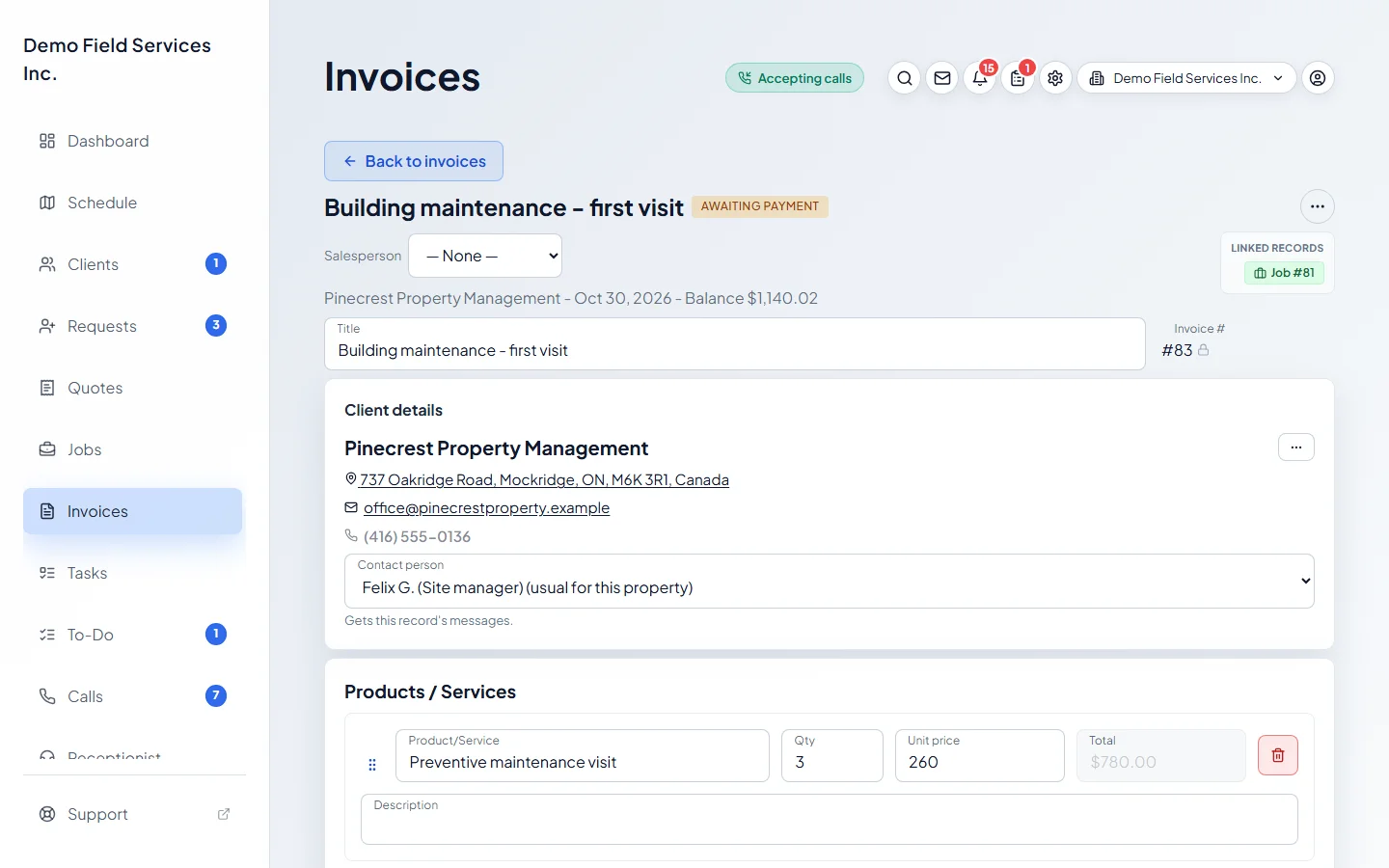
Click an invoice to open it. From there you can change it, send it, or take a payment.
What the statuses mean
Section titled “What the statuses mean”- Draft: saved but not sent and not paid. The client can’t see it yet.
- Awaiting Payment: money is still owed and the due date hasn’t passed.
- Late Payment: money is still owed and the due date was yesterday or earlier.
- Paid: nothing is owed.
- Refunded: nothing is owed and everything that was paid has been given back.
- Void: cancelled. It stays on record but no longer counts toward what the client owes.
Next to the status, a yellow Not sent tag means the client hasn’t been sent a copy yet. Click it to open the invoice and send it. Choose Receipt not sent in Status to list all of them.
Other tags next to the invoice number:
- Deposit: the deposit bill for a quote. See Asking for a deposit.
- Bad debt: written off. No reminders go out for it. See Writing off bad debt.
- Warranty: a no-charge record of warranty work. See Warranty visits.
Good to know
Section titled “Good to know”- Records per page at the bottom shows 25, 50, 100 or 200 invoices at a time. Use Previous and Next to move between pages.
- To delete several drafts at once, tick them (or Select all) and click Delete selected. Only invoices that were never sent and have no payments can be deleted; Astragal tells you which ones it couldn’t delete. See Voiding or deleting an invoice.
- On a phone or a narrower window the list turns into cards. Each card has its own button: a bin for a draft that was never sent, or a void button for an invoice that was sent. Cards don’t show the Not sent or Warranty tags; open the invoice to see whether it was sent.
- The Customer list only offers your first 100 clients. To find a client further down, type their name in Search instead.
- If the client has a contact person on the invoice, their name shows beside the client’s name. See People on an account.
Related articles
Section titled “Related articles”Checked against Astragal on October 17, 2026