

Communications and portal reports
Check your messages to and from clients, and how much clients use the portal to approve and pay.
Who can do this: Anyone who can open Reports (see The reports page).
Also called: messages report, portal usage.
-
Open Reports and pick Communications. The figures are “Outbound messages”, “Inbound messages”, “Failed messages” and “Automation runs”. Message volume by channel (in Chart view) shows how they split between email and text.
On a computer: Left menu → Reports On a phone: More → Reports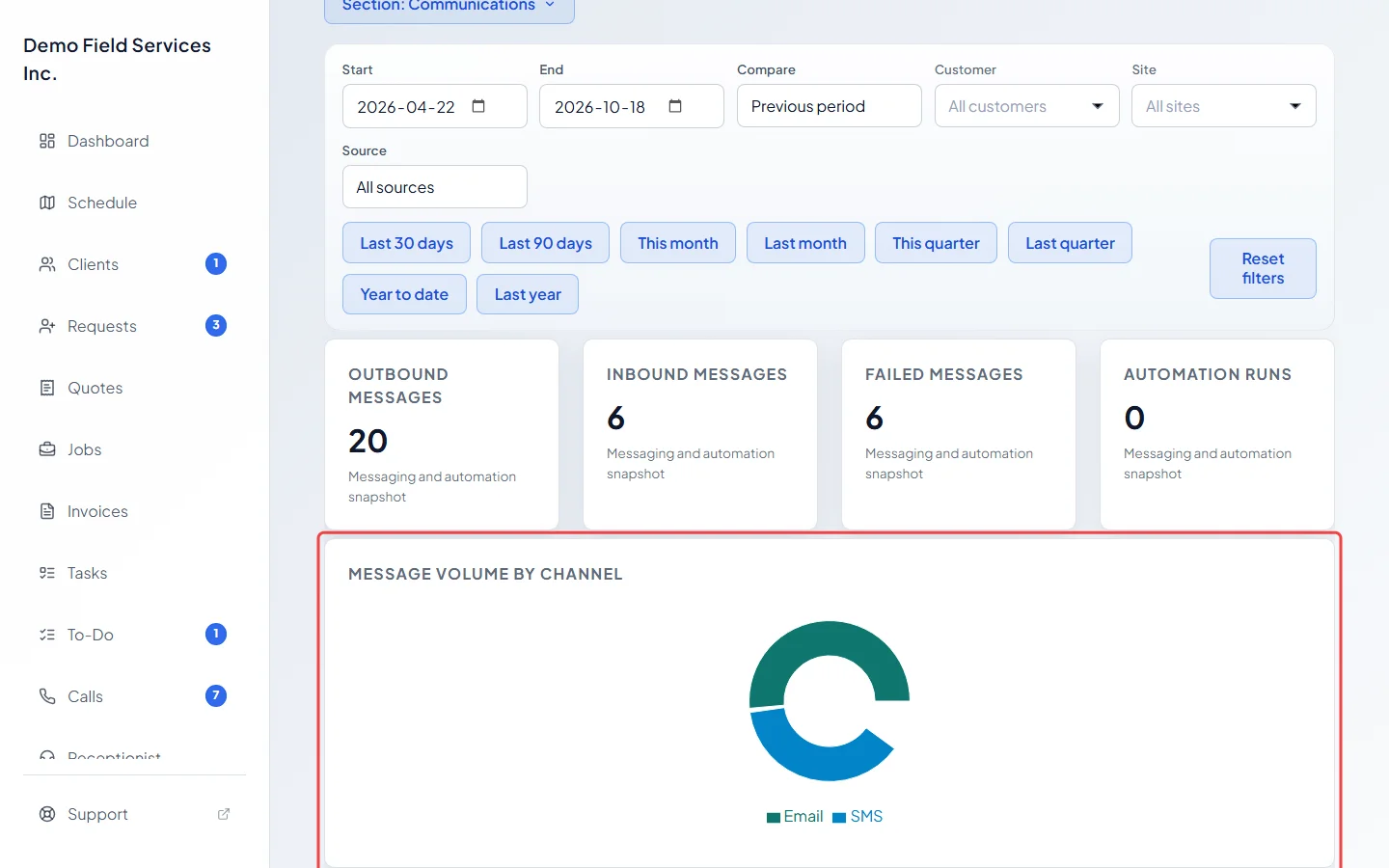
-
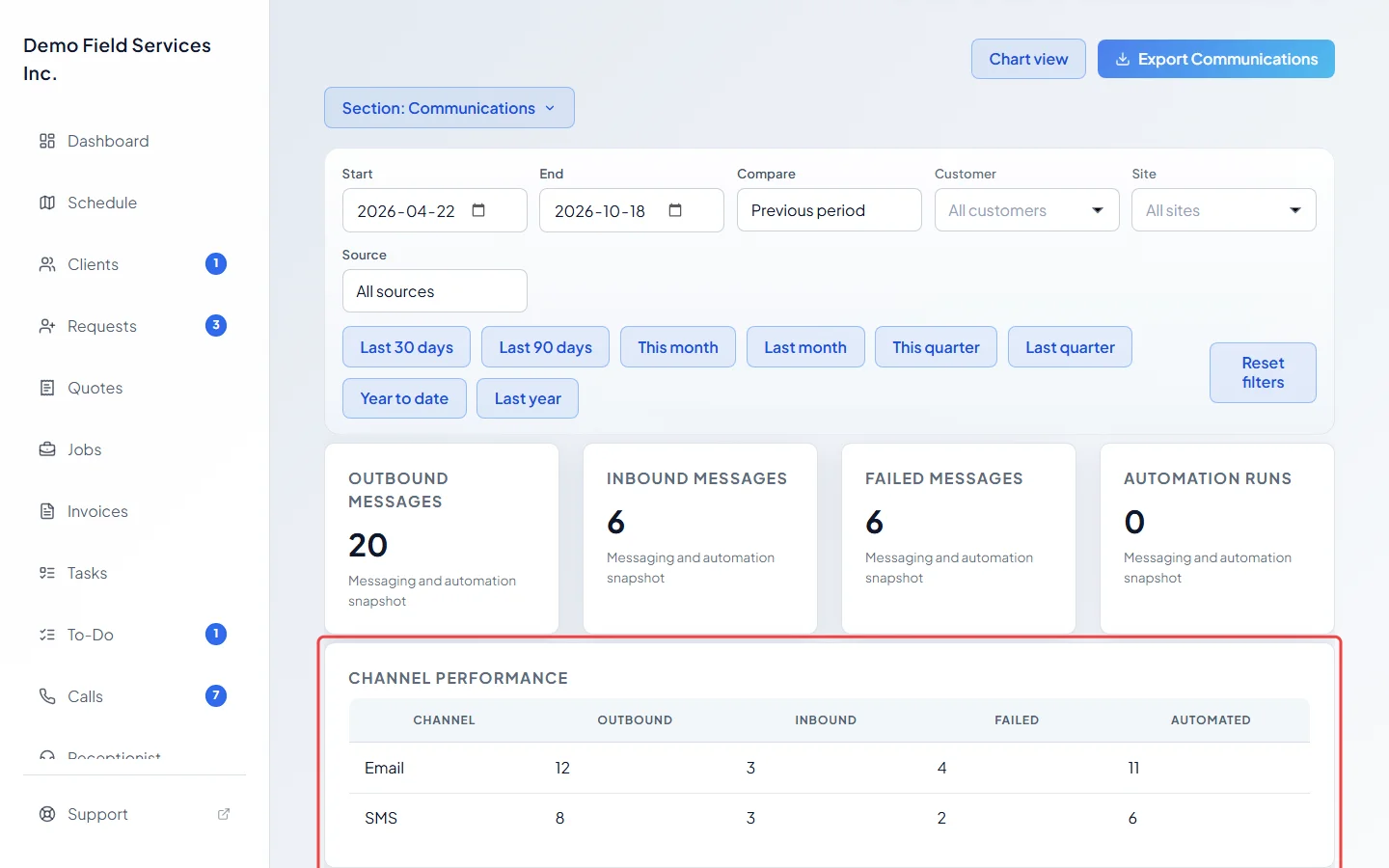
Scroll down to Channel performance for each channel’s Outbound, Inbound, Failed and Automated counts. Failed messages are worth checking: the client may have a wrong email address or phone number.
-
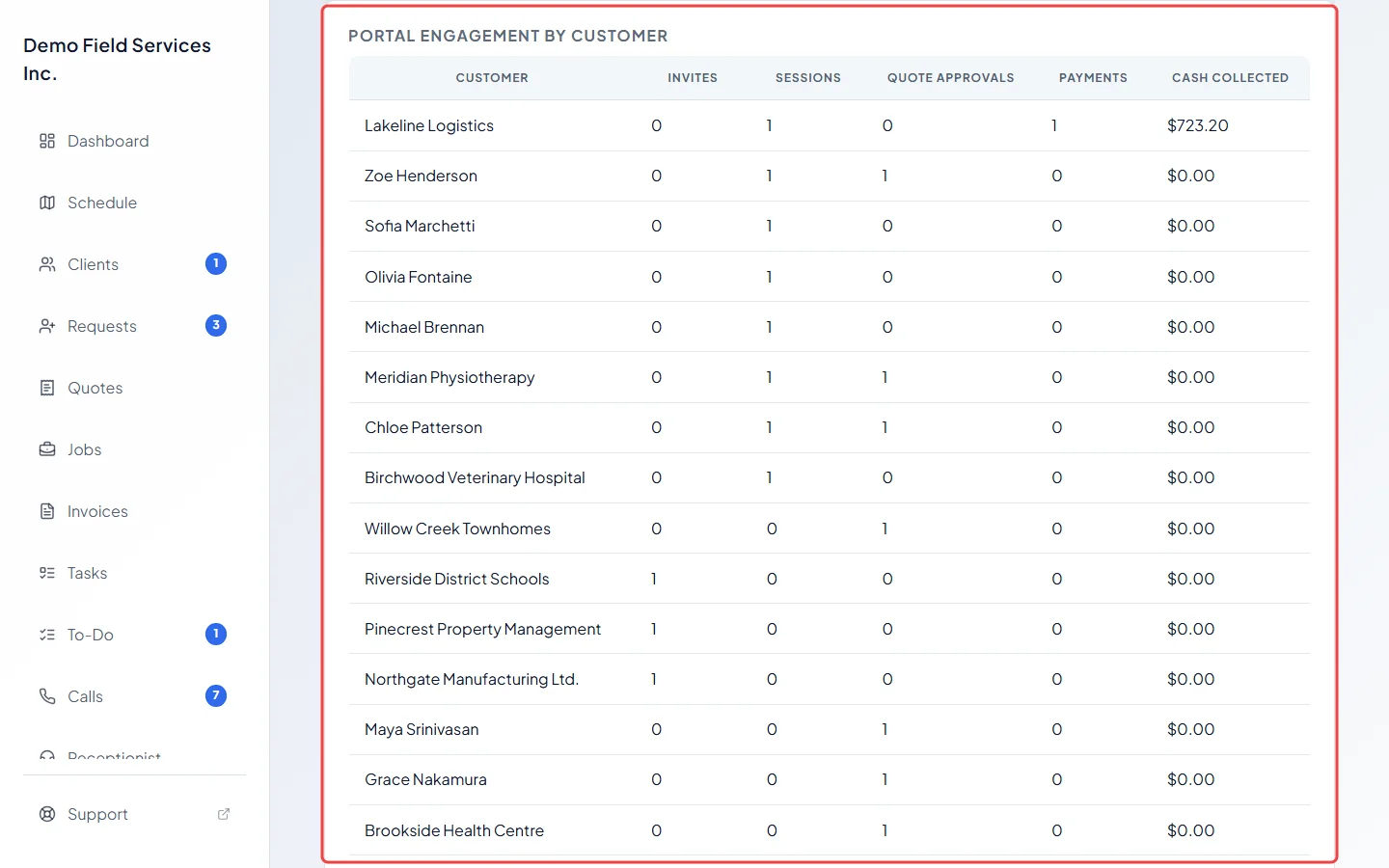
Pick Portal ops for “Portal invites”, “Portal sessions”, “Portal quote approvals” and “Portal cash collected”. Portal engagement by customer lists each client’s Invites, Sessions, Quote approvals, Payments and Cash collected.
Good to know
Section titled “Good to know”- Automated counts messages sent by your automatic messages, such as reminders and follow-ups. See Automatic client messages.
- “Automation runs” is only counted when no client, property or source filter is set (it shows 0 otherwise), because a run isn’t tied to one client.
- “Portal cash collected” counts every card payment taken through Stripe on an invoice, whether the client paid online or your team charged the card, less refunds of them. The Portal cash by customer chart shows only in Chart view.
- “Portal invites” counts every link to the portal that went out, including the ones in quote and invoice emails and texts, not just invites you sent yourself.
- Messages, sessions and invites count on the day they happened, as a UTC (Greenwich time) date.
Related articles
Section titled “Related articles”Checked against Astragal on October 17, 2026