

Google and your website
Bring customers to your booking page from your Google listing and your own website, and count the bookings they make.
Who can do this: Admins and dispatchers.
Also called: Google Business Profile booking link, booking plug-in.
-
Open Online booking in Settings and scroll to Google & your website at the bottom. It has three parts; click one to open it.
On a computer: Left menu → Settings → Online booking On a phone: More → Settings → Online booking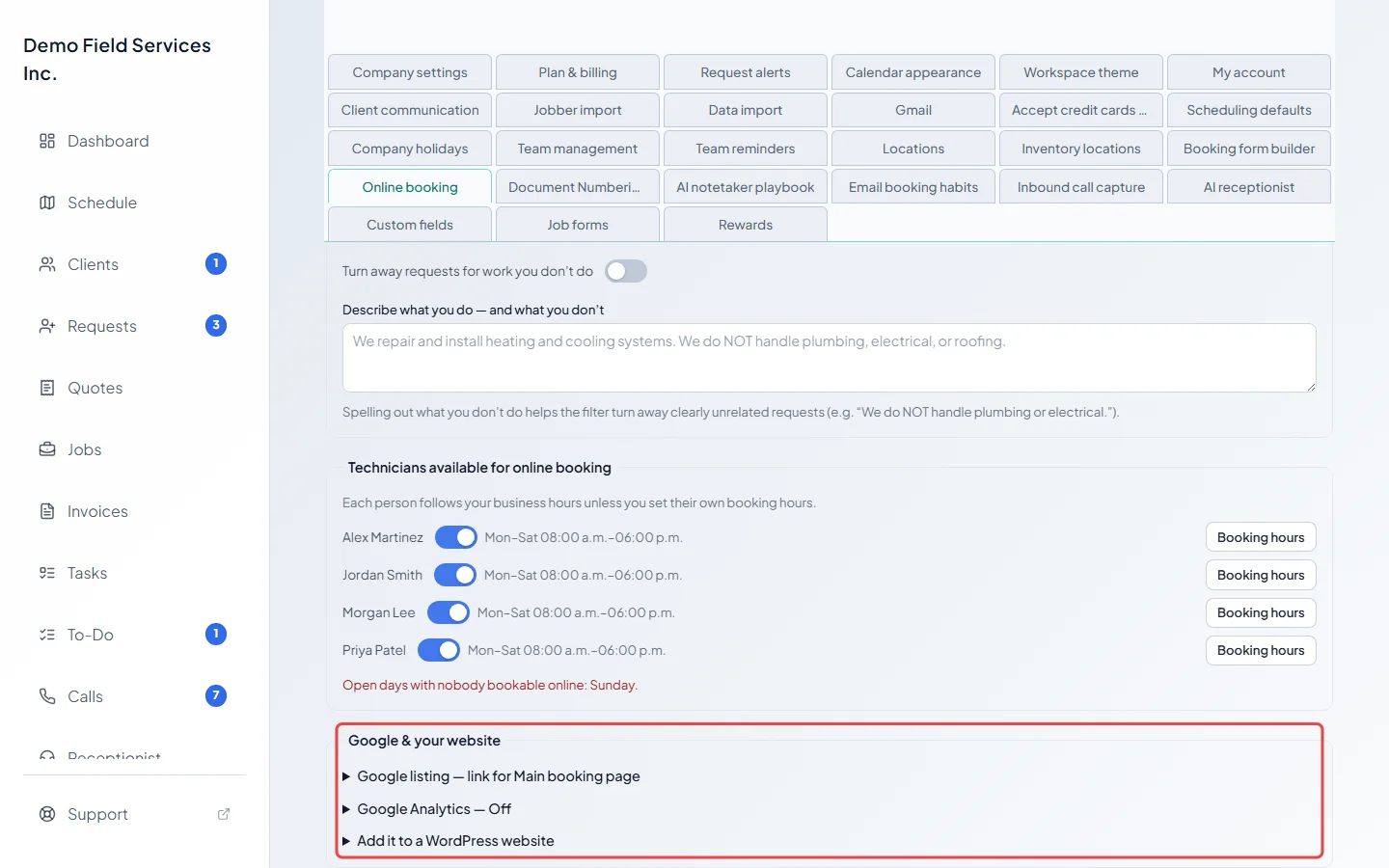
-
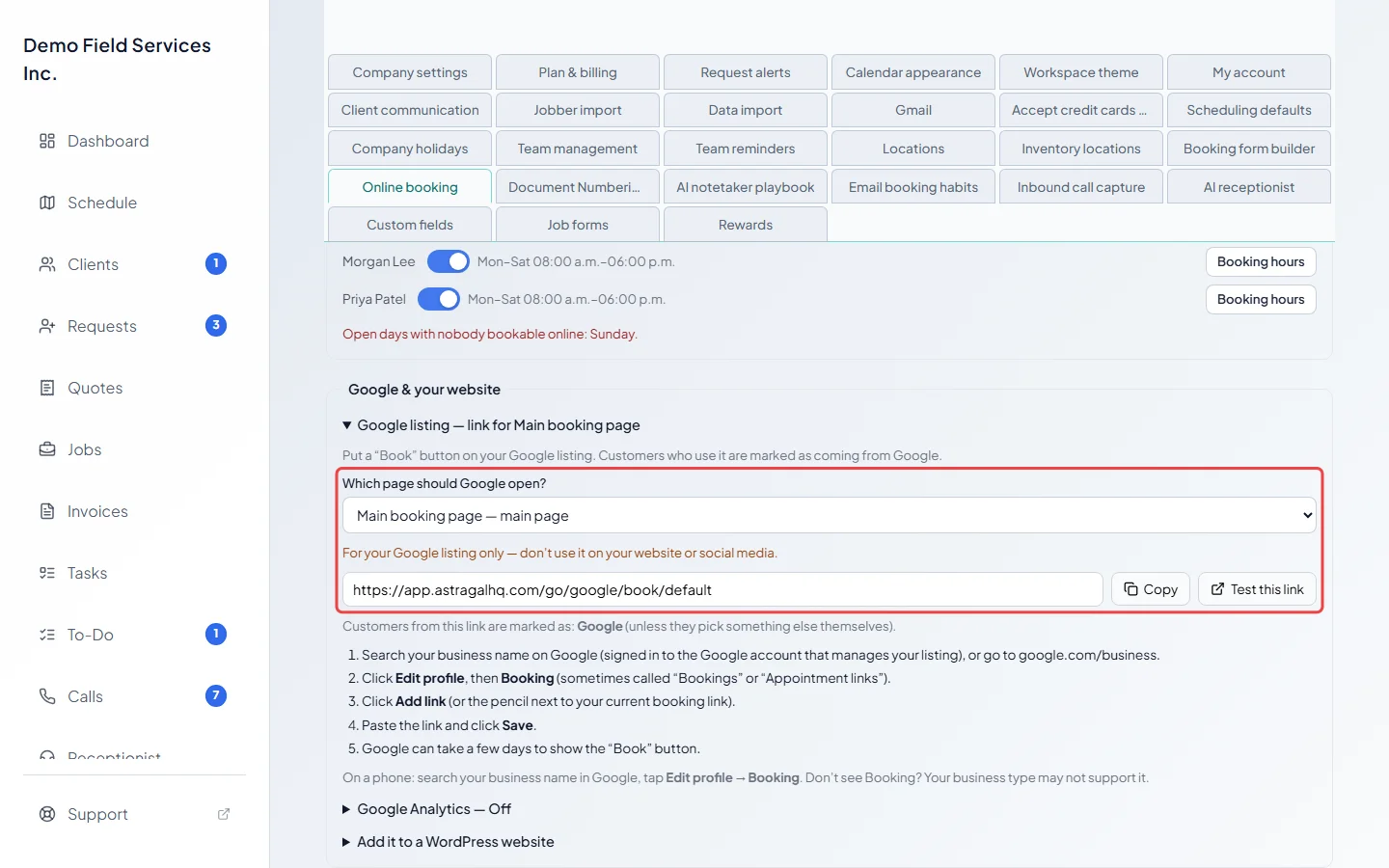
Open Google listing. Under Which page should Google open?, pick your main booking page, another booking page, or your request form, then click Copy. This link is for your Google listing only; don’t use it on your website or social media. Test this link opens it so you can check it first. Then, signed in to the Google account that manages your listing:
- search your business name on Google (or go to google.com/business),
- click Edit profile, then Booking (sometimes “Bookings” or “Appointment links”),
- click Add link (or the pencil next to your booking link), paste the link and click Save.
Google can take a few days to show the Book button. Don’t see Booking? Your type of business may not support it.
-
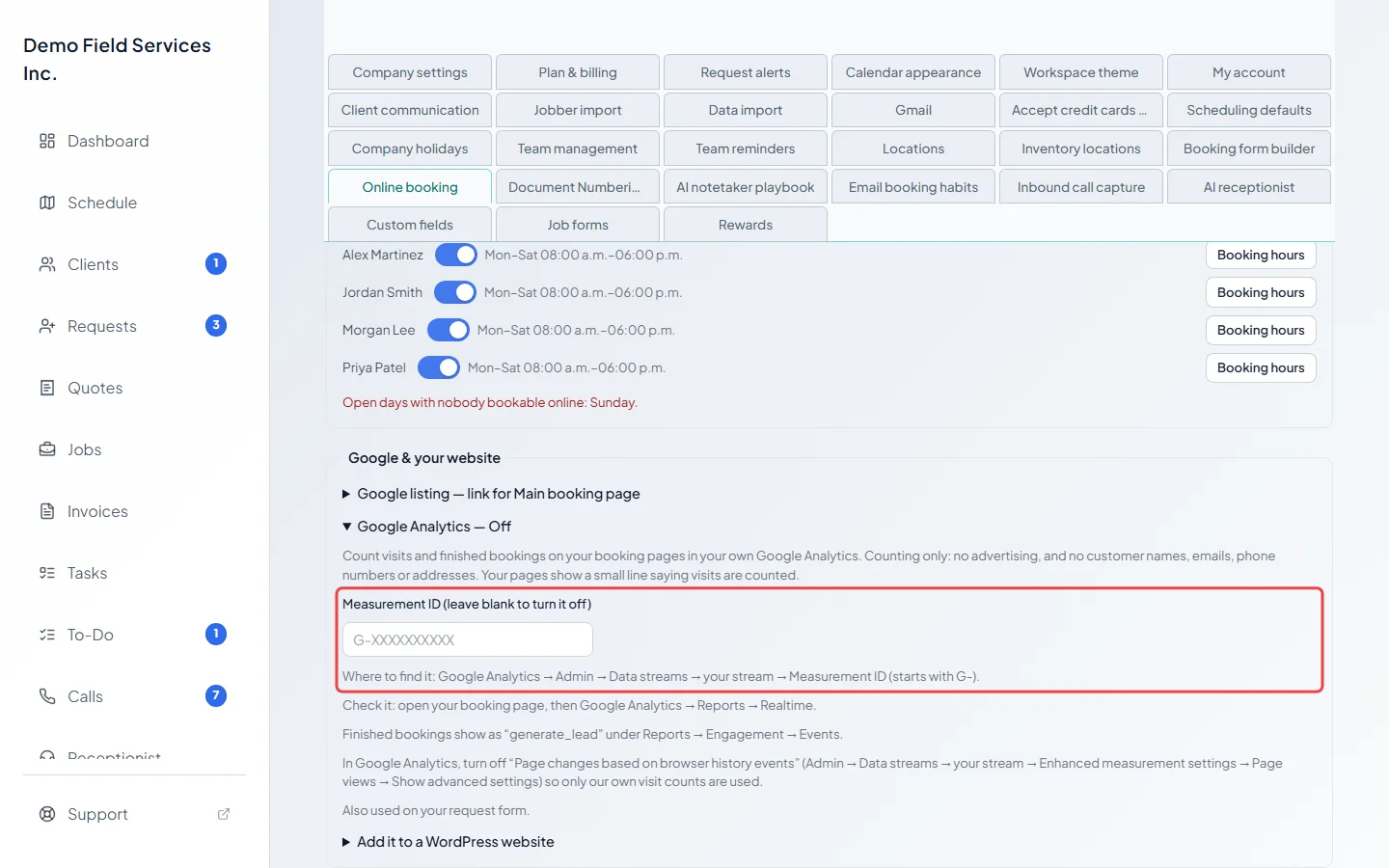
Open Google Analytics to count visits and finished bookings on your booking pages and request form in your own Google Analytics. Paste your Measurement ID (it starts with G-; in Google Analytics it’s under Admin, Data streams, your stream) and click outside the box. It saves on its own, and the part’s title then says it’s on. Leave the box blank to turn it off.
-
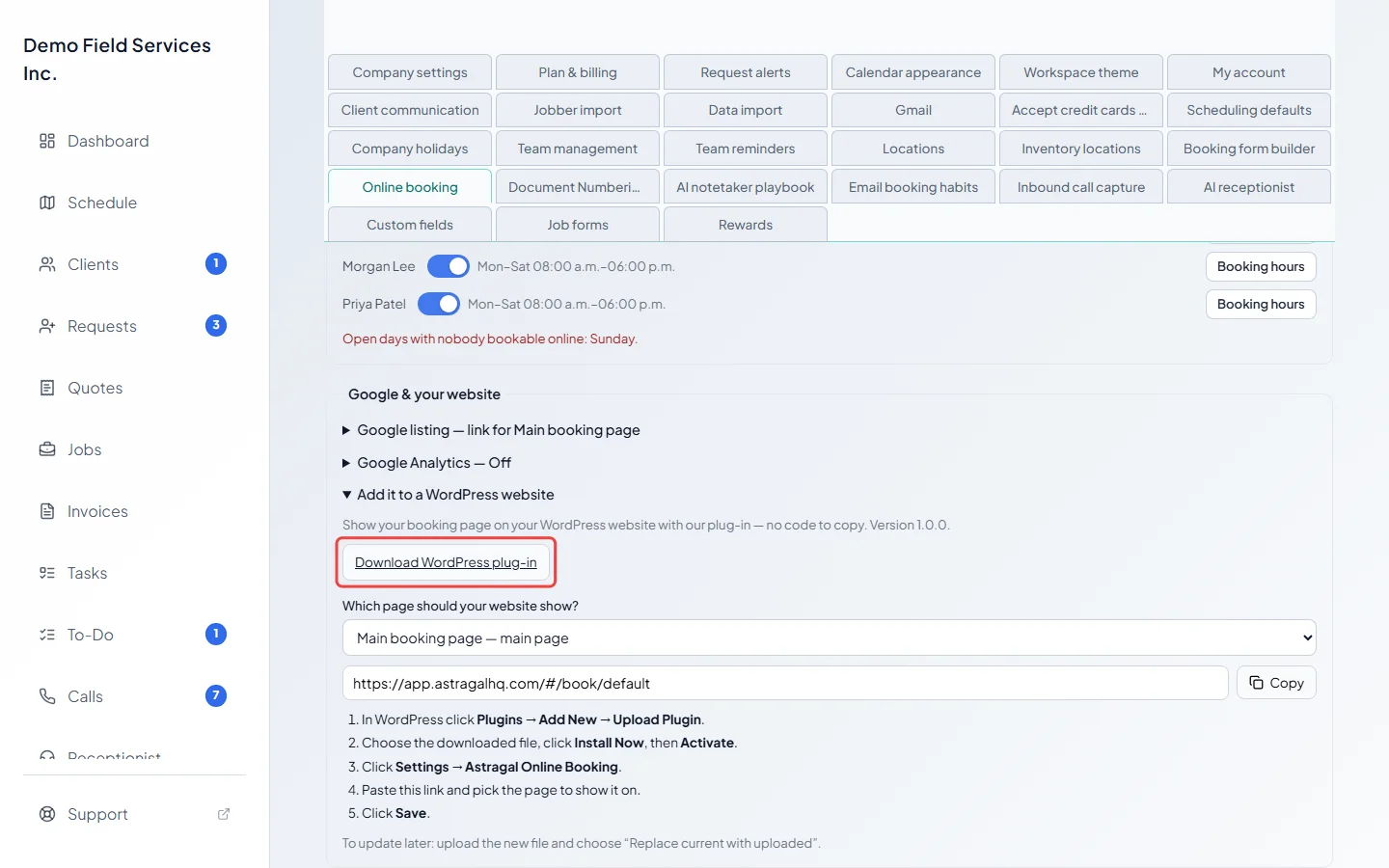
Open Add it to a WordPress website to show your booking page on a WordPress site with our plug-in, with no code to copy. On a computer, click Download WordPress plug-in. Pick the page under Which page should your website show? and click Copy. Then in WordPress:
- click Plugins, Add New, Upload Plugin, choose the downloaded file, click Install Now, then Activate,
- click Settings, then Astragal Online Booking,
- paste the link, pick the page of your website to show it on, and click Save.
Customers who come from Google
Section titled “Customers who come from Google”- A new customer who doesn’t answer “How did you hear about us?” is marked as coming from Google. If your list has a “Google” (or “Google Business Profile”) choice, that exact choice is used, so your reports group them together; the part tells you when to add one. A customer who picks an answer keeps their own.
- A customer already in Astragal keeps the lead source they have.
- Your office alert says the booking came from your Google listing (with the page’s name when it isn’t your main page). Through the request form, the request shows Google listing as where it came from.
- While online booking is off, your Google button shows “not available”, and a customer from Google who reaches a page that’s off is offered your request form instead.
Google Analytics notes
Section titled “Google Analytics notes”- Counting only: no advertising, and no customer names, emails, phone numbers or addresses are sent. Your pages show a small line saying visits are counted.
- Check it works by opening your booking page, then in Google Analytics, Reports, Realtime.
- Finished bookings show as the event “generate_lead” under Reports, Engagement, Events.
- In Google Analytics, turn off “Page changes based on browser history events” (Admin, Data streams, your stream, Enhanced measurement, Page views, Show advanced settings) so only our own visit counts are used.
- A number starting with GTM-, GT-, AW- or UA- isn’t accepted; use the one that starts with G-. You can paste Google’s whole code snippet and the number is picked out of it.
- A booking page shown inside your website also tells your website’s own Google Tag Manager when it was opened and when a booking was finished.
- You’re responsible for any notice or consent your visitors need where you do business.
WordPress notes
Section titled “WordPress notes”- The booking page shows under that page’s text and grows to fit. To put it somewhere else on a page or post, type
[astragal_booking]where you want it (in Elementor and other page builders, use a Shortcode widget). For another booking page, use[astragal_booking link="paste the link here"]. - To update the plug-in later, download it again, upload the new file and choose “Replace current with uploaded”.
- WordPress.com sites on a lower plan can’t add plug-ins or code; add a Button block that links to your booking page instead.
- Any other website can use the Website code from the page’s card, see Booking pages.
- In the phone app, the download isn’t offered: plug-ins are installed from a computer.
Good to know
Section titled “Good to know”- If you change a booking page’s web address or remove the page, its old link stops working. Change it on your Google listing and WordPress site too. Your main page’s link never changes.
- The Google listing and WordPress parts each remember which page you last picked, on that computer.
Related articles
Section titled “Related articles”Checked against Astragal on October 18, 2026