

Doing a visit
Do a visit from start to finish on your phone: open it, head out, fill in the form and mark it done.
Who can do this: Technicians whose access lets them edit jobs (the Worker preset does), plus admins, dispatchers and accountants.
Also called: appointment, service call, job.
Step 2 of 3 for technicians.
-
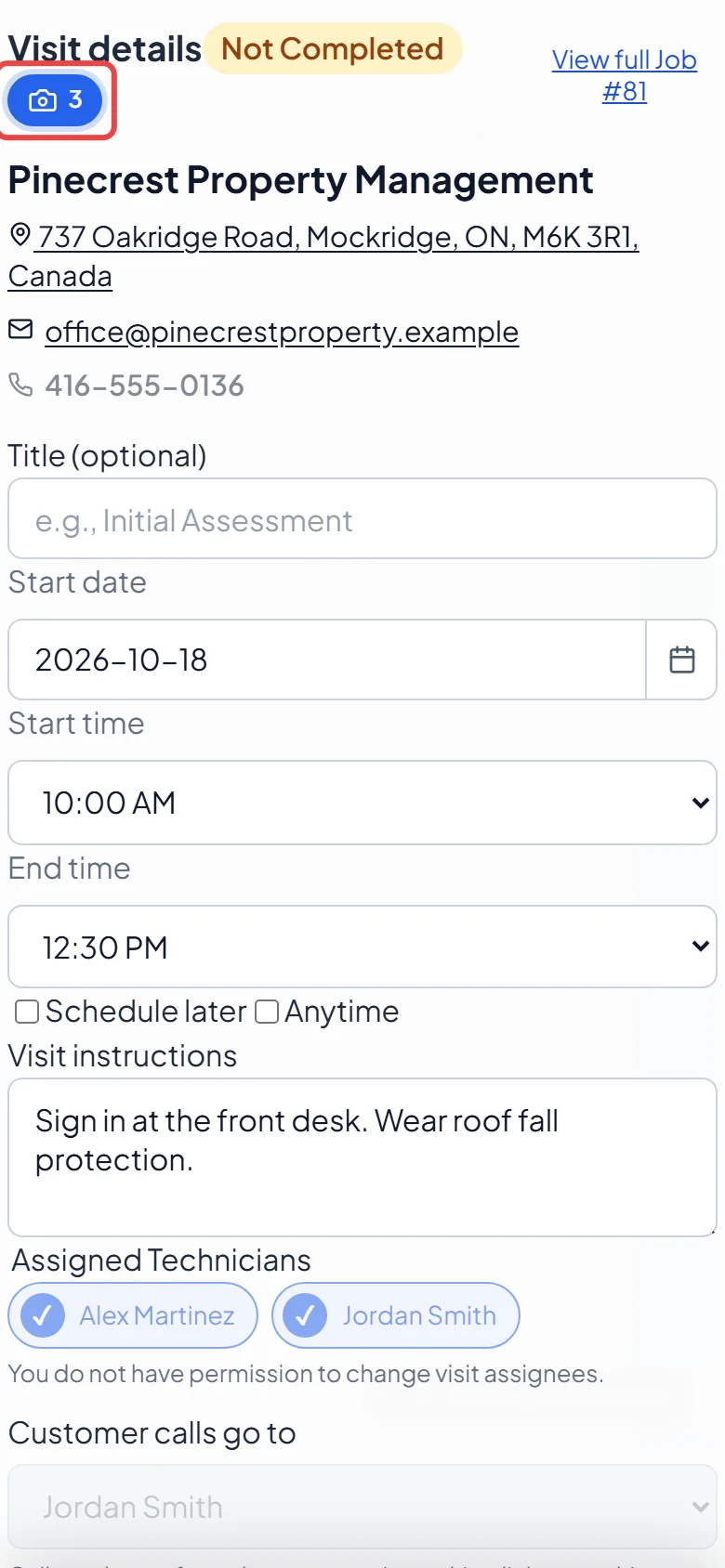
Tap Schedule in the bottom bar and tap the visit. The Visit details window opens with the client’s name, address and phone number, and whether the visit is done yet.
On a computer: Left menu → Schedule → the visit On a phone: Bottom bar → Schedule → the visit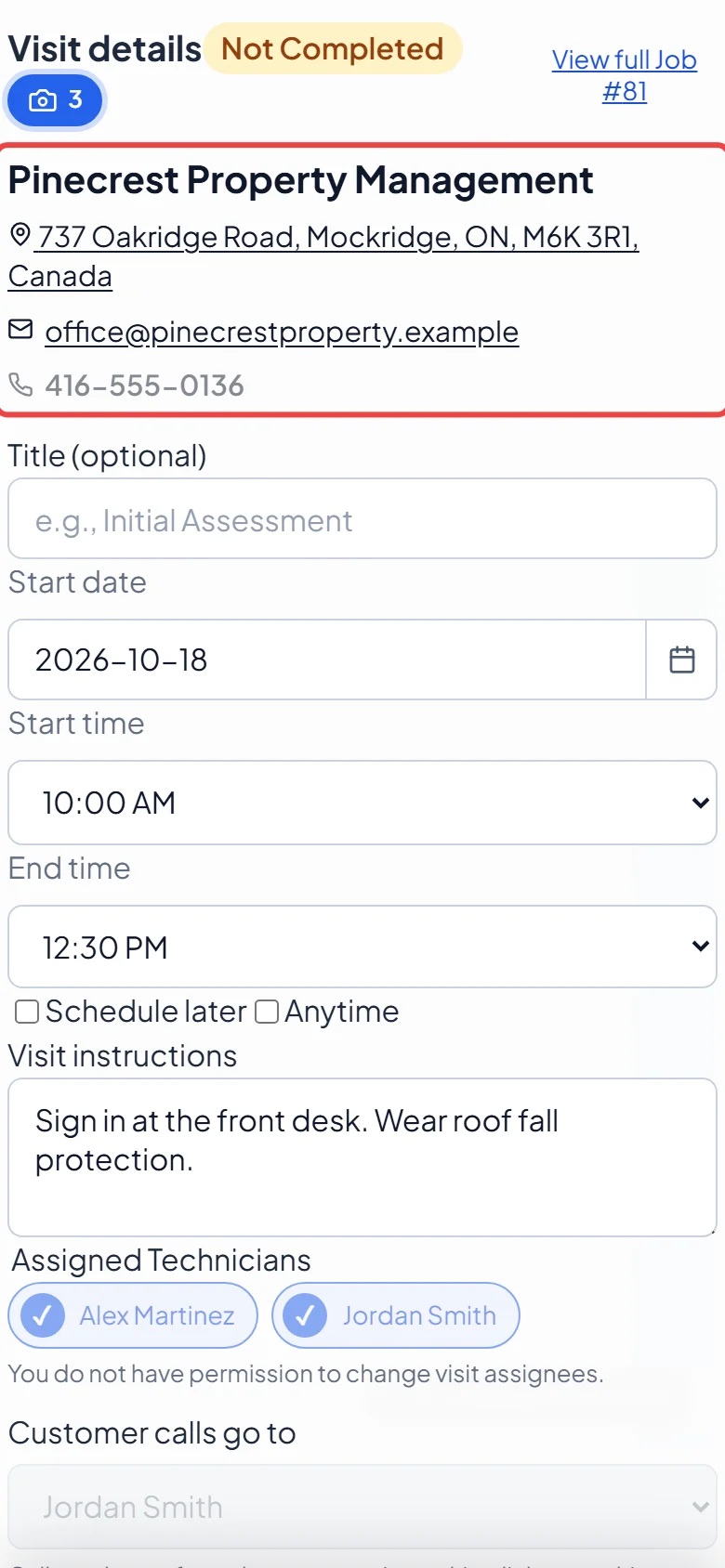
-
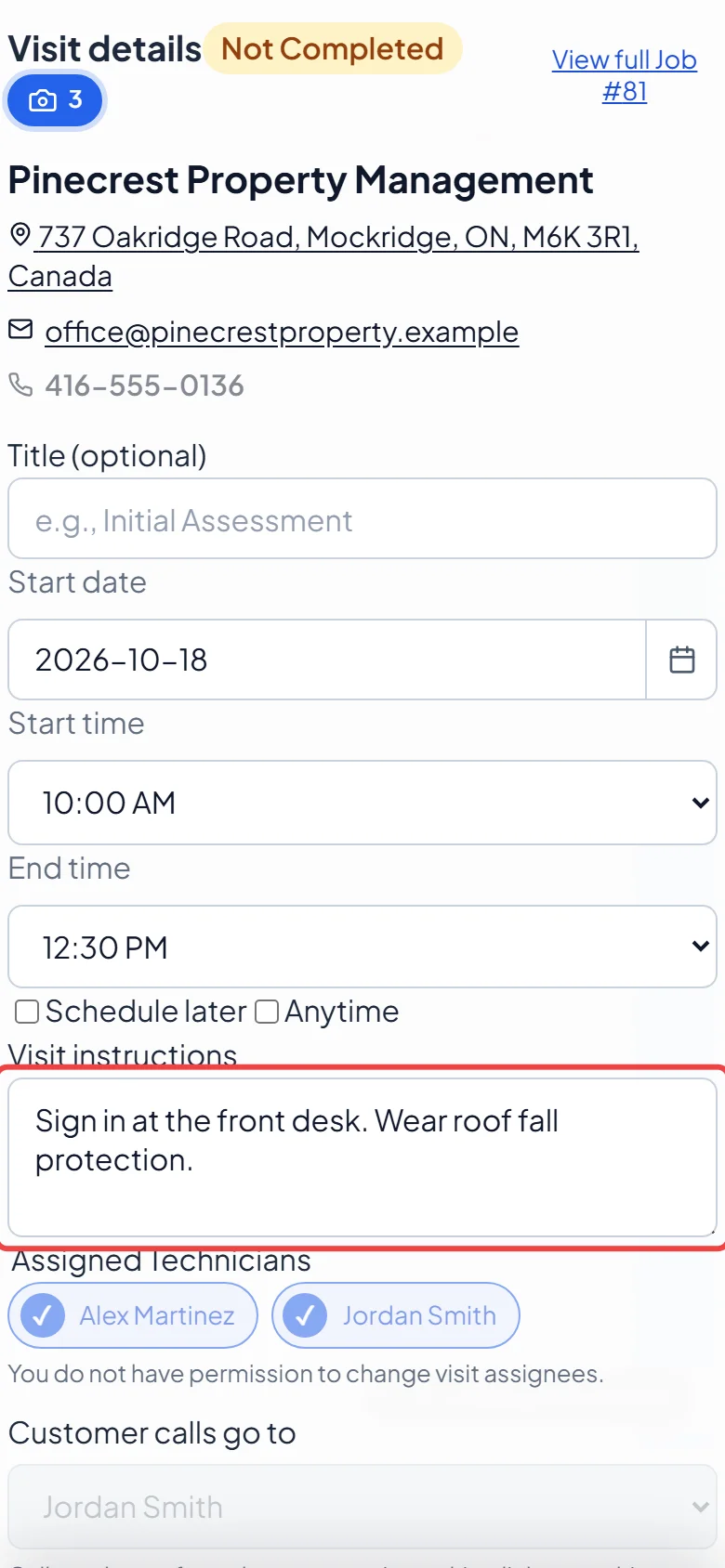
Read the Visit instructions before you leave. They hold what you need for this trip, such as a gate code, pets or parking. For the job’s full notes and price list, tap View full Job # and the job number at the top.
-
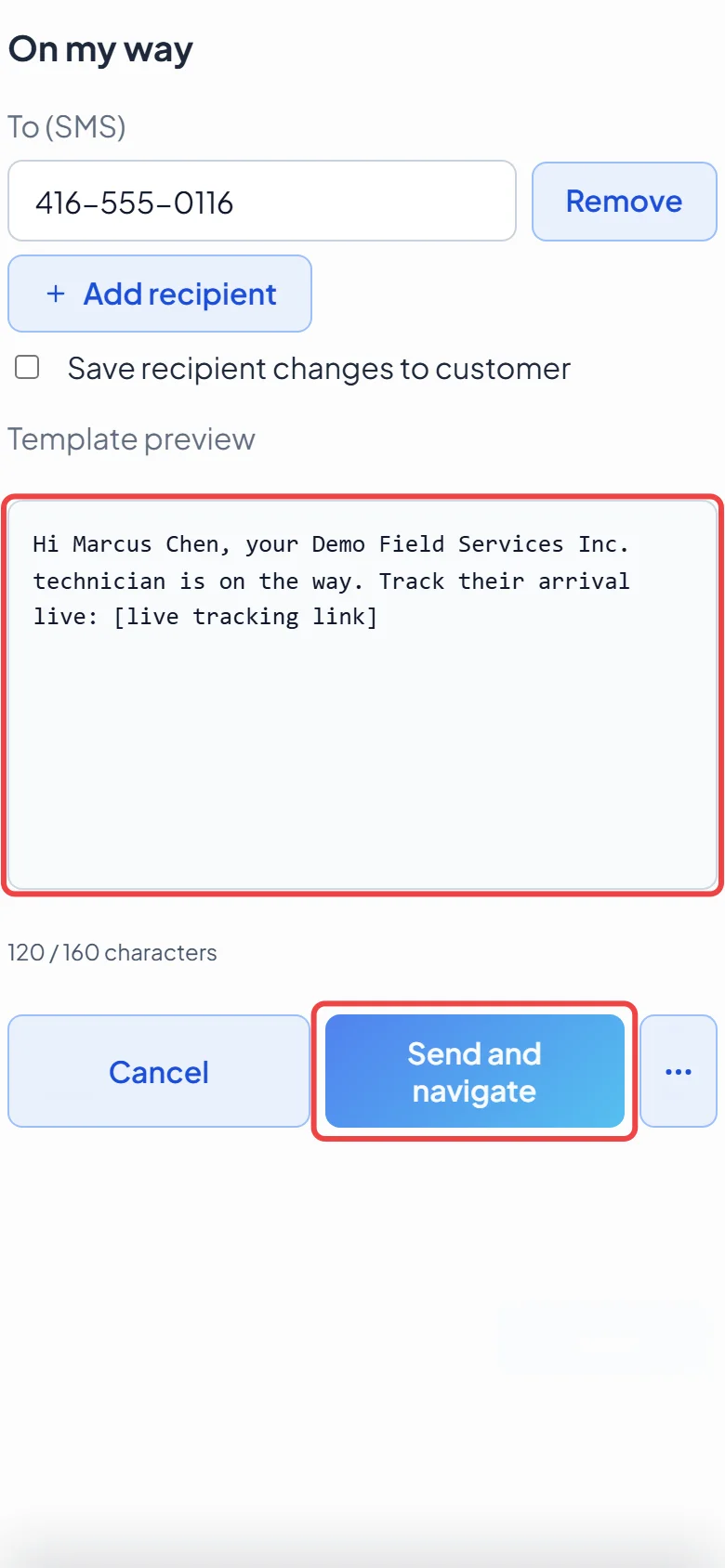
When you set off, tap Actions at the bottom and choose Navigate. The On my way window shows the text your client will get. You can change or add the numbers it goes to before sending. Tap Send and navigate to text them a link to follow you on a map and open directions. To go without texting them, tap the three dots and choose Navigate without sending; the same menu can also copy or share the tracking link. Navigate only shows when the visit has an address.
-
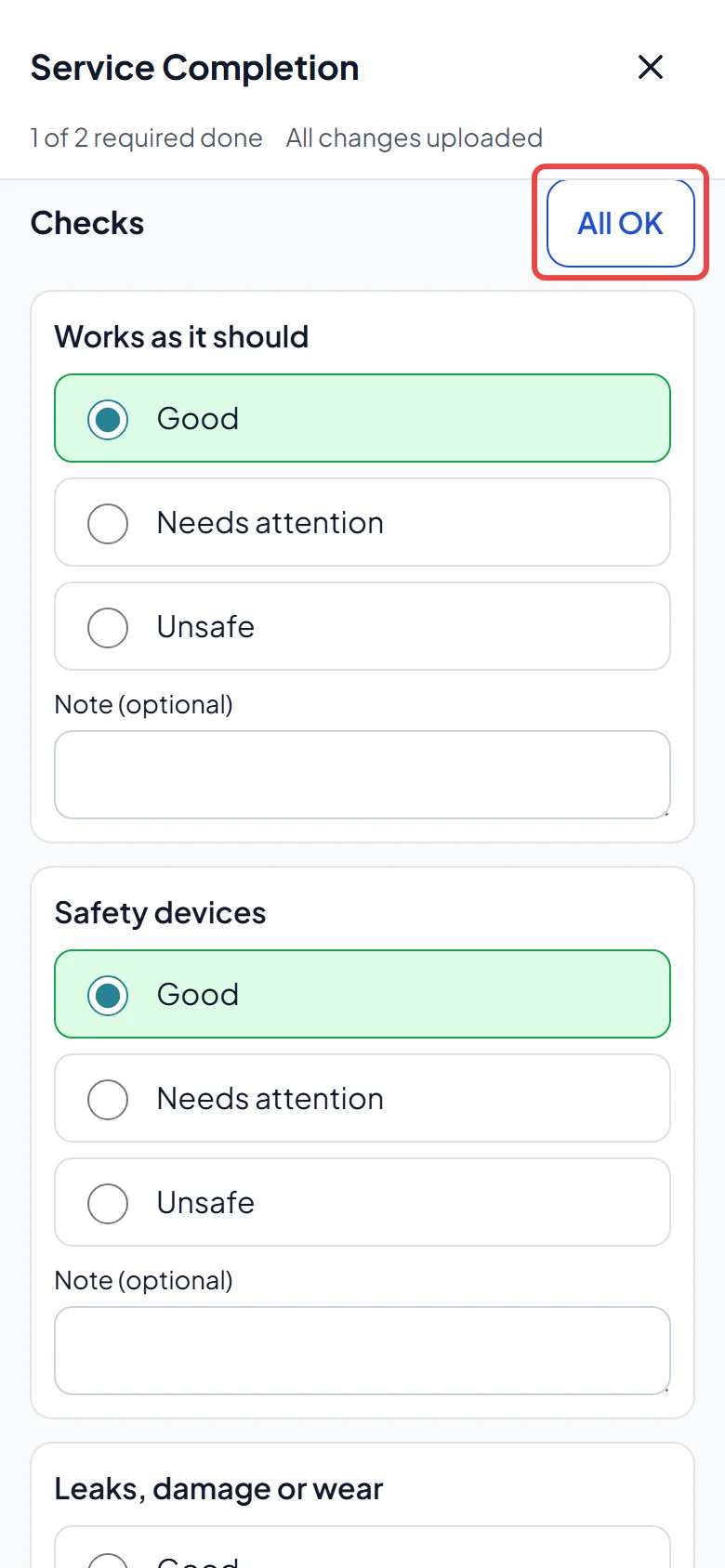
At the property, fill in the job forms. They’re listed under the visit; tap one to open it. Answer each question, tap All OK to pass a whole section of checks, take any photos it asks for with Take photo, and get the client to sign at Tap to sign. If nobody’s there to sign, tap Customer not present and pick a reason. Tap Mark form done when you’ve finished. Your answers save as you go, even with no signal (in the Astragal app and most browsers).
-
Tap Photos at the top of the visit (it shows how many there are) to see photos your office added. You add your own photos inside a job form, and they’re saved with that form.
-
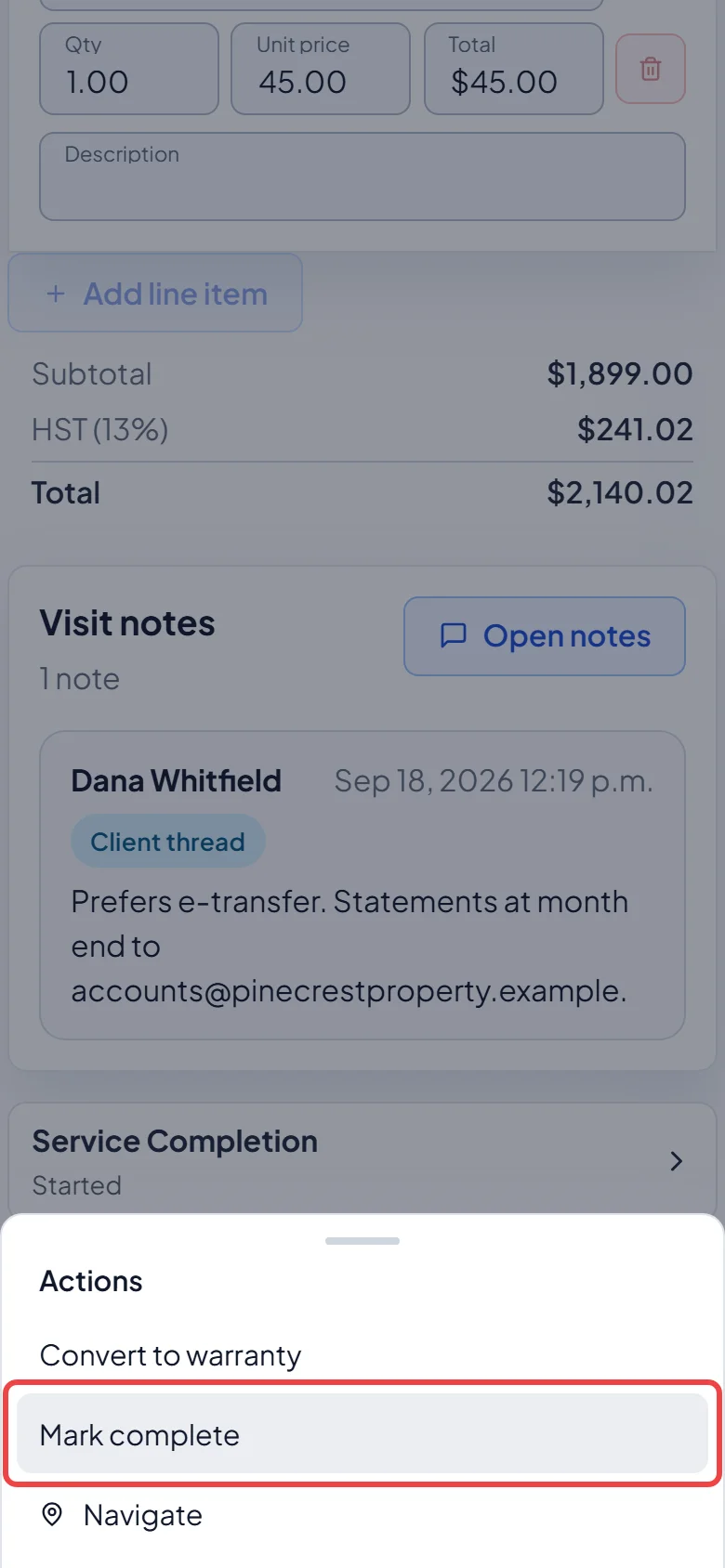
When the work’s done, tap Actions and choose Mark complete. If a form still has missing answers, Astragal asks: tap Open form to finish it, or Complete anyway. If your company requires a signature, you can’t complete the visit until the client signs or you choose Customer not present. If it was the last visit on the job, you’re asked what happens next, such as closing the job or invoicing it now.
Good to know
Section titled “Good to know”- Send and navigate texts the client straight away. If you already sent one for this visit, or the visit isn’t today, the window warns you first.
- With no signal, forms are saved on your phone and upload when you’re back online. Mark complete waits until they’ve uploaded.
- Closing the job as finished sends the client a “How did we do?” message if your company has that switched on.
Related articles
Section titled “Related articles”Next step: Clocking in and out
Checked against Astragal on October 18, 2026