

Sharing the optimized route
When you optimize a team member’s route, everyone who opens that day sees the same route, including the team member on their phone.
Who can do this: Admins and dispatchers share a route by optimizing it. Technicians see the shared route for their own day, and share their own when they optimize it.
-
Open the map, pick the team member and day, and click Optimize Route. There is no separate share button: the new route is shared as soon as it’s drawn, and replaces any route shared earlier for that day.
On a computer: Left menu → Schedule → Map On a phone: Bottom bar → Schedule → Map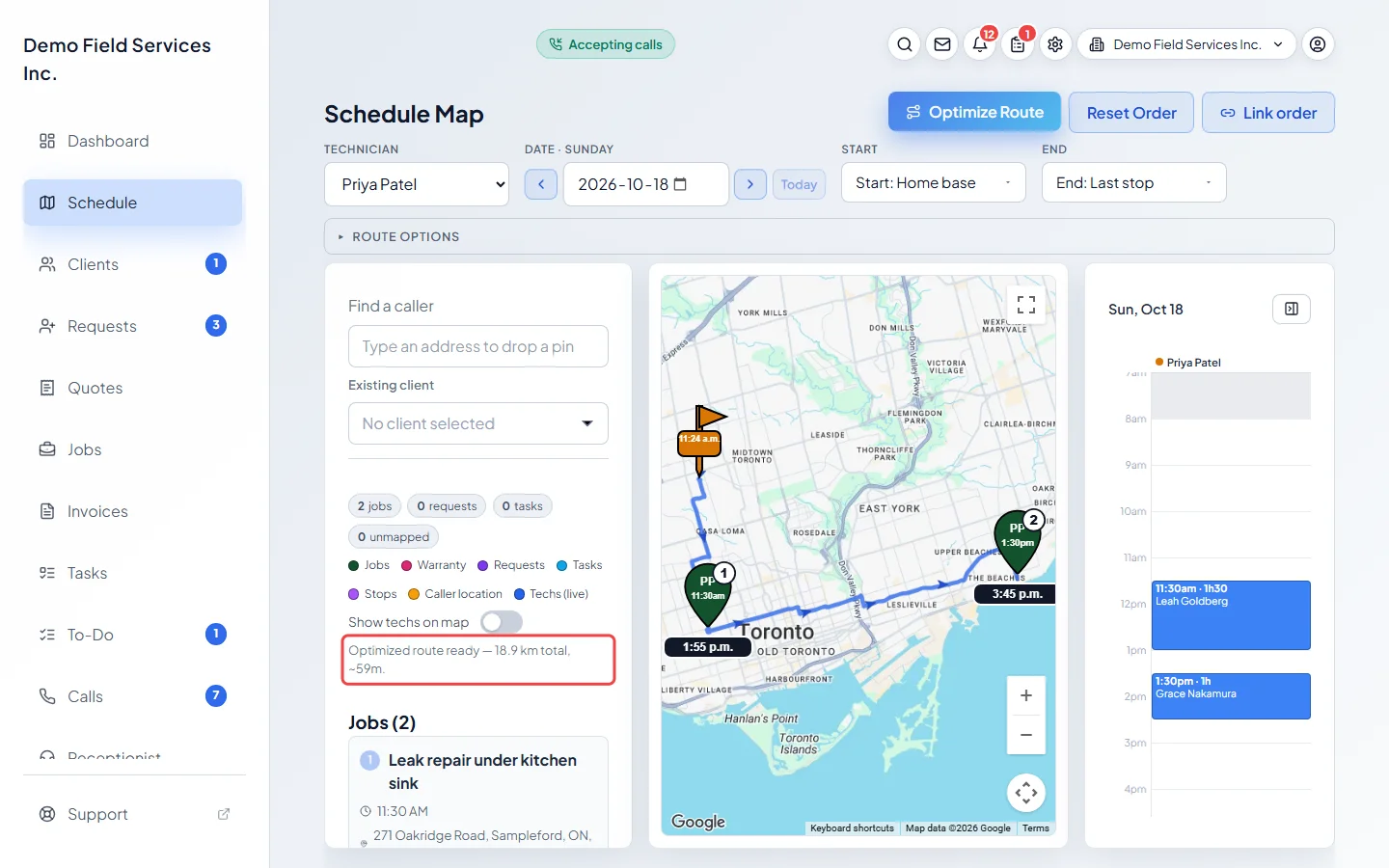
-
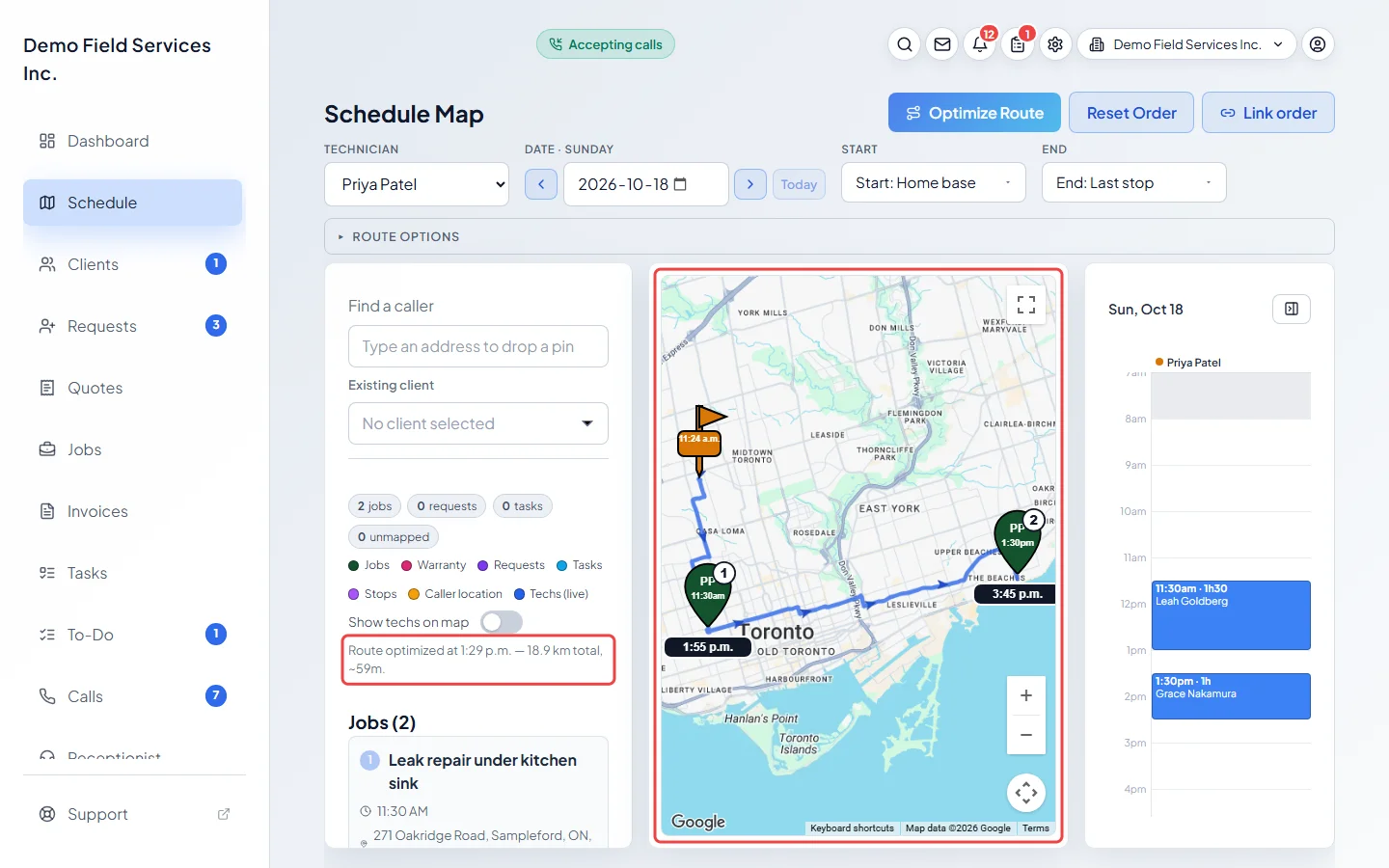
Anyone else who opens that team member’s day sees the same route, numbers and times without pressing anything. The line under the map starts “Route optimized at” with the time it was planned. An open map checks for a newer route every minute.
-
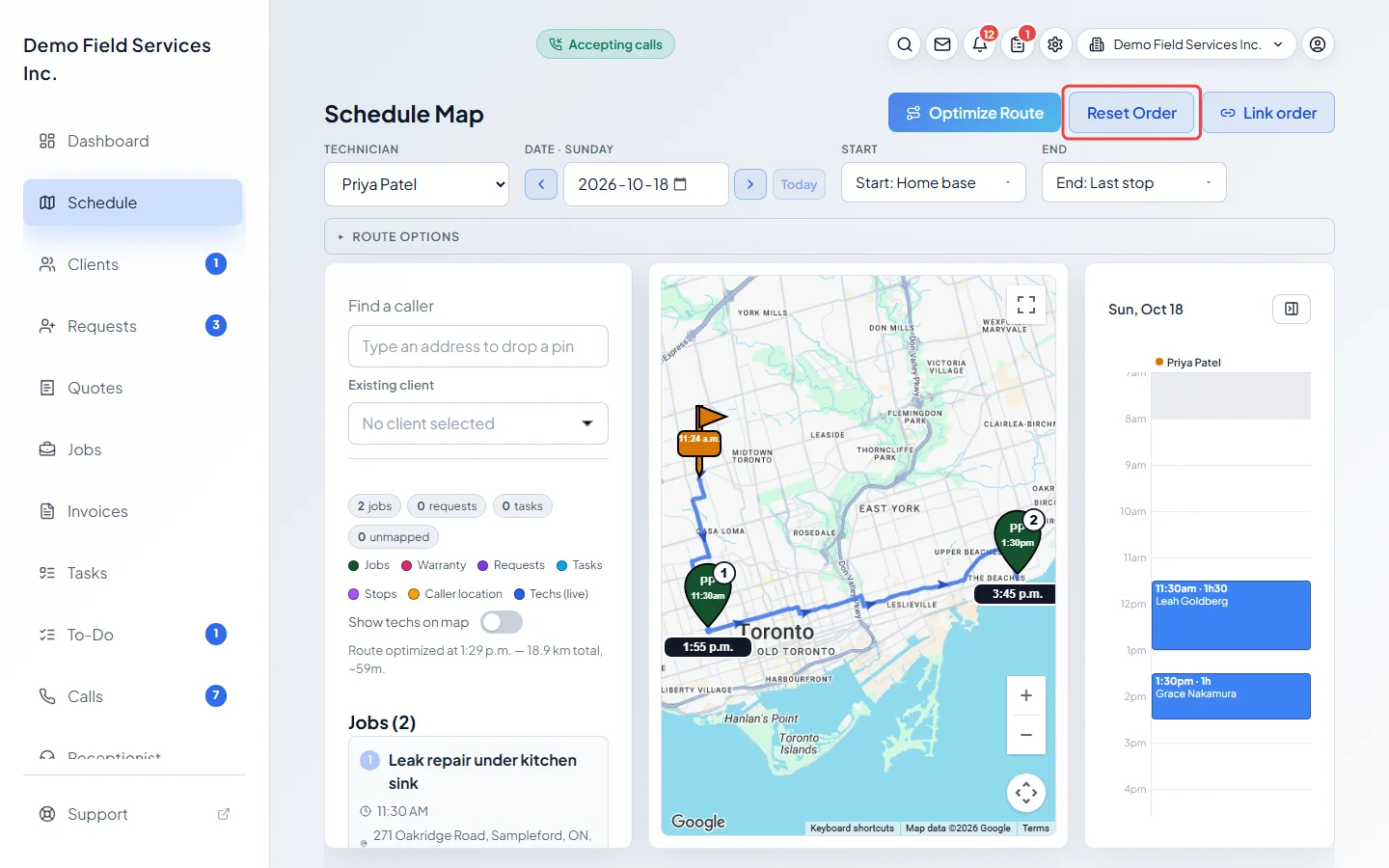
To stop sharing it, click Reset Order. The route disappears for everyone and the stops go back to their booked order.
Good to know
Section titled “Good to know”- A route isn’t shared when it starts from Start: My location, when it includes lookup pins for addresses you’re checking, or when the road route couldn’t be drawn.
- A route for today is shown for four hours after it was planned (or after the day starts, if later). After that the map asks for Optimize Route again so the times are current.
- If the day’s visits change, or the links, rules or arrival-window setting change, the shared route is cleared from each screen with a note to optimize again.
- Fixed places, rules and links are saved separately and stay when the route is reset.
Related articles
Section titled “Related articles”Checked against Astragal on October 18, 2026