

Clocking in and out
Record the hours you work from your phone, so your timesheet and pay are right.
Who can do this: Anyone, as long as your company’s plan includes time tracking and your admin hasn’t switched it off for you.
Also called: punching in, time card, hours.
Step 3 of 3 for technicians.
-
Open Home. The Time clock card says Clocked in with the time you started, or Clocked out.
On a computer: Opens when you sign in On a phone: Bottom bar → Home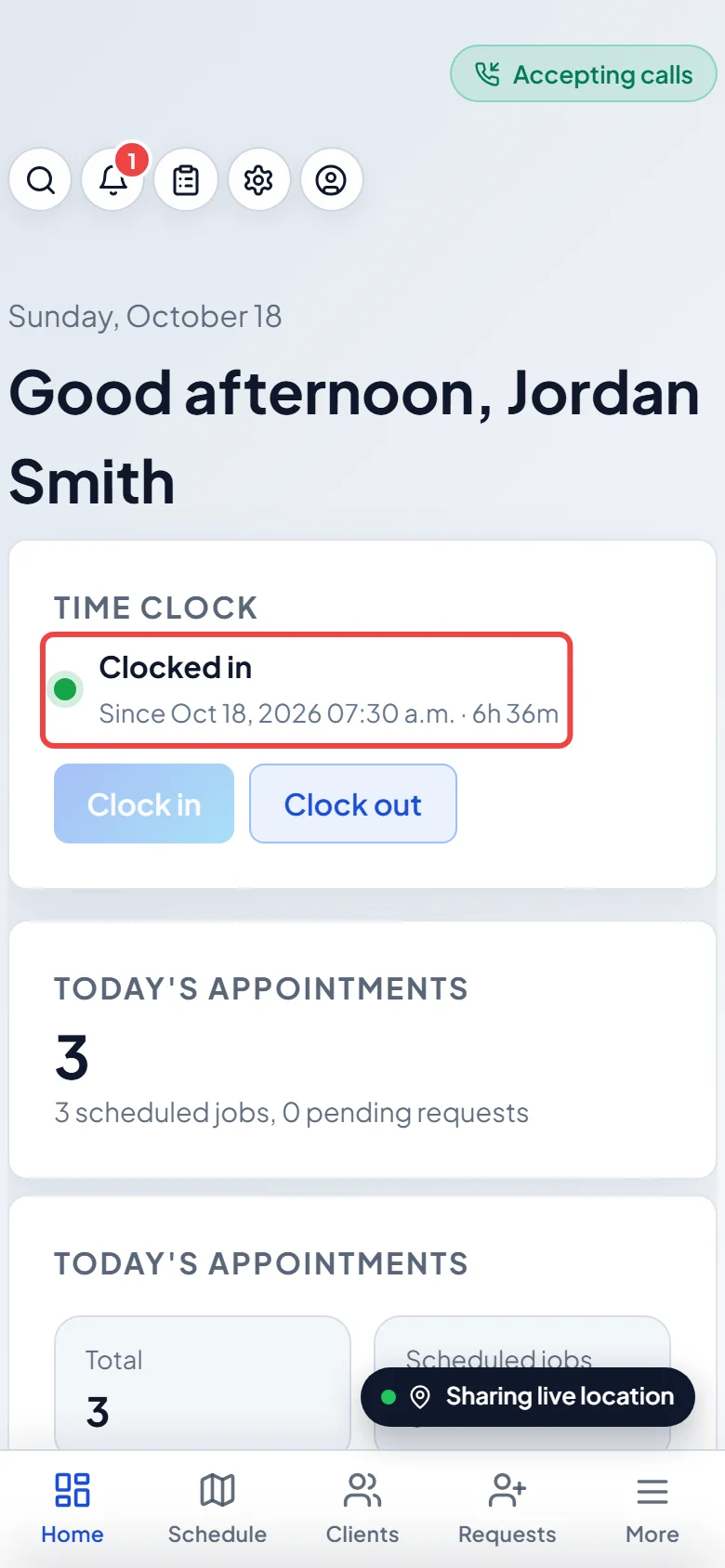
-
When you start work, tap Clock in. If your phone lets Astragal see your location, it’s saved with the clock-in.
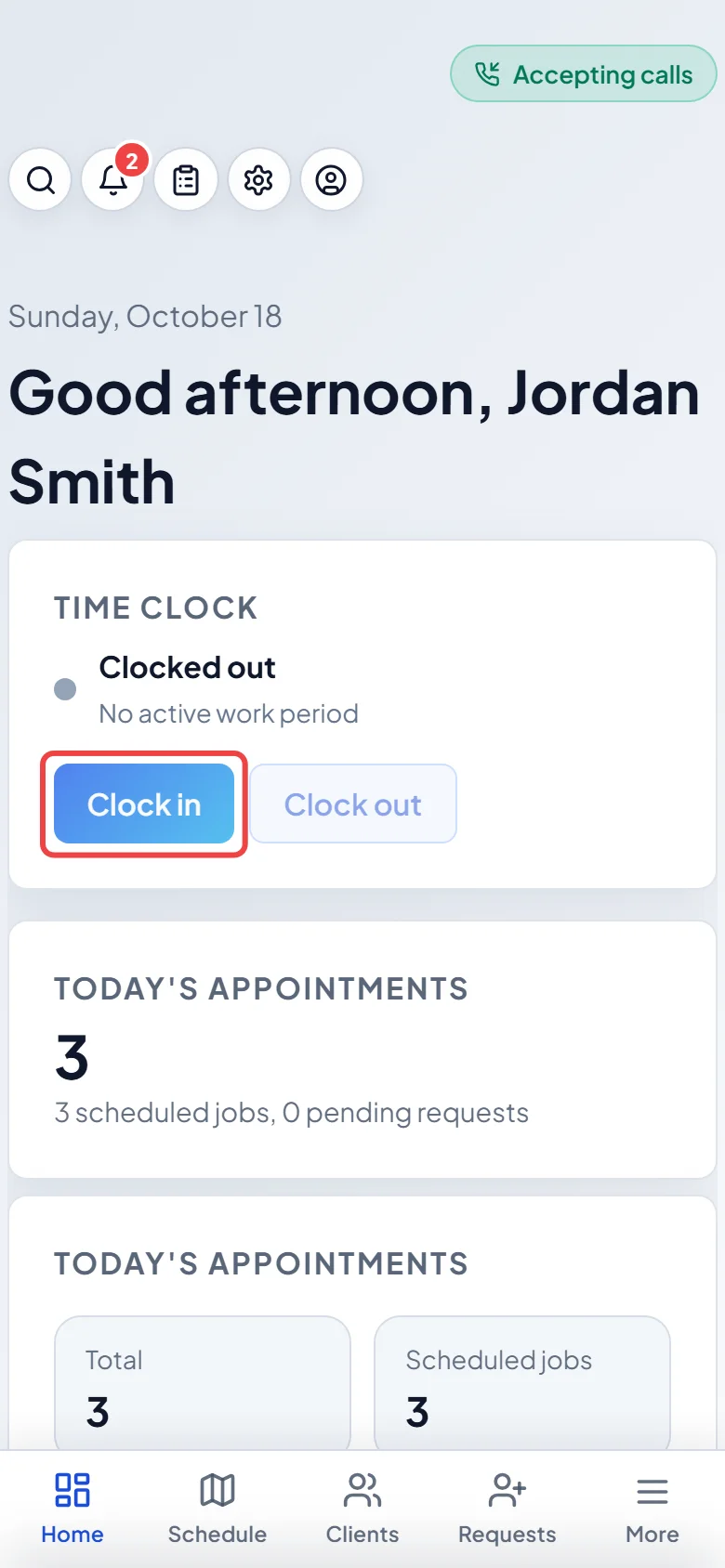
-
When you finish for the day, tap Clock out. The card goes back to Clocked out.
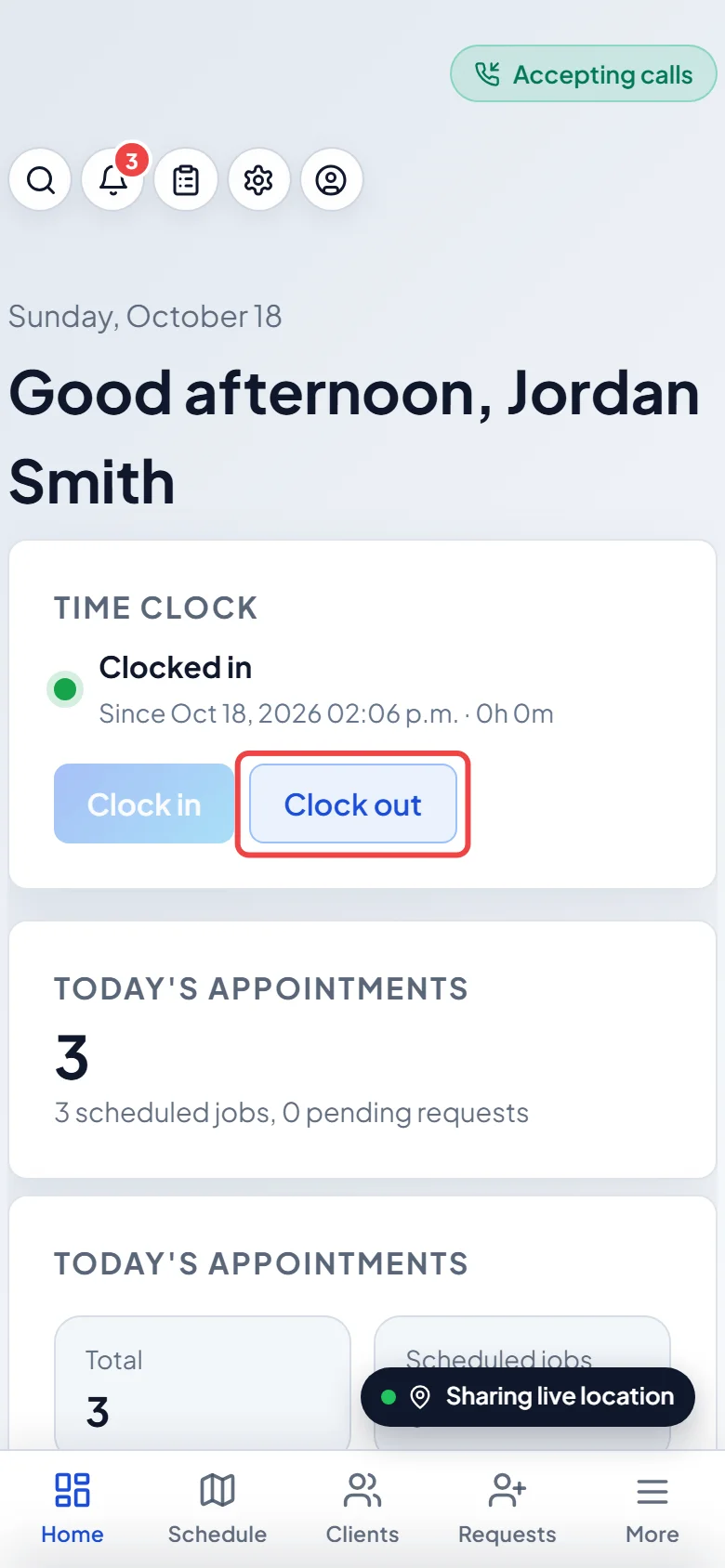
-
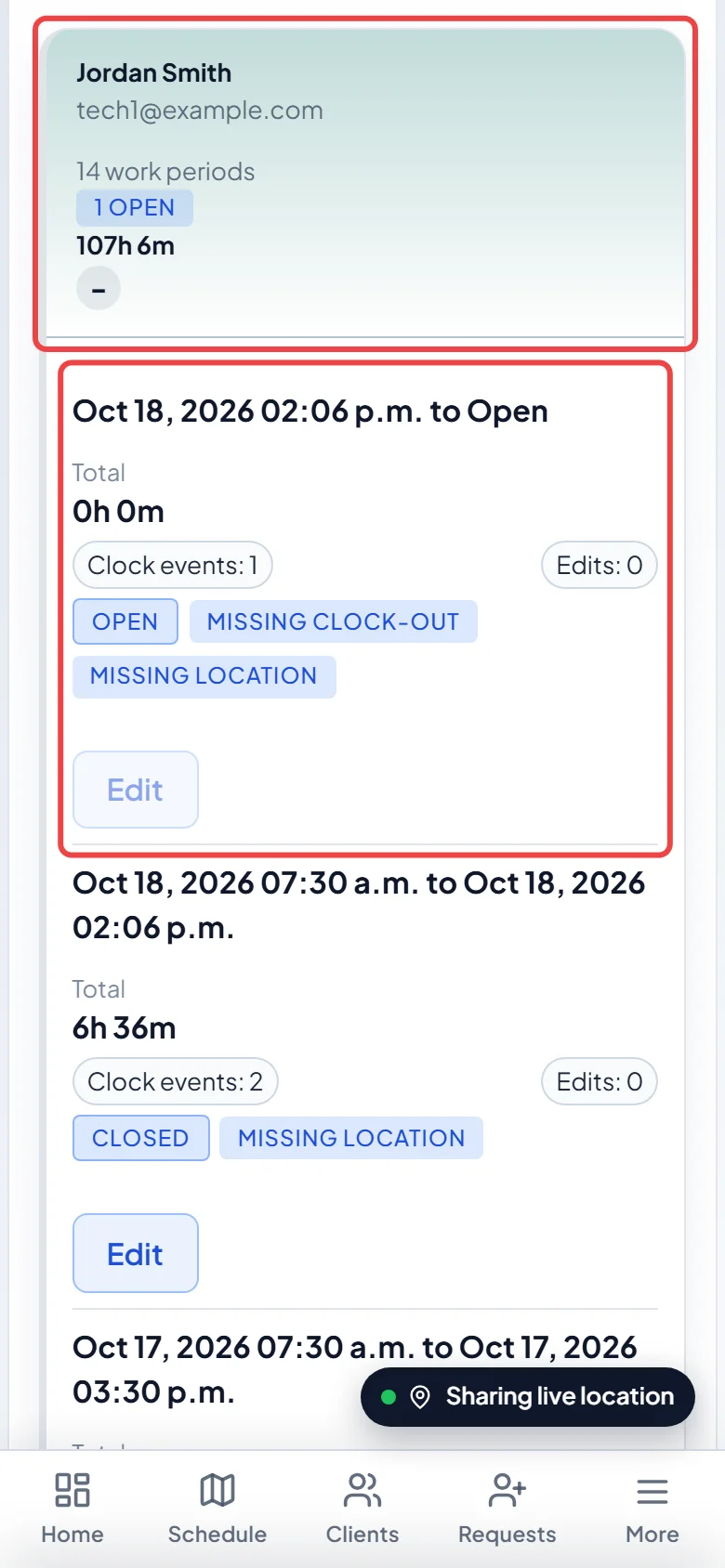
To see your hours, open Timesheets. Current status shows whether you’re clocked in and for how long. You can also clock in and out from the buttons at the top of this page.
On a computer: Left menu → Timesheets On a phone: More → Timesheets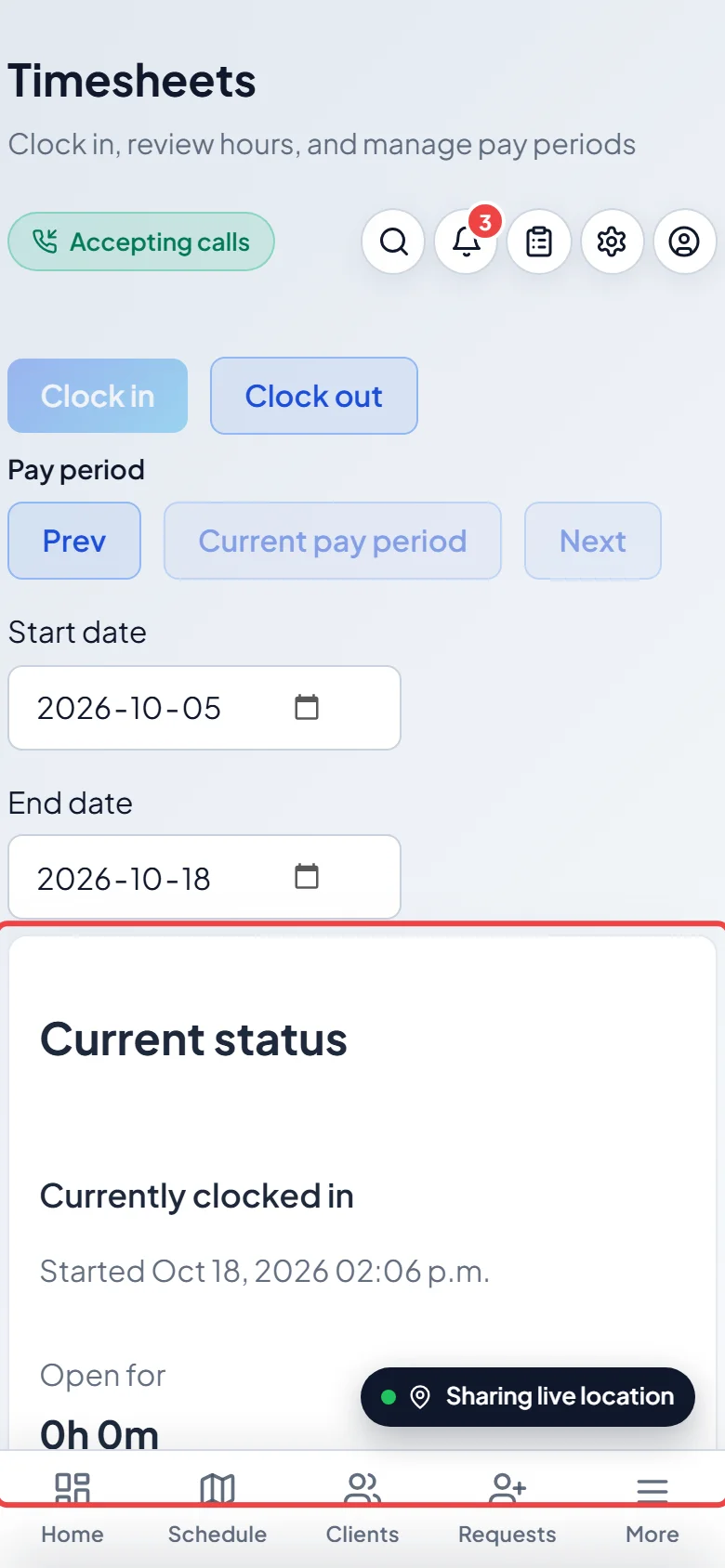
-
Below that are your work periods for the pay period. Tap your name to open the list. Use Prev and Next to look at other pay periods. If you’re allowed to fix your own time, tap Edit on a work period, change the Start or End, type why in Reason (required), and tap Save changes. Periods that are approved or paid can’t be edited.
Good to know
Section titled “Good to know”- Forgot to clock out? The work period shows Missing clock-out until you do. Tap Clock out, then tap Edit to set the right End time if you’re allowed, or ask your office to fix it.
- While you’re clocked in, the office may be able to see where you are on the map, if your company uses live tracking. See Sharing your location.
- Your office approves timesheets and marks them paid. See Approving timesheets.
Related articles
Section titled “Related articles”Checked against Astragal on October 18, 2026