

Low stock alerts
The low stock list shows every product you have fewer of than its reorder point, so you know what to order.
Who can do this: Admins, dispatchers and accountants.
Also called: reorder list.
-
Open Low stock. A red number next to it in the menu tells you how many products are on the list. Each row shows the Product, how many you have On hand (across all locations), its Reorder point and its Reorder qty.
On a computer: Left menu → Inventory → Low stock On a phone: More → Low stock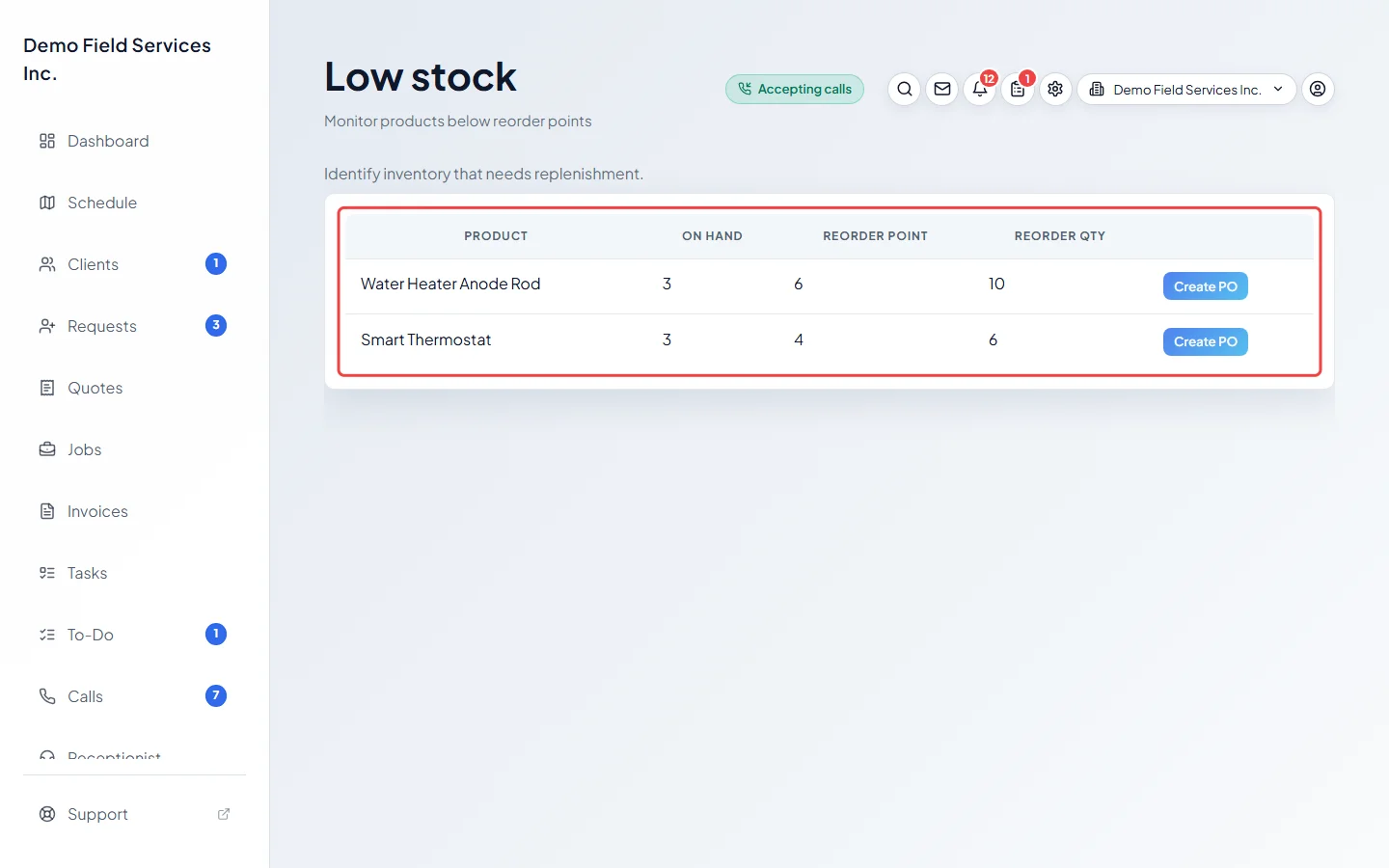
-
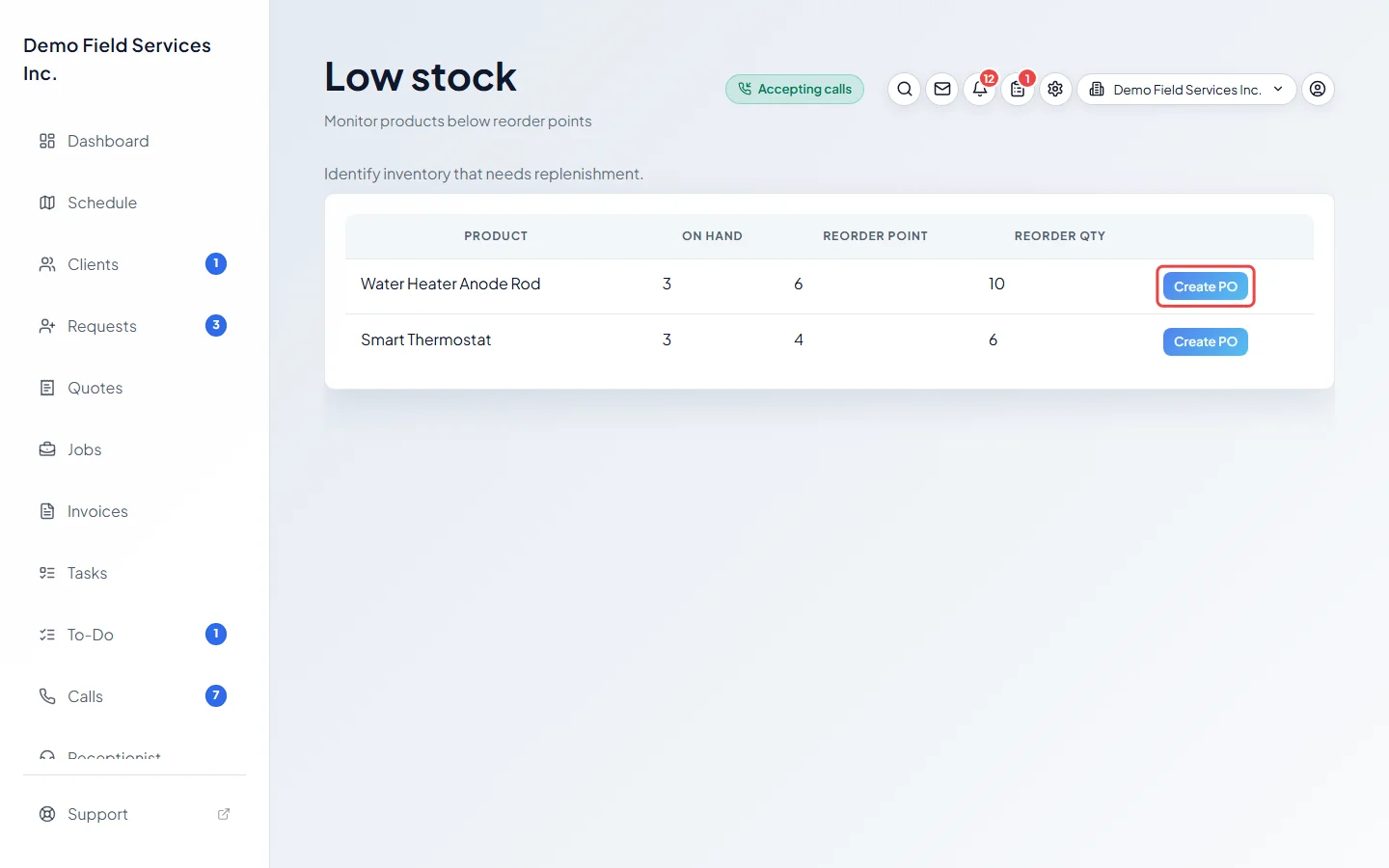
Click Create PO on a product to order more of it.
-
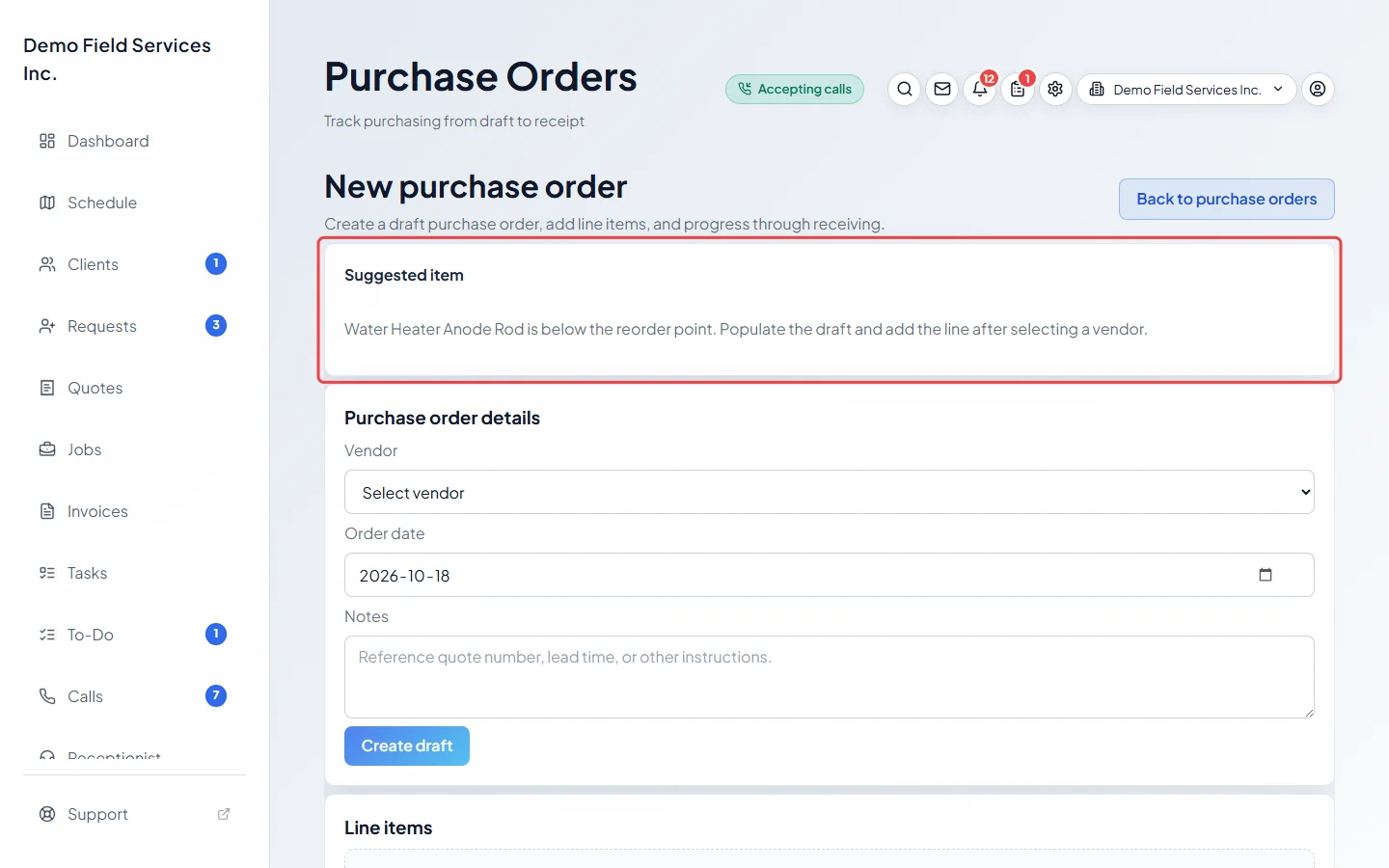
A new purchase order opens with the product noted under Suggested item. Choose the Vendor and click Create draft. The product and the suggested amount are already filled in on the line below: type the Unit cost, click Add line, then place the order. The suggested amount is the product’s reorder qty, or enough to get back to the reorder point (at least 1) if no reorder qty is set.
Good to know
Section titled “Good to know”- A product only shows here when it counts stock, isn’t archived, and has a reorder point. Set the reorder point on the item. See Adding a product or service.
- A product leaves the list as soon as you have as many as its reorder point again, for example after you receive the stock.
- Saving the purchase order needs a plan that includes purchase orders. See Purchase orders.
- When nothing is running low, the page says “All tracked products are above reorder points.”
- Stock held for approved quotes and booked jobs is already taken off the count. See Stock tracking and locations.
Related articles
Section titled “Related articles”Checked against Astragal on October 17, 2026