

Who can be booked and when
Pick the people customers can book online, and the days and hours each one can be booked.
Who can do this: Admins and dispatchers.
Also called: technician availability, staff hours.
-
Open Online booking in Settings and scroll to Technicians available for online booking. Switch on each person customers may book. Only switch on people who travel to customers on their own: each one’s own route is checked against the customer’s address.
On a computer: Left menu → Settings → Online booking On a phone: More → Settings → Online booking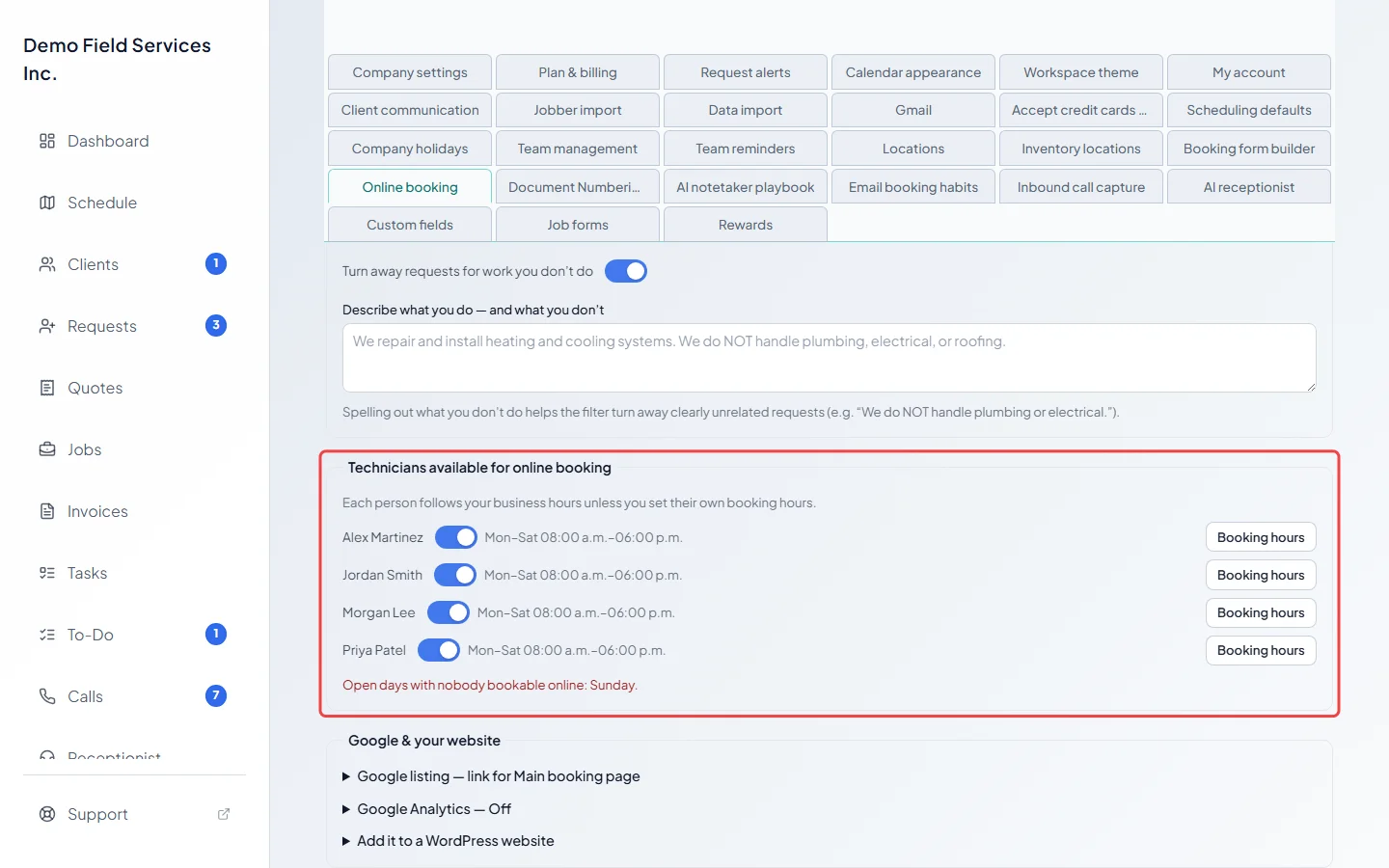
-
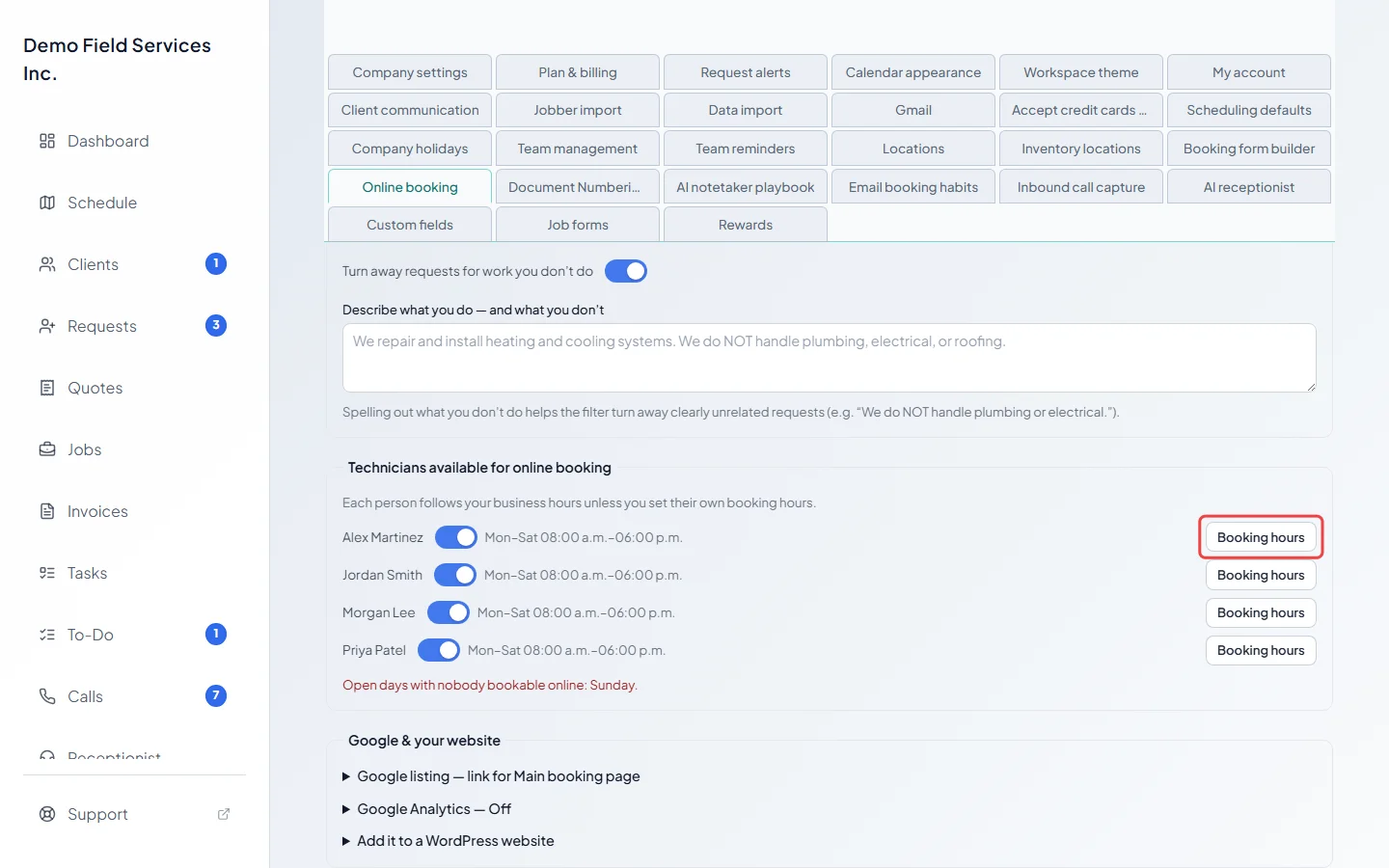
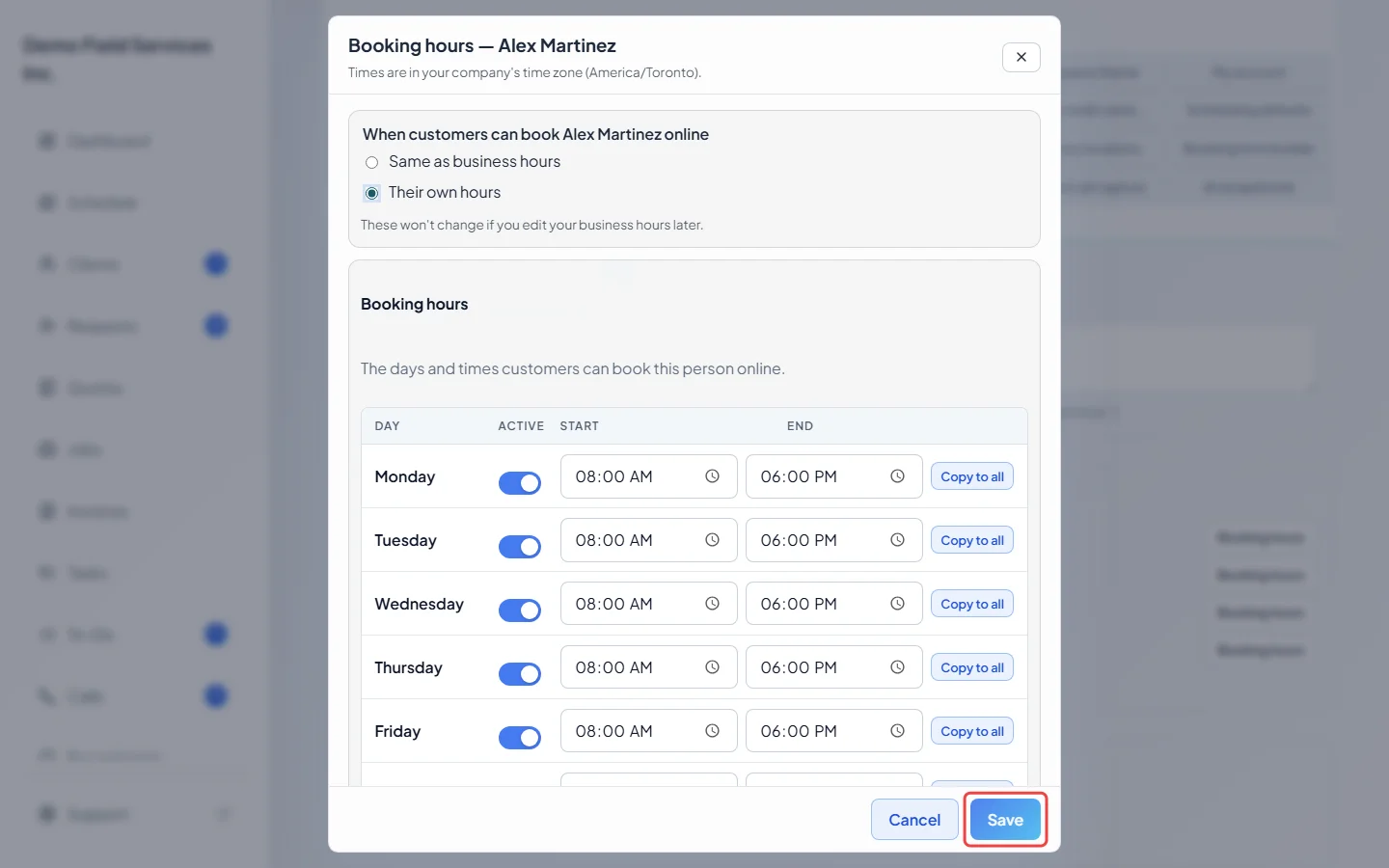
Beside each name, a short line shows their hours: “Business hours”, or a summary such as “Mon–Fri 9:00 a.m.–3:00 p.m.”. Days your business is closed show “(closed)”. Click Booking hours beside a person to change theirs.
-
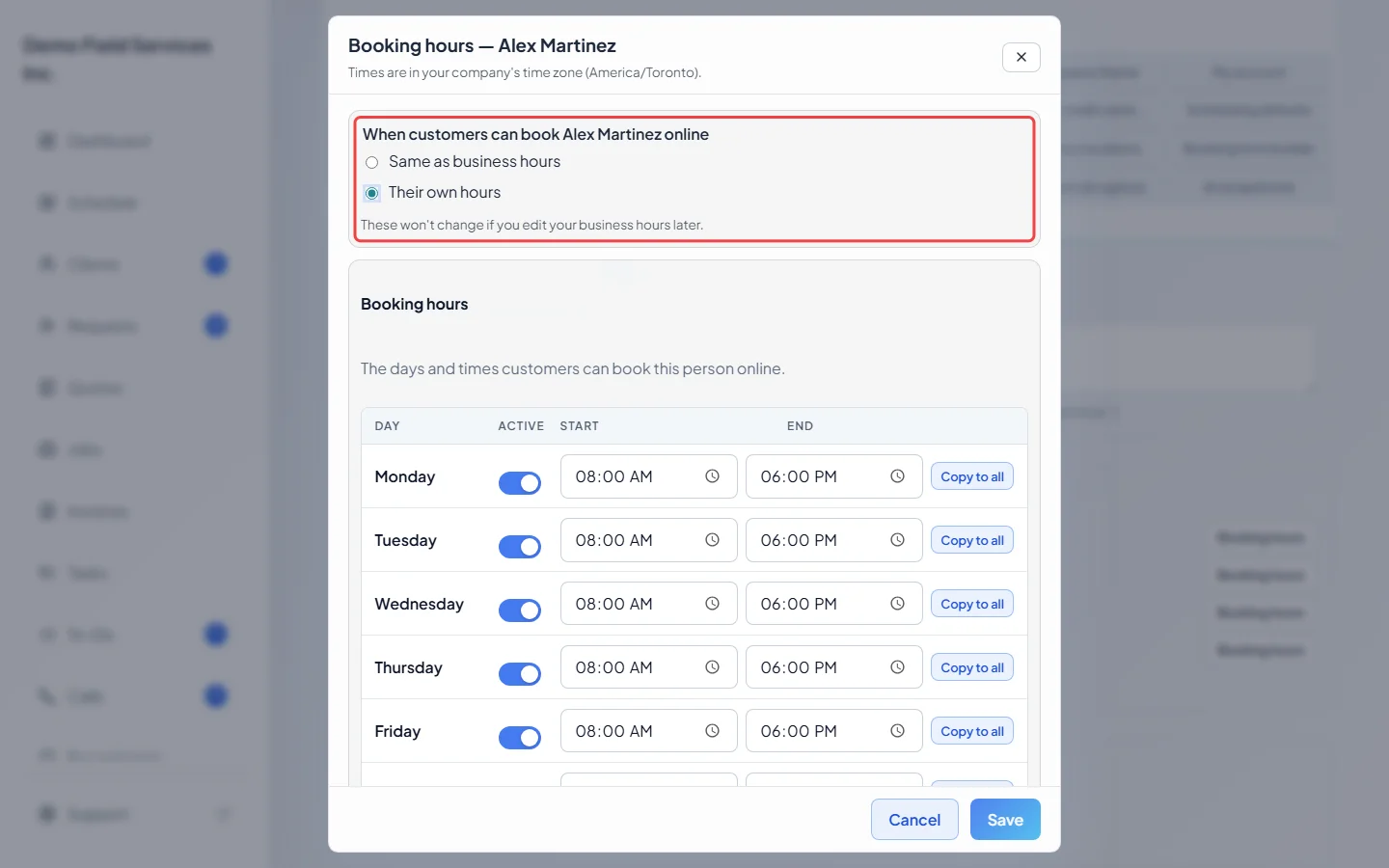
Choose Same as business hours (they follow your business hours, even when you change them later) or Their own hours.
-
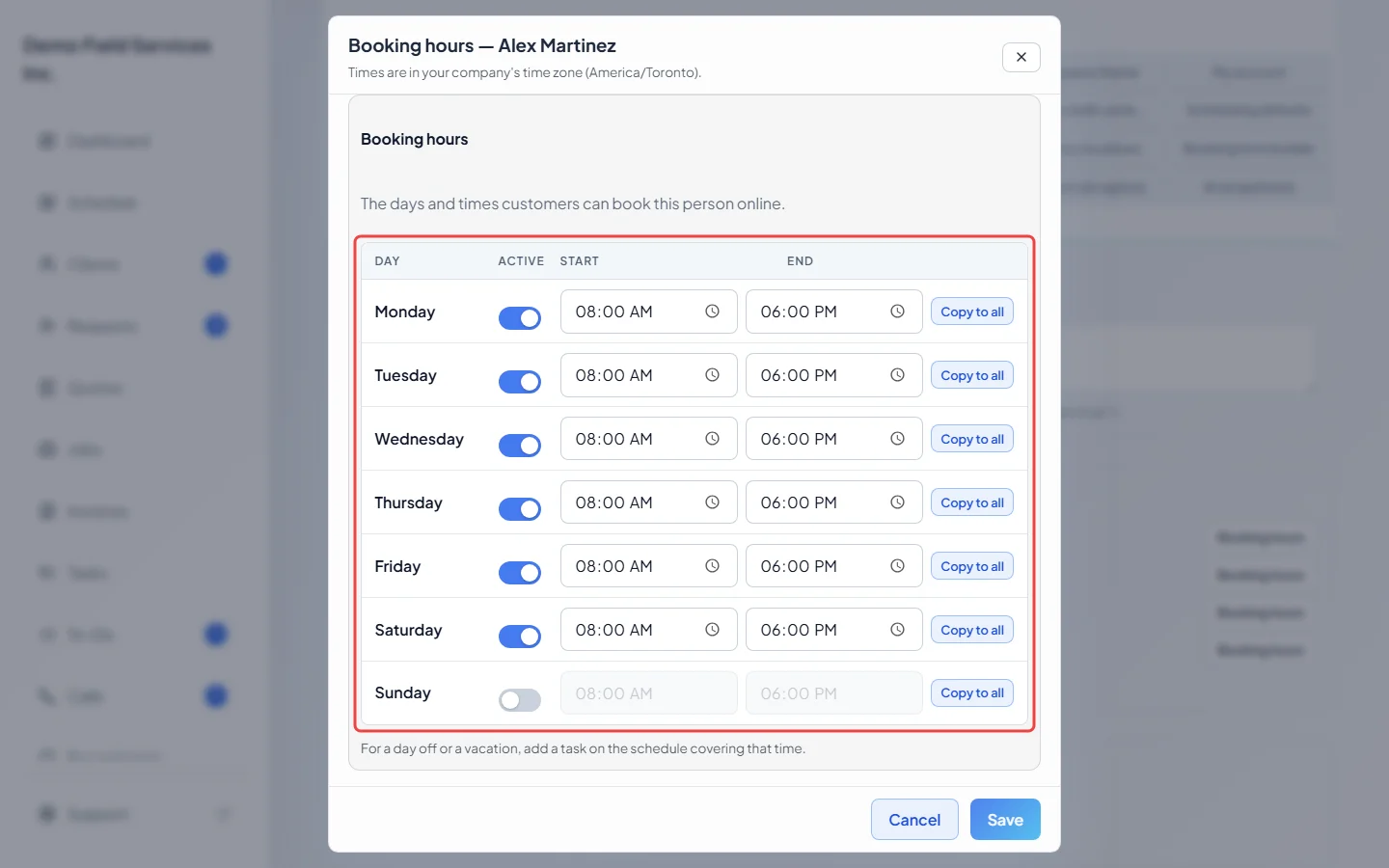
For Their own hours, switch days on or off and set the start and end time for each. If the person has working hours on their team profile, Copy their working hours fills them in. A note under a day warns when it’s closed in your business hours or reaches outside them.
-
Click Save. The line beside their name now sums up their hours.
How booking hours work
Section titled “How booking hours work”- A time is offered only when someone who can do the services picked is working for that whole arrival window and is free.
- Booking hours can only narrow your business hours. A day you’re closed stays closed, and times before you open or after you close are never offered.
- Times are in your company’s time zone, shown at the top of the window.
- Saved hours don’t change when you edit your business hours later. If they match your business hours exactly, the window suggests choosing Same as business hours so they follow future changes.
- For a day off or a vacation, add a task on the schedule covering that time instead.
- Booking hours only affect online booking. You can still put anyone on any job at any time, and changing someone’s hours never moves, cancels or messages a booking already made.
If a day shows no times
Section titled “If a day shows no times”- Days you’re closed and company holidays don’t appear at all. A blackout date shows “We’re closed on this date” (or its name).
- Nobody’s booking hours cover a whole arrival window that day. A person whose hours can never hold one shows a red No booking times fit these hours tag, and a red line under the list names any open days with nobody bookable online.
- The service is limited to people who are off that day (see Services customers can book).
- The day is already full, or the route can’t fit the visit without making someone late.
- It’s today and everyone has clocked out (see Stop offering today’s times once a technician clocks out with no visits left in Service area and booking limits).
Good to know
Section titled “Good to know”- Turning someone off asks first if it would leave a service with nobody who can be booked; customers would be asked to call.
- Each person’s working hours on their team profile are separate, see Working hours.
- To see why a time is greyed out for an address, drop a lookup pin on the schedule map, see Checking a new address on the map.
Related articles
Section titled “Related articles”Checked against Astragal on October 18, 2026