

The requests board
The requests board is where new work comes in, sorted by how far along each request is.
Who can do this: Admins, dispatchers and accountants. Technicians see it when Requests is switched on for them. Anyone who can see the board can mark a request contacted. Creating, scheduling, archiving and restoring need the Requests permission View, edit, and create; deleting needs View, edit, create, and delete; converting needs permission to create quotes or jobs.
Also called: leads, enquiries, work requests.
-
Open the requests board. For admins, dispatchers and accountants, the number on Requests in the menu is how many requests are waiting in New.
On a computer: Left menu → Requests On a phone: Bottom bar → Requests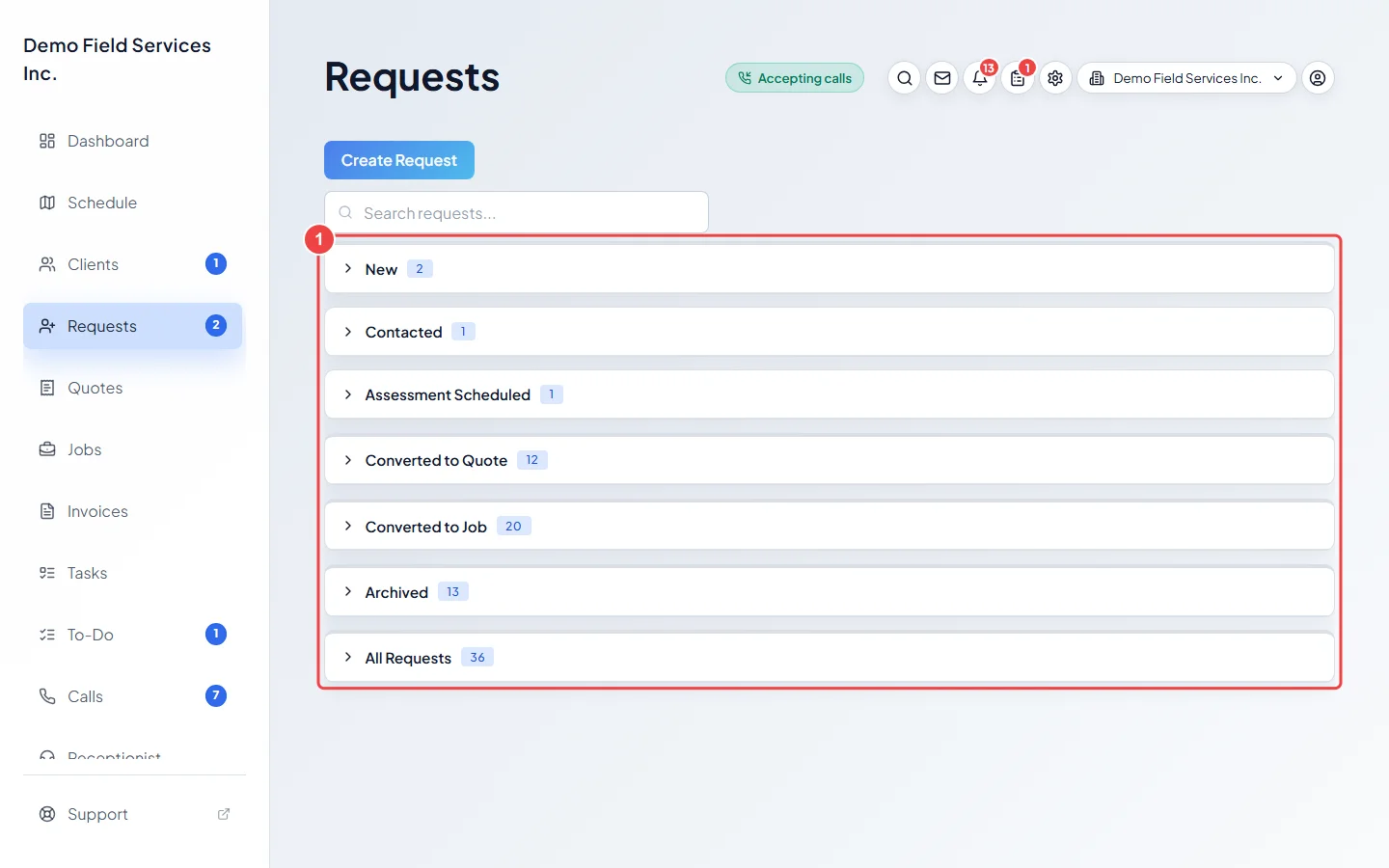
-
Click a stage to open it. Only one stage is open at a time. The stages are:
- New: client requests nobody has dealt with yet.
- Contacted: client requests you marked as contacted.
- Assessment Scheduled: client requests with a confirmed visit to look at the work.
- Converted to Quote and Converted to Job: requests that became a quote or a job.
- Archived: requests you put away.
- All Requests: everything that isn’t archived, as one table.
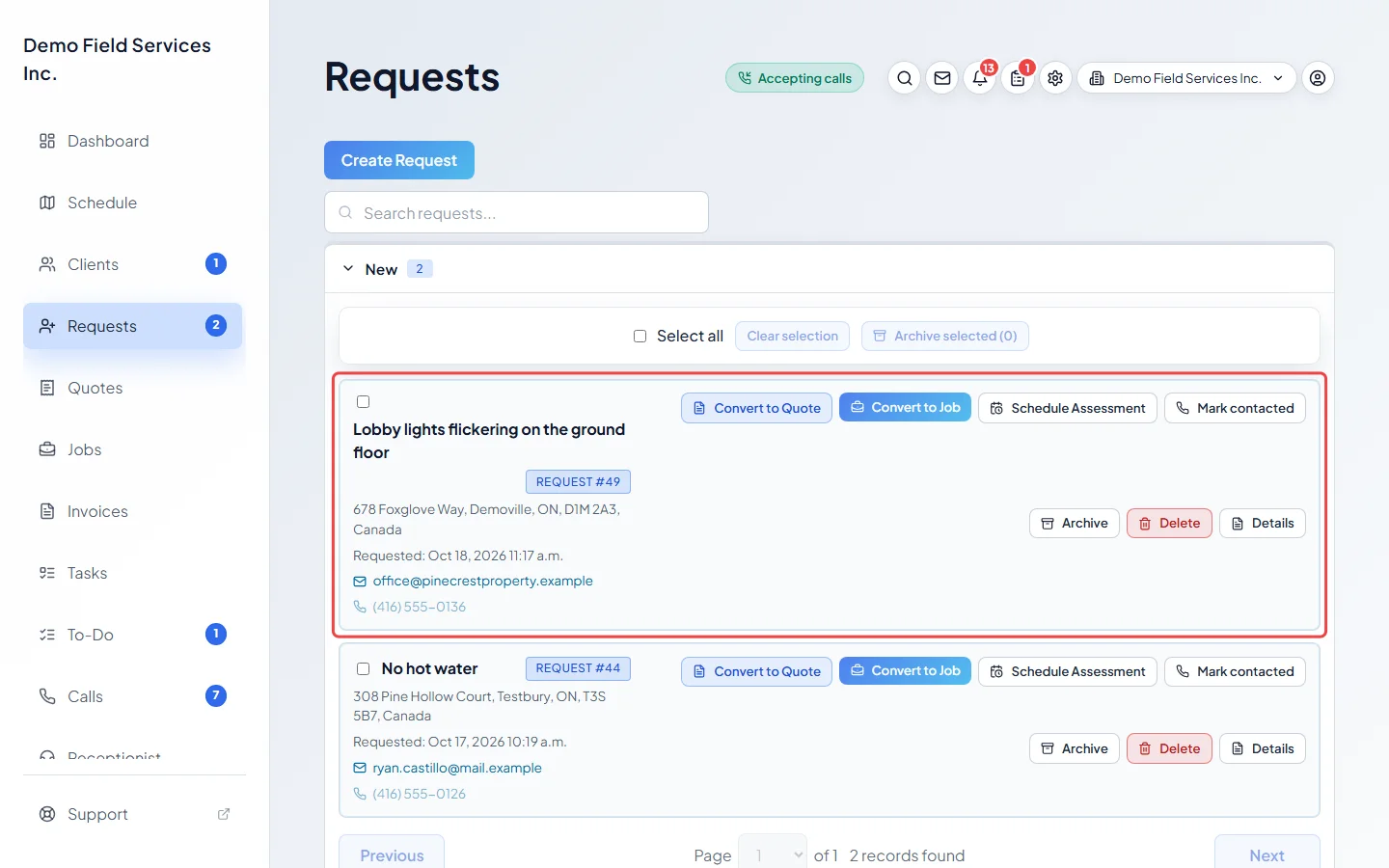
Each card shows the title, the request number, the property, when it came in, and the client’s email and phone. Badges show where it came from, such as Online request or Website chatbot, and anything the client ticked, such as Any time works or Wants earlier.
-
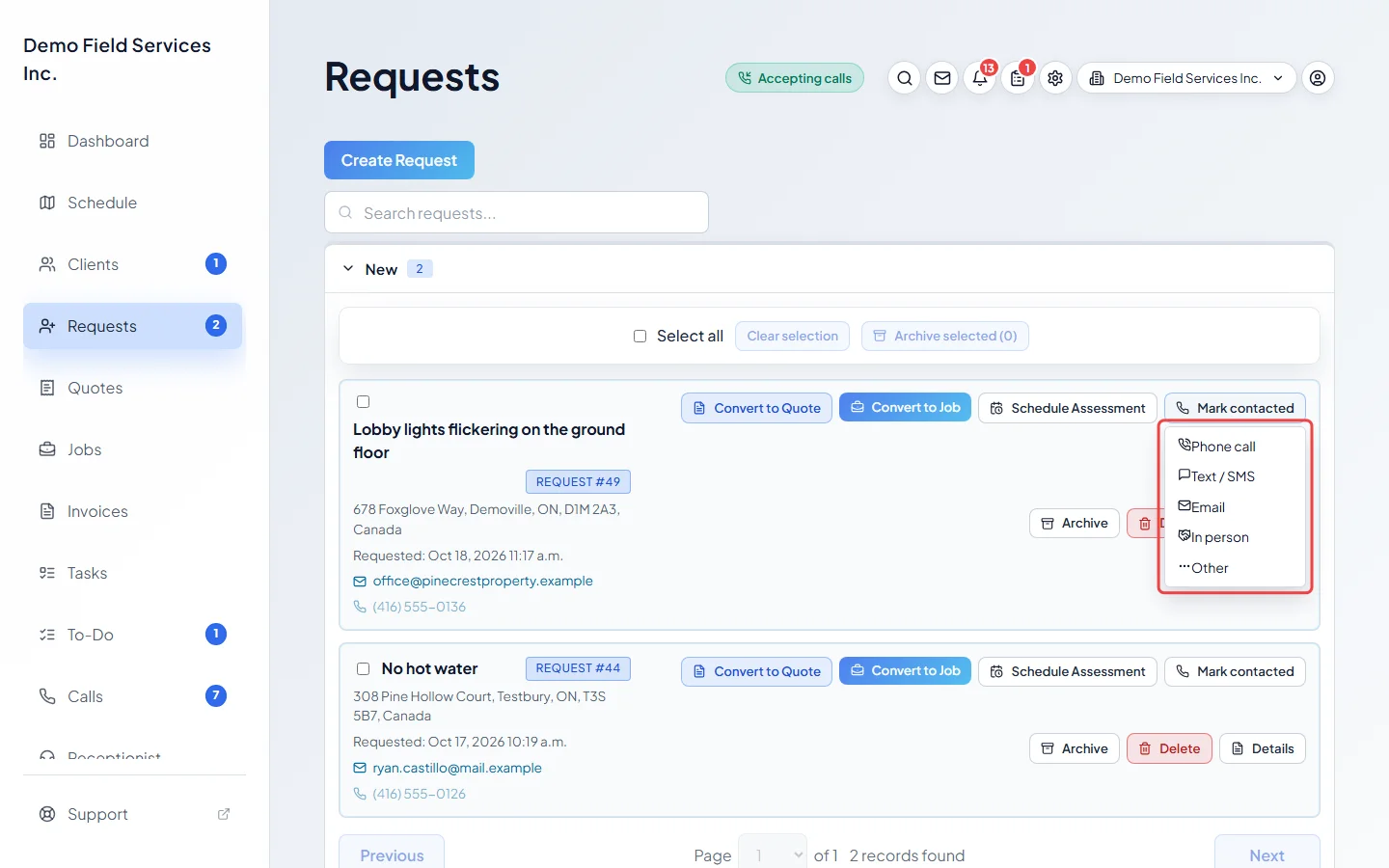
When you’ve reached the client, click Mark contacted on its card in New and pick how: Phone call, Text / SMS, Email, In person or Other. The request moves to Contacted and its card shows who reached them and when. To undo it, click Move back to New on its card in Contacted.
-
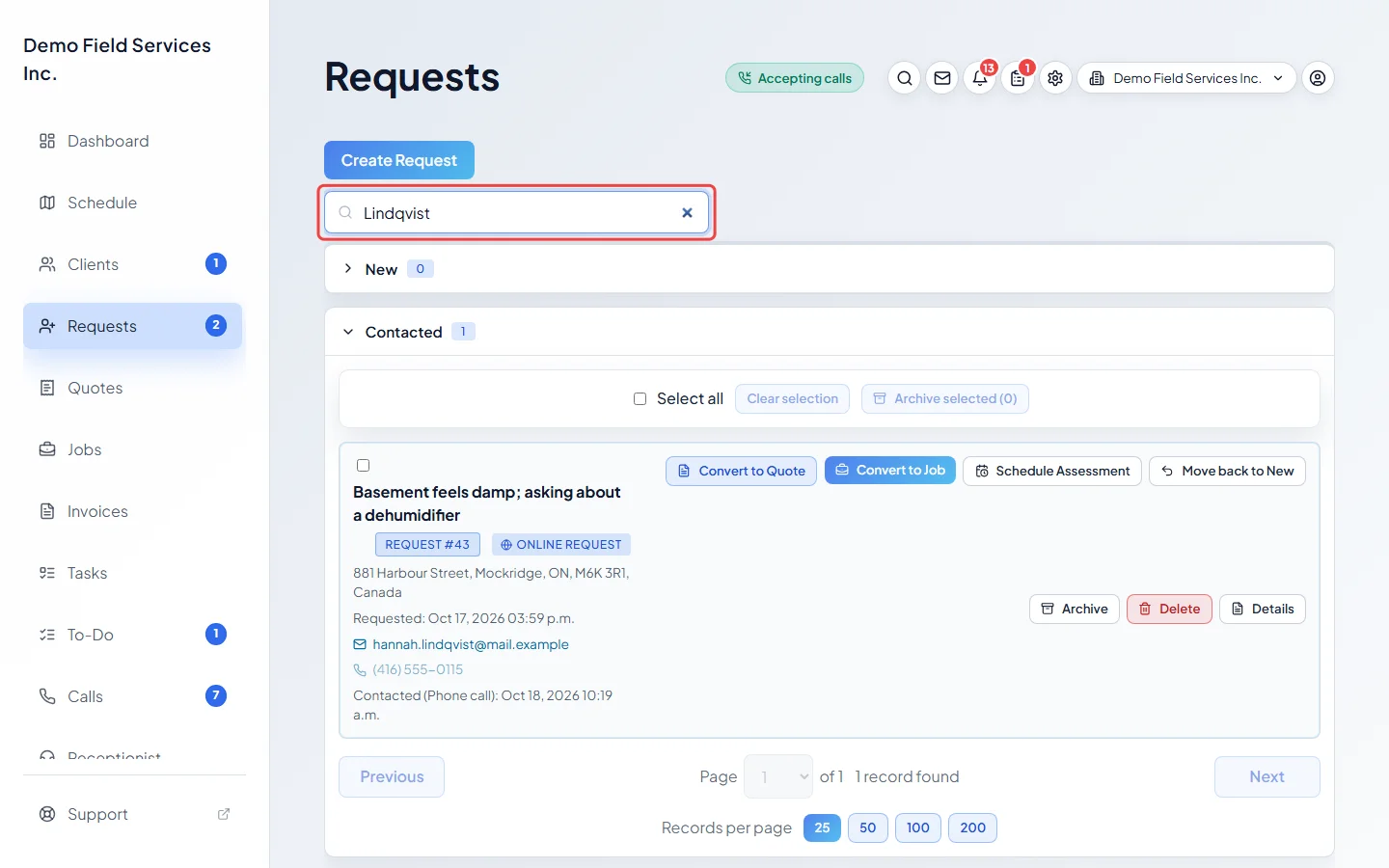
To find a request, type in Search requests… at the top. It matches the client’s name, email, phone, the property address and the request number, but not the request’s title. Each stage’s count changes to show its matches, and the first stage with a match opens by itself.
-
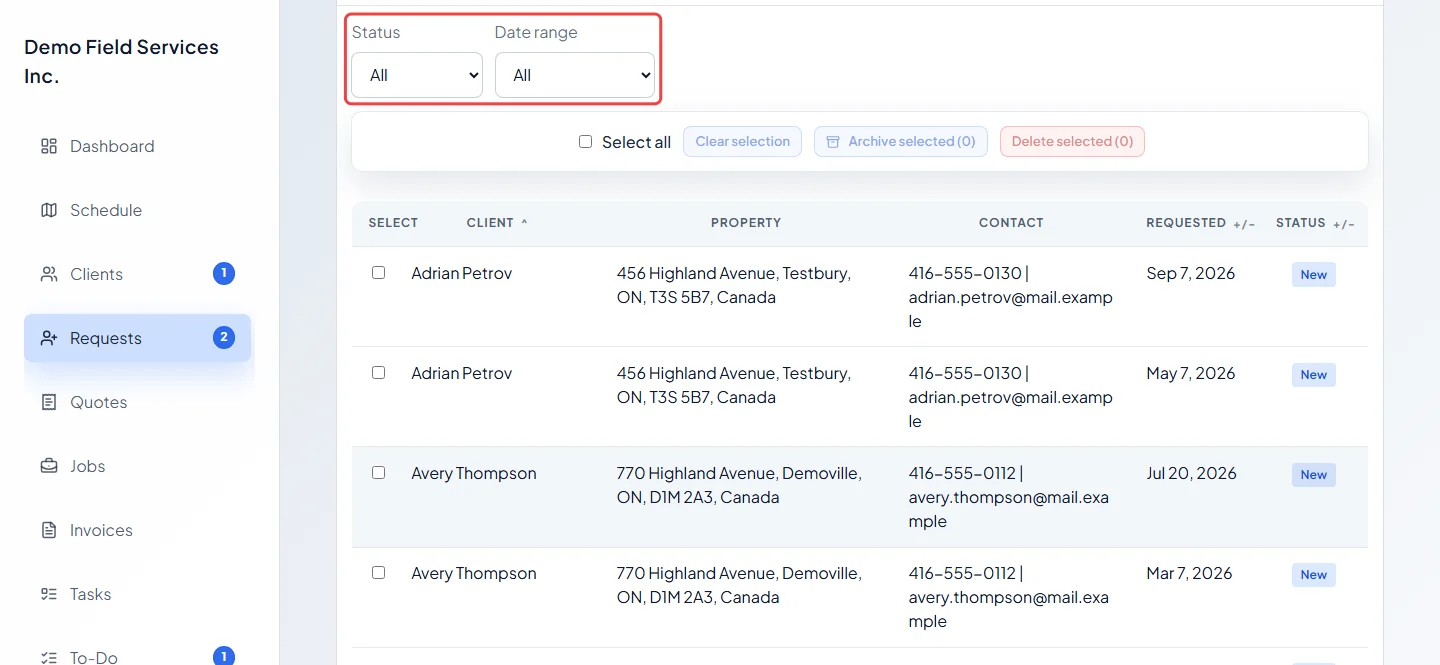
Open All Requests for a full table. Filter it by Status and Date range, or pick Custom range and set From and To. Click the Client, Requested or Status heading to sort. Click a row to open the request.
-
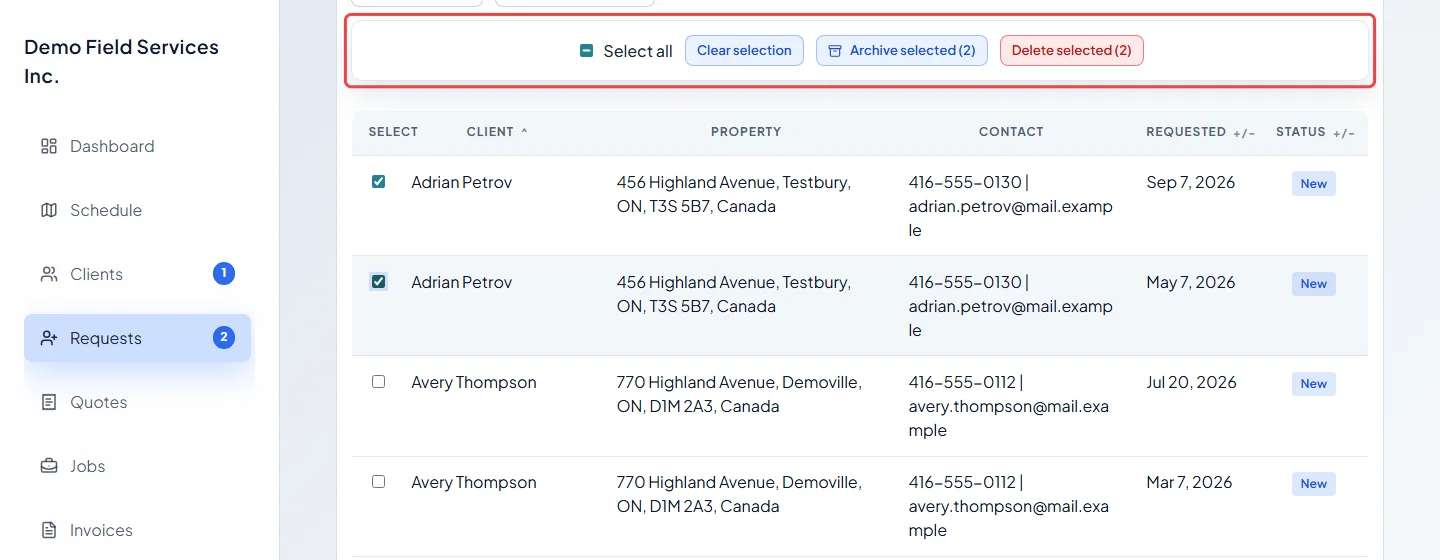
To act on several requests, tick them (or use Select all), then click Archive selected (it shows how many are ticked) or, in All Requests, Delete selected. Clear selection unticks them. Archived requests can’t be selected.
Good to know
Section titled “Good to know”- Requests you or your team type in yourselves skip New, Contacted and Assessment Scheduled. You find them in All Requests until they become a quote or a job. See Creating a request.
- In All Requests, the date is the visit time if the request has one, otherwise when it came in. A request reads New when that date is before today (this isn’t the same as the New stage), Today when it’s today, Upcoming when it’s later, and Converted once it became a quote or job.
- Each stage shows 25 requests per page. Change it under Records per page (25, 50, 100 or 200) and move with Previous, Next or the page number. Your choice is remembered on this device.
- The buttons on a card depend on its stage. New and Contacted cards have Convert to Quote, Convert to Job and Schedule Assessment; Assessment Scheduled cards have the two convert buttons. A Converted to Quote card has View Quote and Archive; a Converted to Job card has only Archive (to open the job, click Details and use Linked records). Archived cards have Restore. Every card has Details.
- To turn an email from a client into a request, see Booking from an email.
- A request whose card says Assessment overdue had its visit time pass without becoming a quote or job.
- On a phone, All Requests shows cards instead of a table. Each card has a Select tick box and a bin button to delete it, or an archive button if it became a quote or job.
Related articles
Section titled “Related articles”- The request details page
- Turning a request into a quote or job
- Booking an assessment visit
- Closing a request
Next step: Creating a request
Checked against Astragal on October 18, 2026