

Supplier orders
A supplier order is the list of parts you need from one supplier for one client’s quote, tracked from “to place” to picked up.
Who can do this: Admins, dispatchers and accountants, on a plan that includes supplier orders.
Also called: parts order, special order.
-
Open Supplier Orders. A red number next to it in the menu counts the orders that need someone. Each row shows the order’s PO number (the order’s own number, which you and the supplier use to refer to it), the Supplier, the Client, the Status, the Pickup date, what Needs attention and when it was Created. The statuses are To place (not sent yet), On hold, Placed, Done and Cancelled.
On a computer: Left menu → Inventory → Supplier Orders On a phone: More → Supplier Orders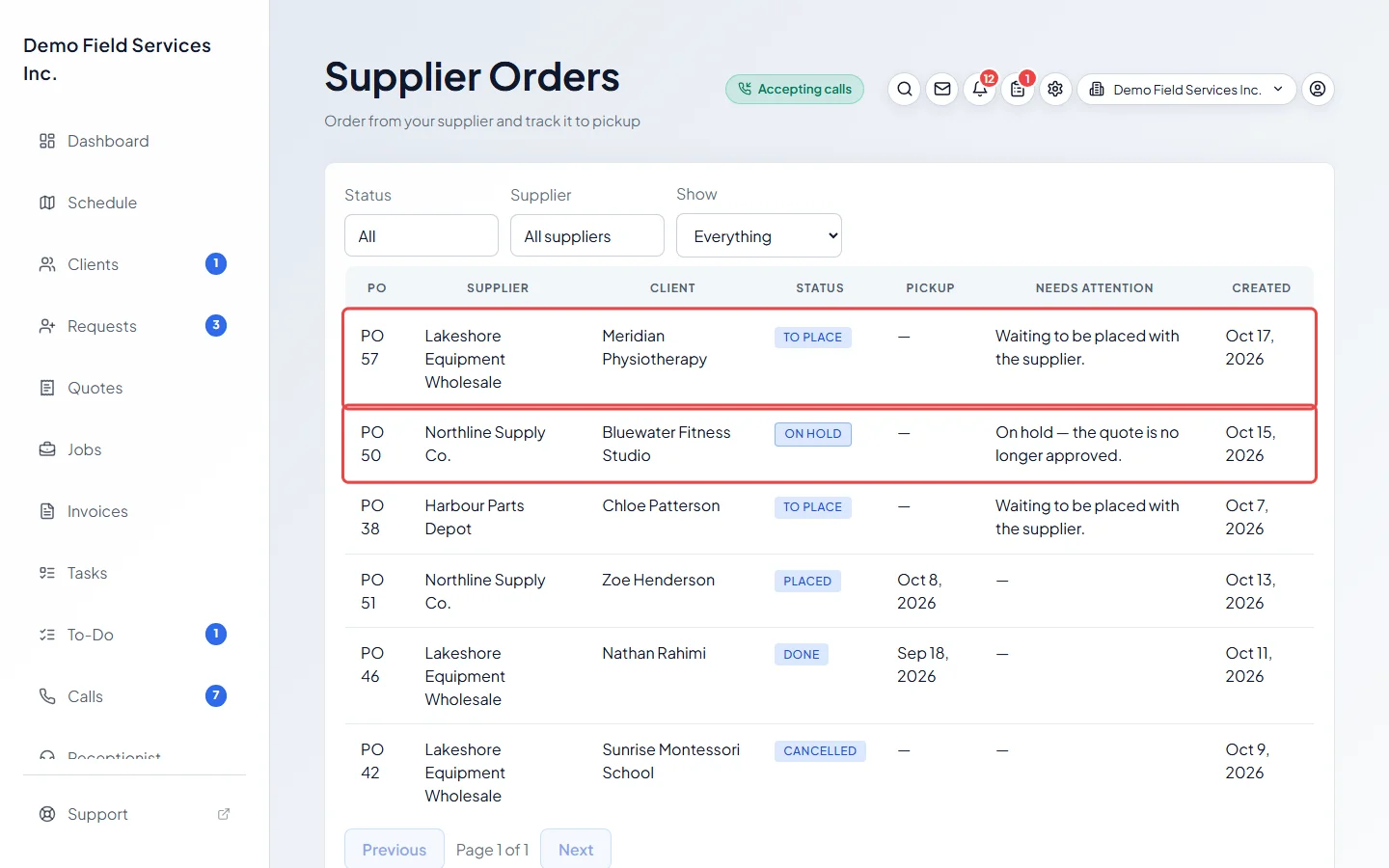
-
To narrow the list, tick statuses under Status or suppliers under Supplier (nothing ticked means all), or set Show to Needs attention.
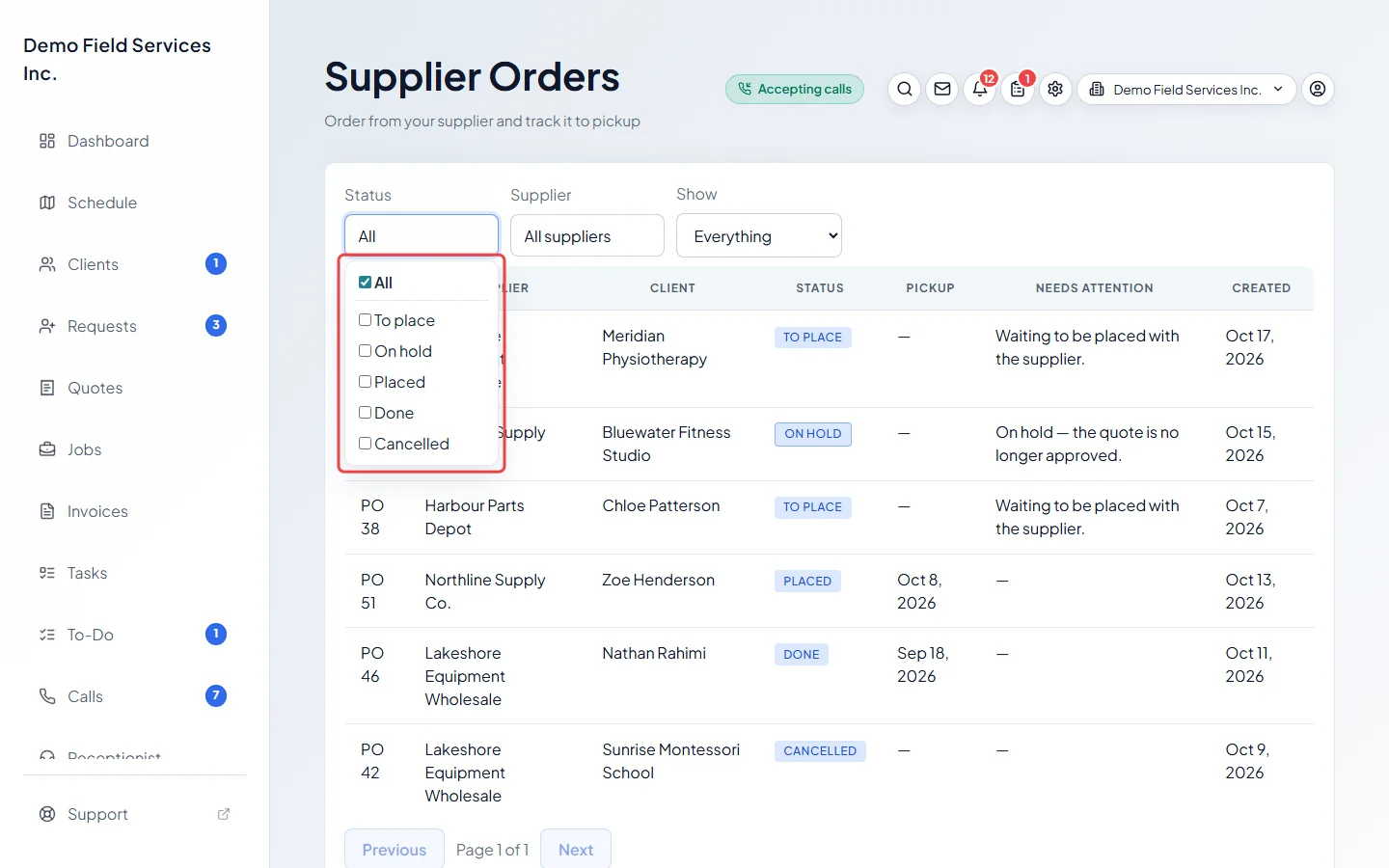
-
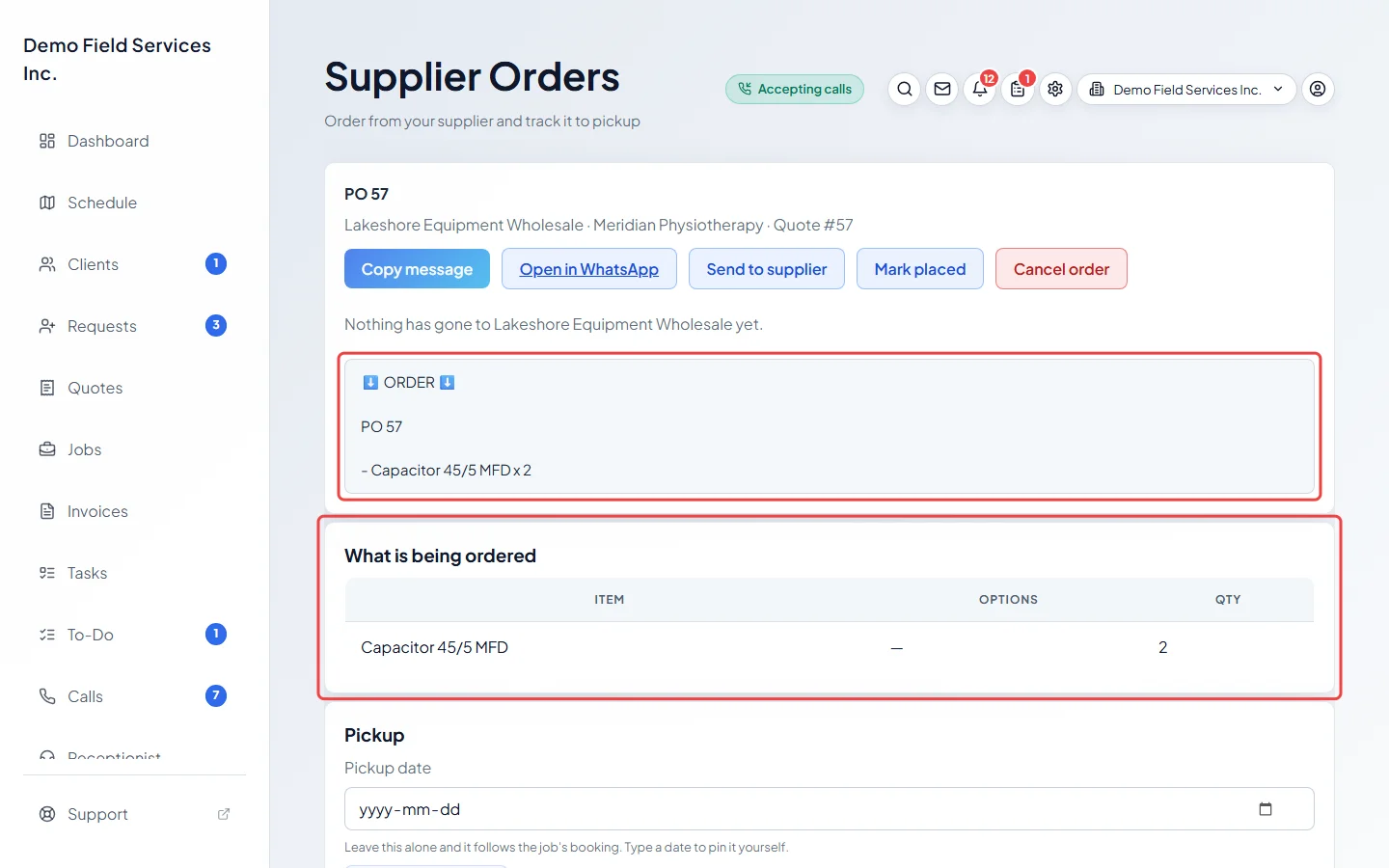
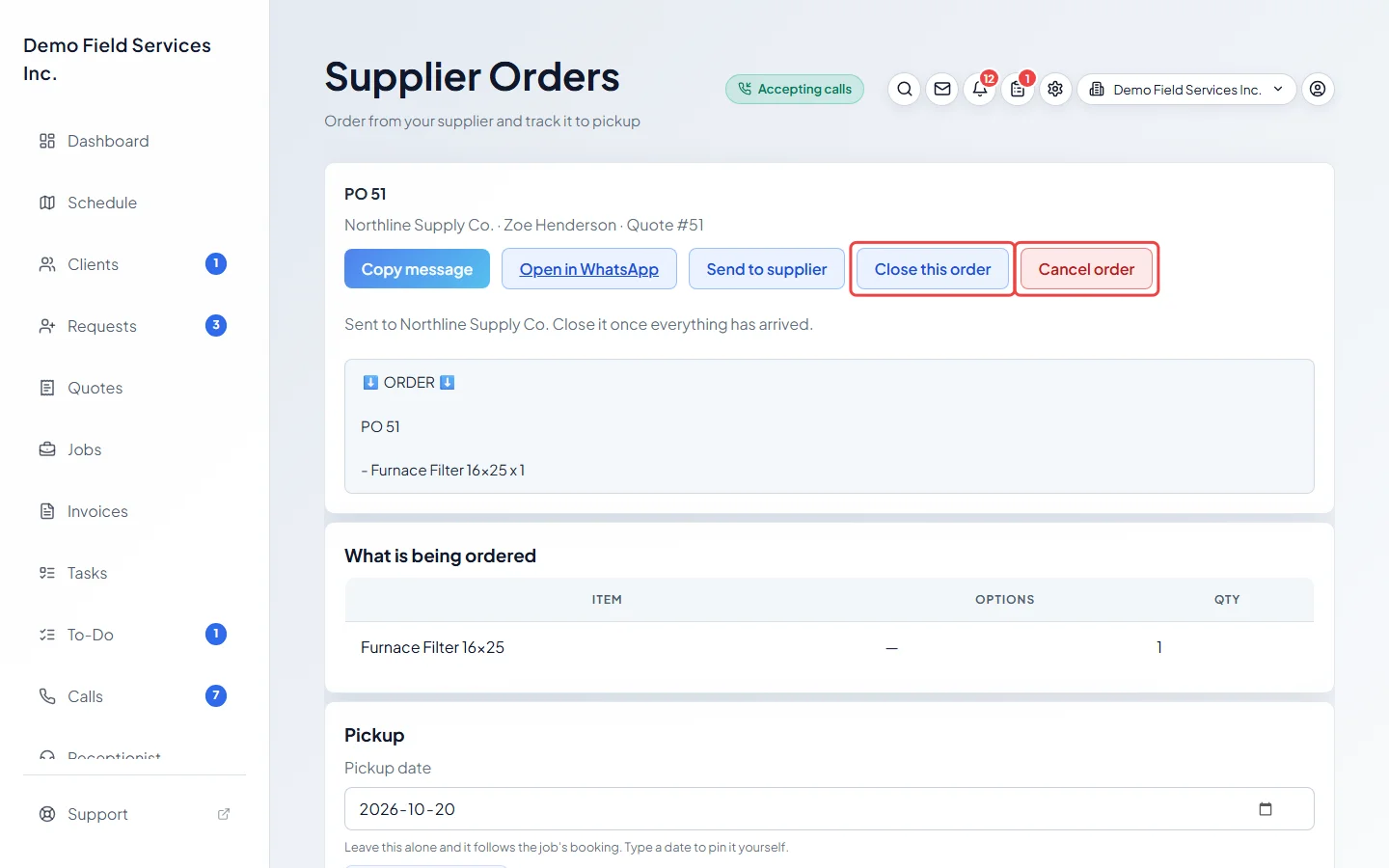
Click an order to open it. The top shows the PO number, supplier, client and quote number, then the message that goes to the supplier. Under it, What is being ordered lists each item with its options and quantity.
-
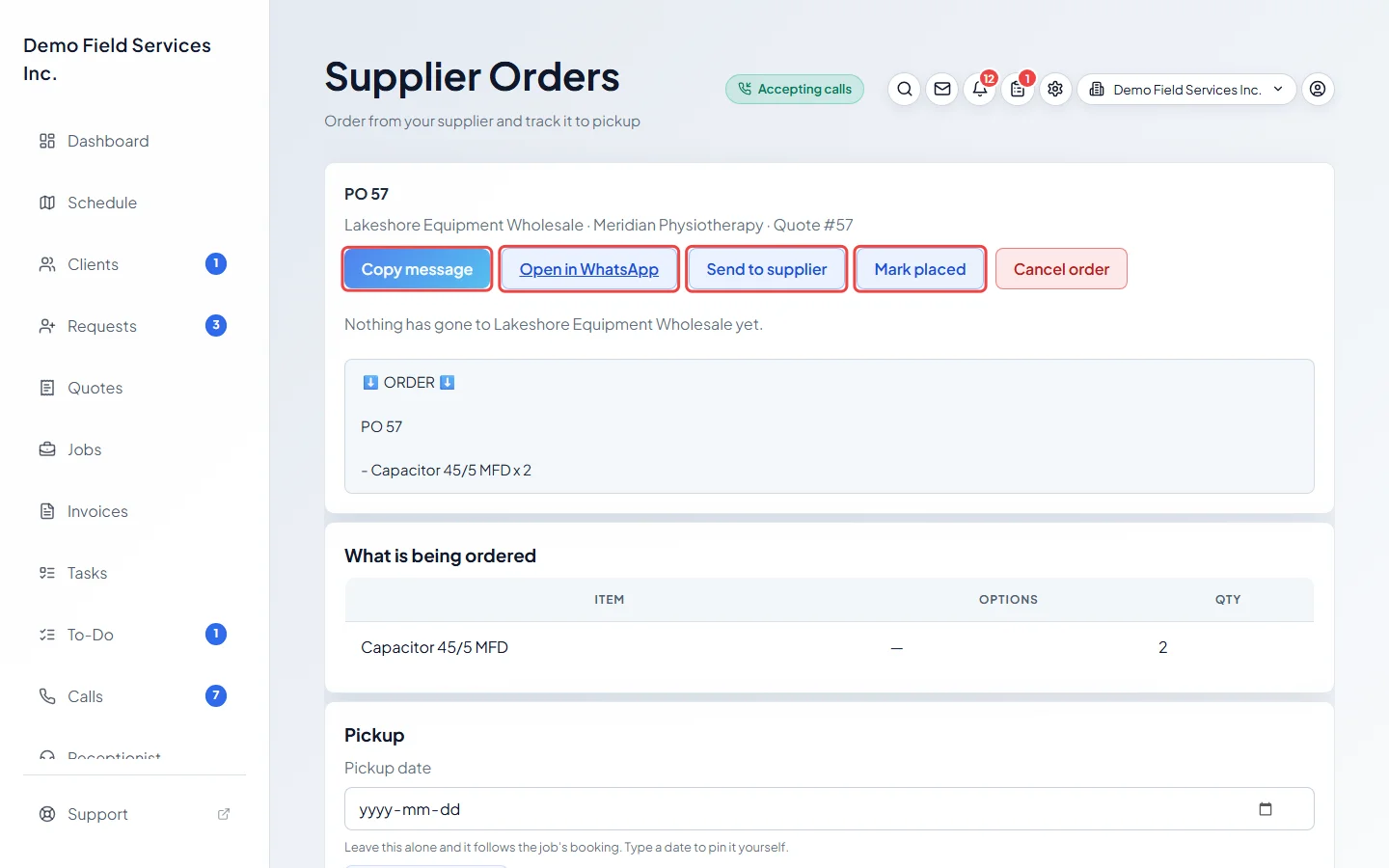
Send the order in whichever way suits that supplier. Copy message copies the text so you can paste it anywhere; Open in WhatsApp (shown when the supplier has a phone number) opens a chat with that number and the message ready; Send to supplier emails or texts it, if the supplier is set up for that. Copying or opening WhatsApp marks the order Placed straight away, and the message that pops up has an Undo for a short time. If you sent it some other way, click Mark placed.
-
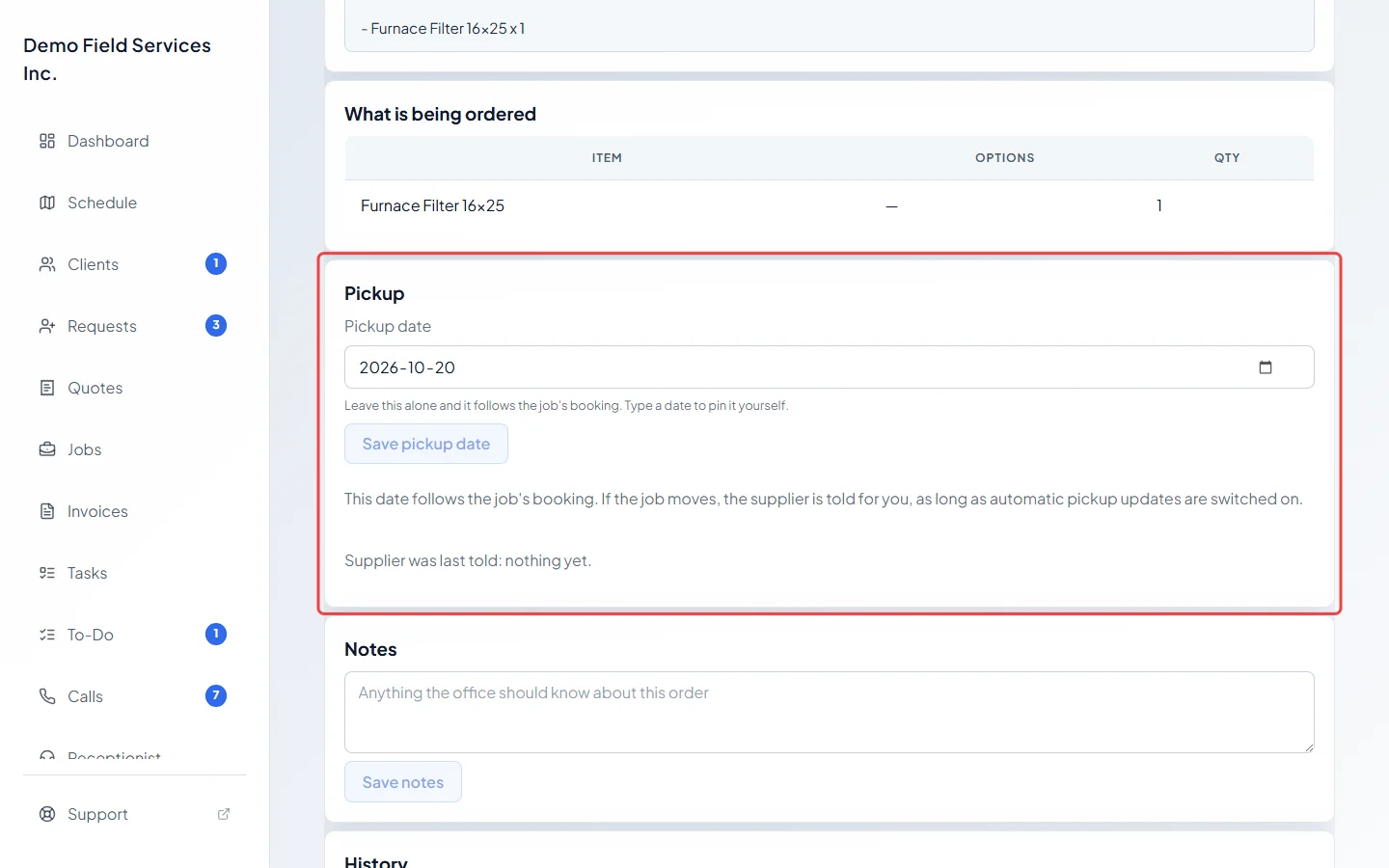
Under Pickup, the Pickup date follows the job’s booking until you type your own. Click Save pickup date: Astragal asks before it tells the supplier, and says how (by email, by text, or with a button for you to send it yourself). Go back to the job’s date drops a date you typed. “Supplier was last told” shows the date the supplier knows. When the date still needs sending, a Send pickup date button appears, and a Send pickup reminder button shows on or before the pickup day. For a supplier who isn’t set to get messages from Astragal, they read I have sent the pickup date and I have sent the reminder: send it yourself, then click to record it.
-
When everything has arrived, open the placed order and click Close this order. It moves to Done and comes off your list of orders to chase. Nothing is sent to the supplier. To stop an order you no longer need, click Cancel order: the record and its history stay.
When the items change
Section titled “When the items change”If the quote or job lines change after the supplier got the order, a banner says so and a What changed card lists the changes and what the supplier should have now. Click Send updated order, Copy updated message or Open updated order in WhatsApp to tell them, or No need to tell them to keep their order as it is. Nothing is sent until you choose.
If the quote stops being approved, an order Astragal started by itself that hasn’t been sent yet goes On hold, and approving the quote again brings it back. Orders already sent are flagged instead, and orders you started by hand stay as they are. If the job is cancelled, the order is flagged for you to decide what to tell the supplier; it is never cancelled or messaged for you.
Good to know
Section titled “Good to know”- To move one item to a different supplier, use Move to another supplier next to it. Suppliers that sell the product are listed first. Nothing is sent to either supplier.
- Use Notes for anything the office should know, then click Save notes. History lists every message sent or copied, and any that didn’t go through.
- PO numbers match the quote number unless you change that in document numbering.
- The wording of supplier messages can be changed under message templates.
- If Supplier Orders isn’t in your menu, your plan doesn’t include it. See A button or menu item is missing.
Related articles
Section titled “Related articles”Checked against Astragal on October 17, 2026