

Notes and files on a job
Internal notes are private messages for your team, with files or photos attached. Clients never see them.
Who can do this: Anyone who can open the job can read its notes. To add, edit or delete notes, you need permission to edit the job. For technicians, that means schedule edit permission and being on the job or one of its visits. Anyone who can add notes can also edit or delete other people’s notes. The Client thread needs permission to see full client details (to read) and to edit clients (to add). Admins can switch notes off for a team member.
Also called: comments, attachments.
-
Open the job and scroll to Internal notes. The card shows how many notes there are and the latest one. Click Open notes.
On a computer: Left menu → Jobs On a phone: More → Jobs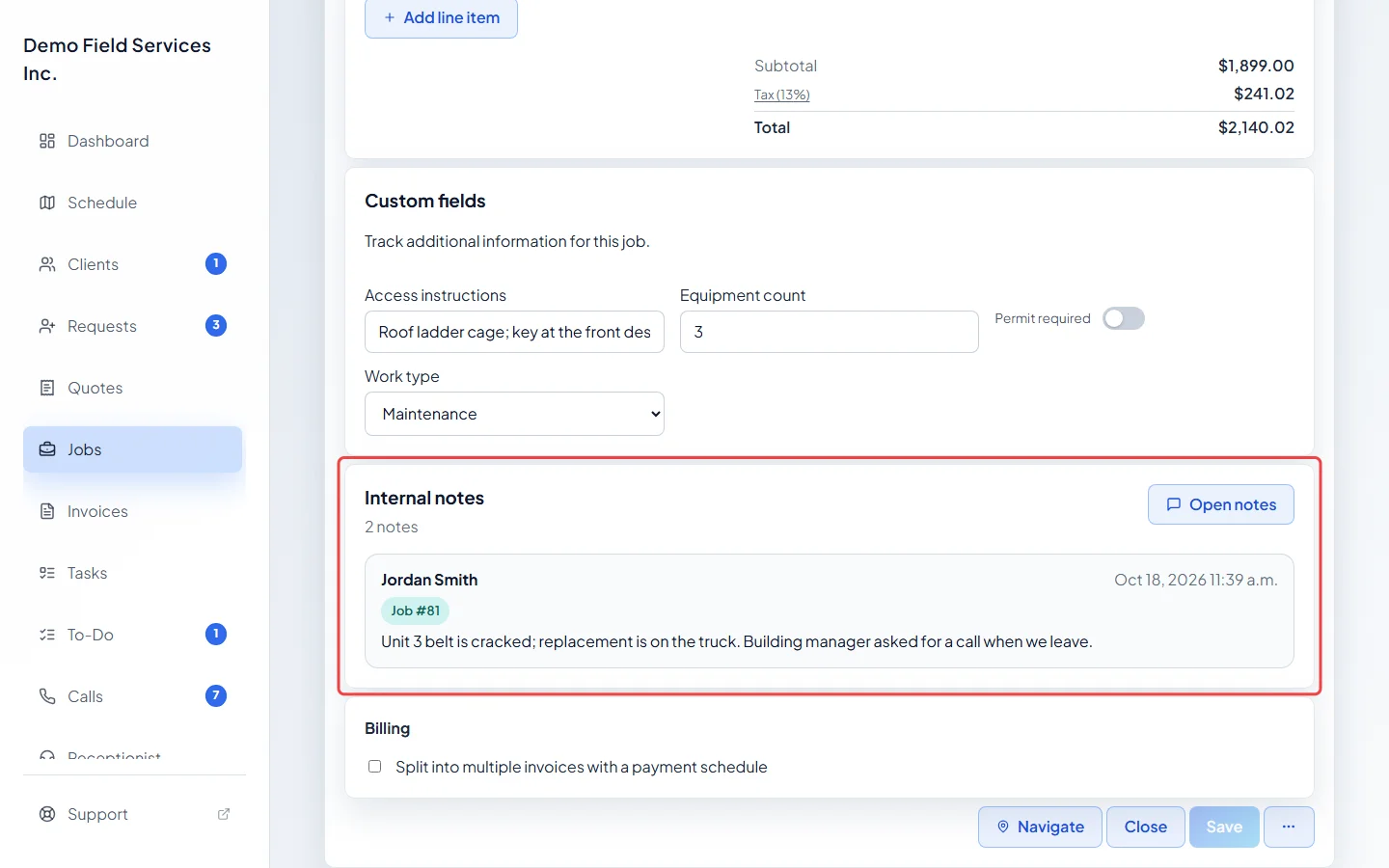
-
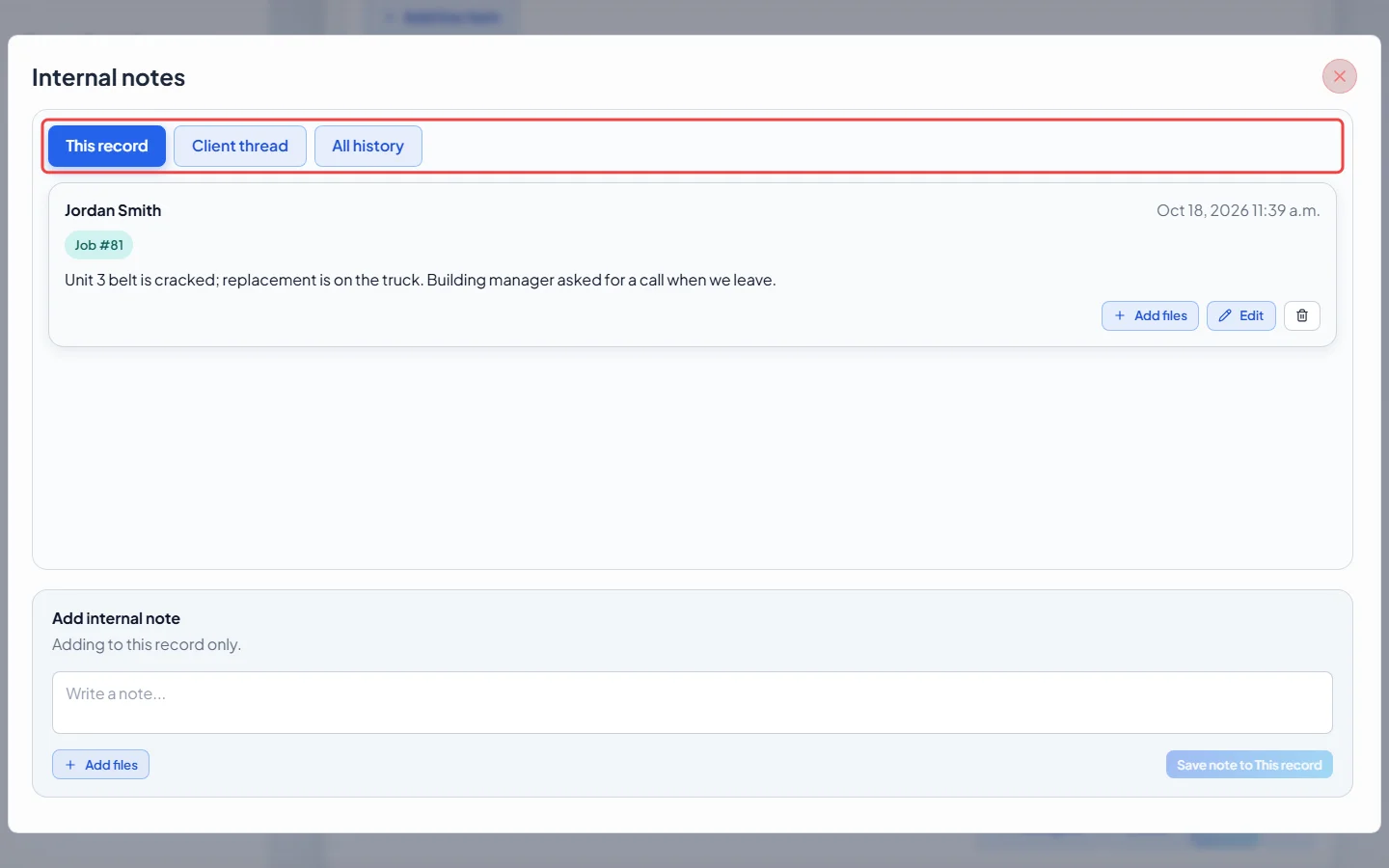
Choose where the note goes: This record keeps it on this job, and Client thread puts it on the client so it shows on all their work.
-
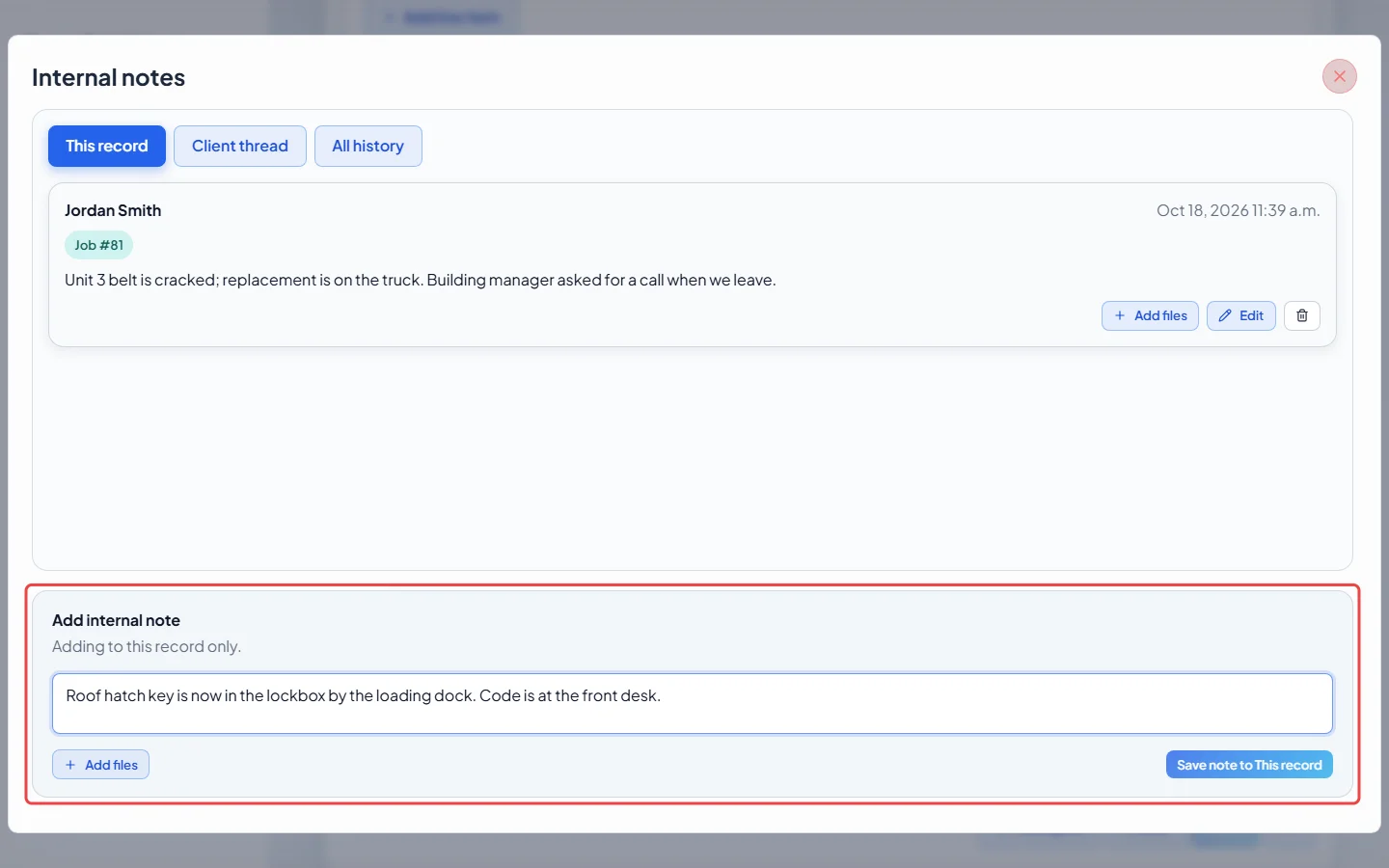
Type in Write a note…. Click Add files to attach photos or documents (up to 20 MB each time you save or add files). Large photos are made smaller before they upload.
-
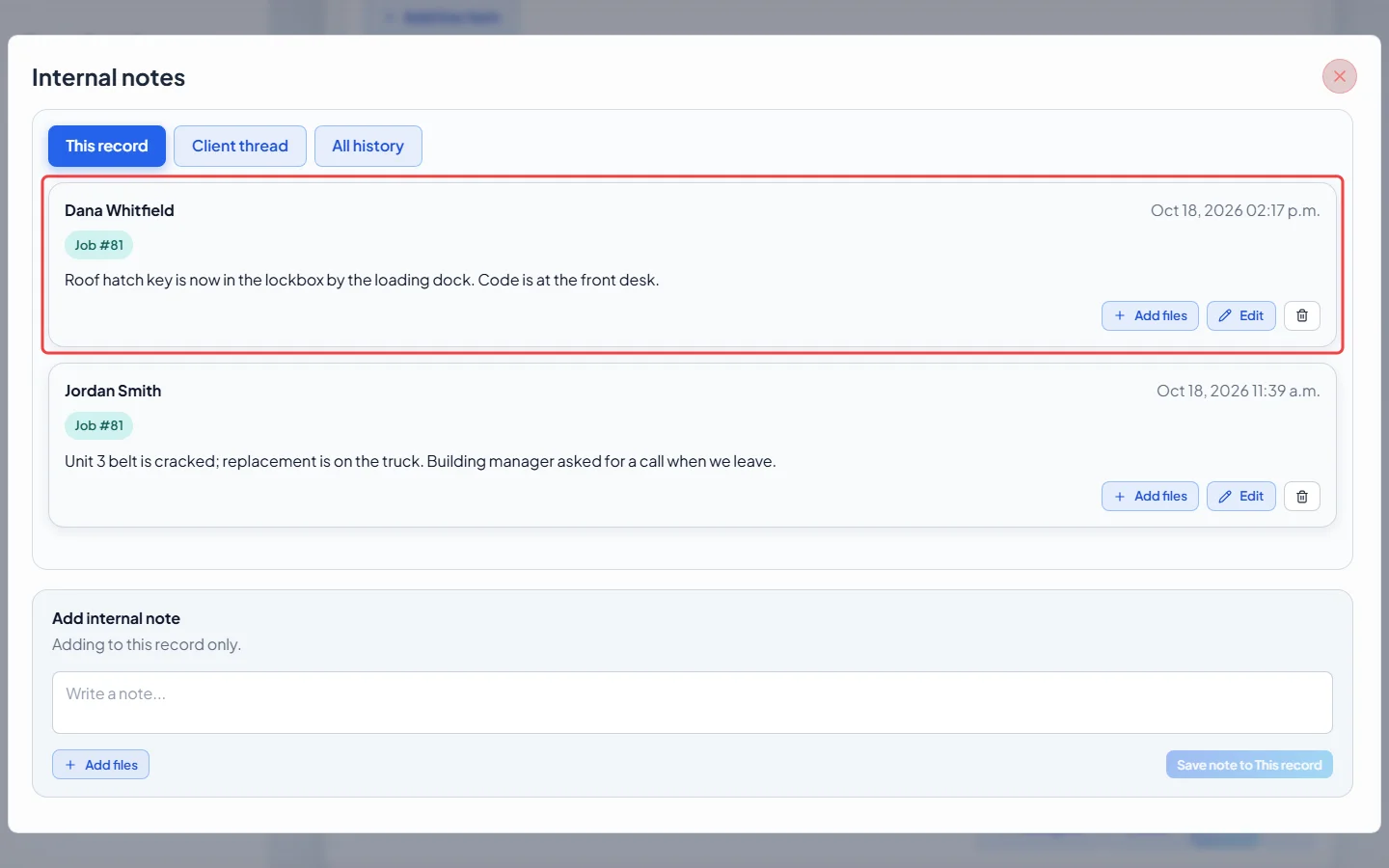
Click the save button. It says “Save note to This record” or “Save note to Client thread”, so you can see where the note goes. The note appears in the list with your name and the time. Use Edit to change the text, Add files to attach more, Delete to remove one file, or the bin to delete the whole note. Deleting a note also deletes its files, including from the client’s Files tab.
-
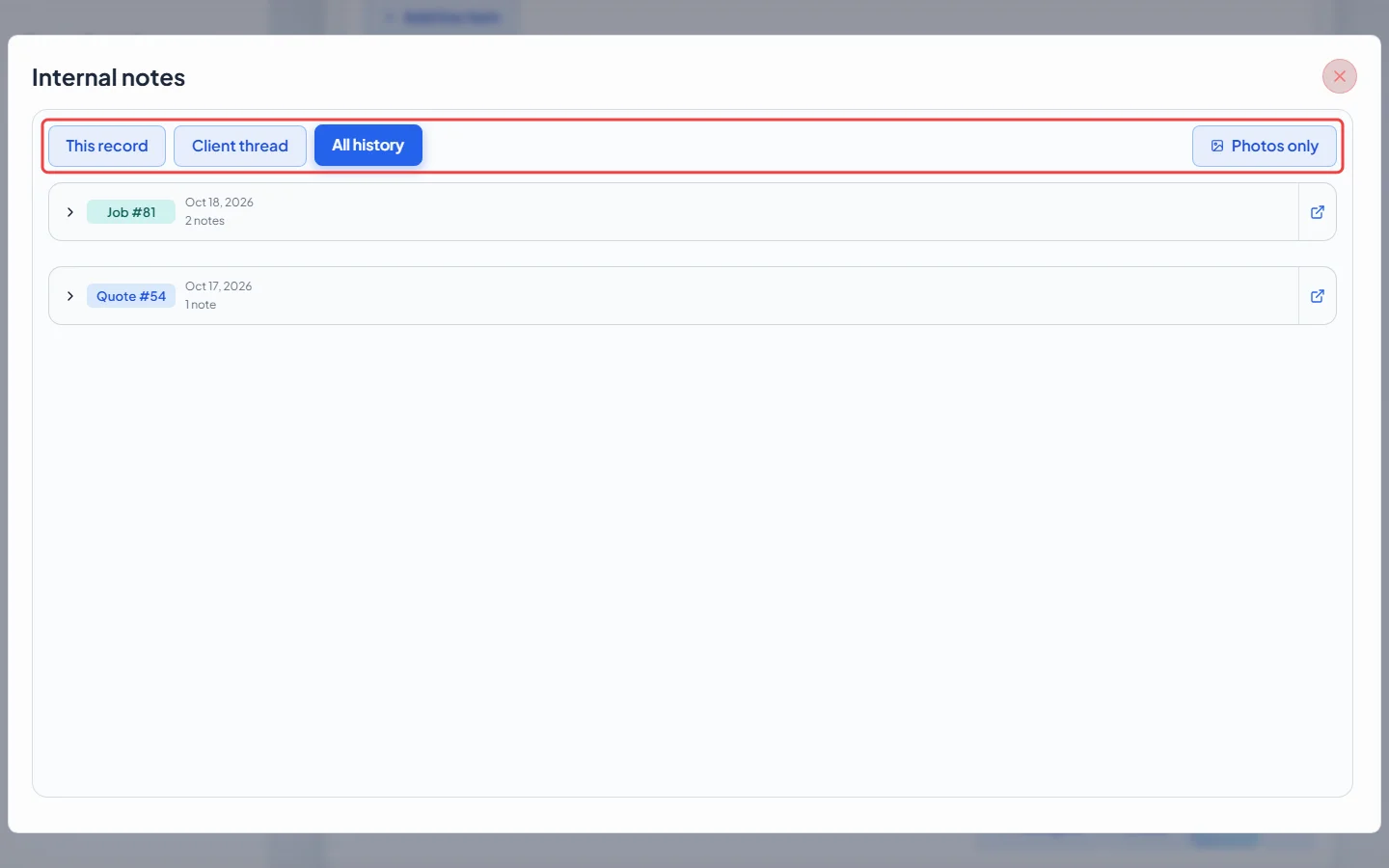
Click All history to read the notes on every request, quote, job, visit and invoice for this client that you’re allowed to open, one group per record with its date and note and photo counts. Client thread notes stay on their own tab. Click a group to open it, or the arrow to go to that record. Photos only shows just the notes with pictures.
Notes on one visit
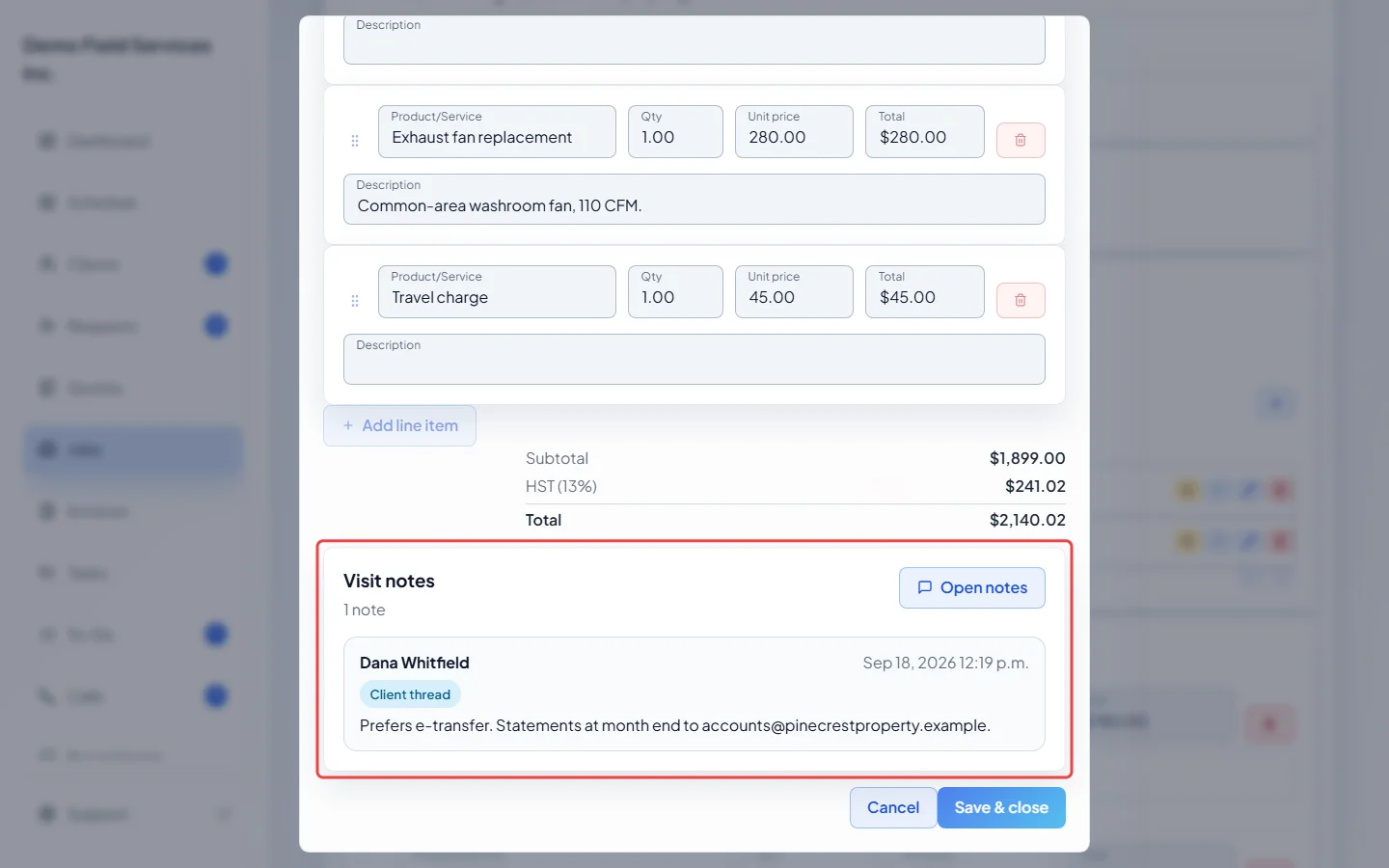
Section titled “Notes on one visit”When a job has two or more visits, each visit has its own Visit notes. Click the pencil next to the visit in the job’s visit list to edit it, scroll down to Visit notes and click Open notes. The box at the bottom is headed Add note for this visit.
Good to know
Section titled “Good to know”- Notes typed on the New job form under This record save with the job when you create it. Notes added to the Client thread there are saved straight away.
- Technicians without Jobs on their menu can open the job from a visit with View full Job.
- Click an attached photo to see it full size. Other files open with Open.
- Files attached to notes also show on the client’s Files tab. See Client files.
- The job’s Job instructions are different from notes. They are copied onto each new visit for the technician, and editing them also updates upcoming visits nobody has changed.
Related articles
Section titled “Related articles”Checked against Astragal on October 18, 2026