

Merging duplicate clients
When the same client ends up on two records, merge them so all their history sits in one place.
Who can do this: Admins and team members set to View, edit, and delete full client and property info.
Also called: de-duplicating, combining clients.
From the duplicate review list
Section titled “From the duplicate review list”Astragal looks for possible duplicates by itself, for example when a new booking matches an existing client closely but not exactly.
-
Open the clients list and click Duplicate review. The number in brackets is how many possible duplicate pairs are waiting (household pairs aren’t counted).
On a computer: Left menu → Clients On a phone: Bottom bar → Clients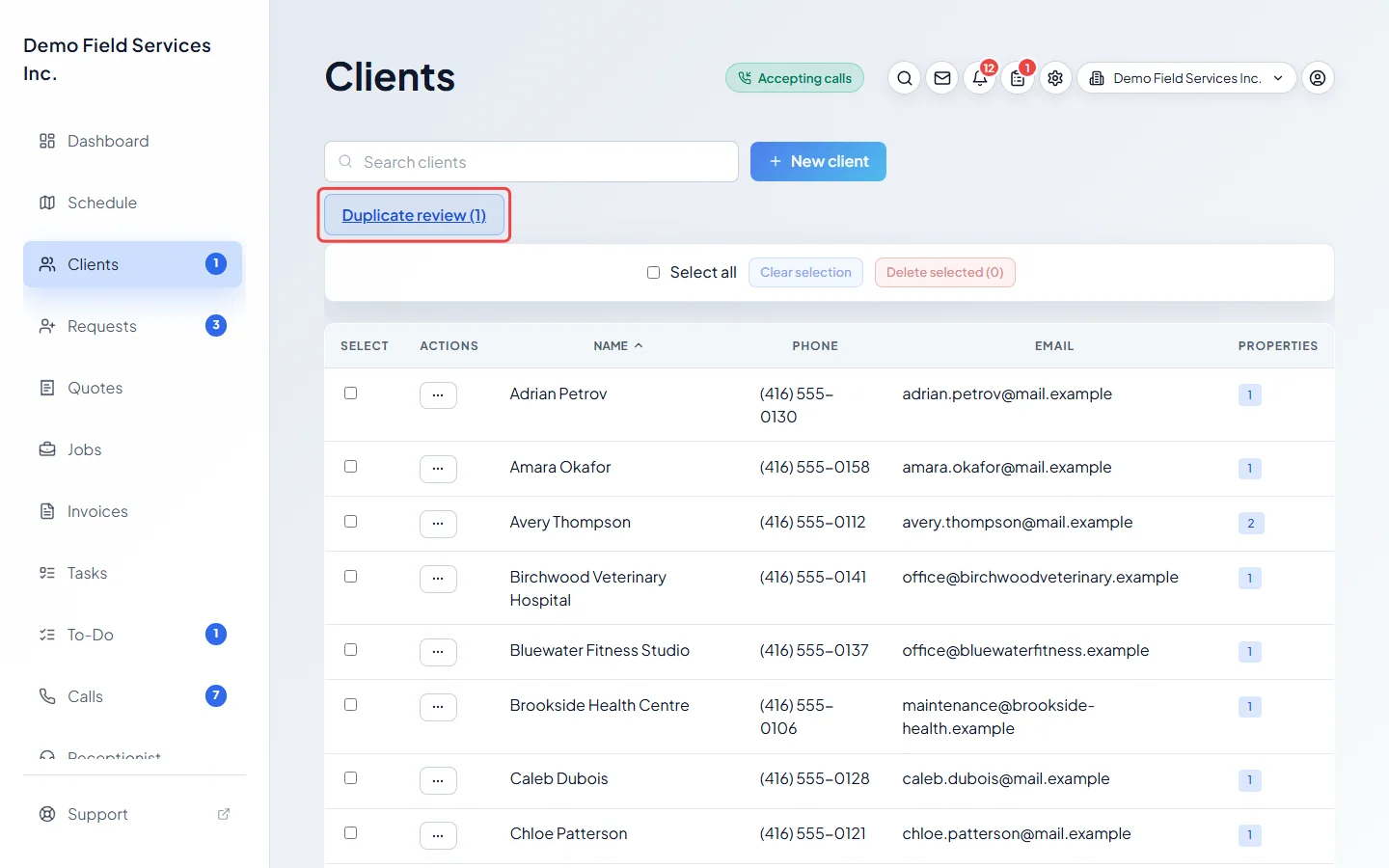
-
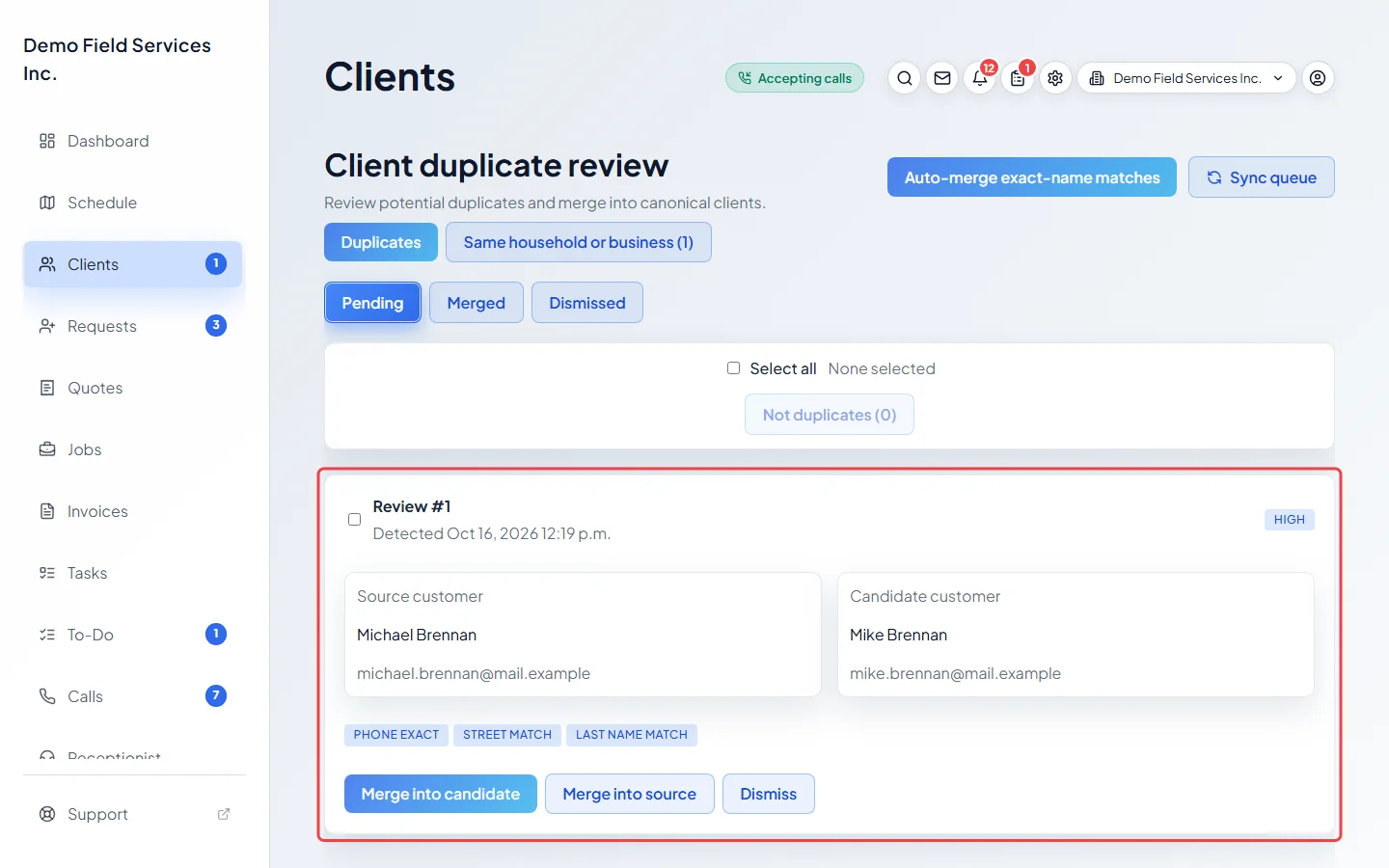
On the Duplicates tab, each pair shows the Source customer and Candidate customer, why they look alike (such as a matching phone or email) and how sure Astragal is: HIGH, MEDIUM or LOW. Click a name to open that client and check.
-
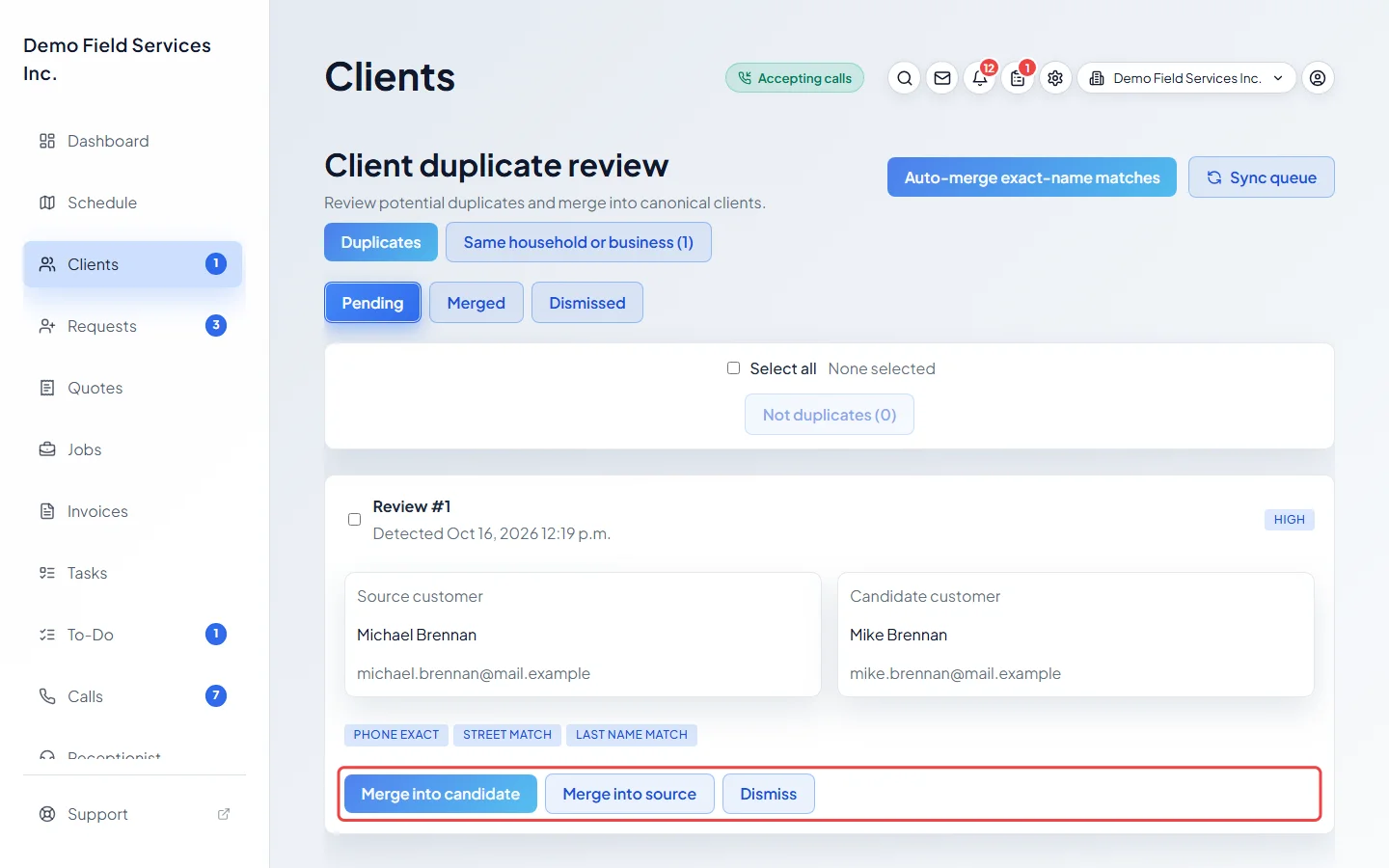
Click Merge into candidate to keep the candidate, or Merge into source to keep the source, and confirm with Merge clients. If they’re different people, click Dismiss and Mark as not duplicates; the pair won’t come back.
-
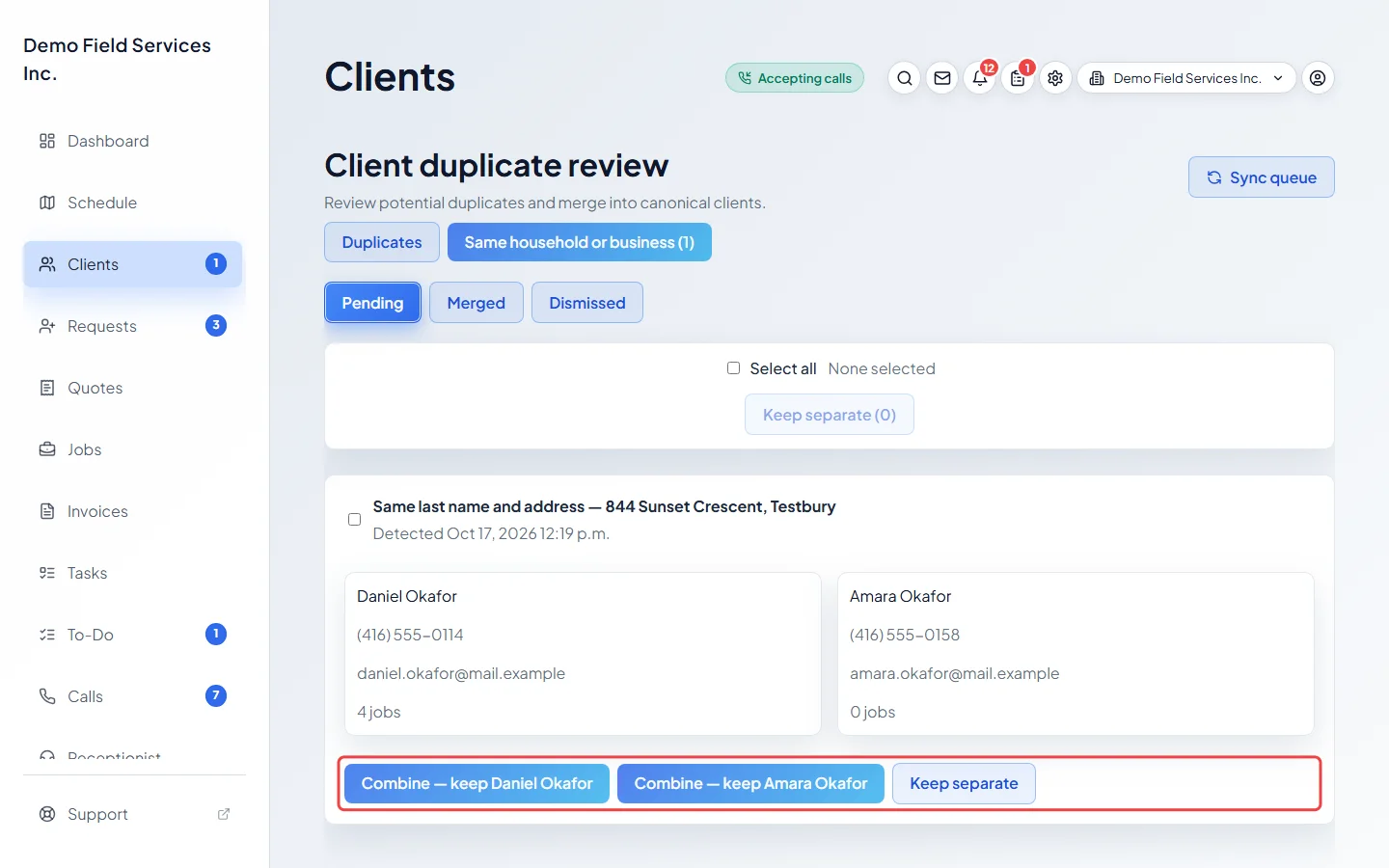
Click Same household or business to see different people who share an address, such as a couple booked separately. Click Combine — keep with the name you want as the main profile (for a business it reads Combine into one account — keep and the name), then confirm with Combine — keep and the name. Or click Keep separate. The other person is added to the kept client’s people on the account.
From the client’s page
Section titled “From the client’s page”-
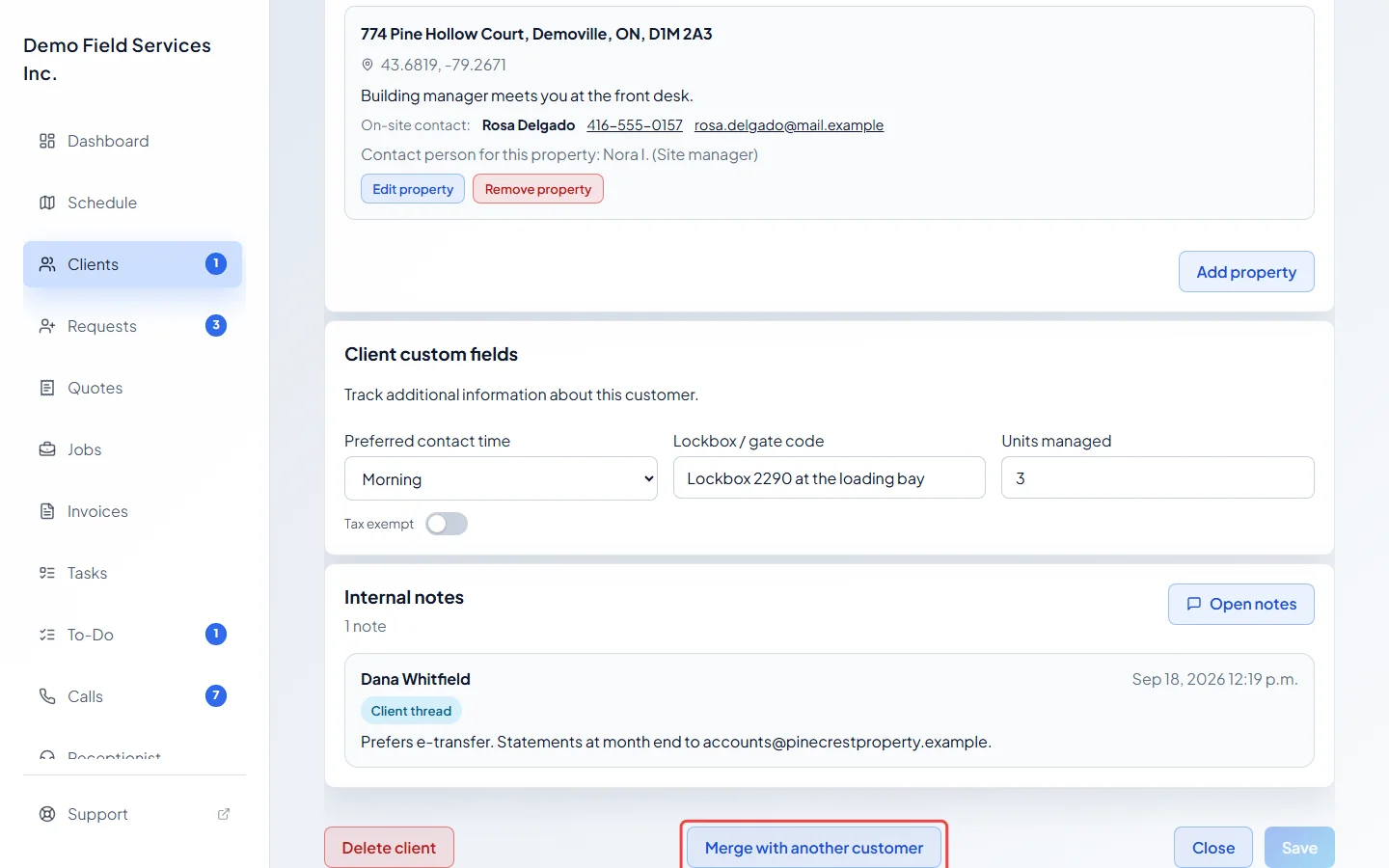
Open one of the two clients and click Merge with another customer at the bottom of the Profile tab. Save or cancel any changes first.
-
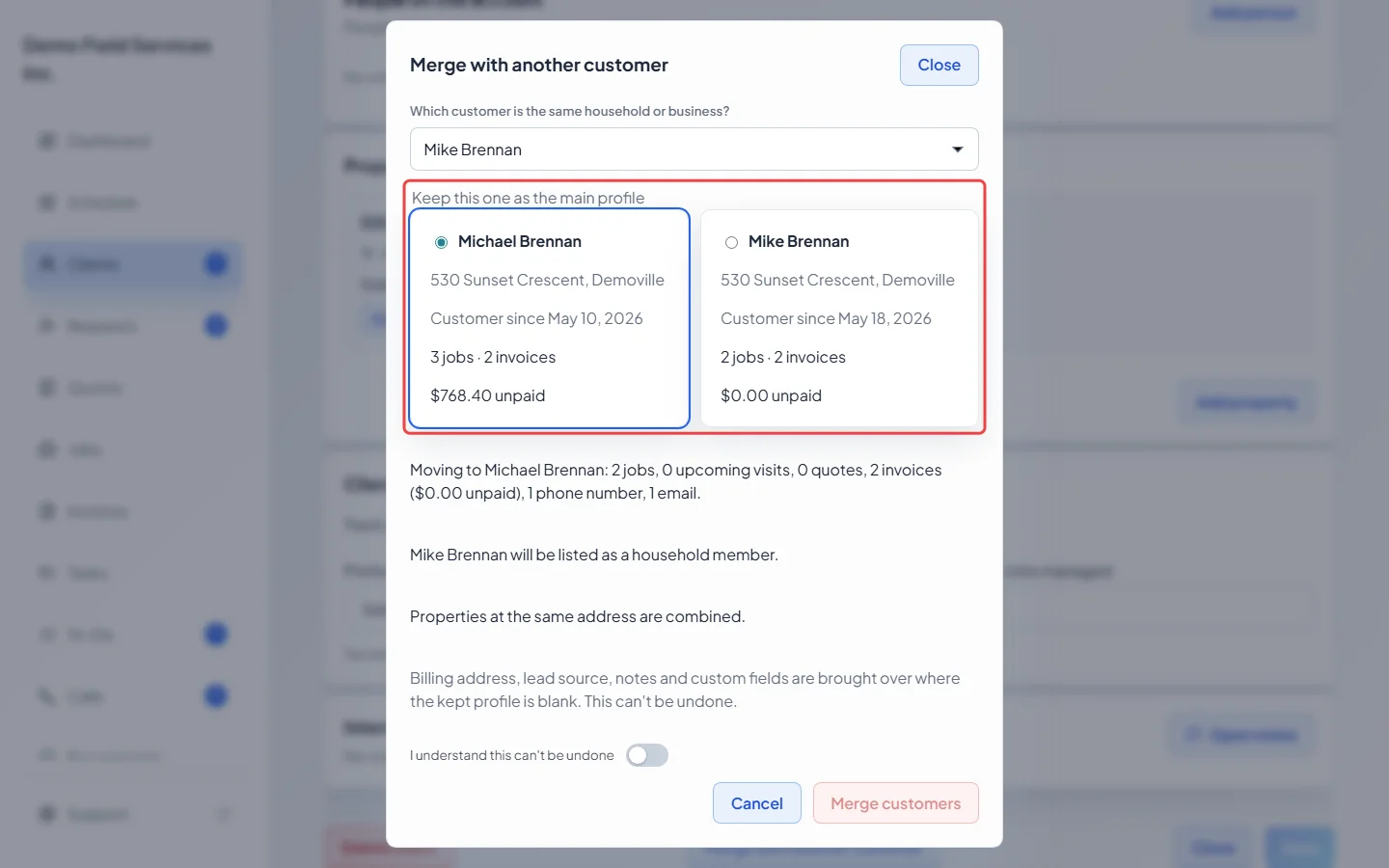
Under Which customer is the same household or business?, search for the other client and pick them. Astragal picks which one to keep under Keep this one as the main profile; click the other one to change it. Archived clients can’t be picked. Each side shows its address, how long they’ve been a customer, their jobs and invoices, and what’s unpaid.
-
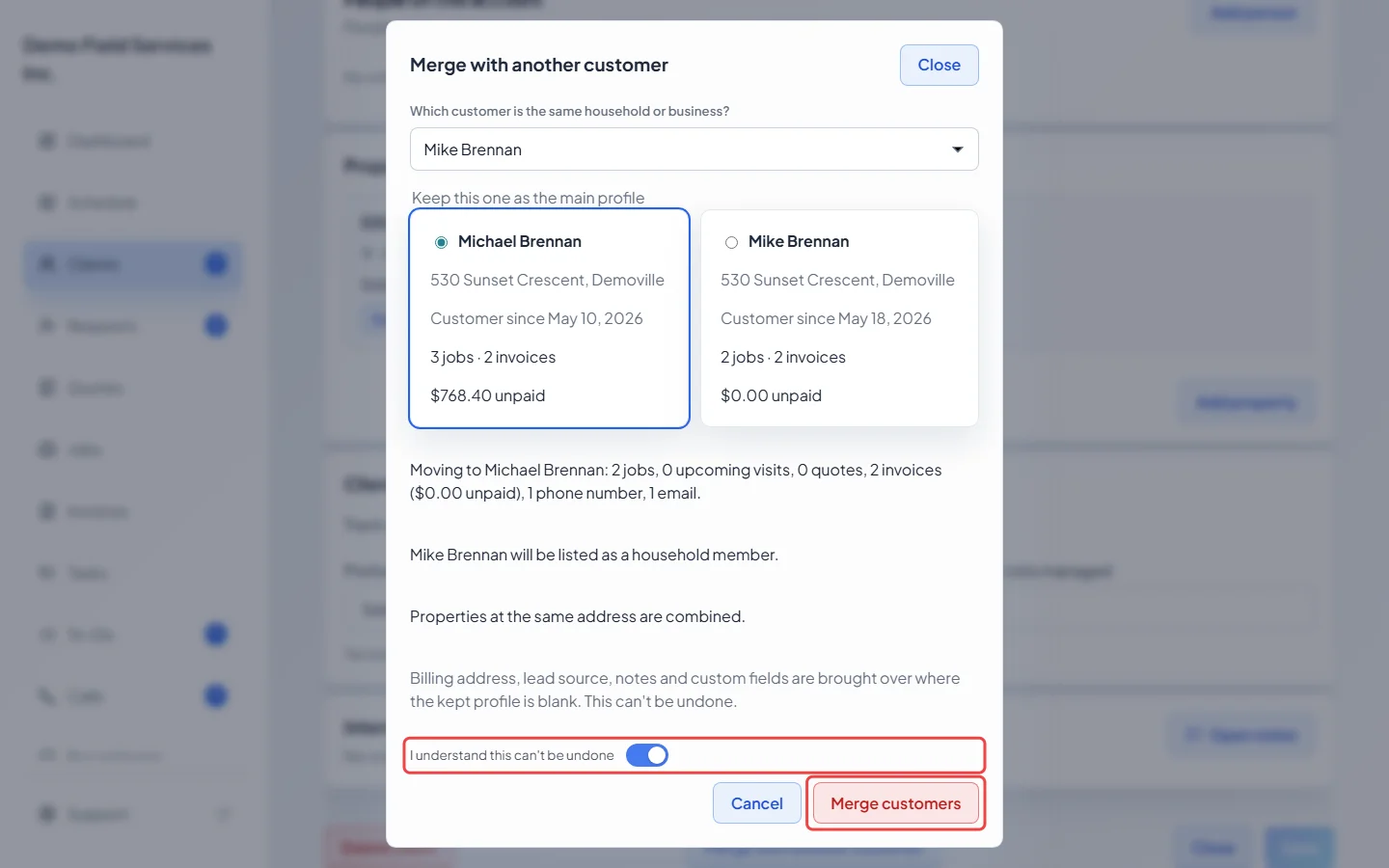
Read the summary of what moves to the kept client: jobs, upcoming visits, quotes, invoices, phone numbers and emails. Turn on I understand this can’t be undone and click Merge customers. You land on the kept client.
What a merge does
Section titled “What a merge does”- All jobs, visits, quotes, invoices, messages, phone numbers, emails and internal notes move to the kept client.
- Saved cards move too, unless the other record is a different person.
- Properties at the same address are combined.
- The billing address, lead source, company name and custom fields come across only where the kept client’s are blank. Any profile notes from the other record are added to the kept client’s under ”— From merged profile” and its name.
- If the names differ, the other name is listed as a person on the kept client’s account.
- The merged-away record is archived. Its page says “Merged into” the kept client, with an Open link.
- A merge can’t be undone.
Good to know
Section titled “Good to know”- Sync queue looks through all your clients for new possible duplicates.
- Auto-merge exact-name matches merges every pair with exactly the same first and last name and at least one shared phone number, email or address, after you confirm.
- Tick several pairs, or Select all, and click Not duplicates (or Keep separate on the household tab) to clear them in one go.
- The Pending, Merged and Dismissed buttons switch between waiting, finished and dismissed pairs. Review again puts a dismissed pair back in the list.
- The list shows at most 100 pairs at a time (“Showing the first 100 of” the total). Clear those to see the rest.
Related articles
Section titled “Related articles”Checked against Astragal on October 17, 2026