

Billing a product-only sale
When a client approves a quote and just collects what they bought, invoice the quote directly instead of making a job.
Who can do this: Team members who can both edit quotes and create invoices: admins, dispatchers and accountants, and anyone given both permissions.
Also called: counter sale, invoicing the balance.
-
Open the quote, click the ••• button at the top right and choose Invoice the balance. It also sits next to Convert to Job at the bottom of the quote.
On a computer: Left menu → Quotes On a phone: More → Quotes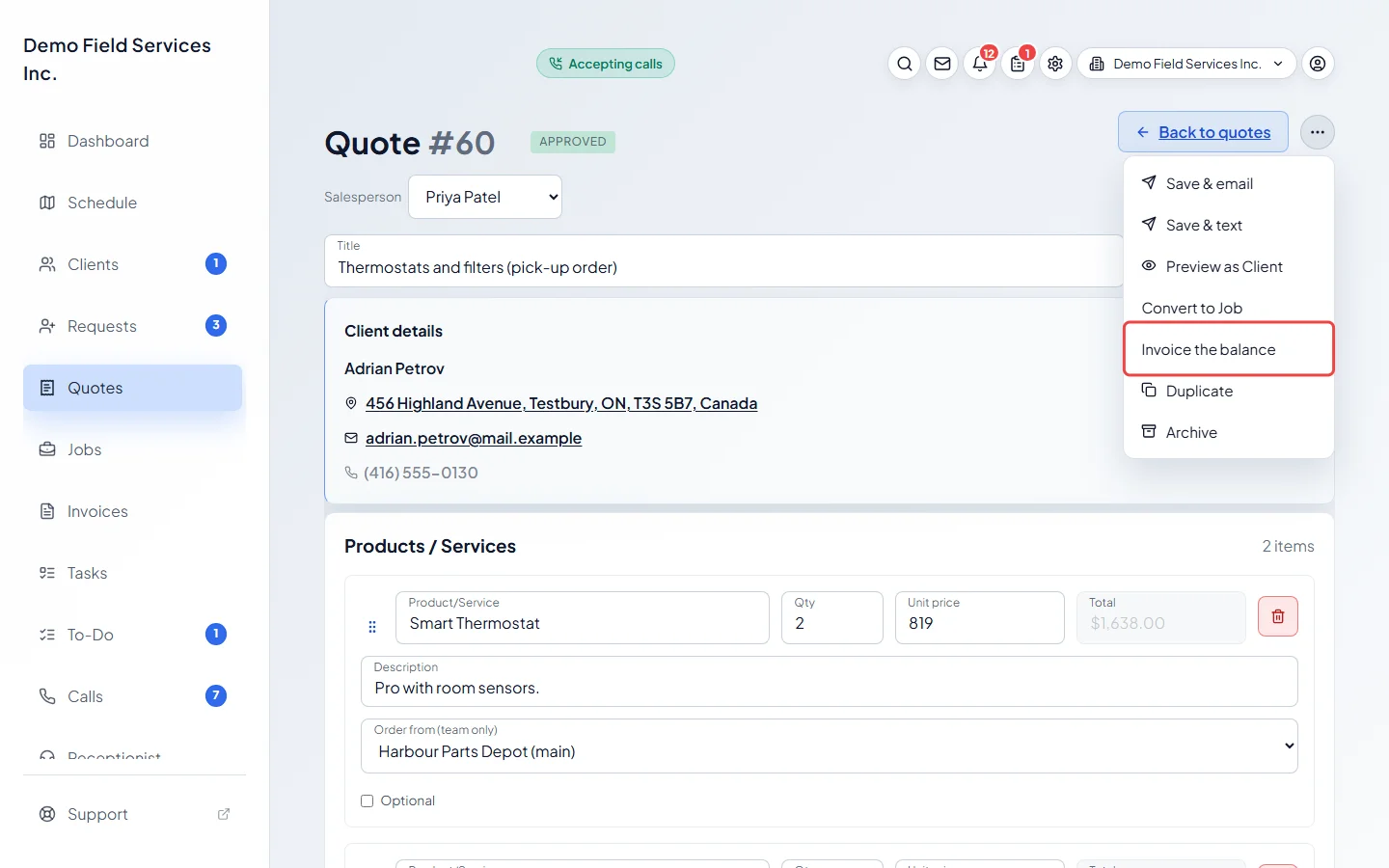
-
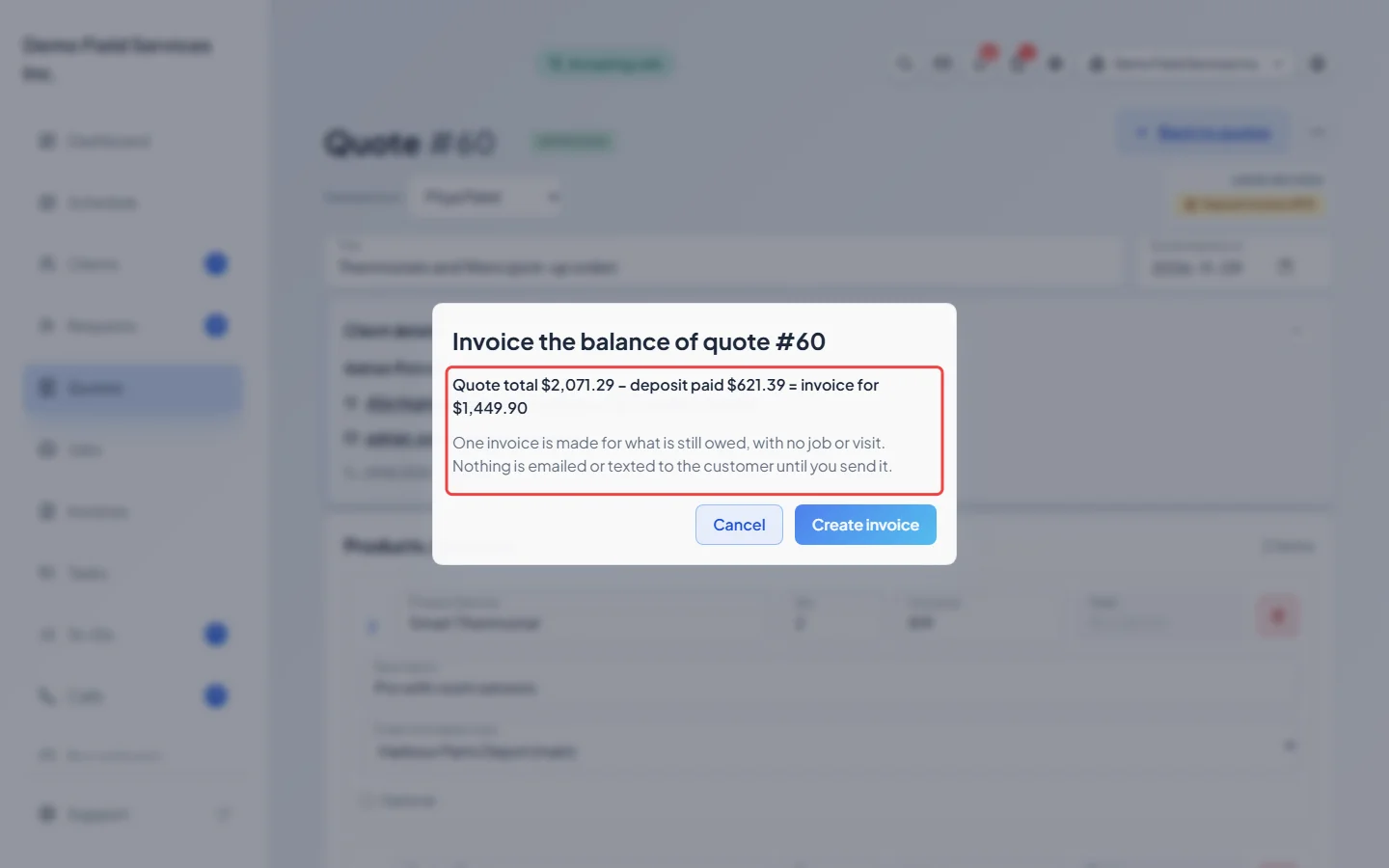
A window shows the sum before anything is made: the quote total, minus the deposit already paid, equals the invoice. Under it you only see the notes that apply to this quote, for example that the quote will also be marked approved, that its payment plan is ignored, or that an unpaid deposit bill will be cancelled.
-
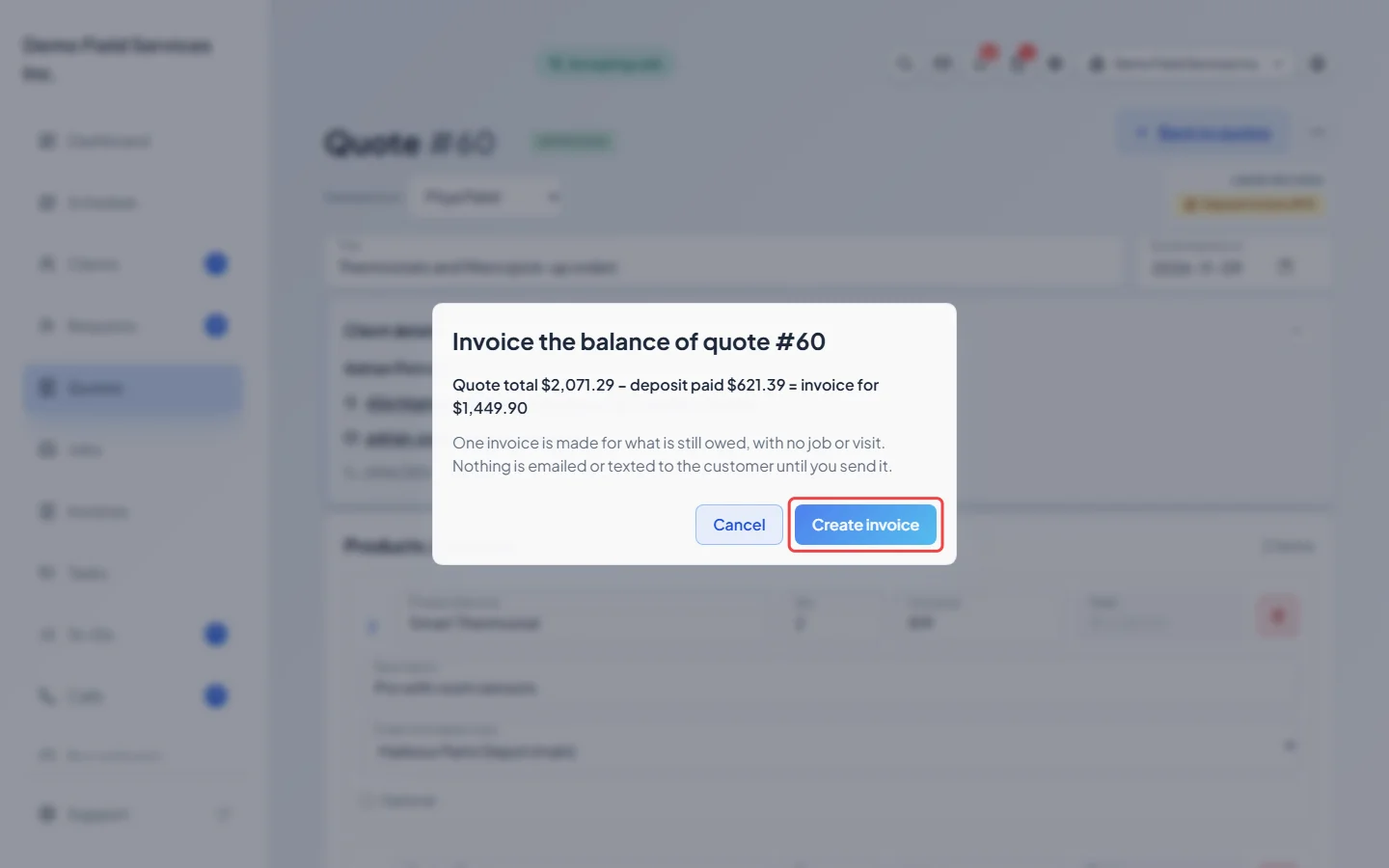
Click Create invoice (it reads Invoice & approve when the quote isn’t approved yet). The invoice opens as a draft, with no job or visit. Nothing goes to the client until you send it.
When the button is greyed out
Section titled “When the button is greyed out”Hover over it, or click it, to see why. It can’t be used when:
- the quote has unsaved changes (save first),
- the quote is archived or was declined,
- the quote is already a job (invoice it from the job instead),
- the quote has already been invoiced,
- no lines on the quote are selected.
After you invoice
Section titled “After you invoice”- The quote shows a banner linking to its invoice and saying whether it is a draft, sent or paid. In the quotes list, choose Invoiced in the status filter to find these quotes.
- The quote is locked like a converted quote: its lines, prices, deposit and message to the client can’t be changed, and it can’t be sent or converted to a job.
- The invoice’s lines can’t be edited either. To change something, cancel the invoice (delete it if it was never sent, void it if it was), change the quote, and invoice the balance again. See Voiding or deleting an invoice.
- If you’ve taken a payment on the invoice, refund or delete that payment before cancelling; only money moved over from the quote goes back by itself. Cancelling puts the quote back as it was. The confirmation tells you exactly what happens to the quote and its deposit before you go ahead. A cancelled invoice made this way can’t be restored; make a new one from the quote.
- If the client is collecting right now, take their payment on the new invoice and send them the receipt. See Recording payments.
Good to know
Section titled “Good to know”- On older quotes, money recorded on the quote itself (not on a deposit bill) is moved onto the new invoice as a payment. The window tells you how much. The client can then see the invoice in their portal straight away.
- If more deposit was collected than the quote is now worth, the window says so: refund the difference from the deposit bill. See Refunding a payment.
Related articles
Section titled “Related articles”Next step: Sending an invoice to a client
Checked against Astragal on October 17, 2026