

Assigning technicians
Put the right people on each visit so it shows on their schedule and phone.
Who can do this: Admins, dispatchers and accountants. Technicians need a Jobs permission of View, edit, and create or higher. They can pick the team on a new job (their own name stays ticked unless their schedule permission is Edit everyone’s schedule or higher), but only Edit and delete everyone’s schedule can change who is on an existing visit or choose Customer calls go to.
Also called: dispatching, crew.
On a new job
Section titled “On a new job”-
Click New job. In the Initial Visit section, find Team next to the dates and tick everyone going. You can tick more than one person.
On a computer: Left menu → Jobs On a phone: More → Jobs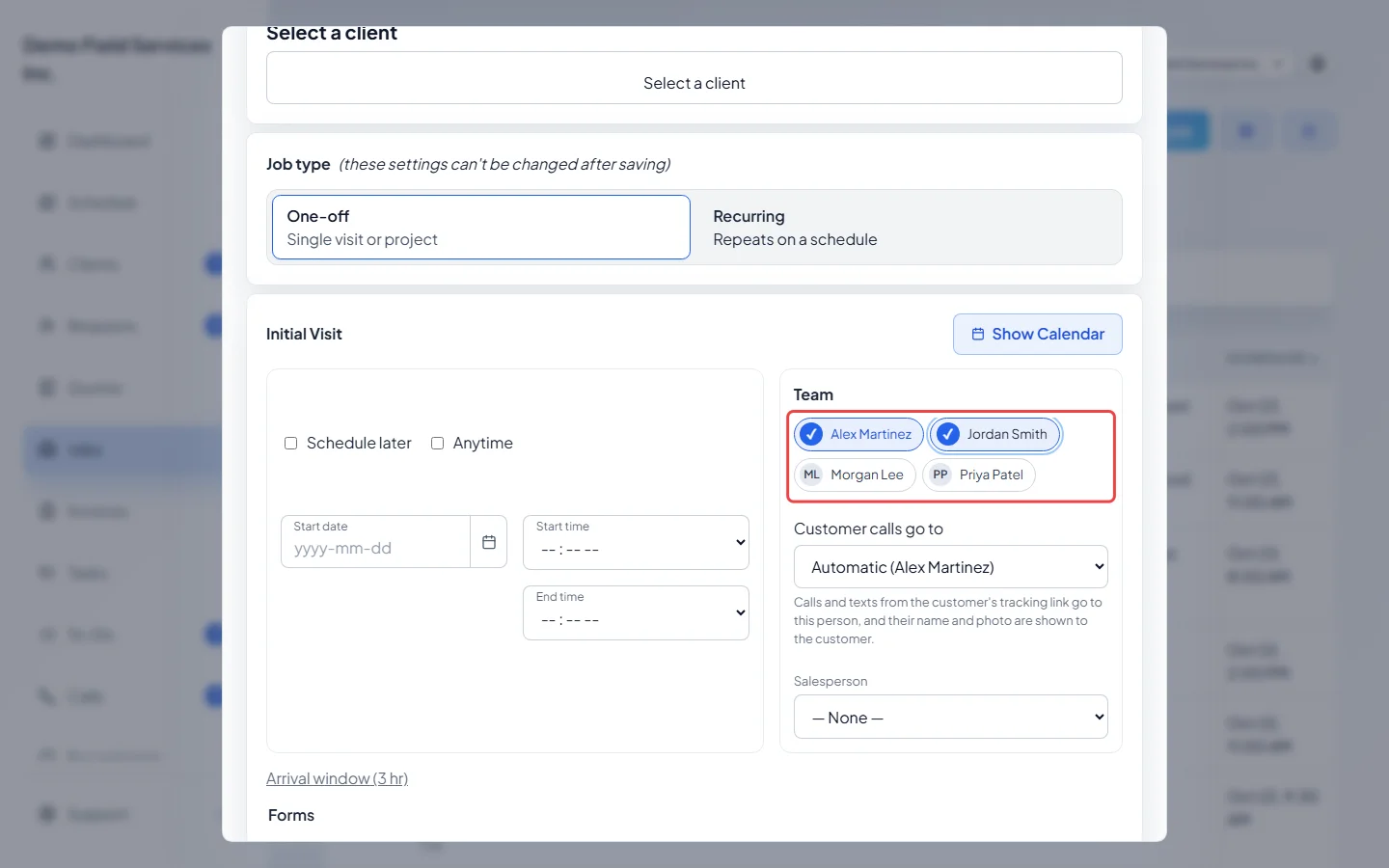
-
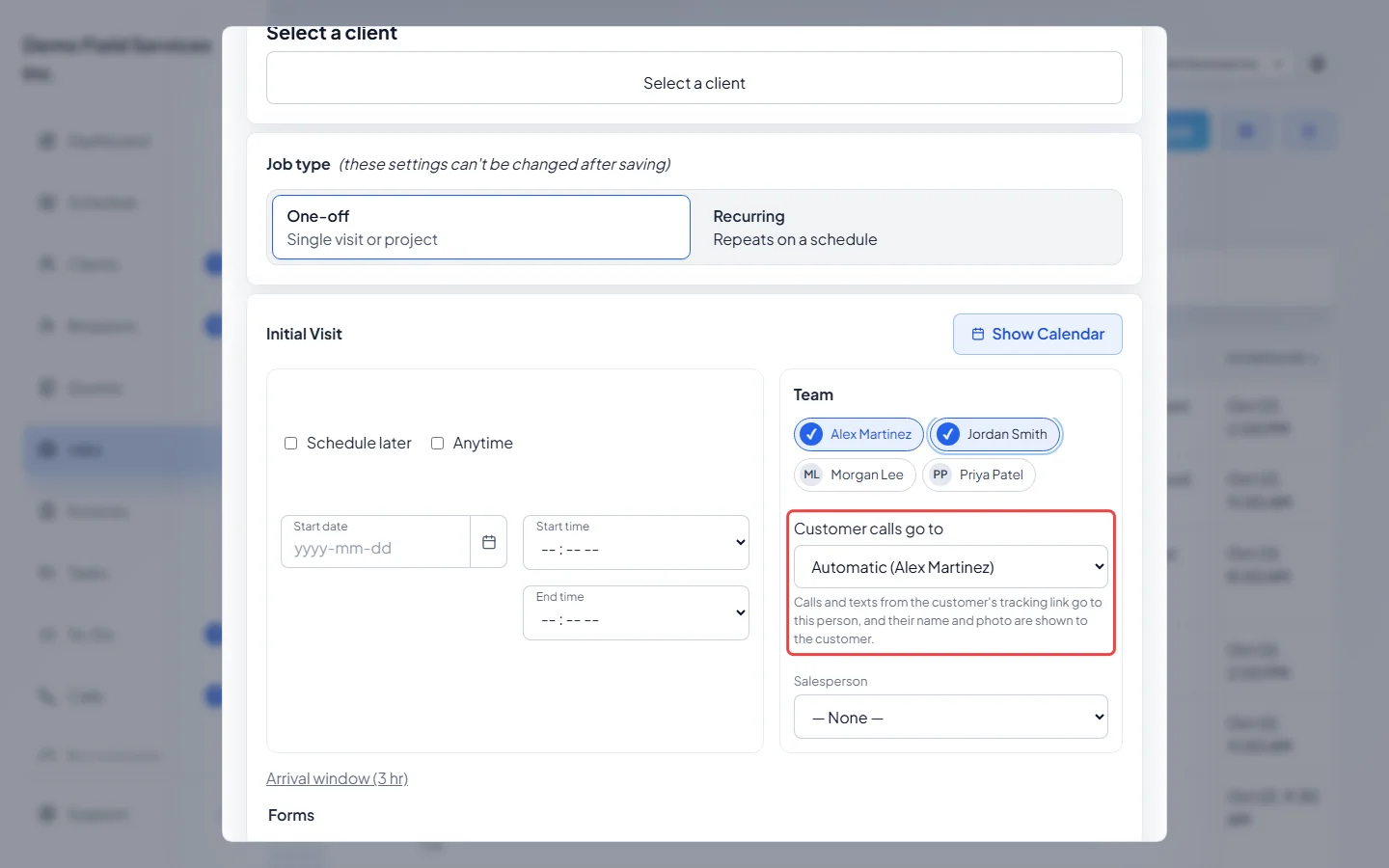
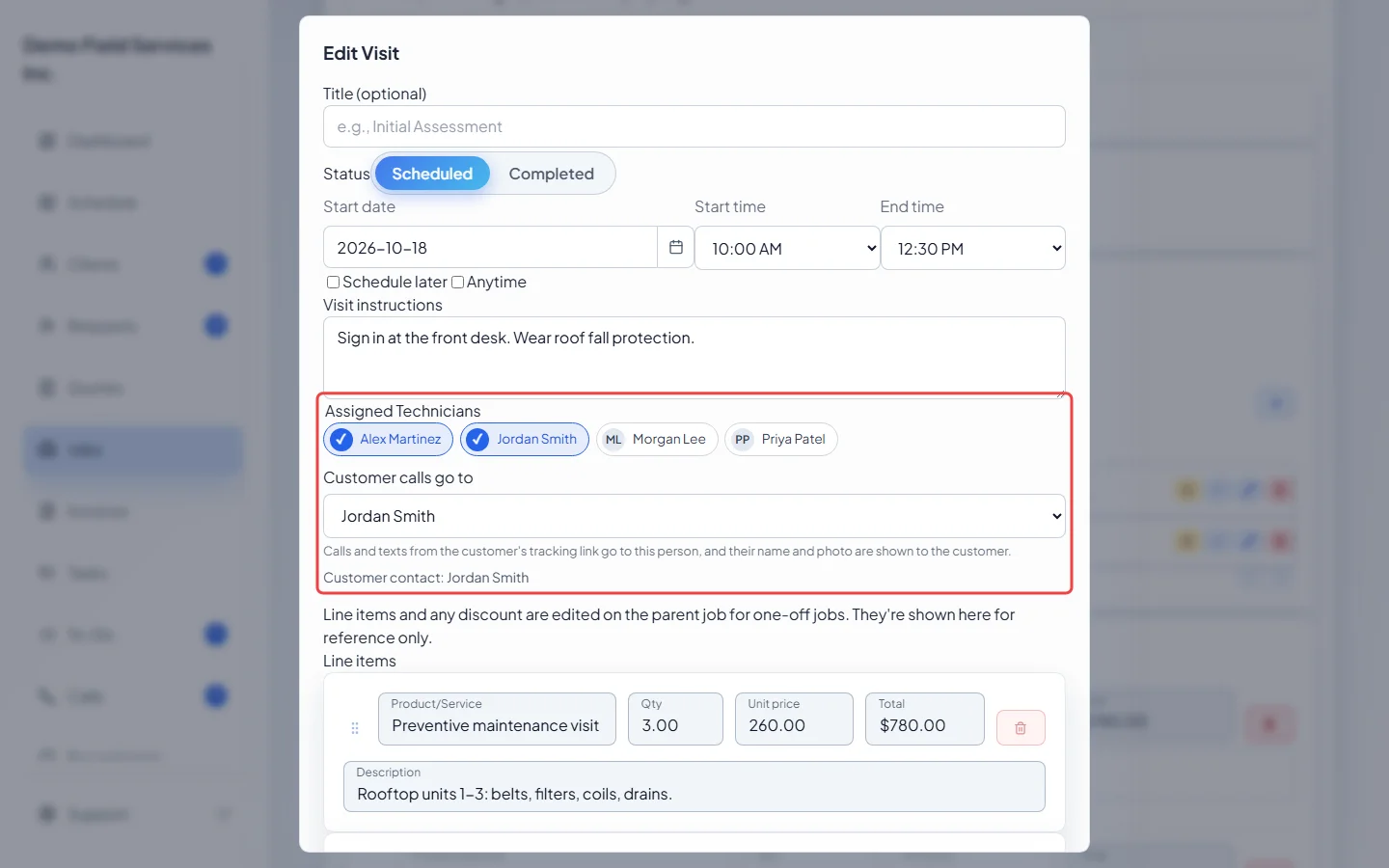
With two or more people ticked and a date chosen, Customer calls go to appears. The person picked gets the client’s calls and texts from their tracking link, and their name and photo are shown to the client. Leave it on Automatic (it shows who that is right now) or pick one person. People with no phone or login are greyed out.
-
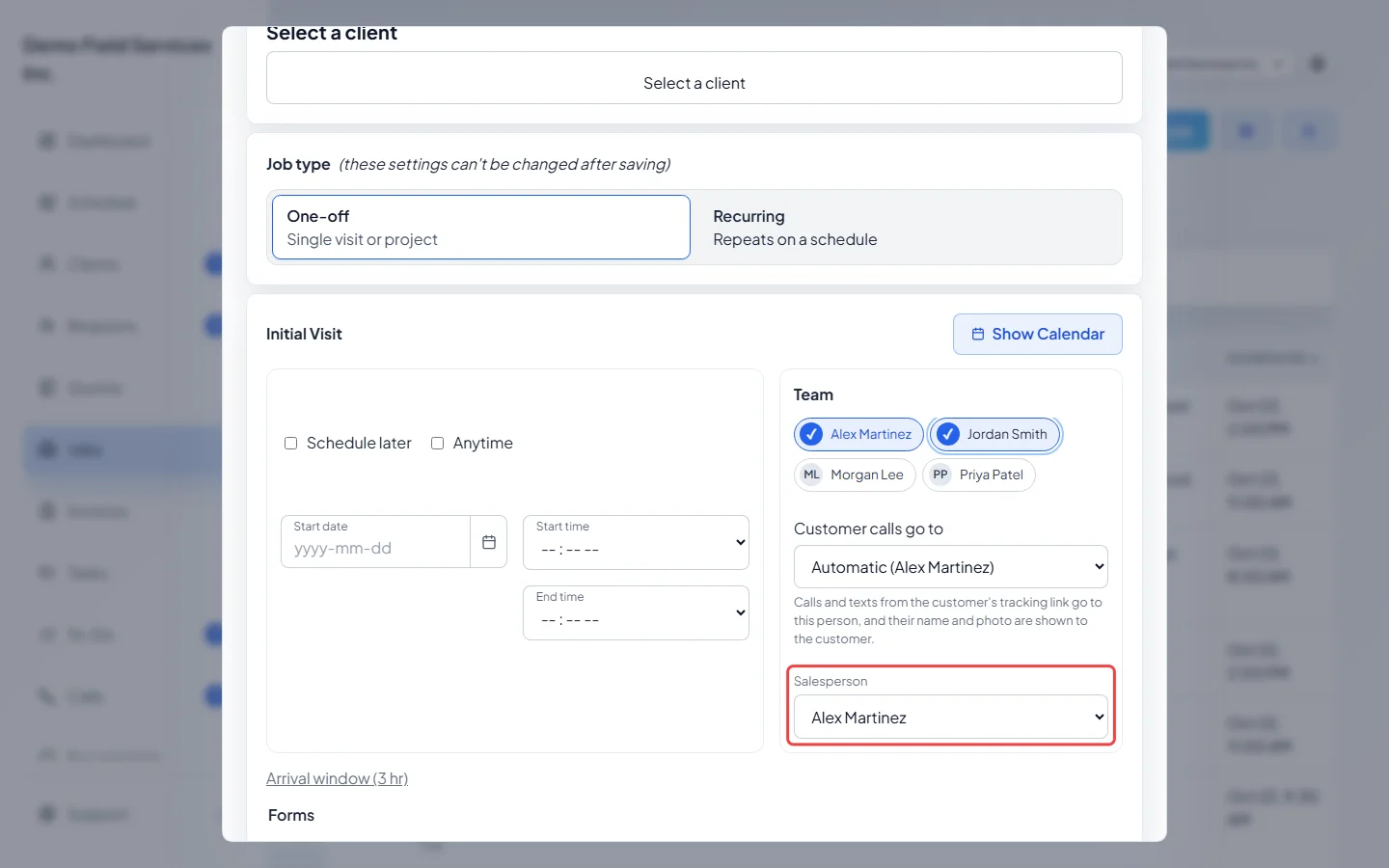
Pick the Salesperson who sold the job, if you track sales by person. It feeds the salesperson report.
On an existing job
Section titled “On an existing job”Once a job is saved, people are assigned per visit.
-
Open the job, find the visit in the Visits list (Scheduled visits on a recurring job) and click the pencil (Edit visit).
On a computer: Left menu → Jobs On a phone: More → Jobs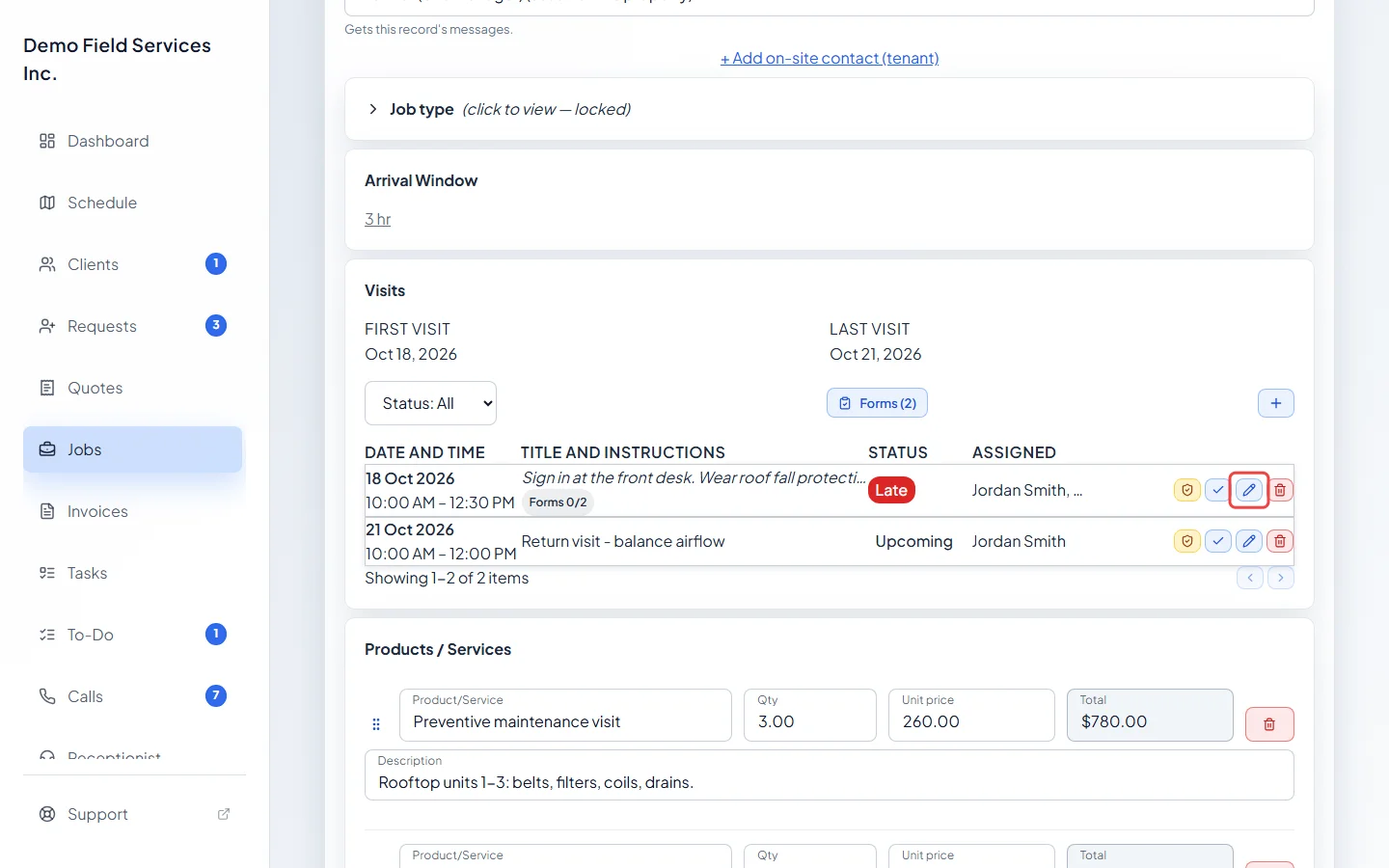
-
Under Assigned Technicians, tick or untick people, then click Save & close. On a recurring job, tick Apply changes to all future visits in this series to make the same change on later visits. Visits already invoiced are never changed.
Good to know
Section titled “Good to know”- Saving with nobody ticked asks you to confirm (for example No team member is assigned to this visit. Save anyway?). Unassigned visits show in their own colour on the schedule.
- You can also change who’s on a visit from the schedule: click the visit, then change Assigned Technicians in the window that opens.
- Without permission to change people, the list is greyed out and says You do not have permission to change visit assignees. The job window says You do not have permission to change job assignees.
Related articles
Section titled “Related articles”Checked against Astragal on October 18, 2026